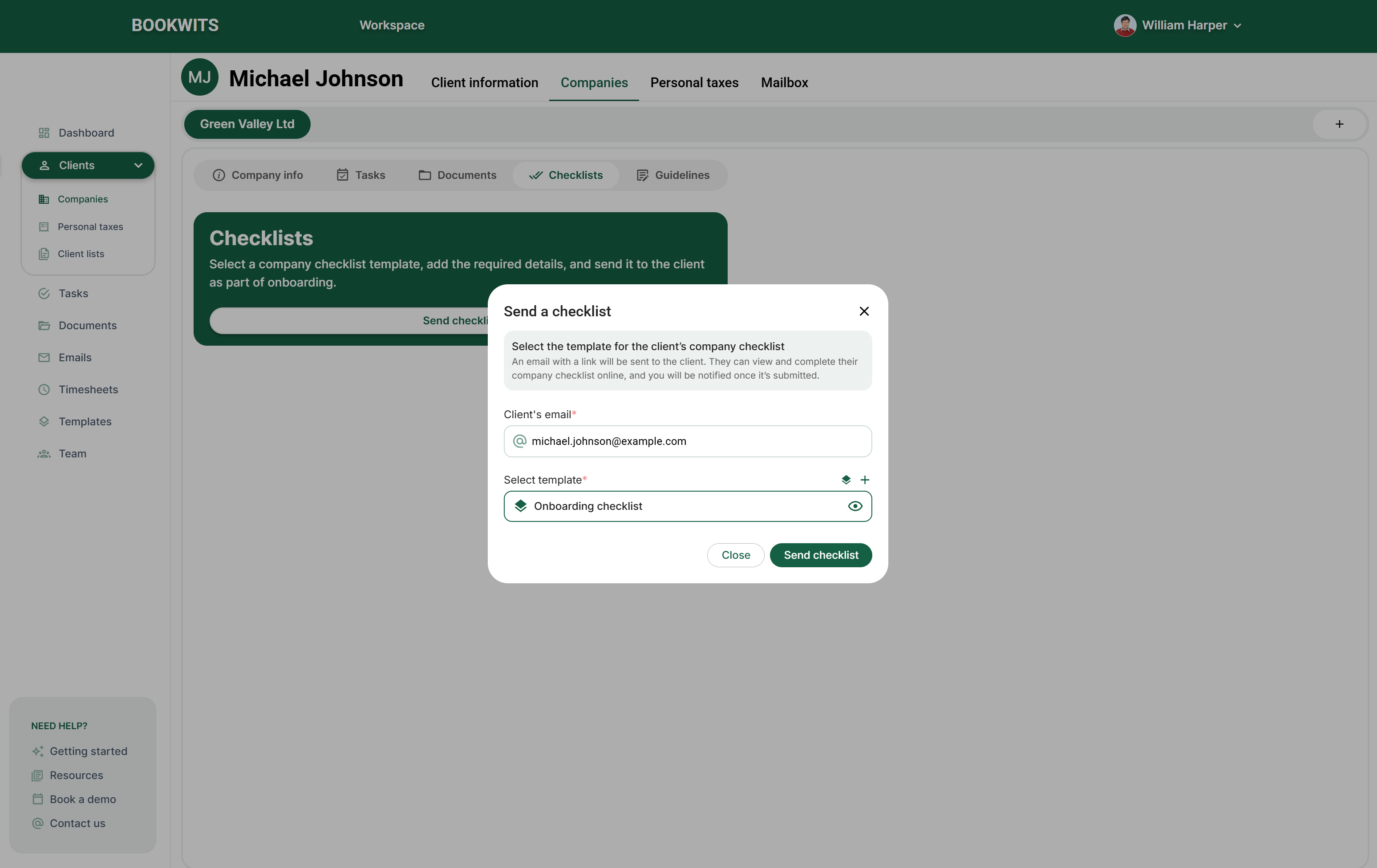
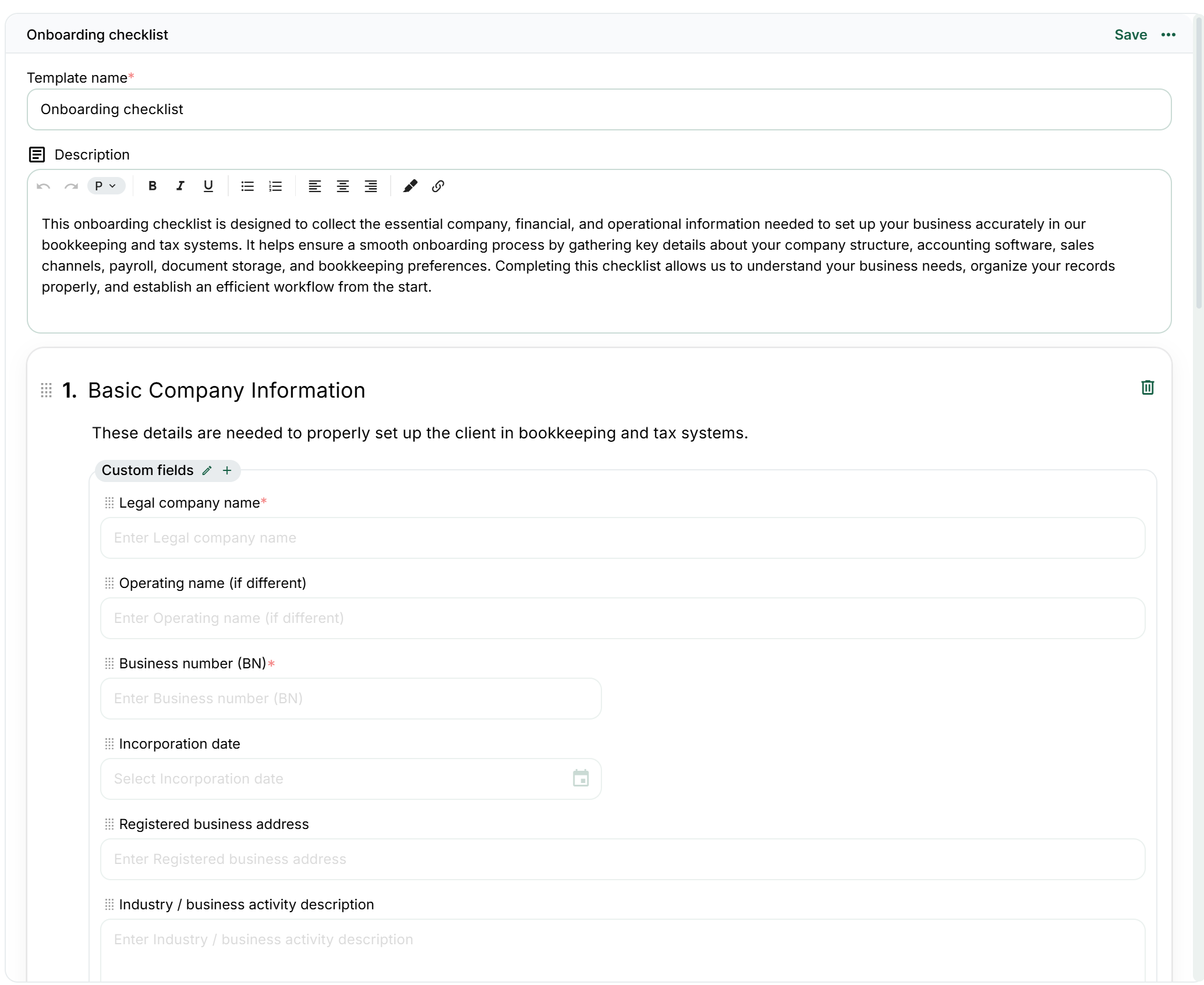
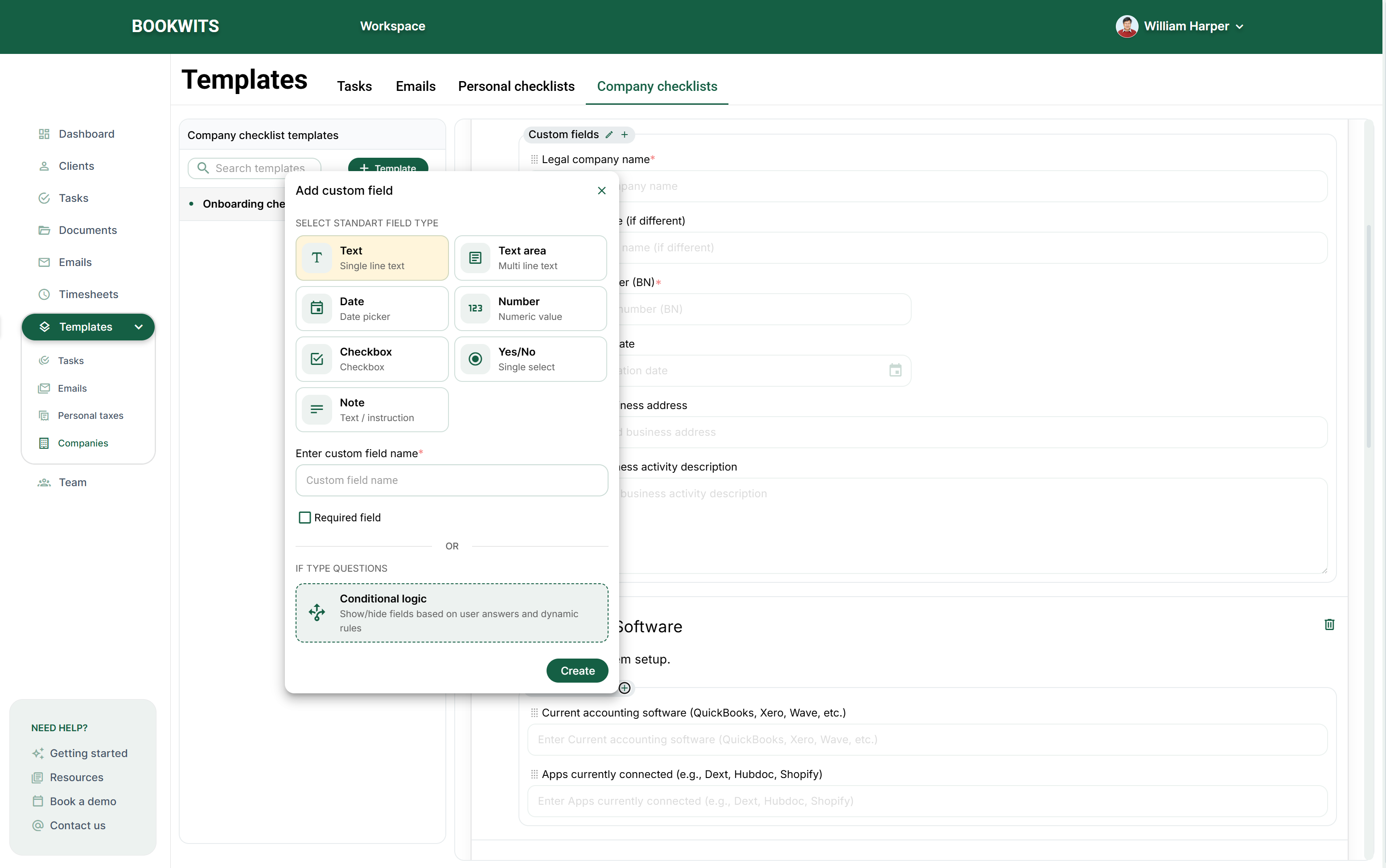
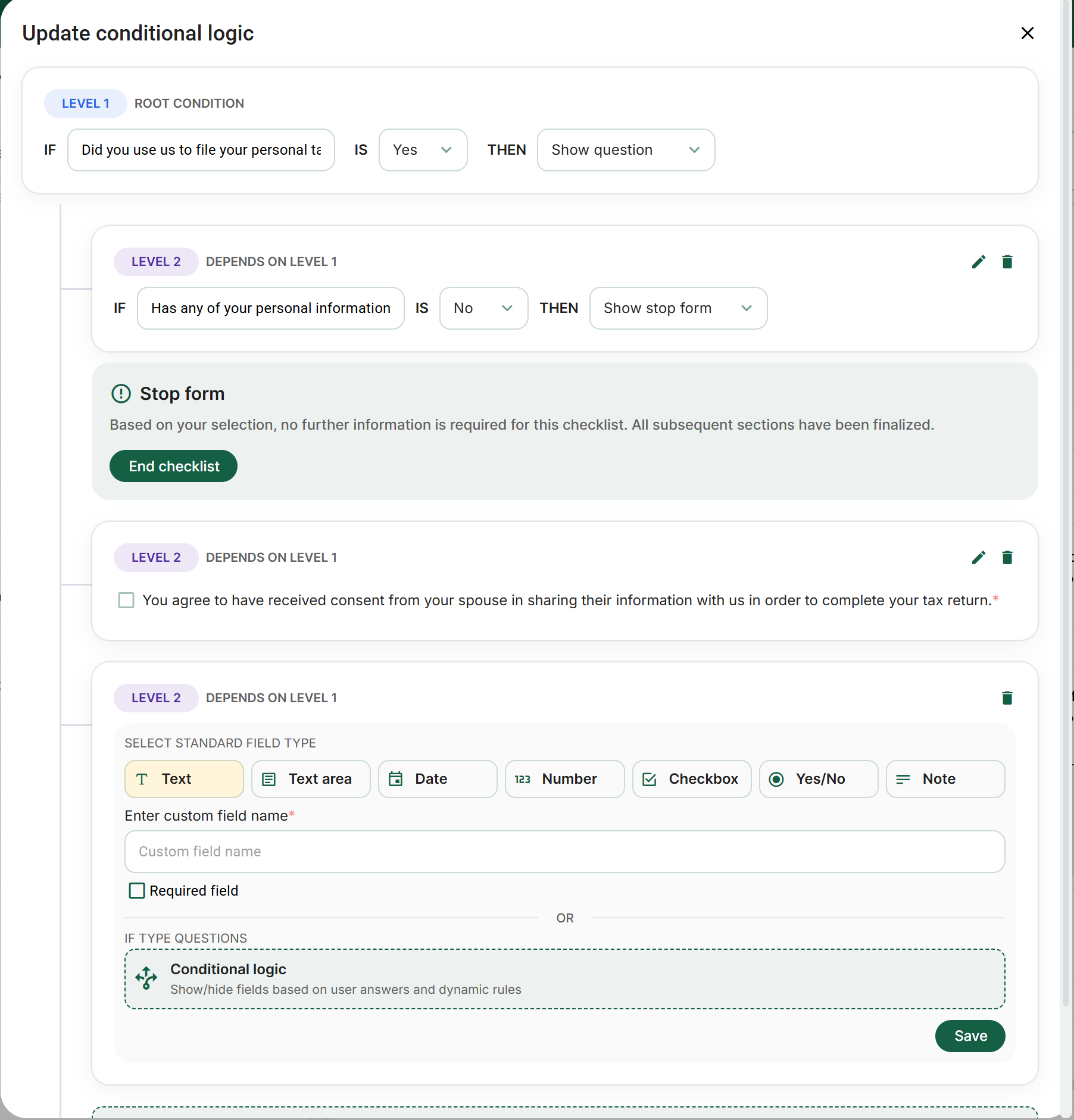
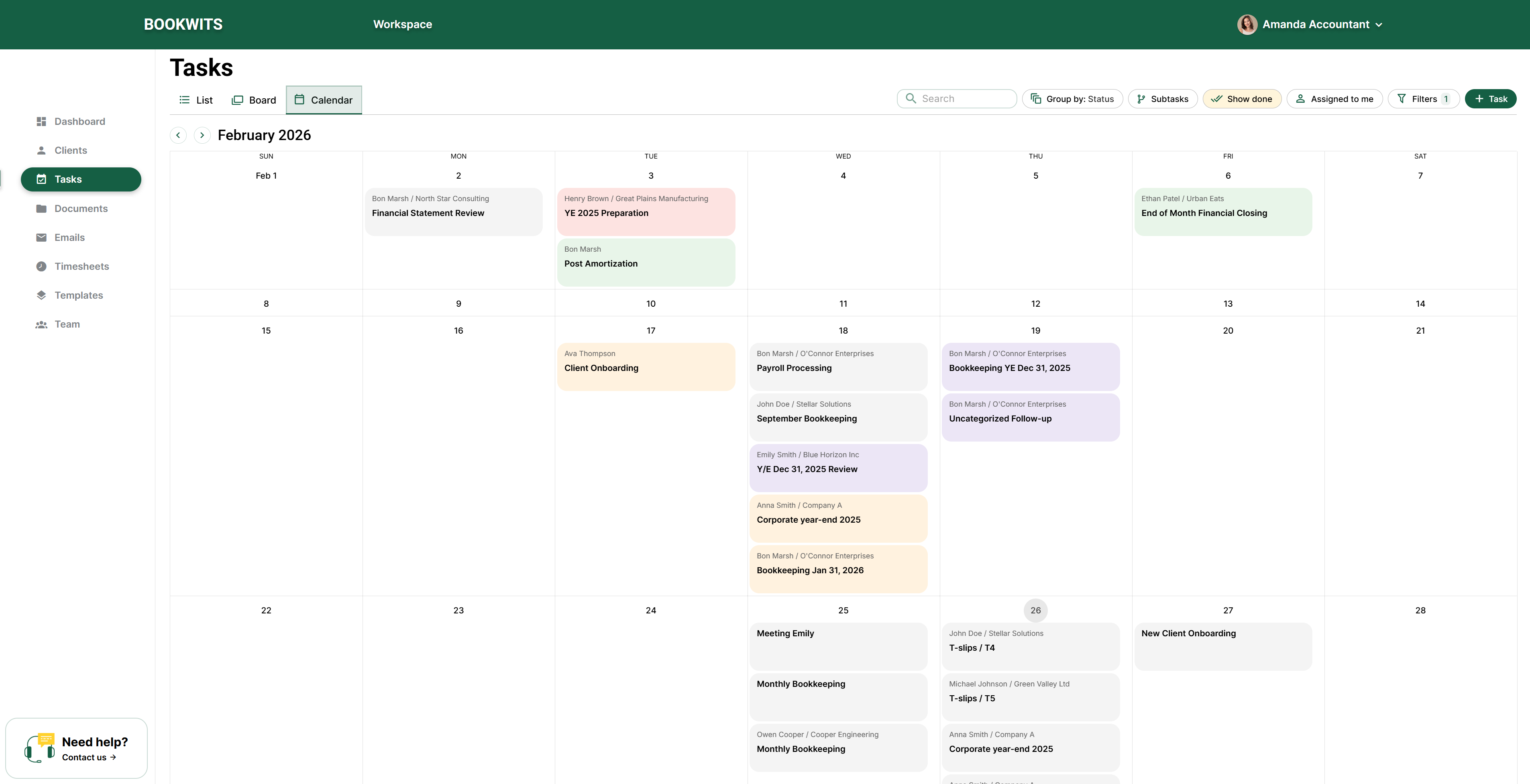
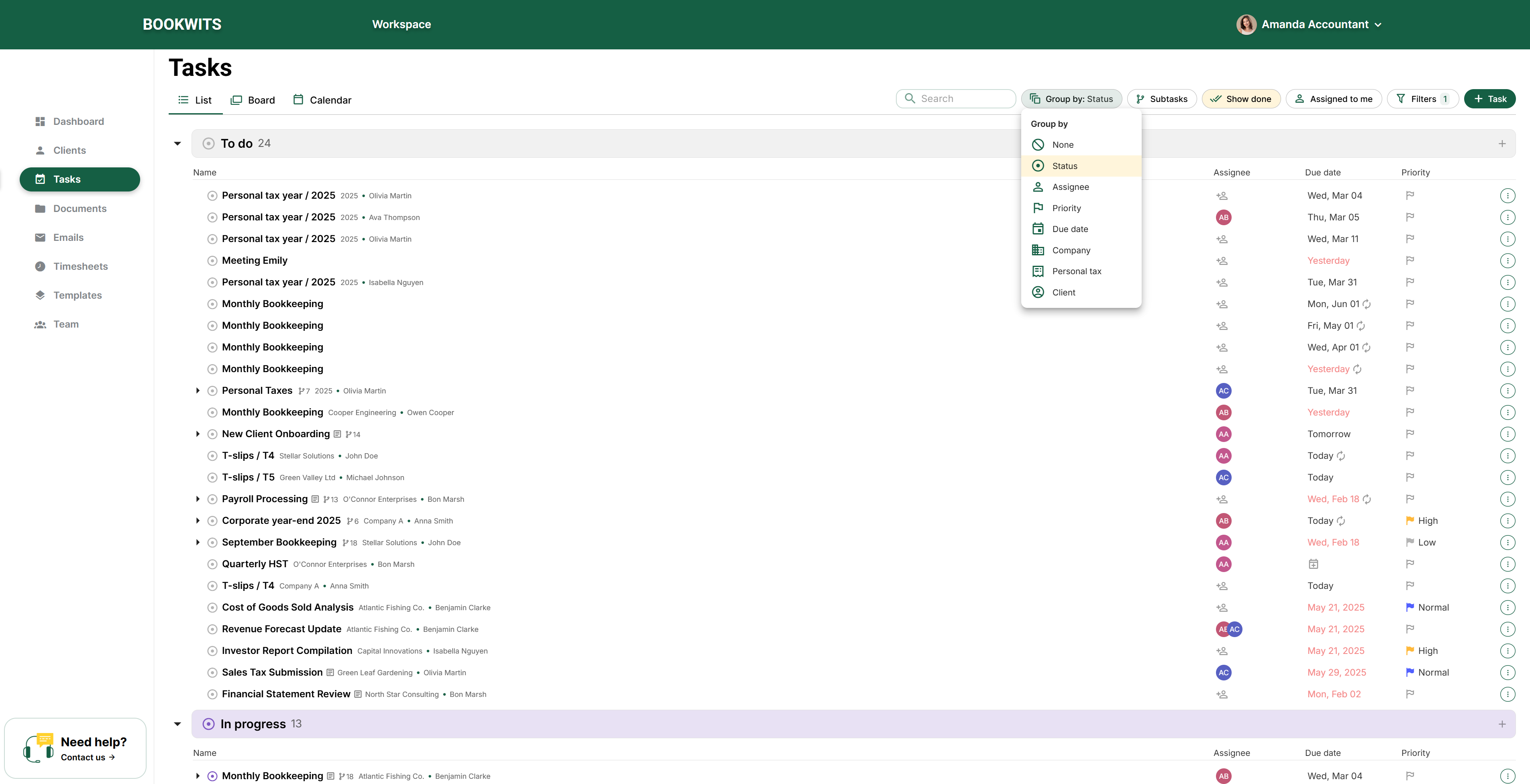
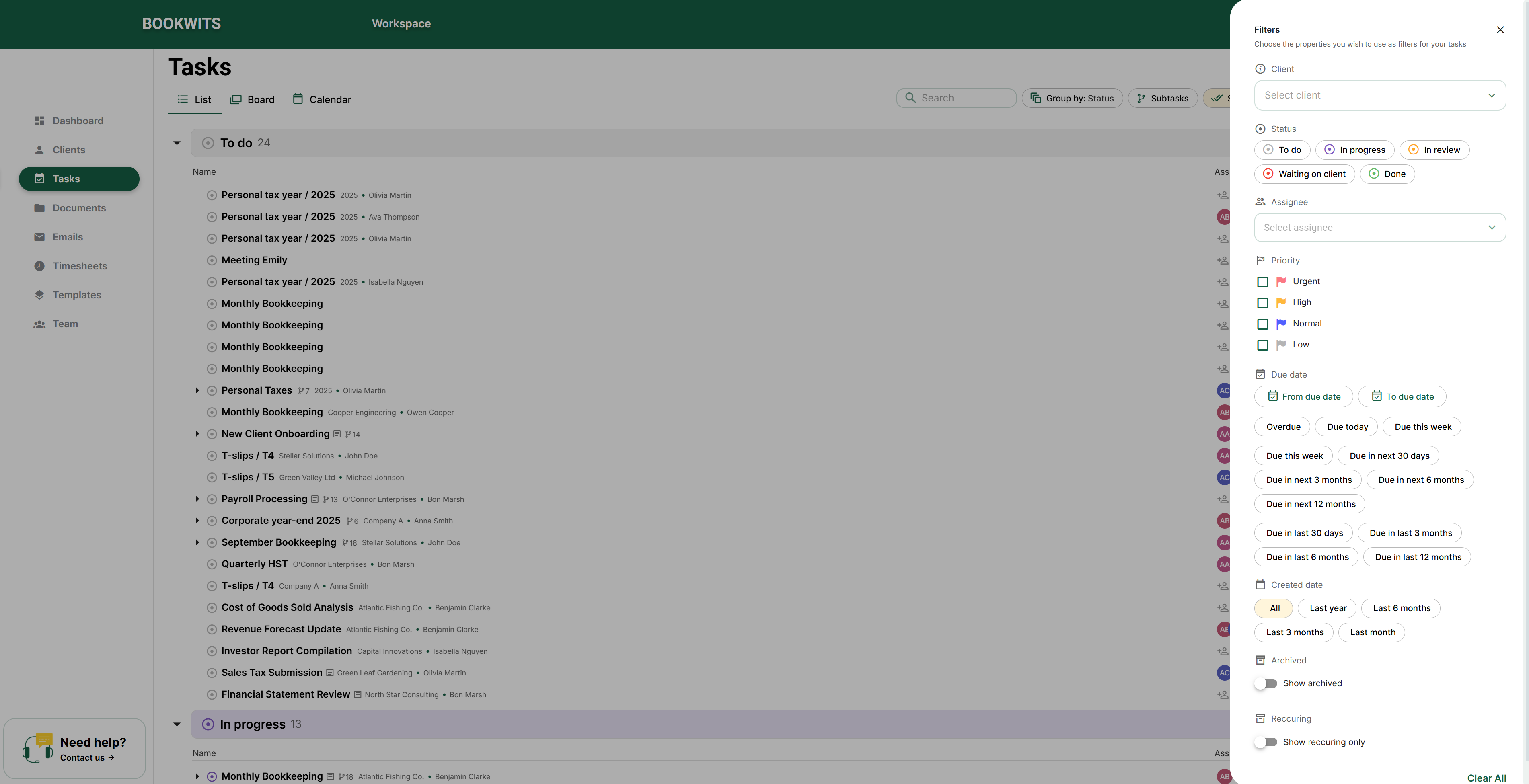
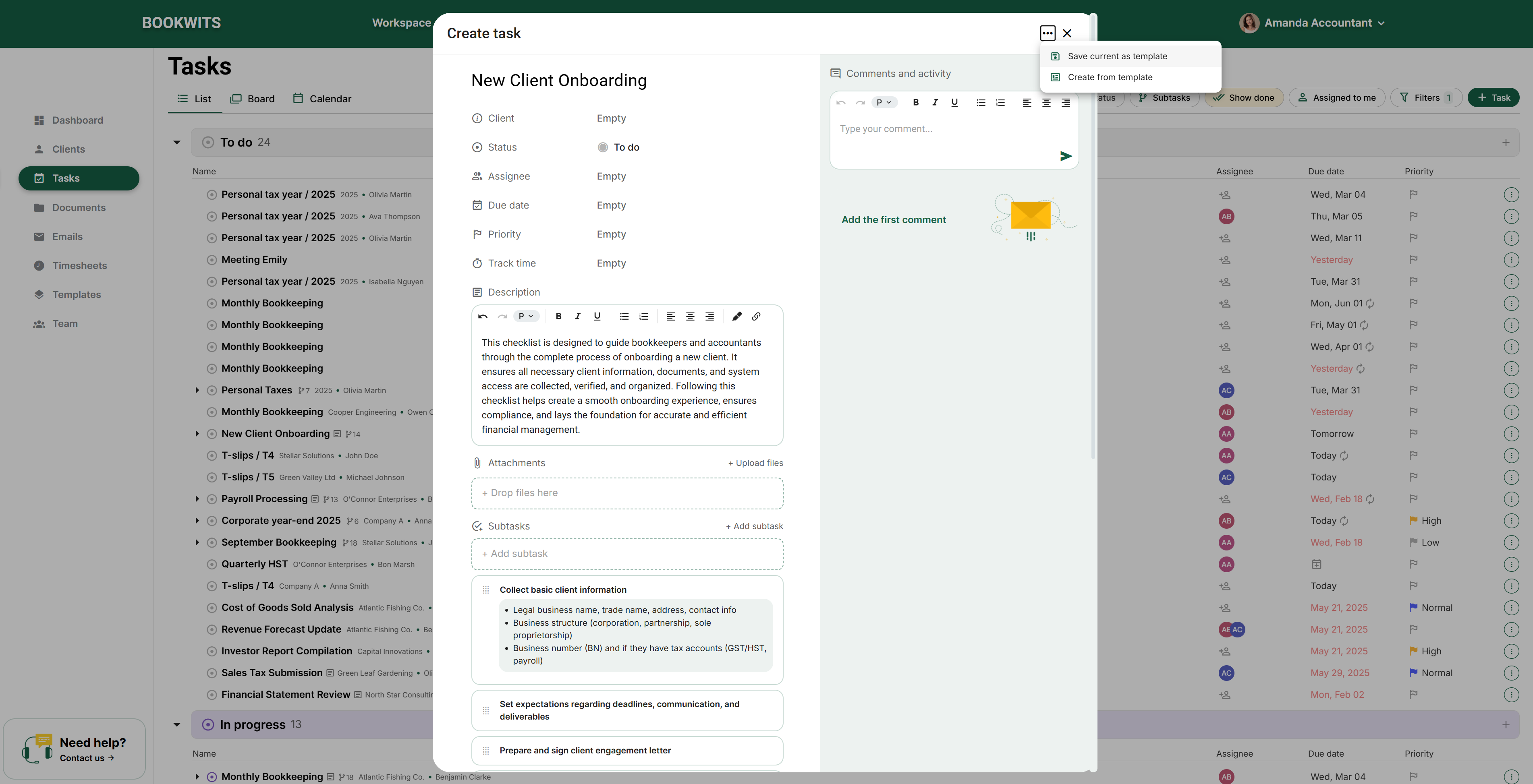
Detailed, practical instructions for the people running a bookkeeping firm and the clients
working with them. Choose a chapter rather than reading everything in one sitting.
29 chapters, organized by purpose, with exact navigation, detailed workflows, field
explanations, examples and recovery guidance. The instructions include the application’s
client, company and annual workspaces as well as the module guides.
Read arrows as successive choices: Clients → All clients → Actions → Import clients from
CSV means open Clients in the left menu, choose the All clients tab, open Actions above
the table, then choose the CSV import item. A client profile has its own tabs, and a
company or tax year has another set of working sections. Check the name and year at the
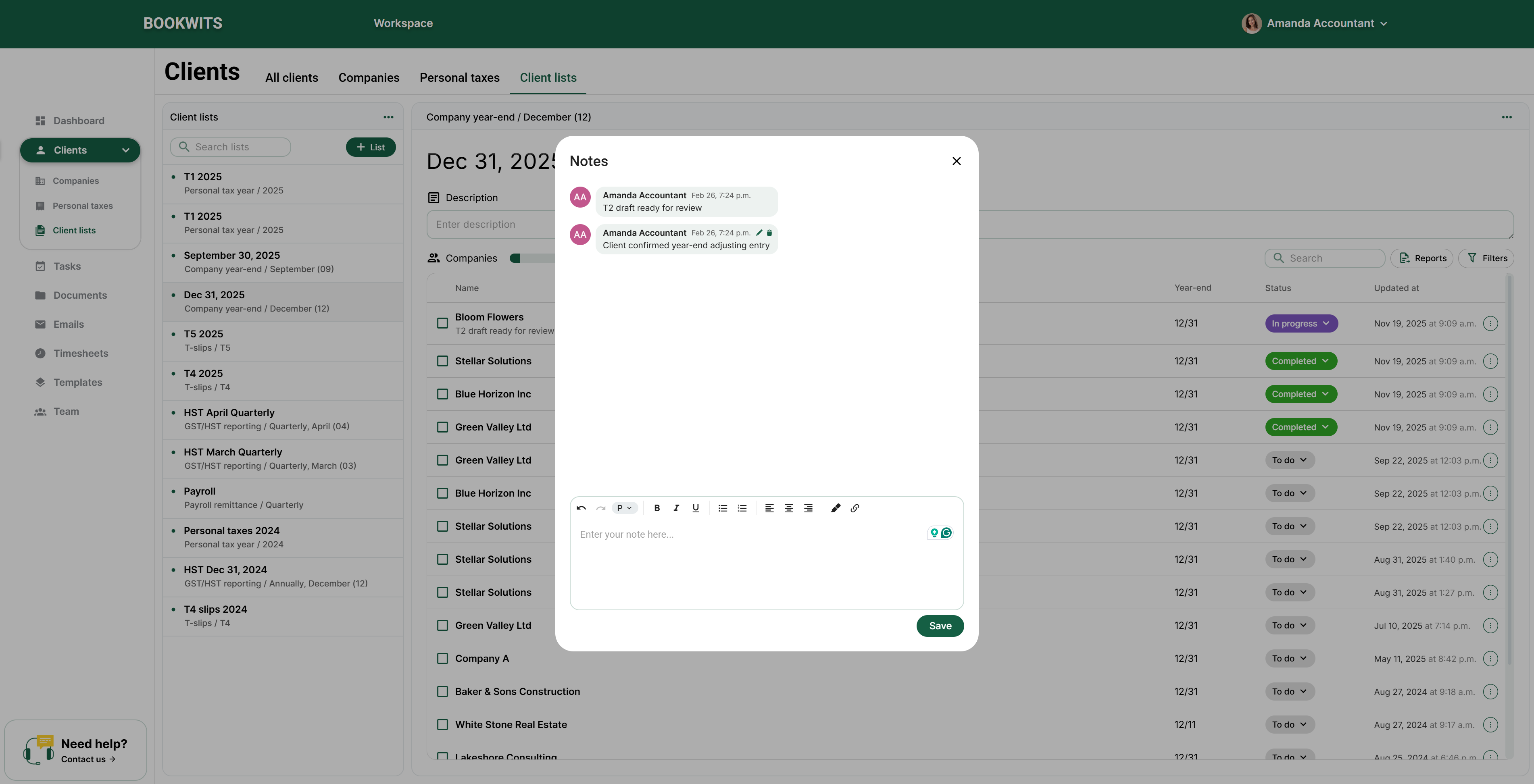
top before changing anything.
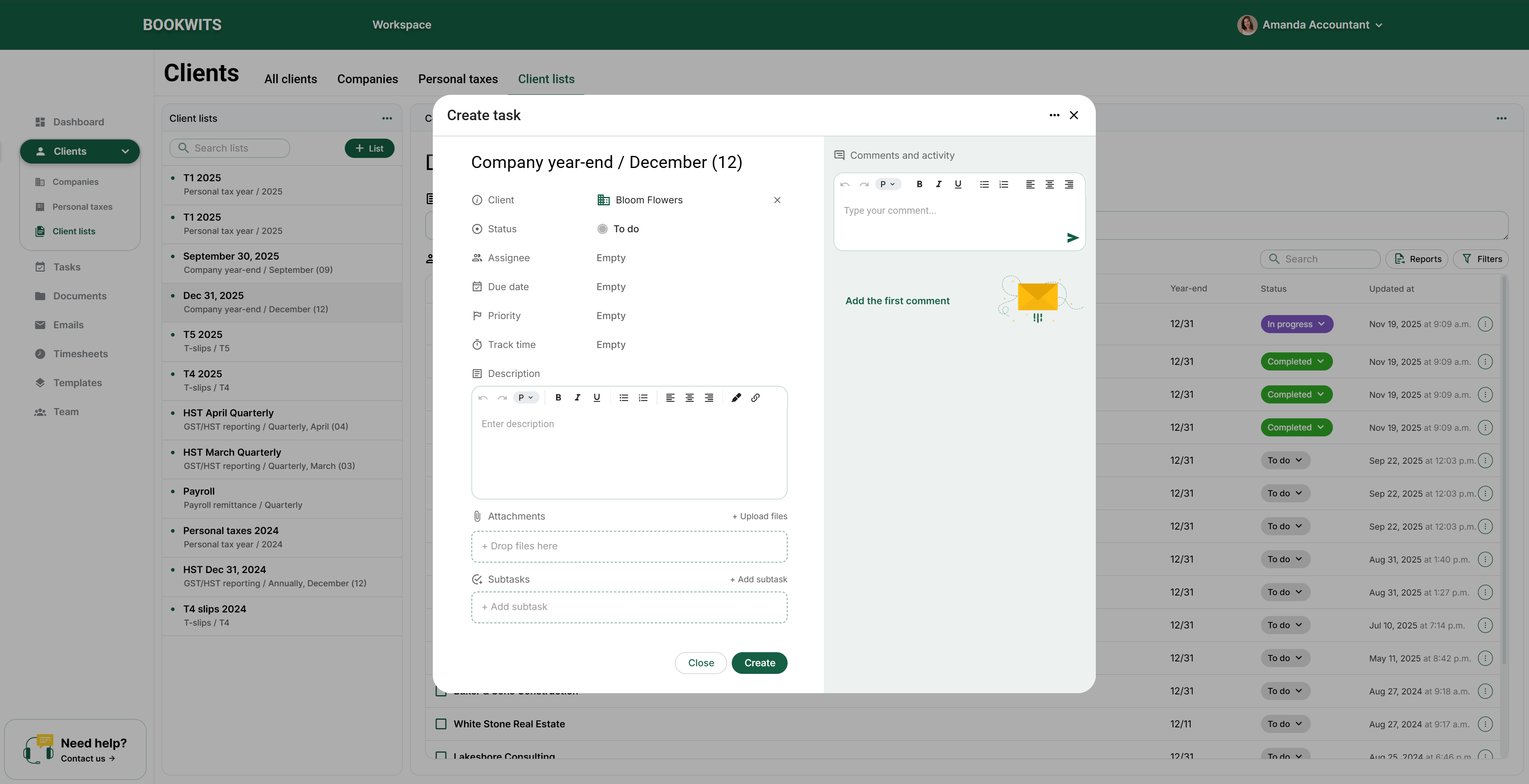
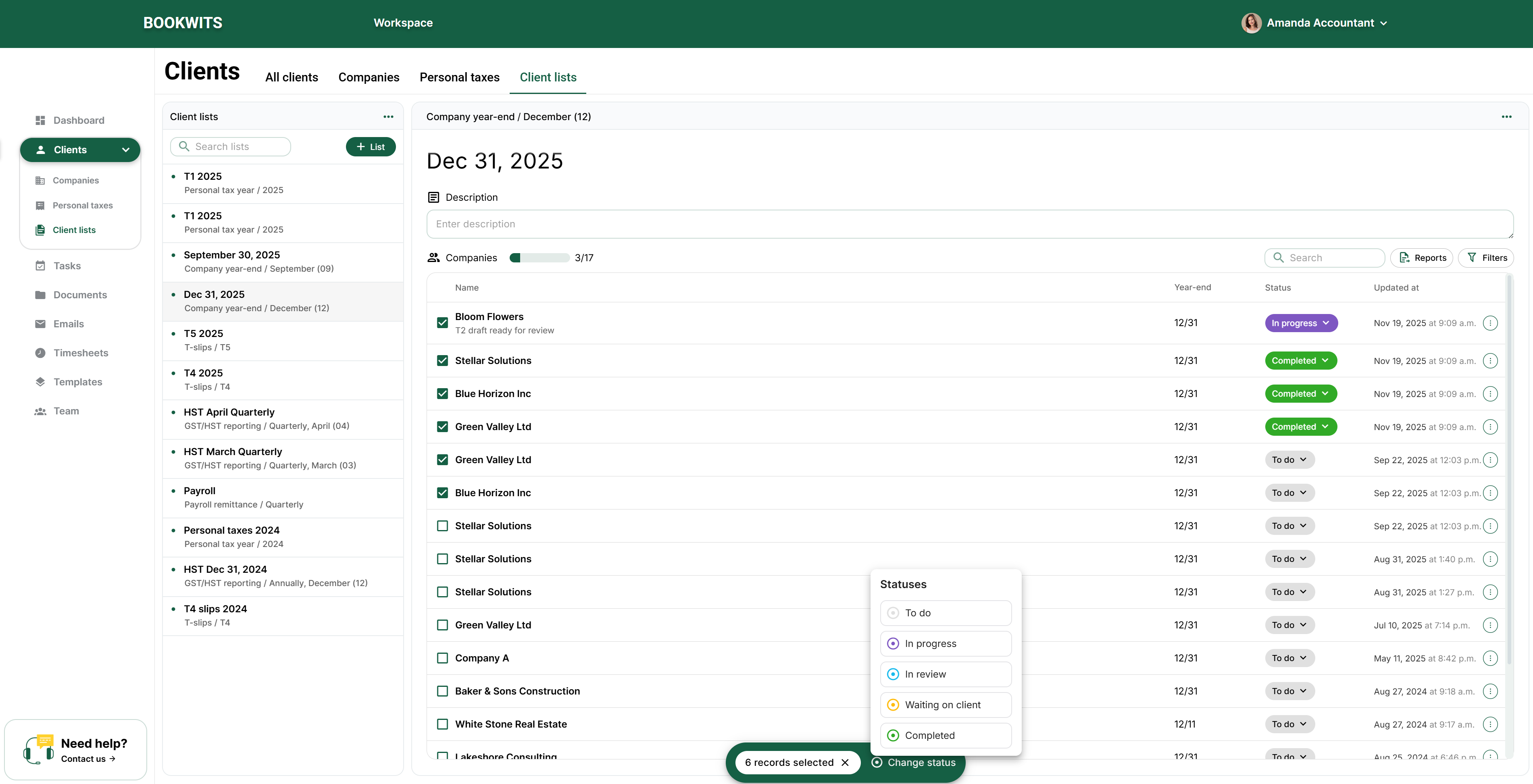
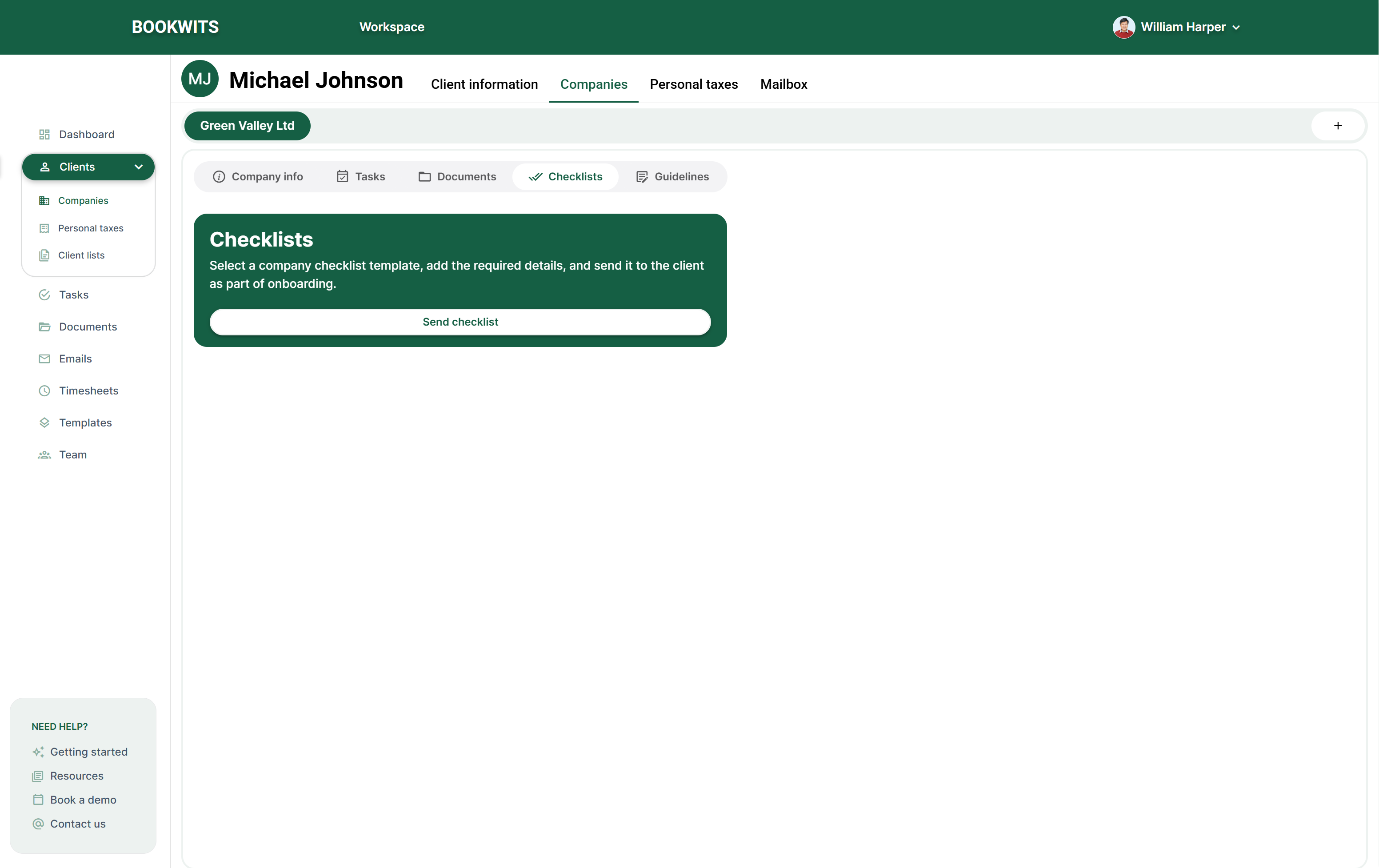
These newly captured screens show where controls are located in the running application.
Each link opens its illustrated example in the relevant chapter; every image also has a
full-size link. Sample records and counts vary by workspace.
After signing in as a professional, use Getting started in the
Need help? box at the bottom of the left sidebar. The sidebar is your
module menu; the tabs across a page belong to the module you have already opened. On a
narrower window, use the menu icon near the Bookwits logo to reveal the sidebar.
For your first client, choose Clients → All clients → Add client,
above the directory on the right. To import a spreadsheet instead, open
Actions → Import clients from CSV above that table. For account
setup, open your name/avatar at the top right and choose Settings. To
return from Settings, use Workspace in the top bar.
A client invited by a firm should use the invitation and
client sign-in instead of following the professional setup checklist.
A staff member joining an existing firm should accept the team invitation before
starting another workspace.
Do steps 3–5 before email setup. It ensures your templates and smart fields have
real data to pull from.
1) Create your account
Sign up for Bookwits
Set your password
Add your name (what your team will see)
Use the name format you want clients/teammates to see in emails and task activity.
2) Confirm your email address
Open the verification email
Click Confirm email
Return to Bookwits and ensure your account is verified
If you don’t see the email
Check spam/junk
Search your inbox for “Bookwits”
Resend verification from the app (if available)
3) Create your first “real” client (test client setup)
Pick one active client you’re currently working on. This becomes your “test client”
to validate the workflow end-to-end.
1
Create a Client
2
Add a Company(if applicable)
3
Create a Personal Tax Year(if you do T1 work)
Begin with an authorized example. Review the recipient before any action that
sends a message or invitation.
4) Import clients in bulk (CSV + mapping)
If you have more than ~10 clients, do this now.
Open the client directory. In the left sidebar, select
Clients, then the All clients tab at the top.
Above the table, open Actions → Import clients from CSV. This is
different from Add client, which creates one person at a time.
Prepare the spreadsheet. Use the import page’s example/template
to understand the available columns. Give first name and last name separate
columns. Save as CSV; do not simply rename an Excel file. Keep the header row,
accents and leading zeroes in identifiers.
Select a small, manageable batch. The documented limit is 100
data rows, not 100 different people. A person with several companies can occupy
several rows. For example, two rows for Emma Laurent and her two businesses still
consume two rows of the batch.
Match the columns on the mapping screen. For each source heading,
choose the Bookwits field that means the same thing. Map personal email to the
client email, not company email. Leave an optional destination unmapped when you
do not have that information; do not select a similar-looking but unrelated field.
Read the preview before importing. Check names, company
ownership, dates, country/province choices and custom fields. Correct any
highlighted errors. A row containing some useful information needs review; it is
not the same as a completely blank row.
Confirm once, then inspect the saved records. Wait for the import
result. Return to All clients, search for several imported people, open their
profiles and check their companies. If an error occurs, inspect what was created
before uploading the same batch again, so you do not create duplicates.
Spot-checking (fast and effective)
One client with a company
One client with no company
One client with special characters / long names
5) Set up Templates (Tasks + Emails + Personal Tax Checklist)
Set these up once so your workflow is standardized from day one.
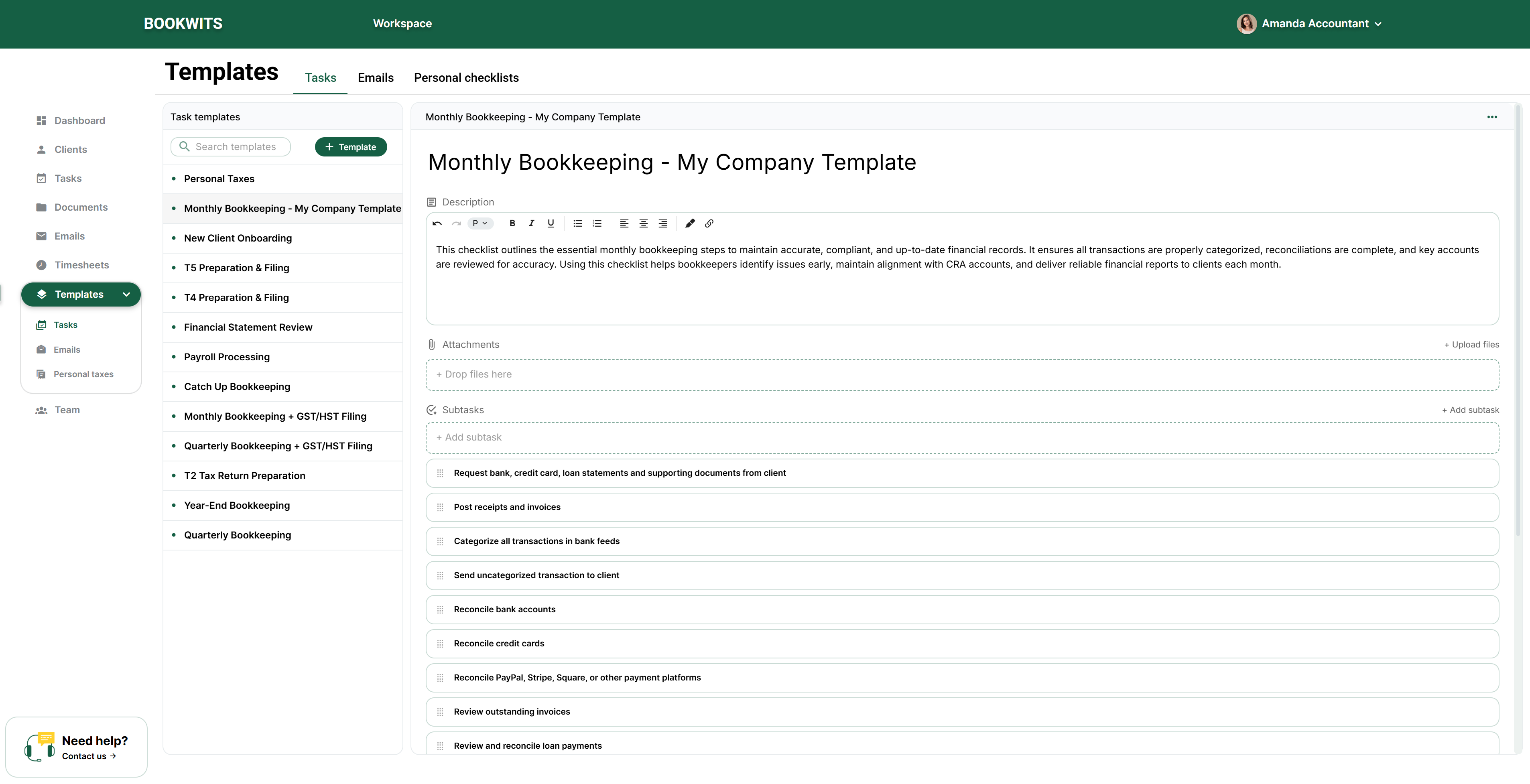
Task TemplatesTemplates → Tasks
Client onboarding
Monthly bookkeeping
Personal tax workflow
Corporate year-end workflow
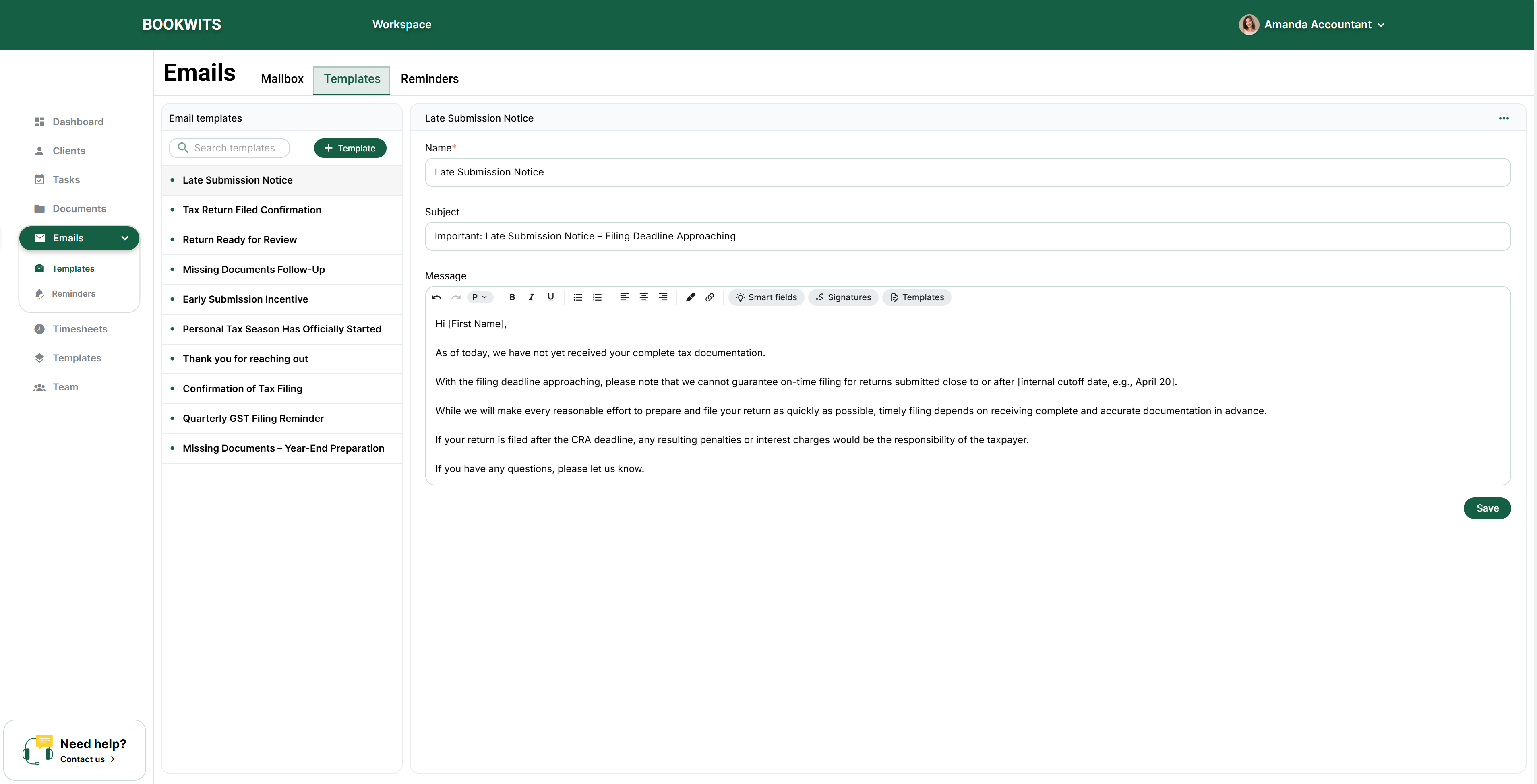
Email Templates
Welcome / onboarding
Document request
Missing items follow-up
Tax season kickoff
Year-end kickoff
Personal Tax Checklist Templates
T1 intake & CRA access
T-slip collection (T4/T4A/T5/T3)
Deductions & receipts (RRSP/medical/childcare)
Self-employed / rental add-on (T2125/T776)
Year-end kickoff
Test each template once: create a task from template + apply an email template +
apply the tax checklist.
6) Add your team (optional)
If you’re not solo:
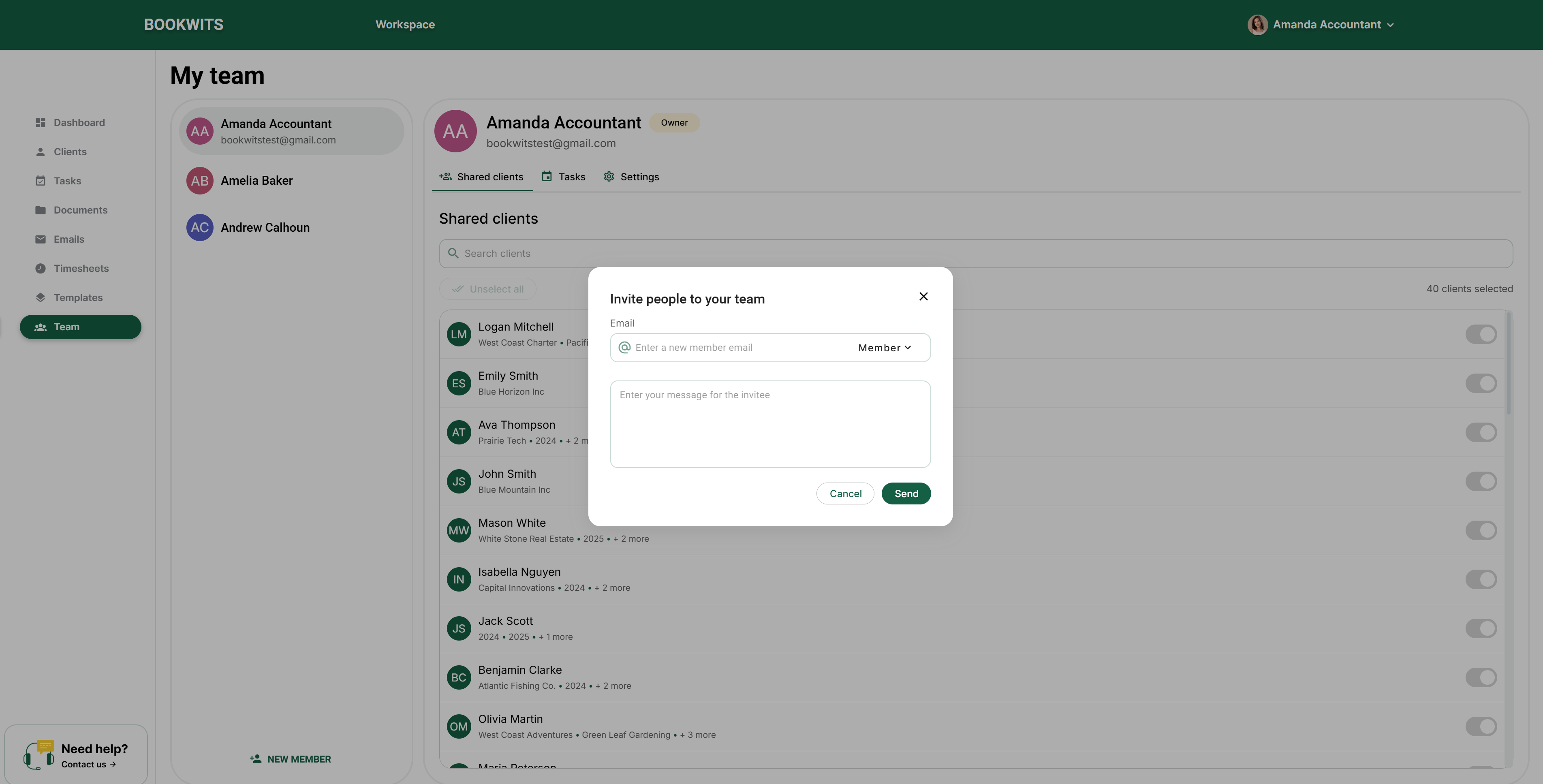
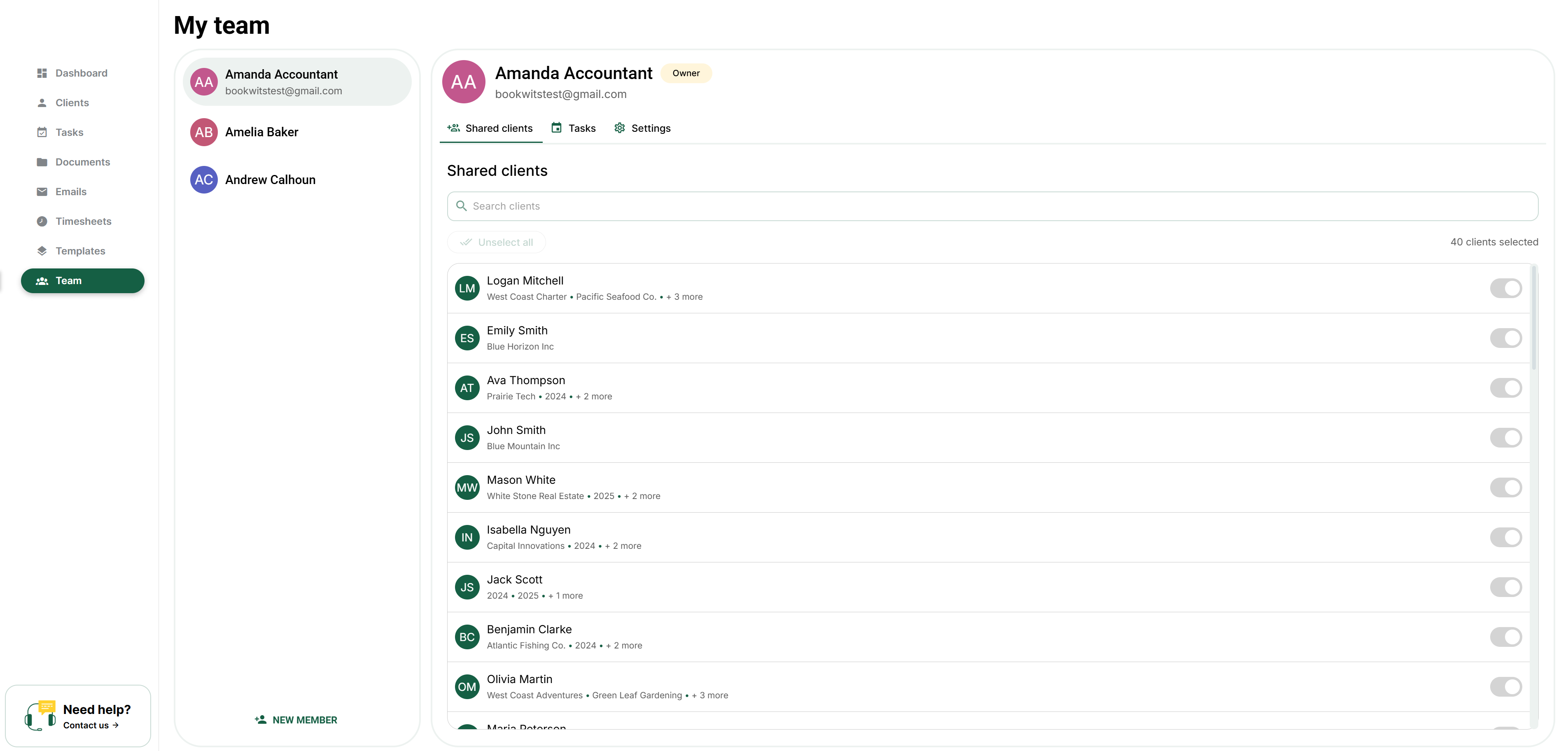
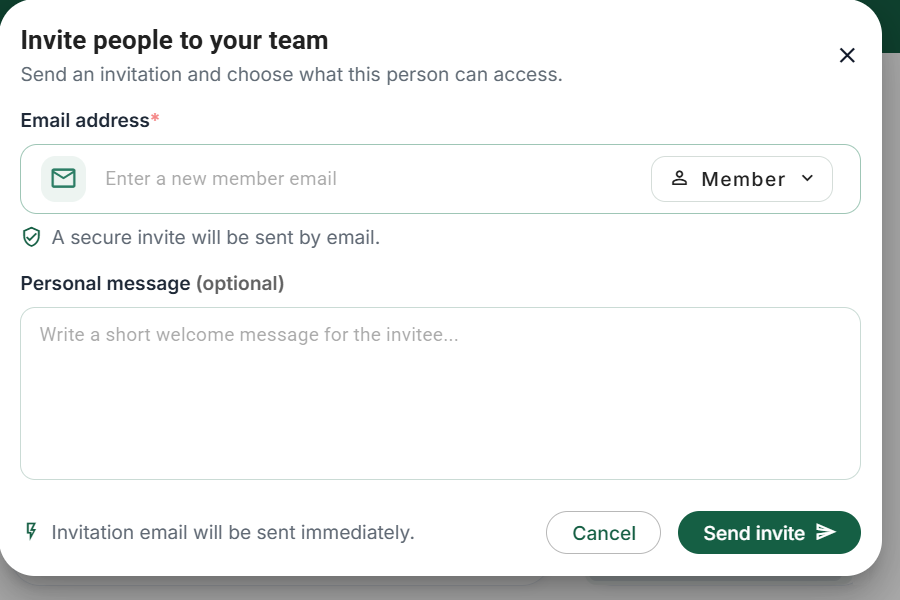
Invite team members
Set roles (Owner/Admin/Member)
Confirm who can view/edit clients, tasks, docs, and approvals
Quick role rule
Give Admin/Owner only to people who must review/approve work and control billing.
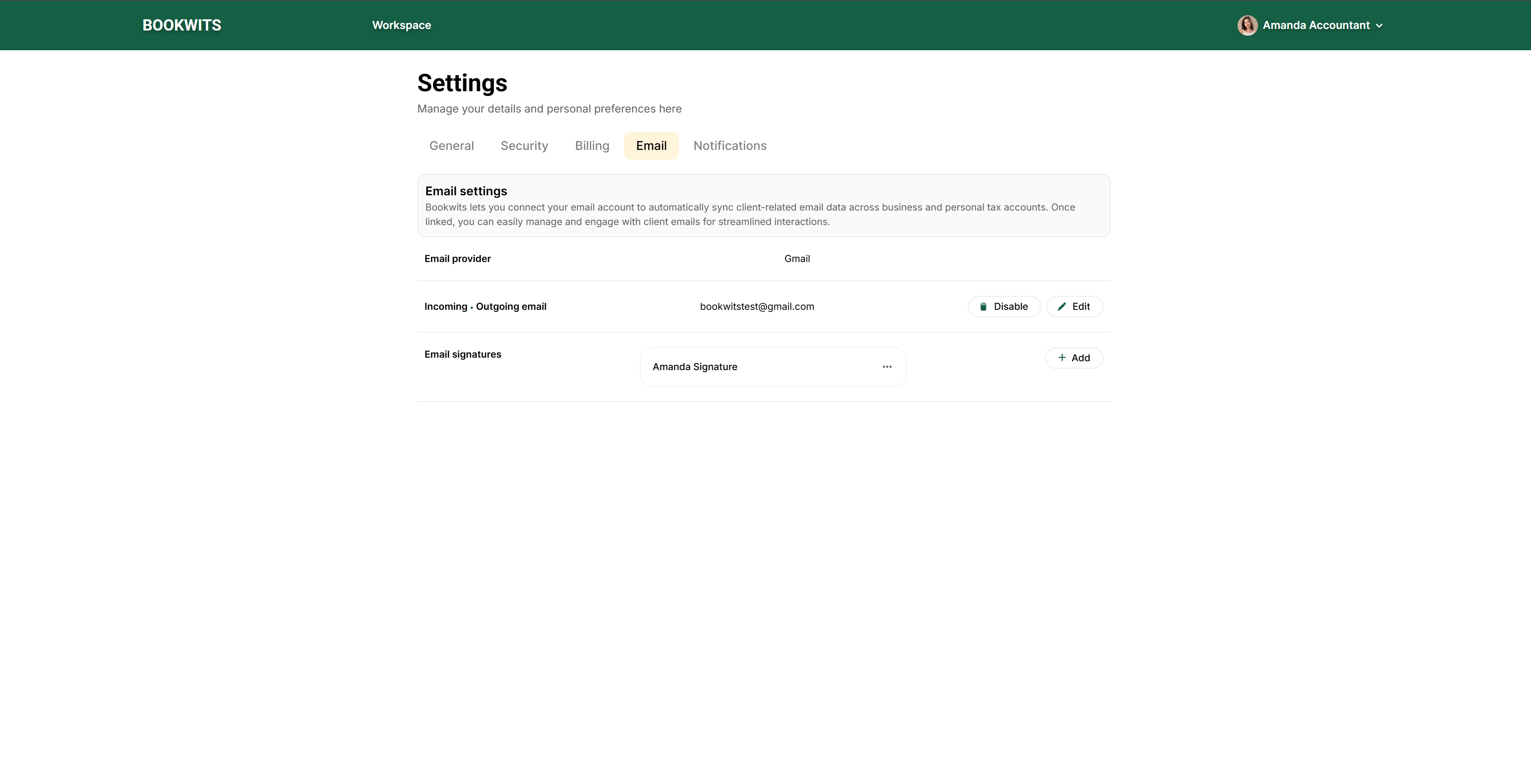
7) Connect your email (Gmail or Outlook)
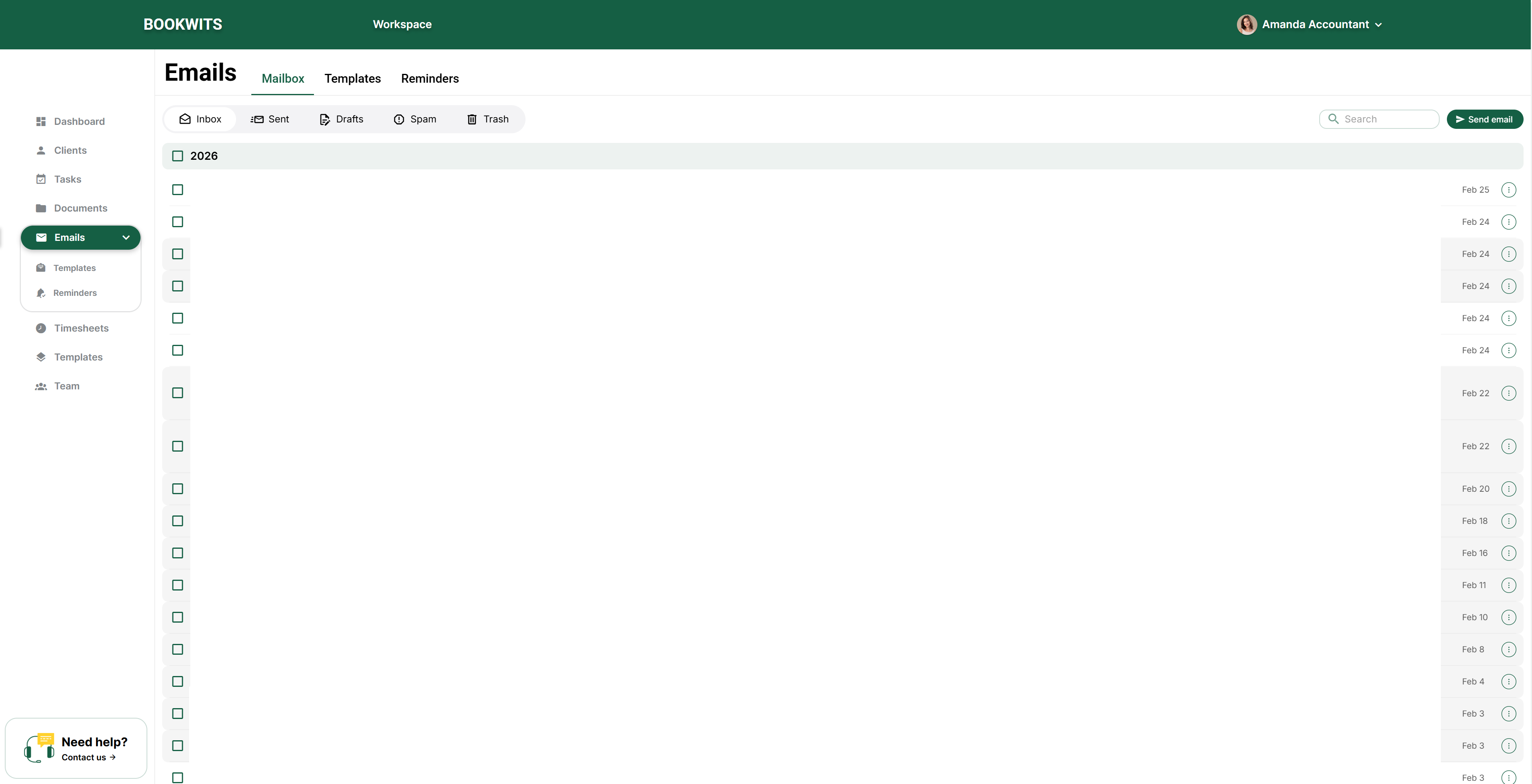
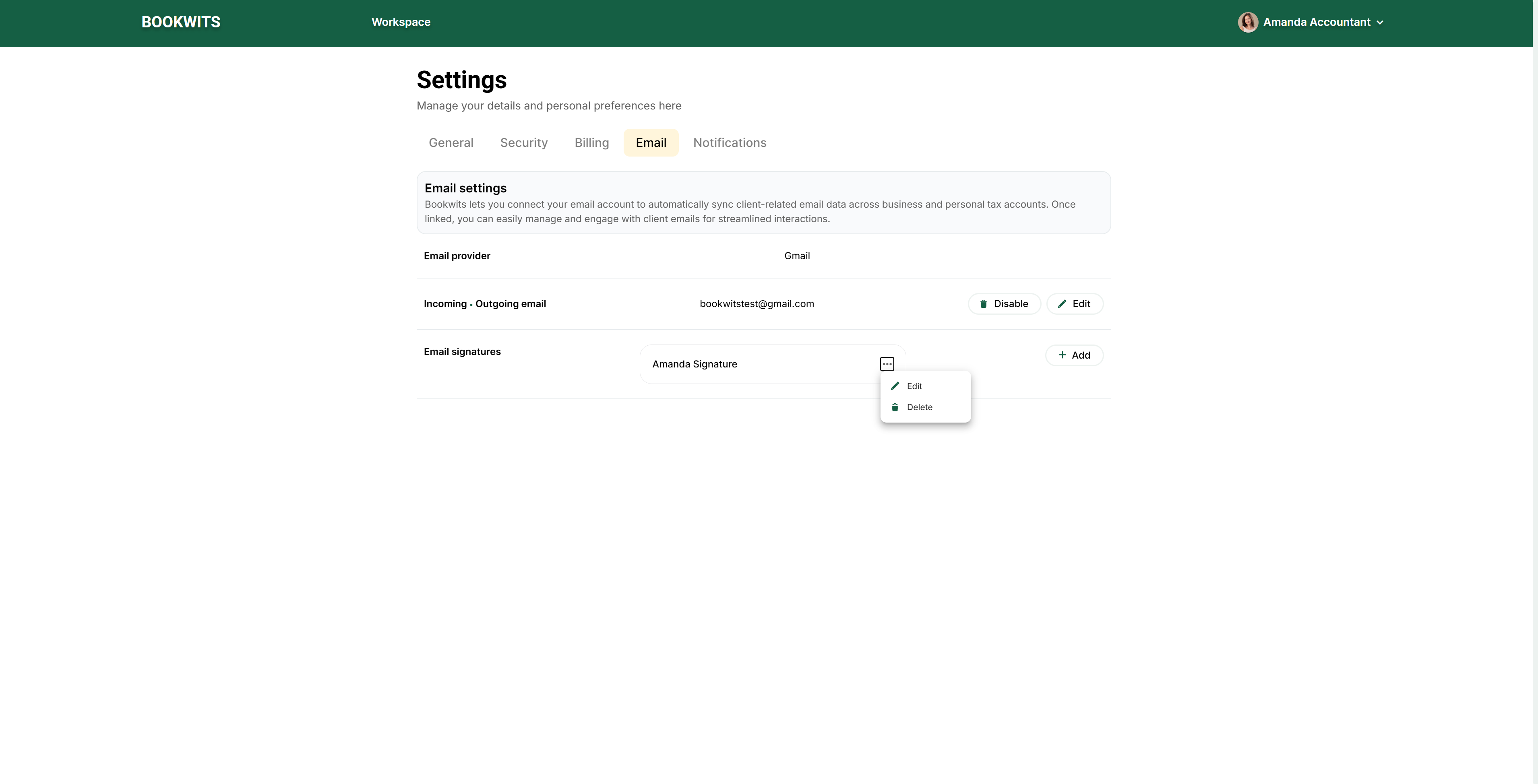
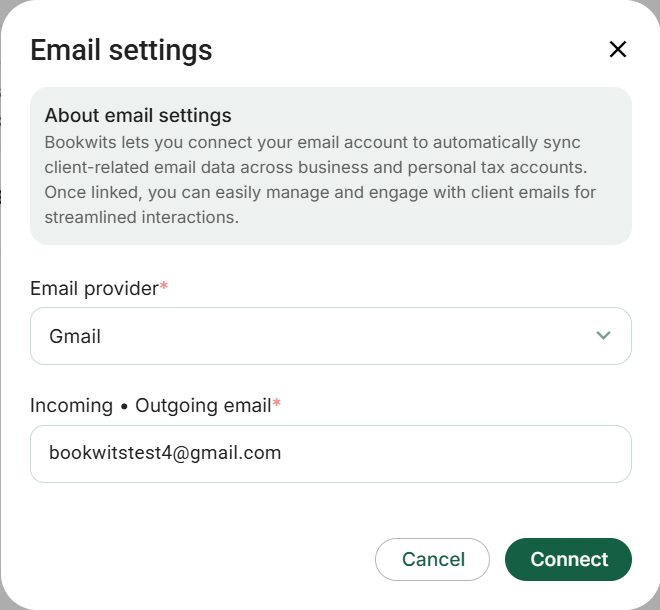
Open your mailbox settings. Select Emails in the
left sidebar. If the mailbox is not connected or access has expired, use the
configuration/reconnection control shown in the notice. You can also open your name
at the top right, then Settings → Email.
Choose the provider for the mailbox you actually use. Select Gmail
or Outlook where offered. This connects a mailbox for reading and sending email; it
is not a client-platform invitation and does not change the client’s contact
address.
Complete the provider’s sign-in personally. Review the account
shown by Google or Microsoft and the requested access. If your browser has several
accounts, make sure you are authorizing the firm mailbox you intended. Never give
another person your password to finish this step.
Return to Bookwits and check the result. Wait for the mailbox
folders to become available. If the expired-access notice remains, the connection is
not restored yet. Check the selected provider/account and ask the mailbox
administrator for help when access is restricted.
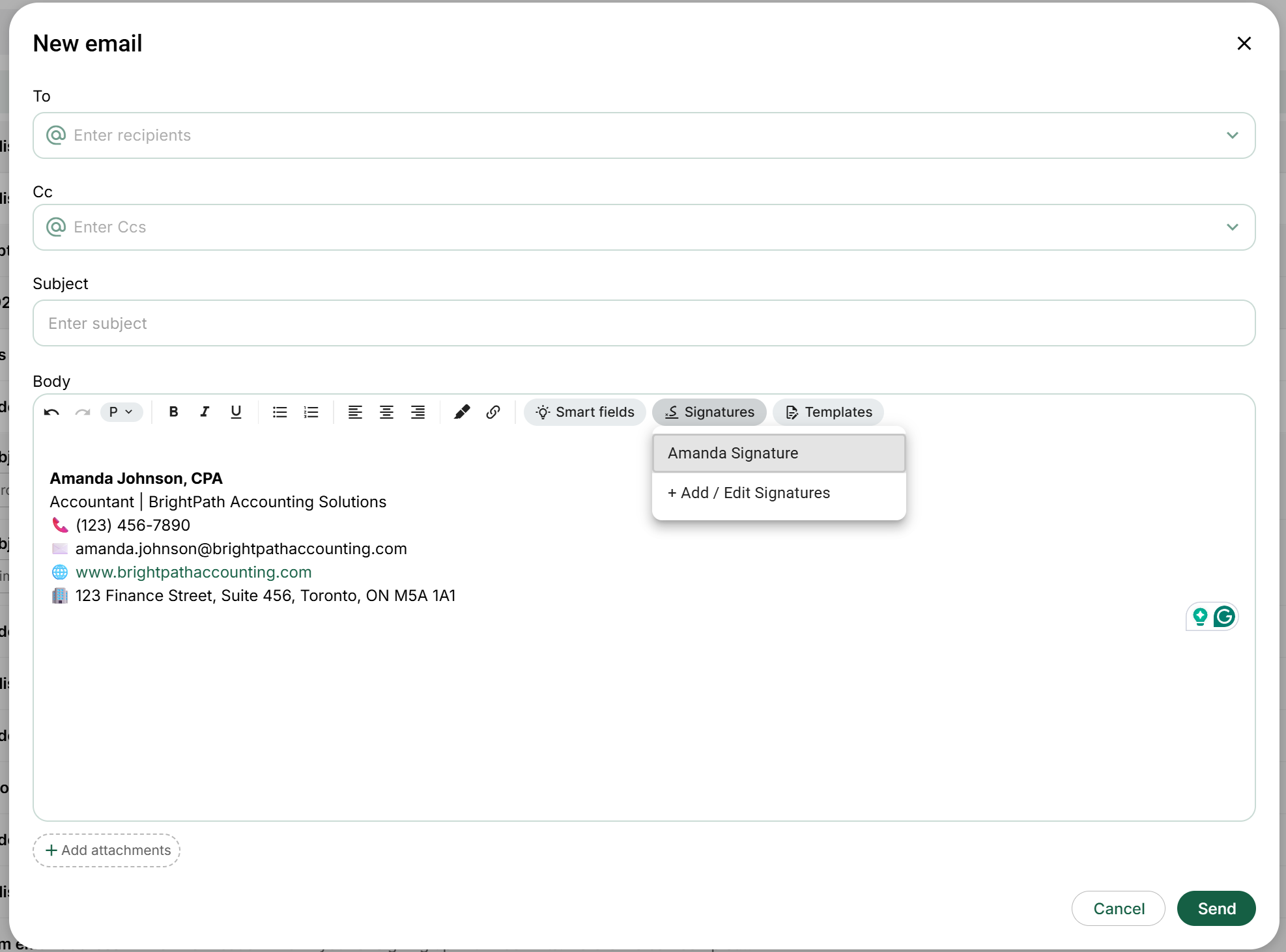
Check the sender before your first real message. Open a new email
and inspect its sender, signature and recipient fields. If you send an authorized
test, use your own intended test address and verify delivery separately. A connected
account alone does not prove a particular email arrived.
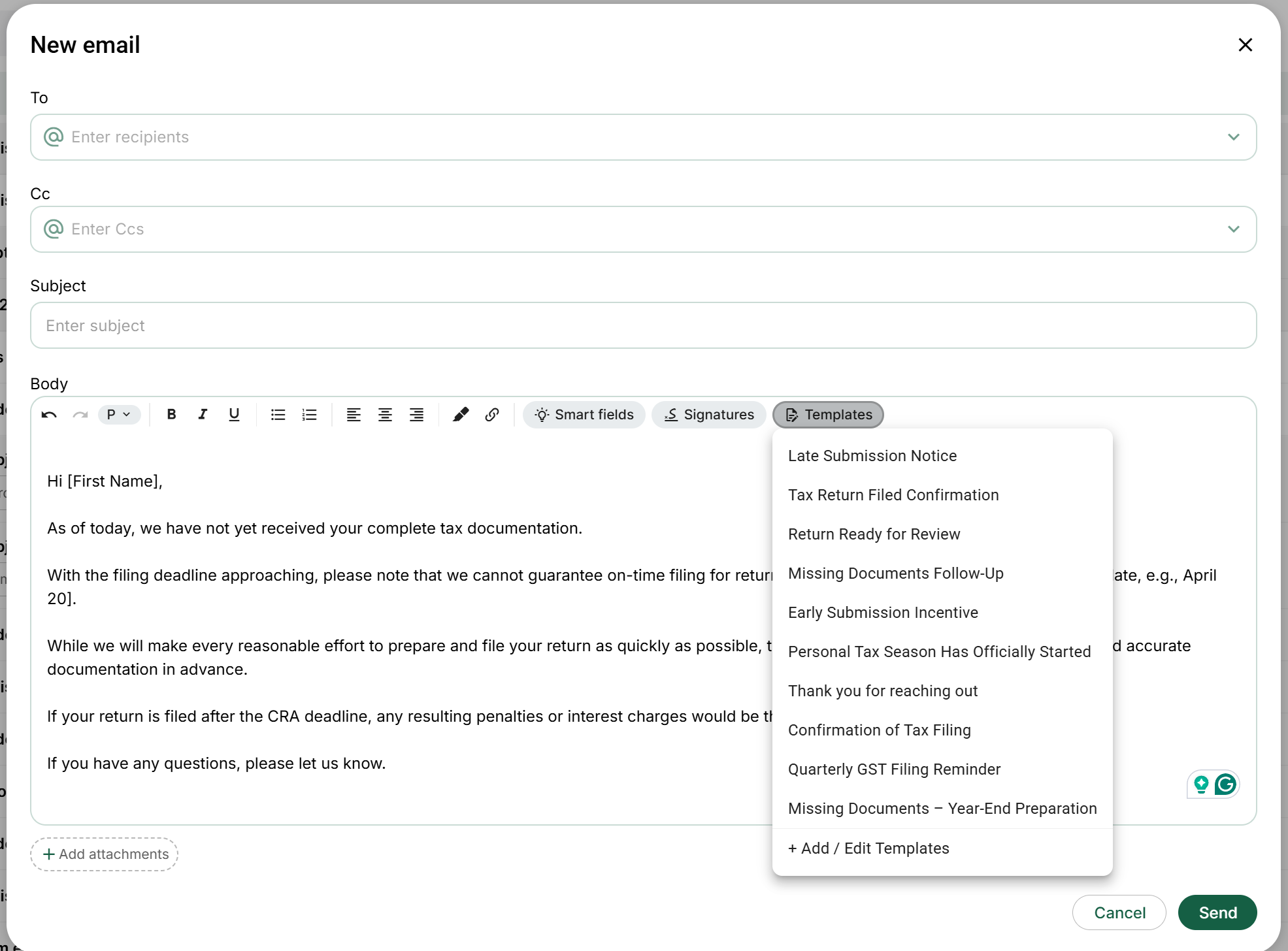
Send a test using a template + smart field to confirm it’s pulling the right
client/company data.
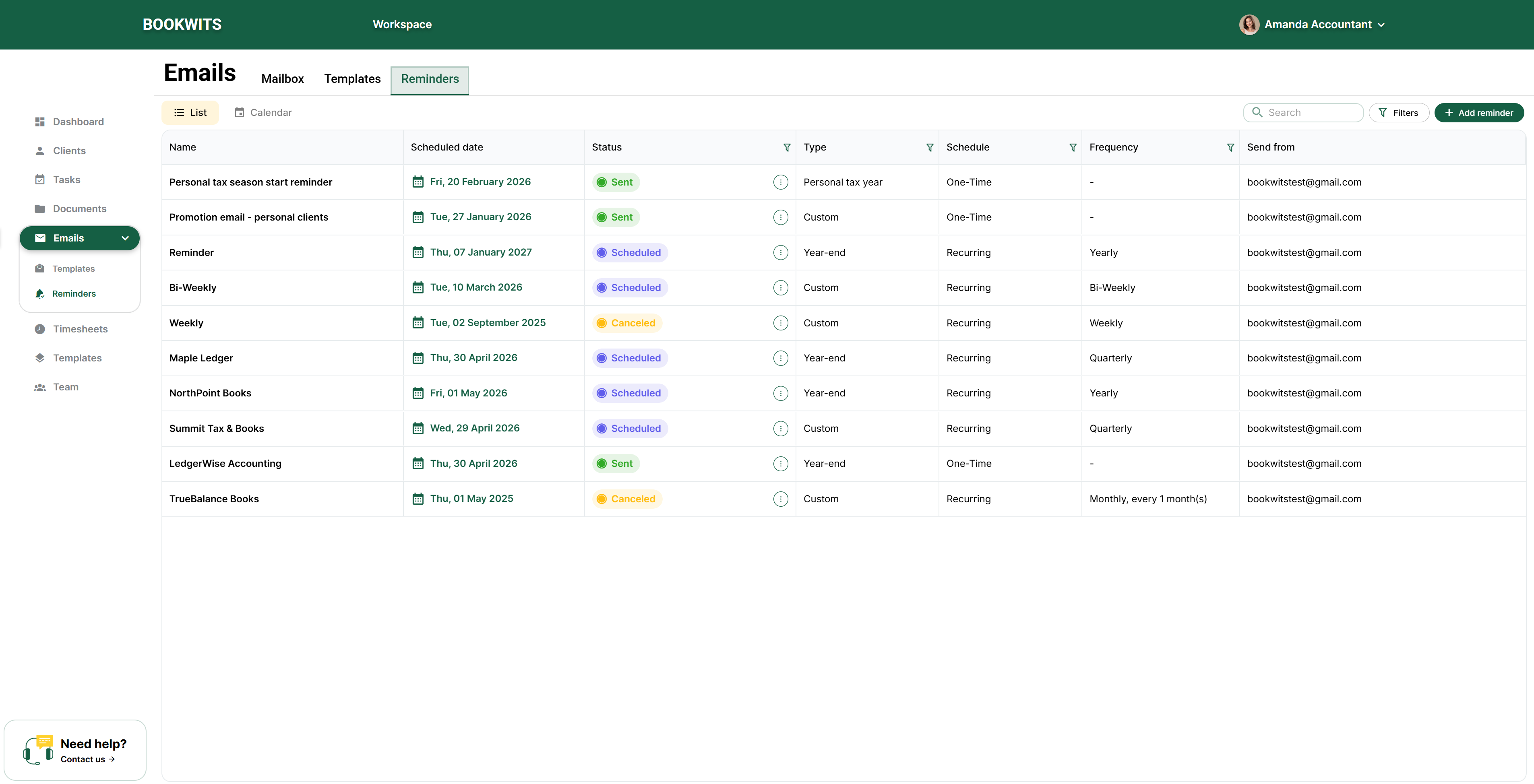
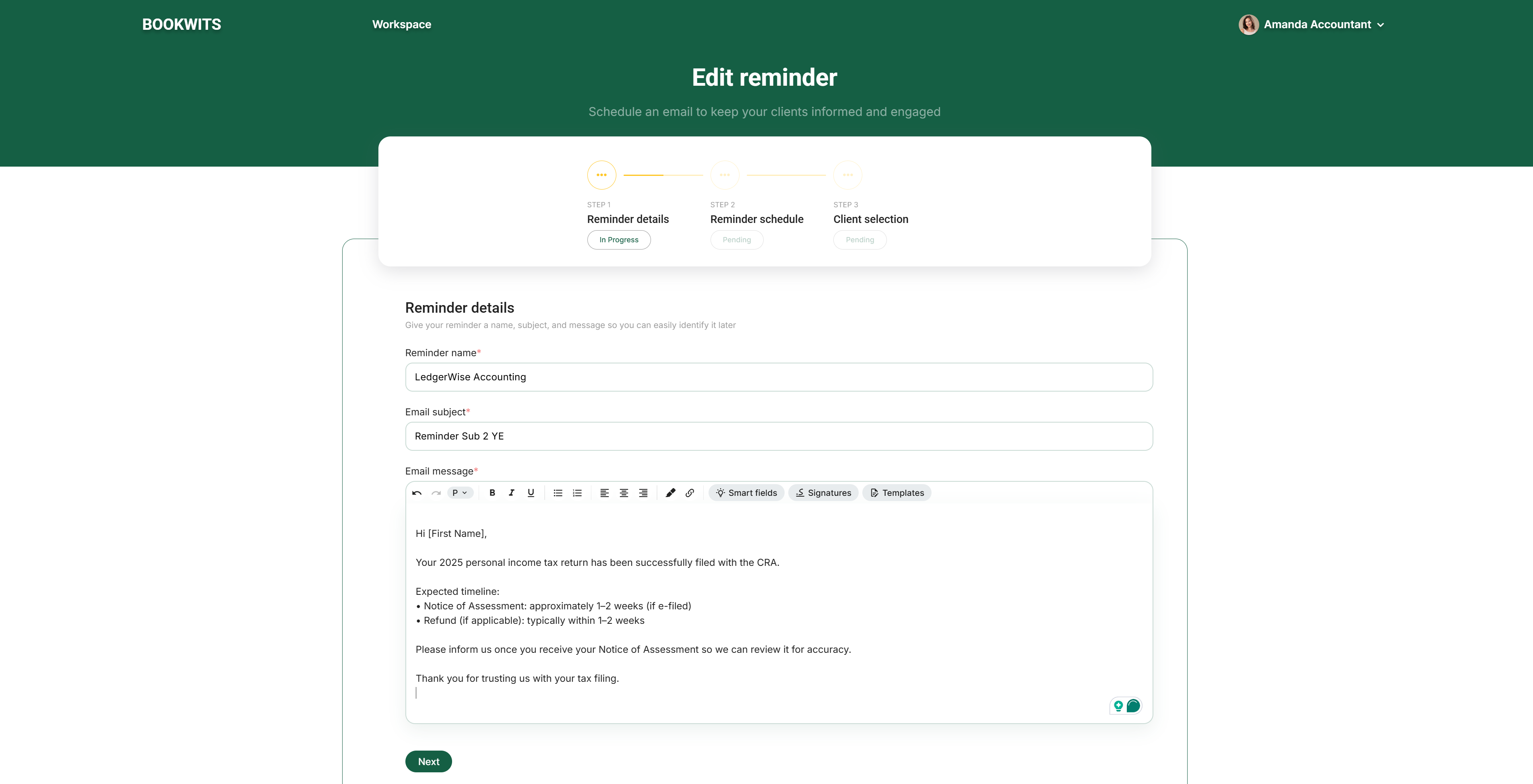
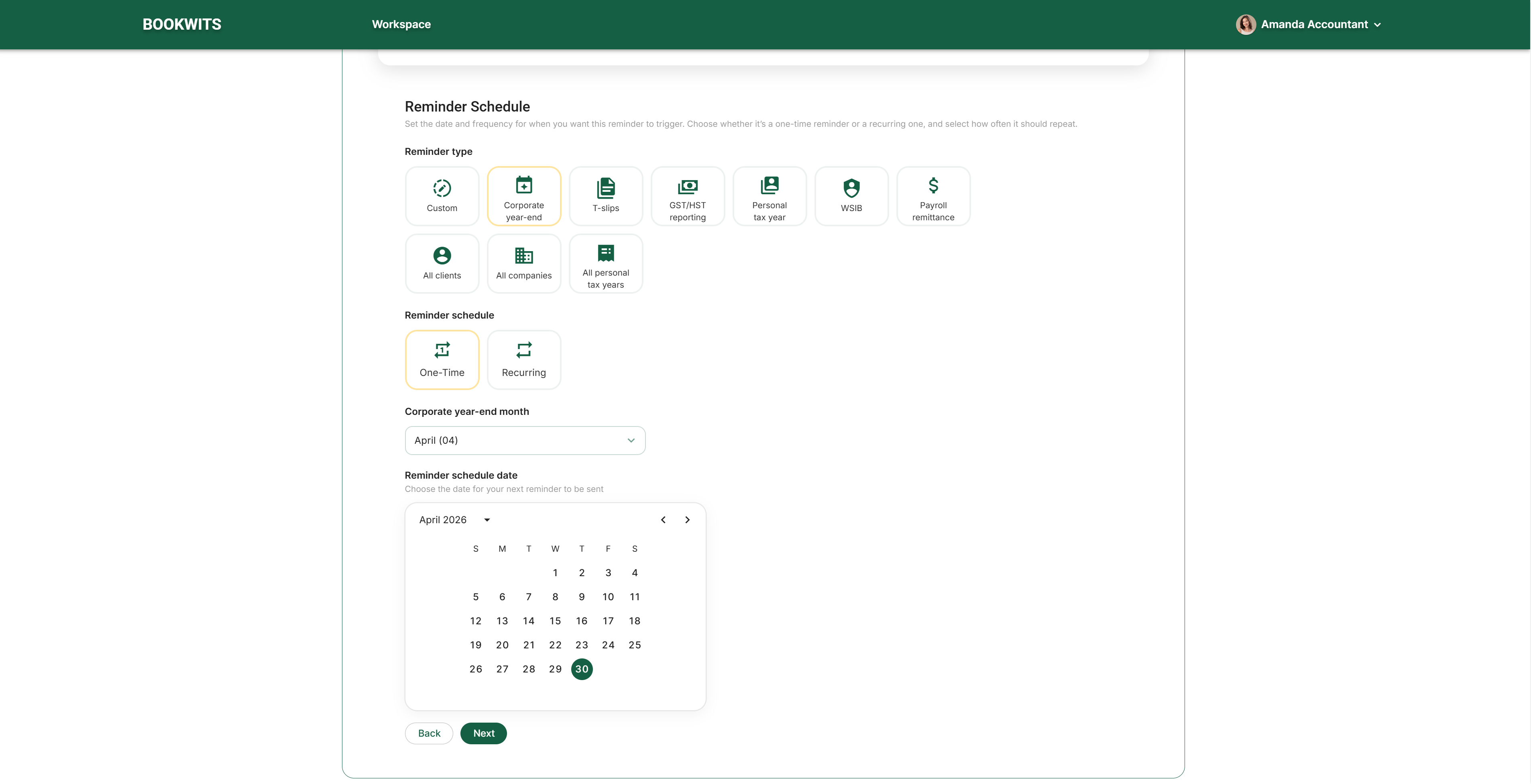
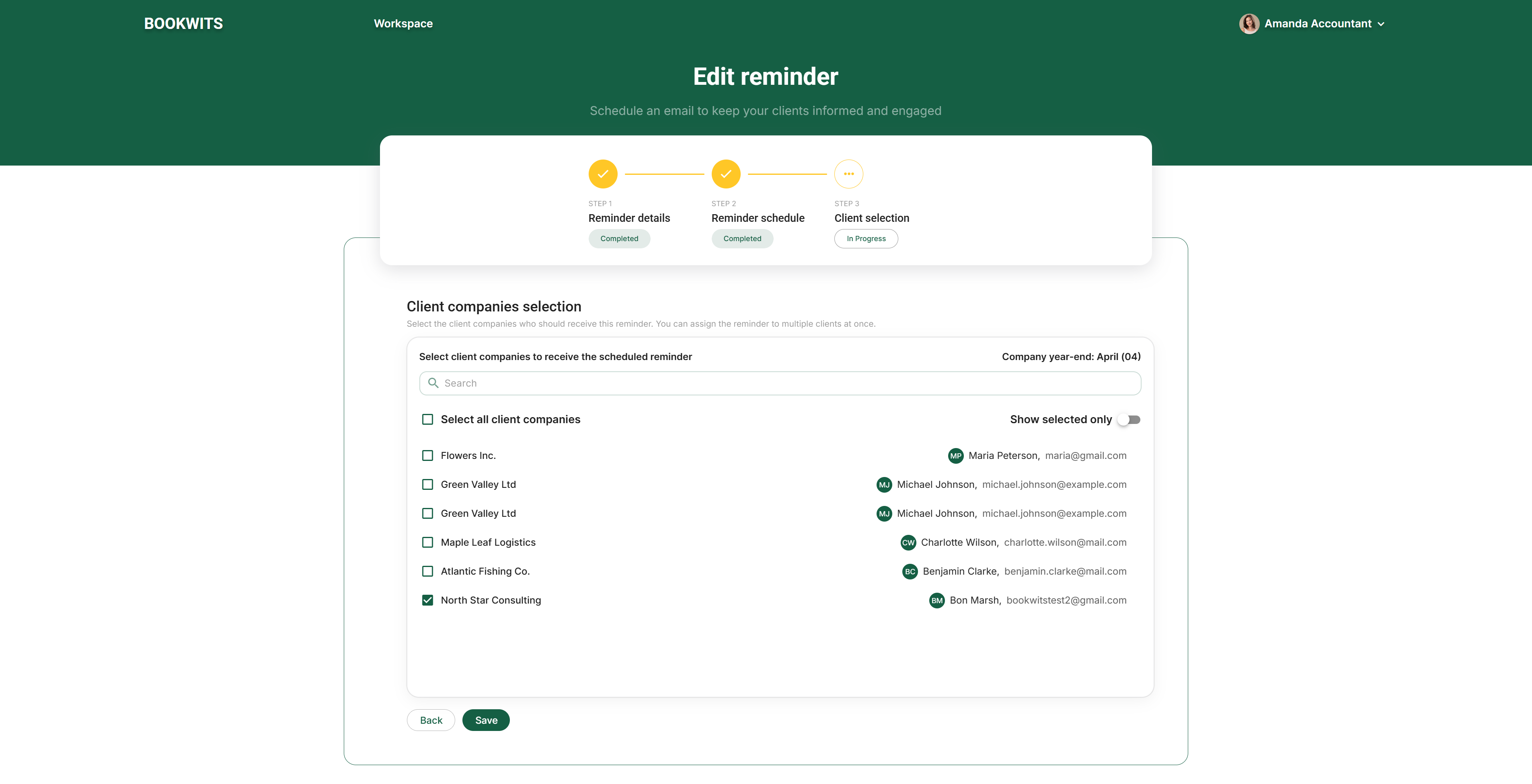
8) Set up Email Reminders (scheduled emails)
Create your first reminder
Name, subject, message
One-time or recurring schedule
Select client companies in bulk
Use an email template + smart fields in the reminder body
First reminder suggestion
Start with a one-time reminder that saves immediate time (example: “Tax season
kickoff”). Then add recurring reminders (GST/HST, year-end, monthly bookkeeping)
once comfortable.
Choose your starting point before following the setup checklist
Firm owner: configure the firm workspace, define access and prepare
templates before inviting everyone. You are setting up the environment your colleagues
will share, not a separate workspace per employee.
Bookkeeper or team member: accept your firm’s invitation first. Ask
which clients have been shared with you and who reviews your work. Do not create a
second firm merely because a shared client is missing.
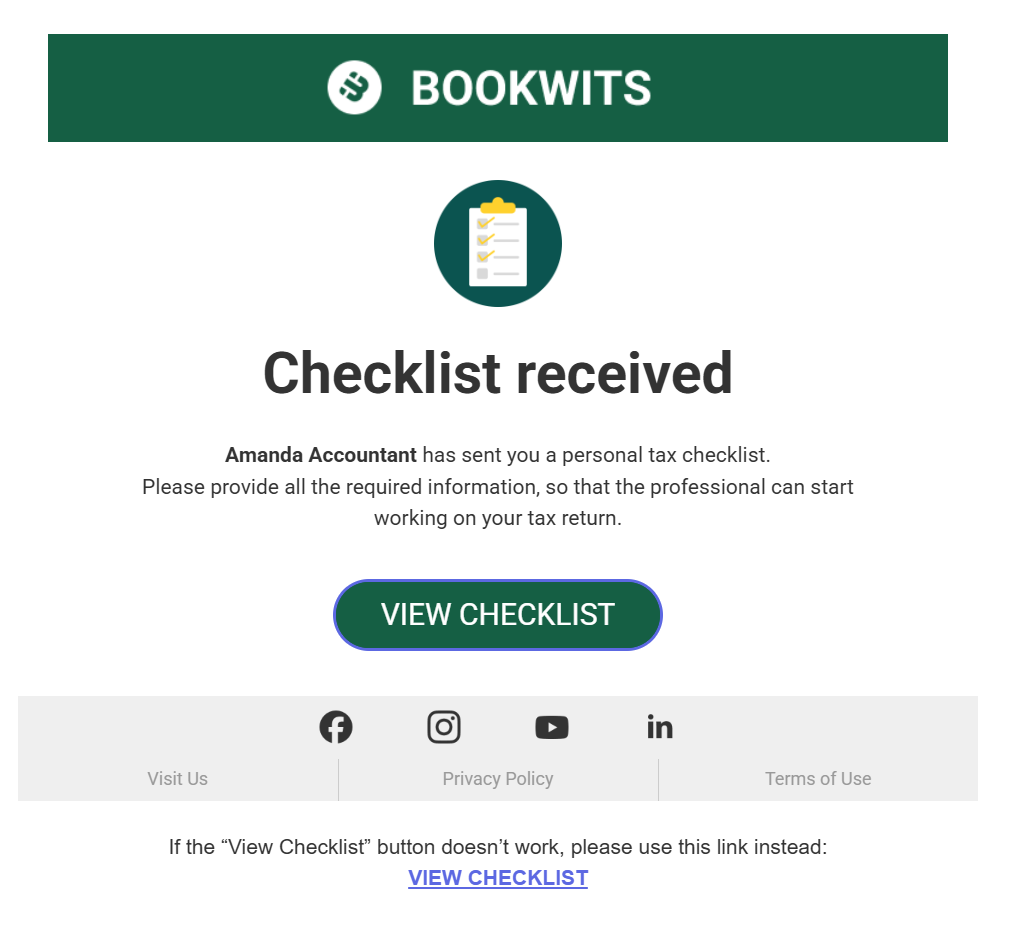
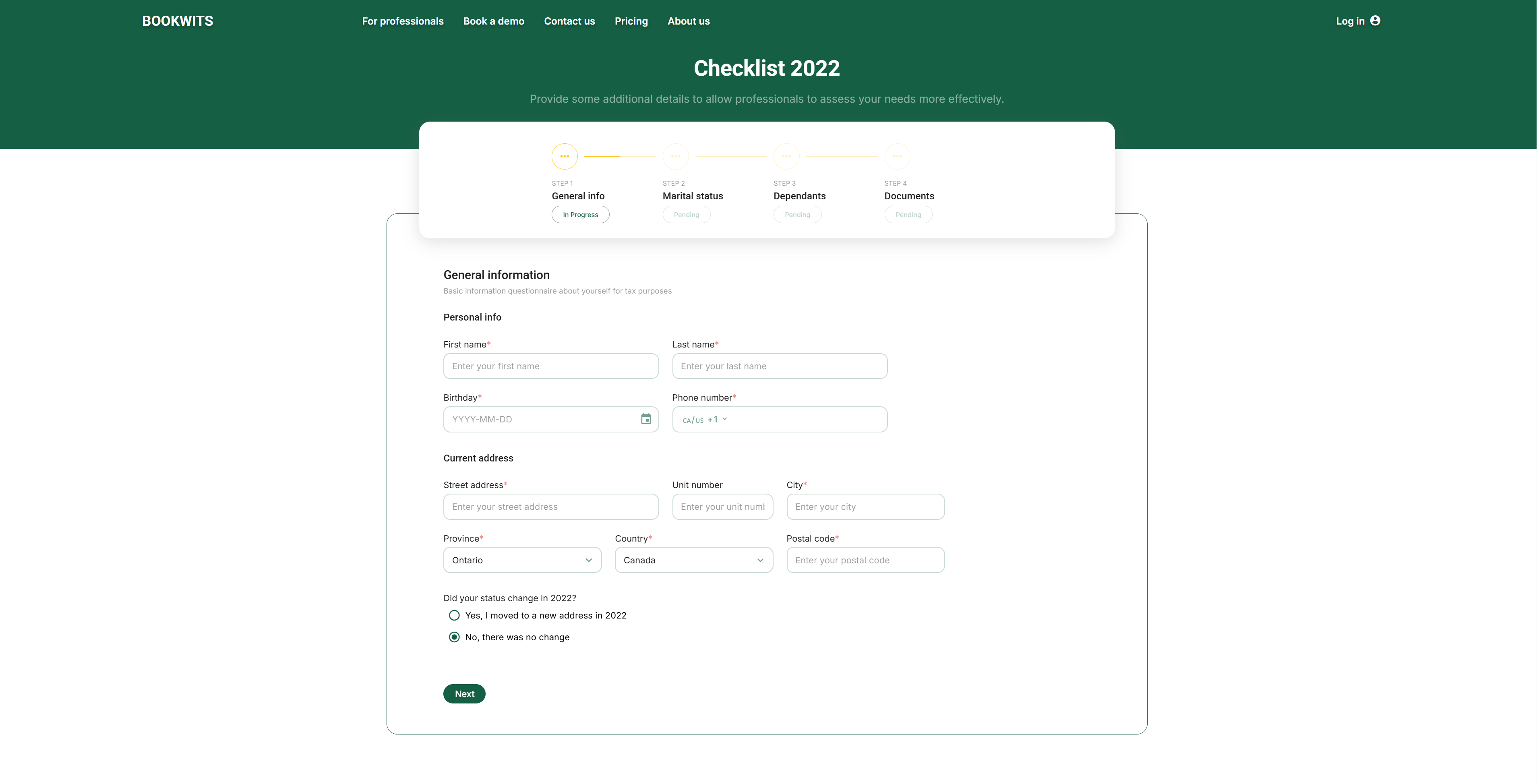
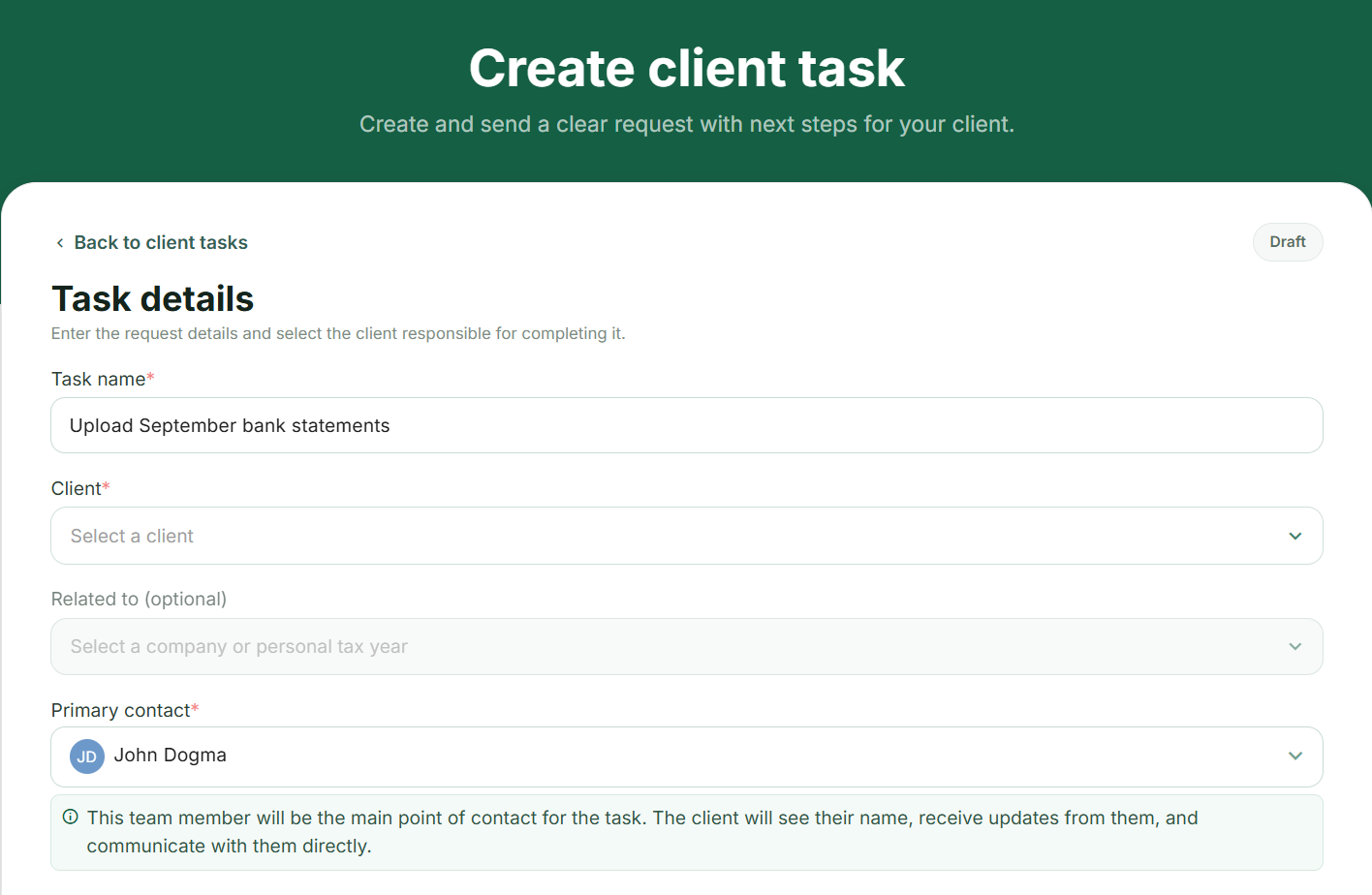
Client: start from the request your bookkeeper sent. A checklist,
shared folder, client task and signing request have different access steps. The
client-portal chapter explains each one; you do not need to follow the
firm-administration setup.
Bookwits organizes the work around bookkeeping and tax services. A company profile,
task marked complete or uploaded return does not itself prepare books, submit a tax
return, remit tax or prove government acceptance. Record those outside outcomes only
after your firm has verified them.
Check one complete example before working in bulk
Open an authorized client and confirm the name, company or tax year.
Create or review the appropriate internal task and its owner.
Check where the supporting documents belong and what is shared with the client.
Preview the relevant template. Confirm the recipient and wording before sending
anything.
After a real response, reopen the correct record and review the result. A sent
invitation is not a completed client response.
Keep preparation separate from sending. Inviting a member, sharing a folder, sending a
checklist, starting a recurring email and sending a signing request can contact real
people.
Example: prepare a small firm before inviting its first client
Imagine a firm owner, a preparer named Jordan and a reviewer named Morgan. The owner
prepares a monthly-close task template and decides which clients Jordan needs. Jordan
should join that workspace through its invitation rather than create a second firm
with a similar name. Morgan needs a clear review handoff; merely adding Morgan to the
team does not explain which work is ready.
Use Sarah Thompson as the first example relationship. Create her client profile, add
Thompson Consulting Inc. and review the resulting company workspace. Decide where
statements belong, which staff need access and which information the onboarding
checklist should collect. Preview a task created from the template and replace generic
dates and descriptions with this engagement’s details. Keep invitations and sends
separate until the recipient and wording have been checked.
The useful outcome is not “every settings screen was visited.” It is that a colleague
can locate Sarah, distinguish her company from her personal-tax work, find the
documents, understand the next task and identify its owner. Resolve these questions
before importing a large list or scheduling recurring communication.
Owner, Admin and Member: permissions for this workflow
First distinguish a staff Owner, Admin or Member from a client-portal
account. A Member is a working staff role, not a read-only guest; its client scope,
task visibility and approval controls differ from management roles. Ask for the
specific missing client or task permission rather than requesting Admin for every
problem.
Choose Dashboard in the left sidebar, or use
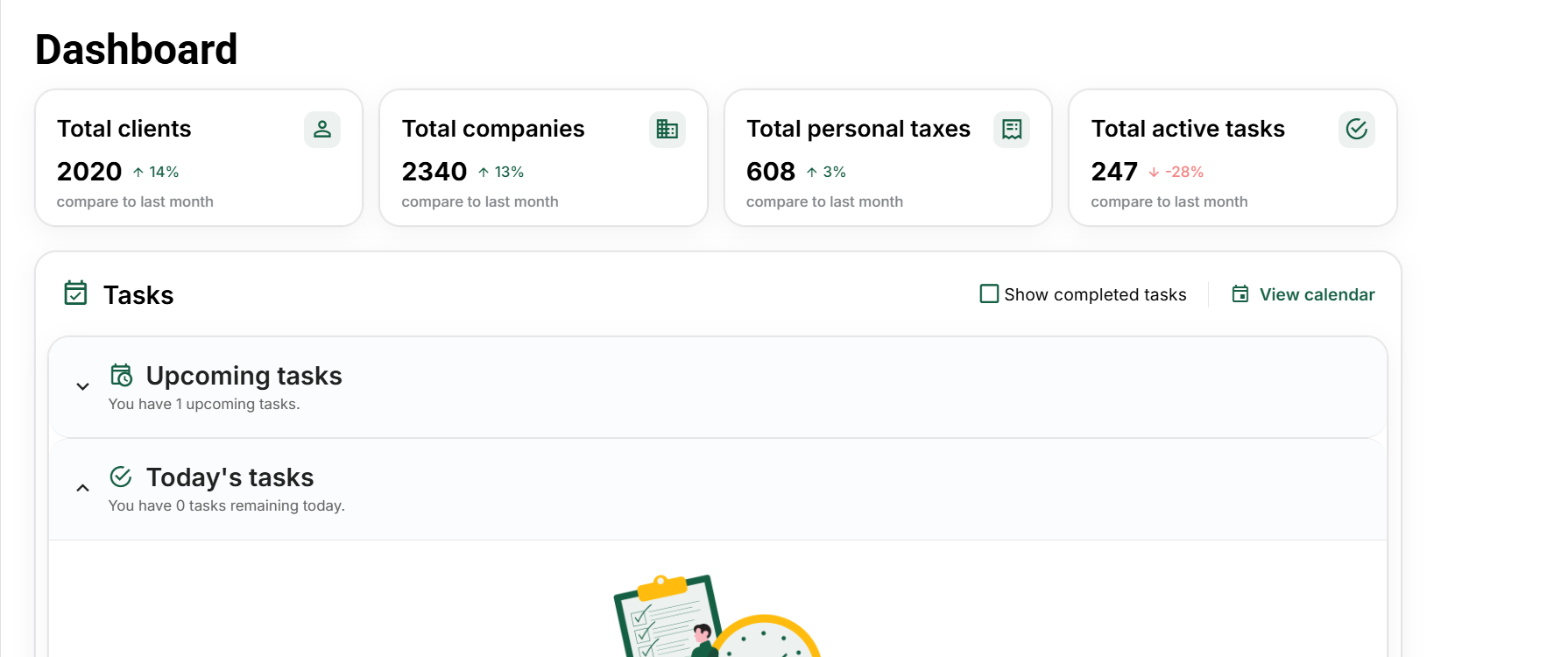
Workspace in the top bar. The four summary figures are at the top.
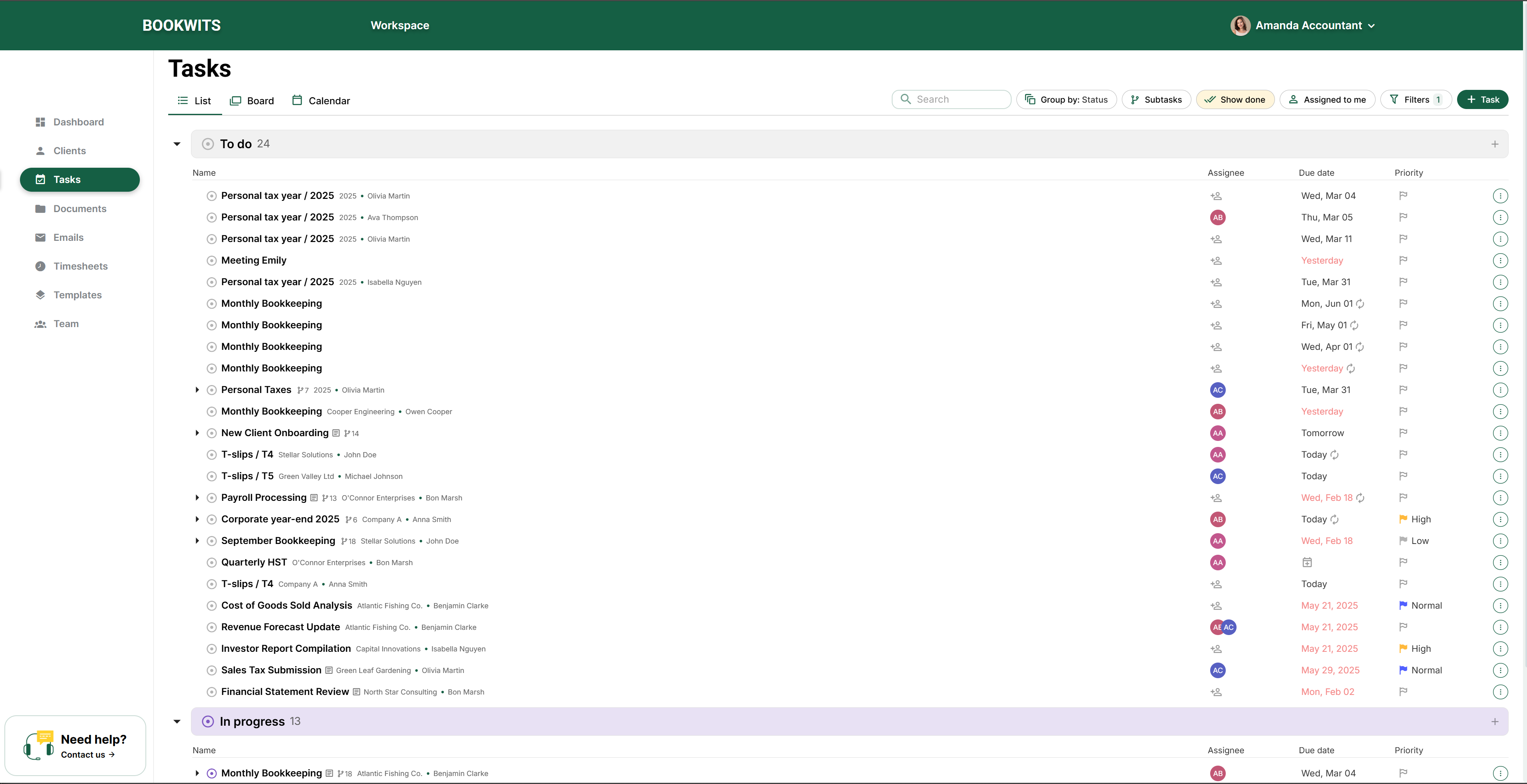
Below them, the task area contains Upcoming tasks,
Today's tasks and Overdue tasks; open a task from
its card rather than creating another copy.
Show completed tasks and View calendar are in the
task-area heading. The overdue area has its own period selector.
Recent clients opens profiles you have visited, while
View All clients returns to the complete directory. The
Quick actions area provides shortcuts for creating work, adding a
client and starting time tracking.
The Dashboard is a starting point for finding work, not the place where every record
is edited. Use its task panels, recent clients and shortcuts to enter the detailed
module.
Read the dashboard without confusing the indicators
Client, company and personal-tax totals: these refer to different
record types. One client with two companies is not three clients.
Today’s tasks: start with work due today. Open a task to read its
actual instructions, assignee and status.
Upcoming tasks: inspect future deadlines before allocating work.
Overdue tasks: investigate the blocker and update the underlying
task. Opening the panel does not resolve the overdue work.
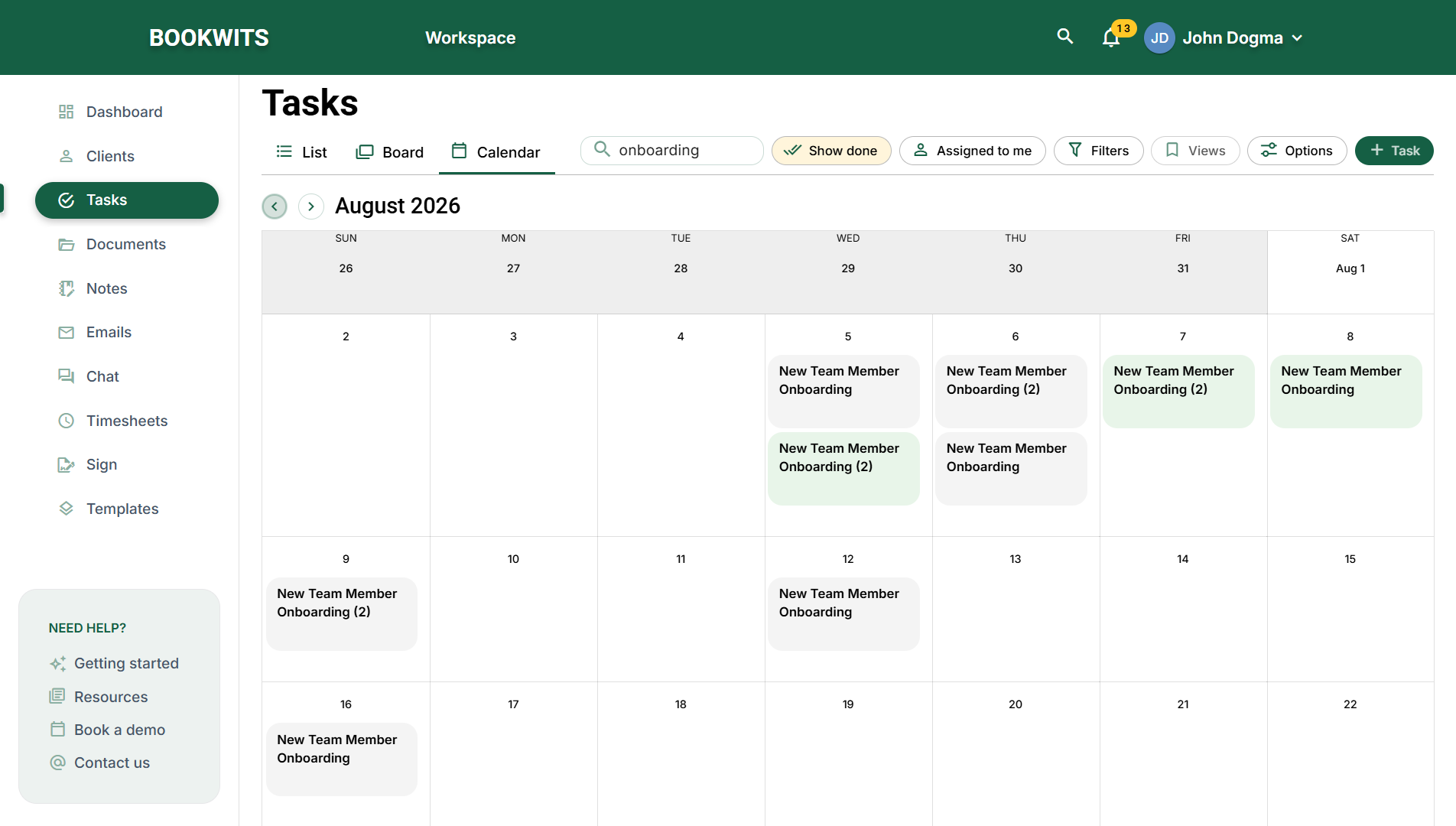
View calendar: move into the task calendar to inspect deadlines by
date.
Recent clients: reopen a client you visited. This is a convenience
list, not your complete client directory.
Add a new client: starts client setup. Search for an existing
record first to avoid duplicates.
Find a record from the header
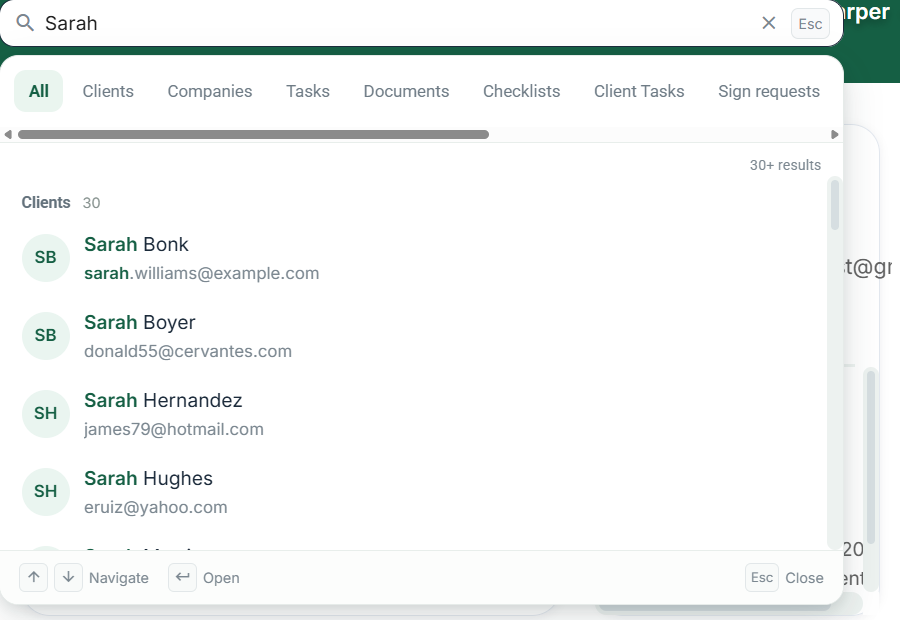
Find the magnifying-glass button in the top application bar and open
Search your workspace. This searches across supported record types;
the Search field above an individual table searches that table instead.
Enter at least two characters of a distinguishing name or phrase. For example,
search “Sarah Williams”, then choose Clients in the search panel if
you need her profile rather than a task mentioning her. The input accepts up to 200
characters.
Compare the result’s name and supporting details before opening it. Use the keyboard
arrows and Enter when convenient; Escape closes the search. After opening a result,
confirm its client, company or year before editing.
If the record does not appear, try a more distinctive term, review the module’s own
filters and ask whether the record is shared with you. Search results respect
access; a search is not a way to obtain another person’s permissions.
Use notifications as a route back to the work
Open the notification bell to review updates and follow a notification to its related
record. Read the record’s current state: a notification describes an event that may
already have been followed by another change. Email notification preferences are
managed in Settings; chat mute settings belong to the conversation.
A practical daily routine
Review overdue work, today’s tasks and upcoming deadlines; open each important task;
read the latest activity and comments; review client submissions; then update the
responsible task or list. A zero on one panel does not prove there is no work in
another module or under a different filter.
Example: turn an overdue indicator into a clear next action
Suppose the dashboard shows an overdue October close for Thompson Consulting. Open the
task before changing anything. Its description may say the bank statement is missing,
while the latest comment says Sarah uploaded it yesterday. Follow the client/company
context into Documents and check the file itself. If it is the correct October
statement, the blocker may now be resolved even though the task’s old status remains.
Jordan can then resume reconciliation, update the task’s state and leave a comment
explaining what changed. If the upload is actually September’s statement, keep the
blocker explicit and request October instead. Neither the overdue counter nor an
upload notification decides that question for you.
During a team review, compare the dashboard’s current scope with the Tasks view. A
future-dated task belongs in upcoming work rather than today’s list. Work excluded by
a filter or not shared with a member may not appear in that member’s view. Use the
indicator to open the underlying record, not as an unexplained total to copy into a
client report.
Current application screen examples
Dashboard summaries and task sections. Application screen with
illustrative sample data. The controls shown here use the English interface.
Open the full-size screenshotWorkspace search: type a name and choose a result category.
Application screen with illustrative sample data. The controls shown here use the
English interface.
Open the full-size screenshot
Owner, Admin and Member: permissions for this workflow
Owner/Admin see team-wide internal tasks; a Member’s task widgets follow assignments
unless Can view all tasks is enabled. Assigned parent tasks can make
their subtasks visible. Dates, selected ranges and completion filters still matter. A
dashboard summary is not a complete permission map: open the underlying record/list to
see what your account can actually work on.
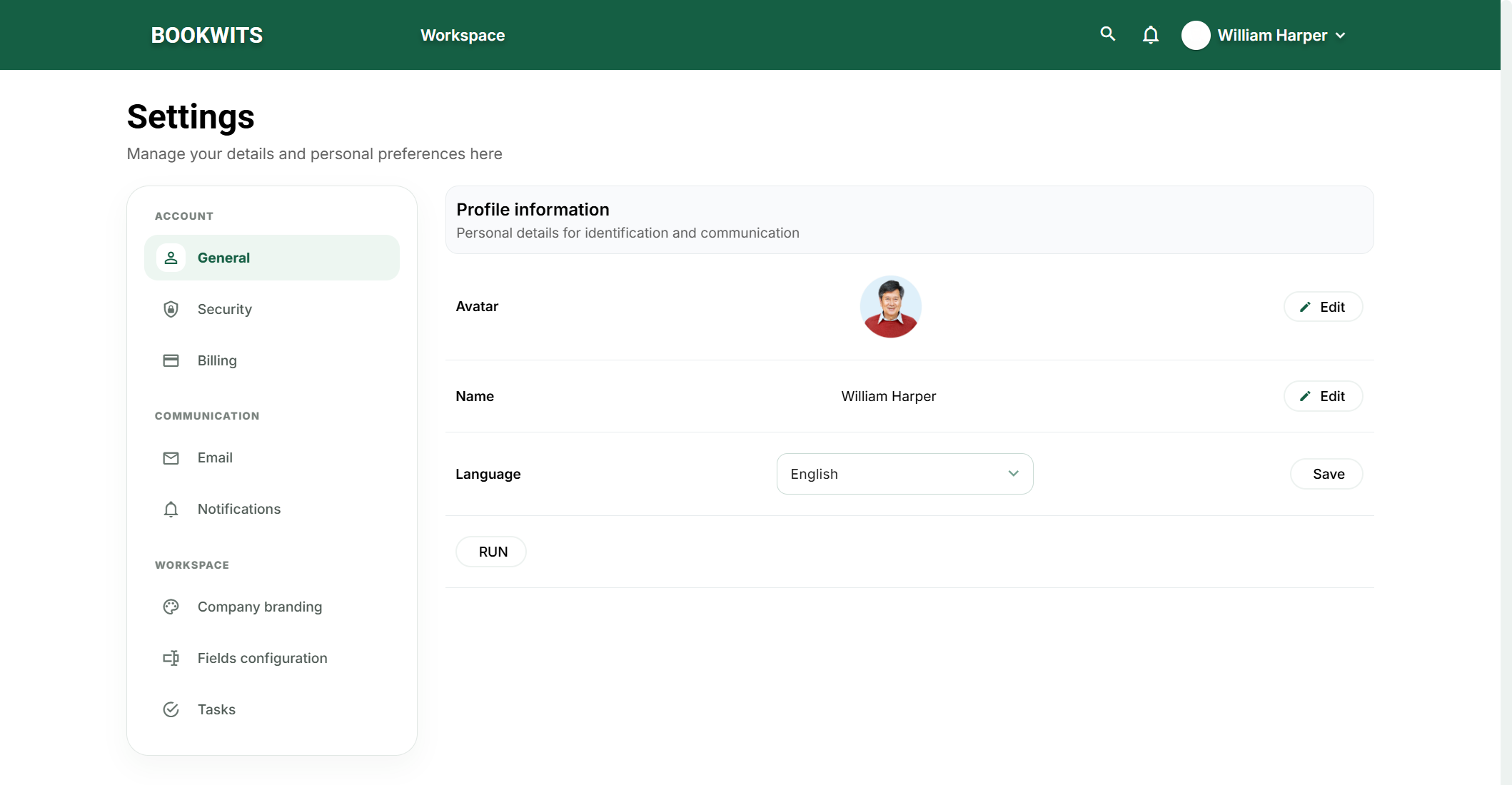
Open your name/avatar at the top right → Settings. Settings has its
own left-hand category menu, not the normal Clients/Tasks sidebar. Use
General for your profile and language, Security for
login details and verification, and Billing for the payment
information available to your account.
The communication group contains Email and
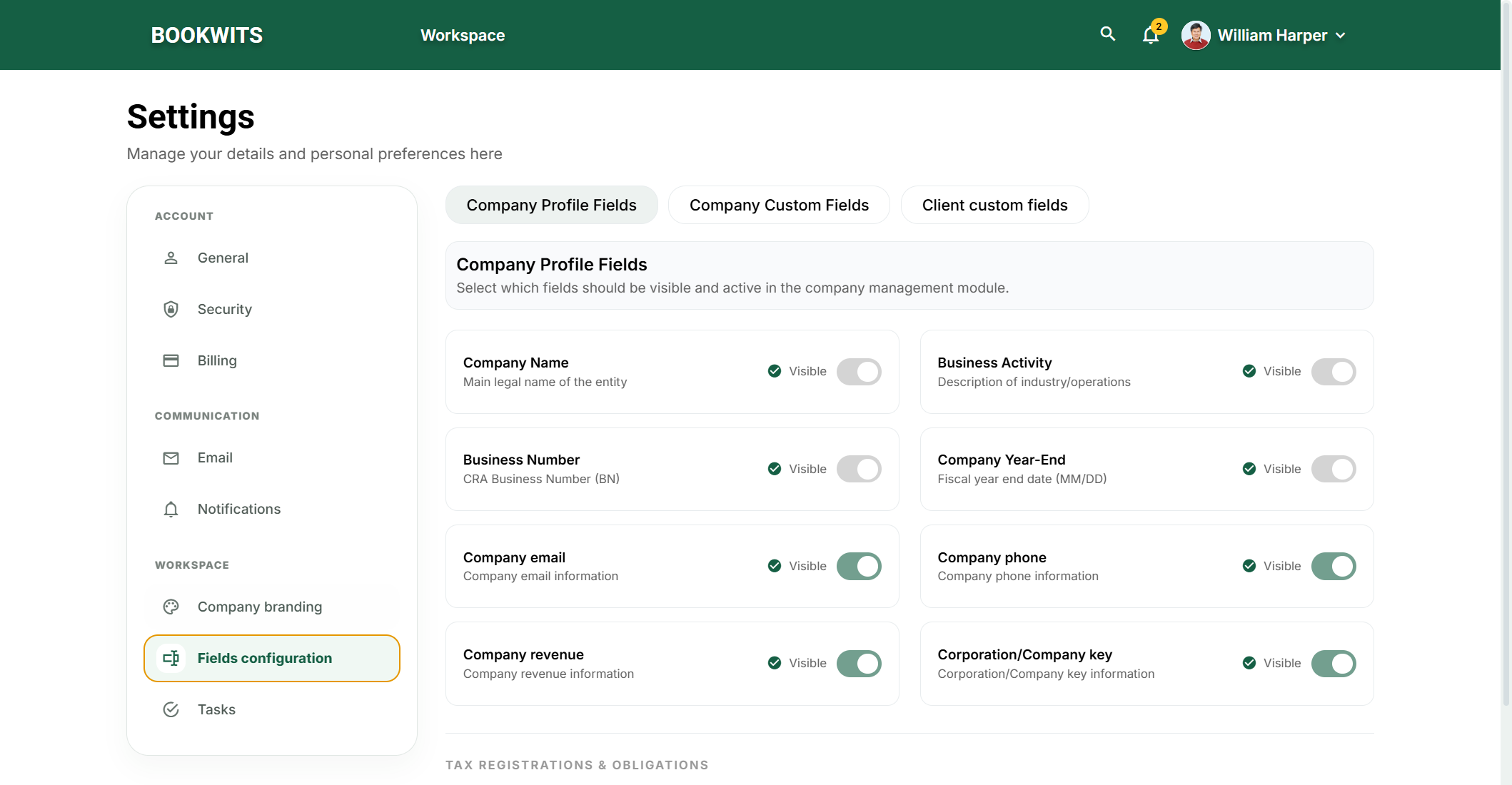
Notifications. The workspace group contains
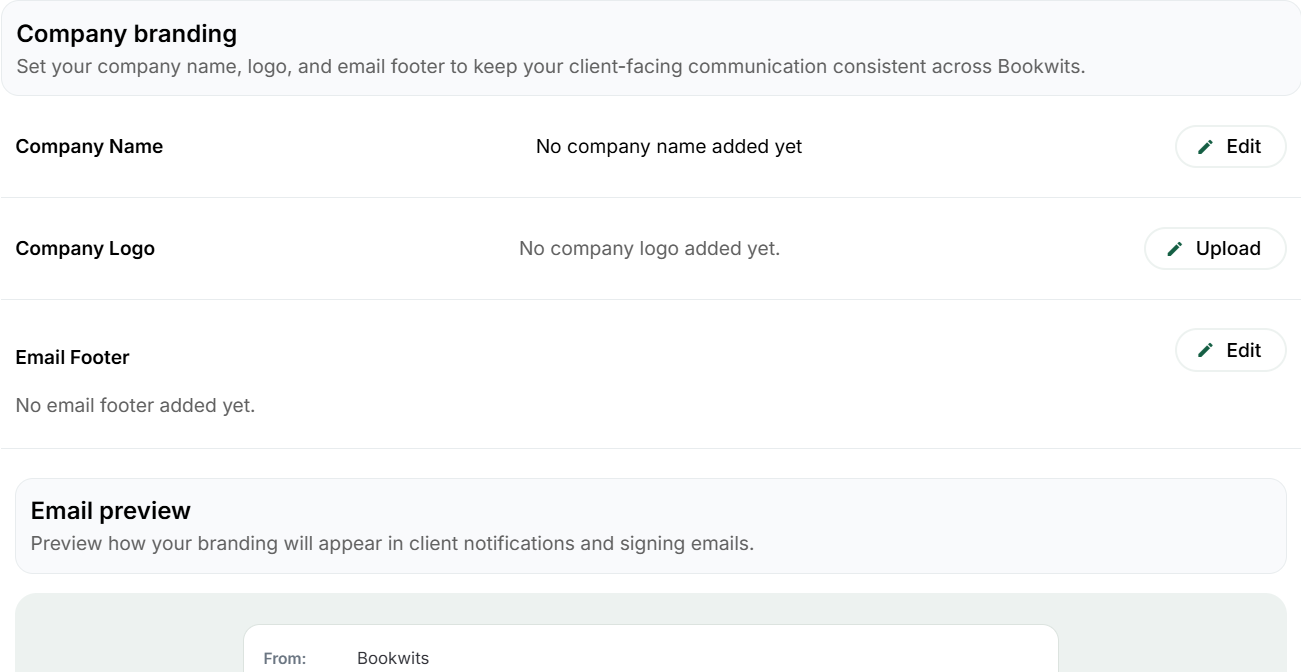
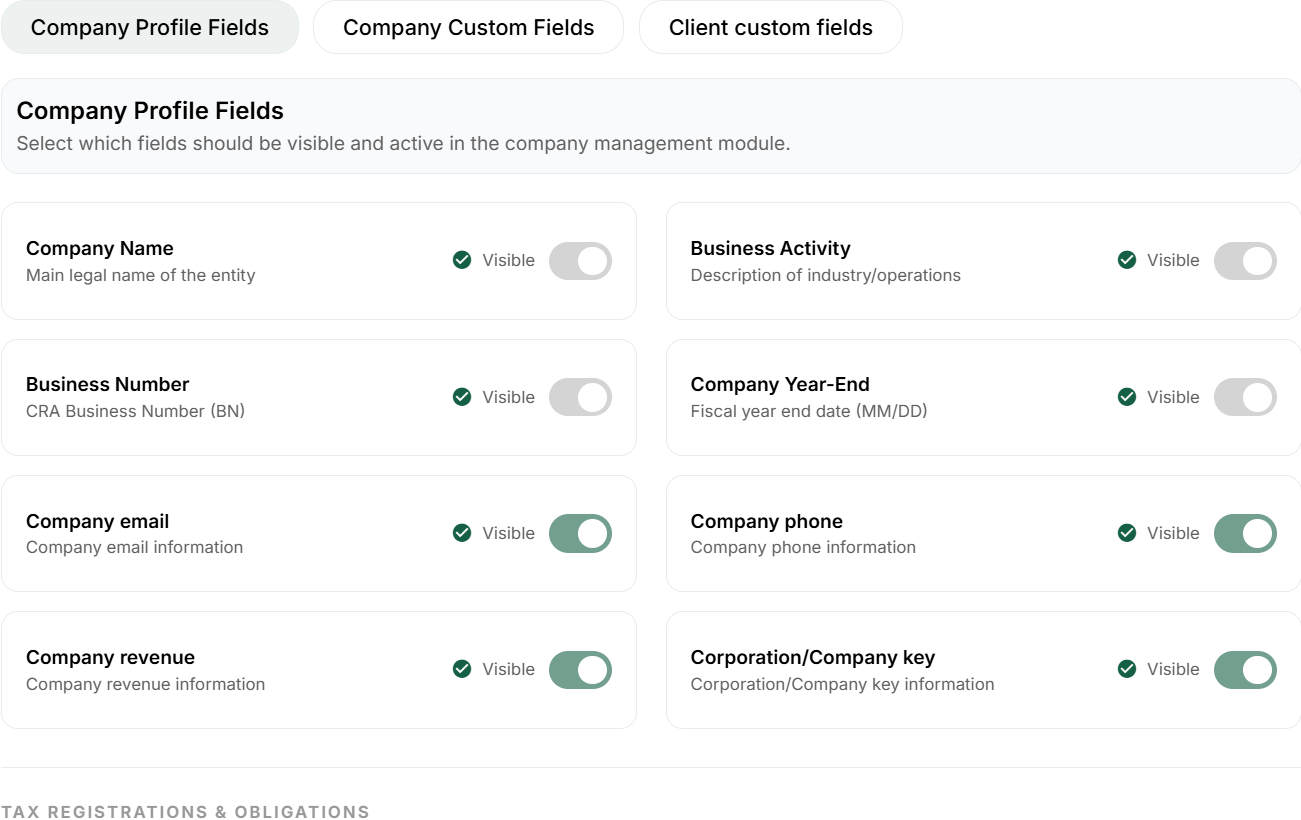
Company branding, Fields configuration and
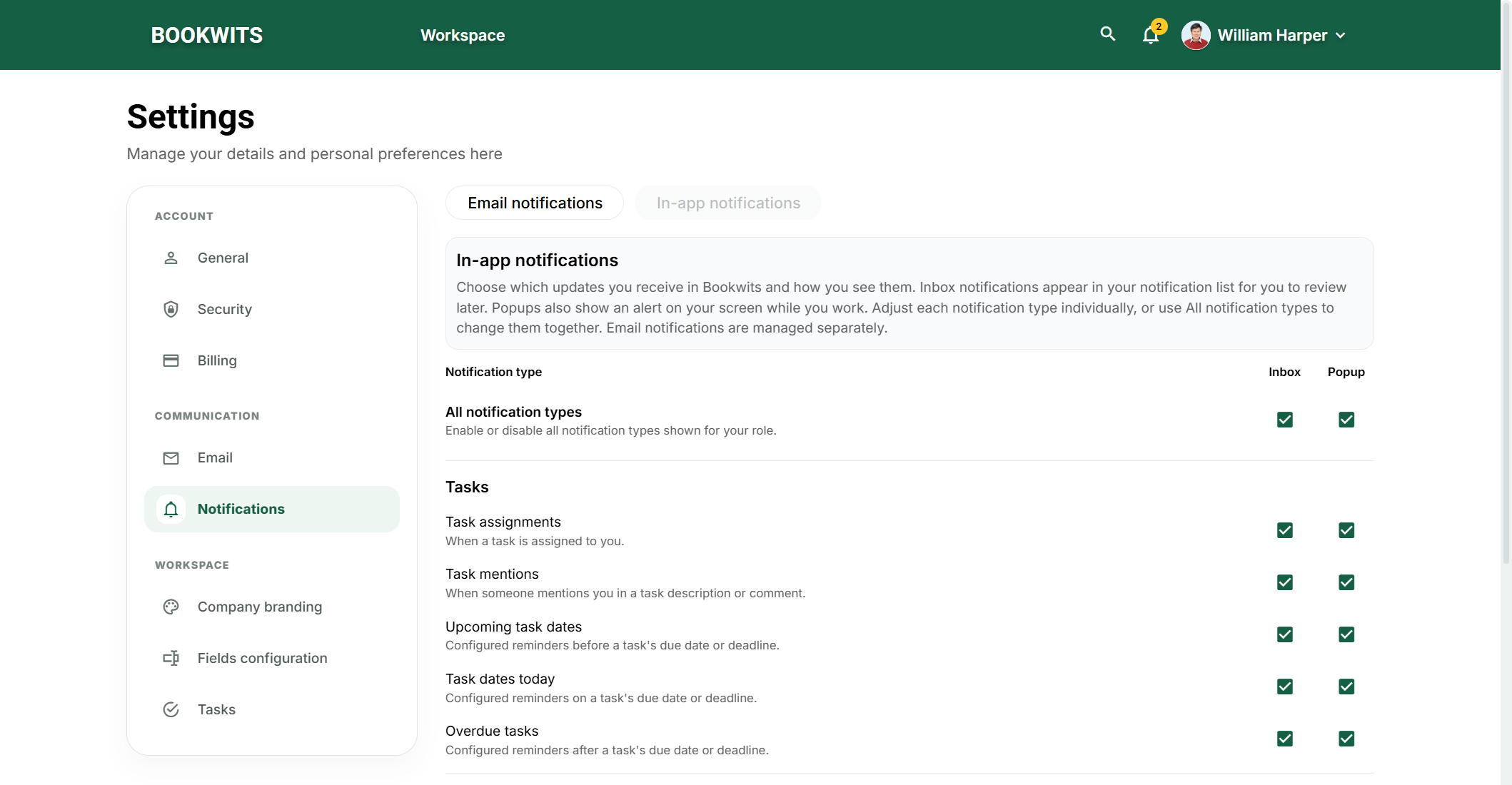
Tasks when your permissions enable them. Notifications has separate
Email notifications and In-app notifications views.
Save the particular section you changed; opening another category is not a universal
Save command.
The magnifying glass and notification bell remain in the top bar.
Workspace returns to the dashboard. Do not use
Log out merely to leave Settings.
From a signed-in workspace screen, look at the
upper-right corner of the green header. Select your own name or round
avatar, then choose Settings in that menu. This is your account menu,
not a client’s three-dot menu. The Settings page groups its sections under
Account, Communication and Workspace. On a smaller screen, use the
section selector near the top of Settings instead of the desktop sidebar. General and
Security concern your own account; branding, field configuration and default task
reminders can affect the team.
Change your profile and interface language
Open your name/avatar at the top right of Bookwits and select
Settings. In the settings sidebar, choose General;
this sidebar replaces the normal module menu while you are in settings.
Find the profile section you want to change and use its
Edit control. Check the first/last name or avatar you are updating;
this is your account identity, not the name of the firm or of a client.
For interface language, select English or French in the language control and save
the relevant section. Read the changed screen to confirm the choice. User-entered
names, notes and document contents are not automatically translated.
Use Workspace in the top bar to return to the application. You do
not need to log out merely to leave Settings. If you cancel an edit, check that your
previous value remains.
Change your login email
Select your name/avatar in the upper-right header, choose Settings,
then select Security under Account in the Settings
sidebar. On a small screen, choose Security in the Settings section selector.
In Login credentials, find the Email row and
select its Edit action. Do not use the separate Password or Phone
2-Step Verification controls.
The Update email dialog opens. Replace the address with the
permanent mailbox you control, check the spelling, then choose
Update. This action starts email verification; opening the dialog
alone changes nothing.
Open the verification message in that mailbox and follow its verification link. If
it does not arrive, check spam/junk and the address before using
Resend email.
Return to the Bookwits verification dialog and select
Confirm email verified. Resolve any verification error and check
the Email row afterward. Until verification succeeds, the previous login address
remains unchanged.
Example: changing your own sign-in address from an old work mailbox
to your new work mailbox does not edit Sarah Williams’s contact email or reconnect an
Outlook account. A client’s contact email, your login email and your connected
Gmail/Outlook mailboxes are separate settings.
Change or reset your password
Open your name/avatar → Settings → Account → Security. Under
Login credentials, select Edit on the Password row,
not Edit on the Email row. Enter your current password, a new password of at least 12
characters containing uppercase and lowercase letters and a number, and the matching
confirmation. Choose the password section’s Save; use its
Cancel to abandon the draft. If you do not know the current password,
Reset password sends a recovery email; it is not a way to reveal the
old password. When signed out, use the login page’s recovery option instead. Never
share a password or verification code with a colleague or support contact.
Enable phone two-step verification
Open your own name/avatar at the upper right, choose Settings, then
Security in its Account group. Find the
Phone 2-Step Verification row. Use a phone you control, not another
staff member’s number. On a small screen, select Security in the settings section
selector.
Follow the enable/verification action, enter the correct phone and country code,
then request the code. This sends a real verification message; review the number
before requesting it.
Enter the code you receive and complete the confirmation. Check that the security
screen now shows verification enabled. Entering a number without completing the code
step is not the finished setup.
If the code does not arrive, check the number and use the offered resend/recovery
controls. If you will change phones, review this setting while you still have access
rather than waiting until you are locked out.
Disabling two-step verification requires confirmation and reduces account protection.
On a shared computer, sign out when finished; closing a tab is not the same as signing
out.
Choose useful notifications
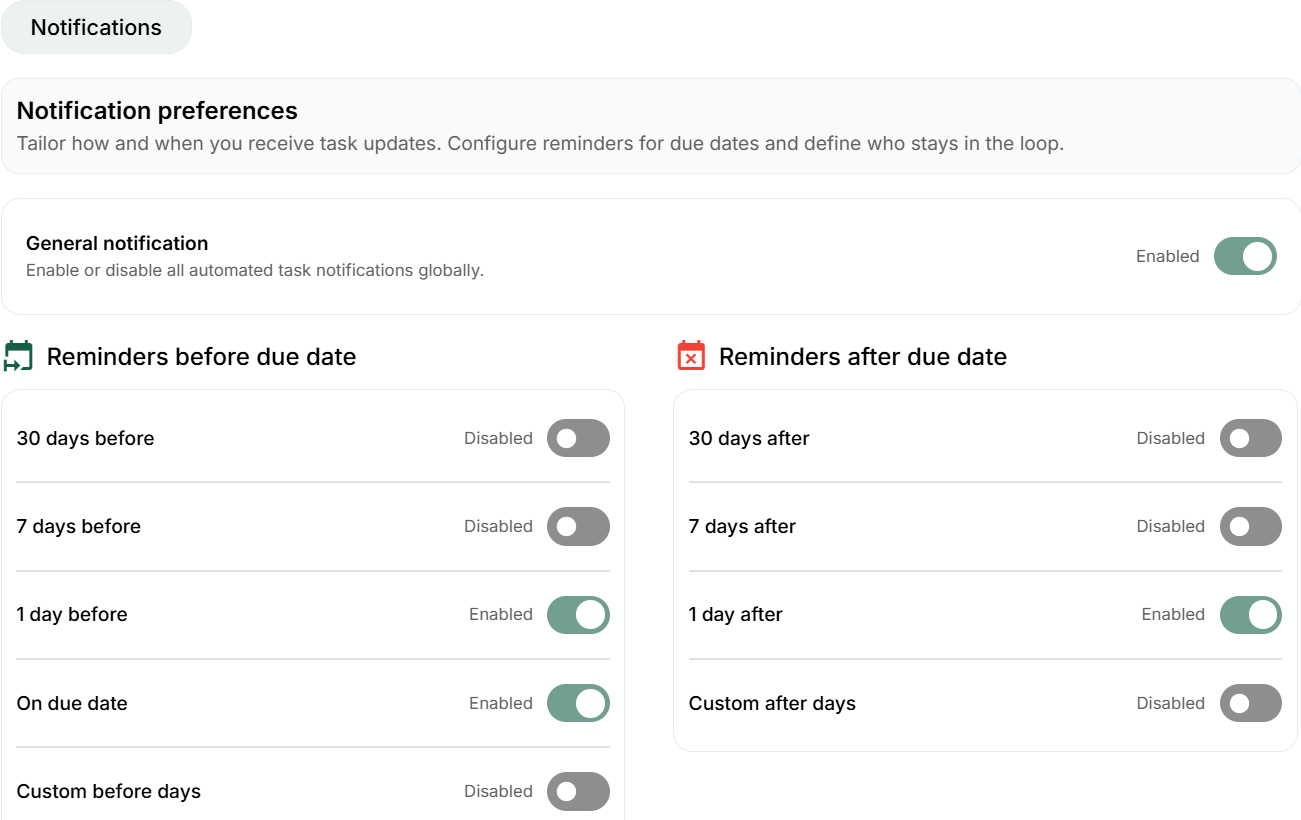
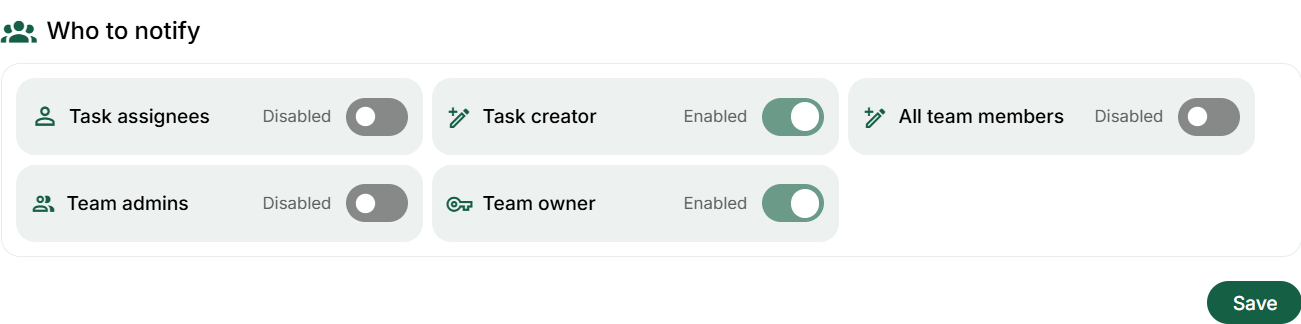
In Settings → Notifications, review task updates, document uploads, unread chat
messages, client task completion, reminder success/failure and the other categories
available to your account. Save the changes. The option to update upload notifications
for all shared folders is broader than a personal preference: read the confirmation
before applying it. Keep failure notifications visible so unsuccessful scheduled
communication is not mistaken for delivery.
Example: distinguish three email addresses before changing one
Jordan signs in to Bookwits with a personal work address, connects a separate Gmail or
Outlook mailbox for correspondence and maintains Sarah’s contact email in her client
profile. These addresses have different jobs. Updating Sarah’s profile does not switch
Jordan’s sending mailbox. Connecting a mailbox does not establish that Jordan’s login
email was changed or verified.
If Jordan moves to a new permanent login address, follow the Security change and
verification flow, then inspect the account’s displayed verified address. If the
problem is that replies are coming from the wrong mailbox, inspect Email settings
instead. If only Sarah’s future invitations should use another address, inspect the
client’s contact details and existing invitation state.
The same distinction applies to language: choosing French changes interface wording,
not Sarah’s typed name, a colleague’s note or the text inside a PDF. Review a composed
message or template in its own context before sending. Never assume that switching the
interface translated every client-facing document automatically.
Use the top-bar workspace search instead of guessing a module
For professional accounts with search access, the
magnifying glass near the top-right notification bell opens workspace
search. Enter at least two characters. The search panel provides
available record-type tabs, grouped results and a result count. Your role and enabled
modules determine what can appear; search does not bypass a colleague's private client
permissions.
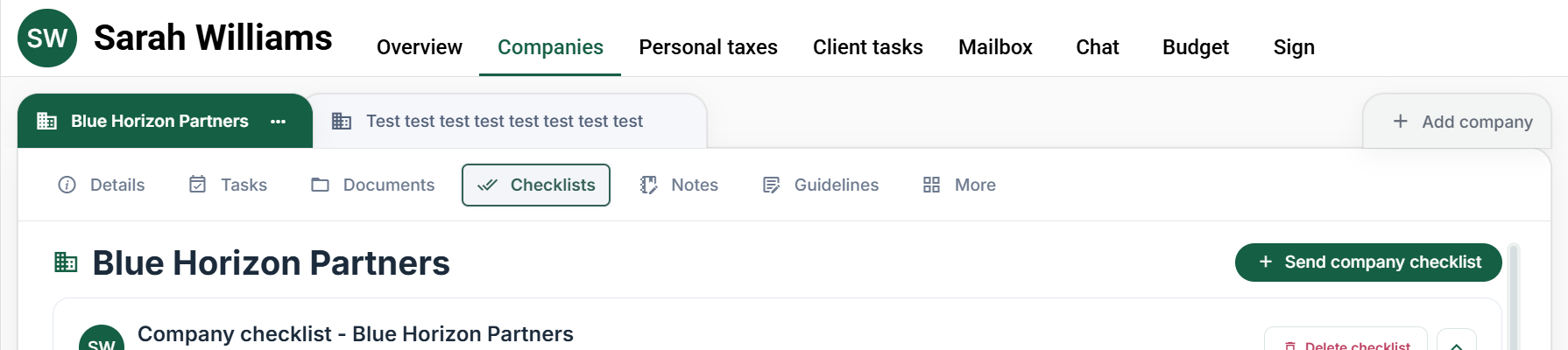
Example: enter “Sarah Williams,” then choose the Clients or Companies
type to distinguish her person record from Blue Horizon Partners. Read the result's
context before opening it. A person's name can appear in several companies, annual
files or work items, so the first result is not automatically the intended
destination.
Use the arrow keys to move through results, Enter to open the selected result, and
Escape to close. Scroll within the results for more available matches. Recent items
help return to previously opened records; they are not a complete client directory. If
the panel reports an error, use its retry control rather than treating missing results
as deleted records.
Separate notification emails, the bell inbox and popup alerts
The bell in the top bar opens notifications.
All includes read and unread items; Unread limits
the list. Opening an item marks it read and follows its available destination.
Mark all as read changes the inbox state; it does not complete the
tasks or client requests mentioned in the messages. A destination may be unavailable
if the underlying record was removed or your access changed.
Open Settings → Notifications.
Email notifications controls the email categories shown there, such
as client uploads, unread chat, client-task completion, task updates and reminder
outcomes. In-app notifications controls the bell inbox and popup
choices. In the in-app matrix, a popup depends on the corresponding in-app
notification being enabled. Review the available per-type options, then use
Save for changes to that matrix.
Example: keep a task event in your bell inbox but turn off its popup
if you do not want an interruption. That choice does not necessarily disable the
separately configured email notification. Muting a chat conversation is another
conversation-specific setting, not a universal notification switch.
Know which billing and security action you are changing
Settings → Billing contains the subscription options available to
your account. Monthly/yearly selection changes the plan comparison; purchasing
requires the appropriate checkout action and confirmation. Separate subscription,
credit and promotional-placement pages serve different purchases. Review price,
billing period and the intended workspace before confirming a payment. Leaving
checkout or seeing a button is not proof of a completed purchase.
Settings → Security separates login email, password and phone
two-step verification. Use Edit for the relevant item, follow its
verification/validation, and save that section. A password change uses the current
password and a matching new-password confirmation; the reset link is for recovery when
the current password is unavailable. Do not send passwords or verification codes to
another user. Changing your own login email does not update every client's contact
email or reconnect your external mailbox.
Current application screen examples
Settings categories and the account profile. Application screen
with illustrative sample data. The controls shown here use the English interface.
Open the full-size screenshotNotification settings and their separate delivery channels.
Application screen with illustrative sample data. The controls shown here use the
English interface.
Open the full-size screenshot
Owner, Admin and Member: permissions for this workflow
All staff roles manage their own name, login/security and notification preferences.
Owner/Admin is not permission to change another person’s password or read their
mailbox. Billing is Owner-only; Admin is not a substitute. The
Owner’s professional-profile features are also separate from an employee’s personal
account settings.
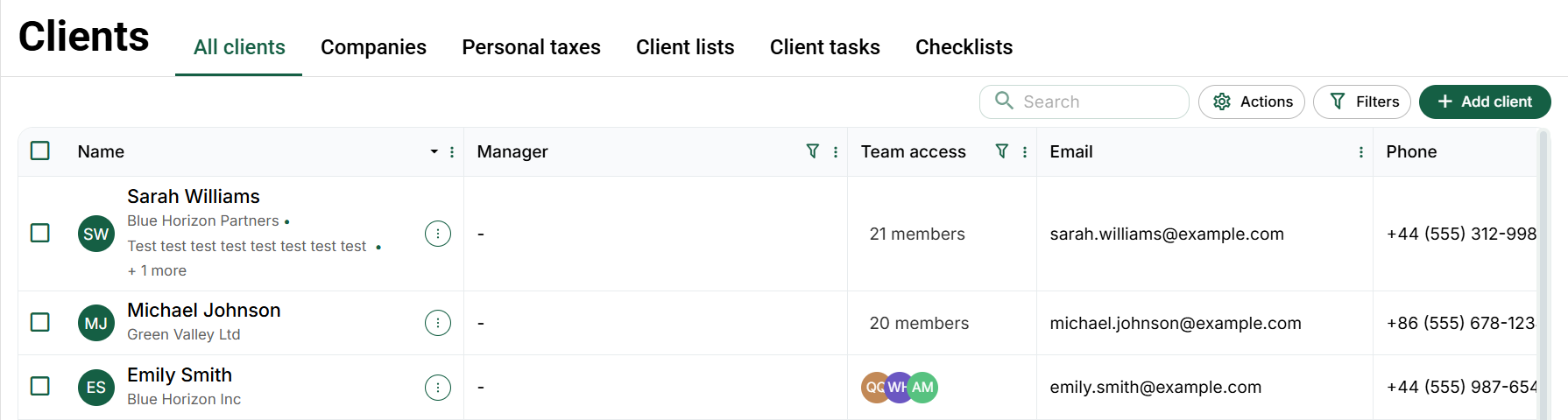
Choose Clients in the left sidebar, then
All clients in the top tab row. The search field is above the table.
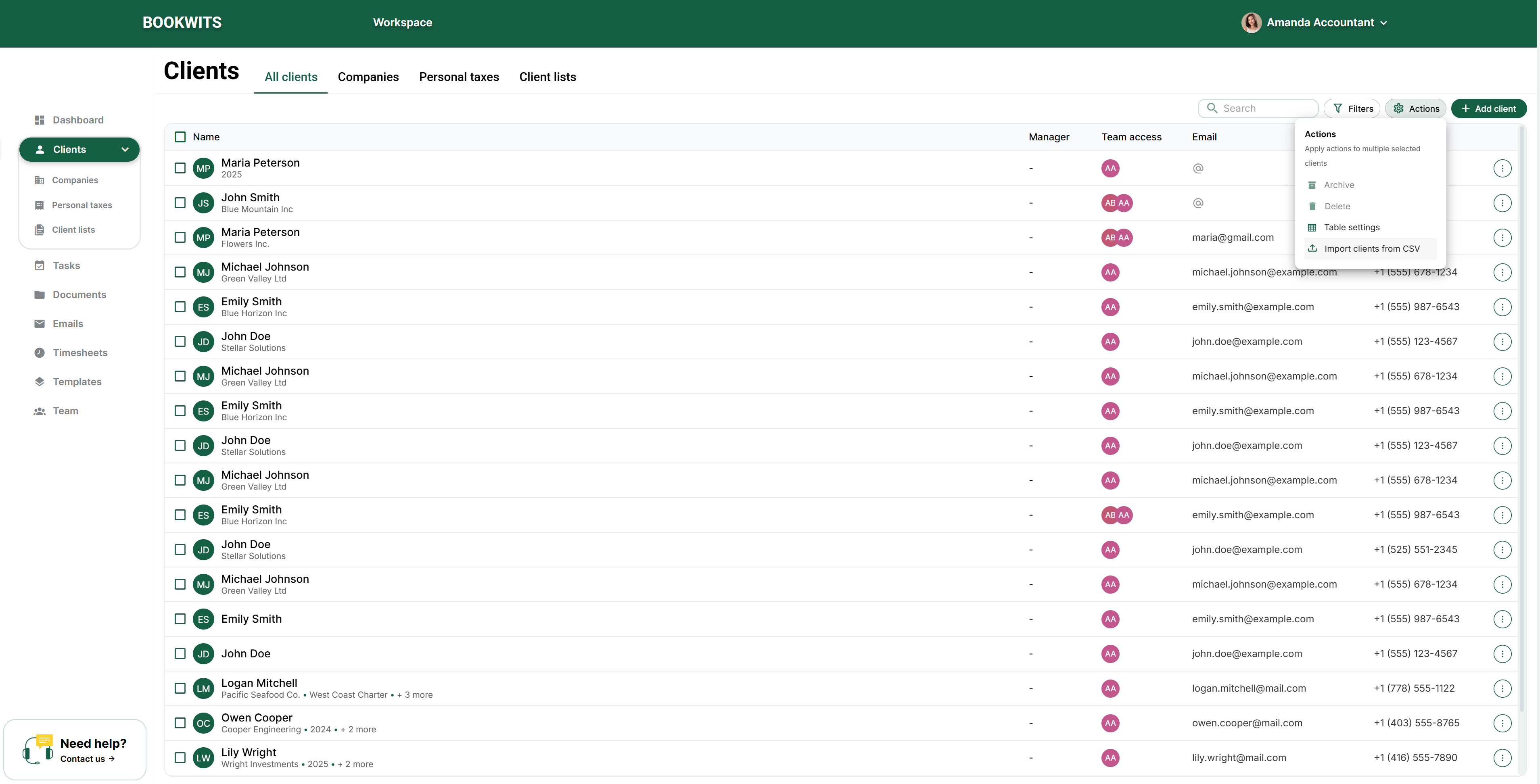
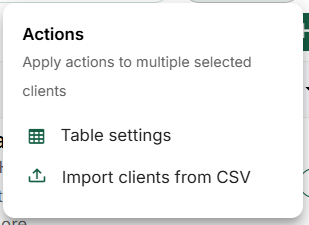
Open Actions → Table settings to change the columns or
Actions → Import clients from CSV to import a spreadsheet.
Filters changes which clients appear; the green
Add client control starts the client wizard.
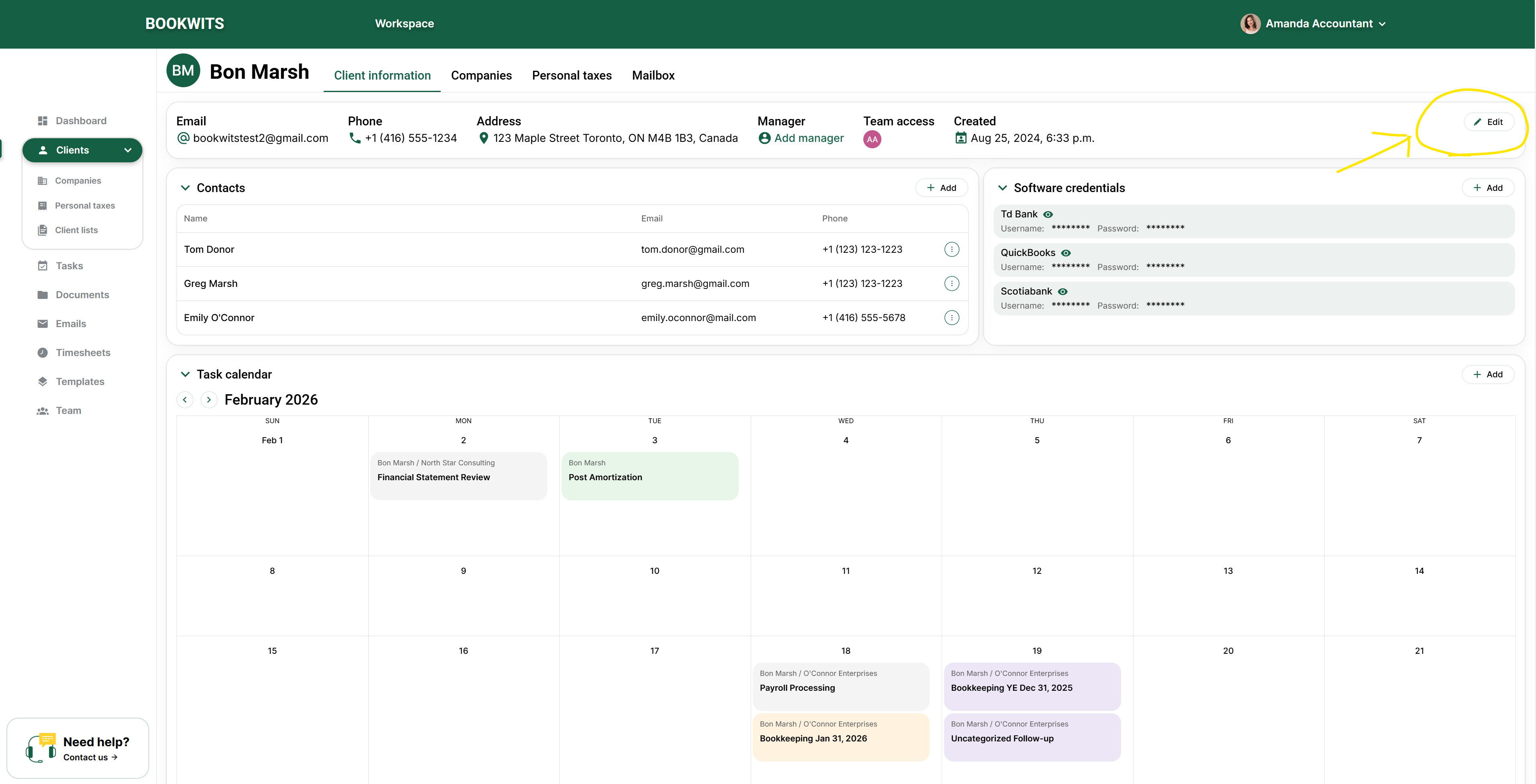
Click the client's name to open their profile. Its top tabs are
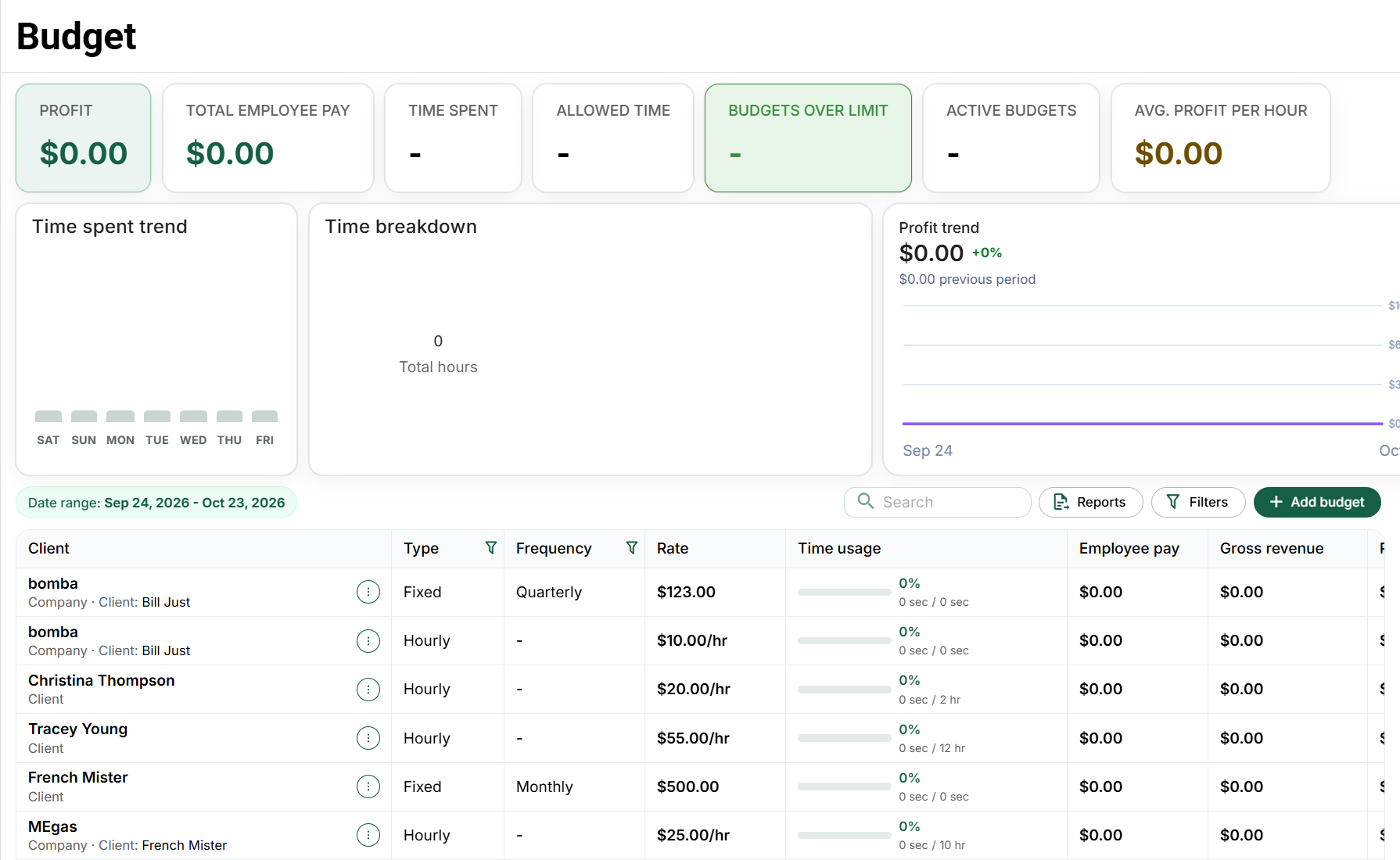
Overview, Companies, Personal taxes, Client tasks, Mailbox, Chat, Budget and
Sign. In Overview, find the Client details card.
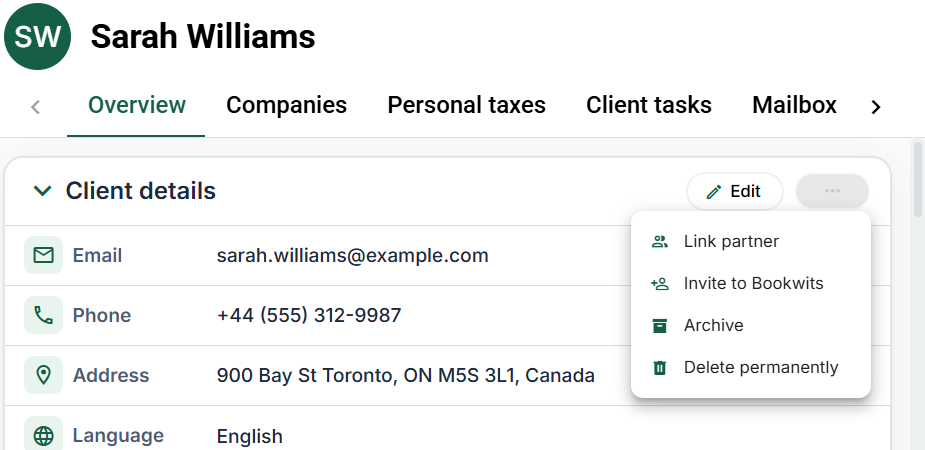
Edit is at its top right; the
three-dot button immediately beside Edit contains
Link partner, Invite to Bookwits, invitation
follow-up actions where applicable, and archive/delete actions.
Contacts, software credentials and the task calendar are separate sections below the
details card. A contact person is not automatically a connected portal account. A
partner is not the same thing as a contact, staff member or company owner.
Client =The person (or main account) you work withExample: Sarah Thompson
Company =A business entity you manage for that clientExample: Thompson Consulting Inc. and Thompson Holdings Ltd.
Personal Tax Year =A yearly personal-return tracking recordExample: 2025 T1 for Sarah Thompson
Rule of thumb: One client can have multiple companies and multiple personal tax years.
Quick Start (What to Do First)
If you want the fastest path to “I can use this confidently,” follow this order:
1
Create the client
2
Add their company (if they have one)
3
Open the current personal tax year (if you do T1s)
4
Use Client Lists to track a deadline group
Beginner tip: don’t wait for perfect data. Create the client record early so work
doesn’t live in email threads or spreadsheets.
Working through the module
1) Add a New Client
A client record represents the person or primary relationship your firm
serves. It is the starting point for their contact details, companies, annual
personal-tax work and staff access. Search the directory before creating it:
adding the same person twice can split documents and work between two
profiles.
For example, create one client for Sarah Thompson, then attach Thompson
Consulting Inc. as a company. If Sarah also needs a personal return, add its
year under the same client. You do not need a second Sarah record just because
you provide two services. Enter the required first and last names; add
verified contact details rather than inventing missing information.
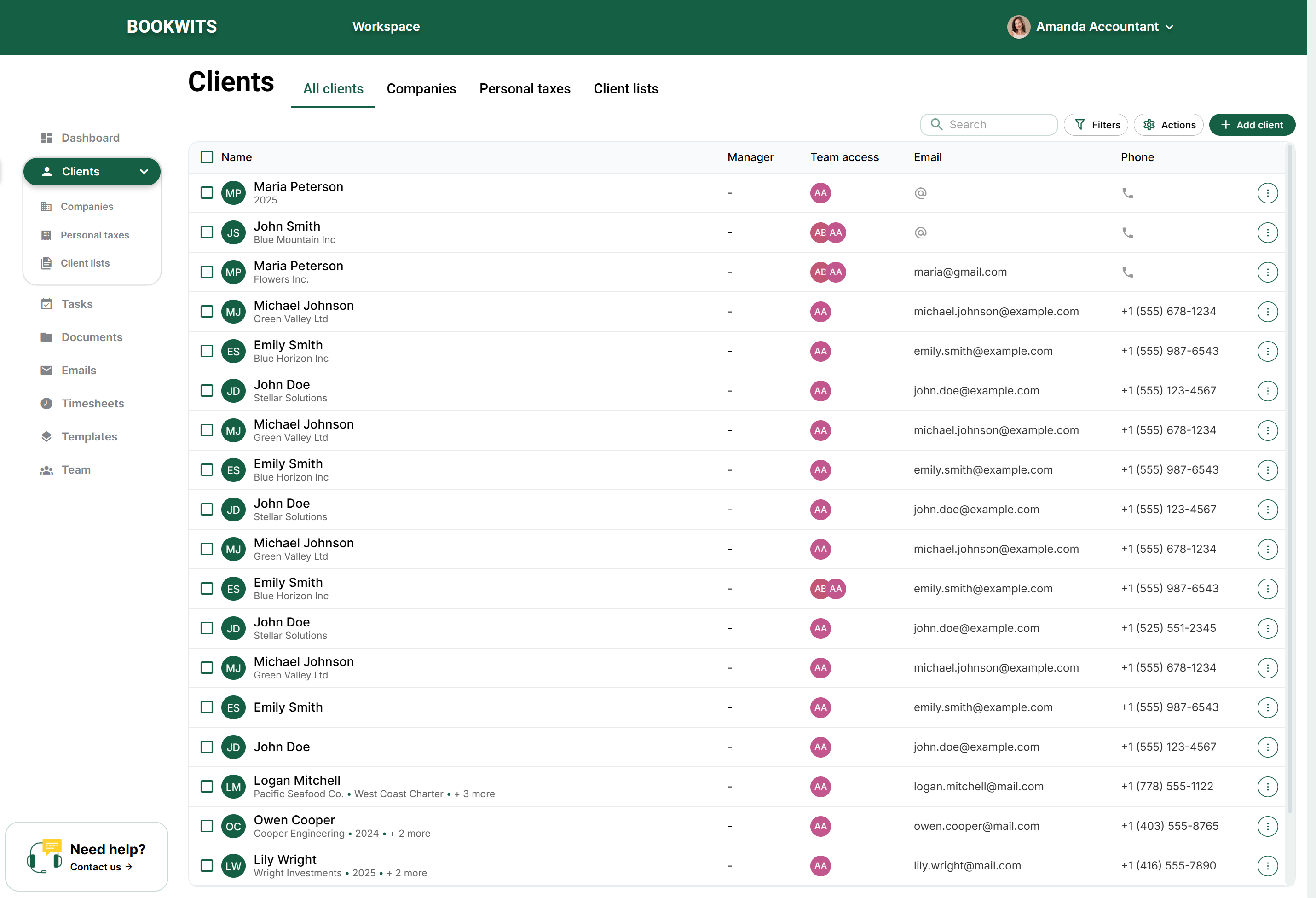
Open Clients in the left sidebar. On the page that opens,
select All clients in the top row of tabs. This is the
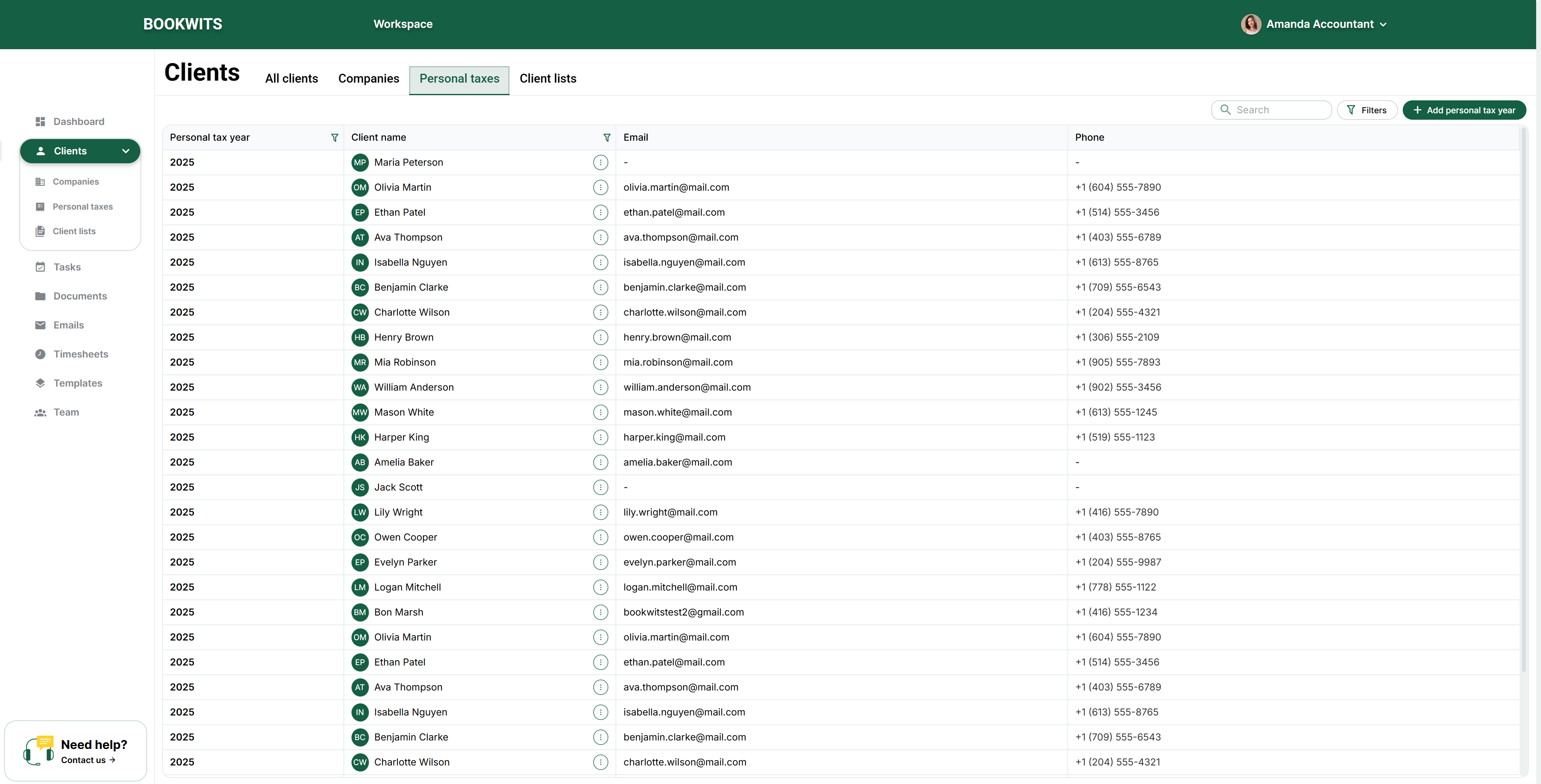
directory of people; Companies and Personal taxes show different kinds of
records.
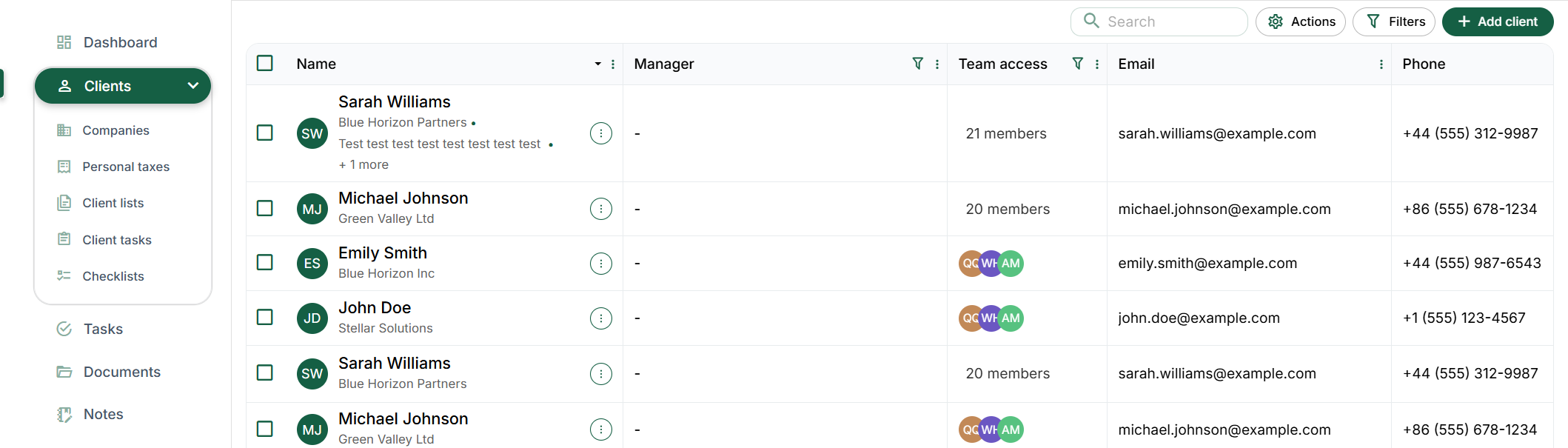
Client creation: All clients, search and Add client.
Application screen with illustrative sample data. The controls shown
here use the English interface.
Open the full-size screenshot
Check whether the person already exists. Use Search above
the table and compare the name and contact details of matching rows. If
Emma Laurent is already listed, open her name to update her profile
instead of adding a second Emma. Clear the search when you are done.
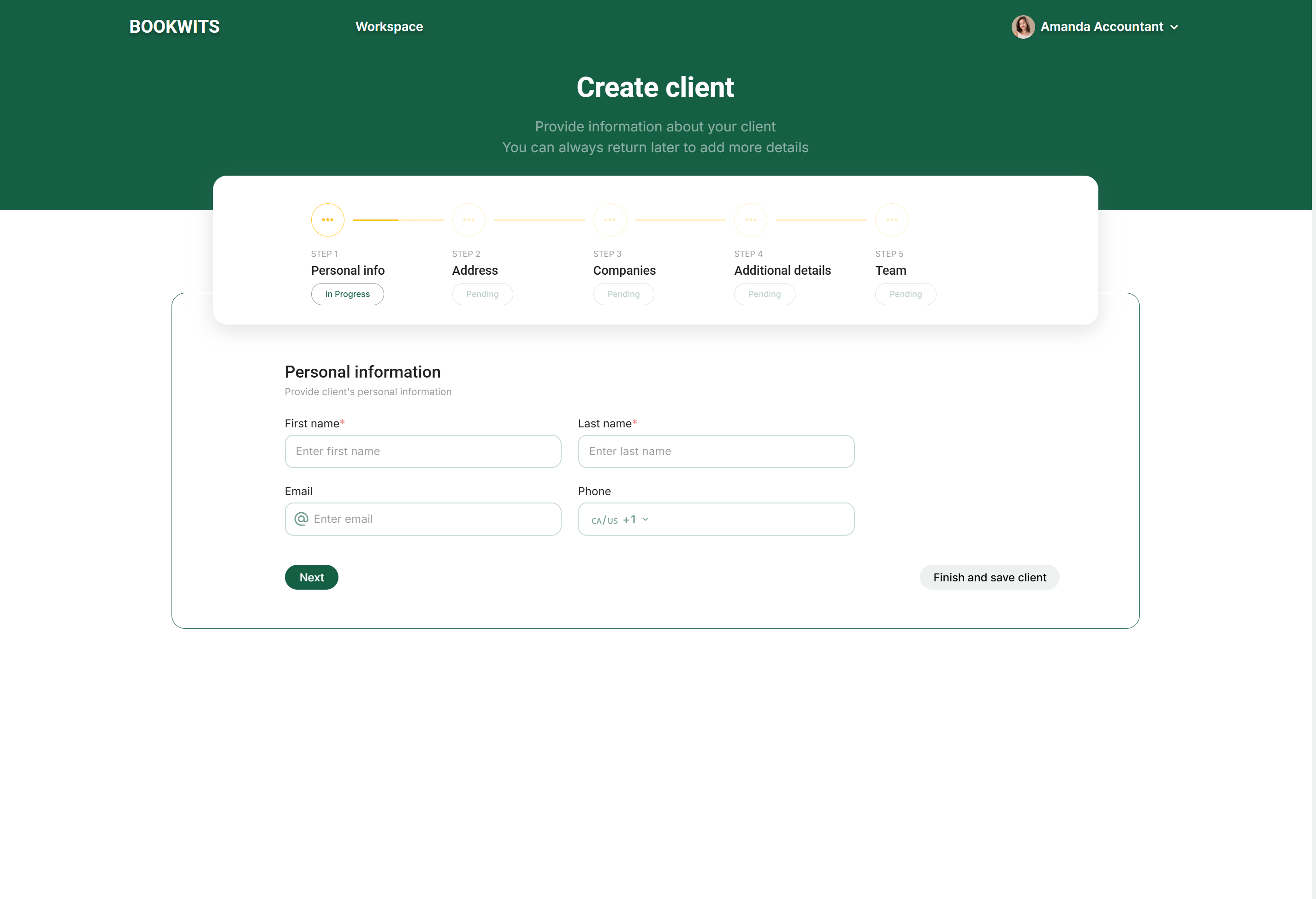
Select Add client at the upper right, above the table. It
is the green control with a plus sign, beside Filters. The Create client
page opens with five stages: Personal info, Address, Companies, Additional
details and Team.
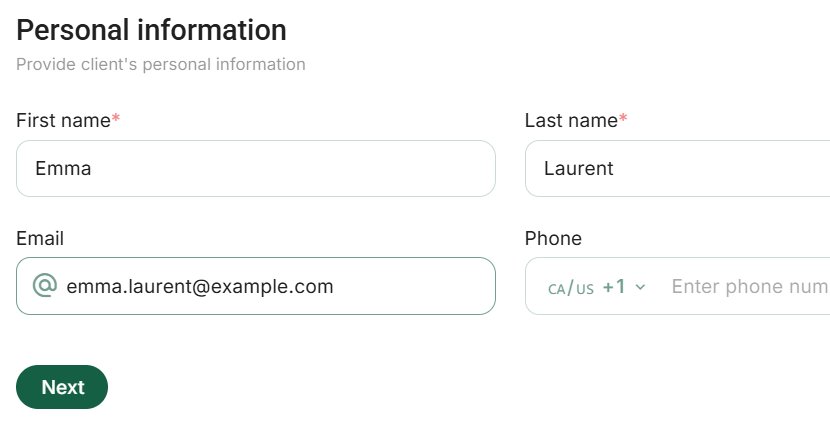
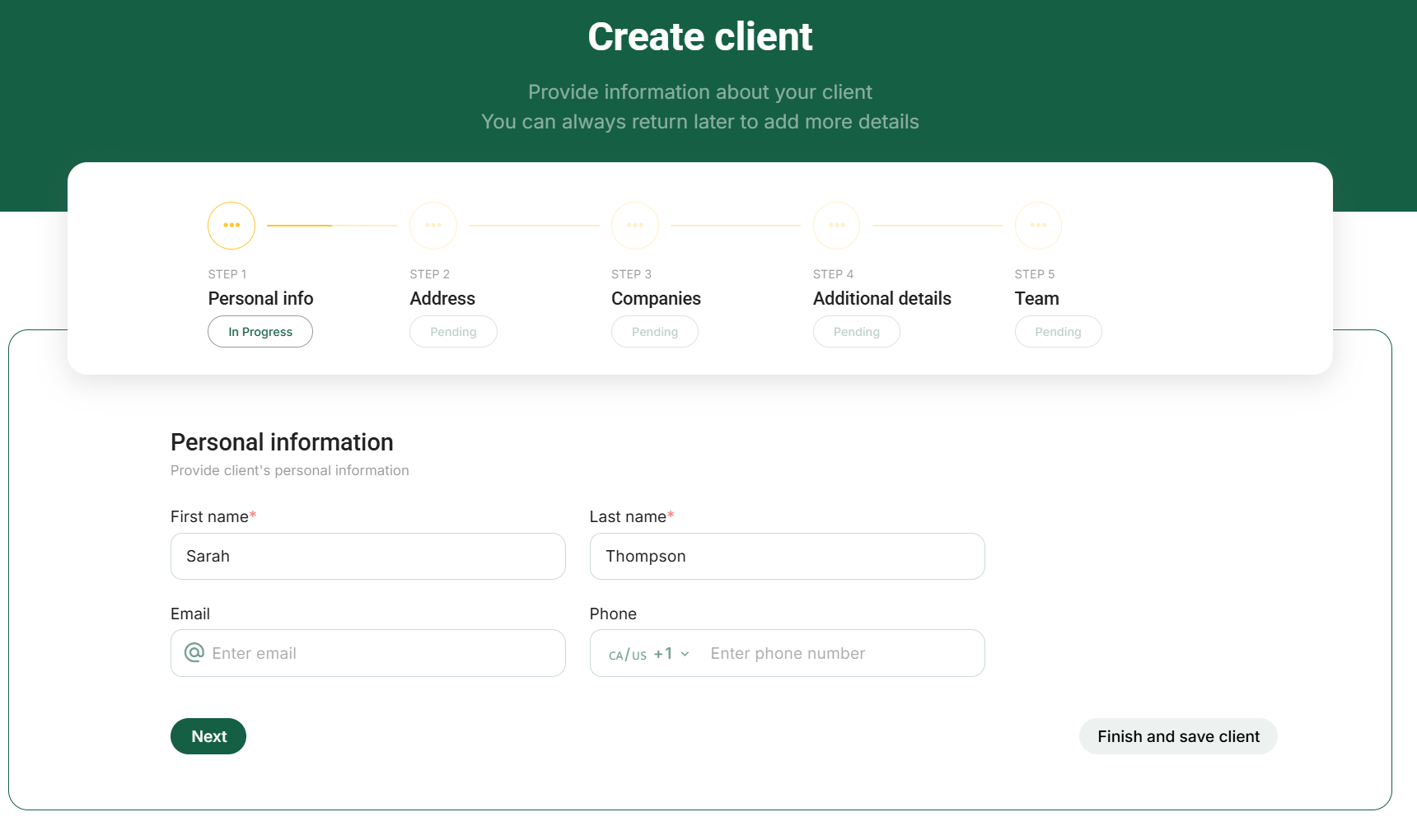
Complete Personal info. Enter the first name and last
name in separate required fields. Email and phone are optional here; if
you provide an email, use a complete valid address. For phone numbers,
check the country dial code. The example shows Emma Laurent with an
illustrative address; it is still an unsaved draft.
Client creation: required names and optional contact
details.
Application screen with illustrative sample data. The controls shown
here use the English interface. This example shows an unsaved client
draft.
Open the full-size screenshot
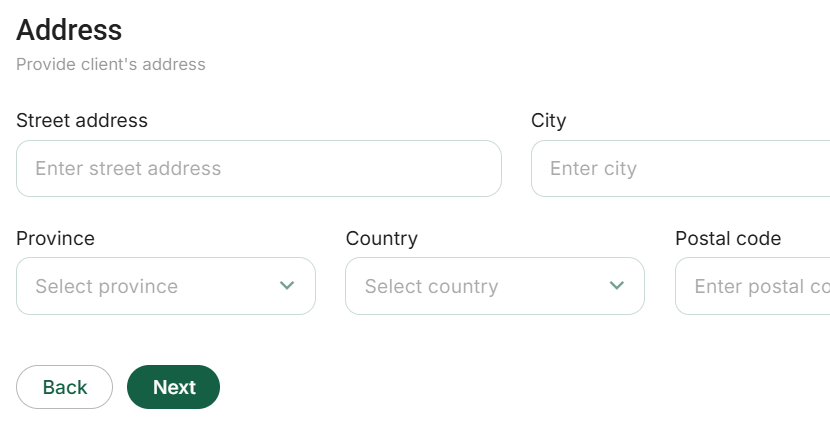
Use Next to reach Address. Enter the client’s personal
street address, city, country, province and postal code when known. Check
the country before choosing a province. These are not automatically the
company’s mailing details. You can leave information you do not yet have
blank and continue.
Client creation: the personal address fields.
Application screen with illustrative sample data. The controls shown
here use the English interface. This example shows an unsaved client
draft.
Open the full-size screenshot
At Companies, decide whether a business belongs on this
profile.
A blank company editor can open automatically. For a personal-tax-only
client, choose Cancel inside that company editor, then
the page’s Next; do not invent a company. If adding a
business, enter its name and applicable details, then use
Save company to add it to the unsaved client draft. The
small round + beside Companies adds another business.
Final client saving is still required.
Client creation: continue without a company for a personal-tax-only
engagement.
Application screen with illustrative sample data. The controls shown
here use the English interface. This example shows an unsaved client
draft.
Open the full-size screenshot
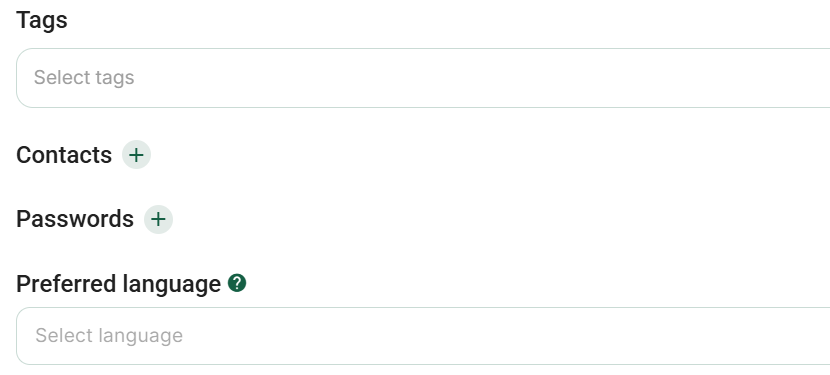
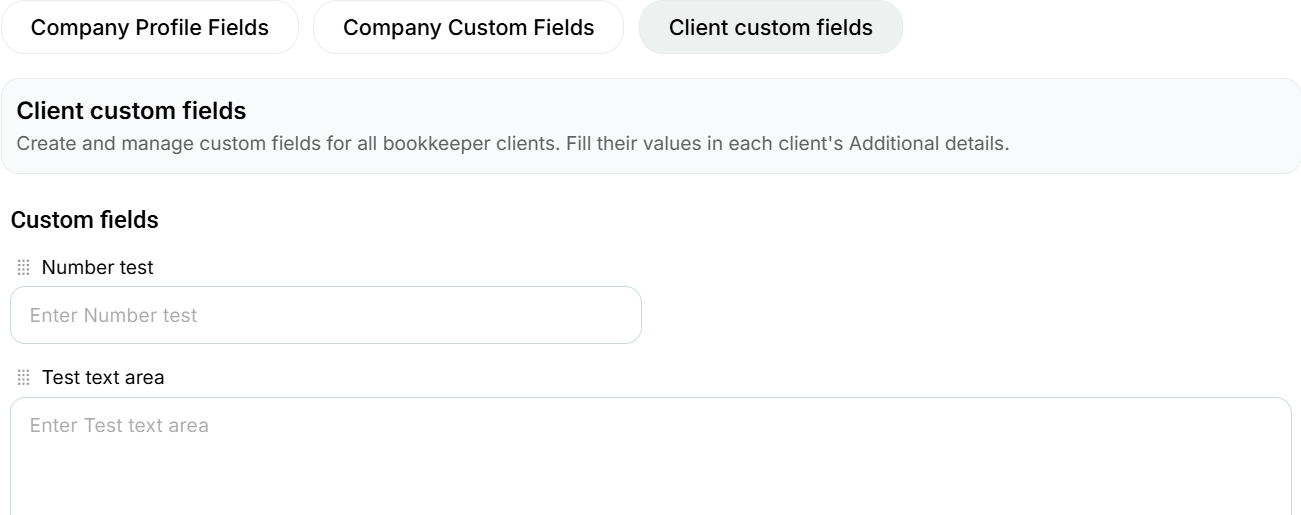
Review Additional details. Choose any relevant tags and
the client’s preferred language. Contacts, software-credential entries and
custom fields are separate areas on this screen. Add only information your
firm needs; leave optional areas empty rather than guessing. The available
custom fields depend on your workspace.
Client creation: tags, contacts, credentials and preferred
language.
Application screen with illustrative sample data. The controls shown
here use the English interface. This example shows an unsaved client
draft.
Open the full-size screenshot
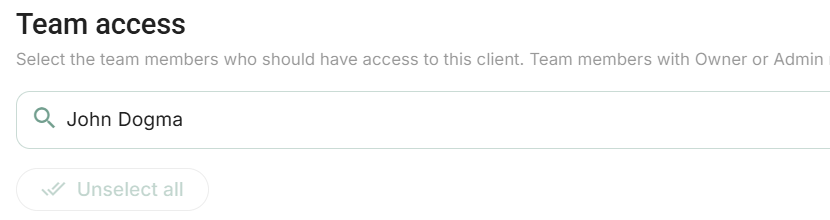
At Team, review the manager and staff access.
Owners/admins can choose a client manager for accountability; that choice
does not grant access. Use the team search and selection boxes for the
Members who need the client. Owners/admins already have access to all
clients. Check the selected count and names; this does not invite the
client to the platform.
Client creation: search for a colleague in Team access.
Application screen with illustrative sample data. The controls shown
here use the English interface. This example shows an unsaved client
draft.
Open the full-size screenshot
Use Next to open the review screen. Read the sections
together: person, address, companies, additional details and team. Use a
section’s pencil icon to correct it, then review again. Choose
Save only when the record is ready. The illustrated
review is a draft, not a saved client.
Client creation: Back and Save at the bottom of the final
review.
Application screen with illustrative sample data. The controls shown
here use the English interface. This example shows an unsaved client
draft.
Open the full-size screenshot
Understand the early-save option.Finish and save client saves from the current stage; it
is not merely a button for previewing the final screen. Use it only if the
information already entered is sufficient. After saving, Bookwits opens
the client profile: verify the name and email there. Creating the record
does not automatically send a portal invitation.
Screen reference: 1) Add a New ClientScreen reference: 1) Add a New Client
The client appears in All Clients . You can attach
Companies, Personal Taxes, tasks, documents, and more.
If you don’t have all details yet, create the client anyway and complete
fields later.
2) Edit a Client’s Information
Update the existing client when the person’s contact details change. Editing
preserves the relationship with their existing work; creating a replacement
profile does not transfer tasks, documents or invitations. Open the profile
and identify the particular section you need to change.
For example, Sarah moves home but her corporation keeps its office. Change
Sarah’s personal address and inspect any company address-matching option
separately. Similarly, correcting her contact email is not the same as
changing your connected mailbox or her account’s login address. After saving,
reopen the section and check the exact value before using it for a new
request.
Open Clients → All clients, search above the table, then
select the client’s name. Check the profile heading so you are not editing
another person with the same name.
Select the profile’s Overview tab. Find the
Client details card and use Edit at its
upper right. Contacts, company details and personal-tax years have their
own editing areas; changing one does not necessarily change the others.
Change the intended fields and review the surrounding information. For an
email correction, confirm the actual address with the person; do not
replace it with a colleague’s address simply to receive the client’s
invitations.
Save the change, wait for the form to close or show success, then read the
updated value on the profile. Reopen the editor if you need to check an
important detail. To leave a draft unchanged, use Cancel rather than
saving blank or invented replacement values.
Screen reference: 2) Edit a Client’s Information
Make edits from the client profile (not the list view) to avoid missing
fields.
3) Delete a Client (and when you should not)
Archiving and permanent deletion solve different problems. Archive a former
client when you want the active directory to be easier to read but still need
their history. Consider permanent deletion only after checking the
confirmation, related work and your retention obligations. Removing a
duplicate name without checking its contents can remove the profile that
contains the useful records.
For example, if two Sarah Thompson profiles exist, compare their companies,
years and documents first. Do not assume the newer profile is empty or that
deletion merges anything. If the relationship merely ended, archiving is a
more appropriate starting point than destroying the history.
Find the person in Clients → All clients and open their
profile. Confirm the name, companies and reason for removing the record
before using any destructive command. A search filter hiding the row is
not evidence that the client has been deleted.
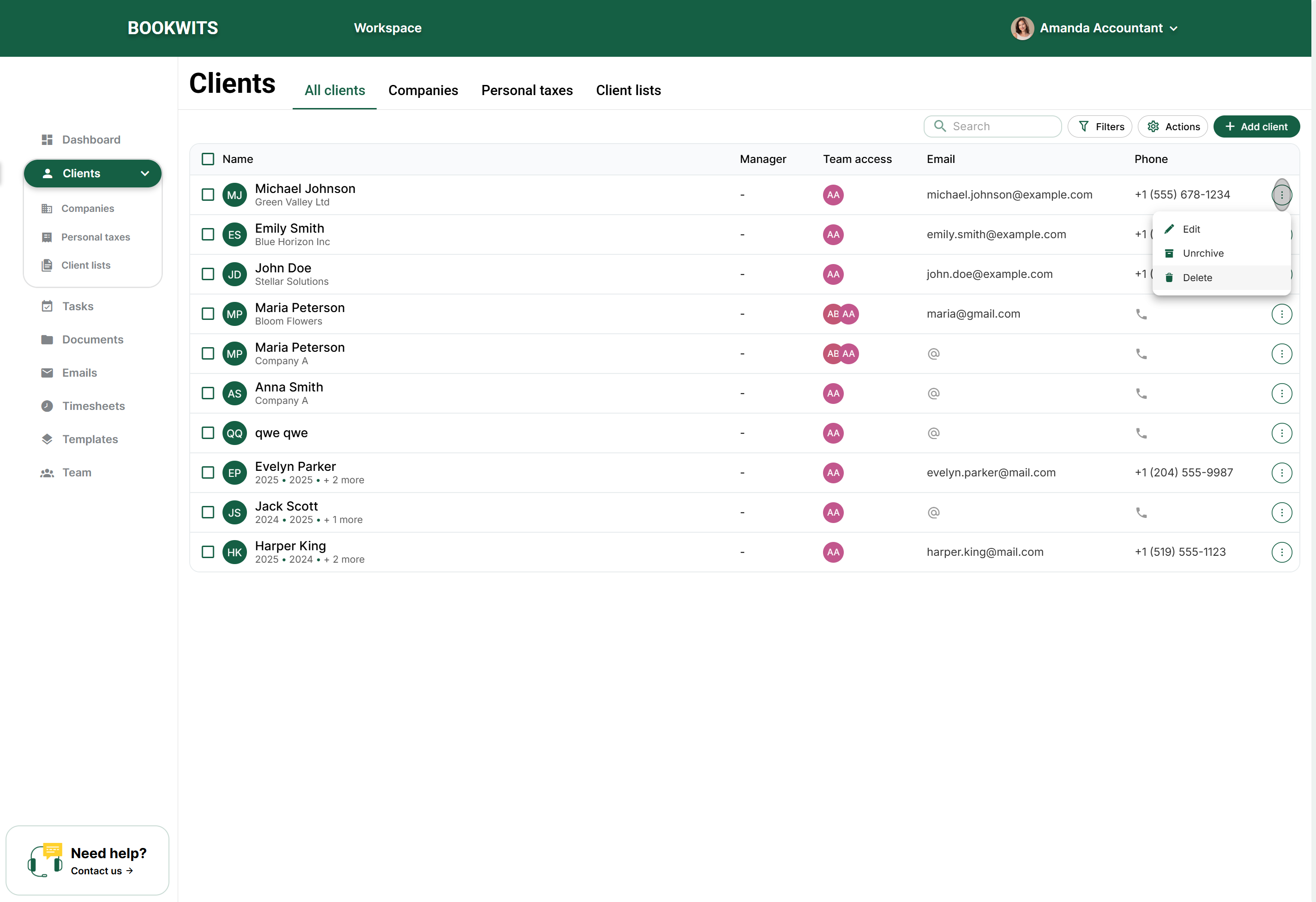
In Overview → Client details, open the three-dot menu
beside Edit. Choose Archive if the intention is to stop
showing an inactive client in ordinary active lists while retaining their
record. Read the confirmation before accepting.
To find an archived person again, return to All clients and open
Filters above the table. Review the
Archived switch and any search or other active filters.
Open the intended record and use Unarchive when appropriate.
Use Delete permanently only when permanent removal is
authorized and your retention requirements permit it. Read which record is
named in the confirmation. Cancel if anything is unclear; archiving,
unlinking a partner and cancelling an invitation are different operations.
Screen reference: 3) Delete a Client (and when you should not)
Do not delete if the client has work history you may need
later or records tied to reporting/audit trail.
Safer alternative: use an Inactive/Archived status (if your workflow
supports it) instead of deletion.
4) Add Business Information (Companies)
A company is a separate business entity within a client relationship. Its
legal name, contact information, fiscal year-end and obligations can differ
from the individual’s details. Keep separate entities separate even when they
have the same owner, accountant or office address.
For example, Sarah owns Thompson Consulting Inc. and Thompson Properties Inc.
Create two companies under Sarah, with their own year-ends and workspaces.
Store the consulting company’s payroll material in its company context, not in
the property company or Sarah’s personal tax year. The parent client keeps the
relationship together; the company selection keeps the work correctly
separated.
Start with the person who owns the company record. Open
Clients → All clients, search above the table and select
the person’s name. Check the name at the top of the profile before
continuing.
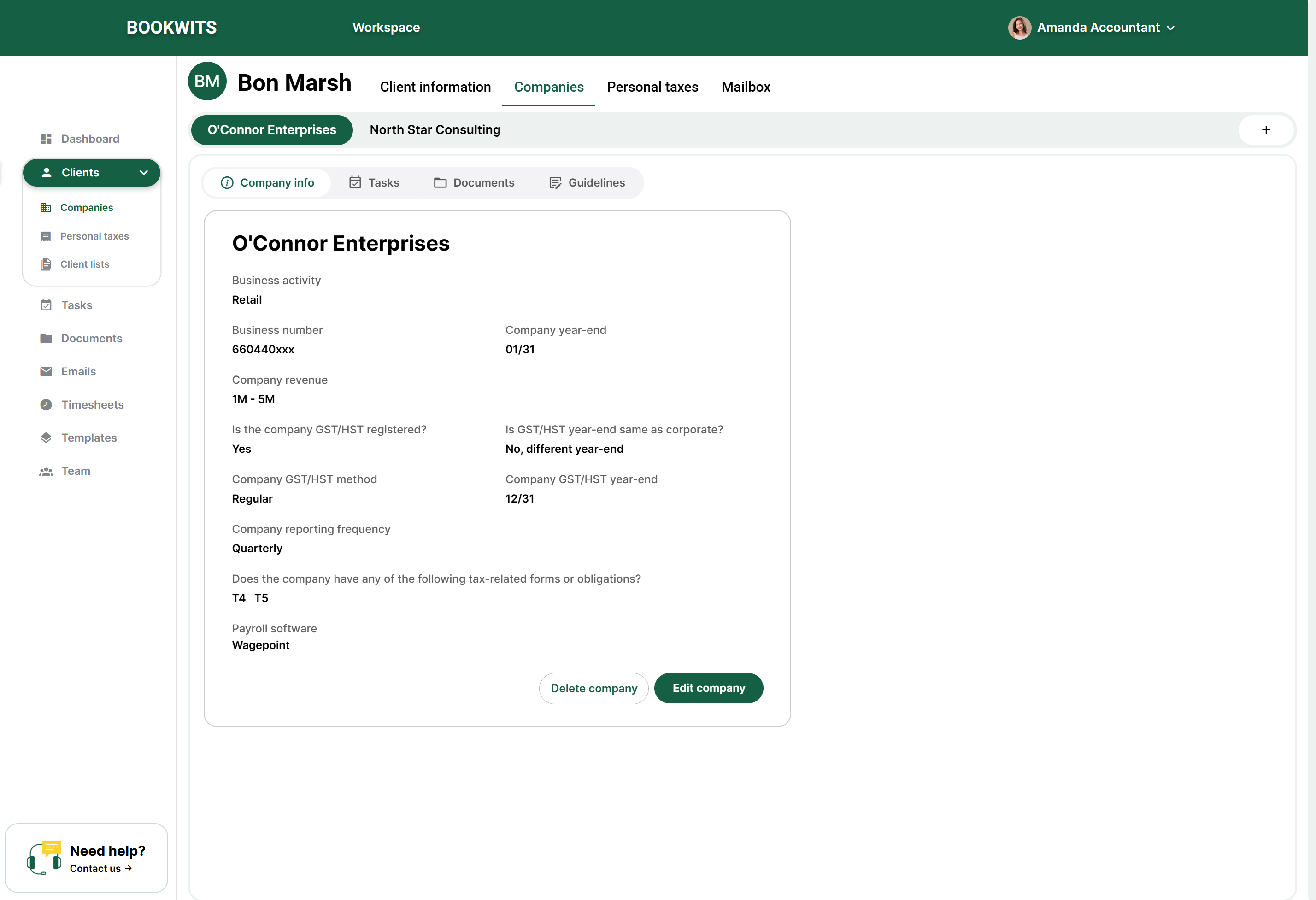
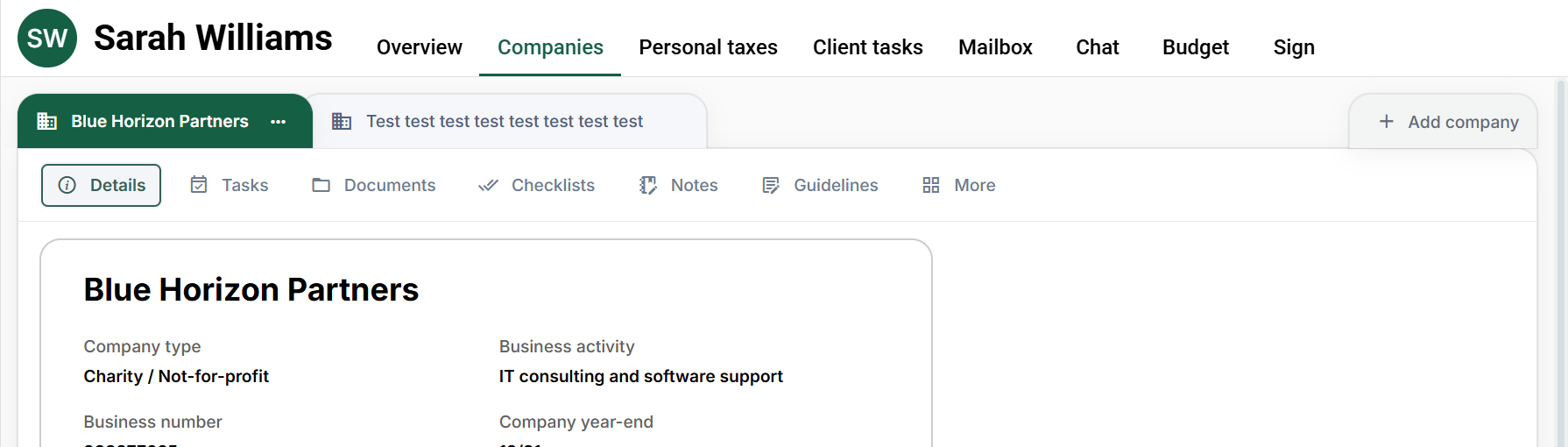
Open the company workspace. Select
Companies in the client profile’s top tabs, not the
global Companies directory. Existing company names appear as tabs. Select
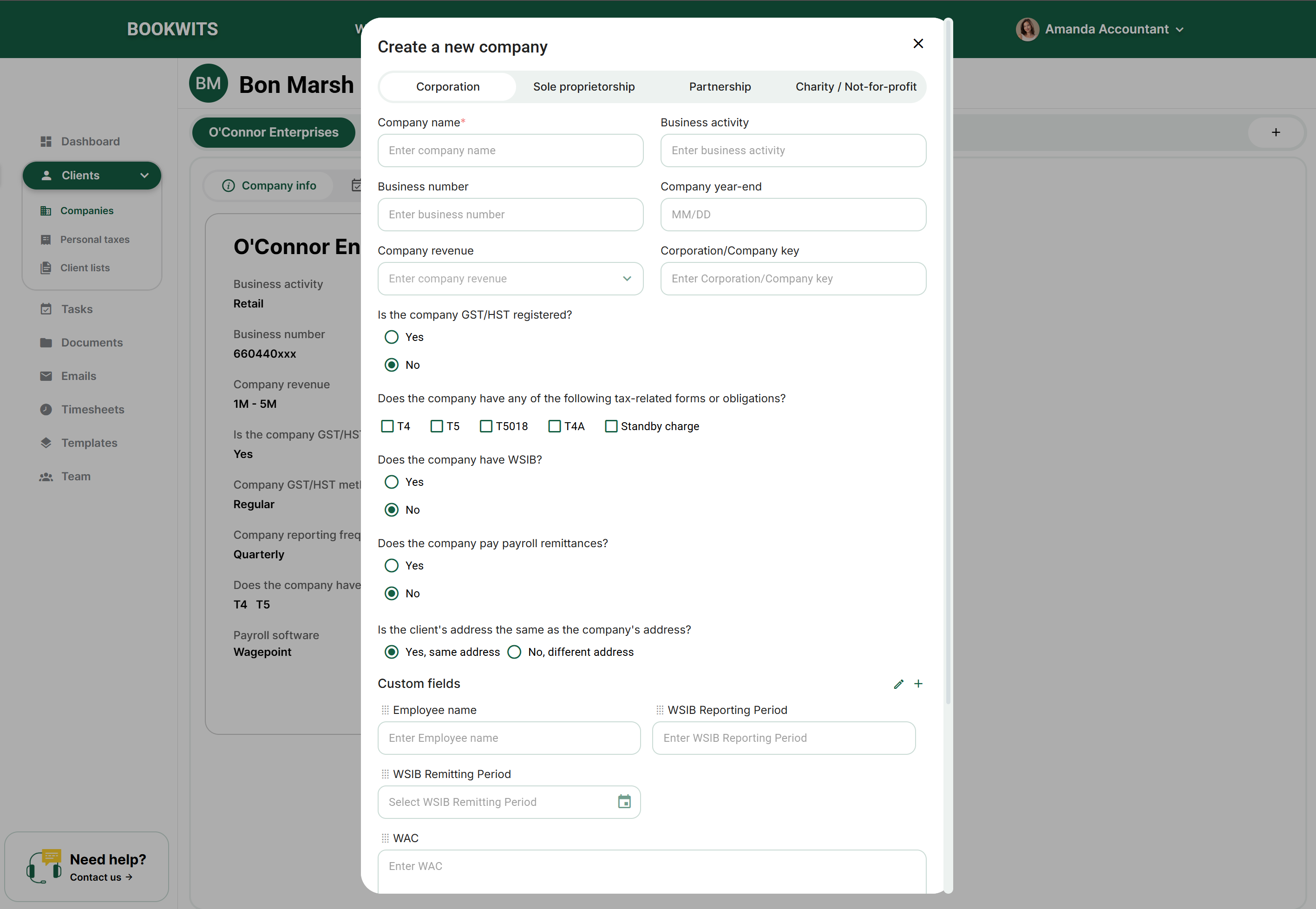
Add company beside those tabs to create another entity
for this client.
Enter information for the business, not the individual.
Give the company its own name, type and business number when known. Review
its year-end, business activity, email, phone and address. For example,
Emma Laurent’s personal email and Maple Grove Design Ltd.’s business email
may be different.
Review the sections that apply. Complete the tax
registrations, payroll obligations, forms and custom fields shown by your
firm’s configuration. Turning on a registration may reveal extra
questions. Do not select Yes merely to make a section look complete, and
do not guess missing account numbers or filing frequencies.
Save and check the new company tab. Use the form’s save
action, wait for confirmation and open the resulting company. Under
Details, compare the name and year-end with what you
entered. Its Tasks, Documents and Checklists sections now refer to this
company, not every company belonging to the client.
Screen reference: 4) Add Business Information (Companies)
Screen reference: 4) Add Business Information (Companies)
If a client has more than one business, add each entity under the same
client profile.
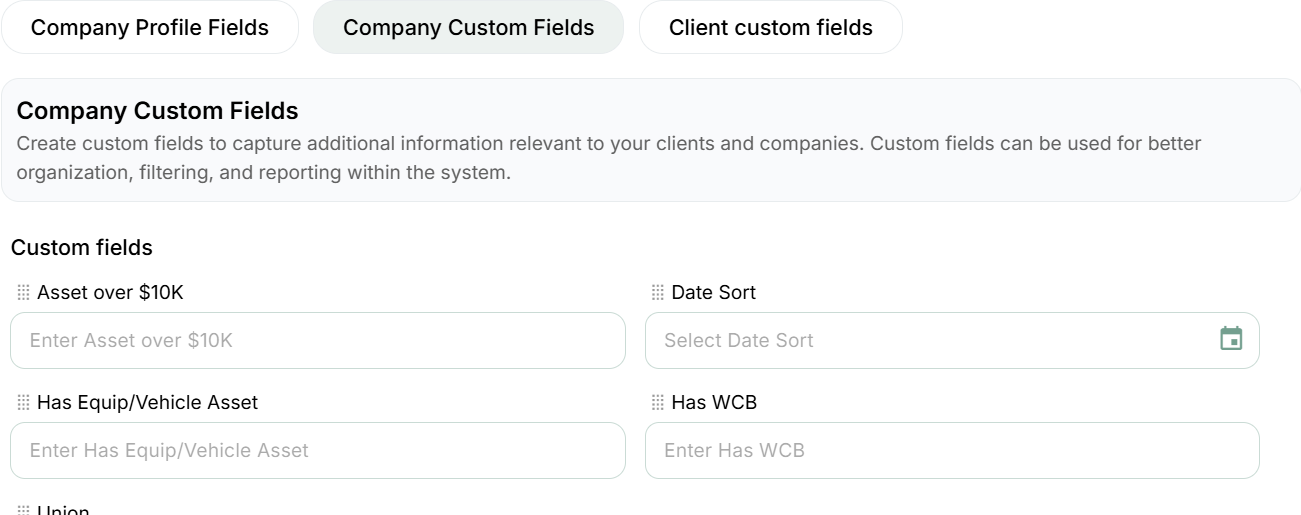
5) Add Custom Fields to a Business Profile
Custom fields capture your firm’s own operating information rather than
replacing standard company identity fields. Decide what a value means and who
will maintain it before creating a new definition. Two similarly named fields
can otherwise become competing sources of truth.
For example, use a checkbox called “CRA representative access confirmed” for a
verified yes/no condition, a date for “Engagement start date,” and text for an
account identifier that must keep leading zeroes. Apply a definition to all
companies only when it should be shared across the workspace. A one-company
exception should not automatically become a column everyone must maintain.
Open the client’s name from Clients → All clients, choose
Companies in their profile, then select the specific
company tab. Check the business name before editing.
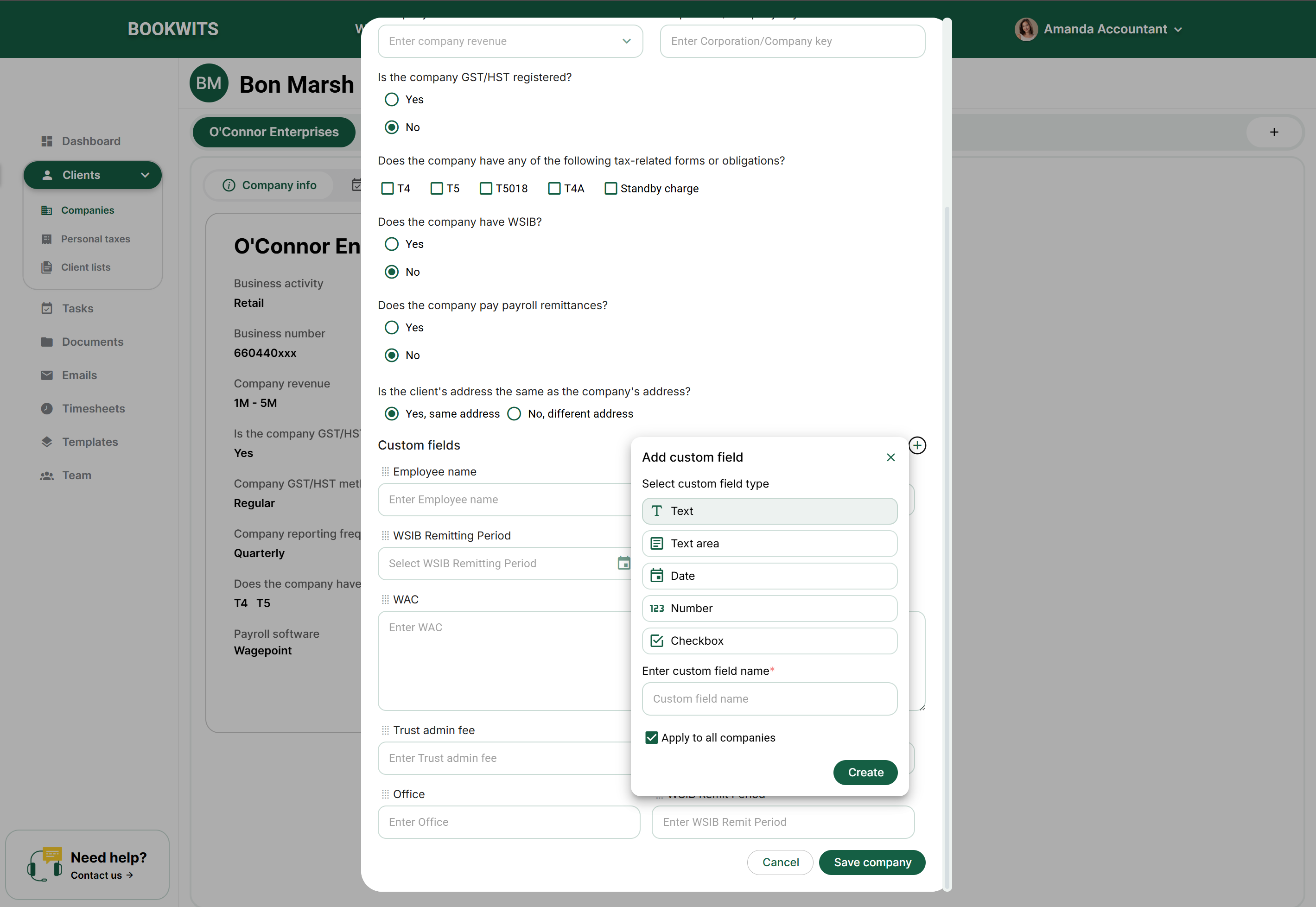
In the company’s Details section, use its edit control.
Scroll through the form to the custom-fields area. These fields describe
this business; they are not questions in a checklist that has already been
sent.
Fill an existing field with the correct type of information: text in a
text field, a date in a date field, and an offered choice in a dropdown.
If a new definition is needed, use Add custom field where
your role permits it.
When adding a definition, choose its type and meaningful name. Read
Apply to all companies carefully: it broadens where the
field is available, rather than meaning “save this one value”. Use a
company-specific field for an exception.
Save the field and company changes as requested by the form. Reopen
Details to check the saved value. If you want it visible in a directory
column, configure that table separately; adding a field does not mean
every table automatically displays it.
Screen reference: 5) Add Custom Fields to a Business Profile
Start with 5–8 custom fields that directly reduce follow-ups and missed
steps.
6) Open a New Personal Tax Year
A personal tax year keeps annual work distinct. It is not the client’s birth
year, the company’s fiscal year-end or a replacement for last year’s file.
Choose the year of the return you are working on, not automatically the
current calendar year.
For example, preparing Sarah’s 2025 return during 2026 belongs under 2025. A
later correction to 2024 still belongs in the 2024 context. Before using a
multi-client creation option, inspect the selected people and year together.
After creation, open one result and verify its year tab before adding
checklists, tasks or documents.
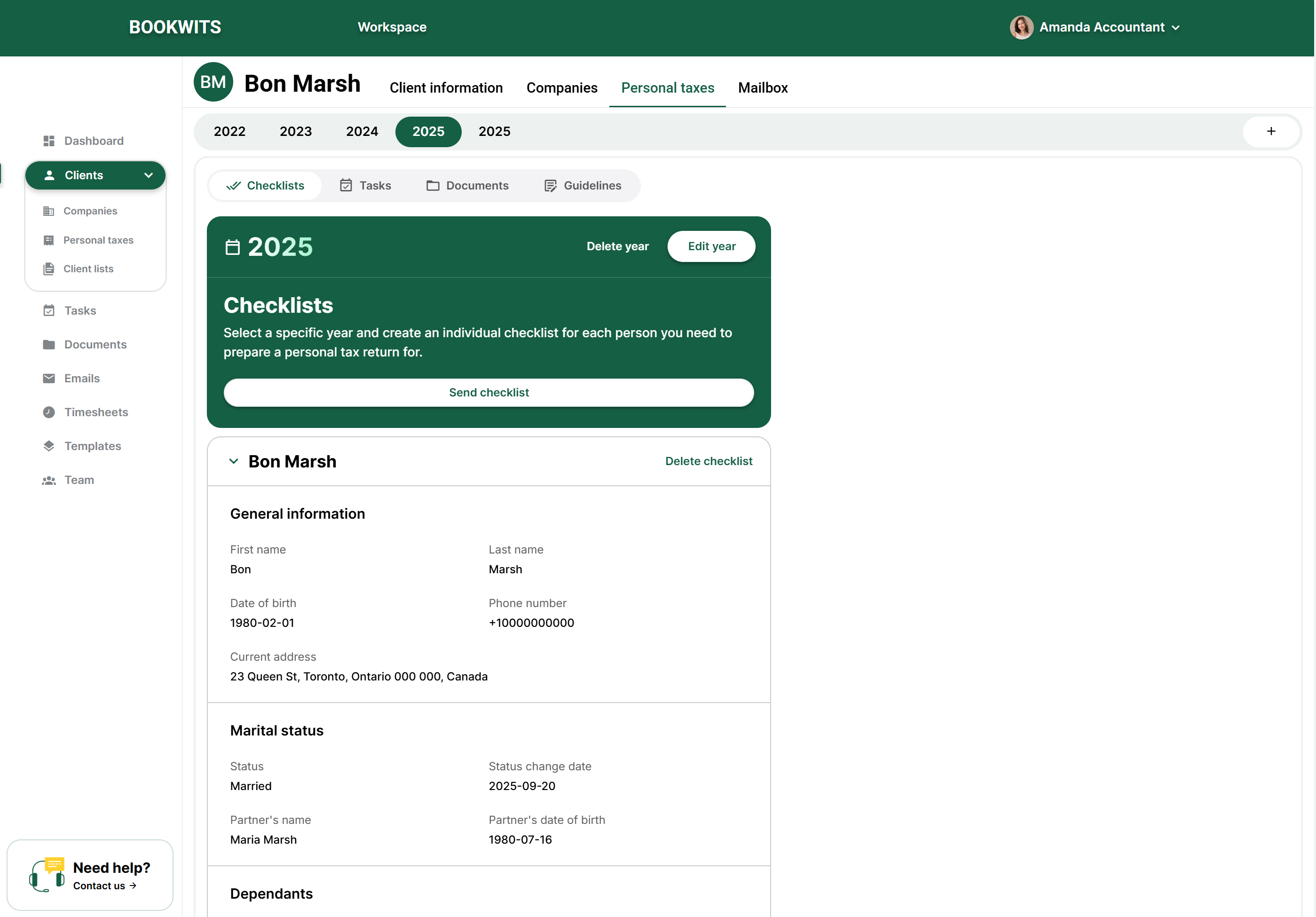
Open the correct person’s profile. In
Clients → All clients, search for the person and select
their name. Choose Personal taxes in the profile’s top
tabs. This keeps the year attached to that person rather than a similarly
named client.
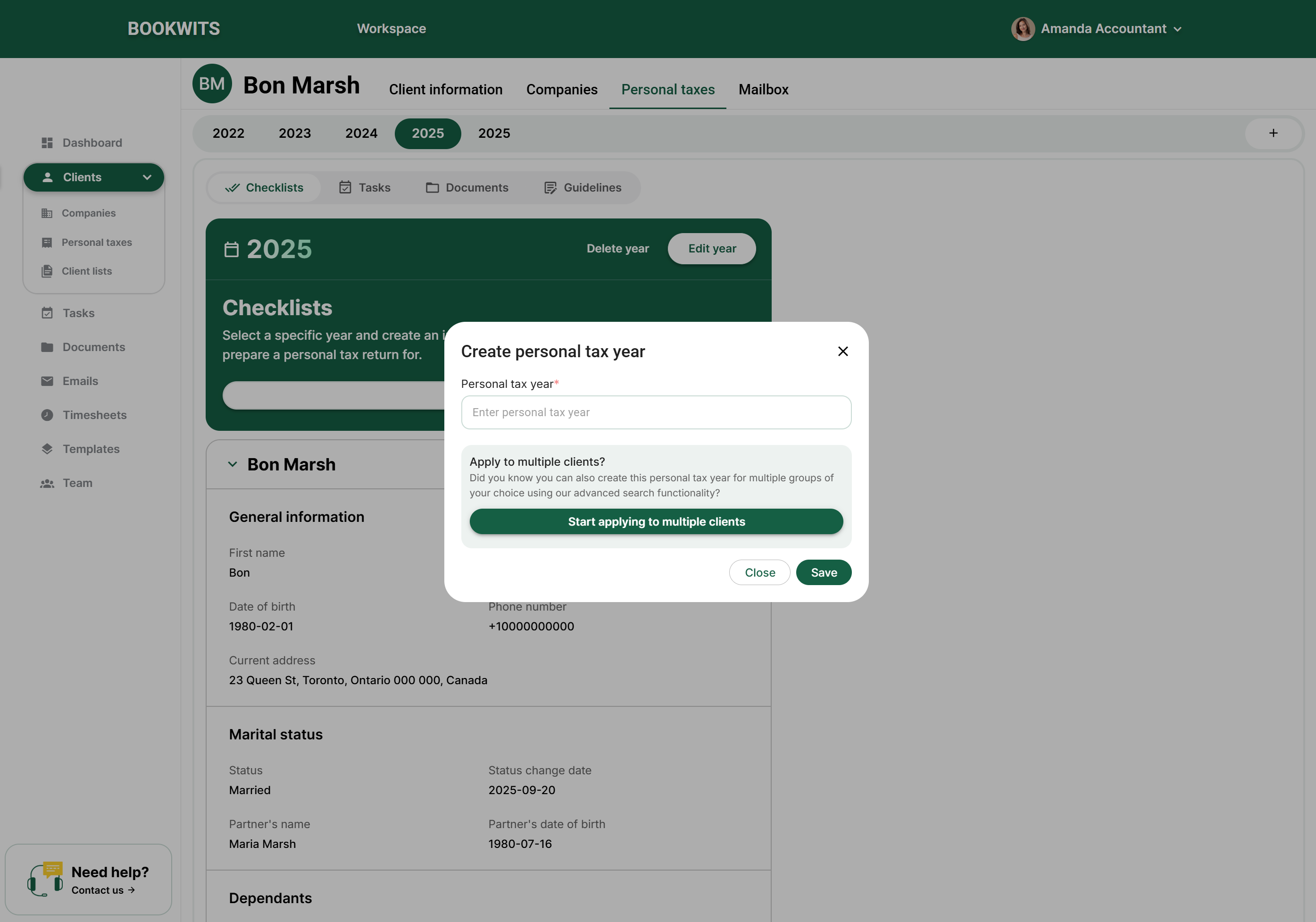
Look at the existing year tabs first. If the required
year already exists, open it instead of creating a duplicate. Otherwise,
select Add year beside the year tabs and choose the tax
year requested by the engagement, not automatically the current calendar
year.
Keep a single-person operation limited to that person. If
the form offers Apply to multiple clients, leave it off
unless you intentionally want a batch. For a batch, review every selected
client or search group before confirming; the selected year will apply to
that selection.
Create the year and select its tab. Check both the client
name and the year in the workspace. Open
Checklists, Tasks, Documents, Notes or
Guidelines within that year for annual work. Opening 2025
is not the same as opening the person’s 2026 records.
Check what still needs to be done. Creating a tax year
does not send a checklist, prepare a return or file it. For intake, open
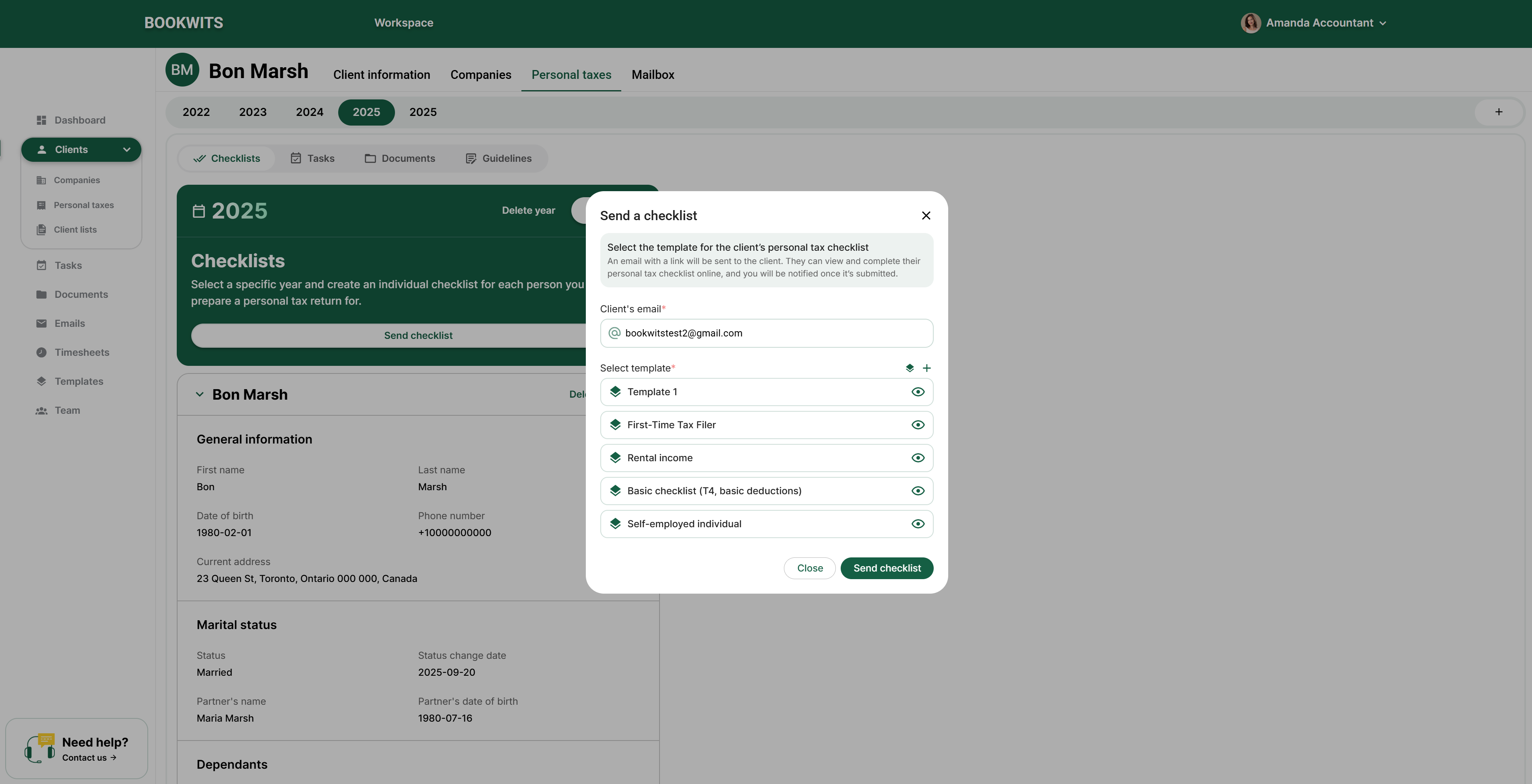
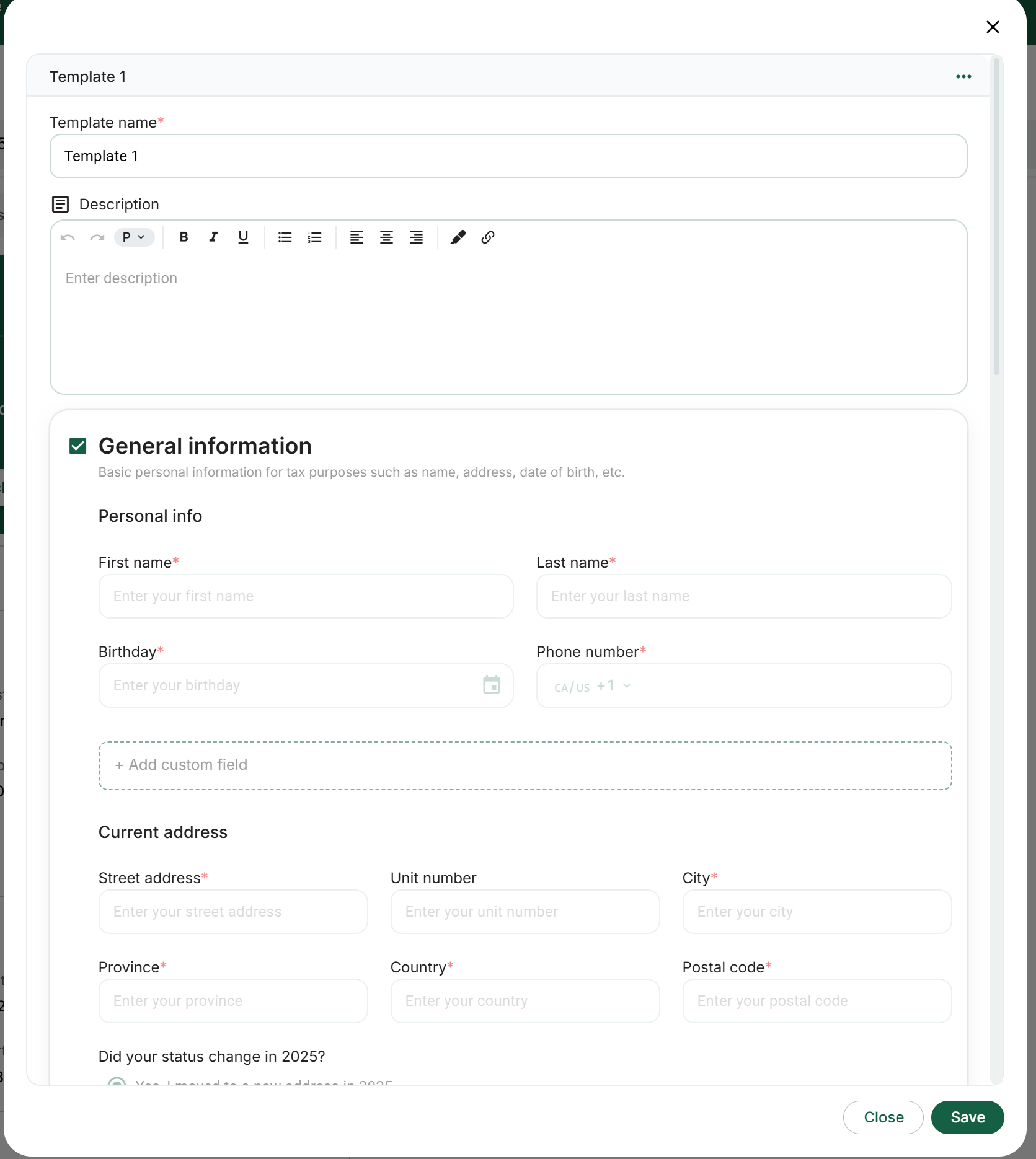
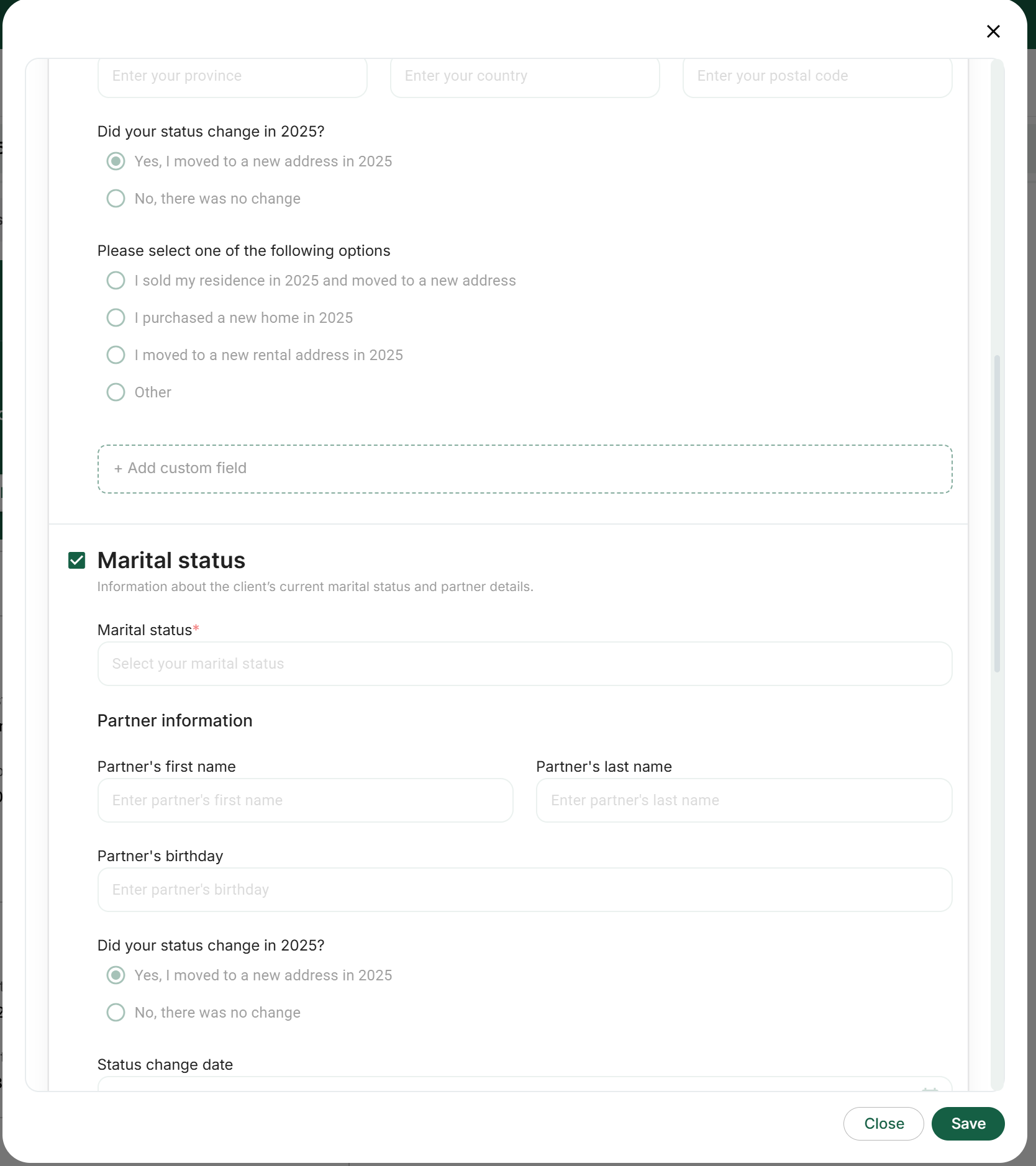
the year’s Checklists section and prepare the appropriate request. Assign
preparation and review work separately in Tasks.
Screen reference: 6) Open a New Personal Tax YearScreen reference: 6) Open a New Personal Tax Year
Tip: Need to open the same tax year for multiple clients? Turn on “Apply to
multiple clients” and use Advanced Search to select the client group(s) you
want. This lets you create the personal tax year in bulk instead of
repeating the steps one-by-one.
7) Understand All Clients vs Companies vs Personal Taxes
All clients answers “Which person or relationship am I looking
for?”
Use it to find Sarah Thompson, review her contact details, see linked
relationships and enter her complete workspace. Sarah appears as one client
even if your firm handles several businesses and multiple years for her.
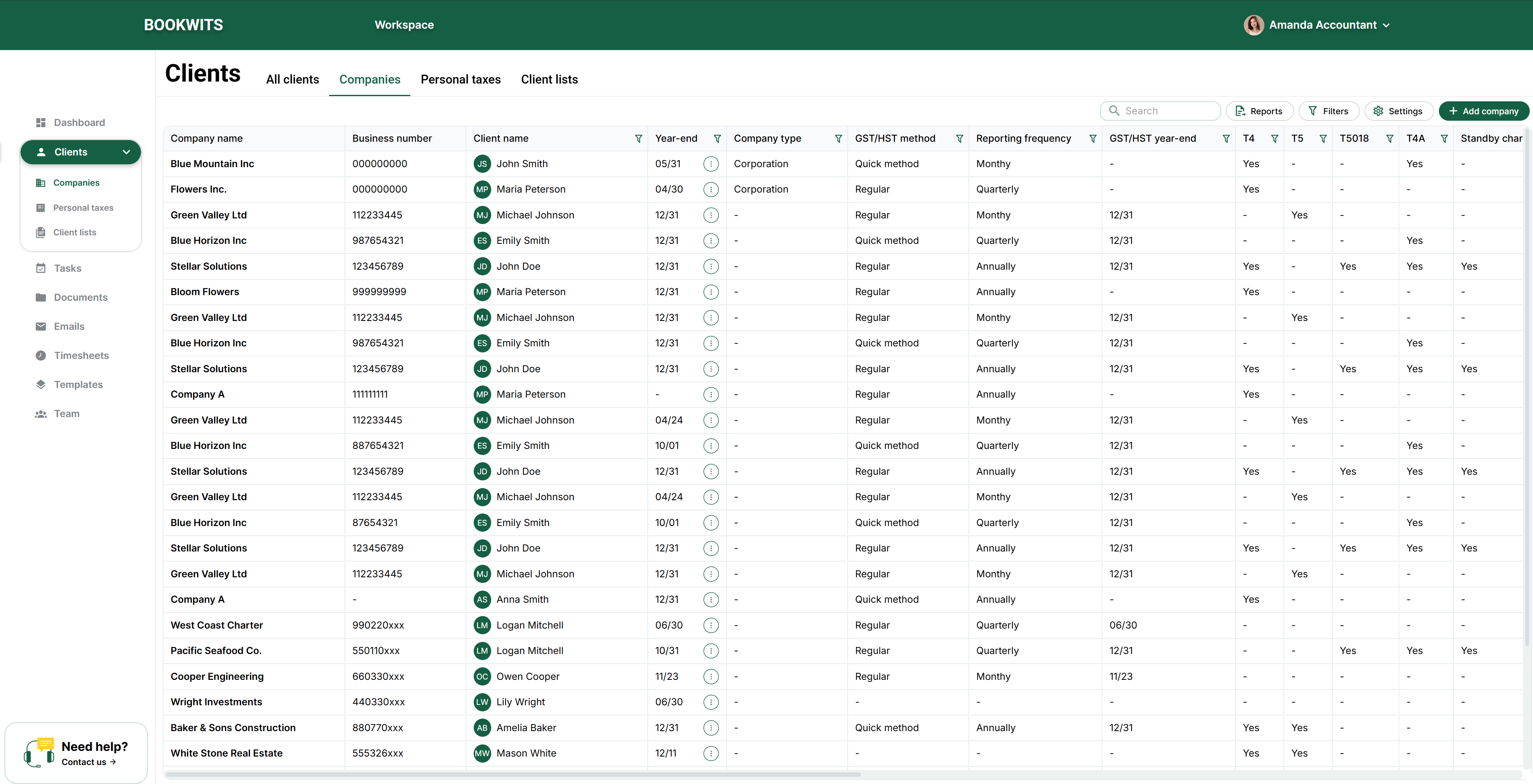
Companies answers “Which business entity needs work?”
Thompson Consulting Inc. and Thompson Properties Inc. are separate rows
because each can have its own year-end, registrations and work. Use this
cross-client view to organize company obligations rather than opening every
owner in turn.
Personal taxes answers “Which person and annual file needs
attention?”
Sarah’s 2024 and 2025 files are different annual records. Use this view for
work across people and years; use the selected year inside her profile for its
documents, tasks and checklists.
Suppose Sarah calls about a new phone number: start with All clients. If you
need corporations with December year-ends, start with Companies and the
relevant criteria. If you are checking missing 2025 tax intake, start with
Personal taxes. Moving between these views does not copy, merge or complete
records. Always check the selected person, company and year before acting.
Screen reference: 7) Understand All Clients vs Companies vs Personal Taxes
Screen reference: 7) Understand All Clients vs Companies vs Personal Taxes
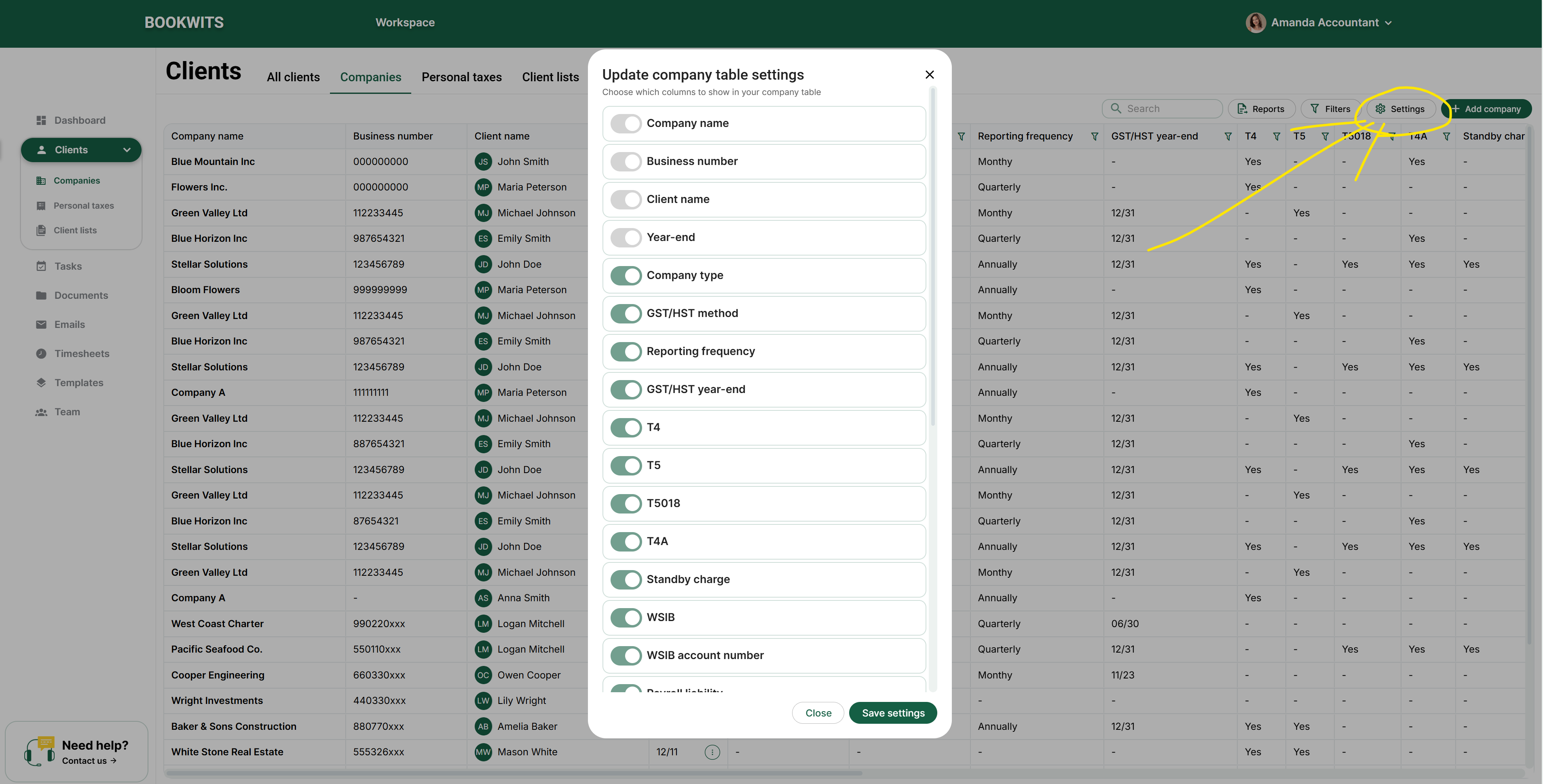
8) Customize Tables (Hide Columns / Pick Fields)
Table settings change your working view, not the saved information. Choose
columns that help answer the question in front of you, and distinguish a
hidden column from an empty field. Search and filters can also exclude rows
even when all columns are visible.
For example, a year-end reviewer may need company name, year-end, manager and
status. A colleague checking invitations may need client email and team access
instead. Hiding phone numbers does not remove them from profiles or stop a
request from using a saved address. After changing the view, open a
representative record if you need to inspect information that is no longer
displayed.
Open the table you actually want to change. For the people directory, use
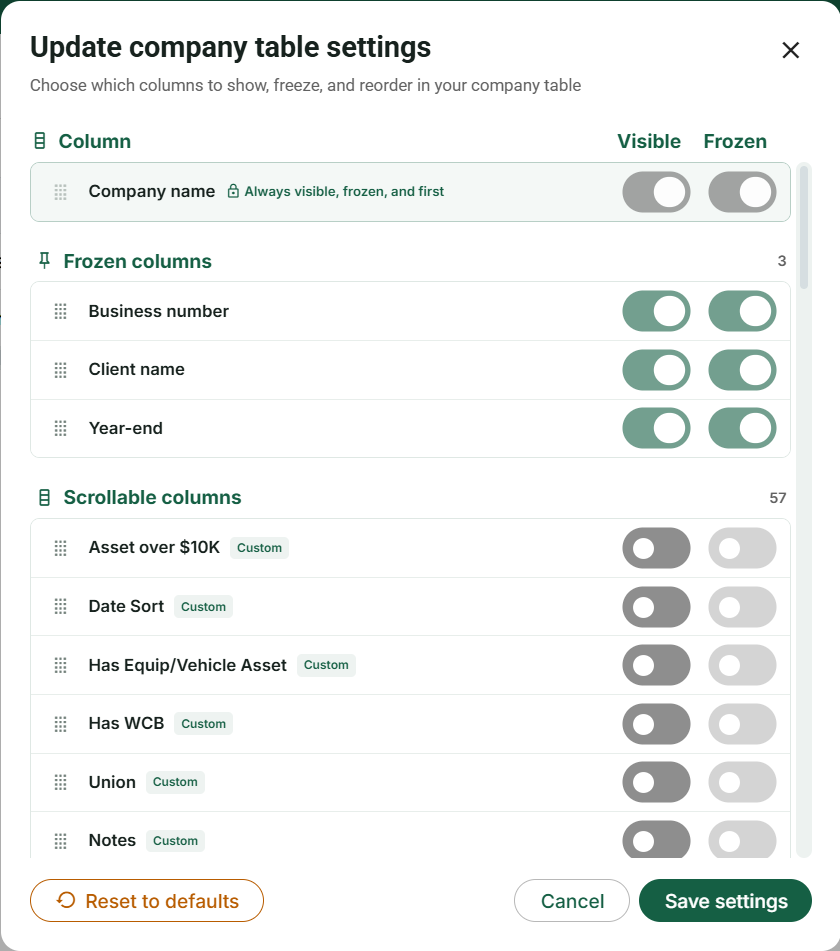
Clients → All clients → Actions → Table settings. A
company or personal-tax table has its own settings; do not assume one
table’s layout changes every other table.
In the settings form, review the column names. Show the information useful
for your work and hide unnecessary columns. Where ordering or
frozen-column controls are available, arrange them so the identifying
client/company information remains easy to follow.
Apply/save the layout with the control shown in that settings form. Return
to the table and check the headers and horizontal scrolling. A hidden
column does not delete the data stored in the record.
If a record is missing, inspect Search and Filters instead of adding more
columns. Layout settings control how rows are displayed; filters control
which rows are included. These are separate adjustments.
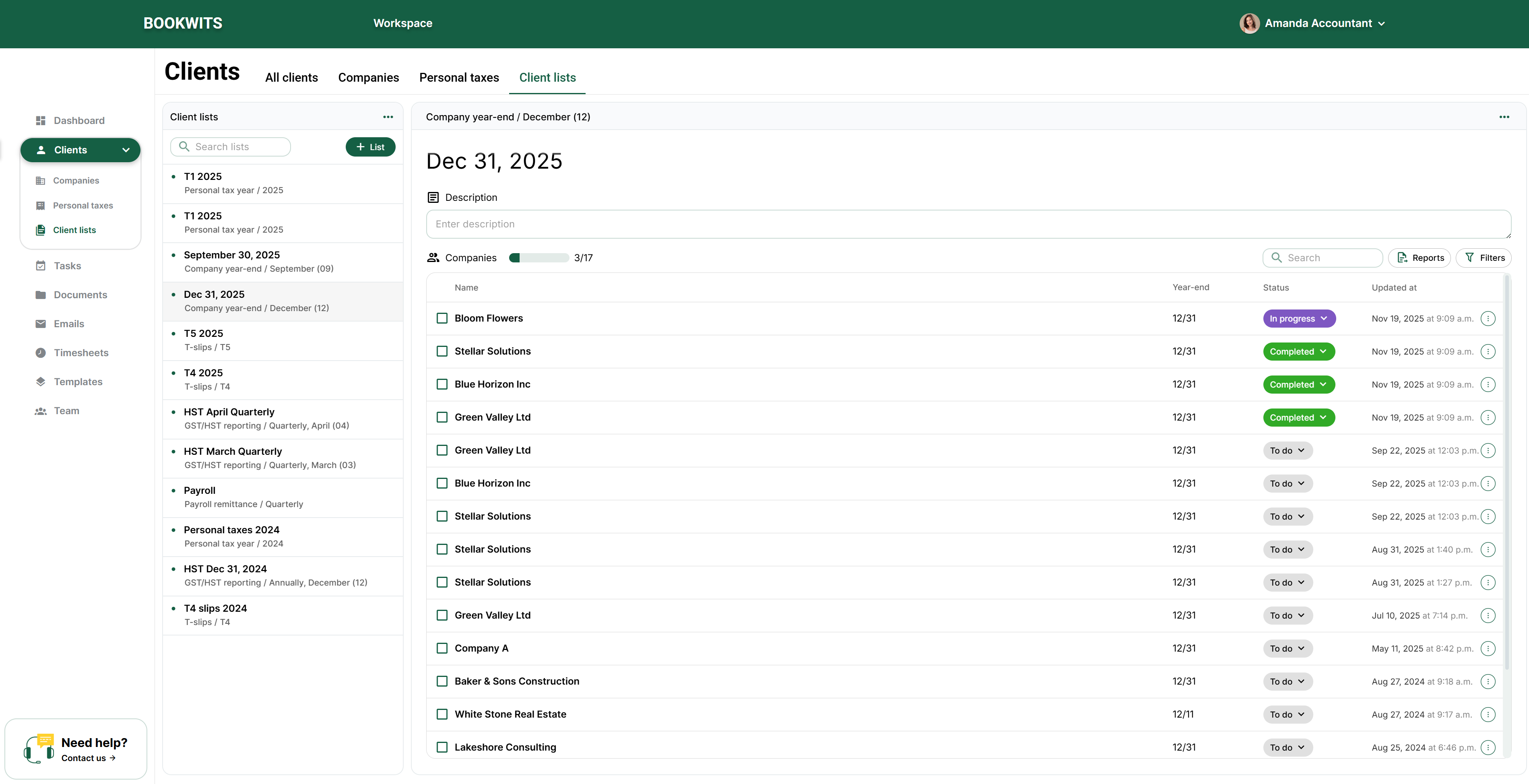
9) Client Lists (Your deadline & workflow control center)
A Client List turns a defined group of records into an operational tracker.
Its selection criteria determine the rows; its name explains the purpose to
colleagues. A list named “December year-ends” will not select December
companies unless its actual criterion and parameters match.
For example, create a list for December corporate year-ends, inspect its
companies, then track a row as Waiting on client while statements are missing.
Add a short note naming the missing period and create a task for the colleague
responsible for follow-up. The list’s row status and that task’s status remain
separate signals that you should reconcile during review.
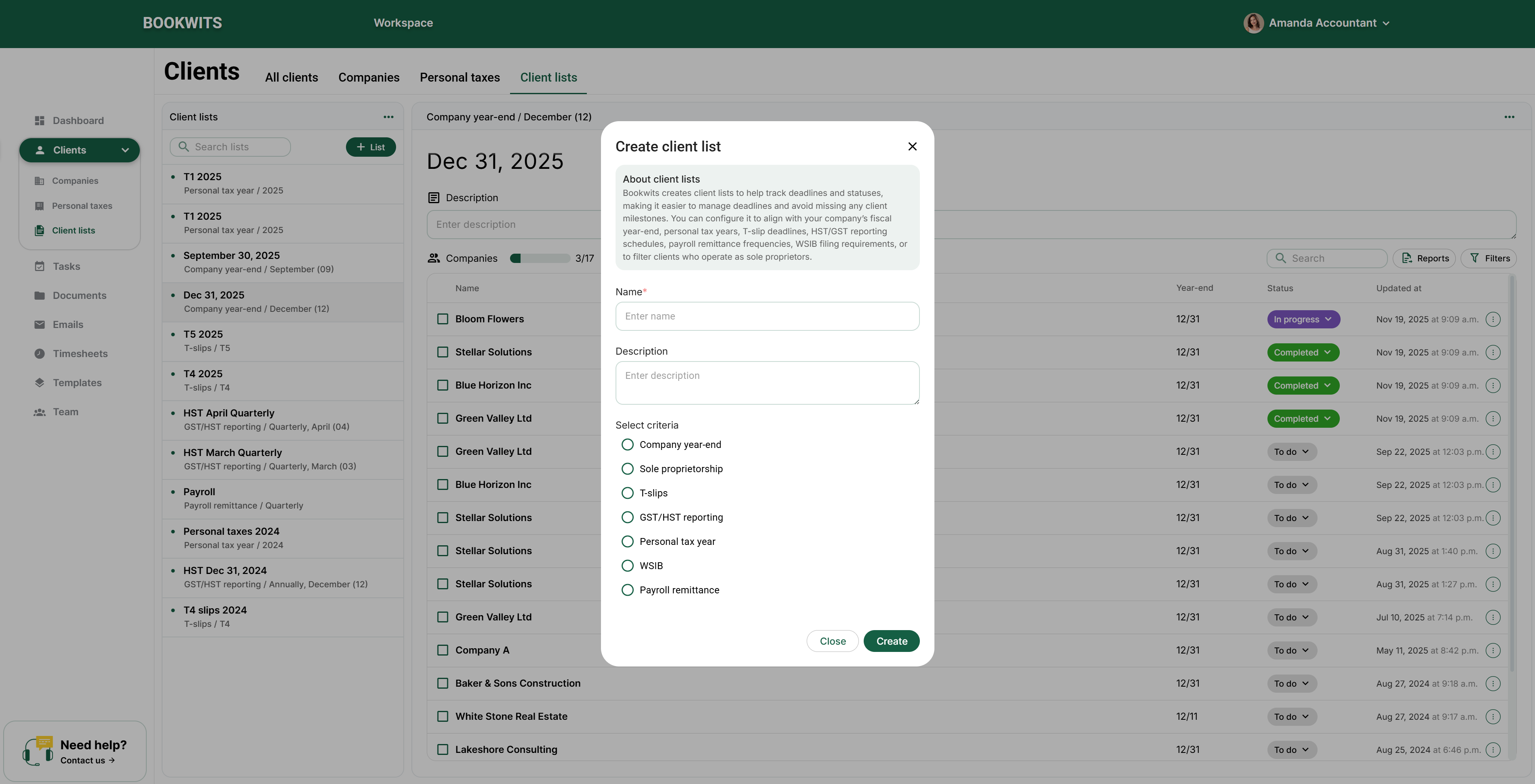
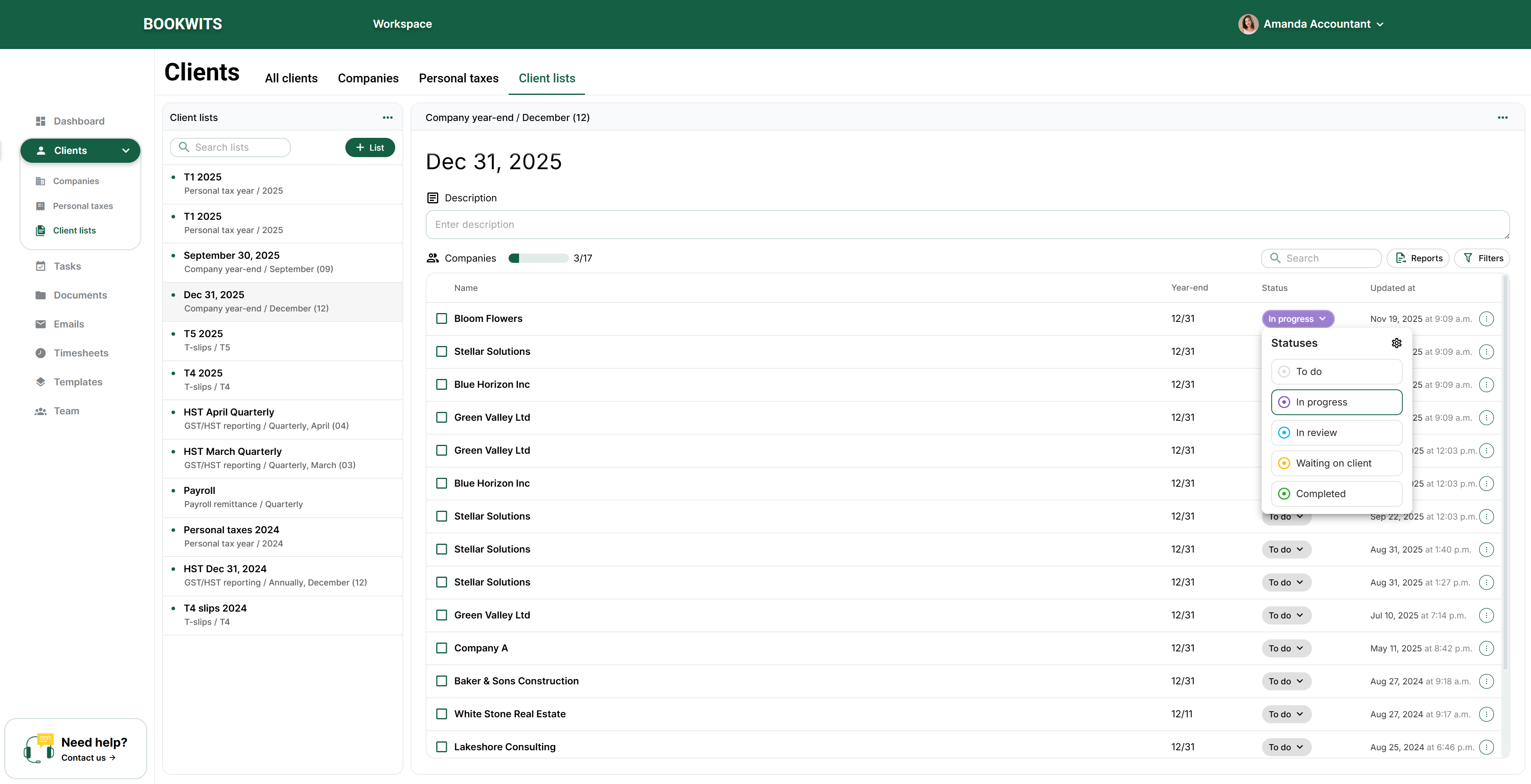
Choose Clients in the left sidebar, then
Client lists in the top tab row. Open the list-creation
control above the existing lists. This is a work tracker, not the All
clients address directory.
Give the list a specific name and, if useful, a description. “December
2026 year-ends” is more informative than “Important”. The title explains
the list to colleagues but does not itself choose the records.
Under Select criteria, choose the type of work and
complete its parameters, such as the applicable year-end period or
personal tax year. Use the actual offered criteria; a phrase typed in the
name is not a filtering rule.
Create the list and inspect its rows. Check several client/company names
and the count against the selected criteria. If a company is absent, check
the year-end or obligation recorded on that company rather than creating a
duplicate client.
Use the list’s statuses and notes to track progress. When someone needs an
assigned action and a deadline, create or open a Task as well. A status in
a client list is not automatically proof that a return was filed or a
client request was completed.
Create one list per real workflow. If it doesn’t map to a real outcome, it
becomes clutter.
10) Practical workflow examples
The same client structure supports different services, but the sequence should
match the engagement. Start with the correct person, choose the appropriate
company or annual record, then connect work and supporting material. Do not
use one generic status as evidence that every service is finished.
For a new bookkeeping engagement, create the client and company, confirm staff
access, collect setup information and assign onboarding work. For a returning
personal-tax client, keep the existing person, open the correct year and
collect annual information. For a client with several businesses, check the
entity on every task and document. The examples below show the overall order;
the dedicated chapters explain each operation.
New business client: create the person through
Add a New Client, then open their
profile’s Companies tab and add the business. Review its year-end and
obligations. Use Client lists for the relevant work population and Tasks
for named owners, deadlines and execution steps.
Personal-tax client: open the person’s Personal taxes
tab, select/create the correct year and open that year’s Checklists
section to prepare intake. Keep preparation/review assignments in Tasks.
Link a partner only when two separate client profiles genuinely need that
relationship; do not merge their annual files.
One person with several businesses: keep one appropriate
person profile and add separate company tabs for the distinct entities.
Before opening tasks, documents or checklists, select the company name and
then its section. Use the global Companies directory when comparing
entities across several people.
Upload Clients in Bulk (CSV Import + Column Mapping)
If you already have clients in a spreadsheet, upload them using a CSV file instead
of adding them one-by-one.
What “mapping columns” means
Mapping is telling Bookwits: “This column is First Name”, “This column is Email”,
“This column is Company Name”, etc. This matters because spreadsheets use
different column names (Given Name vs First Name, Cell vs Phone, Business vs
Company Name).
Before you upload
Each company can have its own row; repeated client names are grouped as
explained below
Clear column headings (top row)
Save/export as .CSV
Clean duplicates first (to avoid double-importing)
How to upload clients with CSV
Open the client directory. In the left sidebar, select
Clients, then the All clients tab at the top.
Above the table, open Actions → Import clients from CSV. This
is different from Add client, which creates one person at a time.
Prepare the spreadsheet. Use the import page’s example/template
to understand the available columns. Give first name and last name separate
columns. Save as CSV; do not simply rename an Excel file. Keep the header row,
accents and leading zeroes in identifiers.
Select a small, manageable batch. The documented limit is 100
data rows, not 100 different people. A person with several companies can occupy
several rows. For example, two rows for Emma Laurent and her two businesses
still consume two rows of the batch.
Match the columns on the mapping screen. For each source
heading, choose the Bookwits field that means the same thing. Map personal email
to the client email, not company email. Leave an optional destination unmapped
when you do not have that information; do not select a similar-looking but
unrelated field.
Read the preview before importing. Check names, company
ownership, dates, country/province choices and custom fields. Correct any
highlighted errors. A row containing some useful information needs review; it is
not the same as a completely blank row.
Confirm once, then inspect the saved records. Wait for the
import result. Return to All clients, search for several imported people, open
their profiles and check their companies. If an error occurs, inspect what was
created before uploading the same batch again, so you do not create duplicates.
Common mistakes
Missing headers: mapping won’t work properly if your CSV doesn’t have column
names
Combined full name: you may need to split into first/last (first and last name
are separate required fields)
“I’m not sure whether to add a Company or a Client”
If it’s the person/account you communicate with → Client
If it’s a business entity with its own year-end/compliance →
Company
“My table is too cluttered”
Go to table Settings
Hide columns until the list is scannable in 10 seconds
Glossary
Client: The person or primary account you serve.
Company: A business entity tied to a client.
Personal Tax Year: A yearly record used to track personal return work.
Client List: A saved view to track workflows, deadlines, and statuses.
The client creation wizard, screen by screen
Choose Clients → All clients → Add client. The wizard contains
Personal info, Address, Companies, Additional details and Team. Next moves through the
setup; Finish and save client lets you finish without filling every
optional section. Use it only when you intend to create the record.
Section
What to enter and why
Personal info
First and last names are required. Email and phone are optional for creating
the record; an email becomes necessary for workflows that contact the client.
Select the phone country/dial code rather than putting an extension into the
name.
Address
Street address, unit, city, province, country and postal code describe the
client. A company can have a different address; do not assume that updating
one silently updates the other.
Companies
Add the client’s business entities. A business has its own company name,
business number, year-end and applicable obligations. A person with no
business still belongs in All clients.
Additional details
Use the relevant personal and custom fields. Only collect information your
firm needs, and check the field’s meaning before entering sensitive
identifiers.
Team
Set the manager and share the client with the appropriate team members.
Responsibility and access are distinct: check both rather than treating an
assignee as proof of access.
Manual client entry accepts up to 100 characters for each first/last name and 200 for
email. CSV import has stricter limits: 30 characters for each name and 50 for the
client email. A value accepted by manual entry is therefore not necessarily accepted
by import. Do not abbreviate a legal name without checking your firm’s recordkeeping
requirements.
Use the profile for ongoing maintenance
Search All clients and open the correct person.
Use the information card’s Edit action to update contact details, address or
language. Review the exact section rather than creating a new client to change an
email.
Use the client menu for invitation actions, linking a partner, archive/unarchive and
permanent deletion when available.
Review contacts and linked partner records separately. A partner relationship is not
permission to send one person’s private link to the other.
Open the company or tax-year workspace for business/year-specific tasks, documents,
checklists and guidelines.
An invitation can be pending even though the client record already exists. Resend or
cancel the pending invitation as appropriate; adding the same person again does not
fix acceptance. Archive hides an inactive record from ordinary active work; permanent
deletion is a separate, destructive decision. Review related records and your
retention obligations before confirming it.
CSV import: prepare, map, review, then commit
Open the client directory. In the left sidebar, select
Clients, then the All clients tab at the top.
Above the table, open Actions → Import clients from CSV. This is
different from Add client, which creates one person at a time.
Prepare the spreadsheet. Use the import page’s example/template to
understand the available columns. Give first name and last name separate columns.
Save as CSV; do not simply rename an Excel file. Keep the header row, accents and
leading zeroes in identifiers.
Select a small, manageable batch. The documented limit is 100 data
rows, not 100 different people. A person with several companies can occupy several
rows. For example, two rows for Emma Laurent and her two businesses still consume
two rows of the batch.
Match the columns on the mapping screen. For each source heading,
choose the Bookwits field that means the same thing. Map personal email to the
client email, not company email. Leave an optional destination unmapped when you do
not have that information; do not select a similar-looking but unrelated field.
Read the preview before importing. Check names, company ownership,
dates, country/province choices and custom fields. Correct any highlighted errors. A
row containing some useful information needs review; it is not the same as a
completely blank row.
Confirm once, then inspect the saved records. Wait for the import
result. Return to All clients, search for several imported people, open their
profiles and check their companies. If an error occurs, inspect what was created
before uploading the same batch again, so you do not create duplicates.
Important grouping rule for repeated client names
Within a CSV batch, rows with the same first and last name are grouped into one
client, and their company rows are attached to that client.
The first row in the group supplies client-level email, phone, address, birthday,
identifier and client custom-field values.
Later rows do not act as successive updates to those client fields. Keep shared client
details consistent across the group and use separate company columns for
entity-specific details.
Two different people with identical first and last names can therefore be grouped
incorrectly in one file. Import them separately or create them individually and verify
their identities. This grouping is not an assurance that a new upload will update
existing clients; do not reimport a file merely to correct one saved value. If company
email/phone are omitted, import can use the client contact values for the company;
review whether that is appropriate.
Search, filters and table controls
Use the correct tab first: All clients finds people; Companies finds entities;
Personal taxes finds annual records. Clear an old search, check archive and other
filters, and inspect the Manager and Team access columns before concluding a record is
missing. Column options, resizing and table settings change how you read the table,
not the underlying client identity. A hidden email column does not remove the saved
email.
Worked example: one client, two businesses and two tax years
Sarah Thompson is your contact. She owns Thompson Consulting Inc. and Thompson
Properties Inc.; the firm also prepares her 2024 and 2025 personal returns. The
intended structure is
one client, two companies and two annual personal-tax records. These
are five related records serving different purposes, not five interchangeable client
profiles.
Store Sarah’s personal phone on her client profile. Enter each company’s business
contact information under that company. Attach the consulting company’s monthly-close
task and bank statements to the consulting company. Put Sarah’s 2025 slips in the 2025
personal-tax context. Before sending a checklist, inspect which company or year will
receive the answers, not only the recipient address.
Worked example: import two company rows without mixing two people
A CSV can contain two rows for Sarah, one for each business. Repeat the same verified
client-level details and put each entity in its company columns. The name grouping
within the batch uses the first and last name; the first row supplies the grouped
client’s personal details. A later row with a different personal email is not an
instruction to update that client.
If your file also contains a different person named Sarah Thompson, do not rely on
email to keep them apart in the same batch. Import them separately or create them
individually. Count company rows toward the 100-row upload limit, and review the
resulting client and both companies after import. A correct client count does not
prove the company mappings or shared access are correct.
Screen example: Sarah’s client information before saving
The live example below shows the first wizard screen with Sarah’s name entered. First
and last name have required markers; email and phone are separate contact fields. The
progress bar distinguishes Personal info, Address, Companies, Additional details and
Team. Next advances the setup;
Finish and save client is the explicit save action. A filled form is
not yet proof that a client was saved. After saving, reopen the profile to verify the
record and any company or access choices.
Link two clients as partners without mixing their records
Link partner records a relationship between two separate client
profiles. For example, Sarah Williams and Michael Williams may both be clients of the
same firm. Linking them helps staff move between their records; it does not merge
their names, companies, personal tax years, documents or portal accounts. It is not a
declaration of marital status or authorization to act for the other person.
Link someone who is already in your client directory
Open Clients → All clients and search for the first person. Open
their name, then the Overview tab.
In Client details, open the
three-dot menu beside Edit → Link partner. Choose
Existing client.
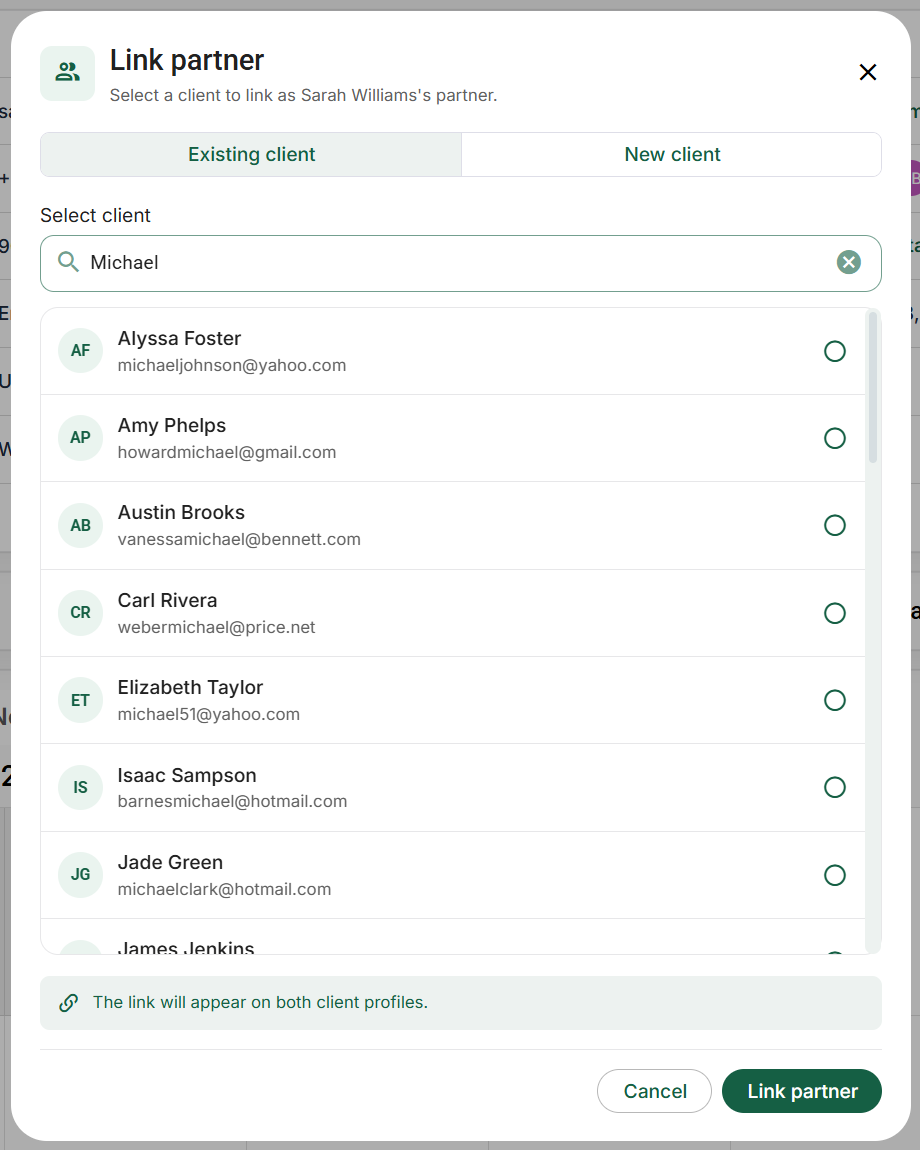
Search by name, email or phone. A result can match an email address even when the
displayed first name differs from your search. Compare the secondary contact
information, especially when two people have the same name.
Select the intended person's radio button. There is one partner selection, not a
checklist of household members. Scroll within the results for additional eligible
people.
Choose Link partner to save the relationship. After success,
inspect the partner row on the profile. The relationship appears on both profiles.
To abandon the selection, choose Cancel before saving. Merely
searching or selecting a result does not create the link.
Example: Sarah's directory contains two Michael Williams records. One
has the expected email and phone; the other belongs to a different engagement. Select
by the person's actual identity, not by the first matching display name. Linking the
wrong Michael does not move his existing files into Sarah's file, but it creates a
misleading relationship that should be corrected.
Create a missing partner and link the new profile
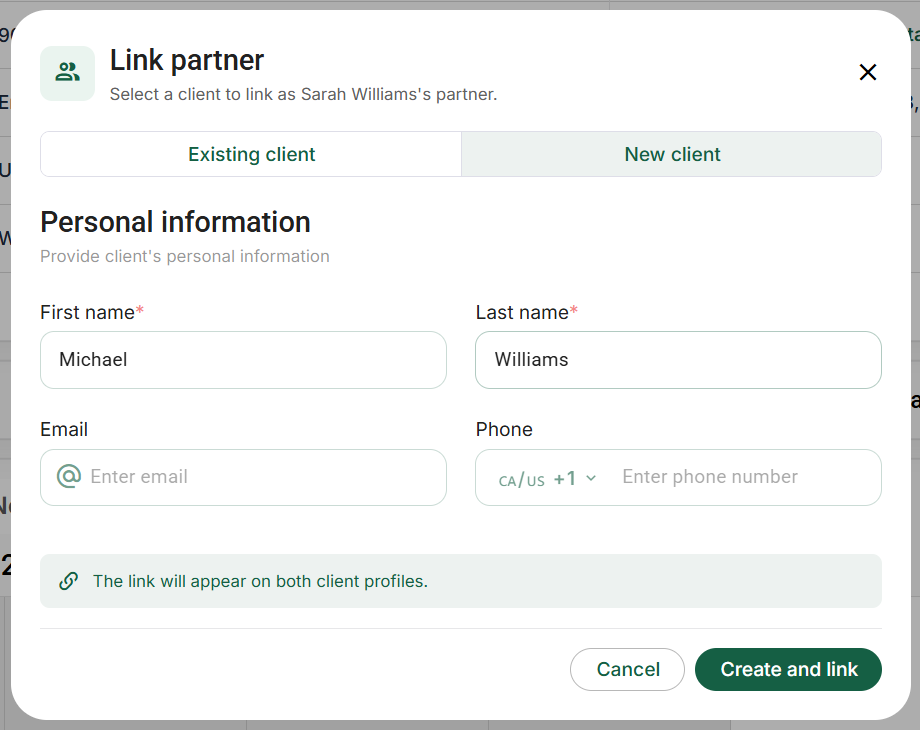
In the same dialog, choose New client. Enter the person's own
First name and Last name, both required. Email and
phone describe that person; do not copy Sarah's contact details solely to fill blanks.
Review the phone country/dial code when providing a number. Choose
Create and link only after checking that the person is not already in
the directory.
This creates a separate client in the same team and links the two records together.
The new profile starts with the source client's language; open its details afterward
if the person prefers another language. Creating the profile is not an invitation to
the portal. If Michael needs online access, invite him separately using his own
profile and the correct recipient email.
Understand eligibility, missing results and unlinking
Only one partner per client is supported. A person who is already
linked is not a spare selectable partner for another profile.
The two clients must belong to the same team. You cannot link a
client to themselves. Archived/deleted or inaccessible candidates are not ordinary
eligible results.
Regular team members may only see clients available to them. If a known person is
missing, check spelling, archive state, existing partner relationships and staff
access before creating a duplicate.
A loading failure is different from an empty result. Use Retry when
offered; do not treat a failed search as proof that the client does not exist.
When permitted, click the linked partner's name to open their profile. A
restricted-access message means the relationship exists but you cannot inspect that
person's details.
Use Unlink partner on the partner row and confirm the named person
to remove the relationship from both profiles.
Neither client is deleted. Their own work remains in its original
profile.
Example: if Sarah and Michael should no longer be shown as partners,
unlink them. Do not permanently delete Michael just to remove the relationship. If
each still needs a 2025 return, retain two separate 2025 files and review each
person's portal access independently.
Invite a client to the Bookwits platform, then track the connection
A directory record is not automatically a portal account. Use
Invite to Bookwits when the person should create or connect a client
account for ongoing collaboration. This is different from sending one checklist, one
client task or one document-sharing link.
Open client profile → Overview → Client details. Check the person's
name and email first. The invitation goes to the
client profile's email, not whichever contact or staff member you
last selected elsewhere.
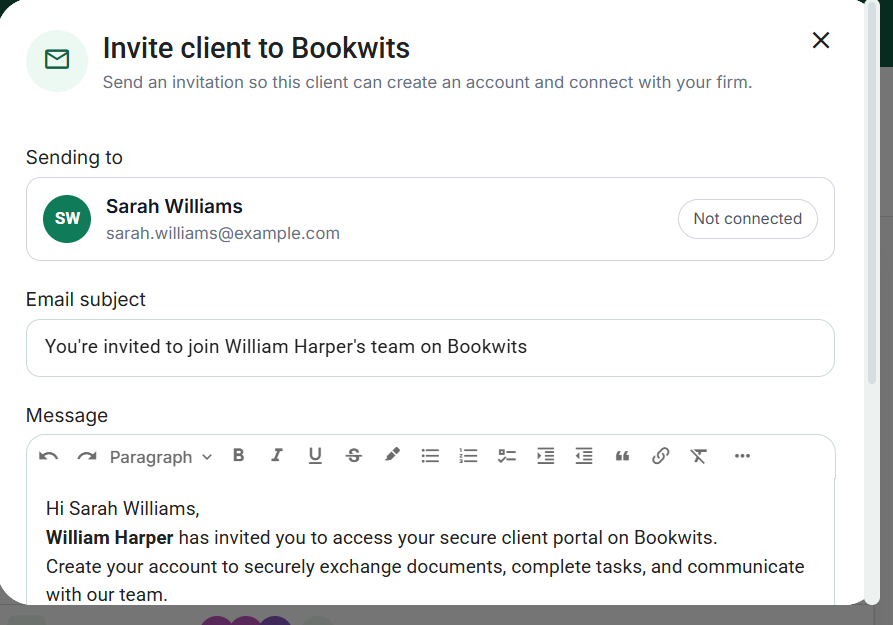
Open the three-dot menu beside Edit → Invite to Bookwits. The
dialog is titled Invite client to Bookwits.
Review the Sending to card. If the email is wrong or missing,
cancel and correct the profile before sending. This dialog is not an address book
for choosing an unrelated recipient.
Review Email subject and Message. The default
message introduces the sender and the secure client portal. Replace it with clear
instructions suited to the engagement, without including passwords or private
information about other clients.
The secure account-setup link is added automatically. Do not paste
another person's invitation or invent a link. Choose
Send invite only when the recipient, subject and message are
correct.
After sending, return to the profile and check the connection/invitation status. Ask
the person to confirm receipt if necessary; an outgoing invitation is not evidence
that an account was created or accepted.
Example message: “Hello Sarah, please use the invitation button to
create or sign in to your client account with the email shown above. Verify your email
and accept our invitation. You will then be able to see the tasks and shared documents
made available to you. Please contact our team if the invitation was not expected.”
Pending, expired and connected are different states
Pending: the invitation still needs acceptance. The same menu
provides Resend invite and Cancel invite instead
of another initial invitation action.
Resend: issues a fresh invitation. Tell the client to use the
newest email; older pending links are revoked when a new invitation is issued.
Cancel: confirm that you intend to revoke the pending invitation.
Cancelling a pending link is not a way to disconnect an account that already
accepted.
Expired: invitations last 30 days. Send a fresh
invitation using the available invitation action rather than asking the person to
keep retrying an expired email.
Connected: the client account has been linked. The initial
invitation action is no longer shown for an already-connected profile. Review actual
sharing and permissions instead of repeatedly sending invitations.
If the client's email changes while an invitation is outstanding, cancel the old
pending invitation and issue one to the corrected address. Acceptance requires a
verified client account using the intended email. See
the client instructions for registration, verification,
acceptance and recovery.
Directory controls: selection, table layout and archive state
The search field, filter panel and column filters are separate controls. A client can
be present but hidden by a tag, client-type condition or archive view. Clear the
relevant condition before concluding that the record has disappeared. A company-name
match or personal-tax association is not permission to change a different person with
the same display name.
Column options are opened beside a table heading. Depending on the column, they offer
sorting, filtering, freezing, auto-fit, hiding or moving left/right. Drag the resize
handle to change width. These are display settings, not edits to the client's stored
email, partner or custom-field values. Hidden columns can still contain saved data.
For bulk work, inspect the selected rows before opening Actions.
Selecting currently loaded rows is not evidence that every record matching a large
search has been loaded or selected. Clear old selections before moving to a different
batch. Use the row's own action menu for a single-client operation, and check the name
in any destructive confirmation.
Current application screen examples
Link partner: search existing clients. Application screen with
illustrative sample data. The controls shown here use the English interface.
Open the full-size screenshotLink partner: enter a new person without merging profiles.
Application screen with illustrative sample data. The controls shown here use the
English interface. This form remains a draft until you select Create and link.
Open the full-size screenshotAll Clients: module tabs and directory controls. Application screen
with illustrative sample data. The controls shown here use the English interface.
Open the full-size screenshotClient directory: Actions contains table settings and CSV import.
Application screen with illustrative sample data. The controls shown here use the
English interface.
Open the full-size screenshotClient Overview: the menu beside Edit contains partner and invitation
actions.
Application screen with illustrative sample data. The controls shown here use the
English interface.
Open the full-size screenshotClient invitation: recipient, subject and portal-introduction message.
Application screen with illustrative sample data. The controls shown here use the
English interface. Review the address and message before Send invite, which sends a
real invitation.
Open the full-size screenshot
Customize the All clients table without changing client information
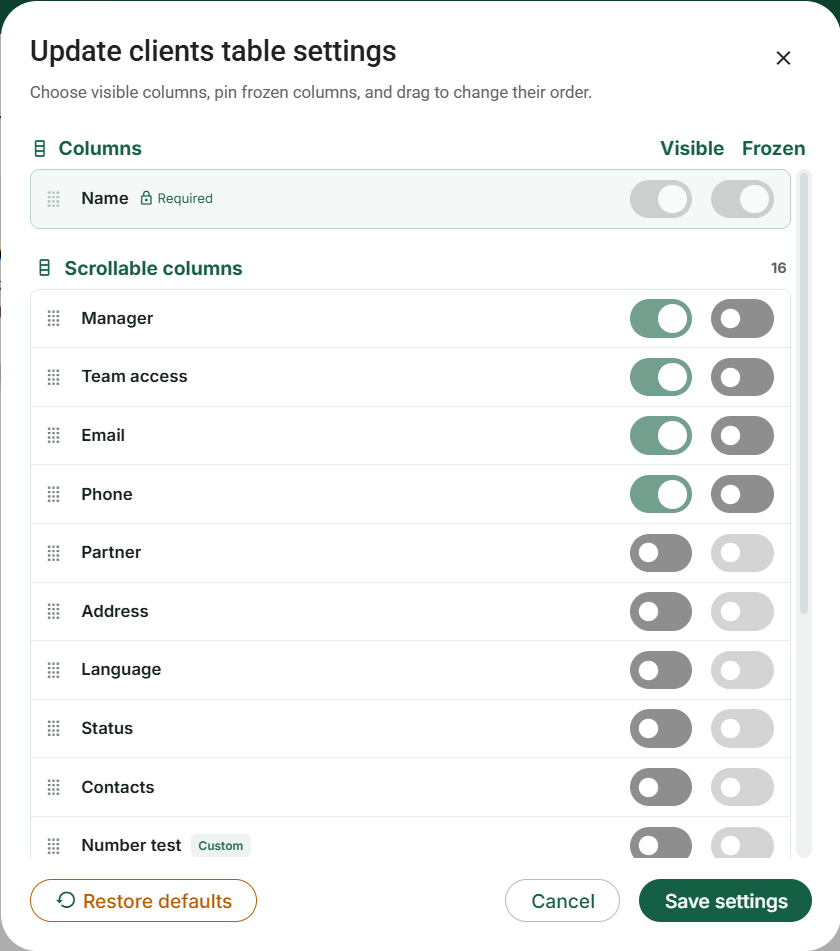
Open Clients → All clients. In the toolbar above the directory, open
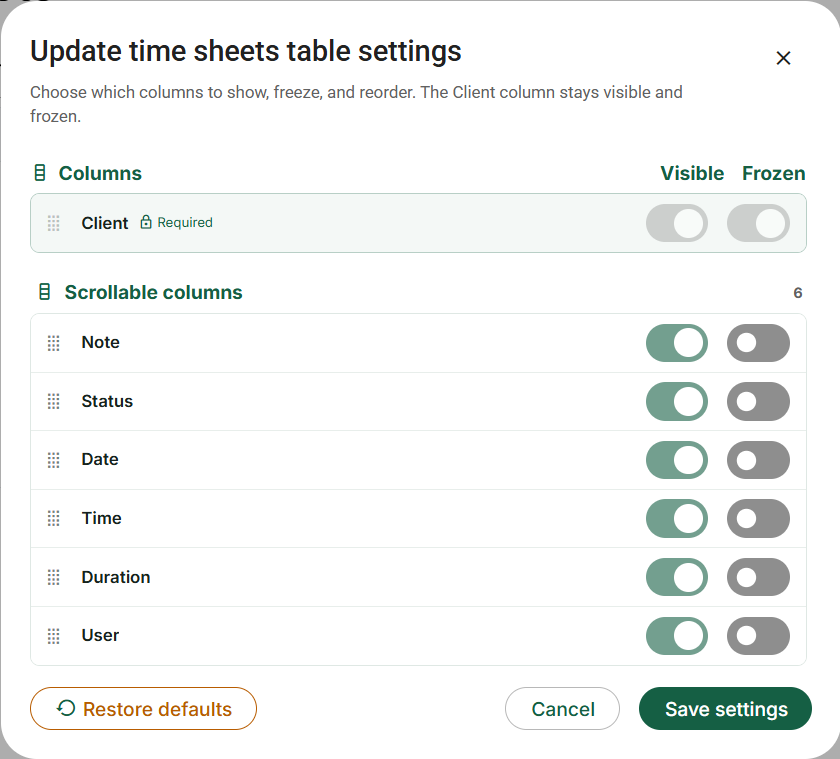
Actions → Table settings. This configures the client directory, not
the Companies or Timesheets table and not the fields in the Add client wizard.
Find the column in the settings dialog. Turn Visible on to display
it, or off to remove it from this table. Hiding a column does not erase its saved
values or change who may access the record.
For a visible column you need to keep on screen while scrolling sideways, enable
Frozen. Hidden columns cannot be frozen. The required
identification column stays visible and frozen; its disabled switches are
intentional.
Use the dotted drag handle to rearrange columns within the frozen or scrollable
group. To move a column between those groups, change Frozen first, then arrange it
in its new group.
Choose Save settings to keep the layout, or
Cancel to leave the dialog without applying its draft. Reopen the
table and check that the columns you wanted are present.
In the table itself, drag a column’s right-hand header edge to resize it. Use the
available double-click/Auto-fit action to size it to the loaded content; a much
longer value on a later page may still need more room.
Open a column header’s menu for the actions available to that column, such as
sorting, filtering, freezing, hiding, moving or auto-fitting. These change
presentation or the matching rows, not the underlying client or time record.
Example: keep the identification column and a useful contact/work
column frozen, show the few fields needed for the current review, and place less-used
details farther right. Scroll horizontally to confirm that frozen columns remain
useful without taking up the entire screen. This is your table layout, not a request
to give every colleague the same layout.
Restore defaults (labelled Reset to defaults in
Companies) resets the table presentation, including the configured order, visibility,
frozen state and widths; it does not delete custom-field definitions or record values.
Review the resulting draft before saving. If a column is missing, inspect visibility,
available definitions and access before concluding that its data was deleted.
Restoring a layout is not a recovery tool for deleted business data.
All clients: visibility, frozen columns, ordering and layout actions.
Application screen with illustrative sample data. The controls shown here use the
English interface.
Open the full-size screenshot
For example, show the client contact fields needed for a call and hide less-used
columns. A hidden Email column does not disconnect that client from the portal or
change your own sign-in email. For additional client information, create the
appropriate client custom field through Fields configuration, enter its value in the
client’s Additional details, and then make its available table column visible.
Owner, Admin and Member: permissions for this workflow
Member: works with assigned/shared clients, may create clients, and
automatically receives access to a client they create. Owner/Admin see the team’s full
client set. Partner candidates, contacts, credentials and linked company/year work
must still be accessible; linking partners does not share a complete second client
profile by itself.
The client form’s manager selector is for Owner/Admin, and a Member’s ordinary Team
access choices are limited to their own entry.
Do not confuse that form with the Clients selected-row toolbar: its
Manager and Team access actions are also exposed for accessible selected clients. A
Member’s sharing update retains their own access, and recipients must be active
colleagues in that client’s team. These actions neither change team roles nor open the
Team administration module. Review the entire selected set before applying.
Owner/Admin have permanent client deletion; Member does not see that single-row or
selected-row delete action. Archiving, table layout and the available client reports
are distinct controls. A client’s portal invitation is not a staff invitation or an
Admin promotion.
For the cross-client directory, use Clients → Companies, either in
the expanded sidebar or in the top tab row. Its upper toolbar contains
Reports, Settings, Filters and
Add company. Reports offers Excel/CSV exports; Settings changes the
table, not the selected company's tax obligations.
For one entity's working file, open
Clients → All clients → client name → Companies, then choose the
company-name tab. The selected company tab has its own three-dot
options button; Add company is at the right end of the company
selector.
The next navigation row is
Details, Tasks, Documents, Checklists, Notes, Guidelines and More.
More opens contacts and software credentials; it is not another
company. Edit company is also available at the bottom of Details.
Always read the selected company name before adding a document, note or task.
A company is a business entity attached to a client. Use a separate company record for
each business whose details and work must be kept distinct. Do not rename the person’s
client record to a business name just to represent a second entity.
Create a company in the correct place
Start with the person who owns the company record. Open
Clients → All clients, search above the table and select the
person’s name. Check the name at the top of the profile before continuing.
Open the company workspace. Select Companies in
the client profile’s top tabs, not the global Companies directory. Existing company
names appear as tabs. Select Add company beside those tabs to
create another entity for this client.
Enter information for the business, not the individual. Give the
company its own name, type and business number when known. Review its year-end,
business activity, email, phone and address. For example, Emma Laurent’s personal
email and Maple Grove Design Ltd.’s business email may be different.
Review the sections that apply. Complete the tax registrations,
payroll obligations, forms and custom fields shown by your firm’s configuration.
Turning on a registration may reveal extra questions. Do not select Yes merely to
make a section look complete, and do not guess missing account numbers or filing
frequencies.
Save and check the new company tab. Use the form’s save action,
wait for confirmation and open the resulting company. Under
Details, compare the name and year-end with what you entered. Its
Tasks, Documents and Checklists sections now refer to this company, not every
company belonging to the client.
What the main field groups represent
Identity: legal/company name, business number, business activity,
company type, revenue information and corporation/company key where enabled.
Contact: company email, phone and address. These may differ from
the owner’s details.
Company year-end: the fiscal year-end used for organizing the
business workflow. It is not the individual’s personal tax year.
GST/HST: registration, method, reporting frequency, year-end and
rebate frequency where applicable. A reporting frequency is not the same thing as a
fiscal year-end.
PST: registration, reporting frequency and associated year-end
where applicable.
Payroll and workplace obligations: payroll remittances, WSIB/WCB
account and frequency, EHT and related choices.
Forms: T4, T5, T5018, T4A and standby-charge indicators help
identify work to track; they do not generate or file those forms by themselves.
Work from the company workspace
Open the entity’s Company info, Tasks, Documents, Checklists and Guidelines areas as
needed. Always check the selected company when the client owns several businesses. A
task or file stored at client level is not automatically the correct company-level
record. For budgets, select company scope if you want to analyze just this entity.
Use the global Companies table to work across clients
Search by a distinguishing company name, apply the available obligation/year-end
filters, and use Settings to show the columns you need. Reports are available from
this view. Before reporting, check the active filters and compare the included records
with the purpose of the report. Field configuration determines which fields your team
uses; table settings determine which available columns you see.
Change and retire records safely
Edit the existing company when an address, contact or obligation changes. Use
archive/restore controls for inactive records where offered, rather than deleting
business history to clean up a table. Review the consequences before permanent
deletion. Updating a profile does not retroactively prove that old returns or
prior-period tasks were corrected.
Example: Alex owns a consulting corporation and a rental company.
Keep one client for Alex and two company records. Create each entity’s tasks, upload
folders and checklists under that entity; keep Alex’s annual personal return under
Personal taxes.
Example: keep a company obligation separate from the owner’s details
Thompson Consulting and Thompson Properties share an owner, but their business
numbers, year-ends and obligations may differ. Open the specific entity before editing
GST/HST, payroll or other applicable information. A company field expresses that
company’s situation; it is not an instruction to change every business Sarah owns.
Suppose the consulting business needs payroll work while the property company does
not. Confirm the applicable payroll fields on Consulting, then use the appropriate
company task or list to organize the work. Do not mark both companies identically just
to make a table look consistent. An unknown answer should be investigated rather than
silently recorded as “No.”
When checking the global Companies table, display the entity name, client and relevant
obligation or year-end columns. If two companies have similar names, open the row and
verify its parent client and business details. Exporting or filtering the wrong entity
can produce a plausible-looking report that describes the wrong engagement. Profile
flags help organize work; they do not themselves prepare or file returns.
Current application screen examples
The selected company and its workspace sections. Application screen
with illustrative sample data. The controls shown here use the English interface.
Open the full-size screenshot
Set up the Companies table for an entity-level review
Open Clients → Companies to see companies across accessible clients.
Above this table, select the standalone Settings button near Reports,
Filters and + Company. Do not look for the All clients Actions menu: Companies has its
own table settings entry point.
Find the column in the settings dialog. Turn Visible on to display
it, or off to remove it from this table. Hiding a column does not erase its saved
values or change who may access the record.
For a visible column you need to keep on screen while scrolling sideways, enable
Frozen. Hidden columns cannot be frozen. The required
identification column stays visible and frozen; its disabled switches are
intentional.
Use the dotted drag handle to rearrange columns within the frozen or scrollable
group. To move a column between those groups, change Frozen first, then arrange it
in its new group.
Choose Save settings to keep the layout, or
Cancel to leave the dialog without applying its draft. Reopen the
table and check that the columns you wanted are present.
In the table itself, drag a column’s right-hand header edge to resize it. Use the
available double-click/Auto-fit action to size it to the loaded content; a much
longer value on a later page may still need more room.
Open a column header’s menu for the actions available to that column, such as
sorting, filtering, freezing, hiding, moving or auto-fitting. These change
presentation or the matching rows, not the underlying client or time record.
Example: keep the identification column and a useful contact/work
column frozen, show the few fields needed for the current review, and place less-used
details farther right. Scroll horizontally to confirm that frozen columns remain
useful without taking up the entire screen. This is your table layout, not a request
to give every colleague the same layout.
Restore defaults (labelled Reset to defaults in
Companies) resets the table presentation, including the configured order, visibility,
frozen state and widths; it does not delete custom-field definitions or record values.
Review the resulting draft before saving. If a column is missing, inspect visibility,
available definitions and access before concluding that its data was deleted.
Restoring a layout is not a recovery tool for deleted business data.
Companies: required company name, frozen group and scrollable columns.
Application screen with illustrative sample data. The controls shown here use the
English interface.
Open the full-size screenshot
Example: show company name, year-end and the tax-obligation columns
needed for a year-end review. Two companies owned by Sarah Williams still need
separate rows and correct entity facts. Table visibility does not turn GST/HST,
payroll or another obligation on or off in either company’s profile. Clear active
filters as well as checking columns when investigating a missing company.
Owner, Admin and Member: permissions for this workflow
A Member sees company records through accessible shared clients; Owner/Admin have
team-wide client scope.
The Companies listing’s Reports button is shown to Owner/Admin, not
Members.
This does not remove a Member’s ordinary company work, filters or personal Table
settings. Existing company tags and custom-field answers can be used on accessible
records; managing the reusable tag library and custom-field definitions is for
Owner/Admin.
For season-wide tracking, choose Clients → Personal taxes. Search,
Filters and Add personal tax year are above this
directory. A row belongs to a particular person and year, not to every member of their
household.
For one person's working file, choose
Clients → All clients → client name → Personal taxes. Select the
year tab first. Add year sits at the right of the
year selector; the selected year's three-dot menu contains
Edit year, Archive/Unarchive and Delete year.
Under the year selector, use
Checklists, Tasks, Documents, Notes or Guidelines.
Send personal tax checklist is in the Checklists section, on the
right. Documents and notes opened here are year-scoped; the general Documents/Notes
sidebar entries are broader views.
A personal tax year is an annual work container attached to a client. Creating 2026
does not replace 2025, and creating a year does not file a return.
Create and verify a year
Open the correct person’s profile. In
Clients → All clients, search for the person and select their name.
Choose Personal taxes in the profile’s top tabs. This keeps the
year attached to that person rather than a similarly named client.
Look at the existing year tabs first. If the required year already
exists, open it instead of creating a duplicate. Otherwise, select
Add year beside the year tabs and choose the tax year requested by
the engagement, not automatically the current calendar year.
Keep a single-person operation limited to that person. If the form
offers Apply to multiple clients, leave it off unless you
intentionally want a batch. For a batch, review every selected client or search
group before confirming; the selected year will apply to that selection.
Create the year and select its tab. Check both the client name and
the year in the workspace. Open
Checklists, Tasks, Documents, Notes or
Guidelines within that year for annual work. Opening 2025 is not
the same as opening the person’s 2026 records.
Check what still needs to be done. Creating a tax year does not
send a checklist, prepare a return or file it. For intake, open the year’s
Checklists section and prepare the appropriate request. Assign preparation and
review work separately in Tasks.
Use tabs and year options
Switch the year tab to view a different annual file. Year options include editing,
archive/unarchive and deletion. Read the confirmation before deleting a year
containing checklists, files or work history. An archived year may be absent from
active-only views; verify the archive filter before recreating it.
Understand documents and checklists for a family
A tax year can contain several checklist submissions, including separate submissions
for a spouse or family members. Check the person named in each submission: several
responses in one client/year do not mean the answers belong to the same filer. Uploads
collected by personal tax checklists appear in the relevant year’s document folders,
including slips, receipts and supporting documents.
A linked partner record, a dependant entry in a checklist and another client record
serve different purposes. Do not replace a spouse’s answers with the primary contact’s
details or forward one recipient’s access link as if it were a general family login.
Find the file from the global view
Use the Personal taxes tab when you need to work across clients by annual record.
Apply the available filters, open a result and confirm both identity and year. If the
client is present but the year is missing, check whether that year was actually
created; a company record or an earlier-year checklist does not create the new annual
file for you.
Example: prepare 2025 while preserving the 2024 history
Sarah’s 2024 file already contains its checklist and supporting documents. You now
need to prepare 2025. Keep the 2024 record and create or open the separate 2025
record. Check the selected year tab before uploading slips or creating the preparation
task. Renaming an old task or uploading a new slip into an old folder does not create
the new annual workspace.
If Sarah sends a 2024 reassessment while you are working on 2025, identify that
document’s actual period and preserve it in the appropriate context. Explain any
relevance to the current work in a note or task rather than pretending the document
was issued for 2025. A file’s upload date is not its tax year.
For family intake, identify who each checklist submission describes. Sarah’s answers,
her spouse’s separate submission and a dependant section serve different purposes.
Review names, dates and document ownership before using the answers. A shared contact
email does not make every uploaded slip Sarah’s, and a completed checklist means
intake was submitted—not that any family member’s return was filed.
Current application screen examples
Select the personal tax year before choosing its working section.
Application screen with illustrative sample data. The controls shown here use the
English interface.
Open the full-size screenshot
Owner, Admin and Member: permissions for this workflow
A Member’s personal-tax-year directory follows shared-client access; Owner/Admin can
review the team’s years. A relationship, spouse/partner link, year tab or assignment
to an internal Task is not by itself a share of every household member’s profile.
Checklist, Client Task, signing and private-note permissions remain separate even for
the same client/year.
Open Clients → Client lists. Use Search lists to
find a saved list. The List button starts a new list; opening an
existing list shows its own contents and rules. Show archived reveals
lists that are absent from the active view.
Check whether the list is maintained manually or by conditions before changing its
membership. The title of a list does not itself select a tax year or create annual
records. For example, a list named “2025 personal returns” still needs correct
membership and the appropriate year-related conditions.
A Client List is a generated list of items (clients, companies, or personal tax year
records) based on criteria you choose.
Examples
“Company year-end – Dec 31, 2025”
“Personal tax year – 2025”
“GST/HST reporting – Quarterly filers”
“T-slips – 2025”
Once created, the list becomes your operational tracker: you update statuses as
work progresses until everything is done.
Create a new Client List
Steps
Choose Clients in the left sidebar, then
Client lists in the top tab row. Open the list-creation control
above the existing lists. This is a work tracker, not the All clients address
directory.
Give the list a specific name and, if useful, a description. “December 2026
year-ends” is more informative than “Important”. The title explains the list to
colleagues but does not itself choose the records.
Under Select criteria, choose the type of work and complete its
parameters, such as the applicable year-end period or personal tax year. Use the
actual offered criteria; a phrase typed in the name is not a filtering rule.
Create the list and inspect its rows. Check several client/company names and the
count against the selected criteria. If a company is absent, check the year-end or
obligation recorded on that company rather than creating a duplicate client.
Use the list’s statuses and notes to track progress. When someone needs an
assigned action and a deadline, create or open a Task as well. A status in a
client list is not automatically proof that a return was filed or a client request
was completed.
Common criteria options
Company year-endSole proprietorshipT-slipsGST/HST reportingPersonal tax yearWSIBPayroll remittance
Screen reference: Create a new Client List
After choosing a criteria, Bookwits will ask for the key parameter(s) needed to
generate the list.
Example: Company year-end list (most common)
When you select Company year-end , you choose the year-end
month/date you want to pull (example: December (12) → Dec 31, 2025).
What happens after you create the list
Bookwits pulls matching records from the Companies table
It displays them as a list you can work through
You’ll see a header like “Company year-end / December (12) / Dec 31, 2025” and a
progress counter like “Companies 3/17”
Typical columns
Name (company name)
Year-end (e.g., 12/31)
Status
Updated at
Example rows: “Bloom Flowers — 12/31 — (status) — Nov 19, 2025”
Statuses (track progress per row)
Each row has a status so work is visible as it moves forward.
Default statuses
To doIn progressIn reviewWaiting on clientCompleted
Custom statuses (team workflow)
You can add custom statuses and control their order so lists match how your firm
actually works (e.g., Prep → Review → Filed → Delivered).
Screen reference: Statuses (track progress per row)
The goal isn’t fancy statuses—it’s consistency. A shared status language prevents
dropped files.
Notes (quick context per row)
Each row can include a note so your team can record blockers, requests, and “next
steps” context.
Examples
“Waiting on bank statements”
“T2 draft ready for review”
“Client confirmed year-end adjusting entry”
Screen reference: Notes (quick context per row)
Keep notes short and actionable—write them as if someone else will pick up the
file.
Create tasks from Client List items (turn tracking into execution)
Client Lists aren’t just tracking—you can create real tasks from rows so work gets
executed in Tasks.
What you can set on the task
Task title
Assignee
Due date
Priority (if you use it)
Subtasks (if needed)
Attachments / comments (if needed)
Screen reference: Create tasks from Client List items (turn tracking into
execution)
The list stays as the high-level tracker; tasks are the day-to-day execution
layer.
Bulk actions (checkboxes)
Select multiple rows and apply bulk updates to move faster—especially during weekly
review meetings.
Common bulk actions
Bulk change status (e.g., mark 10 items as “Waiting on client”)
Batch update workflow state after a review meeting
Screen reference: Bulk actions (checkboxes)
Bulk updates are the secret weapon: 5 minutes of updating beats an hour of
spreadsheet cleanup.
Reports (CSV / XLS exports)
Generate exports to share progress internally, send summaries, or keep offline
backups if needed.
CSVXLS
What gets exported
Exports are generated from the items currently in the list (based on the list’s
criteria).
Other Client List types (what they pull)
Comany year-end
Pulls companies based on year-end month/date criteria. Great for tracking year-end
workflows across clients.
Personal tax year
Specify the tax year (e.g., 2025) and Bookwits pulls all Personal Tax Year records
for that year. Great for tax season tracking.
GST/HST reporting
Pulls companies based on reporting schedule so you can track recurring compliance
cycles.
T-slips
Track slip preparation and collection deadlines across many clients.
Payroll remittance / WSIB
Recurring compliance workflows that benefit from a consistent “one view” tracker.
Sole proprietorship
Segment clients and build workflow lists around that category.
Why Client Lists save a lot of time
Client Lists replace spreadsheets and “mental tracking” with a structured workflow:
Clear list of what needs to be done
Consistent statuses across your team
Easy bulk updates during weekly reviews
Notes captured in one place
Tasks created from list items for execution
Exports when you need reporting
Bottom line: it creates a clear, shared picture of work-in-progress and keeps
deadlines visible.
Build a list you can explain to another team member
Choose Clients in the left sidebar, then
Client lists in the top tab row. Open the list-creation control
above the existing lists. This is a work tracker, not the All clients address
directory.
Give the list a specific name and, if useful, a description. “December 2026
year-ends” is more informative than “Important”. The title explains the list to
colleagues but does not itself choose the records.
Under Select criteria, choose the type of work and complete its
parameters, such as the applicable year-end period or personal tax year. Use the
actual offered criteria; a phrase typed in the name is not a filtering rule.
Create the list and inspect its rows. Check several client/company names and the
count against the selected criteria. If a company is absent, check the year-end or
obligation recorded on that company rather than creating a duplicate client.
Use the list’s statuses and notes to track progress. When someone needs an assigned
action and a deadline, create or open a Task as well. A status in a client list is
not automatically proof that a return was filed or a client request was completed.
Understand three different progress signals
The list row’s status tracks that list item. An internal task’s status tracks the
assigned work. A checklist or client task has its own client-response lifecycle.
Finishing one is not evidence that the others have been reviewed or updated. During
weekly review, reconcile them deliberately.
Bulk changes and reporting
Select the exact rows before applying a bulk status change. Check whether your
selection is still appropriate after changing filters. Use short notes such as
“Waiting for March statement; follow up Friday” rather than a status word with no next
step. Export CSV/XLS for a dated snapshot and inspect which rows and period it
contains; an exported spreadsheet is not a live synchronized view.
Recover from an incorrect list
Check the chosen list type, period and source-record values. A company year-end list
and a personal tax-year list cannot be repaired by simply renaming one to the other.
Correct the underlying record when it is wrong and use the appropriate list workflow.
Preserve useful notes and work history before replacing a list.
Example: use a year-end list to coordinate preparation and review
Create a list whose criterion selects the company year-end and period you intend to
review. Give it a name such as “December year-ends — preparation review.” Inspect the
returned companies before assigning work. If Thompson Consulting is missing, check its
company year-end and the list parameters; adding a duplicate client does not repair an
incorrect source value.
For a company waiting on statements, set the appropriate row status and write “October
statement missing; Jordan follows up Friday.” Create a task when that follow-up needs
an assignee and deadline. Later, when the statement arrives, inspect it, update the
work task and update the list row as appropriate. Neither update should be assumed to
complete the other automatically.
Before a bulk change, check the exact selected rows and whether a filter remains
active. “Mark reviewed” should describe companies actually reviewed, not everything
currently visible by accident. A CSV/XLS export is a dated snapshot of included
records; inspect the names, count and period before sharing it. Keep internal notes
out of a client-facing report unless sharing them is intentional.
Choose the list type by the work you are trying to organize
A Client List is a reusable, criteria-based work population. It finds matching company
records or personal tax years from information already saved in their profiles. It is
not a separate address book, a manually copied set of clients or an automatic
tax-filing service. One person with three matching companies can contribute three
company rows.
Open Clients in the left navigation, then choose
Client lists in the Clients navigation. On the Client lists page,
the saved-list directory is on the left and the selected list’s rows are on the
right.
Select + List above that directory. Give the list a recognizable
name, such as “December year-end review,” then select its Type. The
type controls which criteria appear below it.
Select the appropriate criteria. Where multiple values are offered, add each value
you need. All means all choices within that criterion, not every
client regardless of the selected type. Do not combine All with a narrower selection
expecting it to mean “all except those.”
Save the definition, select the resulting list and inspect the actual
company/person-and-year rows before assigning work. If an expected business is
missing, check its saved profile facts, your access, the list criteria, search and
status filters.
The ten Client List types, with practical examples
Type
What determines membership
How you might use it
Company year end
Eligible companies with a saved tax year-end; choose one or more year-end
months.
Choose December to organize the companies whose year-end review belongs in the
same seasonal workload. This is a company-year-end list, not a list of all
personal returns.
T slips
The company’s applicable T4, T5, T5018 or T4A indicators; select the slip
types needed.
Choose T4 and T4A to identify companies with either selected obligation. The
list does not prepare or transmit those slips.
GST/HST reporting
The saved GST/HST reporting frequency and selected year-end months. The GST
year-end is used when present; otherwise the company tax year-end is used.
Combine the required reporting frequency with December year-end to plan that
population’s work. A year-end month is not the date of every quarterly
remittance.
Personal tax year
The person’s saved personal tax year records; select the year or years.
Choose 2025 to track Sarah Williams’s 2025 return separately from her 2024
return or her company’s work. Creating the list does not create missing
personal tax years.
WSIB
The company’s saved WSIB applicability indicator; no extra month selector is
required.
Prepare a WSIB follow-up population. Verify registration and account
information in the company profile rather than treating membership as an
independent legal determination.
Payroll remittance
The payroll-remittance applicability indicator and selected remittance
frequencies.
Organize companies with the same payroll follow-up pattern. Their recorded
frequency must be correct before this list can reliably group them.
Sole proprietorship
The company’s business type is Sole proprietorship; no extra year-end selector
is required.
Find sole-proprietor business records for a coordinated review without
assuming that every company attached to an individual is a sole
proprietorship.
PST reporting
The company’s PST reporting frequency and selected year-end months. The PST
year-end is used when present; otherwise the company tax year-end is used.
Organize a provincial-sales-tax workload independently of GST/HST. A company
can appear in both lists if its saved facts match both.
EHT
The company’s saved EHT applicability indicator; no extra month selector is
required.
Build the employer-health-tax follow-up population. Review the underlying
company facts and applicable requirements rather than enabling EHT merely to
put a company in a list.
Custom
A selected company custom-field definition and one or more of its existing
values.
For a shared “Service package” field, choose “Monthly bookkeeping” to find
matching companies. Select the correct field, not another definition with the
same display name.
Track list progress without changing unrelated workflows
Select a saved list, then use its row status and note to record that list’s follow-up.
For example, “Waiting for payroll summary” is more useful than “Waiting.” The same
company may have a different status in its GST/HST list and its year-end list. A
list’s Done count belongs to that tracker; it is not proof that an internal task, a
Client Task or a government filing is complete.
Use the saved-list directory search to find the list definition. Use the
selected list’s search/status controls to narrow its rows. These are
different searches. The directory’s three-dot menu includes
Show archived; enable it when looking for an archived list instead of
creating another copy. Check the selected list’s name and criteria again after
switching lists.
Generate Client List reports in Excel or CSV
Open the correct saved list and review its criteria.
Set the row search, status filters and sort you want reflected in the report. Clear
them first if you want the complete matching population rather than a filtered
subset.
Open Reports above the selected list’s table and choose
Excel or CSV.
Open the downloaded file and check its rows against the selected population. The
tracking export contains the name, the list-related value where supplied, the list
status and note text; it is not a full company profile export or a tax return.
Example: filter a December year-end list to “Waiting,” add a search
for the business you are discussing, then export CSV for that focused follow-up.
Remove the search before exporting the whole waiting population. Reports request the
matching set rather than merely copying the few rows currently visible on screen. Do
not infer successful tax filing from an exported Done status.
Owner, Admin and Member: permissions for this workflow
The same saved list can show fewer company/year rows to a Member because its results
are restricted to that Member’s shared clients. Owner/Admin see matching team-wide
records. Members can select existing list statuses;
creating, editing, deleting or reordering the shared status definitions is for
Owner/Admin. Do not confuse this with the Companies listing’s separate management-only Reports
button: use the report controls actually available in this Client List.
The consolidated tracking page is Clients → Checklists. Use its
search, filters and status views to locate a sent request. Open the request itself for
its answers, documents, progress and activity. This is different from editing a
reusable checklist template.
For a company-specific request, open
client profile → Companies → company name → Checklists → Send company
checklist. Review the client, company, recipient email, template and completion-notification
option in the send dialog. Cancel closes the draft dialog without sending an email.
To change the reusable questions, use Templates → Company checklists.
The sender's tracking view and the recipient's emailed questionnaire are different
screens; a staff member opening the tracking card is not completing the questionnaire
on the client's behalf.
Company Checklists live in:
Client Profile → Companies → Select Company → Checklists .
What you’ll see in the company view
Each company can have its own workspace with navigation like:
Company infoTasksDocumentsChecklistsGuidelines
Use Checklists to send, review, and manage onboarding or
recurring business intake forms.
What Company Checklists are for
Company Checklists help you:
Standardize what you collect during company onboarding
Reduce back-and-forth emails for missing business details
Collect clean, structured answers instead of scattered messages
Keep important company information attached to the correct client record
A company checklist is linked to
A specific client
A specific company under that client
A selected checklist template
Step 1: Create or open the client company
Steps
Start with the person who owns the company record. Open
Clients → All clients, search above the table and select the
person’s name. Check the name at the top of the profile before continuing.
Open the company workspace. Select Companies in
the client profile’s top tabs, not the global Companies directory. Existing
company names appear as tabs. Select Add company beside those
tabs to create another entity for this client.
If the company already exists, select its name rather than creating another copy.
In the selected company’s section row, choose Checklists. Confirm
the client and company names before preparing any request.
Use the company-checklist send control to open the composer. Choose a suitable
template and review the recipient, subject and message before sending. Opening
this composer does not itself email the client.
What this does
It creates the company workspace where the checklist submission, documents, tasks,
and future activity can live together.
Screen reference: Step 1: Create or open the client company
Step 2: Send a checklist to the client
In the company’s Checklists tab, click
Send checklist .
What the dialog includes
Client email*
Select a template*
You can also preview the selected template before sending.
What sending does
Bookwits emails the client a link to the checklist
The client fills it out online
You’re notified once it’s submitted
Screen reference: Step 2: Send a checklist to the client
Important: the client does not need a Bookwits login to complete
the checklist.
Choosing a template (and previewing it)
Templates define what the client sees: sections, custom fields, required answers,
and the overall onboarding flow.
Preview with the eye icon
In the “Send a checklist” dialog, use the eye icon to review the template before
sending it to the client.
Preview helps you confirm
The checklist matches the company’s situation
Required fields are reasonable
The wording is clear and client-friendly
What’s inside a company checklist template
Templates are built from sections , and each section contains
fields the client fills out.
Example sections
Basic Company Information
Collect core business details needed to set up bookkeeping and tax work.
Legal company name*Operating nameBusiness number (BN)*Incorporation dateRegistered business address
Accounting Software
Current accounting softwareConnected apps
Sales & Revenue Systems
Capture POS systems, ecommerce tools, and invoicing platforms.
Payroll Information
Gather payroll software, employee count, and payroll frequency.
Documents & Record Storage
Record where receipts, source docs, and financial files are stored.
Bookkeeping Preferences
Capture workflow preferences and anything the team should know before
onboarding starts.
Screen reference: What’s inside a company checklist template
Adding & Customizing Fields in Templates
Inside a template section, use Custom fields to add the questions
you want the client to answer.
Screen reference: Adding & Customizing Fields in Templates
Keep templates focused. Ask only for information your team actually needs to start
the engagement smoothly.
Conditional Logic – Make Checklists Smarter & Shorter
Conditional logic lets your checklist adapt in real time based on what the client
answers. Instead of showing every possible question to everyone, the form only
displays relevant follow-up fields, sections, or stop messages when certain
conditions are met.
How conditional logic works
It follows simple “IF → THEN” rules:
IF = the condition (e.g. answer to a previous Yes/No or
dropdown question)
THEN = the action (most common: Show / Hide a field, section,
or even stop the form early)
You can create rules at different levels:
Root-level (top of the checklist)
Nested / dependent levels (rules that only apply if a parent condition is
true)
Tax checklist examples
IF “Did you use us to file your personal tax return last year?”
IS Yes THEN Show the next question about
updates this year
IF “Has any of your personal information changed?”
IS No THEN Show a stop message and end
the checklist early (no further info needed)
IF “Marital status” = Married or Common-law THEN
Show spouse consent checkbox + spouse information fields
Screen reference: Conditional Logic – Make Checklists Smarter & Shorter
Benefits: shorter forms, higher completion rates, less client frustration, and
cleaner data for you (only relevant answers are collected).
Look for the Conditional logic toggle or button when editing fields
or sections — it lets you build these dynamic rules visually.
Where to manage Company Checklist templates
Go to: Templates → Company checklists
From there you can
Create new company checklist templates
Edit existing templates
Delete templates you no longer need
Think of this as your reusable company onboarding library.
Screen reference: Where to manage Company Checklist templates
What happens when the client completes the checklist
You get notified
Once the checklist is submitted, your team can review the completed information
in Bookwits.
The completed checklist appears in the company record
Open the client, go to the company, then open Checklists to
view the answers grouped by section.
Your team can review onboarding details in one place
This makes it easier to start bookkeeping, tax setup, software migration, or
other firm workflows without hunting through emails.
Screen reference: What happens when the client completes the checklist
Screen reference: What happens when the client completes the checklist
Best use cases for Company Checklists
Use them for
New company onboarding
Cleanup engagements
Bookkeeping setup and software migration
Annual company information refresh
Industry-specific intake templates
A strong default template is often enough for most firms. Start with one onboarding
checklist, then create variants only when the workflow truly differs.
Best practices (what to do first)
If you’re setting this up for the first time
Start with one core template: Onboarding checklist
Break the template into clean sections like company info, software, payroll, and
documents
Use required fields only where truly necessary
Preview every template before sending it
Update the template over time as your onboarding process becomes clearer
Simpler checklists get completed faster. Focus on collecting the information needed
to begin work, not every possible detail on day one.
Choose the right intake tool
A company checklist gathers structured company information through a link. It is not
an internal to-do list and not the same as a Client Task. Choose the company first,
then the template appropriate to that company’s situation. A personal-tax template is
not a substitute merely because the contact email is the same.
Use the combined Checklists view
Clients → Checklists brings company and personal-tax checklists
together. Search by checklist, client or email; combine that with the available type,
client/company and status filters. The current statuses are In progress, Completed,
Expired and Cancelled. Open a record to inspect its recipient, related entity,
creation/update/expiry dates, response sections and activity timeline.
Before sending and after receiving
Confirm the selected client and company, recipient email and template. The send
dialog requires a usable template with enabled content; an empty template is not a
finished form.
Preview the template, especially required fields and conditional branches. A field
hidden by a condition cannot be treated as an unanswered question shown to every
client.
Send only when the email is correct. Check the checklist record and activity
afterward.
After submission, review the actual section answers and any supporting documents.
Resolve contradictions before updating company data or commencing related work.
Manage an existing checklist
The available actions include resend, copy link, duplicate, cancel and delete,
depending on the record and permissions. A copied checklist link provides access: send
it privately to the intended recipient, never post it in public notes. Duplicate
creates a separate request; it is not a way to correct the original submission in
place. Read cancellation/deletion confirmations and keep required business records.
Client guidance: open the received link, confirm the company, read
each section and answer the questions shown. Correct validation messages and finish
submission. This link-based checklist does not require creating a full Bookwits
account. If it is expired or cancelled, ask the sender for the appropriate replacement
rather than registering an unrelated account.
Example: collect company setup details without asking every question twice
For Thompson Consulting’s onboarding, choose a company checklist that asks about the
actual business. Review its sections for accounting software, sales systems, payroll
and document storage. If a follow-up applies only to employers, use the template’s
conditional structure so a business without payroll is not asked to invent an employee
count.
Preview both branches before sending: the relevant follow-up should appear for the
applicable answer, and the other branch should remain understandable without it. A
required field should represent information you genuinely need from the people who see
it. Do not make a specialized question universally required merely to prevent
blank-looking submissions.
After Sarah submits, open that specific company checklist and read the answers by
section. If the response says payroll is outsourced but a setup field says no payroll
obligations, investigate the meaning rather than copying one answer over the other.
Verify supporting material, record the decision and create follow-up work for missing
information. The completed checklist is evidence of the response, not proof that the
company’s accounting setup has already been performed.
Screen example: understand a company checklist’s questions
This live template-editor excerpt groups legal name, operating name, business number
and incorporation date under Basic Company Information. The section note explains why
the information is being collected. A legal name identifies the entity; an operating
name may differ. Required markers belong to the questions configured in this example,
not a universal rule that every checklist must ask the same questions.
The pencil, add, drag and delete controls are template-authoring controls. They are
not instructions for the client to redesign the form. Preview the recipient’s view
before reuse, check required questions and keep the section note clear enough that a
first-time client knows what document or information to consult.
Company checklist entry point and request header. Application
screen with illustrative sample data. The controls shown here use the English
interface.
Open the full-size screenshotThe consolidated checklist follow-up page. Application screen with
illustrative sample data. The controls shown here use the English interface.
Open the full-size screenshot
Owner, Admin and Member: permissions for this workflow
Staff checklist work follows access to its client/company; Member does not
automatically see another colleague’s unshared clients. Owner/Admin have broader
client scope. A recipient’s checklist link is an external response workflow, not
membership of your team. Creating a template, sending a request, reading a response
and viewing a related private note are different permissions and actions.
Choose client profile → Personal taxes → year → Checklists, then
Send personal tax checklist at the upper right of the working area.
Verify the year before choosing the recipient or template. Use
Clients → Checklists for the cross-client follow-up view.
Reusable questions and document-folder requests are under
Templates → Personal checklists. A recipient follows the secure link
in their email, moves through the available sections and submits the questionnaire.
Staff review the resulting answers and files in the selected year or consolidated
tracking page.
The card's follow-up controls depend on its state. Do not confuse
Resend checklist or Copy checklist link with
inviting the person to create a Bookwits portal account.
Collect documents into the right folders automatically
A checklist is linked to
A specific client
A specific tax year
Optional: multiple people under the same client (spouse, dependants, family
members)
Step 1: Create a personal tax year (example: 2025)
Steps
Open the correct person’s profile. In
Clients → All clients, search for the person and select their
name. Choose Personal taxes in the profile’s top tabs. This keeps
the year attached to that person rather than a similarly named client.
Look at the existing year tabs first. If the required year
already exists, open it instead of creating a duplicate. Otherwise, select
Add year beside the year tabs and choose the tax year requested
by the engagement, not automatically the current calendar year.
Keep a single-person operation limited to that person. If the
form offers Apply to multiple clients, leave it off unless you
intentionally want a batch. For a batch, review every selected client or search
group before confirming; the selected year will apply to that selection.
Create the year and select its tab. Check both the client name
and the year in the workspace. Open
Checklists, Tasks, Documents, Notes or
Guidelines within that year for annual work. Opening 2025 is not
the same as opening the person’s 2026 records.
Check what still needs to be done. Creating a tax year does not
send a checklist, prepare a return or file it. For intake, open the year’s
Checklists section and prepare the appropriate request. Assign preparation and
review work separately in Tasks.
What this does
It creates the year container where checklists ,
tasks , and documents will live.
Screen reference: Step 1: Create a personal tax year (example: 2025)
Step 2: Send a checklist to the client
After the year exists (e.g., 2025), click Send checklist .
Screen reference: Adding & Customizing Fields in Templates
Mark fields “required” only when you truly need them for every filer. Too many
required fields reduces completion rates.
Conditional Logic – Make Checklists Smarter & Shorter
Conditional logic lets your checklist adapt in real time based on what the client
answers. Instead of showing every possible question to everyone, the form only
displays relevant follow-up fields, sections, or stop messages when certain
conditions are met.
How conditional logic works
It follows simple “IF → THEN” rules:
IF = the condition (e.g. answer to a previous Yes/No or
dropdown question)
THEN = the action (most common: Show / Hide a field, section,
or even stop the form early)
You can create rules at different levels:
Root-level (top of the checklist)
Nested / dependent levels (rules that only apply if a parent condition is
true)
Tax checklist examples
IF “Did you use us to file your personal tax return last year?”
IS Yes THEN Show the next question about
updates this year
IF “Has any of your personal information changed?”
IS No THEN Show a stop message and end
the checklist early (no further info needed)
IF “Marital status” = Married or Common-law THEN
Show spouse consent checkbox + spouse information fields
Screen reference: Conditional Logic – Make Checklists Smarter & Shorter
Benefits: shorter forms, higher completion rates, less client frustration, and
cleaner data for you (only relevant answers are collected).
Look for the Conditional logic toggle or button when editing fields
or sections — it lets you build these dynamic rules visually.
Where to manage Personal Checklist templates
Go to: Templates (nav bar) → Personal Checklists
From there you can
Create new personal checklist templates
Update existing templates
Delete templates you no longer use
This is your reusable “intake library.”
Screen reference: Where to manage Personal Checklist templates
What happens when the client completes the checklist
You get an email notificationOnce submitted, you’ll receive an email letting you know it’s done.
You can view the completed checklist in the client profile
Client → Personal Taxes → Year (e.g., 2025) → Checklists. Answers are displayed
clearly by section.
Uploaded documents are saved into folders automatically Uploads are organized into standard folders like:
T SlipsReceiptsOther documentation
This keeps tax-season uploads structured without manually sorting email
attachments.
Screen reference: What happens when the client completes the checklist
Screen reference: What happens when the client completes the checklist
Multiple checklists per client (family members / multiple filers)
You can send multiple checklists for one client—useful when you need separate
submissions for spouse/family members.
Result structure
One client → one tax year (2025) → multiple checklist submissions (one per
person).
Use separate checklists when different people have different income types (e.g.,
one self-employed, one basic T4).
Add only the custom fields you actually use for decisions
Preview every template before sending (eye icon)
Send checklists early in tax season and use Tasks to follow up on non-responders
Keep required fields minimal. Completion rate matters more than “perfect intake” on
the first pass.
Separate the year, the person and the template
Before sending, check all three: the annual record that will hold the response, the
intended recipient/filer and the checklist template. A returning-client checklist and
a first-time-filer checklist can ask different questions. The newest calendar year is
not necessarily the year of the return you are preparing.
Review a submission in a useful order
Open the client, personal tax year and specific checklist, or find it in the
combined Checklists view.
Confirm who submitted it and the relevant year. Review general information,
marital/partner details and dependants before interpreting later answers.
Read the questions actually shown by the selected template and its conditions. Note
information that needs clarification rather than inventing an answer for a blank.
Open the associated document folders and check the files themselves: filer name, tax
year, all pages and legibility. A filename alone does not prove the right slip was
uploaded.
Turn missing information into a clear follow-up task or request, then update the
team’s work tracker.
What the recipient should expect
The recipient opens the email link without registering, works through the enabled
sections, uploads requested files and submits. Required-field errors must be resolved;
information for another family member should be entered in the correct person’s
section or separate checklist. If a question does not fit, ask the firm how to answer
instead of entering an invented date, zero or identifier.
Recover safely
For an expired/cancelled link, ask the firm for a valid request. If the wrong year or
person was selected, the firm should review the original record before issuing another
form. Do not repeatedly submit different copies in the hope that one will silently
replace the other. Completion of intake means information has been submitted, not that
the tax return has been prepared, approved, signed or filed.
Example: choose intake for a returning filer with a new rental activity
Sarah is a returning personal-tax client, but this year she also has rental activity.
Open the intended annual record and preview the selected checklist. A returning-client
template that only asks whether contact details changed may not collect the new income
information your firm needs. Choose or adapt the appropriate template before sending
rather than asking Sarah to place unrelated answers into any available text box.
Explain what each requested upload should contain. For a slip, ask for the complete
readable document and the correct year, not a screenshot of a filename. For a family
submission, identify the filer associated with each section and upload. A
marital-status answer and a spouse’s separate return are related facts, not the same
record.
On receipt, compare the actual answers with the documents and flag contradictions. If
a question was hidden by a condition, do not treat its missing answer as an ordinary
unanswered visible field. Turn clarification into a specific follow-up. Completing the
annual intake does not prepare the rental schedule, obtain approval, sign
authorizations or transmit the return; those remain separate work stages.
Owner, Admin and Member: permissions for this workflow
A Member works with checklists for accessible shared-client tax years; Owner/Admin
have team-wide client scope. A partner link is not an automatic grant of access to the
other person’s complete return. The recipient still uses the intended checklist
link/account flow. Sharing a client does not override private notes or the separate
Primary-contact restriction of Client Tasks.
For staff, choose Clients → Client tasks, or open a client's profile
and its Client tasks tab. Search and Filters are
above the list. The status row contains
All, Draft, Waiting on client, Overdue and Completed. The right-hand
Quick actions panel contains Create client task and
the template entry point.
Open a task card for its detailed request and responses. In an edit flow, distinguish
one occurrence from a recurring series before changing dates or instructions.
Tasks in the professional sidebar is a separate module for internal
work.
For a signed-in client, the sidebar entry Tasks opens their client
tasks. The person receiving a task invitation follows that invitation; they do not use
the professional's Clients directory.
Each task can include multiple request action types:
A) Confirm Completion
Client checks off one or more confirmation items. Good for procedural
confirmations and completion attestations.
B) Upload Documents
Client uploads requested files. Supports file-level actions, folder-linked
behavior, and team download flow.
C) Answer Questions
Client provides written answers for one or many questions, with optional
attachments.
D) Review and Approve
Client can approve or request changes. Review records stay visible for
traceability.
4) Save draft, send, and invite lifecycle
Teammember actions
Save as Draft before sending
Send when requests are ready
Resend invite if client did not accept/open
Cancel task if workflow should stop
Delete draft tasks when no longer needed
Invite status behavior
Pending: invite exists but not completed
Accepted: client can access task
Declined/Revoked/Expired: requires resend or replacement
5) Client-side flow after invitation
Open the task invitation in your own email and read the requesting firm
and task title. If it is unexpected, contact the firm through a known
channel rather than forwarding the private link to someone else.
If needed, use Create an account to accept on that
invitation page, complete registration and verify your email. Existing
clients use the appropriate login option with the invited account.
Return to the invitation and choose Accept invitation.
After success, open the task and read its list of requested actions;
accepting the invitation does not complete those actions.
Open each request and follow the control for its type: provide the
requested files, answer questions, acknowledge checklist items or perform
the other offered action. Check the intended person and period before
supplying documents.
Use each request’s submit/complete action where required and check the
updated progress. If an upload or submission fails, keep the information
and resolve the error; selecting a file alone may not be the last step.
Ask clients to complete requests in listed order to reduce review cycles.
6) Request execution details by type
Confirm Completion
Client marks confirmation items complete. Teammember can see confirmed vs
not confirmed state per line.
Upload Documents
Client uploads one or more files. Teammember can review files, download
individual files, or download all as ZIP where available.
Answer Questions
Client submits answer text per question. Rich text and attachments can be
captured when enabled.
Review and Approve
Client selects Approve or Request Changes and can include a message.
Teammember sees complete review history and may reply.
7) Task status lifecycle
Draft : still being prepared by teammember
Waiting on Client : sent and awaiting client completion
Submitted : client finished and submitted
Completed : finalized by teammember
Cancelled : stopped and no longer active
Task actions shown in the toolbar depend on current status and role.
8) Client Tasks list page functionality
Main list capabilities
Search by name/content
Status tabs (all, draft, waiting, overdue, completed)
Filter panel (status, client, related connection, contact, tag, dates)
Infinite/extended loading for large result sets
Quick cards with progress, due date, and tags
Sidebar functionality (teammember)
Create task shortcut
Use template shortcut
Recent activity stream
9) Detail page functionality (teammember and client)
Main detail areas
Task description with expand/collapse
Request action list with per-action status chips
Status/info panel with progress and task metadata
Activity timeline with audit-style events
Chat panel for task-specific communication
Both roles see a role-appropriate version of this page with controls based
on permissions and task status.
10) Chat inside Client Tasks
Open chat from task detail
Send messages with files/images
Read/unread tracking per conversation
Conversation updates in task context
Chat is tied to the task workflow, so context stays with the task instead of
splitting across external channels.
11) Templates and repeatable setup
Create tasks manually or from templates
Use template selector for consistent request bundles
Reduce setup time for recurring client workflows
Build templates around real client workflows, not idealized workflows.
12) Timeline and audit behavior
Timeline can include events such as:
Task created/sent/viewed
Request completed
Document uploaded/removed
Answer submitted
Review approved/changes requested
Task submitted/completed/cancelled
This gives teams a reliable record for accountability and follow-up.
13) Troubleshooting common issues
Client cannot open invite
Check token is not expired or revoked
Resend invite from task actions
Ensure client signs in with correct account
Task appears stuck in waiting state
Confirm all request actions are actually completed
Check if review action is still pending final decision
Review timeline and action cards for unfinished items
Documents missing or incomplete
Verify uploads per request action, not just chat attachments
Use download-all ZIP where available to verify bundle contents
14) Best practices for teams and clients
Use clear task names and short request descriptions
Set realistic due dates and reminder frequency
Prefer templates for repeat requests
Keep client communication in task chat for traceability
Review timeline before escalations or deadline discussions
Close completed tasks promptly to keep reporting accurate
Glossary
Client Task: A structured request workflow sent to a client.
Request Action: One specific thing the client must complete.
Submitted: Client-side completion was sent back for review.
Completed: Teammember finalized the task workflow.
Invite Token: Secure link key used for invite access.
Distinguish task creation from sending
For the team, use Clients → Client tasks and the Quick actions shortcuts Create client
task or Create from template. Enter the title, instructions, client, related
company/tax year where relevant, primary contact, due date, tag and reminder. Primary
contact is the firm’s team member who will be the client’s point of contact, not the
recipient. Request actions are optional; add them when the client needs to submit a
specific confirmation, document, answer or approval. Review the recipient and any
action requirements before sending; a saved draft is not yet the client’s to-do list.
Complete each request type, not just the chat
Type
Client action
Team review
Confirm completion
Read and mark each requested confirmation.
Check each confirmation, not only the package’s progress bar.
Upload documents
Upload the requested files on the request card.
Open/download the files and verify that every requested item is actually
present.
Answer questions
Enter answers to the listed questions and add relevant attachments.
Read each answer and ask for clarification where needed.
Review and approve
Read the supplied information, then approve or request changes with context.
Review the decision and its history; a request for changes is not approval.
A file posted in task chat is useful conversation context, but does not by itself
prove that an Upload documents action was completed. Complete the actual action and
the overall submission controls shown on the task.
Help a new client accept the invitation correctly
Open the original task invitation.
If a new account is needed, select Create an account to accept on
that invitation page. Do not start registration from a different page: the account
must be connected to the invitation.
Enter the name, email and secure password, verify the email, and sign in.
Return to the invitation and choose Accept invitation, then open the task. Use the
invited account, not another household or colleague’s login.
Read the same status from both sides
The team’s Waiting on client appears as To do to the
client. Submitted appears as In review;
Completed stays Completed; Cancelled appears as
Closed. Submission hands the work back for review. The team completes
the workflow after checking the responses; neither a viewed invitation nor a chat
reply equals a completed package.
Reminder frequency versus recurring requests
A reminder nudges an outstanding request: No reminder, Every 3 days or Every 7 days.
Recurrence schedules future client-task occurrences. These are different settings;
enabling a reminder does not create next month’s request.
For recurrence, select the frequency, an integer interval from
1 through 100, and next send date. Frequencies include daily, weekly,
every two weeks, twice monthly, monthly, quarterly, twice yearly and annually.
Monthly-family schedules offer the selected day, first day, middle or last day of the
month. A selected day beyond a shorter month’s end is capped to that month’s last day.
Twice-monthly dates use the 15th and last day.
Review the upcoming-date preview before saving. New recurring setup starts with a
future send date; scheduling uses the Toronto calendar, not an assumption based only
on your device’s date. Review or pause the series when the engagement ends instead of
merely completing one occurrence.
Worked example: request missing statements and a separate approval
Create a Client Task for Sarah with a clear title such as “October close — statements
and review.” Add an Upload documents action that names the missing bank accounts and
month. If you also need written answers, add an Answer questions action with specific
questions rather than hoping Sarah will infer them from a document upload. Add Review
and approve only for material that is actually ready for that decision.
Sarah should upload the statements on the upload action, answer the questions and
submit through the task’s controls. Sending the same file in chat can explain
something, but it does not prove the upload action was completed. If she requests
changes on the review action, read that decision and its context instead of treating
“a response arrived” as approval.
The team then reviews files, answers and the overall submission. The client’s In
review state corresponds to the team’s Submitted stage, not final completion. Only
complete the package after your review. For monthly reuse, inspect recurrence and next
send date separately from reminders: a seven-day nudge follows up an outstanding task,
while recurrence creates future work. Check the selected client and period on future
occurrences rather than sending October’s instructions indefinitely.
Distinguish a draft, a sent request and a recurring series
A draft is work still being prepared; it is not evidence that the client received an
invitation. Check the client/contact, related company or personal tax year, due date,
instructions and requested material before sending. The selected client and the
related entity must describe the same intended engagement.
Example: “Upload the March bank statements for Blue Horizon Partners
by April 8” is a specific client action. “Prepare the March close” is internal staff
work and belongs in the internal Tasks workflow. Keep these linked operationally
without telling the client to complete a staff-only task.
When editing recurring work, use the operation for the
particular task or the series deliberately. A
one-off corrected due date should not unintentionally alter future periods. Review the
resulting occurrence dates after editing. If a requested view is unavailable, return
to All and inspect the visible due dates/statuses; an unavailable or failed view is
not proof that there are no outstanding requests.
Current application screen examples
Client tasks: status views, filters and creation shortcuts.
Application screen with illustrative sample data. The controls shown here use the
English interface.
Open the full-size screenshot
Find the creation shortcuts and understand the firm contact
Choose Clients in the left navigation, then
Client tasks in its submenu or the page’s top tabs. This is the
client-request workspace, not the separate internal Tasks module.
On the right, find Quick actions. Choose
Create client task for a fresh request or
Create from template to start with an existing structure. A
template still needs the correct client, dates and message.
In Task details, write an actionable Task name, such as “Upload
September bank statements,” then select the actual Client. Use
Related to for the appropriate company or personal tax year when
relevant. Select the client before choosing its related record.
Review Primary contact. This is a member of your firm’s team: the
client sees that person as the main point of contact, receives updates from them and
can communicate with them. It is not the field for choosing the client who receives
the task.
Continue down the form to set the Due date, description and tag as needed. Explain
the period, documents and expected result rather than relying on a short title
alone.
Unsaved client-task draft: name, client scope and the firm’s primary
contact.
Application screen with illustrative sample data. The controls shown here use the
English interface.
Open the full-size screenshot
Example: ask Sarah Williams for the September statements for the
correct business, name the firm colleague who will answer questions, and specify all
pages and the statement period in the instructions. The screenshot is an unfinished
draft: its client still needs selecting. Do not send it merely because its title and
firm contact are filled.
Add the request actions the client actually needs
The Requests area is optional. Use
Add another request to display the four choices below. Choose the
action that matches the evidence you need; a descriptive task does not automatically
require every request type.
Client-task draft: the four optional request-action types.
Application screen with illustrative sample data. The controls shown here use the
English interface.
Open the full-size screenshot
Confirm completion: ask the client to confirm a specific action,
such as checking that a mailing address is current. It is not a substitute for
uploading a document you need to review.
Upload documents: name the required files and period. For example,
request all pages of the September bank statement rather than “send documents.”
Answer questions: ask clearly separated questions so the client can
provide answers and relevant optional attachments.
Review and approve: provide the information the client must review
and explain what approval means. A request for changes is not approval and a chat
reply is not necessarily the action’s recorded decision.
Review each added card and remove or correct irrelevant requests before sending. When
reviewing a submitted task, open the actual response/file for each card, then use the
task’s review/completion controls. A progress indicator alone cannot tell you whether
the right document or a useful answer was supplied.
Separate a draft, a template, an email and a recurring series
Farther down the creation page, review reminders, recurrence and the email
subject/message. Save draft keeps work for later;
Save current as template preserves a reusable structure;
Send client task is the real recipient-facing action. Read the
selected client and actual message again before sending. Smart fields and a signature
help compose the email but do not select the right recipient for you.
Automatic reminder emails apply after the task is sent; the 3-day/7-day choices are
follow-ups to that task. Recurring client tasks schedule new tasks
and sends, even if earlier occurrences are unfinished. For a monthly collection, check
the next send date, recurrence preview and recipient before activating the series.
This is different from resetting an internal task when it is completed.
In the Client tasks list, only active recurring tasks show a recurring chip with the
series’ next send date, not the date of the current task. Paused setups do not show a
chip. Open Filters and select
Active recurring only to show tasks with an active recurring setup
across all pages; combine it with search and other filters, or use
Clear all to remove filters. A paused setup remains available in
Task details and will not send new tasks until repeating is started.
On an existing recurring task, open Task details. Below
Reminder frequency, review the recurring status, frequency and next
send date. Use Start repeating or Stop repeating to
manage future sends, or Edit setup to change the series. The
information icon explains which tasks are affected.
Use Back to client tasks at the top to leave. If an unsaved-changes
confirmation appears, stay on the page to preserve the draft or confirm leaving to
discard it. Back is not Save draft. In the list, use Search client tasks, Filters and
the All/Draft/Waiting on client/Overdue/Completed views to find the saved item in the
appropriate state; an unfinished page is not proof that a draft was saved.
Owner, Admin and Member: permissions for this workflow
A Member needs two things to see a Client Task: access to its client
and their own name as Primary contact. This applies to the list,
detail, returned documents and task-linked conversation; simply creating it is not
enough. Owner/Admin can review the team’s Client Tasks. Primary contact means the
firm’s team member, not the client recipient.
Example: Morgan is a Member with Sarah’s client shared. If Alex is
Primary contact on Sarah’s document request, Morgan does not get that Client Task
merely because Sarah appears in Clients. For Morgan to follow the request, arrange the
appropriate contact/client access with the firm. For recurring Client Tasks, a Member
must use an accessible shared client and themselves as requester/contact; Owner/Admin
can review team series and delegate to an eligible colleague.
Can view all tasks applies to internal Tasks, not this Client Task
rule.
Start with the invitation sent by your firm. For a full portal connection, the
invitation page offers Create account to accept or
Log in to accept. After client sign-in, review the sender and choose
Accept invitation. Open workspace takes you into
your client work.
Inside the client workspace, Tasks opens requests assigned to you.
Use Documents and Chat when available to your
account and the firm's sharing arrangements. Your name/avatar at the top right opens
your own Settings.
A checklist, folder-share invitation, upload-only file request or signing email may
open a specific recipient workflow instead of the whole workspace. Follow the action
described in that email. Do not create a professional firm account simply to answer a
client request.
You may use Bookwits only to give your bookkeeper information, upload files, complete
a request or sign a document. You do not need to learn the firm’s administration
tools. Start from the message the firm sent and identify the type of request.
What you received
How to proceed
What completion means
Company or personal tax checklist
Open the private link, check the company/year and complete the displayed form.
A full account is not required for this checklist flow.
The information is submitted for the firm to review; the bookkeeping or tax
work is not automatically finished.
File request
Open the upload link and follow its instructions. This is not a general
browse-all-documents invitation.
The selected files have uploaded; the firm must still verify their contents.
Shared folder invitation
Follow the portal invitation and sign in/register as requested. You see only
the shared files/folders and the actions allowed by your access.
You have access; merely opening the folder is not a document submission.
Client Task invitation
Accept with the invited account. For a new account, begin with Create an
account to accept on that invitation.
Complete the request actions and submit. In review means the firm is checking
the work.
Signing request
Use your own signing link, read all pages and complete your assigned fields.
Your signing step is submitted. The entire package completes only when all
required signers finish.
Chat invitation
Sign in with the invited account and accept the conversation invitation.
You can join the conversation. Sending a message does not submit a separate
checklist or task.
Upload useful files, especially from a phone
Check the person, business and year requested before selecting files.
Choose the document, not only a screenshot of its filename. For photos, check that
every page is readable, upright and uncropped.
Wait for each upload’s visible result and resolve an error before moving on.
Review the uploaded list and use the final submit/complete control where the request
provides one. Selecting a file is not always the last step.
Keep your original until the firm confirms the document is usable.
If you cannot open something
Confirm you used the latest message and the invited email. If another account is
already signed in, sign out and use the correct account rather than sharing passwords.
An expired, revoked or cancelled link needs the sender’s help; creating unrelated
accounts does not restore it. Ask the firm which request you should use if it sent
several similar links.
If the information is wrong or the request is unclear
Do not approve incorrect information merely to remove an outstanding request. Use
Request changes on a review action, the request’s chat, or contact the sender. Explain
which item or page needs attention. Never forward someone else’s signing or private
checklist link, and do not post access-bearing links publicly.
What you may not see
Clients do not inherit the firm owner’s client directory, budgets or internal tools
simply by creating an account. A missing menu can be intentional. Ask the firm to
share the specific folder or request instead of asking for a staff password.
Example: choose the correct link when the firm sends several requests
Sarah receives a tax checklist, an upload-only file request and a signing request. She
should not use whichever link she finds first for every action. The checklist gathers
answers; the file request collects files at its intended destination; the signing
request presents documents and fields assigned to Sarah. Completing one does not
silently complete the others.
On a phone, open the request, check the firm, person, company or year shown, and read
the instructions before choosing files. After selecting a photo or PDF, wait for its
upload result and inspect the list. Use a final Submit or Complete action when the
request provides one. A photo selected in the device’s picker but not successfully
uploaded has not reached the firm.
If a portal invitation requires an account, use the invited identity. If a checklist
does not require registration, creating a new account elsewhere does not repair an
expired checklist link. Ask the sender to identify the correct current request when
messages conflict. Do not forward a personal signing or checklist link to a spouse as
if it were a general family login.
Accept a platform invitation from start to finish
Your bookkeeper may have entered your contact details before you ever used Bookwits.
That directory record is not your login. The platform invitation connects your own
verified client account to the firm's client relationship.
Open the invitation email's button and review the sender and client identity. If the
invitation was unexpected, contact the firm through a known channel before
proceeding.
If you are new, choose Create account to accept on that invitation
page. This keeps the invitation connected to your registration journey. Do not leave
it to register as an unrelated professional.
Enter your own first name, last name, the
same email that was invited and a secure password. Never ask a
colleague to create the account with their own email just to get past this step.
Open the Bookwits verification email and confirm your email address. Registration
and verification are separate steps; finishing the form alone does not accept the
firm's invitation.
Sign in as a client. If you already had a client account, use
Log in to accept instead of creating another one.
Return to the invitation page when prompted and choose
Accept invitation. If you return to a general page instead, reopen
the original valid invitation email.
After the acceptance confirmation, choose Open workspace. Inspect
the tasks and shared areas available to your account. Your firm's private internal
work is not automatically exposed.
Example: Sarah receives an invitation at her personal email but is
currently signed in to a different account used by another family member. She should
not accept as that person. She signs in with her own verified client account at the
invited email. Linking Sarah and Michael as partners in the firm's records does not
let either accept the other's invitation.
If you cannot accept
Wrong account/email: use the intended client account. A
professional account is not the same role as a client account for this process. If
the firm invited the wrong address, ask it to correct the profile and send a fresh
invitation.
Unverified email: finish email verification before trying
acceptance again. Do not give your email password or verification link to the firm.
Expired, cancelled or replaced link: ask the sender for a current
invitation. Platform invitations expire after 30 days, and an older pending link is
not valid after a fresh one replaces it.
Decline: if the invitation is not appropriate, use
Decline when offered and review the confirmation. Declining does
not connect you to the firm.
Leaving the page: the warning explains that the connection is not
finished. Closing the page is not acceptance. Return through the valid invitation
when ready.
Temporary failure: use Try again when offered. Do
not assume that a failed acceptance granted access or that repeatedly registering
new accounts will repair it.
Recognize which kind of invitation you received
Email or link
What it is for
What it does not establish by itself
Client platform invitation
Create/sign in to your client account and accept the firm's connection.
Staff membership or unrestricted access to every firm record.
Team invitation
Join the professional team as a colleague.
A client portal connection for a client whose records you manage.
Checklist
Provide the particular questionnaire's answers and requested files.
Proof that a tax return was prepared or filed.
Client task invitation
Open and complete a particular requested client action.
Completion of the firm's internal task.
Folder share or file request
Use the particular shared folder or upload request.
Access to unrelated folders, years or clients.
Chat invitation
Join the intended conversation.
Sharing the entire client profile or another conversation's private history.
Signing request
Review and sign the intended document as its named recipient.
Authority to sign for somebody else or proof of tax filing.
Keep all recipient links private. If you cannot find the right email, ask the sender
which type of request was sent rather than forwarding an old family member's link.
Owner, Admin and Member: permissions for this workflow
The client portal is not a fourth staff role. Clients see linked/shared client-facing
content, their assigned requests/conversations and the document permissions actually
granted. They do not become staff Members or gain Team, Budgets, colleague timesheets,
firm billing or the internal client directory merely by accepting an invitation. Staff
Owner/Admin rights do not make every file automatically visible to the client.
Choose Tasks in the professional sidebar.
List, Board and Calendar are the view controls at the top. The
toolbar also contains grouping, subtasks, Show done,
Assigned to me, Filters and saved
Views. The Task button starts a new internal task.
In List, work is grouped beneath headings such as a status; open the task name for its
detailed editor. Board arranges the same kind of work in columns, and Calendar uses
date placement. The filter panel includes client, status, assignee, due/deadline
dates, priority, tags, created date, archived work and recurring-only work.
A company's or personal year's Tasks subtab is already scoped to that
entity. Check that relationship in the task before saving. To ask a client for an
action, use Client tasks instead of assuming an internal task is
visible to them.
This structure makes work predictable and easy to hand off across a team.
Where you can access Tasks
From the main Tasks page
Best for planning, workload balancing, and daily operations across your whole firm.
From a Client context
Tasks can also be viewed from the Client section inside a Company (entity-related
tasks) or a Personal Tax Year (tax-year-specific tasks).
Best when you’re working client-by-client and want everything related in one place.
Working through the module
1) Create a New Task
An internal task should describe an outcome another staff member can execute
without guessing. Its title identifies the deliverable, its description
supplies the period and instructions, and its assignee and due date
establish responsibility. A client connection supplies context; it does not
send that client a request.
For example, “Reconcile October banking — Thompson Consulting” is more
useful than “Bank.” Explain which accounts and period to reconcile, where
statements are stored and who reviews exceptions. Use Client Tasks
separately if Sarah must upload missing statements. That keeps the client’s
response and the bookkeeper’s work distinguishable.
Choose Tasks in the left sidebar. Use the task-creation
control above the work area; do not choose Client tasks unless the
client is supposed to perform the action. A new internal-task editor
opens.
Give the task a title that explains the action and period, such as
“Review Maple Grove’s September bank reconciliation”. Add the
instructions and expected result in the description. Avoid a title such
as “Check this” that makes a colleague search for context.
Choose the correct client and, when relevant, the company or
personal-tax year. Review the selected record names before assigning
work: two companies belonging to the same person still have separate
workspaces.
Select the assignee, dates and suitable priority/status. The assignee is
the person expected to act; mentioning someone does not replace
assignment. Due date and
Deadline date are separate controls: follow your firm’s
scheduling convention, for example a planned review date and a final
delivery date. Review both rather than assuming one fills the other. For
repeating work, open the due-date recurrence settings instead of
creating manual copies.
Add any useful subtasks and supporting files, then select
Create in the new-task dialog’s footer.
Close leaves the draft without creating it. After
creation, open the resulting task from the list and confirm the client,
assignee and dates. Correct any validation message before leaving; an
open draft is not a saved task.
Screen reference: 1) Create a New TaskScreen reference: 1) Create a New Task
The task appears in your task list/board/calendar depending on your
selected view. You can edit it anytime, add subtasks, or convert it into a
template later.
If you’re missing details, still create the task with Title + Assignee +
Due date. Refine later.
2) Attachments (files on a task)
Attachments keep source material beside the work that needs it. Choose the
actual relevant file, not merely a similarly named version. A task
attachment is not automatically the same thing as a document shared through
the client portal.
For example, attach the October reconciliation working paper to the October
task and explain any unresolved transaction in a comment. Keep the final
client-facing report in its intended Documents location and share it through
the appropriate access controls. Before a handoff, open the attachment and
verify its period, pages and contents so the reviewer does not discover an
empty or outdated file.
From Tasks, open the title of the task that needs the
file. Read its client/company/year connection before selecting an
attachment, especially if several clients use the same document name.
Find Attachments in the task detail/editor and use its
file-selection control. Select the actual document from the file picker,
not just a screenshot of its filename. Wait for the upload’s visible
result.
If the editor has unsaved changes, save them. Reopen the attachment from
the task to check the file and pages. A file attached to an internal
task is not automatically shared with the client in their portal.
If uploading fails, keep the original file and read the error. Check
whether the attachment already appears before retrying, so a slow
response does not leave several copies of the same document.
Screen reference: 2) Attachments (files on a task)
Attach the file to the task instead of leaving it in an email thread—so
the assignee can complete the work without hunting.
3) Activity (what changed + when)
Activity explains the sequence behind a task’s current state. Inspect it
when the deadline, assignee or recurrence no longer matches your
expectation. A current field tells you what is saved now; history helps you
understand how it got there.
For example, a task due Friday now shows Monday. Check whether someone
changed its due date, completed an occurrence that reset the schedule or
reassigned the work. Read the timestamps and associated comments before
changing it back. Reversing a legitimate scheduling change without
understanding its cause can create a second coordination problem.
Open the task from Tasks and select its
Activity area. This is the record of changes, not the
place to type new instructions.
Read the event, person and time together. A due-date change,
reassignment, status update or attachment event tells you what changed;
it does not necessarily mean the work was reviewed or approved.
If you need to explain a change, return to the task’s comments and add
the reason in the appropriate conversation. To change the task itself,
use its editing controls rather than treating the activity history as an
editable checklist.
Activity acts as your audit trail. It helps you diagnose “what happened”
without relying on memory.
If a task “mysteriously changed,” Activity will usually show exactly when
and by whom.
4) Comments + @Mentions (team communication)
Comments preserve the discussion about one task. Use a mention to direct a
specific question or handoff, but also update the task’s assignee or status
when responsibility actually changes. A message is not a substitute for the
workflow controls.
For example, write “@Reviewer, October reconciliation is ready; please check
the two transactions listed in the attachment” and move the task into the
appropriate review state. A comment saying “done” while the task remains In
progress leaves contradictory signals. Keep unrelated client discussions in
their own tasks or conversations so later readers can follow the decision.
Open the task and find its Comments area. Read the
recent discussion first so you do not repeat a question that was already
answered.
Write the specific result or question, including the period or document
involved. For example: “September statement is missing page 2; please
request a complete copy” is more useful than “Missing file”.
To notify a particular colleague, type @ and choose the
intended person from the suggestions where mentions are available. Check
the selected name; typing plain text that looks like a name is not
necessarily a mention.
Post the comment once and confirm it appears in the discussion. If the
colleague must own the task or the status must change, update those
controls separately. A comment saying “done” does not complete the task.
Use @mentions for explicit actions: “@Alex confirm slips are complete” or
“@Maria please review before filing.”
5) Subtasks (and Subtasks Mode)
Subtasks divide one deliverable into meaningful actions. Use them to make a
recurring process repeatable and to show handoffs, not to create dozens of
lines that merely restate the title. Check whether a subtask has its own
responsible person and due date.
A monthly-close task could contain “Collect statements,” “Reconcile
accounts,” “Review exceptions” and “Deliver reports.” If the reviewer must
act independently, inspect the Separate subtask presentation and its actual
assignment. Collapsing subtasks changes their display; it does not mean they
are complete. Review the parent and relevant subtasks before closing the
overall work.
Open the parent task from Tasks and locate
Subtasks. Add a short action title for each meaningful
handoff, such as “Collect statements”, “Prepare reconciliation” and
“Review differences”.
Open an individual subtask to review any available assignee, date and
details. Give a separate owner or deadline when that step needs its own
accountability; do not assume every subtask should use the same person
and date.
Choose the appropriate subtask display mode where offered:
Closed keeps the view compact,
Opened exposes the steps for execution, and
Separate supports separate tracking. These are
display/tracking choices, not three copies of the work.
Save the changes and check the resulting parent and subtask view.
Complete each real step as it is finished, then review the parent’s
status; do not assume checking one step proves the whole engagement is
complete.
Screen reference: 5) Subtasks (and Subtasks Mode)
Use Opened when executing step-by-step. Use Separate when subtasks are
basically “real tasks.”
6) Recurring tasks (set recurring)
Recurrence describes how future work is produced, not simply how often a
reminder appears. Choose between resetting the same task after completion
and creating separate upcoming tasks. These modes have different
consequences for planning and identifying individual periods.
For example, separate monthly-close occurrences let you distinguish October
from November and plan their workload. A simple repeating internal reminder
may fit a reset-on-completion task. Review the date pattern and next
occurrence before saving, then check Activity if the result surprises you.
Do not repeatedly complete the task as a test: completion can itself advance
the recurring workflow.
Open the relevant task, select its Due date control and
choose Set recurring. Start here rather than
duplicating the task manually every month.
Choose the repeat pattern and interval shown by the form. Review the
starting/next date and any end condition. For monthly work, check the
actual date produced rather than assuming “monthly” means the final day
of every month.
Read the recurrence type carefully.
Reset on completion reuses the task for its next cycle;
Create upcoming tasks prepares separate upcoming work.
Choose according to whether the team needs separate occurrences visible
in advance.
Confirm the recurrence settings and save the task. Reopen the date
settings and review the recurrence indicator or next occurrence.
Completing one cycle does not mean every future cycle is completed.
Recurring usually triggers when the task transitions to Done. You’ll
typically see a “Next occurrence” date once configured.
If it’s not repeating, confirm you moved the task to Done and that
recurrence settings are saved.
7) Views (List, Board, Calendar)
List, Board and Calendar present the same kind of work for different
decisions. List helps compare details and grouped workloads; Board
emphasizes progress through statuses; Calendar emphasizes dates and
scheduling. A view is not a separate copy of the task.
For example, the manager can group List by assignee to find an overloaded
colleague, then inspect Calendar to see several deadlines on one day. The
preparer may use Board to identify work waiting for review. Check filters
and completed-task visibility when switching, because a narrower selection
can make a task seem missing even though the record still exists.
Open Tasks from the left sidebar. In the toolbar above
the task area, select List to scan rows, compare
details and work with grouping or filters.
Select Board in the same toolbar to see work arranged
in columns. Read the column/group labels before moving a card: where
moving changes a status or grouping value, that is an edit to the task,
not merely scrolling.
Select Calendar to inspect deadlines by date. Check the
displayed period and any active filters, then open a task to read its
full details. Changing views does not create a duplicate task or remove
the need to save edits.
If you’re managing a team, start in List with Group by Assignee and Due
date.
8) Group By + Filters (find what you need fast)
Grouping changes organization; filtering changes which tasks are included.
Use both deliberately, and inspect collapsed groups before concluding work
has disappeared. A saved view may carry an older filter that is no longer
appropriate for today’s question.
For example, to review Sarah’s current work, filter by Sarah and relevant
statuses, then group by due date. To assess the whole team, clear that
client filter before grouping by assignee. Otherwise the apparent team
workload contains only Sarah’s tasks. Search, Show done, archive filters and
date limits can all affect the result and should be checked together.
From Tasks, find Group by above the
task list/board. Choose the offered grouping that answers your question:
assignee for workload, status for progress, or client/company/year for
engagement work. Select None to remove grouping.
Open Filters beside the view controls. On narrower
windows, open Options for controls moved out of the
toolbar, such as grouping or visibility options. Select the client,
assignee, status, priority or dates you need. Check archived/recurring
inclusion; several active filters narrow the result together.
Compare the displayed tasks with your selections. If the list is
unexpectedly empty, remove one restriction at a time or clear the
filters; do not create a new task merely because the existing one is
filtered out.
Screen reference: 8) Group By + Filters (find what you need fast)
Screen reference: 8) Group By + Filters (find what you need fast)
If you “lost” a task, check whether a filter is still turned on
(especially Client/Assignee/Archived).
9) Templates (standardize repeat workflows)
A task template stores reusable preparation; a task created from it is
actual work. Maintain a clean shared pattern and review the resulting task’s
client, owner and dates every time you reuse it. Old client names or
attachments should not travel into the next engagement.
For example, save a “Monthly close” template with standard subtasks and
instructions, but remove Sarah’s private links and October-specific notes
first. Create November’s task from that template and enter November’s scope.
Updating the template later is not proof that an already-created October
task changed, so inspect live tasks separately when a process is revised.
Open the task-template library. Choose
Templates in the left sidebar, then
Tasks. Do not choose Client tasks unless you are
preparing a request for a client to complete.
Add a reusable workflow. Use the library’s add-template
control and give it a name such as “Monthly bookkeeping review”. Explain
the work in the description and add the subtasks in the order the team
should perform them.
Remove details that belong to one engagement. Keep
general instructions, but remove another client’s name, old deadlines,
confidential attachments and one-off comments. A reusable template
should tell the next person what to do without carrying another client’s
information into the new task.
Save the template, then use it from a task. In
Tasks, open a new task and its three-dot menu, then
choose Create from Template. Select your template and
review the resulting title, client, assignee, dates and subtasks before
creating the actual task.
Remove client-specific names/links before saving a task as a template so
it’s reusable.
Recurring Tasks (in the Due Date menu)
Recurring tasks automate repeating work and keep it on schedule without manually
recreating tasks.
Where to set recurring
Open the task from Tasks and select its
Due date control. The recurrence option belongs to this date
menu, not the general account settings.
Choose Set recurring, then review the interval, next date and
recurrence type. Use the detailed recurring-task instructions above if you need
to decide between resetting one task and generating upcoming tasks.
Save the recurrence and the task, then reopen the date control to verify the
stored settings. Cancel the recurrence form if you only wanted to inspect it
without changing future work.
Recurring type (two modes)
1) Reset on completion
When completed, the same task resets to “To do” and the due date moves forward.
Best for: a single repeating task that cycles forward (simple recurring
routines).
2) Create upcoming tasks
Creates separate upcoming tasks in advance according to the selected frequency.
Best for: seeing future workload in List/Calendar and planning capacity.
Recurrence typically triggers when a task transitions to Done .
If a recurring task “isn’t repeating,” confirm you moved it to Done.
Views: List, Board, Calendar
List ViewBest for scanning many tasks quickly, filtering, and grouping.
Board View
Best for visual workflow (To do → In progress → Done), standups, and moving work
through stages.
Calendar View
Best for deadline planning, seeing workload by day/week/month, and catching overload
early.
Group By (instant organization):
None, Status, Assignee, Priority, Due date, Company, Personal tax, Client.
Most useful day-to-day: Assignee (workload) and
Due date (deadlines).
Templates (standardize repeat workflows)
Templates are for workflows you repeat. They standardize quality and reduce missed
steps.
Create a task from a template
In Tasks, open a new task and find the three-dot menu in its
editor. Choose Create from Template to open the task-template
selector.
Search or browse for the intended reusable workflow and select it. Read the
inserted description and subtasks; similar template names may describe different
services or review processes.
Set the real client, company/year, assignee and dates before saving the new
task. Applying the template fills a starting point; it does not prove that all
inherited details are correct for this engagement.
Create your own Task Template (team templates)
Open the task-template library. Choose
Templates in the left sidebar, then Tasks. Do
not choose Client tasks unless you are preparing a request for a client to
complete.
Add a reusable workflow. Use the library’s add-template control
and give it a name such as “Monthly bookkeeping review”. Explain the work in the
description and add the subtasks in the order the team should perform them.
Remove details that belong to one engagement. Keep general
instructions, but remove another client’s name, old deadlines, confidential
attachments and one-off comments. A reusable template should tell the next
person what to do without carrying another client’s information into the new
task.
Save the template, then use it from a task. In
Tasks, open a new task and its three-dot menu, then choose
Create from Template. Select your template and review the
resulting title, client, assignee, dates and subtasks before creating the actual
task.
Customize a Bookwits template once, then save it as a team template so everyone
follows the same process.
Save an existing task as a template
Open an existing task whose structure you want to reuse, then open the editor’s
three-dot menu. Choose Save Current as Template. This is
different from duplicating a task for the same client.
Name the reusable workflow and review what it contains. Remove or generalize
client-specific names, confidential files, dates and one-off instructions before
making it available to other engagements.
Save, then find the result in Templates → Tasks. When you use
it again, create a new task from the template and check that task’s client and
dates rather than editing the original engagement.
Beginner tip: remove client-specific names/links before saving so it’s reusable.
Troubleshooting (Common beginner issues)
“I can’t find a task I created”
Check whether a filter is still enabled (Client / Assignee / Archived).
Switch Group by to None to confirm it isn’t collapsed in a group.
Search by a unique keyword in the title (if your UI supports it).
“My recurring task isn’t repeating”
Confirm you moved it to Done (common trigger).
Open the task and confirm the recurrence settings are saved.
Check the Next occurrence date.
“Subtasks are messy / too many lines”
Use Subtasks Mode : Closed for minimal, Opened for step-by-step
execution.
Use Separate when subtasks are basically “real tasks” with
owners/due dates.
Glossary
Task: One piece of work with an owner and a deadline.
Subtask: A step inside a task that can have its own assignee/due date.
Activity: The audit trail of what changed and when.
@Mention: Notifies a teammate (typically by email) from a comment.
Recurring: Automation that repeats a task on a schedule.
Set up a task so another person can execute it
Use a title that states the outcome, then explain the period, scope, source documents
and definition of done in the description. Select the correct client and company or
personal tax year. Set the responsible assignee, due date, status, priority and tag as
appropriate. Attaching the task to a client is not the same as inviting that client to
complete it: use Client Tasks for client-facing requests.
Know which control changes data and which changes your view
Control
Purpose
List / Board / Calendar
Different presentations of the work. Check active filters when switching;
changing view does not itself complete tasks.
Show done
Includes completed work in the visible set. A finished task may be hidden when
this is off.
Search and Filters
Narrow the records. Clear the search and filters before investigating a
missing task.
Group by
Organizes the results by status, assignee, due date or related record. A
collapsed group can hide a visible result.
Views
Save/reuse a working perspective rather than rebuilding the same selection
each day. Review its filters before relying on it for team-wide totals.
Options / table settings
Choose useful columns and subtask presentation; this is not deletion of hidden
task fields.
Hand off work with evidence
Open the task, read its description and verify its client context.
Complete or assign the subtasks, checking whether they have their own owners and
dates.
Attach supporting files and add a comment explaining the result or blocker. Mention
a colleague only when they need to act.
Update the actual status. A comment saying “done” does not change the task’s status.
Before reopening or changing a completed task, review Activity to understand
previous changes and any recurrence.
Choose the recurrence mode deliberately
Reset on completion keeps cycling the same task forward.
Create upcoming tasks creates separate occurrences so future work can
be planned. They serve different needs: use separate occurrences when you need
distinguishable periods and future capacity visibility. Check the pattern, date
anchor, next occurrence and whether you are changing one task or the recurring setup
before saving.
Do not repeatedly complete or recreate a recurring task while troubleshooting; that
can create confusing future work. Confirm the saved recurrence and activity first.
Compare task dates with your actual statutory and engagement deadlines rather than
treating a generated date as tax advice.
Worked example: make the monthly-close handoff understandable
Create “October close — Thompson Consulting,” connected to the consulting company.
Jordan prepares the work; Morgan reviews it. Put the scope, statement period and
location of source files in the description. Use subtasks to distinguish collection,
reconciliation, exceptions and review rather than writing one unexplained “Complete
close” item.
If the statement is missing, keep the blocker explicit and create the client-facing
request separately. When it arrives, Jordan checks the actual period and resumes work.
Before handoff, attach the working paper and comment on unresolved items. Morgan
should be able to identify what needs review without searching several unrelated
chats.
After review, update the task’s real state. If the task is recurring, inspect how the
chosen mode produces the next period. Separate upcoming tasks help distinguish October
and November; reset-on-completion advances the same cycling task. Do not rename or
complete several occurrences experimentally to “make the next month appear.” First
inspect saved recurrence, date anchors and Activity. A task’s completion records work
status; it does not execute reconciliation inside an external accounting system.
Current application screen examples
Internal tasks: List, Board, Calendar and view controls.
Application screen with illustrative sample data. The controls shown here use the
English interface.
Open the full-size screenshotCreate task: an actionable title, client, status, assignee and separate
dates.
Application screen with illustrative sample data. The controls shown here use the
English interface.
Open the full-size screenshotTask Board: an example status column and its task cards.
Application screen with illustrative sample data. The controls shown here use the
English interface.
Open the full-size screenshotTask Calendar: populated August 2026 example with matching onboarding
tasks.
Application screen with illustrative sample data. The controls shown here use the
English interface.
Open the full-size screenshot
Save a useful working setup with Views
Open Tasks from the left navigation. Choose
List, Board or Calendar, then configure the search, filters,
grouping and display options you actually need.
For example, turn on Assigned to me, keep
Show done off, and choose the appropriate Due date range to build a
daily work queue. Review active filters before saving.
Select Views → Save current view. If Views is not visible beside
Filters, open Options in the same toolbar; controls move there when
space is limited.
Enter a recognizable name, up to 100 characters, such as “My weekly bookkeeping
reviews,” then choose Save. Cancel closes the naming dialog without
saving a view.
Later, open Views and select that name. It restores the saved setup; it does not
change task ownership or complete work.
Views are private to you and stored with your account, so another
staff member does not automatically get your view. They can include presentation,
grouping, subtask mode, Show done, Assigned to me, search/sort, task and connection
filters, Due/Deadline ranges, Created date period, archived/recurring selections,
calendar month and Deadline visibility. Relative ranges such as “This week” remain
relative when reused; a deliberately selected calendar month can return you to that
month. A view never bypasses company scope or access restrictions.
Views: naming an unsaved working setup. Application screen with
illustrative sample data. The controls shown here use the English interface.
Open the full-size screenshot
To remove a saved view, open Views and use its trash icon, then read the confirmation.
On desktop the icon may appear on hover/focus; touch layouts keep it available.
Deleting a view does not delete its tasks. If loading or saving
fails, use the visible retry/error controls rather than assuming a missing view was
saved.
Use Due date for planned work and Deadline date for the outside limit
The two dates serve different purposes. Due date is the team’s
planned completion date. Deadline date records the separate
official/outside deadline. For example, plan a review for October 20 while recording
October 31 as the outside deadline. Enter dates appropriate to the real engagement;
the app does not determine a statutory deadline for you.
In the Tasks toolbar, open the Table settings gear. On narrower
layouts it is inside Options.
Enable Deadline date and save the display settings. This makes the
date available in task views and task dialogs; it does not assign a deadline to
existing tasks.
Open a task and use the Due date or Deadline date row for the specific date you
intend. Review both dates before saving.
In Filters, use the independent Due date and Deadline date ranges
deliberately. A task can match one range but not the other.
When Deadline visibility is off, hidden deadline filters do not narrow the results or
count as active filters. With it enabled, selecting multiple tasks also offers a
Deadline date action. A bulk deadline change is a real update to those selected
records: verify their names first. It does not change their Due dates or configure a
recurring schedule.
Configure recurrence: repeat the same task or prepare upcoming work
Open the task’s Due date control and choose
Set recurring below the date picker. Start by distinguishing the
Recurring type choices, Repeat same task and
Create future tasks, from the separate
Create a new task for each recurrence option. They are not different
names for one control.
Repeat/reset when completed: the next occurrence is driven by
completing the task. Review the status it should move to and its next dates. With
“Create a new task each recurrence” off, the same task can be moved forward. Turning
it on keeps the completed occurrence and creates a new task for the next cycle.
Create future/upcoming tasks: choose how many occurrences to
prepare ahead, so future work is available for planning instead of waiting for the
current task’s completion. Read the preview before applying this to an existing
task; creating many future tasks is not a harmless view change.
Select the frequency and Every interval. Every must be a whole number
from 1 to 100: “Monthly, Every 2” is every two months, not twice per month. Bi-weekly
and semi-monthly are different patterns. The future-quantity caps vary by frequency:
daily 31, weekly 52, bi-weekly 26, monthly 12, quarterly 12, annually 10, semi-monthly
24 and semi-annually 20. These numbers count occurrences, not a universal number of
months.
Choose the next Due date and, if needed, the next
Deadline date separately. Where offered, the date-anchor controls
distinguish a particular day from the last day of the month. For example, a month-end
workflow should use the intended last-day rule instead of assuming every month has a
31st. Check Next occurrence, the selected status and any
generated-task preview before saving. Showing the Deadline field alone does not create
a recurring deadline; leave that schedule empty for a due-only recurrence.
Recurring-task draft: separate dates, new occurrences and period naming.
Application screen with illustrative sample data. The controls shown here use the
English interface.
Open the full-size screenshot
Include the recurrence period in the task name
In the recurring-task dialog, enable
Include recurrence period in task name when the title should identify
the occurrence. Start with a reusable base name such as “Monthly bookkeeping review.”
The generated-name preview is based on Due dates, not a guess from
the client name or Deadline date. Monthly names use month/year, quarterly names use
quarter/year, annual names use the year, and shorter frequencies use their date or
period ranges.
Example: a monthly review whose occurrence Due date is in September
2026 can include “September 2026” in its generated name. If the business calls that
work “August close,” do not assume the automatic suffix will use August; inspect the
preview and use a clear base name/date pattern suited to your process. Review the
preview again after changing frequency, interval, quantity or next date. Changing a
created occurrence’s Due date later does not automatically rename it. An unsuccessful
save must be resolved before treating the recurrence as changed.
Recurring-task draft: readable generated-name previews based on Due
dates.
Application screen with illustrative sample data. The controls shown here use the
English interface.
Open the full-size screenshot
Find task-linked timesheets inside an existing task
Open the existing task and locate Track time among its properties,
below the other work fields. The task shows its time information there; this is
separate from the task description.
Open the Track time control to see the time-tracking dialog. Confirm the task and
work connection before starting a new entry.
Use Start timer when actually beginning work and
Stop timer when finished, or enter the appropriate time-in/time-out
details for manual recording. Starting a timer is a real time-recording action, not
a preview.
Review the note and saved entries, then reopen Timesheets from the
left navigation to inspect the recorded work. Check the client/company/year, user,
date, duration and task association rather than relying only on a running clock.
The task’s aggregate time and the time entries are related but not interchangeable. Do
not record the same work once from the task and again as an unrelated manual entry.
Changing a task title does not mean the work becomes a new time entry. Current task
labels are used to identify linked work when you revisit Timesheets; the underlying
record connection matters more than a copied title.
Track time opened from a task: the timer has not been started.
Application screen with illustrative sample data. The controls shown here use the
English interface.
Open the full-size screenshot
Read a populated calendar and investigate missing tasks
Choose Calendar in Tasks, then check the displayed month/year before
interpreting the grid. Existing searches and filters still matter. A blank month does
not prove there are no tasks: the task may have no Due date, belong to another month,
be completed while Show done is off, or be excluded by a client, assignee, Created
date or other filter. Clear the relevant filters and inspect List when
troubleshooting, then return to the intended month. Open the actual task from its
calendar entry to confirm the work instead of judging only the shortened calendar
title.
Owner, Admin and Member: permissions for this workflow
Member visibility: assigned tasks and subtasks visible through
assigned parents, unless an Owner/Admin enables
Team → person → Settings → Can view all tasks. Owner/Admin already
see team tasks. This scope also matters in Calendar, dashboard task widgets, Client
List task names and search. A Member’s filtered or saved View cannot unlock tasks
outside that scope.
Members use existing statuses/tags and the available creation, recurrence, Deadline
and time-tracking workflows; the add/edit definition gears are management-only in
individual and bulk menus. Enabling all-task visibility does not grant Budgets,
another person’s timesheets, all client profiles, other people’s Sign transactions or
Client Tasks where the Member is not Primary contact.
Choose Templates in the left sidebar. The top tabs are
Tasks, Client tasks, Emails, Personal checklists, Company checklists, Documents and
Sign. Choose the type first, then a template from that type's list. A task template and a
client-task template are not interchangeable.
The selected template opens in its corresponding editor. Look for the create/template
control in the list area and the editor's own Save action. In
checklist editors, open the relevant section or custom field before changing
questions, choices or document requirements.
To use a template, return to the destination workflow: create a task, compose an
email, send a checklist, create document folders or prepare a signing request. Editing
the library is not the same action as sending or assigning live work.
A template is reusable preparation; a live task, email, checklist or signing request
is a specific instance. Prepare the template once, then review the recipient, period,
dates and client-specific data on each new instance.
The seven template libraries
Library
What you standardize
Check when reusing
Tasks
Internal work description, subtasks and reusable defaults.
Client connection, assignees, dates and recurrence.
Client tasks
Client request bundles: confirmations, uploads, questions and review actions.
Actual recipient, required items, due date, reminders and email message.
Emails
Reusable subject/body with smart fields.
To/Cc recipients, resolved fields, attachments and signature.
Personal checklists
Annual personal-tax sections, questions, document collection and conditions.
Correct year, filer situation and enabled sections.
Company checklists
Company intake sections and questions.
Correct business entity, enabled sections and recipient.
Documents
Reusable folder trees for company or personal tax records.
Record type and active/inactive status; these organize folders, not document
wording.
Sign
Reusable signing documents, roles and field placement.
Final document version, real recipient identities, order and field ownership.
Create an internal task template
Open the task-template library. Choose
Templates in the left sidebar, then Tasks. Do not
choose Client tasks unless you are preparing a request for a client to complete.
Add a reusable workflow. Use the library’s add-template control and
give it a name such as “Monthly bookkeeping review”. Explain the work in the
description and add the subtasks in the order the team should perform them.
Remove details that belong to one engagement. Keep general
instructions, but remove another client’s name, old deadlines, confidential
attachments and one-off comments. A reusable template should tell the next person
what to do without carrying another client’s information into the new task.
Save the template, then use it from a task. In
Tasks, open a new task and its three-dot menu, then choose
Create from Template. Select your template and review the resulting
title, client, assignee, dates and subtasks before creating the actual task.
Create a client-task template
Open Templates → Client tasks and add a template.
Write client-friendly instructions and add the required request actions. State
exactly what files, answers or approvals are needed.
Review reminder settings and the client email content. Save the template.
Use Create from template in Client Tasks, then select the real client and contact
and review the live request before sending.
Change templates without confusing current work
Treat a template edit as preparation for later use, not proof that every existing task
or already-sent form changed. Review live work separately. Use clear version names
when changing a process and retire obsolete templates where supported. Keep one
accountable owner for the shared library so different team members do not unknowingly
maintain conflicting versions.
The dedicated chapters below explain document folder templates and signing templates
in their full workflows. Checklist templates are covered with each checklist type;
email templates are covered with composing and reminders.
Example: reuse an engagement process without copying another client’s data
Your firm wants consistent onboarding, but a task template, checklist template, folder
template and Sign template are different tools. The task template organizes staff
work. The checklist asks questions. The folder template builds a document structure
for matching new records. The Sign template prepares reusable signing material and
roles. Choose the library that produces the result you need.
When turning Sarah’s task into a reusable template, remove her private links,
filenames, names and old period references. Keep reusable instructions such as
“Confirm source statements for the agreed period.” When creating another client’s live
task, fill in that client, dates, owner and actual missing items. A generic role in a
Sign template must likewise be assigned to the real recipient in the request.
After revising a shared template, tell colleagues which version to use and inspect an
example created from it. Do not assume existing live work was rewritten retroactively.
If October’s task needs a correction, review October’s task itself. A template is
preparation for reuse, not a synchronized master copy of every past engagement.
Choose the right template family before adding a field or attachment request
A client/company profile custom field, a question in a checklist template and a
document-folder template are different definitions. Start in the editor for the
information you want to collect. For example, a permanent client preference belongs in
the client profile-field library; an annual question belongs in the personal
checklist; a reusable folder structure belongs in Documents templates.
In personal checklist templates, review the Documents section as well
as the question sections. Folder-based document requests organize a set of source
files. Where an Attachment question is offered, it collects evidence
for that particular question; it is not interchangeable with a general upload folder.
Write a clear label describing the expected evidence and inspect the recipient preview
before sending.
Example: “Bank statements” is a sensible folder request for multiple
statements. “Attach the signed authorization discussed in this question” describes a
particular attachment question. Required/conditional settings affect when the
recipient must answer or provide material; test the intended branch in preview rather
than creating two nearly identical fields with different hidden rules.
Editing the reusable template and reviewing an already-sent request are separate
operations. Do not assume a library edit retroactively rewrites a recipient's existing
request. Check the actual sent instance and issue the appropriate new/corrected
request when the engagement requires a different questionnaire.
Current application screen examples
The template library and its seven types. Application screen with
illustrative sample data. The controls shown here use the English interface.
Open the full-size screenshot
Owner, Admin and Member: permissions for this workflow
Do not treat the entire Templates module as Owner/Admin-only. Staff with the enabled
module can use its available reusable-content workflows. The
task-template tag-definition library has Owner/Admin management
restrictions. Checklist-template questions are not client/company custom-field
definitions; those profile definitions have their own management permissions. Applying
a template still requires an appropriate accessible target and does not expand client
or task access.
Choose Notes in the sidebar. The left panel contains
All notes, Pinned, Private, Folders, Tags and a client filter. The
next panel contains Search notes, New and the note
list. Select an existing note to read it in the editor; the details panel contains its
folder, tag, pin and privacy controls.
Use the panel-toggle controls if the list or details panel is hidden. The fullscreen
control enlarges the editor; it does not create a second note. Folder/tag management
is separate from the note's own text.
For entity-specific information, open
client profile → company or personal tax year → Notes or
Guidelines. Keep reusable operating instructions in Guidelines rather
than losing them inside a dated conversation.
Best practice: each note should have one clear topic and one clear next action.
Quick Start (First 10 minutes)
If you are new, do these in order:
1
Create one note with a clear title
2
Link it to the right client/company/tax year
3
Assign one folder and one category
4
Add one attachment
5
Test pin + private filters
Working through the module
1) Create a new note
Choose Notes in the left sidebar. Use the green
New button beside the notes search to open a blank note. If
you opened Notes inside a client, company or year, verify that context
before writing.
Enter a title that explains what the note contains, such as “Maple Grove —
month-end review questions”. Write the actual instructions or findings in
the body, not only in the title.
Review the linked record, folder, category and privacy in the details area.
A private note is different from a note placed in a folder; folder
organization alone is not a privacy setting.
After writing, click outside the editor to trigger its save behavior and
check the last-edited feedback. Reopen the note to verify an important
change. If an error appears, keep your text before navigating away.
You can start with a short draft and refine later.
2) Understand autosave behavior
Notes save when the editor loses focus and when key selections change.
A "last edited" indicator updates after successful save.
3) Link note to the correct record
In the right details panel, choose the related record:
Company
Personal tax year
Bookkeeper client
This makes the note discoverable in the right client context.
4) Organize with folders and categories
Open a note from Notes and expand its details panel if it
is closed. Find the Folder and
Category selections there; these organize the note rather
than changing the words in its body.
Choose the appropriate existing folder/category. Use a clear distinction
such as client-specific working notes versus reusable team procedures. Check
any selected Private or pinned setting separately.
Select that folder/category in the notes sidebar to confirm where the note
appears. If it is missing, review the search and other active filters before
moving it again or creating another copy.
Use folders for broad structure and categories for classification
tags.
5) Use pin and private states
Pinned : keep important notes easy to surface.
Private : mark sensitive notes for restricted visibility.
You can toggle both from the details panel switches.
6) Filter and search notes fast
Use the left panel and search box together:
Quick filters: All, Pinned, Private
Folder filters
Category filters
Client-linked filter options
Search field for text-based narrowing
7) Add attachments and private images
Use the editor to insert private images.
Use attachment area in details panel to add files.
Attachments remain associated with the current note.
This is useful for client evidence, checklists, and reference docs.
8) Use focus mode and fullscreen editing
Hide/show left panel (filters) from toolbar controls.
Hide/show right panel (details) from toolbar controls.
Open fullscreen editor for distraction-free writing.
9) Manage folders and categories (admin/owner)
If you are Admin/Owner, settings controls let you:
Create folder/category
Edit name and category color
Reorder using drag-and-drop
Delete and undo delete states
These controls help standardize note organization for the entire team.
10) Delete a note safely
In Notes, open the exact note and read its title and linked
record. If the text is still useful but badly organized, change its
folder/title instead of deleting it.
Find Delete note in the note’s details area. Read the
confirmation and verify which note will be removed. Do not use deletion
merely to close the editor or clear a search result.
Confirm only if removal is authorized; otherwise cancel. After deletion,
check the remaining list and retain any required engagement evidence through
your firm’s approved process.
After delete, counts and filtered lists update automatically.
Troubleshooting (Common Beginner Issues)
"My note is missing from the list"
Check active filters (Pinned/Private/Folder/Category)
Clear client filter and test All Notes
Use search with a keyword from title/body
"I changed folder/category but I don’t see it updated"
Click outside the field to trigger autosave
Reopen the note card from list
"I cannot manage folders/categories"
Folder/category settings are available to Admin/Owner access
Ask your workspace admin for role update if needed
"Delete category failed"
Some categories can be linked to existing notes
Move notes to another category first, then delete
Glossary
Pinned note: A high-priority note highlighted in pinned workflows.
Private note: A note visible only to its creator.
Folder: Broad container used for note grouping.
Category: Label/tag style classification for notes.
Autosave: Save behavior triggered by blur/selection changes.
Choose the right place for the information
Use a note for reusable context, decisions or a handoff explanation. Use a task for
work with an owner and deadline, a comment for discussion of a particular task, and a
document for a source file. Guidelines inside company or tax-year workspaces help keep
instructions near the record; always check the selected connection before entering
content.
Save and confirm before leaving
Choose Notes in the left sidebar. Use the green
New button beside the notes search to open a blank note. If you
opened Notes inside a client, company or year, verify that context before writing.
Enter a title that explains what the note contains, such as “Maple Grove — month-end
review questions”. Write the actual instructions or findings in the body, not only
in the title.
Review the linked record, folder, category and privacy in the details area. A
private note is different from a note placed in a folder; folder organization alone
is not a privacy setting.
After writing, click outside the editor to trigger its save behavior and check the
last-edited feedback. Reopen the note to verify an important change. If an error
appears, keep your text before navigating away.
Private means creator-only, not merely “not client-facing”
A note marked Private is visible only to its creator. It is not a
shared confidential team note. If a colleague needs a handoff note, do not mark it
private and then assume the colleague or administrator can read it. A non-private note
still follows the relevant client/team access; unchecking Private does not make a note
public on the internet.
Use folders, categories and pins for different purposes
A folder provides broad organization, a category classifies the content, and pinning
makes it easier to surface important notes. None replaces linking the correct client.
Combine search with All/Pinned/Private, folder and category filters. Clear all of them
when a note appears missing. Hiding a side panel or entering fullscreen changes the
editor layout, not visibility permissions.
Maintain the shared structure carefully
Owners/Admins can manage folders and categories. Renaming, recoloring and reordering
are organization changes; deleting a note is a separate action. Move notes from a
category when required before deleting it. Keep attachments relevant and open them to
confirm the correct file is linked; an inserted image is not the same as a file
deliberately shared through Documents.
Example: write a useful handoff without hiding it from the reviewer
Jordan discovers that Sarah’s bank uses a different statement cutoff than expected. A
reusable company note can explain the cutoff and where the supporting statement is
stored. Link the correct company, use a recognizable title such as “Bank statement
cutoff — operating account,” and separate verified facts from open questions.
If Morgan must read this handoff, do not mark it Private. Private means creator-only,
including when the intended colleague has an administrative role. Conversely, removing
Private does not publish the note on the internet; normal record and workspace access
still matter. Choose the visibility deliberately before asking someone to rely on the
note.
After typing, leave the editor field and check the save indication. Reopen the same
note to confirm a critical instruction. Use a folder for broad organization and a
category for classification; neither replaces linking the company. If the note seems
missing, clear search, private/pinned filters and category/folder selections before
creating a duplicate. A guideline explains recurring context; an action with an owner
and deadline belongs in a task.
Private notes, guidelines and links to records have different effects
A private note is personal visibility, not merely a note placed in a folder named
“Private.” Use the actual Private note control and inspect its
description. Pinning changes prominence; a folder or tag changes organization. None of
those labels should be treated as a substitute for the note's visibility control.
Example: keep a personal draft of a review question private, then put
the agreed recurring procedure in the appropriate company's Guidelines. Do not assume
everyone can read the personal draft or that moving it into a named folder changes its
permission.
Where the editor offers Link record, use the record picker to locate
an existing accessible item and inspect its type/context before inserting the
reference. A link is a route back to a record, not a copy of that record and not a
grant of access. Someone following it still needs the destination's permissions.
Ordinary web links and smart-field substitutions serve different purposes.
Current application screen examples
Notes: pinned/private filters and folder navigation. Application
screen with illustrative sample data. The controls shown here use the English
interface.
Open the full-size screenshotThe blank note editor and its formatting controls. Application
screen with illustrative sample data. The controls shown here use the English
interface.
Open the full-size screenshot
Owner, Admin and Member: permissions for this workflow
Member sees accessible shared-client/company/year notes and non-private general team
notes. Owner/Admin have broader client scope, but
a private note remains creator-only for every role. Member may use
existing folders/categories; Owner/Admin manage their definitions, names, order and
deletion. In the client Guidelines panel, the management edit/delete menus and
category gears also differ by role. A visible category does not mean every note in it
is visible.
Choose Documents in the sidebar, then the
Companies, Personal taxes or Internal tab. The toolbar offers folder
creation, file/folder upload, access management, file requests, rename, download,
delete and filters. A disabled action may require selecting the appropriate folder or
file first.
Open the client/company/year hierarchy before uploading. The breadcrumb above the file
list takes you back up the folder tree. A company or year's
Documents subtab opens the narrower workspace directly.
Manage access controls sharing. Request files asks
someone to provide files; it is not permission to browse all existing documents.
Templates for a reusable folder structure live separately under
Templates → Documents.
Screen reference: Folder creation in Bookwits (Automatic + Manual)
Use the same folder structure across clients so staff (and
clients) always know where to place files.
Uploading documents (basic workflow)
Choose Documents in the left sidebar, or open the client and the
intended company/personal-tax year, then its Documents section.
Read the selected client, business and year before choosing files.
Open the destination folder in the folder tree/list. Use the upload control in the
document toolbar and choose the actual files from your device. For example,
September bank statements belong in the intended company’s September supporting
documents, not another year’s personal-tax folder.
Wait for each file’s upload result and resolve any visible error. Keep meaningful
names that include the document and period; do not assume renaming the file changes
the period or owner inside the document itself.
Open the uploaded file from the destination folder and verify its pages and
readability. Uploading stores the file; sharing the folder or submitting a separate
request may require another action.
Naming is “searchability.” If filenames are consistent, you’ll find documents in
seconds.
Share a folder with your client (Client Portal access)
Sharing gives your client portal access to the folder(s) you choose.
Steps
Open Documents, select the correct client/company/year and open
the exact folder to share. Check its subfolders and contents first so you
understand what access could expose.
Use the folder’s Manage Access control where available. Review
existing access before adding another person; someone may already have the
intended access under their accepted account.
Enter/select the intended person and verify their email. Choose
View for read-only access when that is sufficient. Grant a
broader role only when its permitted actions are actually needed.
Save or send the access invitation using the form’s explicit action. Opening the
dialog and entering an email does not itself confirm a successful share. Check
the resulting access list/status.
Ask the recipient to use their own invited account and confirm they can open the
intended folder. Sharing this folder is not an invitation to join your staff
team and does not mean every client folder should be visible.
What happens next (important for beginners)
The client receives an email invitation.
They must register (create their portal account) before accessing shared
folders.
They’ll see a folder-style view limited to only what you shared.
Share only specific files or subfolders
You don’t have to share everything. You can share only a specific subfolder (e.g.,
“Client Uploads”) or only specific files (e.g., engagement letter).
Screen reference: Share a folder with your client (Client Portal access)
Start restrictive (only what the client needs), then expand access if required.
Copy and Move folders/files (organize without re-uploading)
Move
Use Move when something was uploaded to the wrong place and should live somewhere
else.
“Client Uploads” → “Workpapers”
“Receipts” → “Filed / Final”
Copy Use Copy when the same file belongs in multiple places.
Finalized PDF needed under both “Filed / Final” and “Year-End Support”
Screen reference: Copy and Move folders/files (organize without re-uploading)
A clean folder structure reduces follow-up and makes task handoffs easier.
Preview a file without downloading
You can view document contents without downloading:
Open the correct destination in Documents and select the file’s
name. Use the preview that opens to check the document itself, not merely its
filename or extension.
Check the person/company, period, page count, orientation and readable details. If
that file type cannot be previewed, use its authorized download action and inspect
it with an appropriate viewer. Close the preview to return to the same folder.
Great for quickly confirming
“Is this the right slip?”
“Is this the signed version?”
“Does the date match the tax year?”
Screen reference: Preview a file without downloading
Documents from inside a Client Profile
You can access documents directly from the Client profile, filtered to exactly what
you’re working on.
Company documents viewShows folders/files only for the selected company/entity.
Personal Tax Year documents viewShows folders/files only for the selected tax year.
Personal Tax Checklist creates extra folders automatically
When you use the Client Files Personal Tax Checklist, Bookwits creates folders
like:
Other DocumentationReceiptsT-Slips
Screen reference: Documents from inside a Client Profile
You don’t need to search the entire Documents module—Bookwits narrows it to the
company or tax year you’re currently in.
Security and storage (Azure + encryption)
Files are stored securely in the cloud using Microsoft Azure, and are encrypted.
What this means for clients
Their files aren’t sitting on someone’s desktop
Access is controlled through folder permissions/roles
Sharing happens through the portal instead of email attachments
Best-practice setup (simple and effective)
If you want a starting point that works for most firms, use this structure and keep
it consistent.
For each Company
Client Uploads
Workpapers
Filed / Final
For each Personal Tax Year
T-Slips
Receipts
Other Documentation
Filed / Final
Consistency = speed. Your team will move faster with fewer mistakes and fewer
client follow-ups.
Choose the correct document area before uploading
The main library separates Companies, Personal taxes and Internal material. Within
client work, confirm the company or year and then the destination folder. A similarly
named folder under another year is a different location. Open the client’s own
Documents tab when you want its context rather than the entire library.
File operations: what changes
Upload: adds the chosen file to the selected destination. Wait for
confirmation and open the file to verify it.
Preview: reads a supported file in the interface. If a type cannot
be previewed, use the permitted download action.
Download: saves a copy on your device; it does not move the cloud
original.
Move: changes location. Recheck the destination and intended
sharing before confirming.
Copy: creates another copy. Later edits or organization must be
considered separately; do not treat the copies as a single file.
Delete: removes the selected item according to the confirmation.
Inspect selection carefully, especially for folders and bulk actions.
Shared portal access versus an upload-only request
Manage access shares a file/folder with named people under a role.
The recipient follows the invitation/account flow and can use the allowed actions.
A file request provides a dedicated upload link for collecting files;
it is not permission to browse every document in the workspace. Select the intended
destination and review the request before distributing the link.
When choosing View versus Admin access, read the available permissions. Admin is
broader access, not a nicer label for an ordinary read-only client. Share the narrow
folder or file required; do not expose internal workpapers merely to make uploads
easier. Review access again when the relationship ends.
Verify the outcome and recover from mistakes
After uploading, reopen the destination and preview or download a representative
file.
Confirm the filename, contents, pages and period. A successful transfer does not
mean the document is complete or relevant.
If it is in the wrong place, use Move rather than uploading again and leaving
ambiguous duplicates.
If a client cannot see it, verify the specific share, account and role. A task
attachment or checklist link is not automatically portal access to the entire
folder.
If an upload fails, keep the original and check the error before retrying. Inspect
the list first so a retry does not leave unnecessary copies.
Example: collect October statements without sharing internal workpapers
Open Thompson Consulting’s document area and identify the intended October
destination. A file request can collect the statements without giving Sarah general
browsing access to the firm’s files. A named shared folder is different: it exposes
the selected content and permitted actions to its invited account. Review what the
recipient will actually be allowed to see.
Suppose Jordan uploads a working paper into the client upload folder by mistake. Check
its contents and sharing before moving it to the intended internal location. Do not
simply create another copy and leave the unintended shared version in place.
Similarly, moving a September statement into an October-named folder does not change
the period printed in the document.
Use consistent filenames that describe entity, period and document purpose. Preview or
download the file to check all pages and readability. If an upload fails, retain the
original and inspect the destination before retrying, so the retry does not leave
duplicates. A completed upload proves transfer, not that the right account, company or
period was supplied.
Current application screen examples
Documents: scope tabs and file-management toolbar. Application
screen with illustrative sample data. The controls shown here use the English
interface.
Open the full-size screenshot
Request files without sharing the folder’s existing contents
In the professional workspace, open Documents from the left
navigation. Its scope tabs are Companies,
Personal taxes and Internal. Choose the intended
company or personal-year location, open the actual destination folder, then select
Request files in its toolbar. The folder’s row menu also offers the
request action where available. This is the document-request feature; its English
button says Request files, not Request documents. It is not offered for Internal
Documents.
Company Documents: Upload folder and Request files above the destination
breadcrumb.
Application screen with illustrative sample data. The controls shown here use the
English interface.
Open the full-size screenshot
Check the folder breadcrumb and client/entity before opening Request files. “Bank
statements” under one company is not interchangeable with a folder of the same name
under another company.
Choose Get a link when you intend to distribute an upload-only link
yourself. Anyone possessing that link can upload; treat it as private access, not a
public website address.
Choose Send by email when asking particular recipients. Review each
actual address, subject and instructions. Recipients receive separate links and
verify the selected email address using a one-time code; they do not need a Bookwits
account for this upload workflow.
Keep the subject within 200 characters and the message within 3,000 characters,
including formatting. Follow the recipient limit shown by the form instead of
assuming an unlimited distribution list.
Review everything before Create upload link or
Send request. Those actions create access or send real requests.
For a generated link, copy/store it securely at creation; do not assume the complete
URL can always be recovered from a later request card.
After the recipient uploads, open the destination and inspect the actual files. An
email-send response or a recorded upload count does not prove the required
statements are complete and readable.
This is upload-only access: recipients do not browse the folder’s
existing contents through the request. A name/company entered by an uploader is
self-reported; email verification and the contents of a document still require
sensible review. Use the recent request cards to check active/expired/revoked state,
the displayed expiry and upload counts. Revoke stops new uploads
through that request; it does not delete files already received or undo an email
already sent.
Example: open Maple Grove Design Ltd.’s September bank-statements
folder and request the missing September statement with a clear period and account
description. Do not publish the request link in a general resource page or reuse
another company’s request simply because its folder name matches.
The illustrated request drafts use Blue Horizon Partners as the destination and ask
for all pages of the September statement. Open a subfolder first if that is where the
files should arrive. Neither choosing a request mode nor writing its instructions
sends it; review the final create/send action separately.
Request files draft: upload-only link mode before creating a link.
Application screen with illustrative sample data. The controls shown here use the
English interface.
Open the full-size screenshotRequest files draft: individual email links and recipient verification.
Application screen with illustrative sample data. The controls shown here use the
English interface.
Open the full-size screenshot
Upload a folder and preserve its subfolders
Open the intended destination in Documents and verify its breadcrumb.
Choose Upload folder, not Upload files, when you want to preserve a
local directory structure.
In the browser’s folder chooser, select the folder and review any confirmation
showing the files to be uploaded. Choosing/confirming the directory can start a real
upload; inspect the destination first.
Wait for the operation and review individual failures. Supported files retain their
relative subfolder paths, and matching destination folders can be reused. This is
not a promise that a second upload is a complete replacement or a duplicate-free
synchronization.
Open the resulting folders and inspect the actual documents. If an upload partially
fails, check what already arrived before retrying; folders and successful files may
remain from the first attempt.
Example: uploading a “September close” folder containing “Bank” and
“Receipts” subfolders should keep that organization beneath the selected destination.
A file-only selection cannot describe empty folders, and browser folder-selection
capabilities vary. For large transfers, check permitted file types/sizes, keep the
connection available and split the work if needed instead of repeatedly restarting the
entire directory.
Owner, Admin and Member: permissions for this workflow
For client/company/year documents, a Member needs the relevant accessible
folder/share; Owner/Admin have broader team client scope.
Internal is different: Owner/Admin see and create Internal roots and
manage Member access at the root; a Member sees only Internal folders explicitly
shared with them and can work inside those accessible folders. Sharing a client is not
the same as sharing an Internal root.
Request files is not management-only: it can be used for an eligible
accessible client folder, including by a Member. It is not offered for Internal
folders. External clients/recipients have separate View/Edit or upload-request rights;
those are not the staff Member/Admin roles. Upload folder preserves structure but does
not grant the recipient access to other workspace documents.
Open Templates → Documents, not the live Documents directory. Select
or create the reusable folder structure in the template list. Work inside that
template when naming or arranging its folders.
To put the structure into use, return to the intended company/year document workspace
and use the applicable template action there. Verify the destination before applying
it. Creating a template does not upload client files, and applying a folder structure
is not a sharing invitation.
Document Templates live in: Templates → Documents .
What you’ll see in this module
You can manage reusable folder structures for two record types:
Company document templatesPersonal tax document templatesFoldersSubfoldersTemplate status
Use this area to create the exact document structure your team wants to use by
default.
What Document Templates are for
Document Templates help you:
Standardize folder structures across all client records
Avoid manually building the same folders again and again
Keep accounting, payroll, tax, and support files organized
Reduce the risk of missing important document categories
A document template is linked to
A specific template type
Either Company or Personal tax
A reusable folder tree your team controls
The 2 types of Document Templates
1. Company document template
Defines the default folder structure for company records. When a new company is
created, this template automatically generates organized folders and subfolders for
items like accounting files, payroll records, and tax-related documents.
Defines the default folder structure for personal tax years. When a new personal tax
record is created, this template automatically sets up folders and subfolders for
items like T-slips, receipts, and supporting documents.
T-slipsReceiptsSupporting documents
How the automation works
Create or edit the template Build the folder tree you want Bookwits to use by default.
Keep the template active
Only active templates are used during company or personal tax year creation.
Create a new Company or Personal Tax Year
Bookwits creates the main folder for that new record and then applies the
matching template structure inside it.
Folders are ready immediately
Your team can start uploading documents into a clean, consistent structure right
away.
Building the folder structure
Templates support nested folders, so you can build a structure with folders and
subfolders that matches how your firm works.
Keep folder names practical and specific. Clear names make it easier for your team
and clients to know where documents belong.
Step 1: Create a new template
Steps
Choose Templates in the left sidebar, then
Documents in the template types. This library defines reusable
folder structures; it is not the ordinary Documents upload area.
Start a new template and choose its scope: Company or
Personal tax. Select the type of future workspace that should
receive the structure rather than using one template indiscriminately for every
record.
Give it a clear name and optional internal description. Add root folders first,
then subfolders, using labels such as “Bank statements” and “Review notes” that a
new colleague can understand.
Review the hierarchy and activation options, then save. Confirm the folders
generated on an authorized matching record before relying on the template broadly;
saving a structure does not upload documents into it.
What this does
It creates the reusable template record that will hold your folder structure.
Screen reference: Step 1: Create a new template
Step 2: Add folders and subfolders
Build your structure by adding top-level folders and then adding subfolders
underneath them.
What you can do
Add root folders
Add subfolders inside each folder
Reorder items to match your preferred layout
Delete folders you no longer want
Recommended approach
Start with broad categories
Then create more specific subfolders inside them
Avoid making the structure deeper than needed
Screen reference: Step 2: Add folders and subfolders
Active vs Inactive templates
Active
The template will be used automatically when creating a new company or a new
personal tax year of the matching type.
Inactive
The template stays saved in Bookwits, but it will not be used during creation.
Deactivating a template does not change existing records. It only affects future
companies or personal tax years created after that point.
How to deactivate a template
To stop using a template without deleting it, open the template and click the
3 dots in the top-right corner .
Why deactivate instead of delete
Keep the structure for future reference
Pause older workflows without losing setup work
Switch to a newer template when your process changes
Screen reference: How to deactivate a template
Where to manage Document Templates
Go to: Templates → Documents
From there you can
Create new templates
Edit template names and descriptions
Build or update folder structures
Activate or deactivate templates
Think of this area as your reusable document organization library.
Best practices (what to do first)
If you’re setting this up for the first time
Start with one clean default template per type
Use simple top-level categories first
Name folders based on real document use
Avoid creating too many nested levels
Review the structure before making it active
A strong default structure is usually better than many complicated template
variations. Keep it simple unless workflows truly differ.
Understand what this template does not do
A Document Template is a folder-tree template, not an engagement-letter editor or a
signature form. Choose Company or Personal tax to match the records that will use it.
Adding a file to an existing client folder is normal Documents work, not template
editing.
Prepare a usable structure
Choose Templates in the left sidebar, then
Documents in the template types. This library defines reusable
folder structures; it is not the ordinary Documents upload area.
Start a new template and choose its scope: Company or
Personal tax. Select the type of future workspace that should
receive the structure rather than using one template indiscriminately for every
record.
Give it a clear name and optional internal description. Add root folders first, then
subfolders, using labels such as “Bank statements” and “Review notes” that a new
colleague can understand.
Review the hierarchy and activation options, then save. Confirm the folders
generated on an authorized matching record before relying on the template broadly;
saving a structure does not upload documents into it.
Change defaults without rewriting history
Active templates are used for future matching record creation. Deactivating or
changing the template is not a bulk rearrangement of every existing company or
tax-year folder. Maintain existing folders through Documents when necessary. Do not
delete a client or year just to make the new folder default run again.
Keep the active templates deliberate and avoid overlapping structures with confusing
duplicate folder names. Before retiring a default, consider the next new company/year
your colleagues will create and tell them which structure to expect.
Example: introduce a folder standard without rebuilding existing clients
The firm chooses a company folder structure with Client uploads, Workpapers and Filed
or final material. Build the hierarchy in the Company document-template type, review
its nesting and keep the intended template active. A personal-tax folder standard
belongs in the Personal tax type rather than being substituted for the company
structure.
When a new matching company is created, inspect its generated folders. Confirm that
the structure is usable before applying the standard to a large onboarding batch. Do
not assume the template automatically determines sharing: a folder name such as
“Client uploads” is not proof that the client has access.
Later, the firm adds a “Review evidence” folder to the standard. That template change
prepares future record creation; it is not evidence that every historical company was
reorganized. Maintain existing folders through Documents as needed. Never delete and
recreate a company or tax year merely to rerun folder generation. That would confuse
the record history and associated work instead of solving a document-organization
problem.
Owner, Admin and Member: permissions for this workflow
Staff template access is governed by the enabled Templates module, not a blanket
Member exclusion. Using a document template does not grant access to an unshared
client or another person’s signing transaction. Personal branding and a client’s
external document-share rights are separate from the shared template definition.
Choose Sign in the sidebar, or a client's
Sign profile tab. Search and Filters are near the
list heading. The status row includes
All, Drafts, Awaiting, Completed and Archived.
Request signatures and Use a template are in the
action area on the right.
A signing request moves through preparation, document/recipient setup and the field
designer before sending. Open an existing transaction for its details and recipient
progress; opening a completed document is not the same as editing a new draft.
A signer uses their recipient email link, reviews the document and completes the
required fields. The staff transaction page, designer and recipient signing page have
different purposes and permissions.
Signing requestThe main package you prepare and sendExample: 2026 Engagement Letter – Thompson Consulting Inc.
DocumentThe file or files that need to be signed or reviewedExample: Engagement letter PDF and client authorization form
RecipientA person who needs to sign or receive a completed copyExample: Sarah Thompson needs to sign; her controller receives a
copy
FieldA signature, initials, date, text, checkbox, name, email, title, label, or
company-name box placed on a document
EnvelopeThe secure signing link and status for one recipient
Rule of thumb:
One signing request can contain multiple documents, multiple recipients, and many
fields. Each signer should only see and complete the fields assigned to them.
Quick Start (What to Do First)
If you want the fastest path to sending your first signing request, follow this
order:
1
Create a new signing request
2
Upload the document or documents
3
Add recipients and choose who signs
4
Place required fields on the document
5
Review the email message and send
6
Track status, resend if needed, and download the completed record
Beginner tip: every person marked “Needs to sign” should have at least one
required field assigned to them before you send.
Working through the module
1) Create a New Signing Request
A signing request is a package containing documents, recipients and assigned
fields. Create a clearly named draft so you can prepare and review the
complete package before contacting anyone. The request title should identify
the engagement and version, not just say “Please sign.”
For example, “Thompson Consulting — 2026 engagement letter” distinguishes this
agreement from Sarah’s personal-tax authorization. Saving the draft is
preparation, not delivery. Inspect all documents and signers before sending,
because a sent package must preserve a consistent signing record and is not an
ordinary freely editable working document.
Choose Sign in the left sidebar, then
New Signing Request above the requests. Start a new
request for the actual package you need signed; do not overwrite an
unrelated completed request.
Give the request a name identifying its purpose and period, such as “Maple
Grove — 2026 engagement letter”. Review the client connection and signing
mode: simultaneous for independent signers, ordered when one signer must
finish before another proceeds.
Keep the request in draft while preparing it. Add the documents, real
recipients and each signer’s fields in their respective sections. Creating
a request name alone does not send a usable signing package.
Review every page and recipient before the final send action. After saving
a draft, find it in the draft requests and reopen it to continue
preparation; do not create another request merely because you closed the
editor.
Screen reference: 1) Create a New Signing RequestScreen reference: 1) Create a New Signing Request
The signing request appears in your list as a draft. Drafts can still be
edited. After the request is sent, document and field edits are restricted
so the signing record stays consistent.
Use names that will make sense months later, such as “2026 Engagement Letter
– Client Name” instead of “Document to sign”.
2) Upload Documents
The signing copy must contain the final intended document. Check the rendered
pages after upload or conversion: the right filename does not guarantee
correct contents, page order or legibility. Remove and replace the wrong file
while the request is still a draft.
For example, a two-page engagement letter should include its pricing and
signature page, not just the first page. If conversion changes a table or
pushes the signature area onto another page, correct the source or upload a
verified PDF before placing fields. Otherwise the recipient may be asked to
sign incomplete or misleading material.
Supported document flow
Bookwits Sign is designed around PDFs for signing. Supported upload
workflows can convert common document types such as TXT and DOCX to PDF
during upload, then store the signing copy as a PDF for field placement and
completion.
In Sign, open the intended draft request and its
Uploaded documents area. Confirm the request’s
name/client before selecting files.
Use the upload control to select the final document version from your
device. Wait for upload/conversion to finish before placing fields; a
filename in a selection dialog is not a completed upload.
Open the preview and inspect every page, including orientation, page order
and readable text. Remove an incorrect draft file and add the correct
version before continuing to recipients and fields.
After replacing or rearranging documents, inspect the field placements
again. A field at the right position on an old page may be wrong on the
replacement page.
Screen reference: 2) Upload Documents
For the cleanest result, upload final documents only. Avoid sending a draft
file that still has comments, tracked changes, or unfinished wording.
3) Add Recipients
Recipients describe the actual people who must sign or receive a completed
copy. Decide which role each person needs and whether signatures must happen
in sequence. A copy recipient is not a signer, and a shared email address is
not a substitute for confirming individual authority.
For example, Sarah signs the company engagement letter and the controller
receives the completed copy. If two directors must sign, add each as a signer
and assign each their own fields. Review spelling and addresses before
sending; forwarding one person’s signing link to another does not correct an
incorrect recipient setup.
Recipient types
Needs to sign: receives a signing link and must complete
assigned fields.
Receives a copy: receives the completed document after
the signing request is finished, but does not sign.
Open the draft signing request and locate Recipients. Add
the person’s own full name and email; compare the address with the
engagement information before saving.
Choose whether the person needs to sign or only receives
a copy. A copy recipient should not be treated as a signer, and a signer
must have the appropriate assigned completion fields.
For ordered signing, set the recipients’ order deliberately. For example,
a first director can sign before a second director is invited to act.
Recheck the order after adding or removing anyone.
Save the recipients and select each signer while placing fields in the
document. If the intended recipient changes, review their email and field
ownership together rather than changing only the visible name.
Screen reference: 3) Add Recipients
Double-check email addresses before sending. The signing link is sent by
email, so a typo can send the request to the wrong inbox or delay
completion.
4) Choose Simultaneous or Ordered Signing
When to use simultaneous signing
Use simultaneous signing when all signers can receive the document at the
same time. This is usually faster for simple forms, consent documents, and
cases where the order does not matter.
When to use ordered signing
Use ordered signing when one person must sign before the next person
receives their signing link. This is useful for approvals, internal review
flows, spouse/director sequencing, or documents where earlier signatures
should be visible to later signers.
Important behaviour
In simultaneous signing, all current signers can receive the request at
once.
In ordered signing, only the current order group receives the active
signing link.
After the current signer completes, the next recipient in the order can be
notified.
Recipients who only receive a copy are not asked to complete fields.
5) Place Signature and Completion Fields
A field tells a particular recipient what to complete at a particular place.
Review its type, owner, location and required setting together. A visible box
on the right page is still wrong if it belongs to the other signer.
For example, Sarah’s signature, printed name and signing date belong to
Sarah’s recipient identity. A second director needs a separate set. Inspect
every page under each recipient selection before sending, including checkboxes
and initials. A non-editable label supplies instructions; it should not be
mistaken for an answer field the client can fill.
Available field types
Signature: captures the signer’s signature.
Initials: captures initials for pages or clauses.
Date / Date signed: adds the relevant date.
Full name / Email / Company name / Title: fills identity
fields.
Text field: lets the signer type a short answer.
Checkbox: lets the signer confirm an option or
acknowledgement.
Label: adds non-editable helper text or instructions.
Open the document preview inside the draft request and choose the signer
whose fields you are placing. Confirm the selected recipient before adding
the first field.
Select the field type needed at that location: signature, initials, date,
text or checkbox as offered. Use a text field for a typed answer, not a
signature field that merely looks like a blank line.
Place the field on the correct page, adjust its size and review its
required setting. Keep it inside the page and away from text the signer
needs to read.
Repeat for the remaining fields and signers, then inspect the package one
recipient at a time. A field assigned to one person does not satisfy
another signer’s required action.
Save the draft changes and perform the final recipient/page review before
sending. If a document is replaced, recheck all affected positions rather
than assuming old placements still fit.
Screen reference: 5) Place Signature and Completion Fields
Before sending, scan each recipient colour and confirm they have the right
fields. A common mistake is placing all fields under the first signer.
6) Review the Email Message and Send
Sending turns the prepared draft into a real request to the selected people.
Review the message as a client would: it should explain the document, the
expected action and any relevant deadline. Check recipients and fields before
using Send.
For example, explain that the company engagement letter covers monthly
bookkeeping and ask Sarah to review all pages before signing. Do not describe
it as a completed tax filing or send the wrong year’s agreement. After
sending, inspect request and recipient status instead of clicking again
because the email has not appeared immediately.
Open the prepared request in Sign and read the email
subject/message the recipients will receive. Explain what the package is
and what action is expected; remove unrelated wording from any template.
Check every recipient’s email, role and order, then select each signer and
inspect their required fields across all documents. Verify the final
document versions at the same time.
Use Send once when the package is ready, then wait for
the outcome and inspect its status/activity. Do not click repeatedly while
the request is processing.
Track the request after sending. Sent/awaiting does not mean signed, and
signed does not mean a tax return was filed. For a mistaken package, use
the permitted stop/correction process rather than asking the recipient to
sign incorrect information.
What recipients receive
Each signer receives an email with a secure access link. They open the
document, review the content, complete their assigned fields, and submit
their signature. Recipients who only receive a copy do not sign; they
receive the completed documents after the request is finished.
Screen reference: 6) Review the Email Message and Send
Keep the message short and specific: tell the recipient what the document
is, why they are receiving it, and what they need to do.
7) Track Status and Activity
Request status and individual recipient status answer different questions.
Viewed means someone opened the material, not that they signed. Partially
signed means at least one required signer still needs to finish. Read Activity
to understand the sequence rather than relying on the latest email alone.
For example, Sarah may have completed her step while the second director is
still waiting on an earlier order group. Review who can act now before sending
a reminder. When the package completes, inspect the final signed document and
completion certificate; an earlier viewed event is not evidence of that
completed outcome.
Common statuses
Draft: not sent yet and still editable.
Sent / Awaiting: sent to at least one recipient.
Viewed: a recipient opened the document.
Partially signed: at least one signer has completed, but
not all required signers are done.
Completed: all required signers have completed the
request.
Declined: a recipient declined to sign.
Expired: the active signing link expired before
completion.
Cancelled: the sender voided or cancelled the signing
request.
Screen reference: 7) Track Status and Activity
The activity history is useful when a client says they did not receive or
open the document. Check whether the email was sent, viewed, signed,
declined, or expired.
8) Resend Signing Links and Send Reminders
When to resend
Use resend when a recipient cannot find the original email, their link needs
to be refreshed, or you want to send the request again to a pending signer.
When to remind
Use reminders when a pending signer has not completed the request. Reminders
should only go to recipients who still need to act.
Important behaviour
Signed recipients are skipped.
Recipients who only receive a copy are skipped.
In ordered signing, only the current signing order is reminded or resent.
Cancelled, declined, completed, and expired requests should be handled
carefully because they are no longer normal active signing flows.
A practical reminder schedule is usually every 3–5 days for pending signers,
not every day. This keeps follow-up helpful without overwhelming clients.
9) Understand Completed PDFs and Completion Certificates
What happens when all signers finish
Once all required signers complete the request, Bookwits Sign generates the
completed signed PDF and a completion certificate. The completed PDF shows
the final document with signature fields applied. The certificate records
the key signing details and audit trail.
Completion certificate usually includes
Signing request ID and certificate ID
Status, subject, document count, page count, and signing type
Sender name and email
Signer names, recipient types, signing order, and status
Sent, viewed, signed, declined, and completed timestamps where available
IP address and user agent where captured
Original document and signed document SHA-256 hashes for integrity
tracking
Open Sign, find the completed request and verify its
client, subject and completion state. Do not use the original draft file
as evidence of completed signing.
Open the completed documents and inspect the signatures and pages. Use the
signed-PDF download control to retain the completed document through your
firm’s approved filing process.
Download the completion certificate where available if your process
requires the signing evidence. Keep it with the corresponding signed
package, not a similarly named request for another year.
If the request is not complete, inspect which recipients/actions remain
outstanding. A copy of an unsigned document or an outgoing email is not a
substitute for the completed output.
Keep the signed PDF and certificate together. The signed PDF shows the final
document; the certificate explains the signing history behind it.
10) Void, Decline, Expire, Archive, or Duplicate
Decline
A recipient can decline when they do not want to sign. The signing request
is marked declined and the sender can review the decline reason.
Void or cancel
Use void/cancel when the sender wants to stop a request that should no
longer be signed, such as when the wrong document was sent.
Expire
A request can expire when the signing link is no longer valid. If the
request still needs to be signed, create a new version or use the
appropriate resend or reopen workflow supported in your setup.
Archive
Archive old requests to keep the main list clean without deleting useful
signing history.
Duplicate
Duplicate a completed, declined, expired, or cancelled request when you need
a new editable version using similar documents, recipients, or fields.
If a signed record may be needed later, archive instead of deleting. Signed
documents and audit records should be treated as business records.
11) Use Sign Templates
When to use templates
Use templates for documents you send repeatedly, such as engagement letters,
authorization forms, bookkeeping agreements, onboarding forms, annual
consent forms, and internal approval documents.
How templates work
A template is a reusable setup. It can store the document structure, field
placement, signing roles, signing order, category, and default email
message. When you use a template, you create a new signing request from it
and then add the real recipient names and email addresses.
Why template recipients can be generic
Templates do not always need real names or emails. Instead, use roles such
as Client, Spouse, Director, Officer, Internal Reviewer, or Copy Recipient.
When creating a live signing request from the template, replace those roles
with the actual people.
Choose Templates → Sign from the left navigation and open
the template-creation control. Name the reusable package by its purpose
rather than by one client’s current engagement.
Add the reusable document and review its pages. Use recipient roles where
the template supports them, such as Client or Director, instead of
embedding an unrelated person’s real email.
Place and assign the required fields for each role, then save the
template. Keep client-specific amounts, dates and instructions out of
generic content unless they are intentionally replaced for each request.
Create a real signing request from the template, enter the actual people
and review the full package before sending. Editing a template does not
automatically correct a request that was already sent.
Screen reference: 11) Use Sign Templates
Best practice: create one template per repeatable document. Avoid one giant
template that tries to handle every scenario.
12) Use Categories and Filters
Categories classify requests; filters narrow the list you are reviewing. Use
them to distinguish document purposes and active versus completed work without
changing the contents of a signed package. An archived request may be absent
from the ordinary active view.
For example, classify engagement letters separately from tax authorizations,
then inspect Awaiting requests to plan follow-up. If Sarah’s signed agreement
seems missing, check Completed, Archived, category filters and search before
creating a duplicate. Creating a new signing request is a new workflow, not a
way to recover a hidden result.
Useful views
Drafts: requests still being prepared.
Awaiting: requests waiting on recipients.
Completed: finished requests with signed documents.
Archived: older requests hidden from the active list.
Category filters: document type, workflow, or department
grouping.
Security and audit trail
Bookwits Sign is designed to make each completed signing request easier to review,
trace, and retain. The goal is not only to collect a signature, but also to preserve
enough context to understand who signed, what they signed, and when key events
happened.
Secure signing links
Each signer receives a recipient-specific signing link. The link should not be
forwarded. If a recipient cannot find the email, use resend instead of asking them
to share someone else’s link.
Recipient-specific envelopes
Each recipient has their own signing status and access flow. This helps track who
has been sent the request, who viewed it, who completed it, and who still needs to
act.
Audit log
Bookwits records important signing events such as request creation, email sent,
document viewed, field completed, signature applied, recipient declined, request
completed, signed document generated, and completion certificate generated.
Document integrity
Original and completed documents can be tracked with SHA-256 hashes. A hash is a
digital fingerprint of the file; if the file changes, the hash changes. This helps
show whether the stored document is the same file that was recorded at signing
time.
Completed record
After completion, the signed PDF and completion certificate should be treated as
business records. They help your firm answer questions later, such as “Which
document was signed?”, “Who signed it?”, “When did they sign?”, and “What was the
signing sequence?”.
Practical safety habits
Confirm recipient email addresses before sending.
Do not ask clients to forward signing links.
Use resend for a specific pending recipient when needed.
Void or cancel a request if the wrong document was sent.
Archive completed requests instead of deleting business records.
Use templates to reduce field-placement mistakes in repeat workflows.
Bookwits Sign supports secure workflow records, but your firm should still use
good process: send the right document, to the right person, with the right fields,
and keep the completed record with the client file.
Practical workflow examples
Workflow A: Engagement letter
Open Sign in the left sidebar and use its new signing-request
control. Name the request “2026 Engagement Letter — Emma Laurent” and connect it
to Emma’s correct client record where offered. The request name is for
identification; it is not the document being signed.
In the document area, upload the final engagement-letter PDF and inspect its
pages. Confirm the client name, scope and fee in the document itself before adding
signature fields.
Add Emma as a recipient with Needs to sign and check her own
email address. Place her signature and the relevant name, title, company and
signing-date fields on the correct pages, assigning each field to her rather than
to a copy recipient.
Review the recipient list, required fields and email wording. Send once when
approved, then find the request in Awaiting. Sent/awaiting means
a signature is still outstanding; it is not a completed engagement letter.
After completion, open the finished request, inspect the signed PDF and download
the completed document and certificate where provided. Store the evidence in the
intended engagement folder.
Workflow B: Director approval with ordered signing
Create the request from Sign, upload the approved document and
choose ordered signing in the signing-order control. Use this
only when one director must finish before the other is invited to sign.
Add the first director with order 1 and the second with order
2. Verify each person’s actual email and signing authority. A
display name alone is not enough to distinguish two recipients.
Place and assign each director’s own signature/date fields. Review the document
while selecting each recipient in turn, so the first person is not responsible for
the second person’s fields.
Send after the final review and track the first director’s progress. The second
director’s signing turn follows completion by the first; an ordered request should
not be treated as a simultaneous request.
After both finish, review the completed request and output. If a recipient has not
progressed, inspect the current order/status before reminding the wrong person or
creating a duplicate request.
Open the signing-template area and add a template named “Annual Client
Authorization”. Upload the reusable document intended for that authorization, not
a previously signed client’s PDF.
Define recipient roles such as Client and
Spouse only when both are required by that document. These are
template placeholders; they are not permission to send one person’s private
material to another.
Place signature, initials, signing date and acknowledgement checkboxes as needed,
assigning each to the correct role. Review mandatory fields and signing order
before saving the template.
For the next year, create a new request from this template. Replace every role
with the actual recipient’s name/email, verify the document and period, then
complete the request’s pre-send review. A saved template does not send an annual
request automatically.
Troubleshooting (Common Beginner Issues)
“I can’t send the signing request”
Confirm at least one document has been uploaded.
Confirm every signer has a name and email address.
Confirm every “Needs to sign” recipient has at least one required field.
Confirm required fields are assigned to the correct recipient.
“The wrong person received the signing request”
Void or cancel the request if the wrong document or recipient was used.
Duplicate the request or create a new draft with the correct recipient.
Do not ask recipients to forward signing links.
“A recipient says they cannot find the email”
Check the signing request activity.
Confirm the email address is correct.
Use resend for that pending recipient.
Ask them to check spam/junk folders if needed.
“My fields are on the wrong page or assigned to the wrong signer”
Return to the draft before sending and correct field placement.
Use recipient colours to verify who owns each field.
If the request was already sent, void/cancel and create a corrected version.
“The request is completed and I need to make changes”
Completed requests should not be edited.
Duplicate the request to create a new editable version.
Send the corrected version as a new signing request.
Glossary
Signing request: The full package being prepared, sent, signed, and completed.
Recipient: A person who signs or receives a completed copy.
Envelope: A recipient-specific signing link, access record, and status.
Field:
A box placed on a document for signature, initials, date, text, checkbox, name,
email, title, or other information.
Ordered signing: A workflow where recipients sign in sequence.
Simultaneous signing: A workflow where multiple signers can receive and sign at the same time.
Completion certificate:
A generated PDF record showing signing details, events, timestamps, and document
integrity information.
Template: A reusable signing setup for documents your firm sends repeatedly.
Use a final pre-send check, recipient by recipient
Open every document and check its version, page order and readable conversion. A
correct filename can still contain an outdated agreement.
Review each person’s name, email, role and signing order. Copy recipients are not
signers.
Select each signer in turn and inspect their assigned fields on every page. Check
position, size, field type and required status.
Confirm the subject and message describe the package and any deadline clearly.
Send only after these checks. If the document or recipient is wrong after sending,
use the appropriate stop/corrected-request workflow rather than asking the recipient
to ignore incorrect fields.
What a signer needs to do
Open your own signing email, review all documents and complete the fields assigned to
you. A signature field, initials, checkbox and text answer are different requirements;
completing one does not fill all the others. Use the completion action and wait for
its result. Do not forward the secure link to another signer or let another person use
your link to sign on their behalf.
Know whose turn it is
In ordered signing, a later recipient can be waiting because an earlier order group
has not finished. Repeatedly sending reminders to everyone does not remove the
sequence. Check recipient-level status as well as the package status. Viewed means
opened, not signed; partially signed means more required signers remain.
Correct a completed record through a new version
Keep the completed signed PDF and completion certificate together. If the agreement
must change, create/duplicate a new request and clearly explain that it is a corrected
version. Do not edit the downloaded signed file and represent it as the original
completed record. Retain the previous version according to the firm’s policy.
Signing evidence records the workflow and document integrity; it is not a blanket
guarantee that every document is appropriate or legally sufficient for every use. Your
firm remains responsible for the document, the recipient’s authority and any special
signing requirements.
Worked example: a company agreement with two signers and one copy recipient
Prepare the final agreement for Thompson Consulting and upload every required page.
Sarah and a second authorized director need to sign; the controller only receives a
completed copy. Add these roles explicitly. If both directors may act independently,
use simultaneous signing. If the second must follow the first, review the ordered
groups instead.
Select Sarah and place her required signature, name and date fields. Select the second
director and place their separate fields. Scan every document under each recipient
selection. A field that looks correct on the page but belongs to Sarah cannot serve as
the other director’s signature. The controller should not be assigned required signing
fields merely to receive a copy.
Read the email and recipient addresses before sending. Afterward, interpret
recipient-level progress: one signer’s Viewed status is not a signed package. When all
required steps finish, review the completed PDF and certificate together. If the
agreement’s substance must change afterward, prepare a clearly identified corrected
version through a new request and retain the original according to policy. Do not edit
a downloaded signed PDF and represent it as the unchanged completed record.
Current application screen examples
Sign: transaction status views and request controls. Application
screen with illustrative sample data. The controls shown here use the English
interface.
Open the full-size screenshot
Owner, Admin and Member: permissions for this workflow
A Member’s Sign list and signing search results contain transactions
created by that Member; Owner/Admin can review team-wide
transactions. All-task visibility or shared-client access does not open a colleague’s
signing transaction. Sending/resending and other envelope actions still depend on the
transaction’s state and enabled capabilities. Billing, payment-portal and
credit-purchase actions belong to the Owner; being an Admin or able to send for
signature is not billing access.
Choose Emails in the sidebar. The top tabs are
Mailbox, Templates and Reminders; the expanded sidebar also provides
shortcuts to templates and reminders. A client's Mailbox profile tab
is the client-scoped entry point, not another connected email account.
Connect or repair your email account under
name/avatar → Settings → Email. If the mailbox displays
Email access has expired, use
Reconfigure email settings. Reconnecting the mailbox is different
from changing your Bookwits login password.
Open a mailbox message/thread to read or reply. Open Reminders to
manage scheduled follow-ups, and use the reminder editor for its own schedule and
recipients. Review recipients before Send; a reusable email template is not a
scheduled reminder.
Bookwits connects to your email provider so you can work from Bookwits without
losing the “source of truth” in Gmail/Outlook.
In practice
If you send, archive, or delete an email in Bookwits, the same action is
applied in your connected Gmail/Outlook mailbox.
If you make changes in Gmail/Outlook, those changes are reflected when viewing
emails in Bookwits.
Beginner explanation: Bookwits isn’t a separate inbox that copies emails into its
own world—your email provider remains the mailbox, and Bookwits is the workspace
view.
Supported providers
GmailOutlook (Microsoft)
Currently, Bookwits supports one connected email per user .
Connect your email to Bookwits
Connecting is done through your provider’s secure login/authorization flow.
Steps
Open your mailbox settings. Select Emails in
the left sidebar. If the mailbox is not connected or access has expired, use the
configuration/reconnection control shown in the notice. You can also open your
name at the top right, then Settings → Email.
Choose the provider for the mailbox you actually use. Select
Gmail or Outlook where offered. This connects a mailbox for reading and sending
email; it is not a client-platform invitation and does not change the client’s
contact address.
Complete the provider’s sign-in personally. Review the account
shown by Google or Microsoft and the requested access. If your browser has
several accounts, make sure you are authorizing the firm mailbox you intended.
Never give another person your password to finish this step.
Return to Bookwits and check the result. Wait for the mailbox
folders to become available. If the expired-access notice remains, the
connection is not restored yet. Check the selected provider/account and ask the
mailbox administrator for help when access is restricted.
Check the sender before your first real message. Open a new
email and inspect its sender, signature and recipient fields. If you send an
authorized test, use your own intended test address and verify delivery
separately. A connected account alone does not prove a particular email arrived.
Manage or change your connected email
If you need to switch accounts or disconnect:
Go to Settings → Emails
Change which email is connected or disable the connection
Screen reference: Connect your email to Bookwits
Inbox actions (sync behavior)
When you perform mailbox actions in Bookwits—like archive or delete—those actions
update the same email in Gmail/Outlook because Bookwits is acting on your mailbox
directly.
ArchiveDeleteOther mailbox actions
Screen reference: Inbox actions (sync behavior)
If you “clean your inbox” in Bookwits, it stays clean in your provider too.
Work with threads/conversations (provider-dependent)
Convert an email into a task
Turn any email into a task so follow-ups don’t get lost.
In Emails, open the specific message you want to turn into
work. Check its sender and client before using its three-dot actions menu.
Choose Convert to Task where available. Review the task editor
that opens rather than assuming the email’s entire content is a finished set of
internal instructions.
Give the task an actionable title, confirm its client/company/year, assign a
colleague and set the due date. Remove unrelated quoted material or private
details that do not belong in the task.
Save the task and open it in Tasks to confirm the result.
Converting an email creates internal work; it does not reply to the sender or
complete the requested service.
This is the fastest way to stop client requests from living forever in your inbox.
Email Templates (write faster, stay consistent)
Templates let you reuse common messages: document requests, onboarding emails,
reminder nudges, year-end outreach, and more.
Apply a template
Open Emails and start the intended new message, reply or
forward. Review the recipients first; Reply all may include people beyond the
client.
Use Template in the composer and select the reusable email you
need. Templates are maintained separately under
Templates → Emails; selecting one here inserts content into
this message.
Read the resulting subject/body and every inserted smart field. Correct the
name, period, company and requested action for this engagement. Do not send
unresolved placeholders or another client’s details simply because the template
name looked correct.
Review attachments, signature and recipients once more, then send when ready.
Check the send result and actual delivery when necessary; choosing a template
alone does not send the message.
Create / manage templates Build a library so everyone in your firm sends consistent messaging.
Smart Fields let you write one email that automatically personalizes itself using
Bookwits data.
Common Smart Fields (examples)
Client first nameClient last nameClient full nameCompany nameYour full name
Example template snippet
Hi {{Client first name}}, Just a reminder to upload your documents for {{Company name}}…
Why it matters: you can send bulk, personalized emails without manually editing
every message.
Signatures (apply automatically)
Create and manage signatures, then apply them automatically (or select one when
composing, depending on your UI).
Where to set it up
Open your name/avatar at the top right, then Settings → Email.
Find the signature settings offered for your connected mailbox. These differ
from the firm-wide footer in Company branding.
Create or edit the appropriate signature and save it with the form’s action.
Check your displayed name, role, contact details and any images or links. Avoid
including credentials or information about a particular client.
Return to Emails and open a new message or reply to inspect the actual inserted
signature. Check that a reply does not accidentally contain duplicated footers
before sending.
Start with one reminder that saves immediate time: “Personal tax season start
reminder” (One-Time). Then add recurring ones like “Quarterly GST/HST reminder.”
Emails inside the Client Portal (client-specific view)
From the Client Portal context, you can view emails tied to the selected client and
their contacts.
Screen reference: Emails inside the Client Portal (client-specific view)
When you’re in a client profile, you don’t need to search your entire
inbox—Bookwits can show the emails related to that client/contact context.
Quick “Beginner Best Practices”
Convert actionable emails into tasks immediately.
Use templates for anything you’ve typed more than twice.
Use smart fields for bulk personalized outreach.
Set reminders for recurring client communications (GST/HST,
year-end, tax season).
The goal is simple: keep client communication attached to your workflow, not buried
in an inbox.
Connect the intended mailbox, not merely an available account
Use Configure email settings or Settings → Email, choose Gmail/Outlook and complete
the provider’s authorization yourself. If the provider offers several signed-in
identities, check which mailbox you are authorizing. Your Bookwits login address and
connected mailbox need not be the same setting. Return to the mailbox and verify the
intended address before composing.
Compose with a final recipient and content review
Choose New email, Reply, Reply all or Forward according to the intended
conversation. Reply all can reach people beyond the client.
Check To and Cc, subject and body. Add the correct files, not a different client’s
similarly named attachment.
Apply a template and signature if useful. Then read the resulting message, not just
the template name.
Review every smart field against the selected client/company. If the needed context
is missing, resolve it or replace the wording before sending.
Send once and check the result. An apparent delay is a reason to inspect the sent
state before retrying, not to click Send repeatedly.
Mailbox actions are real provider actions
Archive and Delete affect the connected Gmail/Outlook mailbox. They are not a harmless
cleanup of a separate Bookwits copy. Search and filters change what is displayed;
deleting changes the mailbox. Converting an email to a task creates work to track—it
does not reply to the sender or satisfy the request by itself.
Review every step of an email reminder
The reminder builder separates details, schedule and client selection. Review its
name, subject and body; select one-time versus recurring timing and frequency; then
inspect the actual selected recipients. “Select all” and “show selected only” help
manage selection, but do not replace checking who will receive the email. Year-end and
tax-year targeting depend on the relevant client/entity data.
Before leaving a reminder active, confirm the connected sending account, future
schedule and resolved template data. Review success/failure notifications and the
reminder’s recorded outcome. A scheduled reminder is not proof of delivery, and
disabling a connection can affect future sends. Stop obsolete recurring communication
when an engagement or campaign ends.
Example: personalize a reminder without sending the wrong client’s information
Jordan composes a missing-document message for Thompson Consulting from a reusable
template. Select the intended client/company context, inspect To and Cc and read the
resolved smart fields. A greeting that still contains an unresolved placeholder or
another entity’s name is a reason to stop and correct the draft, not to send and hope
it resolves later.
Attach the relevant request or documents and inspect the signature. Reply all can
include people beyond Sarah; review that list separately from the client name shown on
the page. The connected mailbox is the sending identity, so confirm it is the firm
account intended for this engagement.
For a scheduled version, inspect details, schedule and selected recipients
independently. One-time tax-season outreach and a recurring quarterly reminder have
different purposes. Review which companies actually match the targeting and remove
obsolete recipients before activation. Sending, archiving and deleting operate on the
connected provider mailbox; they are not experiments on an isolated Bookwits copy. A
successful scheduled action is also not proof that Sarah read the message or completed
the request.
Recover an expired mailbox without confusing three accounts
Your Bookwits login, the external email account connected to Mailbox, and a client's
contact email are separate identities. An
Email access has expired notice concerns the connected mailbox. Open
Reconfigure email settings, review the intended provider/account in
Settings, and complete authorization personally. Do not ask a client to change their
email to repair your connection.
After authorization, return to Emails → Mailbox and verify that the
intended mailbox and threads are available. Check an existing thread before attempting
a new send. If authorization is cancelled or fails, the mailbox is not repaired merely
because Settings opened successfully.
Use Templates for reusable message content and
Reminders for scheduled follow-up logic. A reminder's enabled
schedule, recipients and stop conditions need their own review. Editing an email
template does not prove an already-scheduled reminder has the intended content.
Current application screen examples
Mailbox authorization notice and reconnection control. Application
screen with illustrative sample data. The controls shown here use the English
interface.
Open the full-size screenshot
Connect and manage more than one mailbox in Settings
Open your name/avatar at the upper right → Settings. In the
settings sidebar, find the Communication group and choose
Email. On a small screen, use the settings section selector instead
of the sidebar.
In Incoming • Outgoing email, select Add. The
Email settings dialog asks for the provider and mailbox address. Pick Gmail or
Outlook and confirm the exact account you intend to connect.
Select Connect only when ready to authorize that mailbox. Complete
the provider’s sign-in/consent yourself in the new tab. Do not give a colleague your
password or paste provider verification codes into a chat.
Return to Bookwits and check the account’s address, provider and connection state. A
dialog closing or an authorization tab opening is not proof that the mailbox
connected successfully.
Use Add again for another mailbox. For example, keep an individual
work address and a shared accounts mailbox as separate connections instead of
replacing one address whenever you need the other.
Email settings: an additional Gmail connection draft before
authorization.
Application screen with illustrative sample data. The controls shown here use the
English interface.
Open the full-size screenshot
The account list identifies the Default account and any
Disconnected connection. In an account’s three-dot menu,
Set as default is offered for a connected non-default account;
Edit opens its configuration and Disable affects
that connection. These are different actions. Review scheduled reminders and the
account they need before disabling or changing a connection.
Return through Workspace, open Emails in the main navigation and
verify the selected mailbox and sender before reading or composing. Replying from the
wrong connected address is not fixed by changing the client’s contact email. Your
login email, a client’s email, a
connected mailbox, the default sending account and
an email signature are separate choices.
Manage signatures separately from mailbox authorization
In the same Email settings page, the Email signatures section has its
own Add action and per-signature Edit/Delete menu. Use a recognizable name, review the
signature content and save the intended signature. Adding a signature does not
authorize Gmail/Outlook or set a mailbox as default. The firm-wide footer under
Company branding is another setting; inspect a composed message for duplicate contact
blocks before sending.
Owner, Admin and Member: permissions for this workflow
Members can use the enabled Emails module and connect multiple authorized mailboxes;
this is not an Owner-only function. Mailbox connections, active/default choices,
drafts and personal signatures belong to the connected user. Owner/Admin does not
automatically see or manage another colleague’s mailbox. Shared email templates and
client contact addresses are different from these personal connections.
Choose Chat in the sidebar or the Chat tab of a
client profile. The conversation list is on the left; use its search and
All, Unread, Pinned or Archived views. New chat is
above this list.
Choose Direct chat for exactly one other participant or
Group chat for multiple participants. The participant picker has its
own search and source tabs. A group needs a name; review any
Invite required indication before creating it.
Open a conversation to use the message composer. Search messages, pin/mute/archive and
conversation actions belong to that conversation's header. Per-message actions belong
to the message, not to the whole channel. Do not assume inviting someone into a
conversation shares the entire client file.
In Bookwits, a conversation is the container for people, messages,
files, and settings.
Two conversation types
Direct : one-to-one chat
Group : three or more participants
Participant states
Active : currently in the chat
Pending : invited but not accepted yet
Declined : invite declined
Beginner tip: treat each conversation like a mini workspace. Keep one topic per
conversation so future follow-up is easy.
Quick Start (First 15 minutes)
If you are new, do these in order:
1
Create one direct conversation
2
Send a text message + add one reaction
3
Upload one file and one image
4
Create one group chat and invite a participant
5
Pin one chat and mute one chat
Working through the module
1) Start a direct conversation
A direct conversation is appropriate for a discussion with one other person.
Check the recipient before sending files or client information, and reuse an
existing direct thread when it already contains the relevant history.
For example, ask the reviewer a short question about Sarah’s October work in
your existing direct conversation. If a decision affects an internal task,
record the conclusion on that task as well. Chat keeps the conversation, but a
message does not automatically reassign the task, change its status or fulfill
a separate client request.
Choose Chat in the left sidebar. Review the conversation
list/search first; open an existing direct conversation if it already
contains the discussion you need.
Use the new-conversation control above the list. In the participant
picker, select the direct-conversation option and search for the intended
person. Compare their identifying details if names are duplicated.
Select that one participant and start the chat with the dialog’s
confirmation action. Read the conversation header before typing, so you do
not put one client’s information into another conversation.
Type the message in the composer at the bottom and send only when ready.
Opening a conversation and composing a draft are separate from sending a
message.
If a direct chat already exists with that person, reuse it instead of
creating duplicates.
2) Start a group conversation
A group conversation gives several people a shared discussion and its own
participant roles. Give the group a recognizable purpose and inspect its
membership before posting. The group’s owner or administrator is a
conversation role, not automatically the owner of every client mentioned.
For example, “Thompson onboarding team” can bring the preparer and reviewer
together. Add the client only if that conversation should actually expose its
contents to the client. An internal coordination group and a client-facing
discussion should not be treated as interchangeable merely because both
concern the same engagement.
Open Chat and its new-conversation control. Choose the
group option rather than starting several unrelated direct conversations.
Select the intended participants and review the names before confirming. A
group shares its discussion with multiple people; do not add another
client simply because they belong to the same household or business.
Enter a name that explains the group’s purpose, such as “Maple Grove —
onboarding team”, then use the group-creation action. Check the resulting
header and participant list.
Send an introductory message explaining what belongs in this group. Use a
separate conversation or request for information that should not be
visible to every participant.
The group appears in your list and participants receive it in their chat
view.
3) Invite people (including custom email)
An invitation proposes access; the recipient still needs to accept through the
appropriate account flow. Check the address and conversation before sending. A
pending participant is not proof that the person has joined or can see new
messages.
For example, inviting a new colleague to an onboarding discussion is separate
from sharing Sarah’s client record with that colleague. Review both
permissions if the colleague can open chat but cannot find the client. If an
invitation is expired or declined, inspect its state before resending rather
than adding several near-identical email entries.
Open the intended conversation and its details/participant controls. Read
the current participants before choosing Add people. This
changes access to a conversation, not membership in your staff team.
Select an existing person or enter a custom email where the dialog offers
that option. Verify the address directly; similarly named people may have
different accounts.
Review the people and conversation, then send the invitation with the
explicit send control. Cancel the dialog if you were only inspecting it;
entering an address is not a reason to send a real invitation.
The recipient opens their own invitation and accepts with the invited
account. Confirm the resulting participant state before assuming the
person can read or respond in the conversation.
Invite statuses
Participants can be Active, Pending, or Declined until invite status
changes. If someone declines or does not respond, you can resend or cancel
the invite from Conversation details.
4) Send messages, files, and images
In Chat, select the conversation in the list and check
its header/participants. Read the recent messages so your response goes
into the intended discussion.
Write in the composer at the bottom. Use Reply on a particular message
when the response needs that context, rather than starting an ambiguous
new subject.
If attaching a file/image, use the composer’s attachment control and check
the selected file before sending. Wait for any upload result and remove an
incorrect selection while it is still a draft.
Send once and check the message’s visible state. A failed/not-sent state
needs attention; Seen means it was read, not that a separate task or
request has been completed.
Message appears immediately and updates other participants in realtime.
Use replies for context instead of sending separate "what is this
about?" messages.
5) Use message actions
Common actions
Reply to a specific message (keeps context linked)
Edit your own message
React with emoji
Copy text
Forward to another existing conversation
Delete for me / delete for everyone (when allowed)
Important delete rule
If you sent the message, you can usually choose delete for me or delete for
everyone. If someone else sent it, you can remove it only from your own
view.
6) Manage chat settings
Settings you should know
Pinned : keeps a chat at top
Muted : silences popup noise
Archived : hides from active list
Delete for me : removes chat from your list only
Delete for everyone : owner-only permanent removal
Manage participant roles (owner has full role control)
Remove participants
Resend/cancel pending invites
Add people to existing group chats
Run high-impact conversation actions
8) Use search, forward, and message history tools
What to use
Conversation search: find chats by name and last message preview
In-conversation search: find messages inside one chat
Forward message: send one message into another existing conversation
Load earlier messages: scroll up for older history
Forward works only to existing conversations. If needed, create the target
conversation first, then forward.
9) Manage files and images from one place
Open the conversation containing the material and use its three-dot
actions/details menu. Choose View attachments or
View media where offered.
Review the file name, sender and context before opening or downloading.
Several periods can use the same file name, so inspect the document itself
before using it as engagement evidence.
Close the attachment/media view to return to the discussion. Downloading a
chat attachment does not automatically file it into the correct
company/year folder in Documents.
Why this helps
You do not need to scroll through long chat history to find files; Chat
gives you a quick attachments/media center per conversation.
10) Understand message status and delivery states
What you will see
Sent : message reached conversation
Seen / Seen by X : other participants read it
Not sent : send failed
Retry : resend failed message quickly
Edited : message content was updated
This message was deleted : deleted for everyone
11) Invite acceptance flow (recipient view)
What recipient does
Open the conversation invitation from your own email and review the sender
and conversation. If the invitation is unexpected, confirm it with the
firm through a known channel before proceeding.
Sign in with the account matching the invited email when prompted. Use the
registration option on the invitation if you need a new account; do not
use another person’s account to accept for yourself.
Return to the invitation and choose Accept invitation if
you intend to join, or Decline if appropriate. Signing in alone does not
necessarily accept it.
After the success confirmation, use Go to chat and check
the conversation that opens. Joining this chat does not automatically
grant access to the firm’s unrelated clients or internal tasks.
Important behavior
Expired or revoked links cannot be accepted. Sender must resend a new
invite.
Conversation rules that prevent common mistakes
Direct chat = one participant only To include more people, create a group conversation.
Group chats require at least two selected people + group name Bookwits enforces this to keep groups clear and searchable.
Duplicate emails are blocked in group creation The same email cannot be added twice in one group selection.
Starting a chat with an archived direct conversation reopens it
If a direct thread already exists but was archived, Bookwits restores it instead of
creating a second duplicate direct chat.
Notifications and unread behavior
Unread counts
Conversations with unread messages update your unread totals automatically.
Popup notifications
New messages can appear as toasts with quick open. Multiple events are grouped to
reduce repeated popups.
When no popup appears (by design)
You are already viewing that same conversation in Chat
The browser tab/page is active and visible for that chat
Conversation is muted
Deletion toasts
If a conversation is deleted for you or for everyone, Chat shows a dedicated
deletion notification so the change is clear.
Troubleshooting (Common Beginner Issues)
"I invited someone but they are not in the chat yet"
Check if they are listed as Pending
Resend invite from participant actions
Confirm they used the same account/email for acceptance
If invite expired, cancel and send a new invite
"I am getting too many chat notifications"
Mute low-priority conversations
Archive old conversations
Keep only critical chats pinned
"I cannot perform a participant action"
The action may require admin/owner role
Ask group owner/admin to apply the change
"My message says Not sent"
Click Retry on the failed message
Check connection and try again
"I can’t add this email to the group"
A duplicate email is not allowed in one group
If this is an existing member, use that existing profile
Glossary
Direct conversation: One-to-one chat between two people.
Group conversation: Chat with multiple participants and role-based controls.
Pending invite: Invitation sent, not accepted yet.
Declined invite: Recipient declined. You can resend or cancel the invite.
Muted: Conversation still active, but notifications reduced.
Archived: Conversation moved out of main active list.
Delete for me: Removes chat/message from your account only.
Delete for everyone: Permanently removes chat/message for all participants.
Keep conversation roles separate from firm roles
A group conversation has its own owner/admin/member controls. Being the manager of a
client does not by itself mean you own every conversation about that client. Open
conversation details to see who is active, pending or declined and which actions you
can perform.
Send, verify and retry responsibly
Choose the intended conversation and read its participants before writing.
Use Reply to connect your answer to the relevant message; attach the correct file or
image.
Send and review its visible state. Not sent requires a retry; Seen indicates
reading, not approval or completion of a separate request.
Before retrying after a connection problem, check whether the message already
appears. Keep unrelated client material out of the conversation.
Understand what pin, mute and archive do not do
Pinning helps you find a conversation. Muting reduces notifications. Archiving removes
it from your active list. None changes the other participants’ access or completes a
related task. Use the All/Unread/Pinned/Archived views and clear conversation search
when a chat appears to be missing.
Choose the scope of deletion and forwarding
Delete for me affects your view; Delete for everyone has wider consequences and is
permission-dependent. Read the action carefully before confirming. Forwarding sends
content into another existing conversation: inspect that destination’s participants
first, especially when the original message contains client information.
Work with records and attached files
Use the available Link record control to add useful client-work context. Use the
conversation’s attachments/media views to find earlier files without scrolling the
entire history. A file sent in chat is not automatically the document that completes a
separate upload request; keep required deliverables in the workflow that requested
them.
Example: preserve a decision without confusing a message with approval
Sarah posts a question in the task conversation and attaches a supporting image.
Jordan replies to that specific message so the answer remains connected to the
question. Before forwarding it to a reviewer conversation, check the destination
participants; a useful internal explanation can still contain information
inappropriate for another client’s group.
If Sarah writes “Looks good” in chat but the task has a Review and approve action, ask
her to use the actual action when that is the required decision. The chat provides
context; it does not necessarily submit the approval. Likewise, Seen indicates that a
message was read, not that the recipient agreed or finished a separate request.
Use mute to reduce notifications and archive to tidy your active list. Neither revokes
the other person’s access or deletes the conversation for everyone. If a send fails,
inspect Not sent and the visible history before retrying. Deleting for me affects your
view; broader deletion has a different consequence. Read the chosen scope rather than
assuming every Delete action is harmless cleanup.
Current application screen examples
Chat: conversation search, status filters and New chat. Application
screen with illustrative sample data. The controls shown here use the English
interface.
Open the full-size screenshot
Start the right kind of conversation
Open Chat in the left navigation. In the conversation panel, choose
New chat; the empty conversation area also offers a New chat
button. Both open the same composer.
Choose Direct chat for exactly one other person, or
Group chat for at least two selected people and a group name. Make
this choice before selecting participants.
Use Search by name or email, then the
Team members or Clients + Contacts source. Wait
for the choices to load and compare the person’s identifying details before
selection.
In Direct chat, selecting the person starts the conversation
immediately. Do not select someone merely to preview the form or test a search
result.
For Group chat, select the intended people, enter a useful group
name and review the whole participant list before Create group. A
name such as “September bookkeeping questions” explains the purpose better than “New
group.”
New chat: an unsaved group draft and the Custom participant source.
Application screen with illustrative sample data. The controls shown here use the
English interface.
Open the full-size screenshot
The illustrated group draft has a name but no selected people. It is not a created
conversation. Cancel leaves the composer without creating that group. Reopening New
chat starts again with Direct chat, so check the mode rather than assuming the
previous Group choice was retained.
Use Custom invitations deliberately, not as a search workaround
The Custom source lets you enter an email for someone not listed.
Review the address before Add and the subsequent creation/invitation actions: the
person joins after accepting the invitation email. This is not the same as selecting
an existing colleague. Do not invite a second account simply because the desired
person has not loaded or because a search has no result yet.
Example: an internal question for a colleague normally belongs in a
Direct chat with that colleague. A discussion that includes a client and several firm
participants needs a deliberately reviewed Group chat. Before posting documents or
personal details, open the conversation’s participant information and confirm who can
read them. Chat conversation, task comments and the client-task request actions remain
different places; a message alone does not submit or approve a request.
Owner, Admin and Member: permissions for this workflow
Staff roles affect the people directory: Owner/Admin can find team-wide client/contact
choices; a Member normally uses shared clients, with existing direct-chat
relationships also able to remain in the directory. An existing conversation is not a
grant to the full client profile. Conversations themselves require participation;
workspace management does not mean every private chat is readable.
Group roles are a different permission system. A staff Member who
creates a group may be that group’s Owner without becoming the workspace Owner. A
workspace Admin is not automatically an Admin of every chat group. Open the group’s
conversation details to see its participants and roles.
Group Member: participates in the conversation but does not get the
group’s name/image or participant-administration controls. Personal pin/mute
settings and Delete for me are not shared group administration.
Group Admin: can manage permitted group details, add people and
handle permitted participant/invitation actions. Removing a participant requires a
lower group role; an Admin cannot remove a peer Admin or the group Owner.
Group Owner: can change participant roles, promote/demote group
Admins, transfer ownership and use Delete for everyone. If other active people
remain, transfer ownership before leaving the group. Delete for me does not delete
the conversation for everyone.
Choose Timesheets in the sidebar. The upper controls include
List, Board, Calendar, Reports, Actions, grouping,
My timesheets and Filters.
Track time starts the live-timer workflow;
Add time opens manual entry.
In the list, open an entry to inspect or edit it. The column options beside a heading
control sorting, filtering, width, freezing and position.
Total time spent and Total entries summarize the
current view; check its filters before interpreting totals.
Task-related time can also start from the task itself. Confirm the person,
client/company/year, task and dates rather than assuming the timer associates
everything from the page you happened to visit last.
A timesheet entry is one record of work that answers:
Who did the work? (Created by)
What did they do? (Note)
Who was it for? (Client + optional Company/Personal Tax Year)
When was it done? (Date + Time in/out)
How long did it take? (Duration)
Where is it in the workflow? (Status)
If you do two things consistently—pick the right Client and
write a clear Note —billing becomes painless.
Statuses (what each one means)
New
A saved entry that is not submitted yet.
Typical cases: you stopped a timer; you created a manual entry; you edited an entry
that still needs review.
In progress
The timer is currently running. This status is only active while tracking time in real
time.
Submitted
The entry was submitted by the user and is ready for review.
Pending approval
The entry is waiting for an Owner/Admin to review and approve.
Depending on your workflow, Submitted entries may show as Pending approval for
approvers.
Invoiced
The entry has been billed/exported and is treated as finalized for invoicing.
Record and review time in a practical order
Track timewhile you work (timer)
Add/fix entriesmanual time when needed
Reviewwith Group By + Filters
Submitentries for approval
ApproveOwner/Admin review
Mark Invoiced + Generate report(CSV/XLS)
Everything below follows that exact flow.
1) Track time (Timer)
Option A — Timesheets → Track Time (quick timer)
Choose Timesheets in the left sidebar and find
Track Time above the entries. Check whether a timer is already
running before starting another work session.
Select the correct client and any relevant company/personal-tax year. Write a
useful note, such as “September bank reconciliation — investigate differences”, so
the saved entry explains the service.
Start the timer when you actually begin the work. Stop or change the work session
when you switch activities; leaving the timer unattended can overstate time.
Stop the timer when finished and inspect the resulting timesheet entry. Check the
date, duration, note and client connection before submitting it or relying on the
budget totals.
Track Time screen fields
Timer: 00:00:00
Time in
Time out
Client
Note
Screen reference: 1) Track time (Timer)
Option B — Start from a Task (best practice)
Open the actual task from Tasks and check its client/company/year
connection. Starting from that task helps associate the time with the work you are
performing.
Use Start timer in the task’s time-tracking area when you begin.
If another timer is active, review it instead of adding overlapping time for the
same work.
Use Stop when the session ends, then open the entry in Timesheets
to verify its duration and task connection. A running timer is not a completed
reviewed entry.
What happens
While running: status is In progress
When stopped: entry is created as New
The entry inherits task context (Client + Company/Personal Tax Year if linked)
Why this is best: it automatically ties time to the correct work item, so billing
stays clean.
Screen reference: 1) Track time (Timer)
Always write a short note like “Client onboarding call”, “Corporate year-end
review”, “T1 slips”. It makes approvals and invoicing painless.
2) Add time manually (Create time sheet)
Use this when:
You forgot to run the timer
You’re logging time from yesterday
You need a fixed block (meeting, travel, review)
Steps
Open Timesheets and use the manual-entry/create-time-sheet
control above the list. Use this for work not already recorded by a timer.
Enter the work date and the time-in/time-out values in the units shown. Confirm
the resulting duration; do not confuse an hour-and-minute value with a decimal
number of hours.
Select the correct client and optional company/year/task connection, then write
what was done. Before saving forgotten time, check that the same
user/date/activity does not already have a timer entry.
Save and locate the entry in the list for that date. Review its duration and
connection before submitting it; creating a time entry does not automatically
invoice the client.
Result
Entry is created as New .
Screen reference: 2) Add time manually (Create time sheet)
3) Understand the Timesheets table
Your table includes columns like:
Client — who the work is for
Note — what was done
Status — New / In progress / Submitted / Pending approval /
Invoiced
Date — day the work occurred
Time in-out — start and end time range
Duration — calculated time
Created by — who logged it
Grouped totals (common)
You may see grouped totals like: “Wed, 2026-02-25 — 27 sec (5 entries)” depending
on grouping.
Screen reference: 3) Understand the Timesheets table
Configure visible columns
You can choose which columns are shown in the table (hide what you don’t use).
Screen reference: 3) Understand the Timesheets table
For most teams, keep:
Client, Note, Status, Date, Duration, Created by .
Group by Client / Company / Personal tax year → billing + file
review
Group by Week / Month → internal reporting / payroll
Filters available
Client
Status
Assignee (created by)
Date range
Screen reference: 4) Review entries faster (Group By + Filters)
If something “disappears,” it’s usually a filter still applied (especially date
range).
5) Submit time (New → Submitted)
When your entries are correct and ready:
In Timesheets, set the date/user filters and review the entries
you intend to submit. Correct the client connection, times and note before
selecting anything.
Use the checkboxes beside those rows. Read the selected count and names/dates so a
bulk action does not include unrelated work.
Choose the offered Submit/Submitted status action and confirm
when prompted. Check the updated status afterward. Submission marks the
timesheet’s workflow state; it does not prove a client invoice was issued.
What this means
You’re telling the firm: “This is ready to review / approve.”
6) Approvals (Pending approval)
After submission, entries move into review:
Permissions (high level)
Owner/Admin can see all timesheets
Members can see only their own
What Owner/Admin can do during review
Edit other users’ notes/descriptions
Correct statuses
Approve time for invoicing consistency
Why this exists: it standardizes entries for billing and prevents invoice
mistakes.
7) Invoice + export reports (CSV / XLS)
Generate a report
Click Generate report and export:
CSVXLS
Mark entries as Invoiced (single or bulk)
Open Timesheets and narrow the list to the intended billing
period, people and client. Review the recorded work before selecting the rows.
Select the relevant checkboxes and use the Invoiced status action only when your
billing process calls for it. This status is a tracker; do not assume it creates
or sends an invoice in your accounting system.
For a report, open the export/report control separately and choose the offered
format and period. Inspect the downloaded CSV/Excel file’s dates, totals and
selected population before using it for billing.
What happens
A report is generated for exactly the selected entries
Statuses update to Invoiced
Why this matters: what you export is exactly what you marked billed—no double
billing, no missed time.
Make each entry understandable and correctly connected
Record the work date, start/end or duration, client and optional company/tax year,
task where relevant, and a clear note. The person who logged the time and the client
who received the work are different dimensions. A task-linked timer helps carry
context, but inspect that context before starting.
Prevent double-counted and misleading time
Check whether a timer is already running before starting another work session.
Stop when you change activities or finish. Review the saved entry instead of
assuming an unattended timer represents productive work.
Before adding forgotten time manually, search the same user, date and task so you do
not duplicate an existing timer entry.
Correct the date, time range and client connection before submitting. A good note
explains the service, period and outcome without unnecessary private details.
Keep status changes and exports distinct
New is a saved entry, In progress is a running timer, Submitted/Pending approval
describe review, and Invoiced marks the billing stage. Use the actual available status
actions and the firm’s review procedure. A note saying “approved” does not change the
entry’s status, and a downloaded report is not a payment receipt.
Review all three views and your selection scope
The live module offers List, Board and Calendar. Use List for detailed rows, Board for
status-oriented review and Calendar for dates. Search, filters, grouping and visible
columns help different reviews. Owners/Admins can review team time; members see their
own permitted entries. A manager’s complete report and a member’s view need not have
identical totals.
Before marking invoiced or generating a report
Confirm the period, user/client filters and selected entries; compare the count and
total duration with what you intend to bill. For the selected-entry invoicing action,
inspect both the downloaded CSV/XLS and the resulting statuses. Keep the export as a
dated record of what was included. Do not rerun a billing action just because you
cannot find the downloaded file; first check whether the entries were already marked
invoiced.
Worked example: record 90 minutes once, then review before invoicing
Jordan spends 90 minutes on Thompson Consulting’s October reconciliation. If a
task-linked timer captured that session, inspect its saved client, company, date,
duration and note rather than entering the same 90 minutes manually. If the timer was
forgotten, create a manual entry describing the actual session after checking that
another entry does not already cover it.
A useful note says “October operating-account reconciliation; investigated two
unmatched transactions,” not just “Work.” Review the period and connection before
submission. Morgan can then identify what was done and whether it belongs to this
client’s billing review. A member’s own-time view and an owner’s team-wide view can
legitimately show different totals.
Before marking selected entries invoiced, compare selection count and total duration
with the intended billing period. Inspect the generated report and resulting statuses
where the selected-entry invoicing action is used. Downloading a report is not proof
of payment. If the download is hard to find, check the existing statuses before
rerunning a billing action; recreating time to obtain another report risks double
counting.
Current application screen examples
Timesheets: view controls, tracking and manual time entry.
Application screen with illustrative sample data. The controls shown here use the
English interface.
Open the full-size screenshotManual time entry: date, time in/out and work connections.
Application screen with illustrative sample data. The controls shown here use the
English interface.
Open the full-size screenshot
Arrange Timesheets columns for review and reporting
Open Timesheets in the left navigation, then
Actions → Table settings above the time table. Look in
Options if responsive toolbar controls have moved there.
Find the column in the settings dialog. Turn Visible on to display
it, or off to remove it from this table. Hiding a column does not erase its saved
values or change who may access the record.
For a visible column you need to keep on screen while scrolling sideways, enable
Frozen. Hidden columns cannot be frozen. The required
identification column stays visible and frozen; its disabled switches are
intentional.
Use the dotted drag handle to rearrange columns within the frozen or scrollable
group. To move a column between those groups, change Frozen first, then arrange it
in its new group.
Choose Save settings to keep the layout, or
Cancel to leave the dialog without applying its draft. Reopen the
table and check that the columns you wanted are present.
In the table itself, drag a column’s right-hand header edge to resize it. Use the
available double-click/Auto-fit action to size it to the loaded content; a much
longer value on a later page may still need more room.
Open a column header’s menu for the actions available to that column, such as
sorting, filtering, freezing, hiding, moving or auto-fitting. These change
presentation or the matching rows, not the underlying client or time record.
Example: keep the identification column and a useful contact/work
column frozen, show the few fields needed for the current review, and place less-used
details farther right. Scroll horizontally to confirm that frozen columns remain
useful without taking up the entire screen. This is your table layout, not a request
to give every colleague the same layout.
Restore defaults (labelled Reset to defaults in
Companies) resets the table presentation, including the configured order, visibility,
frozen state and widths; it does not delete custom-field definitions or record values.
Review the resulting draft before saving. If a column is missing, inspect visibility,
available definitions and access before concluding that its data was deleted.
Restoring a layout is not a recovery tool for deleted business data.
Timesheets: required Client column and configurable work columns.
Application screen with illustrative sample data. The controls shown here use the
English interface.
Open the full-size screenshot
Keep the columns needed to reconcile who worked, when, how long and for which
client/company/year/task. A time entry linked from a task belongs to the same
time-tracking workflow; it should not be entered a second time merely to make it
appear here. Check the entry’s connection and the table filters first.
Understand the Timesheets report’s own selection and side effects
Open the Timesheets report/export action. Review the report dialog’s own assignee,
date-from/date-to and client/company/personal-year selection. Do not assume every
main-table filter or search is automatically copied into it.
Check the displayed columns and their order before exporting: this report uses the
enabled table columns in their configured order.
If offered, read Mark as invoiced carefully. Leave it off for a
read-only review export. Turning it on also updates the exported entries’ invoiced
state; it is not just a different filename or report label. This option is not
available to a Member.
Generate the report, open the download and compare the selected users, period, work
connection and total hours with the intended population. Duration is expressed as
numeric hours; do not read 1.5 hours as one hour and fifty minutes.
If you intentionally marked entries invoiced, refresh/reopen the relevant rows and
confirm that change separately from the successful file download.
Example: to review September work for one company, choose that
company and the September date range inside the report dialog. An unrelated search
left in the main table is not a substitute for that selection. If reviewing a draft
bill, keep Mark as invoiced off until your billing process actually requires the
update.
Owner, Admin and Member: permissions for this workflow
Member: sees entries recorded for themselves, even if someone else
created the entry; new entries are for their own user. The other-person User selector
and team-assignee filters are not provided. They can submit time for approval and
generate the available reports of their own entries, but cannot use the interface’s
Approve, Invoice or Mark as invoiced controls.
Owner/Admin: review staff time across the team, filter by colleague,
record time for a selected person, approve/invoice entries and optionally mark report
entries invoiced. These distinctions apply to row menus, board cards, selected-row
actions and the report dialog—not just one screen. A Member’s task-linked timer still
creates their own time; granting all-task visibility does not grant another person’s
timesheets.
Choose Budget in the sidebar for the overall dashboard and list, or
open the Budget tab in a client profile for that client's work. The
summary metrics and charts are above the records. The list toolbar contains search,
Reports, Filters and Add budget.
Open a budget's name for its detail page. Its linked Tasks and
Timesheets explain which work contributes to the record. Row actions
provide editing/deletion where permitted; these are different from filtering the
dashboard.
Check the related entity, frequency, rate and allowed time before relying on the
figures. A company budget and a person's annual tax budget should not be combined
simply because both belong to the same client relationship.
The Budget module in Bookwits helps you understand how much time your team spends on
work and whether that time aligns with what you planned and billed.
It connects directly to
Tasks
Timesheets
Clients, Companies, and Personal Tax Years
Your budget is not just a number. It is based on actual work performed by your
team.
What is the Budget module?
The Budget module allows you to:
Track time spent vs budgeted time
Monitor client profitability
Compare planned vs actual performance
Identify over-budget clients early
Analyze team efficiency and workload
Actual time usage is based on timesheets created for
ClientsCompaniesPersonal Tax Years
How Budget works (simple explanation)
Think of a budget as: "How much time and or money we expect to spend for this
client and how much we actually spent."
Key logic
Create the planning record: open Budget from
the left sidebar and choose Add budget above the list. The form
is titled Create budget.
Choose whose work it measures: in Client, select the
appropriate person, company or personal-tax-year connection. Emma Laurent’s
personal return and Maple Grove Design Ltd.’s bookkeeping should not be mixed
simply because the person owns the business.
Explain the amount: Fixed rate is a lump sum per chosen
monthly, quarterly or annual cycle; Hourly rate uses hours worked. Enter the
appropriate rate and budgeted hours. The fixed-rate frequency controls do not
appear for hourly billing.
Save, then supply real work evidence: the budget uses linked
timesheets and displays related work. It does not record hours merely because a
task exists. Put time on the correct client/company/year so the comparison is
meaningful.
Read the result for the right period: open the saved budget,
check its date range and compare actual hours with budgeted hours. Investigate
the underlying entries before treating an over-budget colour as proof that the
engagement itself is unprofitable.
Automatically calculated
Time spentRevenueUsage percentOver or under budget
Important: how data is connected
1) Everything is driven by timesheets
Without logged time, actual time usage is incomplete.
Logged time supplies actual usage; revenue also depends on the configured budget
rate type.
2) Client-level budgets include everything
When you create a budget for a client, it automatically includes all Companies under
that client and all Personal Tax Years.
This gives you a full picture of the entire client relationship.
Where to find the Budget module
You can access Budget in two places
Select Budget in the left sidebar to see the firm’s available
budget records and summaries. Use this starting point when comparing work across
several clients.
For one person, open
Clients → All clients → client name → Budget in the profile’s
top tabs. Check the client heading before opening an individual budget and its
linked tasks/timesheets.
This supports both a global overview and client-specific analysis.
Permissions
Only the following roles can access Budget:
OwnerAdmin
This ensures financial and performance data stays controlled.
Getting started (first-time setup)
To see any data, you must first create a budget.
Working through the module
Open Budget in the sidebar and select
Add budget above the records. Decide which engagement the
budget represents before entering financial values.
Choose the client, company or personal-tax connection required by the work. A
company budget and a personal-tax-year budget can belong to the same person
without being the same engagement.
Choose Fixed rate for an agreed fee or
Hourly rate for a price per hour. Read the field’s units before
entering the amount: a $600 fixed fee is not a $600 hourly rate.
For a Fixed rate budget, select its monthly, quarterly or
annual frequency. That frequency selector is not shown for Hourly rate. Enter
the budgeted time in hours and make the comparison period match the engagement;
one month of work should not be compared with an annual allowance.
Save the budget, reopen it and review its connection, rate, frequency and
allowance. Its actual time usage depends on correctly linked timesheets; a new
budget does not create the work or the time entries for you.
Screen reference: Getting started (first-time setup)
Once saved, Bookwits starts tracking automatically.
Budget overview page
This is your main dashboard.
Top metrics
Total Revenue from timesheets
Time Spent (actual logged time)
budgeted time (budget limit)
Over Budget (number of exceeded budgets)
Active Records (active budgets)
Avg. Hourly Value (revenue per hour)
Visual insights
Budget trend for daily activity
Breakdown chart for where time is spent
Revenue graph for performance over time
Screen reference: Budget overview page
Budget table (main list)
Each row represents a budget record.
Key columns
Client or entity
Type (fixed or hourly)
Frequency
Rate
Time usage (progress bar)
Revenue
Tasks count
Timesheets count
Status colors
Within budgetApproaching limitOver budget
Screen reference: Budget table (main list)
This gives instant visibility without digging into details.
Budget details page
Click any budget record to open detailed view.
What you will see
Total revenue
Time spent
budgeted time
Remaining time
Tasks count
Timesheets count
Detailed breakdown includes
All tasks linked to the budget
All related timesheets
Who worked on what
Where time was spent
Screen reference: Budget details page
Use this page to answer: Why are we over budget, who spent the most time, and
which tasks are inefficient?
Filters, date range, and reports
Date filtering options
TodayLast 7 daysLast 4 weeksMonth to dateQuarter to dateYear to dateCustom range
Report exports
ExcelCSV
Internal reporting
Client billing reviews
Performance analysis
Best practices
1) Always use timesheetsWithout timesheets, your data is incomplete.
2) Start simpleCreate budgets for your top 10 to 20 clients first, then expand.
3) Use client-level budgets for full visibilityBest for understanding total profitability.
4) Review weeklyCatch over-budget issues early.
5) Combine tasks with timesheetsTasks show what. Timesheets show how long. Together they show the full
picture.
Common questions
Why is my revenue low?No timesheets were created or the rate is wrong.
Why is budgeted time wrong?The budget record was not set correctly.
Why do I see more data than expected?A client-level budget includes Companies and Personal Tax records under that
client.
Summary
The Budget module helps you:
Turn time tracking into real insights
Understand profitability per client
Control team efficiency
Prevent over-servicing clients
It connects your workflow:Tasks to Timesheets to Budget to Insights
Choose the level before entering numbers
A client-level budget includes the client relationship across its companies and
personal tax years. A company budget focuses on that entity; a personal tax budget
focuses on that annual record. If you want one entity’s performance, do not select the
client-level budget and then interpret its combined time as that entity alone.
Set up the four financial/time decisions
Open Budget in the sidebar and select
Add budget above the records. Decide which engagement the budget
represents before entering financial values.
Choose the client, company or personal-tax connection required by the work. A
company budget and a personal-tax-year budget can belong to the same person without
being the same engagement.
Choose Fixed rate for an agreed fee or
Hourly rate for a price per hour. Read the field’s units before
entering the amount: a $600 fixed fee is not a $600 hourly rate.
For a Fixed rate budget, select its monthly, quarterly or annual
frequency. That frequency selector is not shown for Hourly rate. Enter the budgeted
time in hours and make the comparison period match the engagement; one month of work
should not be compared with an annual allowance.
Save the budget, reopen it and review its connection, rate, frequency and allowance.
Its actual time usage depends on correctly linked timesheets; a new budget does not
create the work or the time entries for you.
Understand what an actual figure depends on
Actual time comes from connected timesheets. Rate type and configuration also affect
displayed financial figures. Tasks identify the work; they do not create logged hours
merely by being completed. Missing time, a wrong connection, a wrong period or a wrong
rate can distort the analysis even when the dashboard loads successfully.
Investigate a variance rather than only reading its colour
Set the date range deliberately. Check whether a preset period or custom range is
active.
Open the budget detail and compare allowance, actual time, remaining time, tasks and
timesheets.
Inspect which people and tasks contributed. Check for duplicate entries or time
attached to the wrong client/company/year.
Separate a data correction from a genuine scope overrun. Fix inaccurate source
entries through the appropriate permitted workflow; discuss real overruns with the
engagement owner.
Report responsibly
Use Reports for the available Excel/CSV export and verify the included period and
records. A budget’s calculated revenue or hourly value is a management indicator, not
proof that an invoice was issued, money was received or net profit was calculated
after every expense. Budget access is restricted to the permitted owner/admin roles;
do not broaden a member’s access merely to share one summary.
Worked example: interpret a six-hour allowance and seven-and-a-half hours used
Suppose the firm budgets six hours for a defined period of Thompson Consulting’s work
and connected timesheets total seven-and-a-half hours in that same scope. Time usage
is 125% of the allowance, an overrun of one-and-a-half hours. Before treating that as
inefficiency, inspect whether the entries include a one-off cleanup, duplicate time or
work attached to the wrong entity.
Scope matters: a client-level budget can include Sarah’s companies and personal-tax
years, while a company-level budget isolates the selected entity. Comparing the full
client relationship with the consulting company’s six-hour allowance would answer the
wrong question. Check period, connection, rate type and allowance before interpreting
the result.
A fixed fee and an hourly rate are different financial assumptions. The same
seven-and-a-half hours can produce different management indicators under different
configurations. Displayed budget revenue is not proof that an invoice was issued or
paid, and time usage alone is not a full net-profit calculation. Use detail and source
timesheets to distinguish a data correction from a genuine change in engagement scope.
Current application screen examples
Budget dashboard and record controls. Application screen with
illustrative sample data. The controls shown here use the English interface.
Open the full-size screenshotCreate budget: client connection, fixed/hourly rate, frequency and hours.
Application screen with illustrative sample data. The controls shown here use the
English interface.
Open the full-size screenshot
Owner, Admin and Member: permissions for this workflow
Budgets is for Owner/Admin, not Member. This includes the module’s
budget records, actual-versus-plan views, linked-time review and budget reports.
Sharing a client, selecting a manager, setting an hourly rate or enabling all-task
visibility does not add Budgets to a Member’s access. The Member can still record
their own permitted timesheets; a manager uses the management views to review the
budget impact.
Choose Team in the sidebar. The member list is on the left; select a
person to open their panel on the right. New member starts a staff
invitation. Pending invites provides invitation status and
resend/cancel controls; an invited person is not yet an active colleague merely
because their email appears there.
The selected member's Shared clients tab controls client assignments.
Their Settings tab contains the available access type, hourly rate
and task-visibility controls. Team-owner/admin permissions determine which management
actions you can use.
A staff invitation, sharing a client with staff, and inviting a client to the portal
are three separate operations. For the last one, use the client's
Overview → Client details → three-dot menu → Invite to Bookwits, not
New member.
Control access to client data (clients, companies, personal taxes, documents, and
related work)
Remove team members (instantly revokes access)
Quickly see who has access to what and who owns responsibility
Think of Team as your permission controls + “who owns this client?” dashboard.
Roles and access levels
A team has an Owner. Staff invitations offer two roles:
Admin
Broad workspace access, subject to the enabled features and the controls available
to that role.
Includes access to the Team module and all clients (with the
module-specific limits explained in the detailed comparison).
Member
Restricted access.
Can access only the clients you share with them. Shared access includes:
Client profile
Companies
Personal Taxes
Documents
Related records, subject to the separate task, request, signing, time and
privacy rules
Make someone Admin only if they truly need full visibility into the entire
workspace.
Add a new team member (invite)
Steps
Open the staff directory. Select Team in the
left sidebar, then the new-member control above the member list. Do not use Invite
to Bookwits on a client profile: that invitation creates a client connection, not
staff membership.
Enter the colleague’s own work email. Check every character
before sending. Choose the role that matches the person’s responsibilities; an
Admin has broader access than a Member. Do not grant administrative access simply
to avoid configuring client sharing.
Review and send the invitation once. The colleague completes the
account and acceptance steps personally. Until they accept, an invitation is
pending; seeing a sent invitation is not proof that they can already use the
workspace.
Configure the clients this person needs. Open the member’s
Shared clients area, select the intended people and save the
selection. Compare the selected names, not just the count. Review other available
settings, such as task visibility or hourly rate, separately.
Confirm access from the colleague’s perspective. Ask them to sign
in with their own accepted account and open the expected client. If something is
missing, check membership and sharing first rather than creating another client or
sending a client-portal invitation.
What happens next
They receive an email invitation
They must register on Bookwits to join your workspace
After joining, they’ll have access based on role + client sharing
Screen reference: Add a new team member (invite)
View your team (list + basic info)
In Team, you can see all members and their basics:
Initials/avatar
Name
Email
Role/access type (Owner/Admin/Member)
Why this matters
It’s the fastest way to confirm who is in the workspace and what level of access
they have.
Screen reference: View your team (list + basic info)
Share clients with a team member (access control)
For Members , access is controlled by the clients you share with
them.
Steps
Select Team in the sidebar and open the intended staff member.
Check their name/email and role before changing access.
Open Shared clients for that person. Search for each client to
share and use its selection box. Select the person’s client record, not a
similarly named company or another household member.
Review the entire selection and save it. Owners/admins may already have broader
role-based client access; sharing a few clients is not a way to restrict an
otherwise broad administrative role.
Ask the member to sign in with their own account and open the expected client.
If access is still missing, check accepted team membership, the selected
workspace and sharing rather than sending an unrelated client invitation.
What access includes
Sharing a client grants access to:
The Client
All Companies under that client
All Personal Tax Years
Accessible client documents
Related work and context, subject to each module’s access and privacy rules
Assign access when creating or editing clients
You can assign access during client creation or by editing the client later—useful
for onboarding staff, reassigning ownership, and privacy control.
Screen reference: Share clients with a team member (access control)
Client “Manager” assignment (ownership clarity)
You can assign a team member as the Manager for a client so
everyone knows:
Who is responsible
Who is the main internal point of contact
Who should be mentioned/assigned tasks first
Best practice: every client should have exactly
one primary Manager .
Team access visibility (Clients table)
The Clients table includes a Team access column showing who currently has access to
that client.
Why it’s useful
Auditing permissions
Confirming a Member can see the right clients
Avoiding “I can’t see the client” issues
See tasks assigned to a team member
From a team member context, you can review which tasks are assigned to them to
understand workload and responsibility.
Typical uses
Onboarding a new hire (confirm they have tasks)
Checking bandwidth (are they overloaded?)
Redistributing work (reassign tasks if needed)
Screen reference: See tasks assigned to a team member
Remove a team member (revoke access)
If someone leaves the firm, remove them to instantly revoke access.
Steps
Open Team, then the specific colleague’s record. Confirm the
person and reason for removal; do not remove someone merely to correct their
hourly rate or client assignments.
Review their open assignments and arrange any necessary handover first. Removing
membership is an access decision, not an automatic reassignment of all
unfinished work.
Use Delete member where your role permits it, read the
confirmation and cancel if the wrong person is named. Confirm only an authorized
removal.
Check the resulting team list and handover. Removing this team access is not the
same as deleting every client record or deleting the colleague’s entire Bookwits
account.
What this does
Removes their access to this team workspace
Revokes access to all clients, documents, and workspace data
Settings panel (what you’ll see)
Inside a team member profile you’ll typically see: Access type
(Owner/Admin/Member) and Delete member.
Screen reference: Remove a team member (revoke access)
Common beginner issues (quick fixes)
“My team member can’t see a client”
Most common cause: they are a Member and the client was not shared.
Fix: Team → Member → select client(s) → Save.
“Should this person be Admin?”
Make them Admin only if they need access to all clients and the Team module.
Otherwise keep them Member and share only what they need.
“We reassigned a client—how do we reflect it?”
Update: (1) Client’s Manager, and (2) Team access list for that client (remove old,
add new).
Do not confuse four different responsibilities
Owner/Admin: broad workspace administration and visibility, subject
to enabled features.
Member: staff access restricted by shared clients and the
permissions of each module.
Client manager: the internal person responsible for the client
relationship.
Task assignee: the person responsible for that task. Reassignment
does not by itself establish that every client-access setting is correct.
Invite and confirm membership
Open the staff directory. Select Team in the left
sidebar, then the new-member control above the member list. Do not use Invite to
Bookwits on a client profile: that invitation creates a client connection, not staff
membership.
Enter the colleague’s own work email. Check every character before
sending. Choose the role that matches the person’s responsibilities; an Admin has
broader access than a Member. Do not grant administrative access simply to avoid
configuring client sharing.
Review and send the invitation once. The colleague completes the
account and acceptance steps personally. Until they accept, an invitation is
pending; seeing a sent invitation is not proof that they can already use the
workspace.
Configure the clients this person needs. Open the member’s
Shared clients area, select the intended people and save the
selection. Compare the selected names, not just the count. Review other available
settings, such as task visibility or hourly rate, separately.
Confirm access from the colleague’s perspective. Ask them to sign
in with their own accepted account and open the expected client. If something is
missing, check membership and sharing first rather than creating another client or
sending a client-portal invitation.
Audit scope before using Select all
Sharing a client includes the related company/year work, not merely the name in a
table. Search the client list to find the appropriate records and inspect the selected
set before saving. Select all can grant much more visibility than assigning one task.
Use the Clients table’s Team access column as a second view of the arrangement.
Offboard without losing the operational handoff
Before removing a member, reassign active client-management responsibility, tasks and
any ongoing processes they own. Review private notes that only the author can see,
scheduled emails and connected services according to your firm’s policy. Removing the
person revokes their access to this team; it does not mean their entire independent
Bookwits account or every other relationship is deleted.
After changing access, verify the intended shared-client set and notify colleagues
through your normal handoff process. Do not promote someone to Admin as a quick
workaround for one missing client.
Example: give a preparer the right access without making them administrator
Jordan joins as a Member and needs Sarah’s work, but not every client in the firm. The
owner invites Jordan, confirms acceptance and shares Sarah’s client record through the
appropriate team controls. The owner separately sets the client manager and assigns
Jordan’s preparation task. These choices describe membership, access, relationship
responsibility and task responsibility—not one interchangeable setting.
If Jordan sees the task but cannot open its client context, inspect the shared-client
access rather than promoting Jordan to Admin as a workaround. If Morgan needs to
review a handoff note, inspect whether its author marked it Private; broad
administration does not make a creator-only note a shared team note.
When Jordan leaves, first review active assignments, recurring work, scheduled
communication and client-management responsibility. Reassign what must continue, then
remove the team access using the relevant confirmation. Removing someone from this
workspace does not mean deleting their independent Bookwits account or every
relationship they have elsewhere. Verify the intended access set after the change and
preserve the operational handoff.
Current application screen examples
Team member navigation and management areas. Application screen
with illustrative sample data. The controls shown here use the English interface.
Open the full-size screenshotTeam invitation: email, role and optional personal message.
Application screen with illustrative sample data. The controls shown here use the
English interface. Review the address and message before Send invite, which sends a
real invitation.
Open the full-size screenshot
Complete Owner, Admin and Member feature comparison
Owner is the workspace/account owner. Admin is a
staff management role with broad team/client visibility, but is not the billing Owner.
Member is a working staff role whose client scope and management
controls are narrower; it is not simply read-only. Invitations offer Admin or Member.
The Owner is not an extra invitation choice.
Read a permission in context: first the enabled module, then staff role, accessible
records, privacy/participation and the record’s current state. A hidden column,
filter, client manager, task assignee, external document viewer or group-chat Owner is
not a replacement for these rules. Availability can also depend on the account’s
enabled features.
The tables below describe the normal application controls and record visibility.
Owner/Admin access is not unlimited access to every user’s personal
account.
Private notes, connected mailboxes and chat participation retain separate boundaries.
Team administration and Owner-only account functions
Feature
Member
Admin
Owner
Team directory and team name
No Team administration screen. Seeing a colleague in an assignee selector is
not team-management access.
Open Team, review people and edit the team name.
Open Team, review people and edit the team name.
Invite staff; resend or cancel pending invitations
Not available. Ask an Admin or the Owner to invite the colleague.
Invite as Admin or Member, inspect pending invitations, resend or cancel them.
Sending is a real email action.
Invite as Admin or Member, inspect pending invitations, resend or cancel them.
Sending is a real email action.
Change a colleague’s role or remove them
Cannot administer team roles or remove colleagues.
Manage other non-Owner colleagues. The normal controls protect the Owner and
your own membership. The role picker offers Admin/Member, not a transfer of
team ownership.
Manage other non-Owner colleagues. The normal controls protect the Owner and
your own membership. The role picker offers Admin/Member, not a transfer of
team ownership.
Shared clients for a colleague
Cannot open the Team module to allocate another person’s complete client
portfolio. See the separate client-level/bulk-sharing rules below.
Team → select a person → Shared clients. Allocate a Member’s clients;
Owner/Admin access is already team-wide and is not narrowed with these
checkboxes.
Team → select a person → Shared clients. Allocate a Member’s clients;
Owner/Admin access is already team-wide and is not narrowed with these
checkboxes.
Hourly rate and Can view all tasks
Cannot manage these Team settings. The task-visibility switch can broaden the
Member’s task list without promoting them.
Team → person → Settings. Set the hourly rate; control a Member’s Can view all
tasks option. The all-tasks switch is locked for Owner/Admin and for your own
entry.
Team → person → Settings. Set the hourly rate; control a Member’s Can view all
tasks option. The all-tasks switch is locked for Owner/Admin and for your own
entry.
Subscription, payment details and purchases
No Owner billing/customer-portal access. Being able to use Sign does not give
payment-management access.
Admin is not the billing Owner. Ask the Owner to manage the subscription,
payment portal or checkout, including signing-credit purchases.
Use your name/avatar → Settings → Account → Billing when enabled. Manage the
subscription and payment/customer-portal actions; review any checkout before
purchasing.
Professional profile and marketplace Leads
Joining as Member does not grant the Owner account’s professional-profile or
Leads functions.
Promotion to Admin does not automatically grant the Owner’s
professional-profile/Leads account features. This is different from managing
existing Clients.
The Owner account normally carries the professional-profile and Leads
features, subject to their availability. Marketplace requests/leads are not
Client Tasks or document requests.
Clients, companies, tax years and shared configuration
Feature
Member
Admin
Owner
Client, company and personal-tax-year visibility
See clients assigned/shared with you, and their accessible company/year
records. Knowing a URL, becoming the client manager or selecting a table
column is not a substitute for access.
See all clients belonging to your team and their company/year records. This
does not include other firms’ workspaces or another user’s private content.
See all clients belonging to your team and their company/year records. This
does not include other firms’ workspaces or another user’s private content.
Create and maintain records
Not a read-only role: create clients and work on accessible records. A client
created by a Member is automatically shared with that creator. Available
edits, archiving, contacts, credentials and partner links still concern the
accessible records.
Create and maintain records across the team. A partner link still requires
eligible accessible records; it does not merge clients or give portal access.
Create and maintain records across the team. A partner link still requires
eligible accessible records; it does not merge clients or give portal access.
Permanently delete a client
The client Delete action is not offered, including the selected-row delete
control. Archiving is a different action and is not permanent deletion.
Client deletion is available. Read the confirmation and linked-record impact;
do not use deletion merely to hide a row or revoke one colleague’s access.
Client deletion is available. Read the confirmation and linked-record impact;
do not use deletion merely to hide a row or revoke one colleague’s access.
Client manager and client-level Team access
The normal client form limits the team-access choices to your own entry and
does not show its manager selector. The Clients selected-row toolbar
separately exposes Manager and Team access for accessible selected clients;
those controls are not a promotion or Team-module access.
Choose the client manager and staff sharing in the client form, or use the
selected-row Manager/Team access actions. Only active people from that
client’s team are valid sharing recipients.
Choose the client manager and staff sharing in the client form, or use the
selected-row Manager/Team access actions. Only active people from that
client’s team are valid sharing recipients.
Client invitations and client portal
A client invitation is not an invitation to join the staff. Use the invitation
workflow for an accessible client; the client’s resulting portal has its own
linked records and document rights.
Invite eligible clients across the team. Selecting Admin for a colleague does
not give your clients an Admin account; portal users are a separate account
type.
Invite eligible clients across the team. Selecting Admin for a colleague does
not give your clients an Admin account; portal users are a separate account
type.
Companies Reports button
The Reports button for Excel/CSV on the Companies listing is not displayed.
Table settings, filters and ordinary accessible company work are separate
controls.
Use Companies → Reports → Excel or CSV. This restriction is specific to this
listing; do not assume every report in every module has the same role rule.
Use Companies → Reports → Excel or CSV. This restriction is specific to this
listing; do not assume every report in every module has the same role rule.
Client Lists and their reports
List rows are limited to your shared clients’ matching company/year records.
You may select existing workflow statuses and use the available list/report
controls; the status-definition gear is not available.
Work across the team’s matching records and manage the reusable Client List
status definitions. Filters and list criteria still affect rows and report
contents.
Work across the team’s matching records and manage the reusable Client List
status definitions. Filters and list criteria still affect rows and report
contents.
Client/company tag libraries
Select or remove existing tags on accessible records. The
add/edit/reorder/delete controls for the shared tag library are not provided.
Manage the shared client/company tag libraries as well as tagging records.
Renaming a shared tag affects how colleagues identify it.
Manage the shared client/company tag libraries as well as tagging records.
Renaming a shared tag affects how colleagues identify it.
Custom-field definitions versus saved answers
Read/use existing fields and edit answers in accessible client/company
records. Cannot create, rename, delete or globally reorder shared definitions.
A disabled Settings preview is not an answer field.
Manage client/company custom-field definitions, their scope and global
ordering, as well as record answers. Removing a definition is not the same as
hiding its table column.
Manage client/company custom-field definitions, their scope and global
ordering, as well as record answers. Removing a definition is not the same as
hiding its table column.
Personal tables, Views and built-in company questions
Configure your available table columns and private saved task Views. Built-in
Company profile fields in Settings are not the same as the restricted
custom-definition library; their current controls are available with Clients
access.
The same personal-layout and built-in-question controls. Being an Admin does
not make a private task View a shared team View.
The same personal-layout and built-in-question controls. Being an Admin does
not make a private task View a shared team View.
Tasks, Client Tasks, checklists, notes and templates
Feature
Member
Admin
Owner
Task lists, Calendar and dashboard task widgets
Normally see tasks assigned to you and subtasks visible through parent
assignments. Can view all tasks broadens this when enabled by Owner/Admin. A
saved View or filter can narrow the permitted set but cannot grant permission.
Team-wide task visibility without needing the Member override. Date, status,
archive, Show done and View filters still affect what appears.
Team-wide task visibility without needing the Member override. Date, status,
archive, Show done and View filters still affect what appears.
Task status and tag definitions, including bulk edits
Choose existing statuses/tags while working on accessible tasks. Their
management gears are hidden in create, edit and selected-task menus.
Recurrence, deadlines and task-linked time are not automatically Admin-only.
Create/edit the team’s task status and tag definitions from the relevant gear
controls, in addition to using those values on tasks.
Create/edit the team’s task status and tag definitions from the relevant gear
controls, in addition to using those values on tasks.
Client Task list, details, files and task conversation
Must have the client shared with you AND be that Client Task’s Primary
contact. Merely creating it, managing the client or seeing an internal Task
does not satisfy both requirements.
Review Client Tasks across the team, their returned files and associated task
conversation. The client recipient still has a separate completion
link/account workflow.
Review Client Tasks across the team, their returned files and associated task
conversation. The client recipient still has a separate completion
link/account workflow.
Primary contact and recurring Client Tasks
Use yourself as Primary contact for work you need to follow. A recurring
series requires a shared client and yourself as its requester/contact;
ordinary task visibility settings do not override this.
Can review recurring Client Task series team-wide and select an eligible team
colleague as Primary contact. Check that colleague’s client access before
delegating.
Can review recurring Client Task series team-wide and select an eligible team
colleague as Primary contact. Check that colleague’s client access before
delegating.
Company and personal-tax checklists
Work on checklists attached to accessible shared-client company/year records.
A checklist recipient’s link does not make them a staff Member.
Work across the team’s client company/year checklists. Sending or reminding is
still a real external action, and record state matters.
Work across the team’s client company/year checklists. Sending or reminding is
still a real external action, and record state matters.
Shared versus private notes
See non-private notes for accessible clients/companies/years and general team
notes. A private note remains visible only to its creator.
Broader client scope does NOT unlock someone else’s private notes. Owner and
Admin are subject to the same creator-only privacy rule.
Broader client scope does NOT unlock someone else’s private notes. Owner and
Admin are subject to the same creator-only privacy rule.
Note folders, categories and client guidelines
Use existing note folders/categories and accessible notes. Their
library-management controls are absent. In the client Guidelines panel,
edit/delete menu controls and category-management gears are not offered to
Members.
Manage note folder/category definitions and the client Guidelines editing
controls. A category is an organizational label, not a replacement for
private-note permissions.
Manage note folder/category definitions and the client Guidelines editing
controls. A category is an organizational label, not a replacement for
private-note permissions.
Reusable templates
The enabled Templates module is not blanket Admin-only: use its available
task, email, document and checklist workflows. The task-template
tag-definition management controls are restricted.
Use the enabled template workflows and manage task-template tag definitions.
Templates can be shared team content; a personal mailbox/signature or private
task View is a different setting.
Use the enabled template workflows and manage task-template tag definitions.
Templates can be shared team content; a personal mailbox/signature or private
task View is a different setting.
Documents, signing, time, communication and settings
Feature
Member
Admin
Owner
Client documents, folder sharing and Request files
Use accessible client folders/mappings. Request files is available in an
eligible accessible client/company/year folder, not an Internal folder. It is
not an Admin-only feature. Available recipient choices are scoped to
accessible client data.
Access client folders across the team and use their eligible sharing/request
actions. Creating a request, sending email or revoking a link has a real
effect.
Access client folders across the team and use their eligible sharing/request
actions. Creating a request, sending email or revoking a link has a real
effect.
Internal document roots and their team access
Only explicitly shared Internal roots/folders are visible. Cannot create an
Internal root or administer its team access. Can work inside an accessible
Internal folder; descendants inherit its sharing.
See the team’s Internal roots, create roots and manage Member access at the
root. This is separate from sharing a client and is not a client-portal share.
See the team’s Internal roots, create roots and manage Member access at the
root. This is separate from sharing a client and is not a client-portal share.
External document viewer/editor
Staff Member is not the same as an external document viewer. A
client/shared-recipient View or Edit permission belongs to that external
share, not the staff role.
Owner/Admin does not change the external recipient’s View/Edit setting. Review
the actual share rather than assuming an invitation gives every upload/delete
action.
Owner/Admin does not change the external recipient’s View/Edit setting. Review
the actual share rather than assuming an invitation gives every upload/delete
action.
Sign transaction list and global-search signing results
Signing records are limited to transactions created by you. Access to a client
or all internal Tasks does not unlock other colleagues’ signing transactions.
Review team-wide signing transactions. The available envelope actions still
depend on transaction/recipient state, enabled sending and sufficient credits.
Review team-wide signing transactions. The available envelope actions still
depend on transaction/recipient state, enabled sending and sufficient credits.
Timesheet visibility and recording for another person
See time entries recorded FOR you, including entries an Admin created for you.
Your new entries use your own user; another-person User selector and
team-assignee filters are not displayed.
Review team-wide time, filter by colleague and select the person an entry is
recorded for. Recorded for and created by are different facts.
Review team-wide time, filter by colleague and select the person an entry is
recorded for. Recorded for and created by are different facts.
Submit, approve and invoice time; Excel/CSV reports
Submit your time for approval and use the available reports for your entries.
Approve, Invoice and the report’s Mark as invoiced switch are not provided.
Reporting is not completely unavailable to Members.
Approve or invoice time through row, board or selected-row actions; report
across staff and optionally mark the reported entries invoiced. That switch
updates real entry statuses.
Approve or invoice time through row, board or selected-row actions; report
across staff and optionally mark the reported entries invoiced. That switch
updates real entry statuses.
Budgets and budget reports
No Budgets module access, even with a shared client, an hourly rate or Can
view all tasks enabled. Ask an Admin/Owner for the budget review.
Open Budgets and use its available budgets, actual-versus-plan review, linked
time and reporting controls across the team.
Open Budgets and use its available budgets, actual-versus-plan review, linked
time and reporting controls across the team.
Email connections, messages and signatures
Connect/use multiple authorized mailboxes and personal signatures when Emails
is enabled. The accounts belong to the connected user, not automatically to
every teammate.
The same user-specific mailbox rules. An Owner/Admin role alone does not
expose another person’s connected inbox, drafts or signatures.
The same user-specific mailbox rules. An Owner/Admin role alone does not
expose another person’s connected inbox, drafts or signatures.
Chat people directory and conversations
Client/contact choices normally follow shared clients; an existing direct-chat
relationship can also remain available in the people directory. A chat is not
permission to open that person’s full client file.
A broader team client/contact directory does not mean access to every private
conversation. Participation and the separate group-conversation role govern
chat actions.
A broader team client/contact directory does not mean access to every private
conversation. Participation and the separate group-conversation role govern
chat actions.
Group-chat Owner/Admin/Member labels
A staff Member can create a group and be that GROUP’s Owner. This does not
promote their workspace role or grant billing, Budgets or Team administration.
Workspace Owner/Admin and group Owner/Admin are independent. Group Owner
controls role changes/ownership transfer; group Admin has group-management
actions but cannot treat the workspace title as a group-Owner override.
Workspace Owner/Admin and group Owner/Admin are independent. Group Owner
controls role changes/ownership transfer; group Admin has group-management
actions but cannot treat the workspace title as a group-Owner override.
Personal account, notification preferences and branding
Manage your own account/security, receipt preferences and available branding
settings. Branding is saved for the current user within the team; it is not a
request to rename the whole team.
The same personal settings do not let you change a colleague’s login/password.
Changing the team name is a separate Team administration action.
The same personal settings do not let you change a colleague’s login/password.
Changing the team name is a separate Team administration action.
Team task-reminder schedule and recipient role groups
The current Settings → Tasks reminder controls are not blanket Admin-only.
They affect team reminder settings; coordinate changes rather than treating
them as private receipt preferences.
Admin recipients and Owner recipients are separate selections: Admin does not
silently include Owner. Assignees, creator and all-team selections can also
add people; receiving a reminder does not change their role.
Admin recipients and Owner recipients are separate selections: Admin does not
silently include Owner. Assignees, creator and all-team selections can also
add people; receiving a reminder does not change their role.
Give a colleague the right access without granting everything
As Owner/Admin, open Team in the left menu. For an existing
colleague, select their name in the directory; for a new colleague use
+ New member, verify the email and choose Admin or Member before
sending the real invitation.
For a Member, use that person’s Shared clients tab to choose the
intended clients and save. Owner/Admin already have team-wide client scope; disabled
sharing controls for those roles are intentional.
Open that person’s Settings tab. Review
Access type, Hourly rate and
Can view all tasks. Use the all-tasks switch only when team-wide
internal-task visibility is actually needed. Rate changes and role changes are real
saved changes, not previews.
Check connected responsibilities: client manager does not automatically establish
all sharing; internal task assignee is not Client Task Primary contact; an Internal
document root needs its own Member sharing; timesheets and signing have their own
person/creator scope.
Ask the colleague to reopen the relevant screen with their own account. After
promotion/demotion or a membership change, refresh the session or sign in again if
access still looks stale. Do not share passwords or verification links.
Before removal, hand off active work and review privacy-sensitive content through
its authorized owner. Removing someone is not a transfer of team ownership. The
normal controls prevent removing the Owner or yourself.
“I shared Sarah, so why can’t Morgan see her Client Task?” Morgan
must also be its Primary contact. Shared client access alone is insufficient for a
Member.
“I enabled all tasks, so why are Budgets and Alex’s time missing?”
That switch broadens internal tasks, not the Member’s role, time-person scope or
Budgets access.
“I am Admin; where is Billing?” The Owner manages billing. Giving
Admin does not transfer the subscription account.
“I own the firm; why can’t I see a private note or every chat?”
Note creator privacy and chat participation/group roles are independent of workspace
ownership.
Open name/avatar → Settings. Use
Company branding for the firm's visual identity,
Tasks → Notifications for task-notification rules, and
Notifications for your notification channels. Staff membership and
client sharing are managed separately in Team.
Company-specific values belong in the company's Details workspace.
Shared field definitions belong in Fields configuration. Reusable
content belongs in Templates. Changing one of these surfaces does not
mean all the others were changed too.
Settings is grouped into Account, Communication and Workspace. What appears depends on
your role and enabled features. A missing Billing or workspace section is not
necessarily a loading error.
Company branding
Open your name/avatar at the top right, choose Settings, then
Company branding in its sidebar. This concerns the firm’s
presentation, not one client company’s business profile.
Review the firm name and logo controls. Choose the authorized logo and inspect any
offered sizing/preview settings so the image is not stretched or unreadable.
Review the client-facing email footer and any footer image separately from your
personal mailbox signature. Keep contact details accurate and do not add
confidential client information to a firm-wide footer.
Use the save action for the section you changed and inspect its preview/result.
Return through Workspace when finished; opening a different settings category is not
a universal Save button.
Branding is shared client-facing presentation, not your personal email signature and
not a change to each client’s company name. Keep the logo readable on small screens
and use wording that represents the firm accurately.
Notifications and shared-folder settings
Personal notification categories include leads/requests, reviews, client uploads,
unread chat, client task completion, tasks and reminder outcomes where enabled. The
separate “notify all team members about client uploads” option can offer a
confirmation to update all shared folders. Read that scope: it can change
communication for many colleagues, not only your own inbox. Do not disable failure
alerts simply to hide an unresolved scheduled-send problem.
Default task reminders
Open your name/avatar → Settings → Workspace → Tasks and select
Notifications. This section configures default task reminders, not
default assignees, task names or recurrence schedules. Review the notification enable
switch, reminders before/on/after the Due date and the people to notify, then use
Save at the bottom. A task’s Due date and recurring pattern are
configured in that task itself. Tell the team before broadening reminder recipients.
Fields configuration
Use the separate Fields Configuration chapter for built-in company fields, client
custom fields, company custom fields and global scope. A shared field-definition
change can affect current and future records. Prefer hiding an unneeded table column
to deleting shared data just to simplify a view.
Billing and subscriptions
Open Settings → Billing where permitted. Review the active subscription, trial/expiry
information, billing interval and the available Manage subscription action. Confirm
current price and terms in the actual billing screen before subscribing or changing a
plan; this handbook does not fix a permanent price. Lead credits and the workspace
subscription serve different purposes.
Do not use payment, subscription, cancellation or credit-purchase controls merely to
explore. They can create financial consequences. If paid workspace modules are
unavailable, check the subscription status and role with the owner instead of creating
duplicate accounts.
A safe shared-setting change
Identify whether the setting is personal, team-wide or attached to one record.
Record the intended change and review which people or records it affects.
Use the relevant Save/confirm action and resolve errors.
Reopen the setting and a representative affected screen. Tell the team what changed.
Example: distinguish a firm-wide change from a personal preference
The owner updates the firm logo and client-facing footer. Review the branding preview
and save through the relevant action; these settings represent the firm, not the legal
name of every client company. Jordan’s personal email signature is a separate concern
and should be inspected in the composed message.
Next, Jordan wants fewer notifications. A personal notification preference and an
option to update client-upload notifications across all shared folders can have very
different scopes. Read the confirmation before applying a broad change that may affect
colleagues. Retain useful failure notifications so a scheduled-send problem is not
hidden by a quiet inbox.
For billing, inspect the owner’s permitted subscription screen and current terms. A
handbook example is not a permanent price list. Changing a subscription, cancellation
or lead-credit purchase is a financial action, not a safe preview control. If a module
is unavailable, check role, enabled features and subscription with the owner before
creating another account or altering unrelated client data.
Find the correct settings group before changing anything
Click your own name/avatar at the upper-right end of the green application header and
choose Settings. The settings sidebar is grouped into
Account (your profile, Security and available Billing),
Communication (Email and Notifications), and
Workspace (Company branding, Fields configuration and Tasks where
available). These are group labels within Settings, not three modules to find in the
normal Clients menu. A small-screen settings selector replaces this sidebar.
Example: to change how the firm appears in a client email, choose
Workspace → Company branding. To change which alerts you personally receive, inspect
Communication → Notifications. To set the default reminder schedule for tasks, choose
Workspace → Tasks → Notifications. Changing one of these does not configure all the
others.
Change the firm presentation one section at a time
In Company branding, use Edit beside Company Name,
Upload beside Company Logo, or the separate
Edit beside Email Footer. Review each section’s save/cancel controls.
Scroll to Email preview to inspect the sender presentation, logo,
footer and their readability before relying on them in client communication. This is a
sample preview, not an email-delivery test.
Company branding: separate firm-name, logo and email-footer controls.
Application screen with illustrative sample data. The controls shown here use the
English interface.
Open the full-size screenshot
The firm name/logo/footer are not a client company’s legal details and not an
individual mailbox signature. For example, changing the firm footer should not be used
to rename Maple Grove Design Ltd. or add one client’s private information to every
notification.
Configure default task reminders and their recipients
In Settings, choose Workspace → Tasks, then the
Notifications section.
Review General notification. Its enable switch controls the
automated task notifications configured here; it is not the task’s completed status
or a date field.
Choose the required before-due reminders: 30, 7 or 1 day before, on the Due date, or
the custom-before option. Review the separate after-due reminders: 30, 7 or 1 day
after, or custom-after. Enter a valid custom day count when using that option.
Scroll down to Who to notify. Review Task assignees, Task creator,
All team members, Team admins and Team owner individually. Choosing a broad audience
can notify people beyond the person doing the work.
Use Save at the bottom, resolve any error, then reopen the section
to verify the saved schedule and audience.
Task notifications: general switch and the upper reminder schedule
controls.
Application screen with illustrative sample data. The controls shown here use the
English interface.
Open the full-size screenshotTask notifications: five recipient choices and the bottom Save button.
Application screen with illustrative sample data. The controls shown here use the
English interface.
Open the full-size screenshot
Example: a before-due reminder can warn the responsible people that a
review is approaching, while an after-due reminder is a separate follow-up if work
remains outstanding. Do not enable every audience simply to ensure someone is
notified. These defaults do not create a task, set its assignee, decide a statutory
deadline, configure recurrence or prove that a reminder reached an inbox. Review
individual task notification settings when needed.
Keep notification channels and large-scope changes separate
Communication → Notifications contains email and in-app preferences;
the in-app choices govern the bell and available pop-up alerts. An email preference,
an in-app alert, a conversation’s Mute action and a default task reminder are not
substitutes for one another. Read any shared-folder confirmation carefully: applying a
notification choice to all shared folders has a wider effect than changing one visible
folder. Billing and subscription controls can create financial commitments; review
those only with the appropriate role and approval.
Owner, Admin and Member: permissions for this workflow
Do not assume everything under Settings is restricted to Owner/Admin.
Personal security, mailbox connections and receipt preferences belong to each user;
current branding is user-specific within the team. Built-in company-profile
configuration and team task-reminder controls are available through their enabled
workspace settings, including for a Member, so coordinate changes that affect shared
behavior.
By contrast, client/company custom-definition management, shared tag/status libraries,
staff role/rate settings and Internal-root access have Owner/Admin restrictions.
Billing is Owner-only. For task reminders,
Admin recipients and Owner recipients are distinct
choices; enable both if both groups are intended, or select another appropriate
recipient group. Receiving a reminder does not grant broader records access.
Open name/avatar → Settings → Fields configuration. Its three
selectors distinguish
Company profile fields, Company custom fields and Client custom fields. Choose the scope before creating, enabling or rearranging a definition.
To enter a value for one client, open that client's
Overview → Client details → Edit or the relevant wizard section. For
company values, open the company's Details → Edit company. The
Companies table's settings menu also links to fields configuration; showing a column
does not create a new field definition.
Questions inside a checklist template are configured in
Templates → Personal checklists/Company checklists, not automatically
in these client/company profile-field libraries.
Think of this as your firm’s standard company profile layout. If a field is
Visible , your team sees it and can use it. If it’s not
enabled/visible, it won’t clutter screens or tables.
The goal
Track what your team actually uses to run work and keep company data consistent
across staff.
Because this lives in Settings → Fields Configuration, it’s the right place to
define “how we do it here” for your whole team.
2) Company Profile Fields (built-in)
These are core company identity fields. Available fields include:
Company NameMain legal name of the entity
Business NumberCRA Business Number (BN)
Company revenueRevenue information
Business ActivityDescription of industry/operations
Company Year-EndFiscal year end date (MM/DD)
Corporation/Company keyInternal “must-know” identifier for your firm
How to use these fields
Company Name + BN : prevent duplicates and keep records
accurate
Company Year-End : supports planning and deadline tracking
Business Activity + Revenue : complexity notes and staffing
decisions
Company key : predictable place for internal identifiers
These are yes/no questions that act as compliance flags. Available fields include:
GST/HST : “Is the company GST/HST registered?”
WSIB : “Does the company have WSIB?”
Payroll remittances : “Does the company pay payroll
remittances?”
PST : “Is the company PST registered?”
EHT : “Does the company have EHT?”
Why these matter
These flags become your “at a glance” compliance view. They help your team
determine:
Should this company be included in GST/HST workflows?
Does the company have payroll requirements to manage?
Is there WSIB reporting to track?
Is PST relevant?
Does EHT apply?
Even if you don’t have every answer on day one, keeping these fields visible
ensures your team collects the same info in the same place.
4) Tax & Payroll Forms Configuration
Enable or disable specific filing forms per company profile (structured “what
filings exist” tracking).
Available form indicators
T4T5T5018T4AStandby Charge
How to use this
Capture filings in a consistent, filterable way
Reduce missed filings (especially when work changes hands)
Makes it easier to set up recurring tasks and lists later
Example: a company may need T4 + T4A but no T5; construction contexts often
require T5018.
5) Address Synchronization (Client ↔ Company)
Client Address Matching“Is the client's address the same as the company's address?”
When this is useful
If enabled later, it helps when client + company addresses usually match and you
want to avoid maintaining two separate values. If it stays disabled, it typically
means your firm prefers company address to be managed independently.
6) Custom fields in the Create/Update Company form
In Create/Update Company, the Custom fields section lets you track
firm-specific info that isn’t universal—but is critical to how you run work.
Supported field types
TextText areaDateNumberCheckbox
Creating a custom field (steps)
Open the correct company’s edit form and scroll to
Custom fields. Use Add custom field only when
a suitable existing field is not already available.
Choose the field type according to the information people will enter: text,
number, date, choice or another offered type. The type controls the editor and
accepted values; it is not just a decorative label.
Enter a meaningful field name and any offered options. Distinguish similar
fields by purpose, such as “Payroll contact name” versus “Payroll account
number”.
Read Apply to all companies before selecting it. Use it for a
firm-wide definition, not to fill every company with one company’s value. Save
the definition and any record changes, then check the field on the intended
company.
7) “Apply to all companies” vs company-only fields (critical rule)
Rule
Only custom fields set to Apply to all companies will appear as
columns in the Companies table.
What happens in each case
Apply to all companies : becomes a standardized field across the
workspace and applies to all current + future companies .
Company-only : exists only on that company profile and does
not become a global table column.
Why this matters
This prevents your Companies table from being polluted by one-off fields, while
still letting you track unique data when needed. If you want your team to use a
field consistently, mark it Apply to all companies so it becomes a reliable table
column.
8) Editing, ordering, and deleting custom fields
Editing
In Edit custom fields, select the field and update the name/settings, then save.
Reordering
You can reorder custom fields. If you enable
“Apply custom field order change to all companies” , the new order
becomes the standard sequence across your workspace.
Deleting: two scopes
Delete for this company : removes the custom field only from the
current company (cannot be undone).
Delete for all companies (Delete all) : permanently removes the
custom field from all companies (cannot be undone).
Safe approach: remove from one company first if you’re unsure it should be removed
globally.
9) Table Settings: hide columns anytime
Even if a field appears as a table column, you can control visibility using
Table Settings .
Key points
Fields can be enabled globally, but still hidden in the table view
This is the best way to keep the Companies table scannable day-to-day
Custom fields show in the Companies table only if they are
Apply to all companies
Turn off any columns you don’t want visible (no need to delete fields)
If the table gets cluttered, hide columns first. Delete fields only when you’re
sure they’re not needed.
10) Recommended workflows and best practices
Recommended workflow: company onboarding setup
Open the company’s Details/edit form and confirm the business name, business
number and year-end first. These identify the entity and help determine which
recurring lists it belongs in.
Review the registration/obligation questions that your configuration displays,
such as GST/HST, payroll, WSIB, PST or EHT. Answer according to verified business
facts and complete the related account/frequency fields when shown.
Review the applicable information-return/form switches, such as T4, T4A, T5, T5018
or standby charge. An enabled form is a planning attribute; it does not itself
prepare or submit that filing.
Add only the custom fields the team actually uses, save and check the company
record. For shared definitions, use the proper company/client custom-field
category under Settings → Fields configuration; checklist questions are maintained
in their templates instead.
Good “Apply to all companies” custom field examples
Accounting system (Text)
Engagement start date (Date)
Internal complexity rating (Number)
CRA access granted (Checkbox)
Bookkeeping frequency (Text)
Best practices (keep it clean and scalable)
Keep global custom fields to the minimum set that drives decisions
Use Checkbox fields for process tracking (“done / not done”)
Use Number/Date only when you’ll filter/sort/report with it
If a field is only relevant for one unusual company, don’t apply it globally
If the table gets cluttered, hide columns in Table Settings rather than deleting
fields immediately
11) Custom fields in Personal Tax templates (same idea, different location)
There’s a similar custom field builder when creating Personal Tax checklist
templates. The field types are the same (Text, Text area, Date, Number, Checkbox),
but the purpose is different:
Company custom fields = internal operational tracking on
business entities
Personal tax template custom fields = intake questions a client
answers for a tax year
Same mechanism, different intent: companies = internal ops; personal tax = client
intake.
Identify three different scopes before editing
Field definition: what the team collects, the field’s type and where
it applies. Record value: what is entered for one client/company.
Table visibility: whether an available field is shown as a column.
Hiding a column is not deleting the field, and renaming a definition is not editing
one client’s answer.
Client custom fields have their own setup
Settings → Fields configuration also contains client custom fields. Define the shared
client fields there, then enter their values in a client’s Additional details. Do not
create a company field when the information describes the individual client, and do
not map a client import column to a company custom field just because the labels
match.
Select the type that fits the actual value
Text: identifiers or short descriptions, including values that must preserve leading
zeroes.
Text area: longer explanations.
Date: a real calendar date, not a vague period or a guessed ambiguous date.
Number: numeric quantities, not phone numbers or identifiers whose formatting
matters.
Checkbox: a true/false condition. Unchecked, unknown and not applicable are not
necessarily the same business meaning; choose a clearer field if needed.
Save a deliberate shared change
For the built-in company-profile switches, use Save configuration to
apply the draft or Discard changes to abandon it. Custom-field
definitions have separate add/edit/save actions: changing tabs or discarding the
profile-switch draft does not undo a custom definition already saved. Check
Apply to all companies before expecting a shared company field or
global Companies column. Permanent deletion and global deletion are different from
hiding or reordering; read the scope in the confirmation.
Checklist question fields serve client intake, while profile custom fields serve
recordkeeping. The same-looking field builder does not make them interchangeable, and
a Note/instruction field is not necessarily an answer the client can edit.
Worked example: define a shared field, enter one value and show its column
The firm wants to track “Engagement start date” for every company. Create the
appropriate Date definition and review its global scope. Then enter Thompson
Consulting’s actual date on that company. Finally, show the available column in the
Companies table. These are three separate operations: definition, record value and
table presentation.
If the firm only needs an exceptional fact for one entity, use the appropriate
company-only scope rather than adding a universal column. If a number is an identifier
such as an account reference with leading zeroes, Text may preserve its meaning better
than a numeric quantity. An unchecked checkbox can mean false, but it should not
silently stand for unknown and not applicable if those distinctions matter.
To simplify a busy table, hide a column rather than deleting the shared definition.
Read whether deletion concerns one company or all companies and consider the stored
values before confirmation. Renaming a field is not editing a particular company’s
answer. Checklist questions serve a different intake purpose, even when their
field-type controls look similar.
Current application screen examples
Company profile fields versus company/client custom fields.
Application screen with illustrative sample data. The controls shown here use the
English interface.
Open the full-size screenshot
Choose the right field category and the right place to enter values
Open your name/avatar → Settings → Workspace → Fields configuration.
The three selectors at the top are Company Profile Fields,
Company Custom Fields and Client custom fields.
Select the category for the record you mean: a person’s preference and a company’s
reporting detail are not the same field simply because both are attached to one
engagement.
Category
What it controls
Where values belong
Company Profile Fields
The built-in fields/questions shown in company forms.
The actual company’s profile/edit form.
Company Custom Fields
Reusable definitions for additional company information.
The selected company’s custom-field area.
Client custom fields
Reusable definitions for additional client/person information.
The client’s Additional details.
Configure built-in company questions without confusing visibility and answers
Select Company Profile Fields. Company Name, Business Number,
Business Activity and Company Year-End remain visible; their locked switches are
intentional. Optional email, phone, revenue and company-key fields have their own
visibility choices. Farther down are tax-registration/obligation questions such as
GST/HST, WSIB, payroll, PST and EHT, and form questions such as T4, T5, T5018, T4A and
standby charge.
Company profile fields: required questions and optional visibility
settings.
Application screen with illustrative sample data. The controls shown here use the
English interface.
Open the full-size screenshot
These switches decide which questions the company form offers. They do not answer
“Yes” for every company, register a company with a government agency, file a return or
determine a legal obligation. Save the actual facts separately in each company. If an
address-matching option is available, read its description before changing it; do not
treat it as authorization to overwrite existing company addresses.
Use Save configuration for a changed built-in configuration, or
Discard changes for that unsaved configuration draft. Those controls
are not an undo button for a custom definition already saved in another category.
Choose a custom-field type that matches the answer
Type
Useful example
Important distinction
Text
A short reference or service-package label.
Keep codes as text when leading zeroes or punctuation matter.
Long text / text area
Several sentences of recurring review context.
Not a place to store passwords or replace a required approval workflow.
Date
A documented renewal/review date.
Use the date picker and verify the displayed date rather than guessing an
ambiguous pasted format.
Number
A measured quantity.
Zero can be a real value; an identifier containing zeroes is not automatically
a quantity.
Checkbox
A simple checked/unchecked attribute.
An unchecked box is not a detailed explanation of why the attribute is absent.
Yes/No
An explicit response to a clearly worded question.
Do not silently treat an unanswered question as a verified No.
Note/instruction
“Use the legal name from the incorporation document.”
Guidance displayed to the person filling the form, not an editable answer box.
Create definitions, then enter the record-specific information
Choose Company Custom Fields or Client custom fields before adding anything. Check
for an existing suitable definition; two identical display names can make later
filtering and entry confusing.
With the required owner/admin permission, use the add control, give the definition a
clear name and choose its type. For example, “Service package” as company Text
differs from “Preferred contact time” as client Text.
Read the scope. Apply to all companies/clients creates a shared
definition; it does not fill every record with one answer. A record-specific field
and a globally available definition have different reach.
Save the definition using its own add/edit action and resolve any error. Cancelling
another settings section later does not undo this saved definition.
Return through Workspace, open the intended client or company, and enter that
record’s value in its appropriate details/custom-field area. Reopen it to check the
saved value.
If needed, open that module’s table settings and show the available custom-field
column. Creating the definition, entering a value and making a table column visible
are three separate steps.
Company custom fields: intentionally disabled definition previews.
Application screen with illustrative sample data. The controls shown here use the
English interface.
Open the full-size screenshotClient custom fields: number and long-text definition previews.
Application screen with illustrative sample data. The controls shown here use the
English interface.
Open the full-size screenshot
The Settings custom-field boxes are definition previews and
intentionally do not accept client/company answers. A disabled preview is not evidence
that the real record cannot be edited. A Note/instruction type intentionally has no
answer input. If editing controls are unavailable, check your role rather than trying
to type into the preview.
Review the scope before renaming or deleting a shared field
Renaming a shared definition affects how that field is identified in its consumers; do
not create a duplicate solely because its label needs improvement. Read the deletion
confirmation and distinguish removing a field from one record from deleting a
definition globally. Hiding a table column is usually the appropriate
presentation-only choice when the information should remain saved. A custom profile
field is also separate from a question in a checklist template: adding one does not
automatically add the other.
Owner, Admin and Member: permissions for this workflow
Separate three operations: configuring built-in company questions,
managing custom definitions, and answering fields in a record. The current built-in
Company profile fields controls are available with Clients settings access, including
Member; they are not the restricted custom-definition library. Owner/Admin manage
client/company custom definitions, global scope and shared ordering. Members can use
existing definitions and save permitted record answers, but do not get definition
creation/rename/delete/global-reorder controls. A disabled definition preview is
normal for every role and is not where answers are entered.
Begin in Clients → All clients → Add client, then open the new
client's Overview to check contact details, manager and team access.
Add each entity in Companies. Link an existing partner from the
Overview three-dot menu rather than adding the same person twice.
The next actions are in different places: Invite to Bookwits is in
Client details; a company onboarding questionnaire is in
Companies → company → Checklists; engagement signing is in
Sign; internal onboarding work is in Tasks. Use the
chapters linked below for each complete procedure.
Carry this checklist through the actual Bookwits modules
Create the client and correct companies; confirm the manager and staff access.
Prepare the engagement letter in Sign and review recipient authority before sending.
Send the appropriate company checklist for structured setup information.
Use Documents and a narrow shared folder or file request for source material.
Create the internal onboarding task from the firm’s template, with an owner and
deadline for each handoff.
Use a Client Task for specific outstanding client actions rather than an ambiguous
“send everything” message.
Review submitted information and files, then record unresolved items and start the
agreed recurring work.
The following checklist is an example engagement process. Adapt access, requested
documents and deadlines to the actual service; it is not a request to collect
unnecessary personal data or share account passwords.
How to use
Copy this checklist into your onboarding template.
Use it for every new client (even referrals).
Don’t begin recurring work until the onboarding checklist is “complete.”
The Client Onboarding Checklist (2026)
A) Client profile (required)
Full legal name + preferred name
Email + phone
Home address (if applicable)
Business name(s) + operating name(s)
Business number (BN) / GST/HST number (if registered)
Year-end date (if applicable)
Industry / business activity summary
Primary contact and decision-maker
B) Scope & expectations
Services included (monthly bookkeeping, payroll, HST, T4s, year-end
support)
Deliverables and cadence (monthly reports? quarterly review?)
Turnaround standards (example: “we require documents by the 10th”)
Communication method (email vs portal, response times)
Confirm monthly close deadline (example: “documents due by 7th”)
Confirm how to submit documents (portal or upload link)
Create onboarding “first month” checklist
F) Kickoff email
Subject: Welcome — Next Steps for Your Bookkeeping Setup
Body:
Here’s what we need to begin:• [portal link] to upload documents• Access to [accounting tool]• Bank/credit card statements for [period]Our standard monthly workflow:• Documents due by [date]• Close completed by [date]• Updates shared via [method]If you have questions, reply here—we’ll keep everything in one
thread.
Example: carry a new company from agreement to the first working month
Sarah agrees to monthly bookkeeping for Thompson Consulting. Confirm the engagement
and signing authority, prepare the agreement in Sign and keep the completed record
with the client’s documents. Create the client and company structure, designate the
manager and share only the staff access needed for the work.
Use the company checklist for structured setup questions and a file request or narrow
shared folder for source documents. Record the accounting system and agreed period,
then assign Jordan’s onboarding task and Morgan’s review. Ask for specific missing
items through Client Tasks rather than an open-ended “send everything” message. Do not
request or share the client’s passwords; arrange authorized access through the
relevant service.
Before the first recurring close, reopen the task, documents and outstanding requests.
Check what was actually received, what was reviewed and what still blocks the work. A
signed agreement is not completed setup, a checklist response is not a bank
connection, and an invitation sent is not accepted access. Treat each as a separate
milestone with an observable result.
Owner, Admin and Member: permissions for this workflow
A Member can help onboard accessible clients; a new client they create is shared with
them automatically. The Owner/Admin handles staff invitations, role allocation and the
full Shared clients portfolio. A client-platform invitation is a separate external
action. Before assigning work, check client sharing, internal task visibility and
Client Task Primary contact separately instead of relying only on the client manager’s
name.
Open the client's Companies tab and select the correct entity. Use
its Tasks for the close, Documents for the period's
files, and Guidelines for repeatable instructions. The global Tasks
module provides the wider recurring-work view.
Missing client actions belong in Client tasks or a targeted document
request. Record time in Timesheets or the task timer, then examine
the related Budget. A completed Bookwits workflow is not a bank
reconciliation or filing submission in the accounting system.
Connect the monthly cycle instead of maintaining parallel trackers
Use the company record for entity details, a recurring internal task for the close,
Client Tasks or a file request for missing source material, and Notes/Guidelines for
reusable instructions. Start the timer from the work task and review the associated
budget after time is logged.
Before the cycle starts, inspect the next recurrence and owner.
Request only the period’s required documents and give the client a clear due date.
Keep the internal task waiting when client inputs are genuinely blocking it; record
exactly what is missing.
Perform reconciliation and accounting work in the appropriate accounting system,
then preserve supporting files and review notes in Bookwits.
Complete the review, deliver the agreed outputs through the intended channel, and
check the next task occurrence.
The example day ranges below are planning suggestions, not automatic system deadlines
or a substitute for your engagement terms. Marking the Bookwits task complete does not
perform a bank reconciliation or submit a remittance.
How to use
Treat this as your “default monthly cycle” template.
Apply it to every monthly client.
Use statuses: Not Started → Waiting on Client → In Progress → Review →
Complete.
Recommended statusesUse statuses:
Not Started → Waiting on Client → In Progress → Review → Complete
Finalize monthly reports (as included in your service)
Confirm completion in your system
Send summary to client:
key notes
issues to fix
upcoming deadlines
Stage 5: Close & archive
Mark month as complete
Store statements and key docs in client folder
Note recurring issues for next month (missing receipts, late statements)
Roll forward recurring tasks to next month
Bonus: “Monthly document request” template
Subject: Month-End Documents Needed — [Month]
Body:
Hi [Name],To complete your [Month] bookkeeping, please upload by
[Date] :• Bank statements for: [accounts]• Credit card statements for: [cards]• Any invoices issued not already shared• Any large/one-off expenses with receiptsUpload here: [link]Thanks!
Example: close October without losing November’s work
Open the October company task and confirm its statement period, assignee and source
folders. Jordan checks that all expected accounts are represented before
reconciliation. If a statement is missing, record the specific account and period,
send the appropriate client request and keep the blocker visible to the reviewer.
Perform the accounting work in the relevant accounting system. Preserve working papers
and unresolved questions in the correct Bookwits task and documents. Morgan reviews
the evidence, not just a “done” comment. When the agreed outputs are ready, deliver
them through the intended client-facing channel and record the outcome.
Review the recurrence before rolling forward. November should have its intended
period, dates and responsibilities; October’s attachments and unresolved notes should
not be mistaken for November’s evidence. Log actual time once and inspect any budget
variance in the same scope. A recurring date is a planning aid, not an automatically
verified statutory deadline. If October remains blocked while November begins,
distinguish the two periods clearly rather than overwriting one task title to hide the
older work.
Owner, Admin and Member: permissions for this workflow
Distribute month-end work without broadening every permission: Member handles
accessible client work and their own time; Owner/Admin reviews team budgets and
approves/invoices time. Task assignment or all-task visibility does not unlock every
company report, another person’s Sign transactions or private notes. For a document
request tracked as a Client Task, also check the Member’s
Primary-contact/client-access pair.
Start in Clients → Personal taxes to find people and years across the
season. Open a particular client/year for its
Checklists, Tasks, Documents, Notes and Guidelines. Use
Clients → Checklists and Client tasks for
consolidated follow-ups.
Prepare signing requests in Sign, review time in
Timesheets and inspect the annual budget in Budget.
Keep tax preparation and filing evidence separate from questionnaire completion.
Linking partners makes navigation easier; it does not turn two individual annual files
into one return.
Connect intake, preparation, signature and filing evidence
Create/check the correct personal tax year and assign internal preparation/review
work.
Choose and preview the suitable personal checklist, then send it to the right filer.
Review the submitted answers and year-specific documents; request missing
information through a precise follow-up.
Prepare the return in the appropriate tax software and record review outcomes in the
internal workflow.
Use Sign for documents requiring signatures, with the correct recipients and fields.
After filing through the appropriate system, verify its confirmation and store the
relevant evidence before marking the work filed/complete.
The dates, suggested statuses and follow-up cadence below are examples for organizing
a season. Confirm current statutory deadlines and your firm’s commitments
independently; Bookwits does not turn an intake submission or signature into proof of
tax filing.
Who this is for
Canadian bookkeepers/accountants running personal tax season volume
Capital gains (trade confirmations / broker reports)
Moving expenses, eligible home office amounts
Foreign income reporting documents (if applicable)
Submission deadlinePlease submit all documents by: [DATE]If documents arrive after this date, we may not be able to guarantee filing
before the deadline.
D) Follow-up & reminders (automation-ready)
Day 1: Kickoff request sent
Day 7: Reminder #1 (friendly)
Day 14: Reminder #2 (missing items list)
Day 21: Final notice (deadline + expectations)
Weekly: “Waiting on Client” review and escalation
E) Prep → review → finalize (internal)
Verify completeness (no missing slips)
Confirm client changes (address, marital status, dependants, new
accounts)
Prepare return
Quality review (second set of eyes if possible)
Send for signature / approval
File + confirm completion
Close file and record notes for next year
FAQ
Can I use this for both T1 and corporate files?
This page is designed for personal tax season (T1). For corporate cycles, use the
month-end and year-end workflow templates.
Example: separate intake, preparation, approval and filing for one return
Open Sarah’s intended personal tax year and assign preparation and review. Preview the
appropriate checklist, send it to the intended filer and review the submitted answers
with the annual documents. If rental details or a slip are missing, request those
specific items and record the blocker rather than marking the file ready merely
because the checklist is Completed.
Prepare and review the return in the appropriate tax software. Record questions and
decisions in the work context. Use Sign for the documents that require signature and
inspect the completed signing evidence. The firm must still perform the actual filing
through the appropriate system and verify its result separately.
Before marking the work Filed or Complete, identify the confirmation your procedure
requires and retain it in the annual file. A signed authorization, an uploaded draft
and a checklist response are not filing confirmations. If several family members share
the contact email, check each filer’s identity and annual documents independently. The
example workflow helps organize stages; confirm current deadlines and engagement
commitments rather than assuming the handbook or a generated task date guarantees
timely filing.
Owner, Admin and Member: permissions for this workflow
A Member’s season lists and personal-tax-year records follow shared clients, while
Owner/Admin review the team’s population. Household links do not replace each person’s
access. Internal Tasks, Client Tasks, checklists and Sign each keep their own
visibility rules; assigning an internal task is not permission to approve time or
inspect another colleague’s signing history.
Client service requests are separate from the professional's existing-client
directory. A client with this feature uses Requests to open a
request, inspect replies and view a responding professional's information. A public
service-request form can also lead into this process.
Professional profile, lead and placement pages depend on the features available to the
account. They are not all permanent entries in the standard staff sidebar. Where
offered, open the profile/service-request entry provided by the application; do not
use an invented client record or a colleague's invitation to reach it.
Public Resources, FAQ, Book a demo and Contact us pages explain the
product or contact Bookwits. They do not create a bookkeeping engagement or submit a
client's tax return.
Service Requests and Leads connect people seeking services with professionals. They
are not the same as Client Tasks sent by a firm to an existing client, and not simply
another name for the firm’s client directory. Availability depends on your account.
Client: create a service request
As a client, open Requests where this service is available in your
account, then choose New request. This is a request for
professional services, not a Client Task assigned by your existing firm.
Choose business or personal services according to the work, then answer the service,
location and situation questions shown by the wizard. Describe the actual need and
period without adding passwords or unnecessary sensitive identifiers.
Read the summary before submitting. Confirm that the information can be shown to
matching professionals and that the service/location are correct. Use the earlier
steps to correct mistakes rather than submitting several duplicate requests.
Return to Requests and open the submitted request to inspect its status and
responses/offers. Review the professional and scope before continuing a
conversation; submitting a request does not by itself hire a professional.
Client: compare responses and communicate
Read the service details and the responding professional’s information before
deciding. Use the request’s messages and activity to keep the discussion attached to
that request. Clarify scope, timing and price directly rather than assuming that a
response means you have already engaged the professional. Use the request’s
cancellation action when it should no longer remain active and read its confirmation.
Professional: inspect a lead before contacting
The lead view presents the client’s request, location, response count and credit cost.
Some contact information is masked until the appropriate contact/purchase action. The
professional profile may need sufficient completion before lead details are available.
Keep your public profile accurate rather than treating an empty profile as a finished
sales introduction.
As a professional with access to leads, open the available request and read the
service, location and situation. Check that it fits the work your firm can actually
provide before taking a paid contact action.
Before choosing Contact, review the displayed credit cost and your
balance. Read the confirmation as a purchase/access decision; opening a lead to
inspect its description is different from paying to contact it.
Use Not interested when you do not intend to pursue the request. Do
not purchase it merely to remove it from your work list.
After an authorized contact action, use the lead’s status, Activity and Messages
areas to track the conversation. Keep the client’s request separate from an agreed
engagement and its actual client/task records.
Contacting a lead can consume credits. Purchasing more credits is a
financial action. Do not click these controls merely to preview private contact
details. A purchased lead is not a guarantee of an engagement, payment or an
automatically configured bookkeeping client.
Move an agreed engagement into the operational workspace
Once services are agreed, verify whether a client record already exists before
creating one. Set up the client/company/year, permissions, engagement documentation
and onboarding work through the ordinary modules. Keep sales discussion separate from
proof that onboarding or recurring work is complete.
Example: turn a marketplace discussion into a deliberate engagement
A prospective client submits a request for monthly bookkeeping. The professional
reviews the available service details, location, response information and displayed
credit cost before choosing whether to contact the lead. Masked contact information is
not an invitation to bypass the contact flow; the displayed purchase or contact action
can have a real credit consequence.
After contact, clarify the scope, accounting system, period, expected deliverables and
pricing through the available discussion. A response or purchased lead is not a signed
engagement or a configured operational client. Do not assume the prospect now appears
with the correct companies, permissions and recurring tasks.
Once the parties agree to proceed, check whether a client record already exists.
Create or use the proper client, add the actual company or annual records, prepare
engagement documentation and start onboarding. Keep the marketplace conversation as
context, while the client workspace holds ongoing work. If the request is no longer
active, use the appropriate request action and confirmation rather than deleting
unrelated client history to tidy the sales discussion.
Understand professional profiles, requests, replies and paid visibility
The professional profile editor, where available, describes the professional rather
than a bookkeeping client. Its editable areas include the profile image and name,
introduction/about text, location, languages, skills, education, experience,
certificates, services, public links and questions/answers. Use the relevant section's
edit/save controls and the profile preview link to inspect what a prospective client
can see.
Example: list “Monthly bookkeeping and payroll” as a service with an
accurate description and supported languages. Do not put a client's confidential
engagement details, account credentials or tax documents into a public introduction,
certificate or portfolio upload. A preview is a public-facing presentation, not your
internal client workspace.
A service request describes what a prospective client needs. Replies/offers and
professional details help the client evaluate the response. An existing client's
recurring task, a new service request, and a lead seen by a professional are different
objects; completing one does not automatically complete the others or establish an
engagement.
Subscription, credits and promotional top-placement pages have different purposes. A
paid placement changes visibility where that service is offered; it does not guarantee
a client, automatically accept an offer or grant access to a prospect's private
records. If these features are not offered in your account's navigation, contact
Bookwits rather than trying another user's private link.
Owner, Admin and Member: permissions for this workflow
Marketplace Leads/professional-profile functions normally belong to the Owner account;
joining or becoming Admin does not automatically grant them. They are not the
existing-client directory, Client Tasks or Request files. An external client can have
their own marketplace request workflow without becoming an employee in your team.
First identify the surface that failed: the staff module, a client's account, or an
emailed recipient link. Return to the same client/company/year before retrying. Search
and filters can hide an existing record without deleting it; archived records may need
their archive view.
Use name/avatar → Settings → Email for mailbox authorization,
Security for your own login, Team for staff access,
and the client's Overview three-dot menu for portal invitation
status. The bell's notification settings do not repair any of those connections.
If a permission or expired-link message remains, ask the owner/sender to check the
relevant access or issue a fresh invitation. Contact us is in the
sidebar help box. Describe the action and visible error without sharing passwords or
private recipient links.
Check whether you are a client or staff user. The client Tasks menu opens
client-facing tasks, not the internal team task module.
Ask the owner whether the feature is enabled and whether the client is shared with
you.
For a single missing record, clear search/filters and check archives, year and
selected company.
Do not create a duplicate record or request an administrator password as a workaround.
“The client says they finished, but work is still waiting”
Identify the request: checklist, file request, Client Task or Sign. Open that exact
record and review its current status, recipient and activity. Inspect required action
cards, uploads and approvals. A viewed email, chat message or opened link is not a
completed submission. A submitted response can still require team review.
“I saved, but I cannot find the change”
Confirm whether that editor uses Save or autosave. For Notes, leave the editor field
and check the updated indication. Reopen the same record. Check the
client/company/year and whether your new filter excludes it. If a save error is
visible, keep recoverable text and correct it before leaving; do not interpret closing
a dialog as saving.
“An email, invitation, reminder or signing action failed”
Read the visible error and inspect the record’s current status/activity.
Check the intended address and connected sending account where relevant.
Check whether the previous action actually created an invitation or sent message
before retrying.
Retry only the appropriate failed/pending action. Do not recreate the entire client
or send multiple different links without explaining which is current.
A send confirmation does not prove inbox delivery. Ask the recipient to check their
own inbox/junk folder and confirm which email they used. Never request their password
or verification codes.
“The totals look wrong”
For lists, inspect criteria and source fields. For time/budgets, inspect date range,
scope, connected timesheets, duplicates and rate type. For task counts, inspect Show
done, filters, groups and archive state. Compare actual records and periods rather
than assuming two differently scoped dashboards must match.
“The form is hard to use on my phone”
This handbook reflows for small screens. Some operational screens have denser controls
and may be easier on a laptop. Use the proper file picker, review all pages and wait
for upload/save outcomes. Do not abandon a half-completed submission without checking
whether it was submitted. Contact the sender if a required action is unreachable.
Give support useful information without exposing access
Describe the module, action, time, visible error, expected result and whether the
problem repeats. Include an ordinary record reference through your firm’s approved
support channel if needed. Redact client information from screenshots. Never publish
login credentials, private checklist/upload/signing URLs, verification codes or
unrelated client files.
Plain-language glossary
Client: the person/main account served by the firm.
Company: a business entity under a client.
Personal tax year: one annual personal-tax work container.
Connection: the client/company/year a work item belongs to.
Template: reusable preparation for a future instance.
Recurrence: generation/reset of work on a schedule; not the same as
reminders.
Archive: remove inactive work from ordinary views while preserving
the record where supported.
Delete: remove a record with the consequences stated in the
confirmation.
Submitted: handed back for review, not necessarily finalized.
Example: investigate a missing result without creating a second problem
Jordan says “Sarah disappeared.” First identify what is missing: the client, a
company, an annual record, a task or a document. Check the current account and
workspace, then the relevant module’s search, filters, archive state and selected
entity/year. A client visible to the owner but absent for Jordan may be an access
question rather than deleted data.
If Sarah says she submitted a statement, identify which request and inspect its actual
result. A file can be in chat rather than the upload action, under the wrong company
or for the wrong month. Ask for the request’s ordinary title and context, not the
person’s password or a publicly posted access-bearing link.
For an apparent save failure, preserve recoverable text, read the error and reopen the
same record before recreating anything. For totals, compare scope, period and source
entries. Give support the module, action, approximate time, visible message and
expected outcome, with private details removed. “A button did not work” is less
actionable than “Saving this company’s address showed this error; the previous address
remains after reopening.”
Owner, Admin and Member: permissions for this workflow
For a missing feature, check
enabled module → staff role → record access → private/participant rules → current
filters/state, in that order. Member examples: missing client means review sharing; missing
internal task means review assignments/all-task visibility; missing Client Task means
check both client access and Primary contact; missing timesheet/Sign record may belong
to another user. Owner/Admin still cannot read someone else’s private note or
connected mailbox just because they manage the team. Ask for the narrow missing
permission, not automatic promotion.