
Company checklists: templates, sending and review
In this chapter (21)
- Where to find this workflow and its controls
- Where to find Company Checklists
- What Company Checklists are for
- Step 1: Create or open the client company
- Step 2: Send a checklist to the client
- Choosing a template (and previewing it)
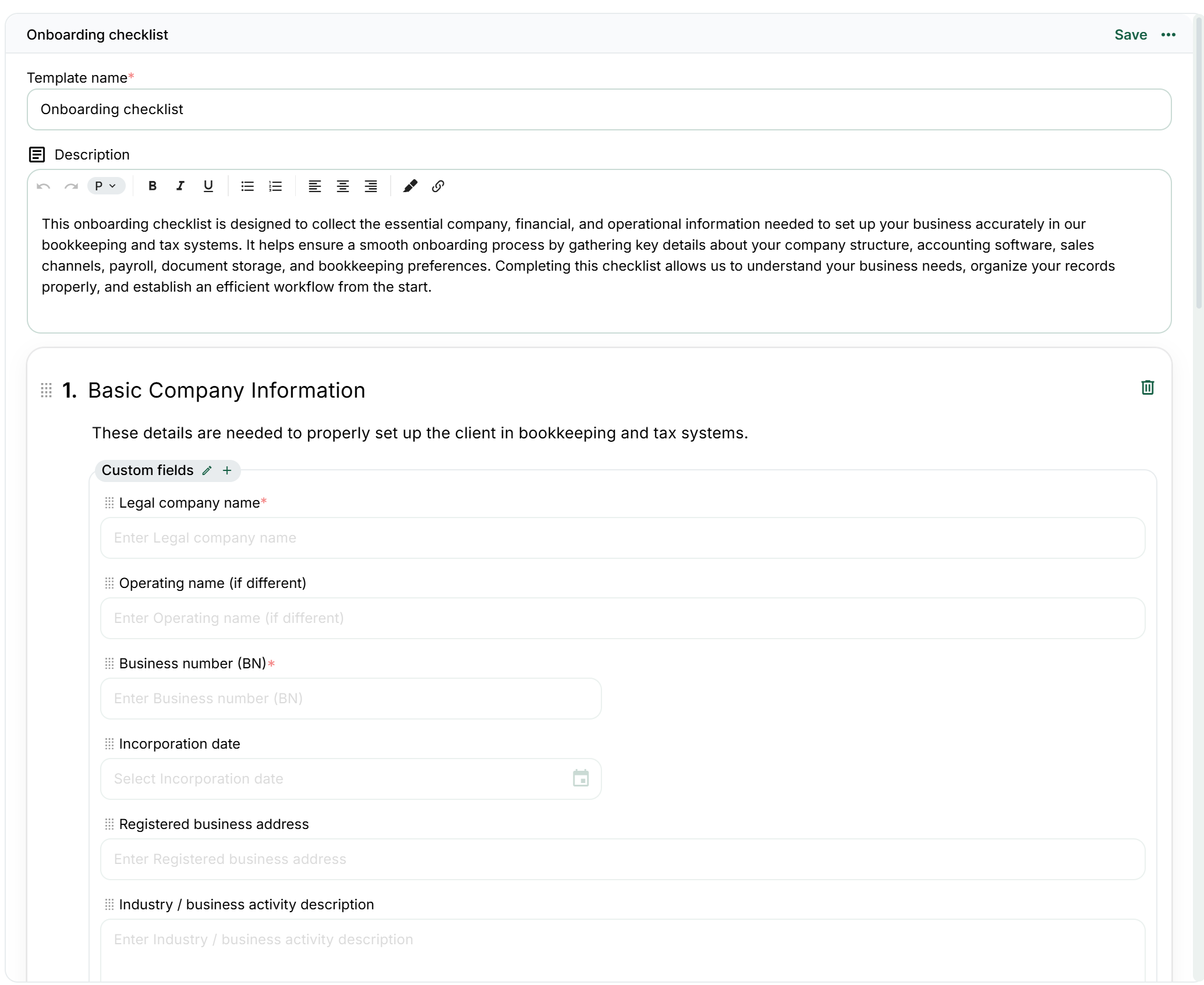
- What’s inside a company checklist template
- Adding & Customizing Fields in Templates
- Conditional Logic – Make Checklists Smarter & Shorter
- Where to manage Company Checklist templates
- What happens when the client completes the checklist
- Best use cases for Company Checklists
- Best practices (what to do first)
- Choose the right intake tool
- Use the combined Checklists view
- Before sending and after receiving
- Manage an existing checklist
- Example: collect company setup details without asking every question twice
- Screen example: understand a company checklist’s questions
- Current application screen examples
- Owner, Admin and Member: permissions for this workflow
Where to find this workflow and its controls
The consolidated tracking page is Clients → Checklists. Use its search, filters and status views to locate a sent request. Open the request itself for its answers, documents, progress and activity. This is different from editing a reusable checklist template.
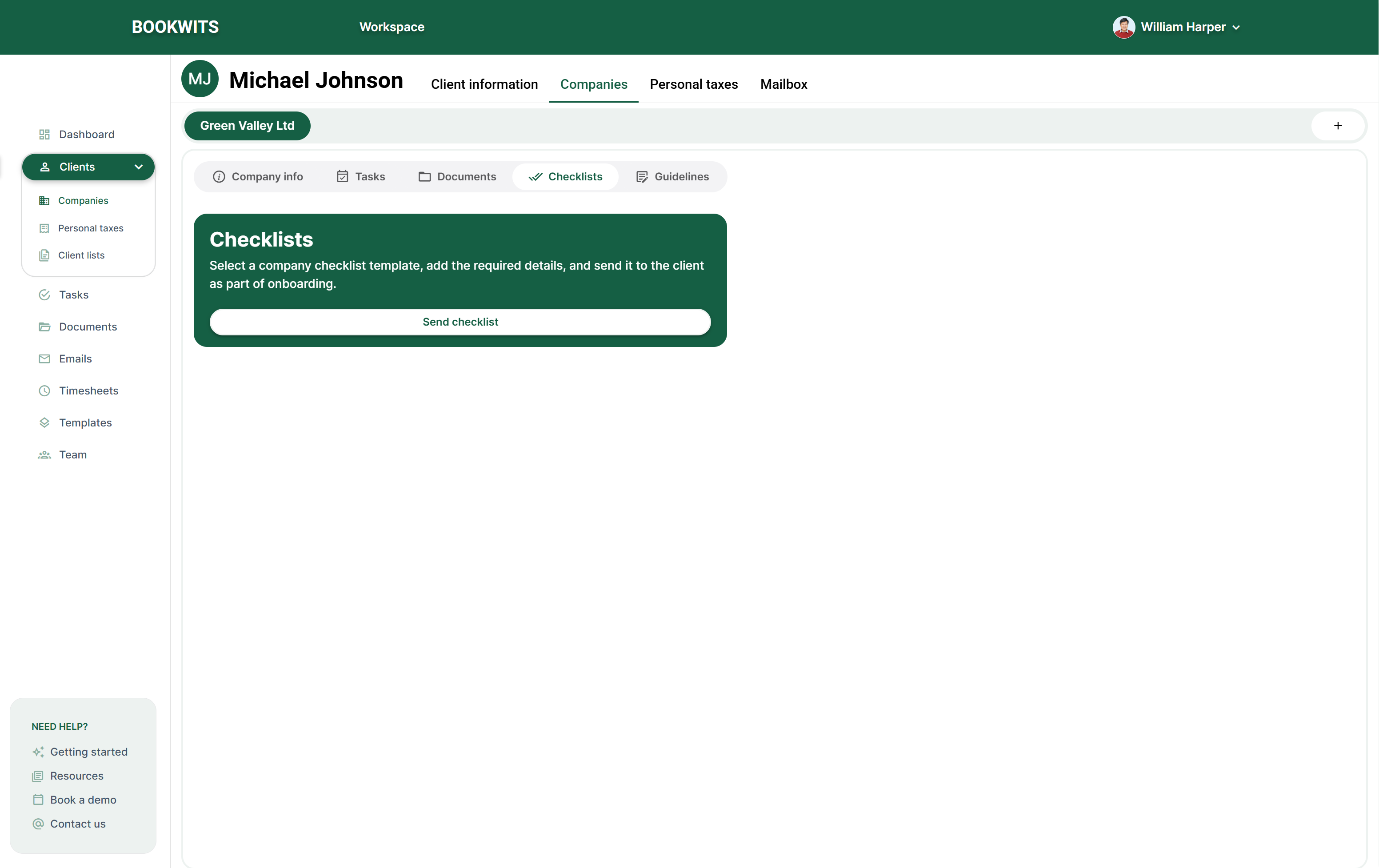
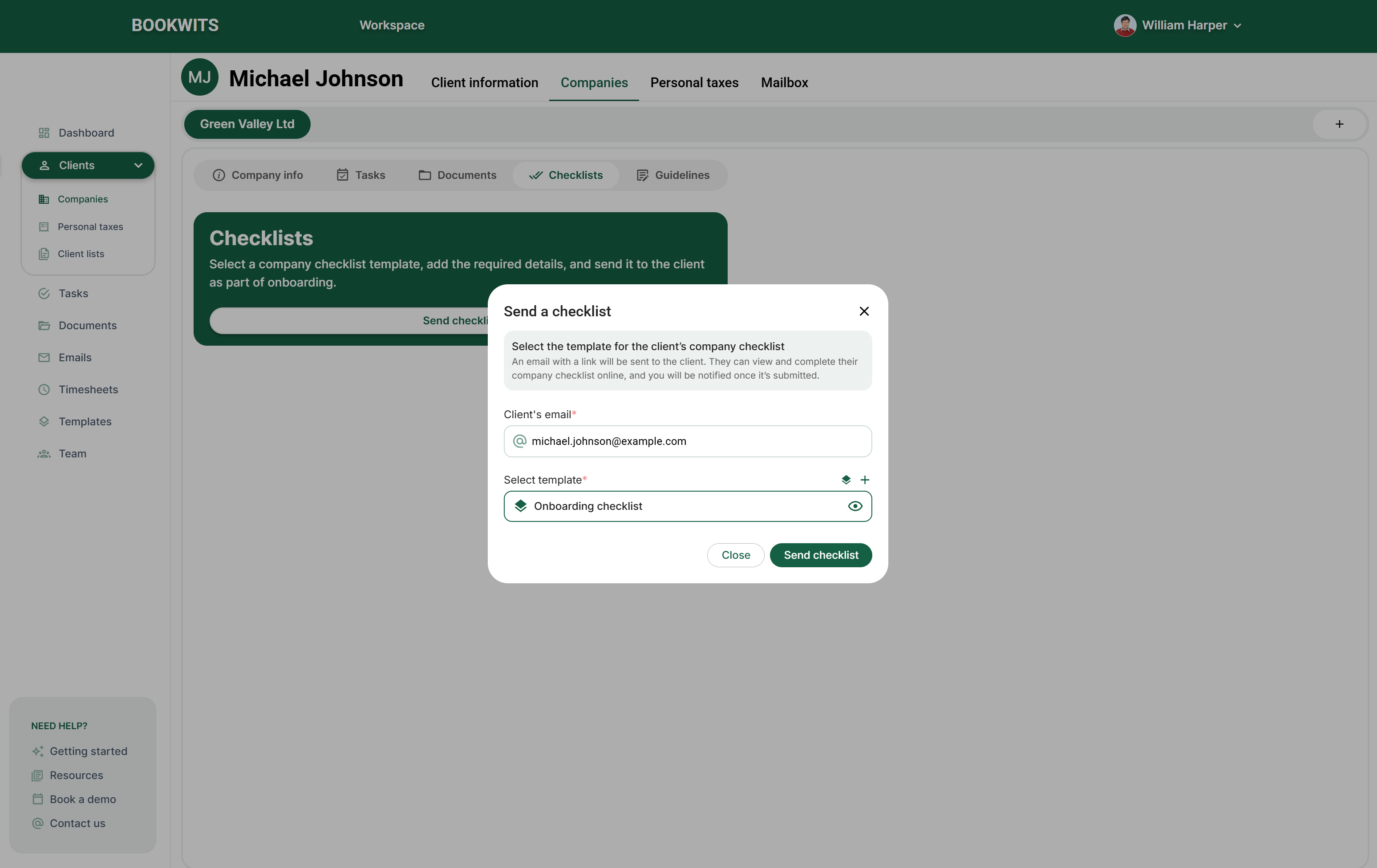
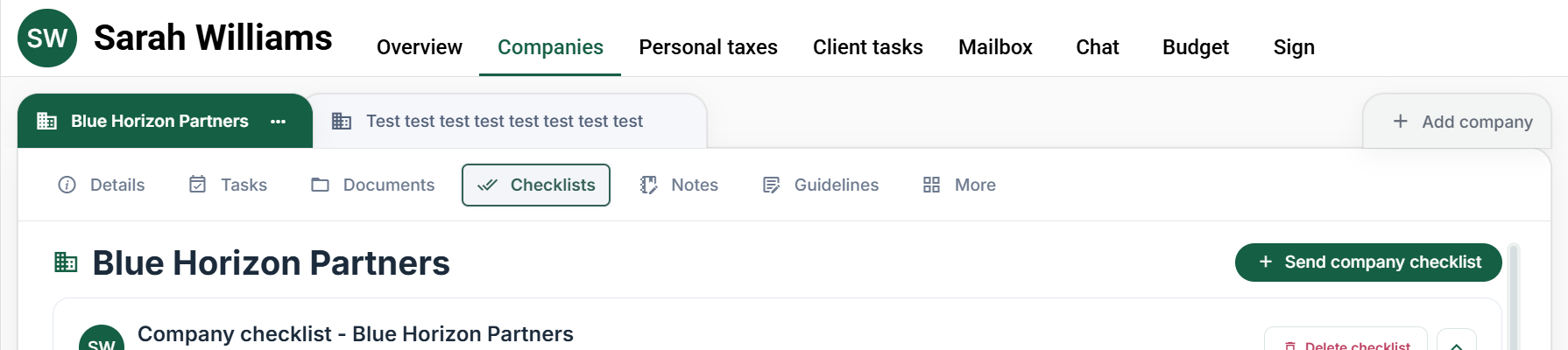
For a company-specific request, open client profile → Companies → company name → Checklists → Send company checklist. Review the client, company, recipient email, template and completion-notification option in the send dialog. Cancel closes the draft dialog without sending an email.
To change the reusable questions, use Templates → Company checklists. The sender's tracking view and the recipient's emailed questionnaire are different screens; a staff member opening the tracking card is not completing the questionnaire on the client's behalf.
Owner, Admin and Member: access, restrictions and exceptions for this chapter
Where to find Company Checklists
What Company Checklists are for
- Standardize what you collect during company onboarding
- Reduce back-and-forth emails for missing business details
- Collect clean, structured answers instead of scattered messages
- Keep important company information attached to the correct client record
- A specific client
- A specific company under that client
- A selected checklist template
Step 1: Create or open the client company
- Start with the person who owns the company record. Open Clients → All clients, search above the table and select the person’s name. Check the name at the top of the profile before continuing.
- Open the company workspace. Select Companies in the client profile’s top tabs, not the global Companies directory. Existing company names appear as tabs. Select Add company beside those tabs to create another entity for this client.
- If the company already exists, select its name rather than creating another copy. In the selected company’s section row, choose Checklists. Confirm the client and company names before preparing any request.
- Use the company-checklist send control to open the composer. Choose a suitable template and review the recipient, subject and message before sending. Opening this composer does not itself email the client.
Step 2: Send a checklist to the client
- Client email*
- Select a template*
- Bookwits emails the client a link to the checklist
- The client fills it out online
- You’re notified once it’s submitted
Choosing a template (and previewing it)
- The checklist matches the company’s situation
- Required fields are reasonable
- The wording is clear and client-friendly
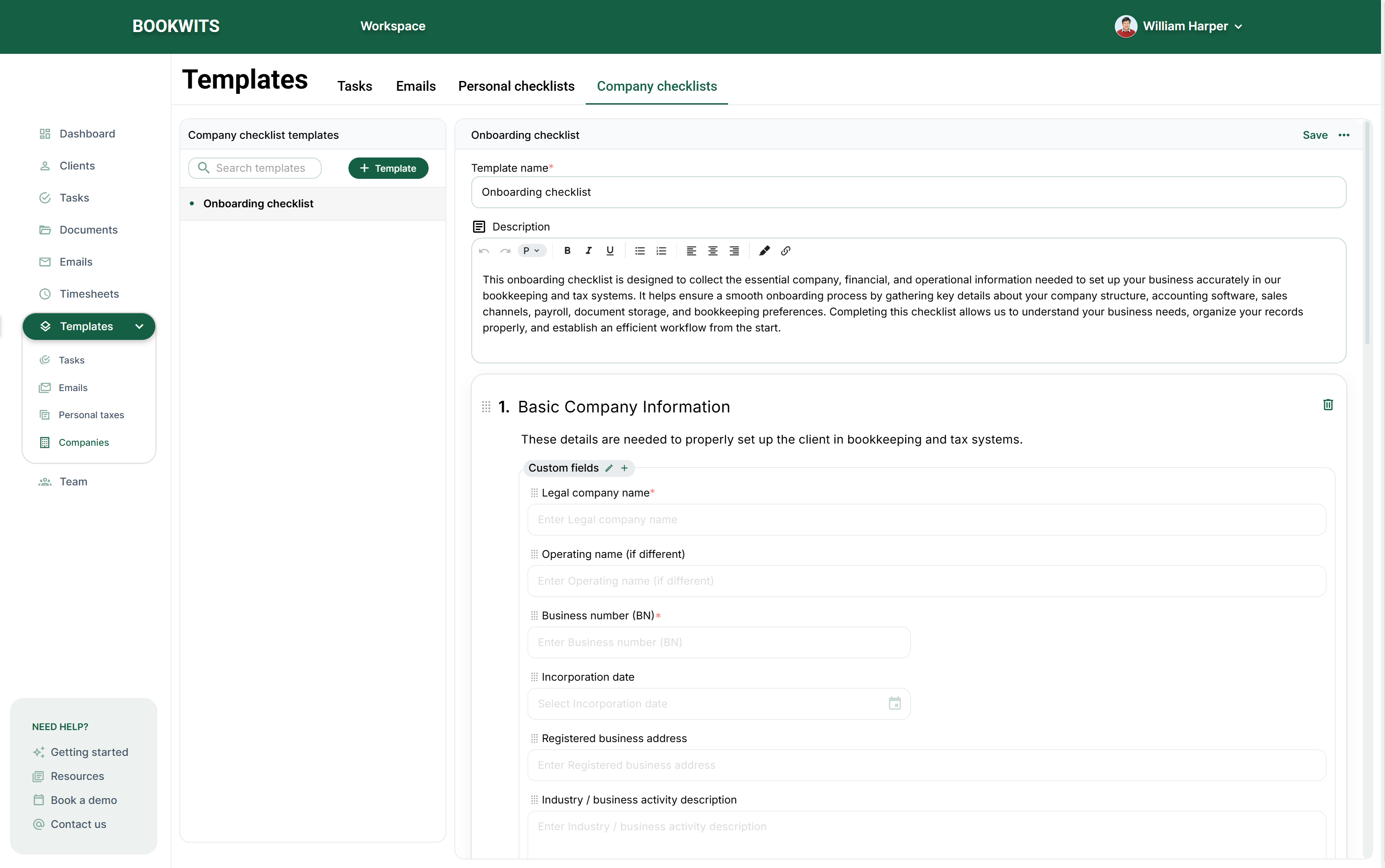
What’s inside a company checklist template
Adding & Customizing Fields in Templates
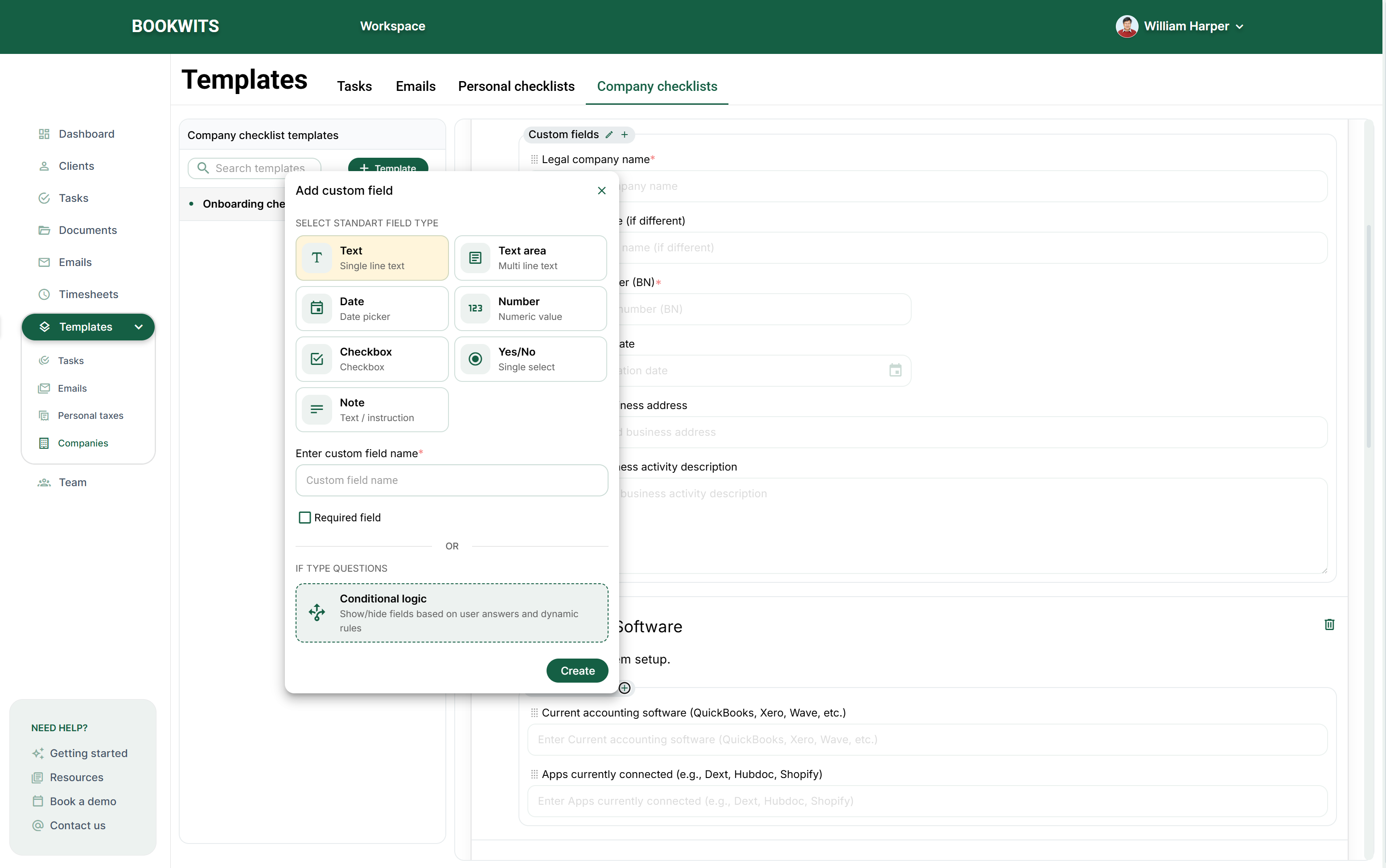
- Custom field name
- Field type
- Whether the field is required
- Placement inside the correct section
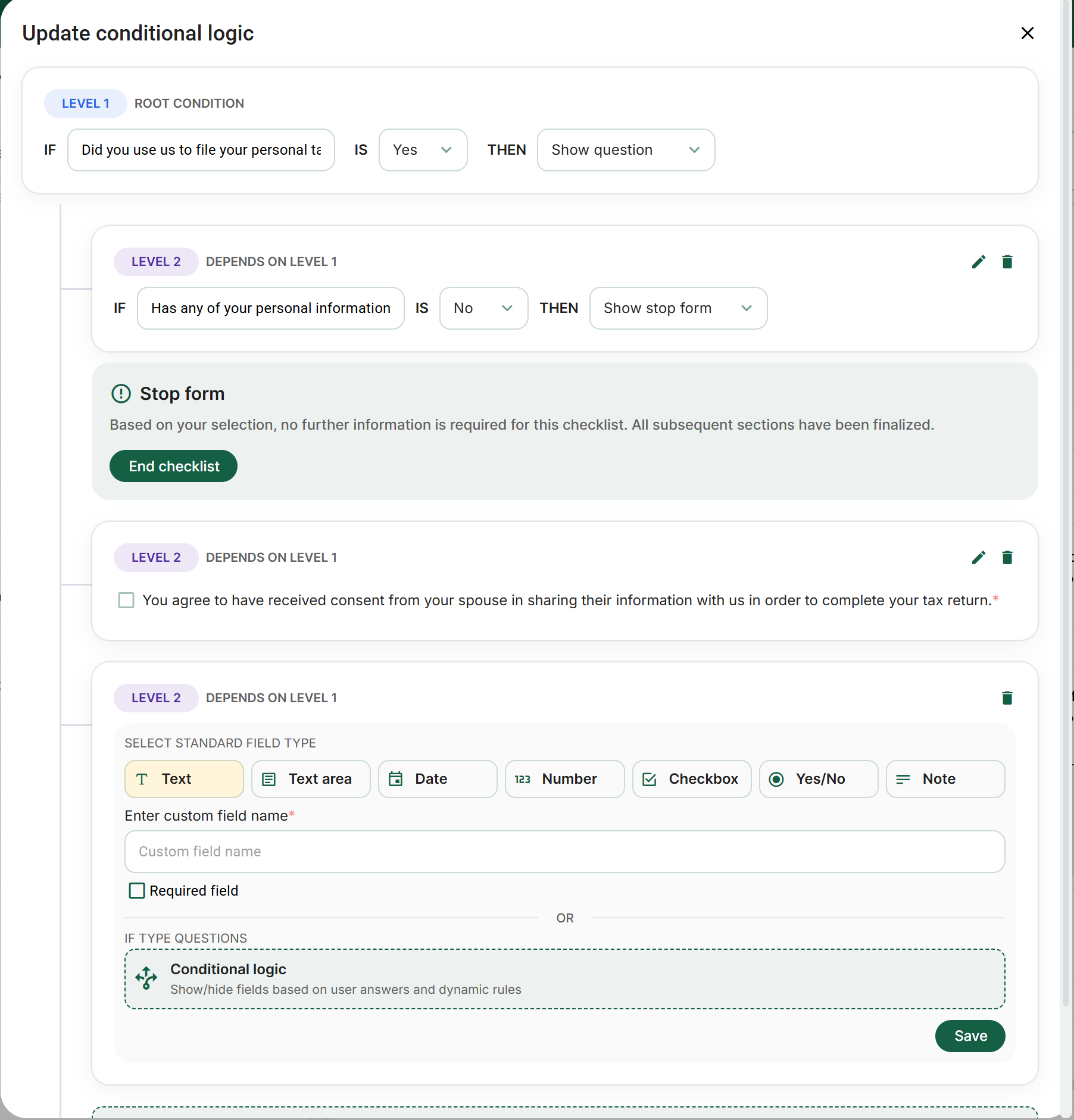
Conditional Logic – Make Checklists Smarter & Shorter
- IF = the condition (e.g. answer to a previous Yes/No or dropdown question)
- THEN = the action (most common: Show / Hide a field, section, or even stop the form early)
- Root-level (top of the checklist)
- Nested / dependent levels (rules that only apply if a parent condition is true)
-
IF “Did you use us to file your personal tax return
last year?” IS Yes
THEN Show the next question about updates this year -
IF “Has any of your personal information changed?”
IS No
THEN Show a stop message and end the checklist early (no further info needed) -
IF “Marital status” = Married or Common-law
THEN Show spouse consent checkbox + spouse information fields
Where to manage Company Checklist templates
- Create new company checklist templates
- Edit existing templates
- Delete templates you no longer need
What happens when the client completes the checklist
-
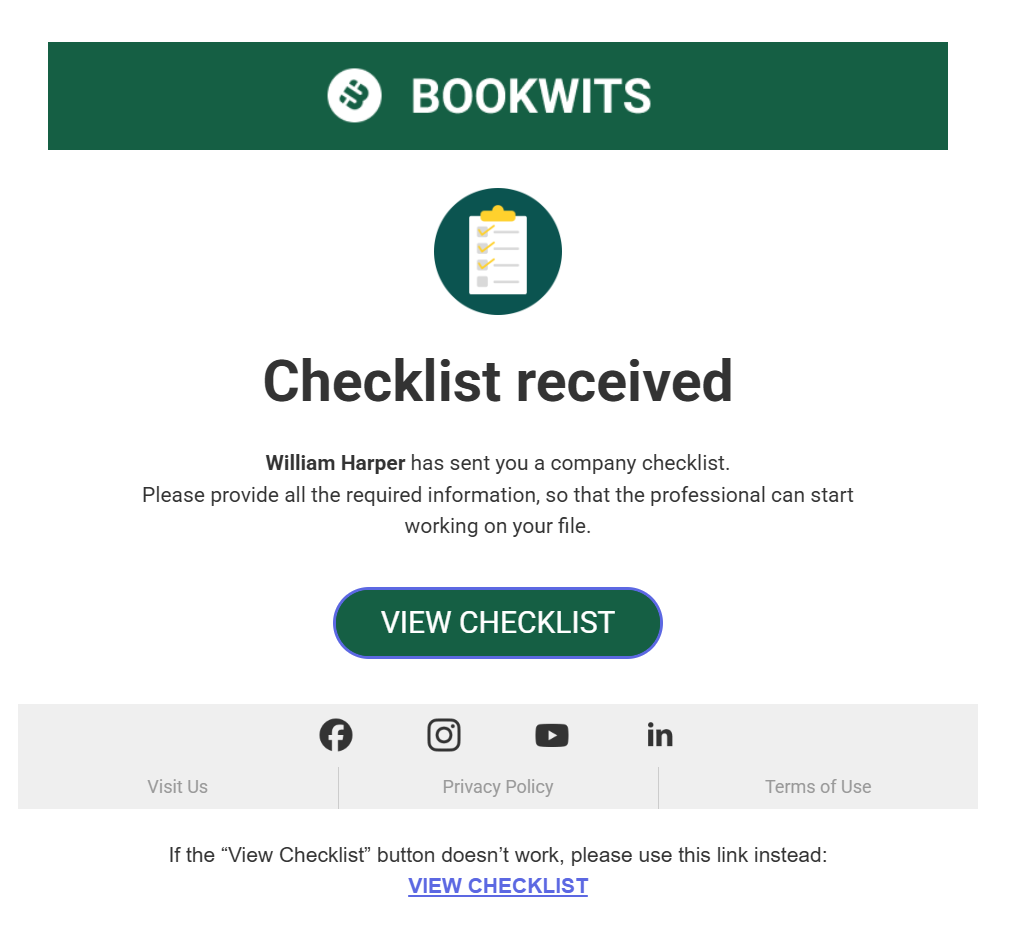
You get notified Once the checklist is submitted, your team can review the completed information in Bookwits.
-
The completed checklist appears in the company record Open the client, go to the company, then open Checklists to view the answers grouped by section.
-
Your team can review onboarding details in one place This makes it easier to start bookkeeping, tax setup, software migration, or other firm workflows without hunting through emails.
Best use cases for Company Checklists
- New company onboarding
- Cleanup engagements
- Bookkeeping setup and software migration
- Annual company information refresh
- Industry-specific intake templates
Best practices (what to do first)
- Start with one core template: Onboarding checklist
- Break the template into clean sections like company info, software, payroll, and documents
- Use required fields only where truly necessary
- Preview every template before sending it
- Update the template over time as your onboarding process becomes clearer
Choose the right intake tool
A company checklist gathers structured company information through a link. It is not an internal to-do list and not the same as a Client Task. Choose the company first, then the template appropriate to that company’s situation. A personal-tax template is not a substitute merely because the contact email is the same.
Use the combined Checklists view
Clients → Checklists brings company and personal-tax checklists together. Search by checklist, client or email; combine that with the available type, client/company and status filters. The current statuses are In progress, Completed, Expired and Cancelled. Open a record to inspect its recipient, related entity, creation/update/expiry dates, response sections and activity timeline.
Before sending and after receiving
- Confirm the selected client and company, recipient email and template. The send dialog requires a usable template with enabled content; an empty template is not a finished form.
- Preview the template, especially required fields and conditional branches. A field hidden by a condition cannot be treated as an unanswered question shown to every client.
- Send only when the email is correct. Check the checklist record and activity afterward.
- After submission, review the actual section answers and any supporting documents. Resolve contradictions before updating company data or commencing related work.
Manage an existing checklist
The available actions include resend, copy link, duplicate, cancel and delete, depending on the record and permissions. A copied checklist link provides access: send it privately to the intended recipient, never post it in public notes. Duplicate creates a separate request; it is not a way to correct the original submission in place. Read cancellation/deletion confirmations and keep required business records.
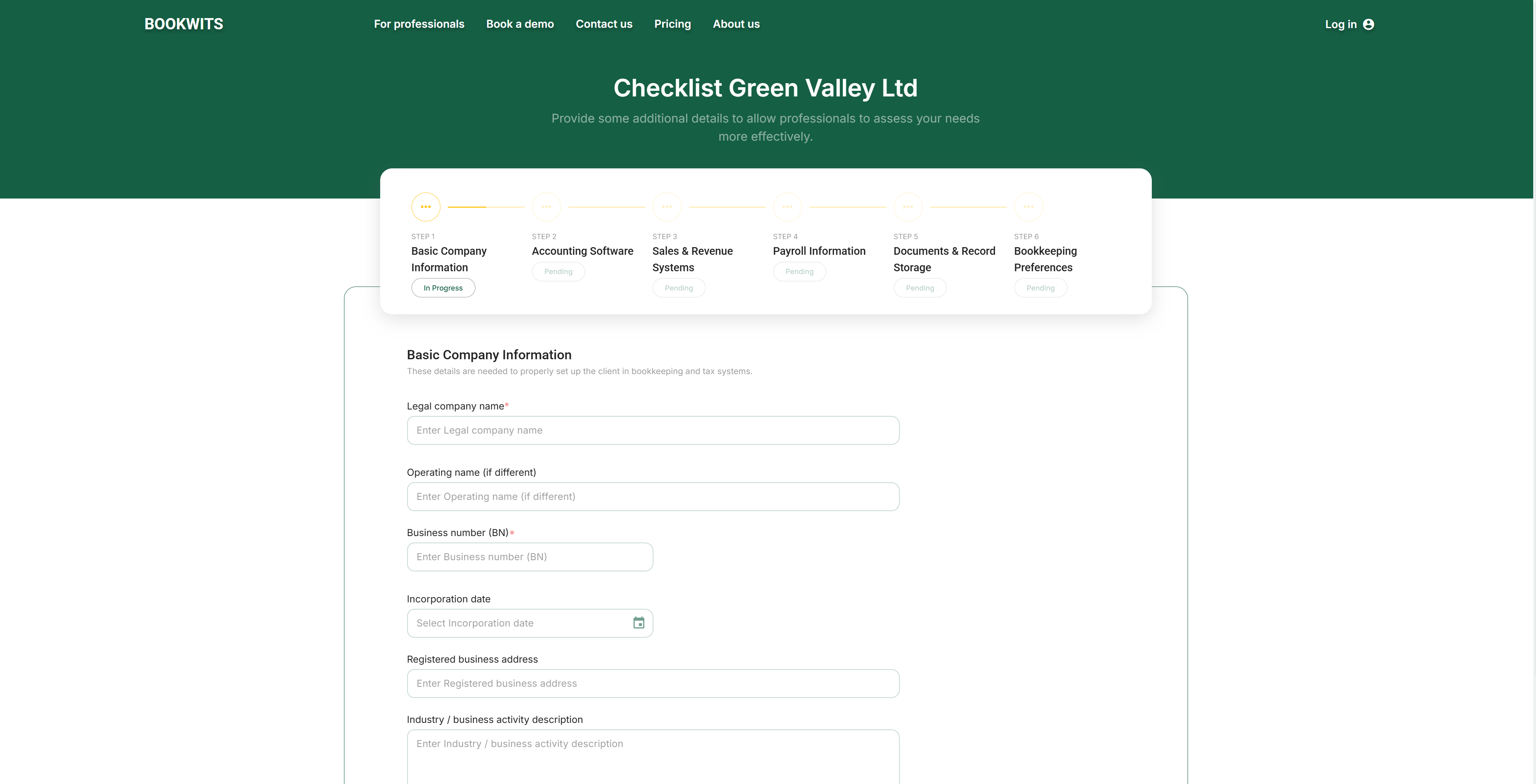
Client guidance: open the received link, confirm the company, read each section and answer the questions shown. Correct validation messages and finish submission. This link-based checklist does not require creating a full Bookwits account. If it is expired or cancelled, ask the sender for the appropriate replacement rather than registering an unrelated account.
Example: collect company setup details without asking every question twice
For Thompson Consulting’s onboarding, choose a company checklist that asks about the actual business. Review its sections for accounting software, sales systems, payroll and document storage. If a follow-up applies only to employers, use the template’s conditional structure so a business without payroll is not asked to invent an employee count.
Preview both branches before sending: the relevant follow-up should appear for the applicable answer, and the other branch should remain understandable without it. A required field should represent information you genuinely need from the people who see it. Do not make a specialized question universally required merely to prevent blank-looking submissions.
After Sarah submits, open that specific company checklist and read the answers by section. If the response says payroll is outsourced but a setup field says no payroll obligations, investigate the meaning rather than copying one answer over the other. Verify supporting material, record the decision and create follow-up work for missing information. The completed checklist is evidence of the response, not proof that the company’s accounting setup has already been performed.
Screen example: understand a company checklist’s questions
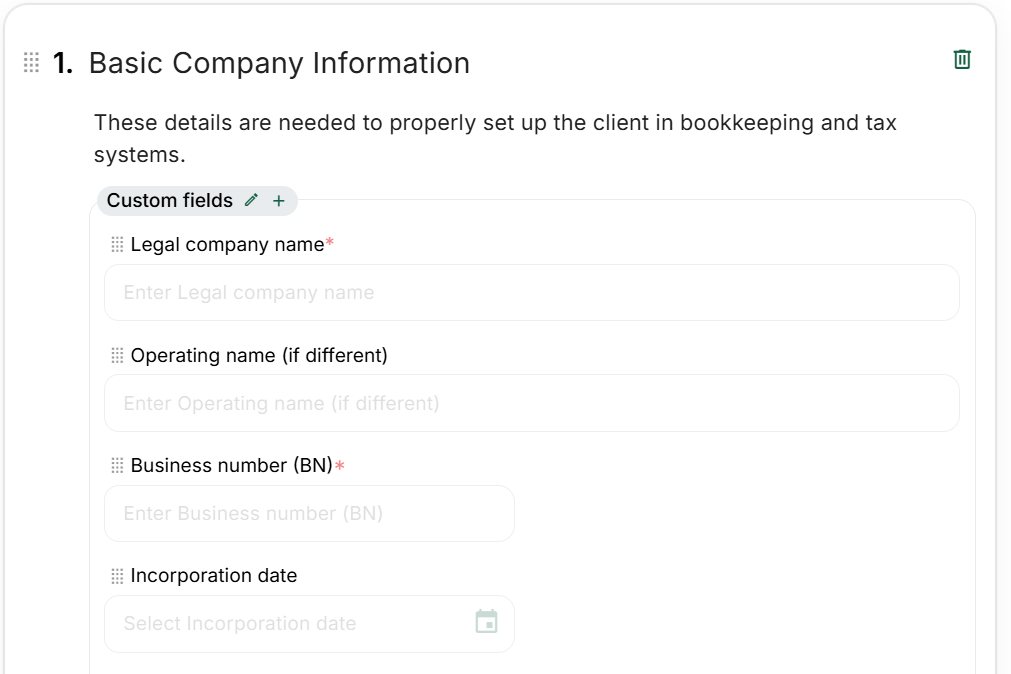
This live template-editor excerpt groups legal name, operating name, business number and incorporation date under Basic Company Information. The section note explains why the information is being collected. A legal name identifies the entity; an operating name may differ. Required markers belong to the questions configured in this example, not a universal rule that every checklist must ask the same questions.
The pencil, add, drag and delete controls are template-authoring controls. They are not instructions for the client to redesign the form. Preview the recipient’s view before reuse, check required questions and keep the section note clear enough that a first-time client knows what document or information to consult.
Current application screen examples

Owner, Admin and Member: permissions for this workflow
Staff checklist work follows access to its client/company; Member does not automatically see another colleague’s unshared clients. Owner/Admin have broader client scope. A recipient’s checklist link is an external response workflow, not membership of your team. Creating a template, sending a request, reading a response and viewing a related private note are different permissions and actions.
Compare all staff roles, feature restrictions and exceptions