Clients: creation, profiles, access and CSV import
In this chapter (31)
- Where to find this workflow and its controls
- The Bookwits data model
- Quick Start (What to Do First)
- Working through the module
- 1) Add a New Client
- 2) Edit a Client’s Information
- 3) Delete a Client (and when you should not)
- 4) Add Business Information (Companies)
- 5) Add Custom Fields to a Business Profile
- 6) Open a New Personal Tax Year
- 7) Understand All Clients vs Companies vs Personal Taxes
- 8) Customize Tables (Hide Columns / Pick Fields)
- 9) Client Lists (Your deadline & workflow control center)
- 10) Practical workflow examples
- Upload Clients in Bulk (CSV Import + Column Mapping)
- Troubleshooting (Common Beginner Issues)
- Glossary
- The client creation wizard, screen by screen
- Use the profile for ongoing maintenance
- CSV import: prepare, map, review, then commit
- Important grouping rule for repeated client names
- Search, filters and table controls
- Worked example: one client, two businesses and two tax years
- Worked example: import two company rows without mixing two people
- Screen example: Sarah’s client information before saving
- Link two clients as partners without mixing their records
- Invite a client to the Bookwits platform, then track the connection
- Directory controls: selection, table layout and archive state
- Current application screen examples
- Customize the All clients table without changing client information
- Owner, Admin and Member: permissions for this workflow
Where to find this workflow and its controls
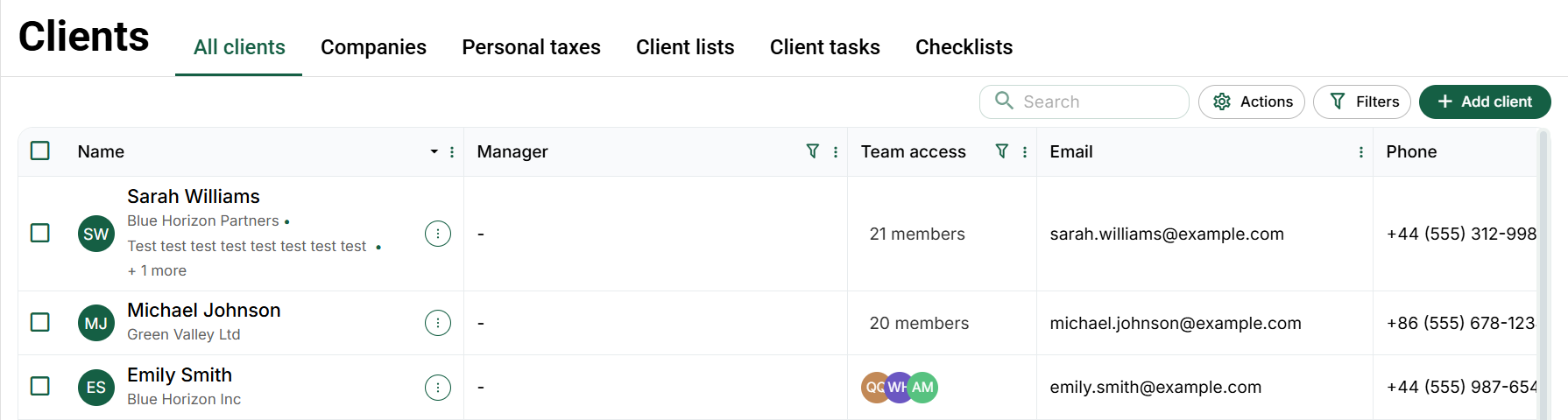
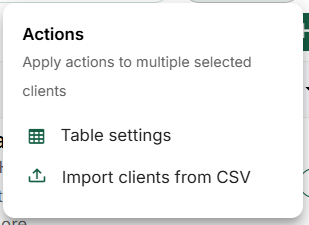
Choose Clients in the left sidebar, then All clients in the top tab row. The search field is above the table. Open Actions → Table settings to change the columns or Actions → Import clients from CSV to import a spreadsheet. Filters changes which clients appear; the green Add client control starts the client wizard.
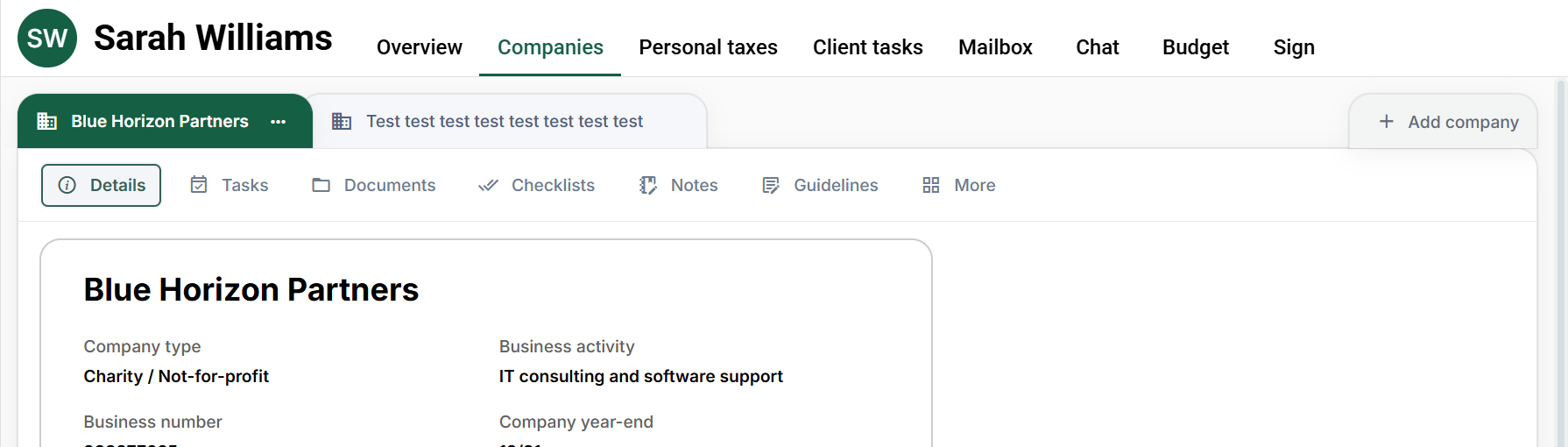
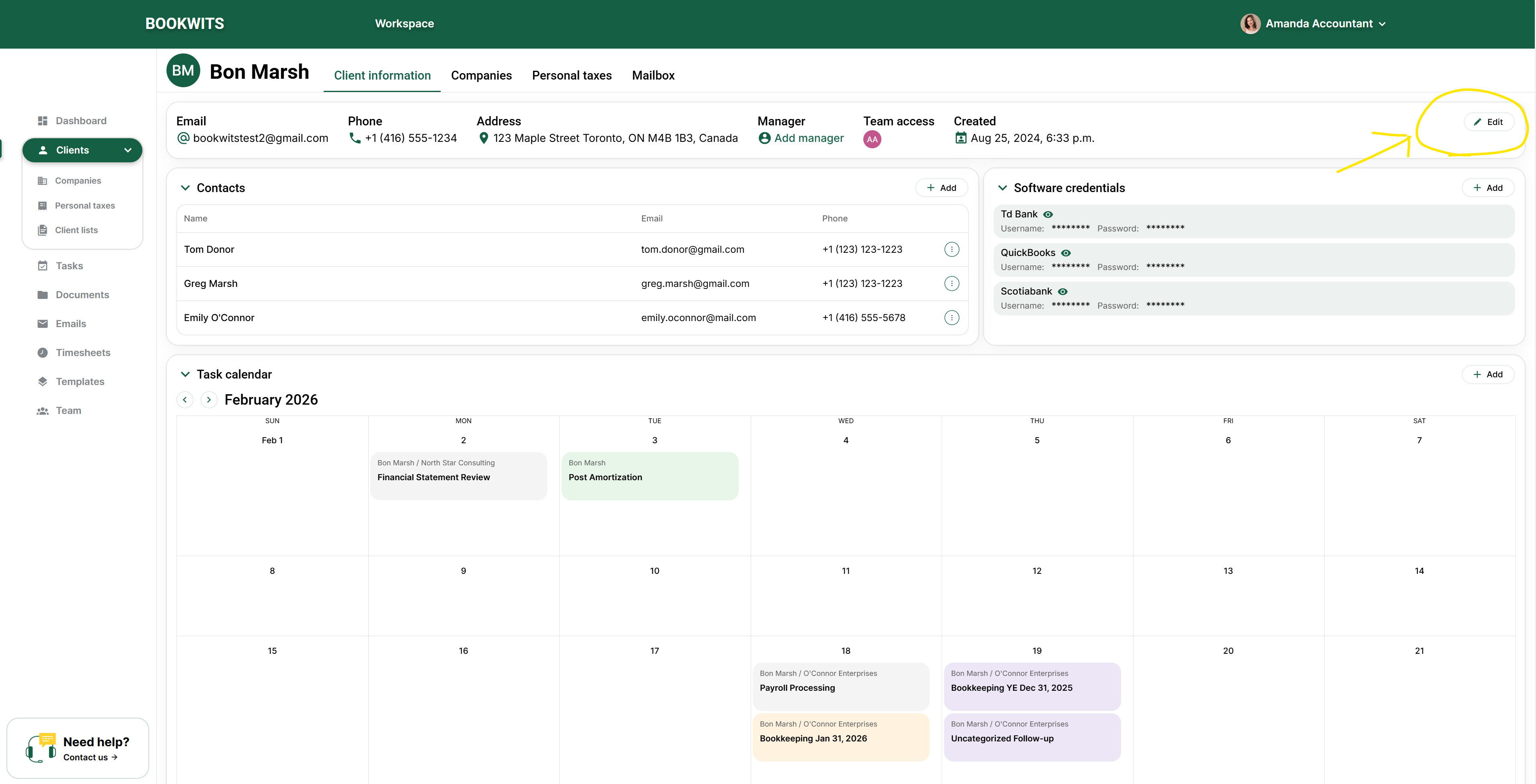
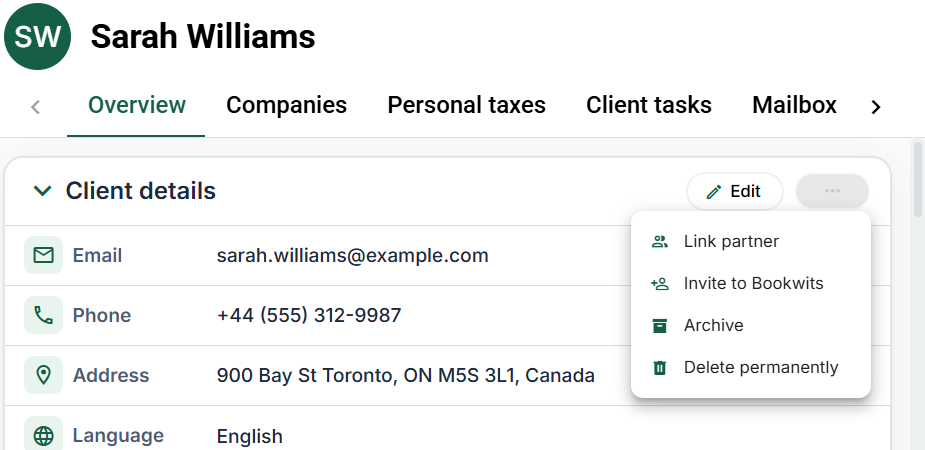
Click the client's name to open their profile. Its top tabs are Overview, Companies, Personal taxes, Client tasks, Mailbox, Chat, Budget and Sign. In Overview, find the Client details card. Edit is at its top right; the three-dot button immediately beside Edit contains Link partner, Invite to Bookwits, invitation follow-up actions where applicable, and archive/delete actions.
Contacts, software credentials and the task calendar are separate sections below the details card. A contact person is not automatically a connected portal account. A partner is not the same thing as a contact, staff member or company owner.
Owner, Admin and Member: access, restrictions and exceptions for this chapter
The Bookwits data model
Quick Start (What to Do First)
Working through the module
1) Add a New Client
A client record represents the person or primary relationship your firm serves. It is the starting point for their contact details, companies, annual personal-tax work and staff access. Search the directory before creating it: adding the same person twice can split documents and work between two profiles.
For example, create one client for Sarah Thompson, then attach Thompson Consulting Inc. as a company. If Sarah also needs a personal return, add its year under the same client. You do not need a second Sarah record just because you provide two services. Enter the required first and last names; add verified contact details rather than inventing missing information.
-
Open Clients in the left sidebar. On the page that
opens, select All clients in the top row of tabs. This
is the directory of people; Companies and Personal taxes show different
kinds of records.
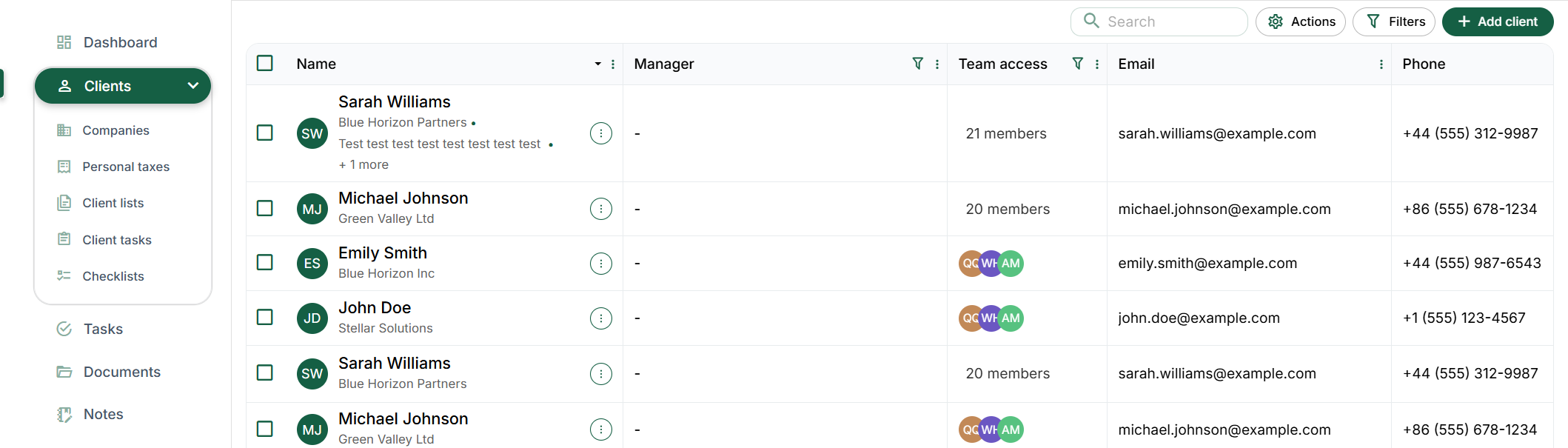
Client creation: All clients, search and Add client. Application screen with illustrative sample data. The controls shown here use the English interface. Open the full-size screenshot - Check whether the person already exists. Use Search above the table and compare the name and contact details of matching rows. If Emma Laurent is already listed, open her name to update her profile instead of adding a second Emma. Clear the search when you are done.
- Select Add client at the upper right, above the table. It is the green control with a plus sign, beside Filters. The Create client page opens with five stages: Personal info, Address, Companies, Additional details and Team.
-
Complete Personal info. Enter the first name and last
name in separate required fields. Email and phone are optional here; if
you provide an email, use a complete valid address. For phone numbers,
check the country dial code. The example shows Emma Laurent with an
illustrative address; it is still an unsaved draft.
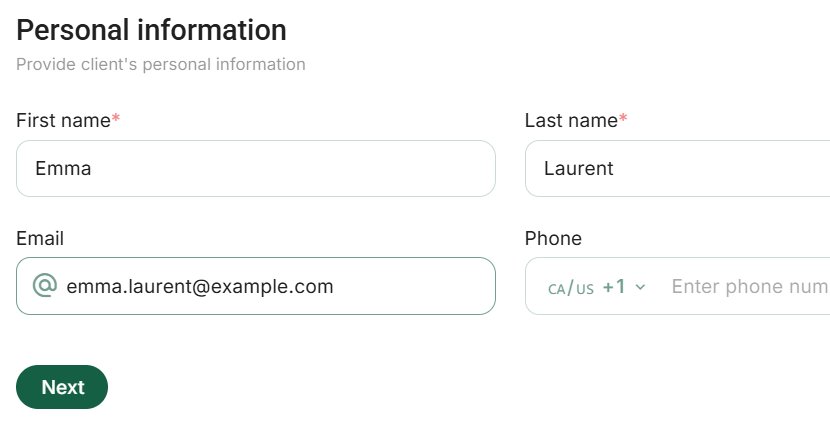
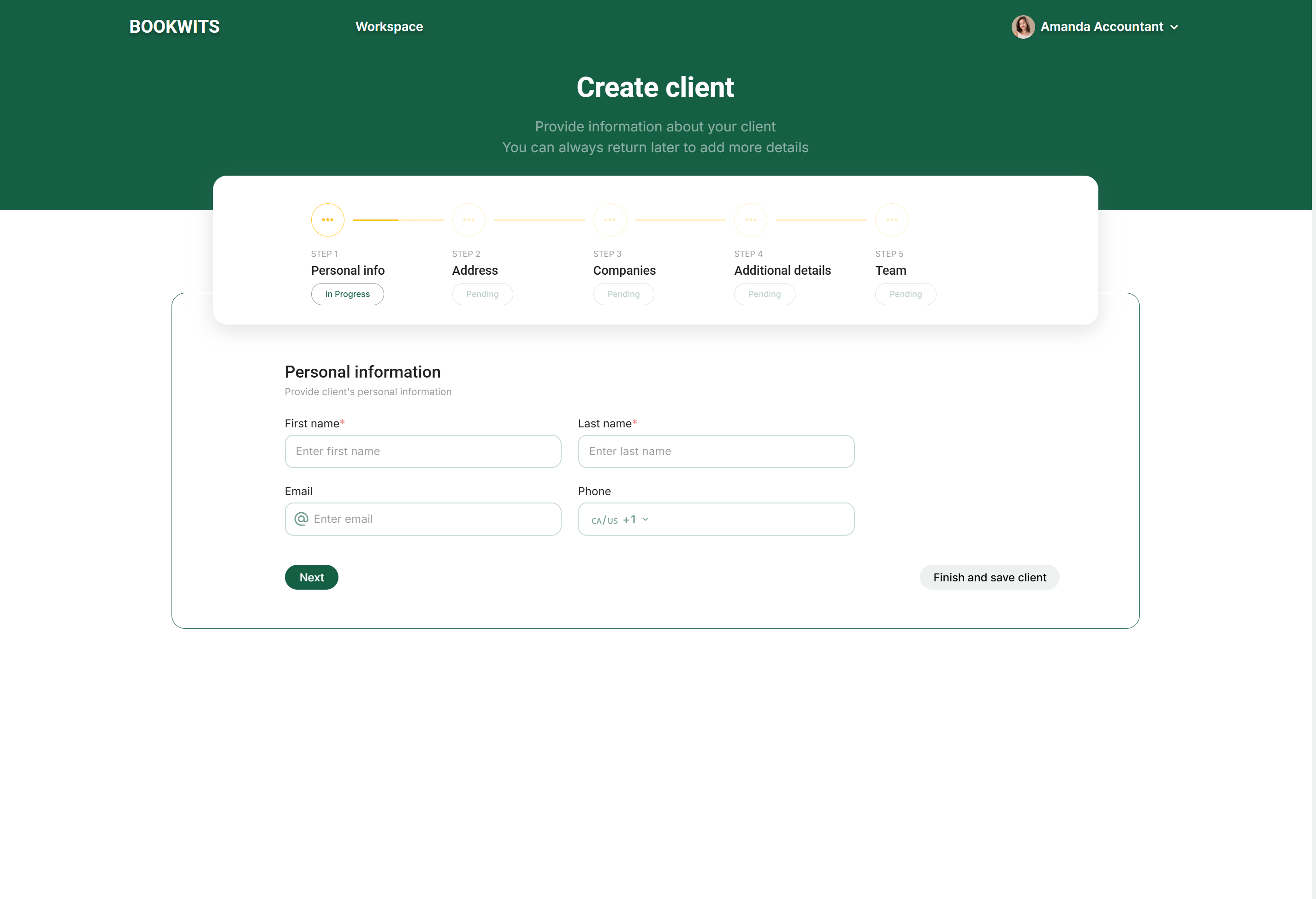
Client creation: required names and optional contact details. Application screen with illustrative sample data. The controls shown here use the English interface. This example shows an unsaved client draft. Open the full-size screenshot -
Use Next to reach Address. Enter the client’s personal
street address, city, country, province and postal code when known.
Check the country before choosing a province. These are not
automatically the company’s mailing details. You can leave information
you do not yet have blank and continue.
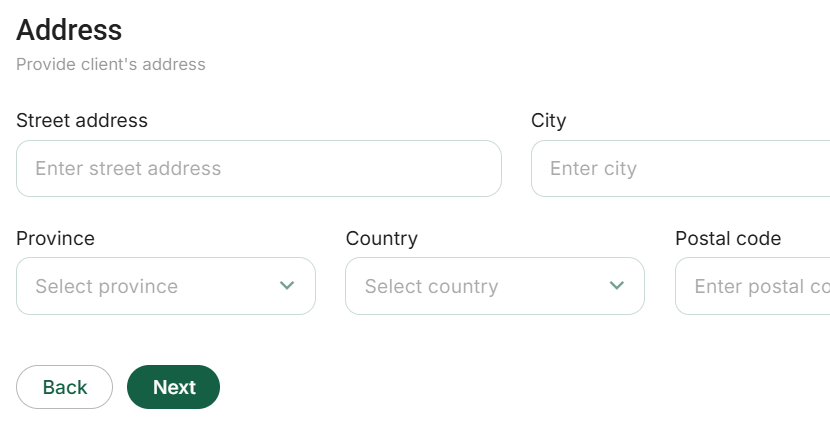
Client creation: the personal address fields. Application screen with illustrative sample data. The controls shown here use the English interface. This example shows an unsaved client draft. Open the full-size screenshot -
At Companies, decide whether a business belongs on this
profile.
A blank company editor can open automatically. For a personal-tax-only
client, choose Cancel inside that company editor, then
the page’s Next; do not invent a company. If adding a
business, enter its name and applicable details, then use
Save company to add it to the unsaved client draft. The
small round + beside Companies adds another business.
Final client saving is still required.

Client creation: continue without a company for a personal-tax-only engagement. Application screen with illustrative sample data. The controls shown here use the English interface. This example shows an unsaved client draft. Open the full-size screenshot -
Review Additional details. Choose any relevant tags and
the client’s preferred language. Contacts, software-credential entries
and custom fields are separate areas on this screen. Add only
information your firm needs; leave optional areas empty rather than
guessing. The available custom fields depend on your workspace.
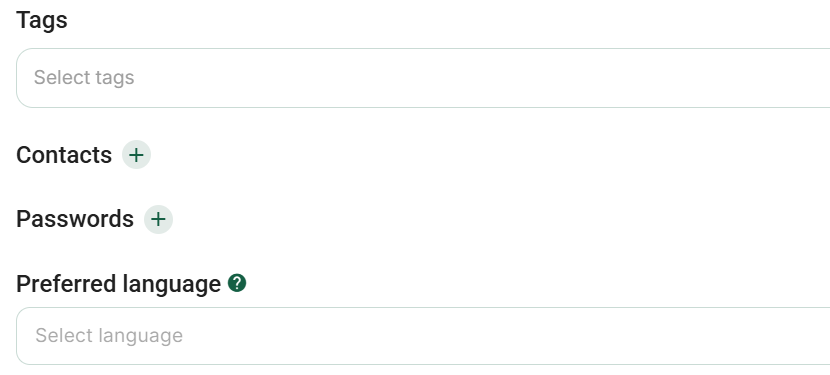
Client creation: tags, contacts, credentials and preferred language. Application screen with illustrative sample data. The controls shown here use the English interface. This example shows an unsaved client draft. Open the full-size screenshot -
At Team, review the manager and staff access.
Owners/admins can choose a client manager for accountability; that
choice does not grant access. Use the team search and selection boxes
for the Members who need the client. Owners/admins already have access
to all clients. Check the selected count and names; this does not invite
the client to the platform.
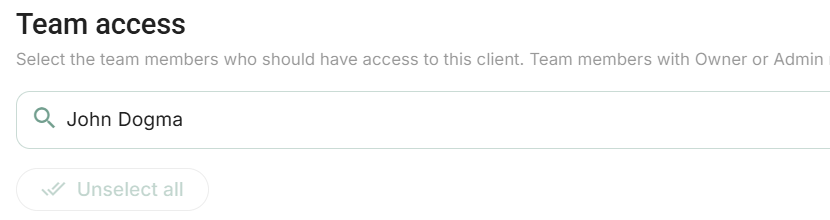
Client creation: search for a colleague in Team access. Application screen with illustrative sample data. The controls shown here use the English interface. This example shows an unsaved client draft. Open the full-size screenshot -
Use Next to open the review screen. Read the sections
together: person, address, companies, additional details and team. Use a
section’s pencil icon to correct it, then review again. Choose
Save only when the record is ready. The illustrated
review is a draft, not a saved client.
Client creation: Back and Save at the bottom of the final review. Application screen with illustrative sample data. The controls shown here use the English interface. This example shows an unsaved client draft. Open the full-size screenshot - Understand the early-save option. Finish and save client saves from the current stage; it is not merely a button for previewing the final screen. Use it only if the information already entered is sufficient. After saving, Bookwits opens the client profile: verify the name and email there. Creating the record does not automatically send a portal invitation.
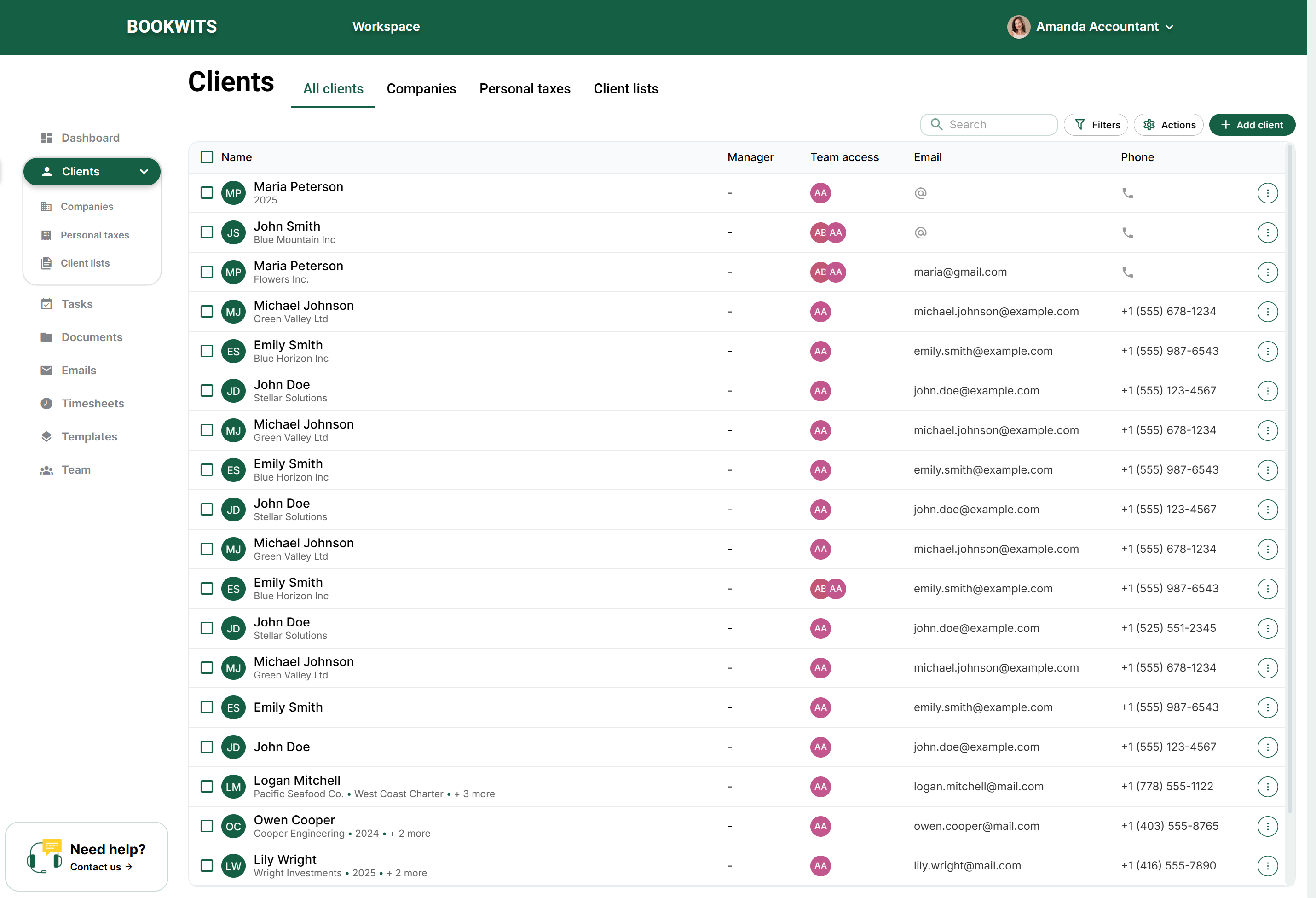
The client appears in All Clients . You can attach Companies, Personal Taxes, tasks, documents, and more.
2) Edit a Client’s Information
Update the existing client when the person’s contact details change. Editing preserves the relationship with their existing work; creating a replacement profile does not transfer tasks, documents or invitations. Open the profile and identify the particular section you need to change.
For example, Sarah moves home but her corporation keeps its office. Change Sarah’s personal address and inspect any company address-matching option separately. Similarly, correcting her contact email is not the same as changing your connected mailbox or her account’s login address. After saving, reopen the section and check the exact value before using it for a new request.
- Open Clients → All clients, search above the table, then select the client’s name. Check the profile heading so you are not editing another person with the same name.
- Select the profile’s Overview tab. Find the Client details card and use Edit at its upper right. Contacts, company details and personal-tax years have their own editing areas; changing one does not necessarily change the others.
- Change the intended fields and review the surrounding information. For an email correction, confirm the actual address with the person; do not replace it with a colleague’s address simply to receive the client’s invitations.
- Save the change, wait for the form to close or show success, then read the updated value on the profile. Reopen the editor if you need to check an important detail. To leave a draft unchanged, use Cancel rather than saving blank or invented replacement values.
3) Delete a Client (and when you should not)
Archiving and permanent deletion solve different problems. Archive a former client when you want the active directory to be easier to read but still need their history. Consider permanent deletion only after checking the confirmation, related work and your retention obligations. Removing a duplicate name without checking its contents can remove the profile that contains the useful records.
For example, if two Sarah Thompson profiles exist, compare their companies, years and documents first. Do not assume the newer profile is empty or that deletion merges anything. If the relationship merely ended, archiving is a more appropriate starting point than destroying the history.
- Find the person in Clients → All clients and open their profile. Confirm the name, companies and reason for removing the record before using any destructive command. A search filter hiding the row is not evidence that the client has been deleted.
- In Overview → Client details, open the three-dot menu beside Edit. Choose Archive if the intention is to stop showing an inactive client in ordinary active lists while retaining their record. Read the confirmation before accepting.
- To find an archived person again, return to All clients and open Filters above the table. Review the Archived switch and any search or other active filters. Open the intended record and use Unarchive when appropriate.
- Use Delete permanently only when permanent removal is authorized and your retention requirements permit it. Read which record is named in the confirmation. Cancel if anything is unclear; archiving, unlinking a partner and cancelling an invitation are different operations.
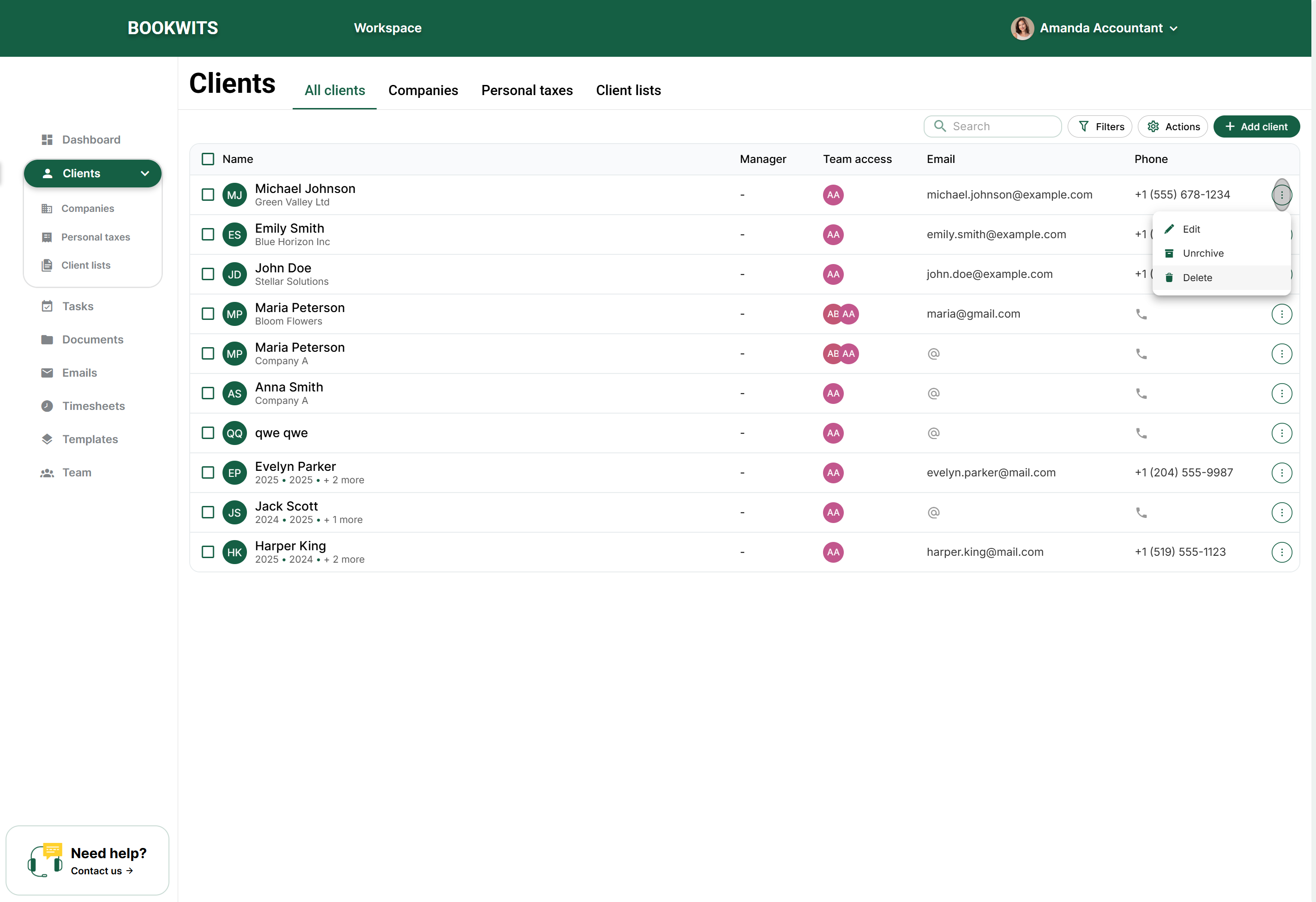
Do not delete if the client has work history you may need later or records tied to reporting/audit trail.
4) Add Business Information (Companies)
A company is a separate business entity within a client relationship. Its legal name, contact information, fiscal year-end and obligations can differ from the individual’s details. Keep separate entities separate even when they have the same owner, accountant or office address.
For example, Sarah owns Thompson Consulting Inc. and Thompson Properties Inc. Create two companies under Sarah, with their own year-ends and workspaces. Store the consulting company’s payroll material in its company context, not in the property company or Sarah’s personal tax year. The parent client keeps the relationship together; the company selection keeps the work correctly separated.
- Start with the person who owns the company record. Open Clients → All clients, search above the table and select the person’s name. Check the name at the top of the profile before continuing.
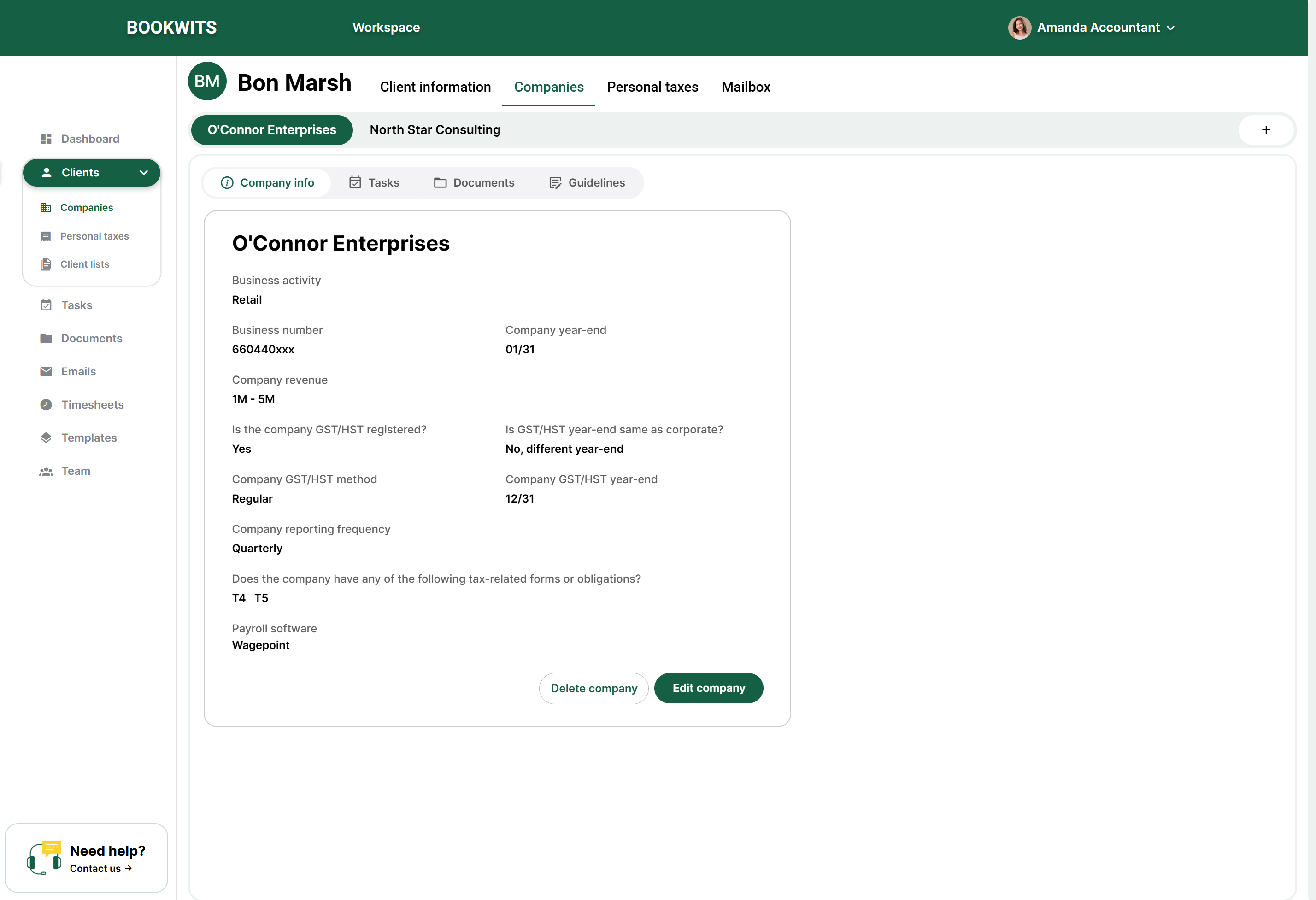
- Open the company workspace. Select Companies in the client profile’s top tabs, not the global Companies directory. Existing company names appear as tabs. Select Add company beside those tabs to create another entity for this client.
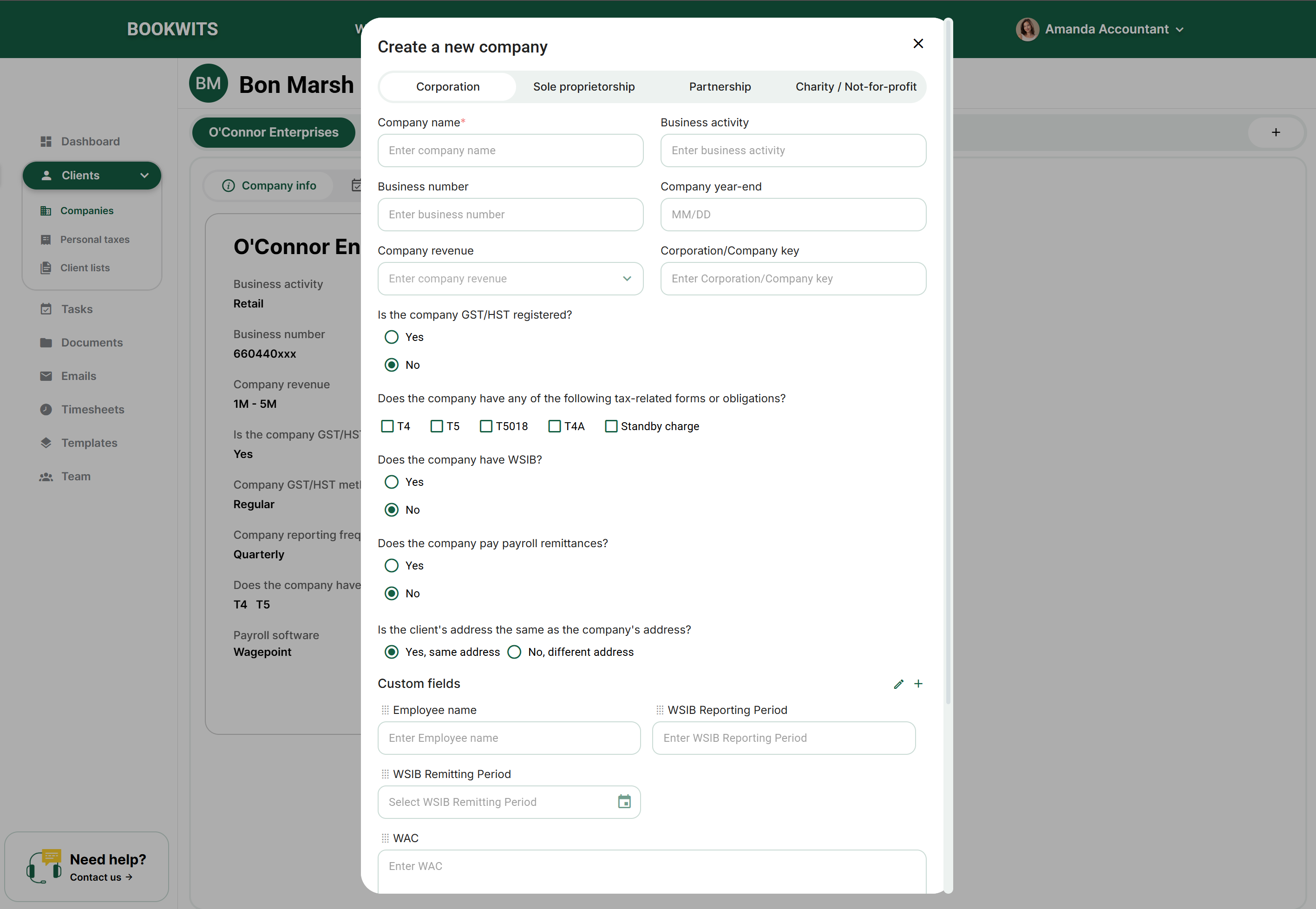
- Enter information for the business, not the individual. Give the company its own name, type and business number when known. Review its year-end, business activity, email, phone and address. For example, Emma Laurent’s personal email and Maple Grove Design Ltd.’s business email may be different.
- Review the sections that apply. Complete the tax registrations, payroll obligations, forms and custom fields shown by your firm’s configuration. Turning on a registration may reveal extra questions. Do not select Yes merely to make a section look complete, and do not guess missing account numbers or filing frequencies.
- Save and check the new company tab. Use the form’s save action, wait for confirmation and open the resulting company. Under Details, compare the name and year-end with what you entered. Its Tasks, Documents and Checklists sections now refer to this company, not every company belonging to the client.
5) Add Custom Fields to a Business Profile
Custom fields capture your firm’s own operating information rather than replacing standard company identity fields. Decide what a value means and who will maintain it before creating a new definition. Two similarly named fields can otherwise become competing sources of truth.
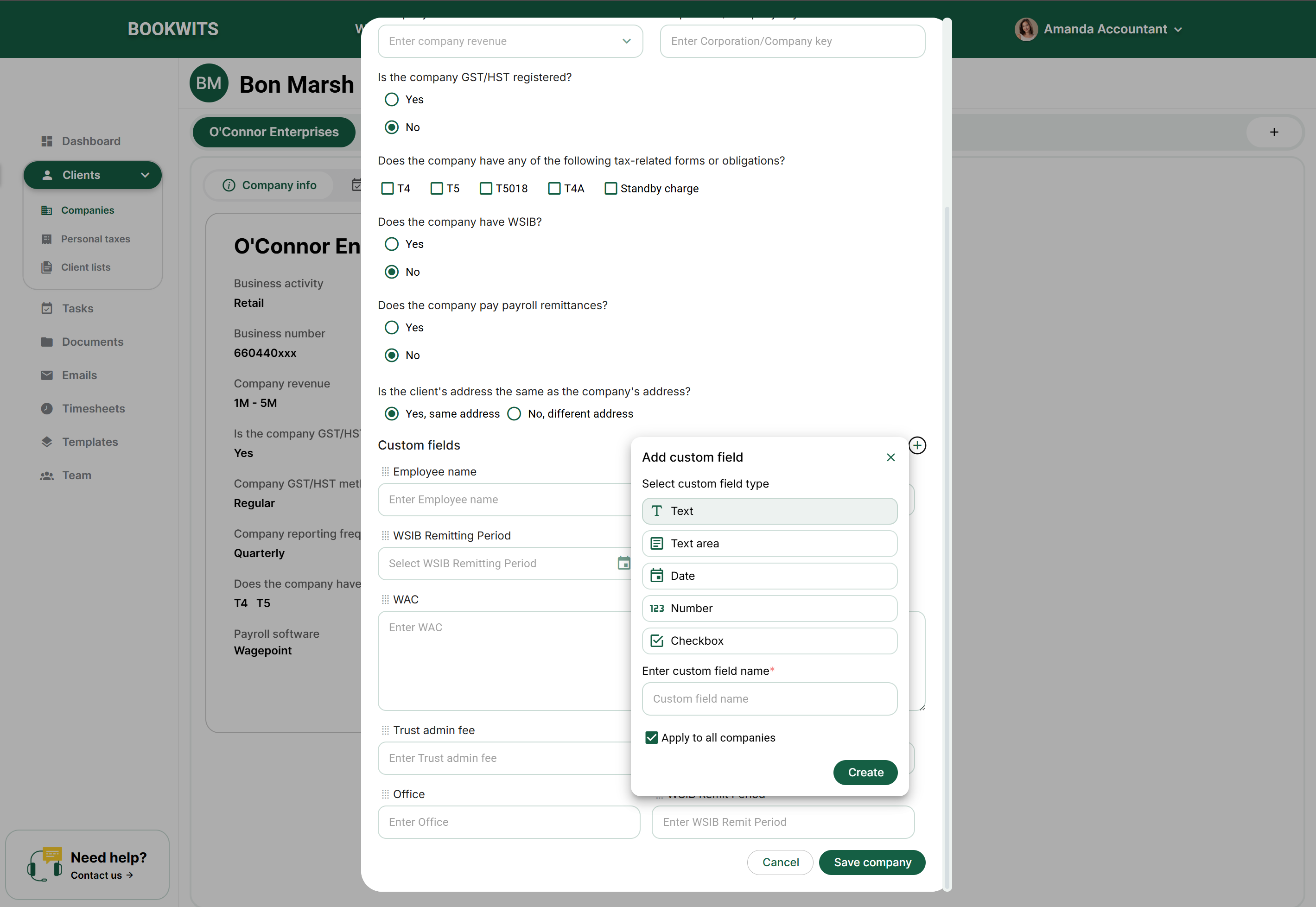
For example, use a checkbox called “CRA representative access confirmed” for a verified yes/no condition, a date for “Engagement start date,” and text for an account identifier that must keep leading zeroes. Apply a definition to all companies only when it should be shared across the workspace. A one-company exception should not automatically become a column everyone must maintain.
- Open the client’s name from Clients → All clients, choose Companies in their profile, then select the specific company tab. Check the business name before editing.
- In the company’s Details section, use its edit control. Scroll through the form to the custom-fields area. These fields describe this business; they are not questions in a checklist that has already been sent.
- Fill an existing field with the correct type of information: text in a text field, a date in a date field, and an offered choice in a dropdown. If a new definition is needed, use Add custom field where your role permits it.
- When adding a definition, choose its type and meaningful name. Read Apply to all companies carefully: it broadens where the field is available, rather than meaning “save this one value”. Use a company-specific field for an exception.
- Save the field and company changes as requested by the form. Reopen Details to check the saved value. If you want it visible in a directory column, configure that table separately; adding a field does not mean every table automatically displays it.
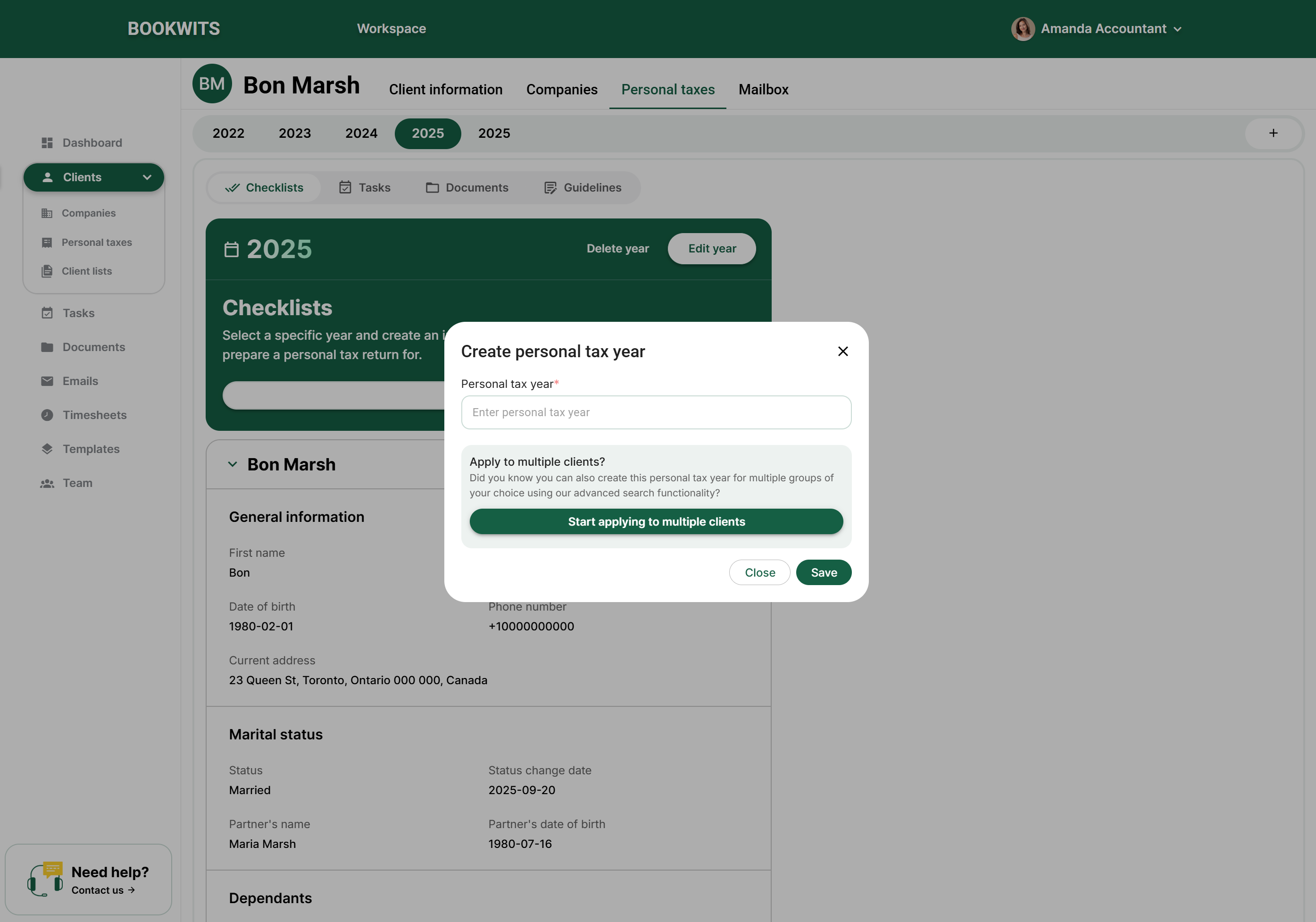
6) Open a New Personal Tax Year
A personal tax year keeps annual work distinct. It is not the client’s birth year, the company’s fiscal year-end or a replacement for last year’s file. Choose the year of the return you are working on, not automatically the current calendar year.
For example, preparing Sarah’s 2025 return during 2026 belongs under 2025. A later correction to 2024 still belongs in the 2024 context. Before using a multi-client creation option, inspect the selected people and year together. After creation, open one result and verify its year tab before adding checklists, tasks or documents.
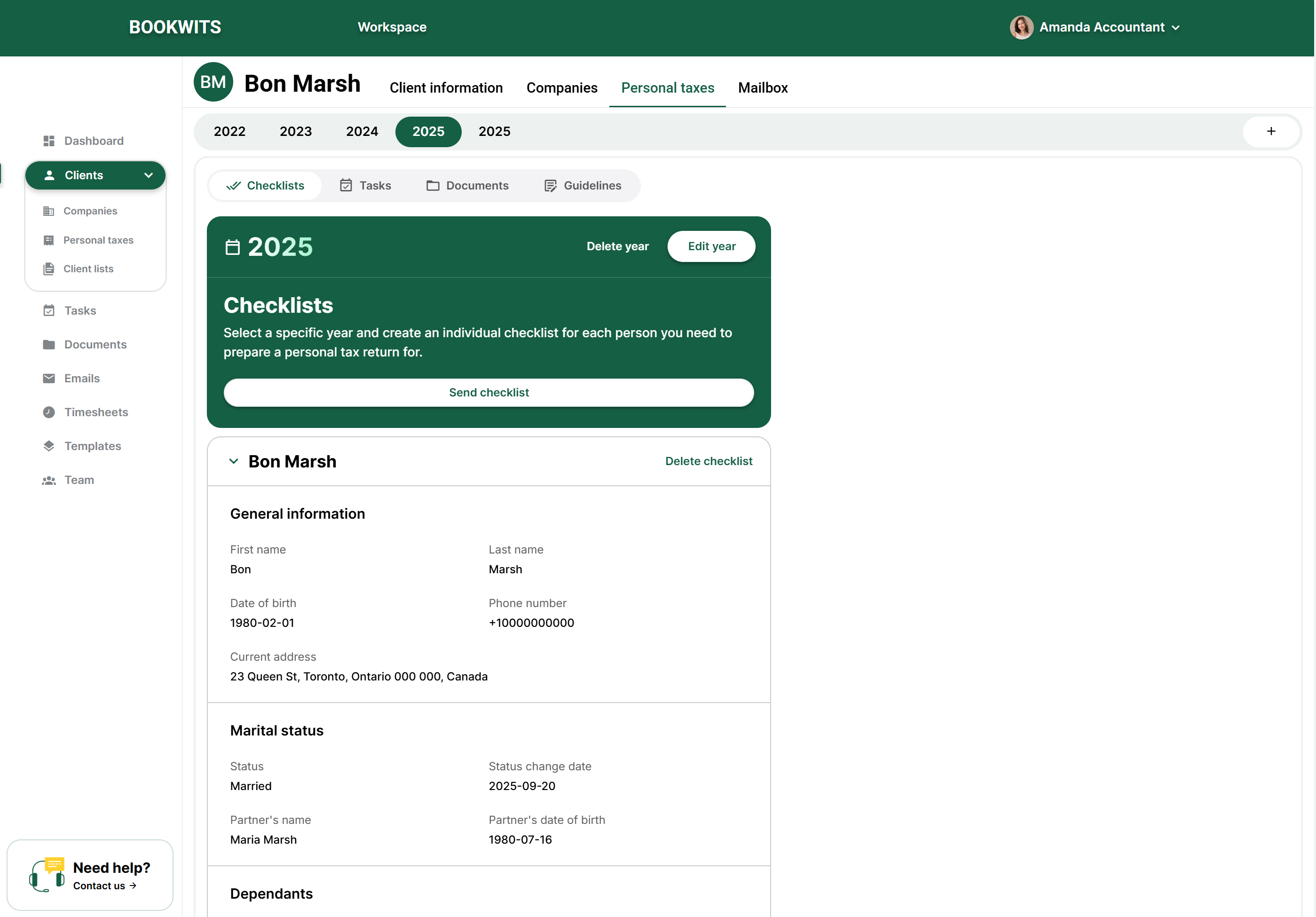
- Open the correct person’s profile. In Clients → All clients, search for the person and select their name. Choose Personal taxes in the profile’s top tabs. This keeps the year attached to that person rather than a similarly named client.
- Look at the existing year tabs first. If the required year already exists, open it instead of creating a duplicate. Otherwise, select Add year beside the year tabs and choose the tax year requested by the engagement, not automatically the current calendar year.
- Keep a single-person operation limited to that person. If the form offers Apply to multiple clients, leave it off unless you intentionally want a batch. For a batch, review every selected client or search group before confirming; the selected year will apply to that selection.
- Create the year and select its tab. Check both the client name and the year in the workspace. Open Checklists, Tasks, Documents, Notes or Guidelines within that year for annual work. Opening 2025 is not the same as opening the person’s 2026 records.
- Check what still needs to be done. Creating a tax year does not send a checklist, prepare a return or file it. For intake, open the year’s Checklists section and prepare the appropriate request. Assign preparation and review work separately in Tasks.
7) Understand All Clients vs Companies vs Personal Taxes
All clients answers “Which person or relationship am I looking for?” Use it to find Sarah Thompson, review her contact details, see linked relationships and enter her complete workspace. Sarah appears as one client even if your firm handles several businesses and multiple years for her.
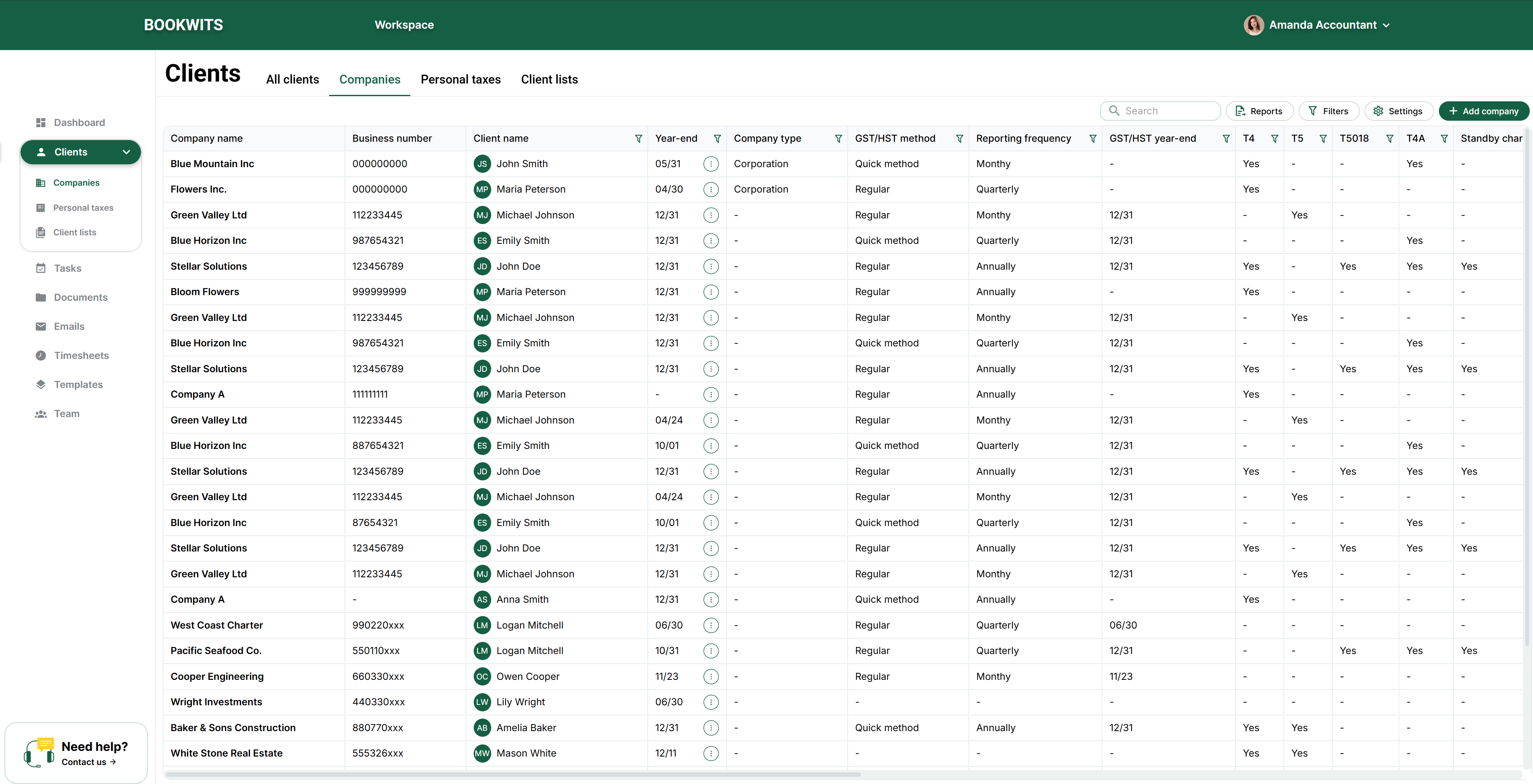
Companies answers “Which business entity needs work?” Thompson Consulting Inc. and Thompson Properties Inc. are separate rows because each can have its own year-end, registrations and work. Use this cross-client view to organize company obligations rather than opening every owner in turn.
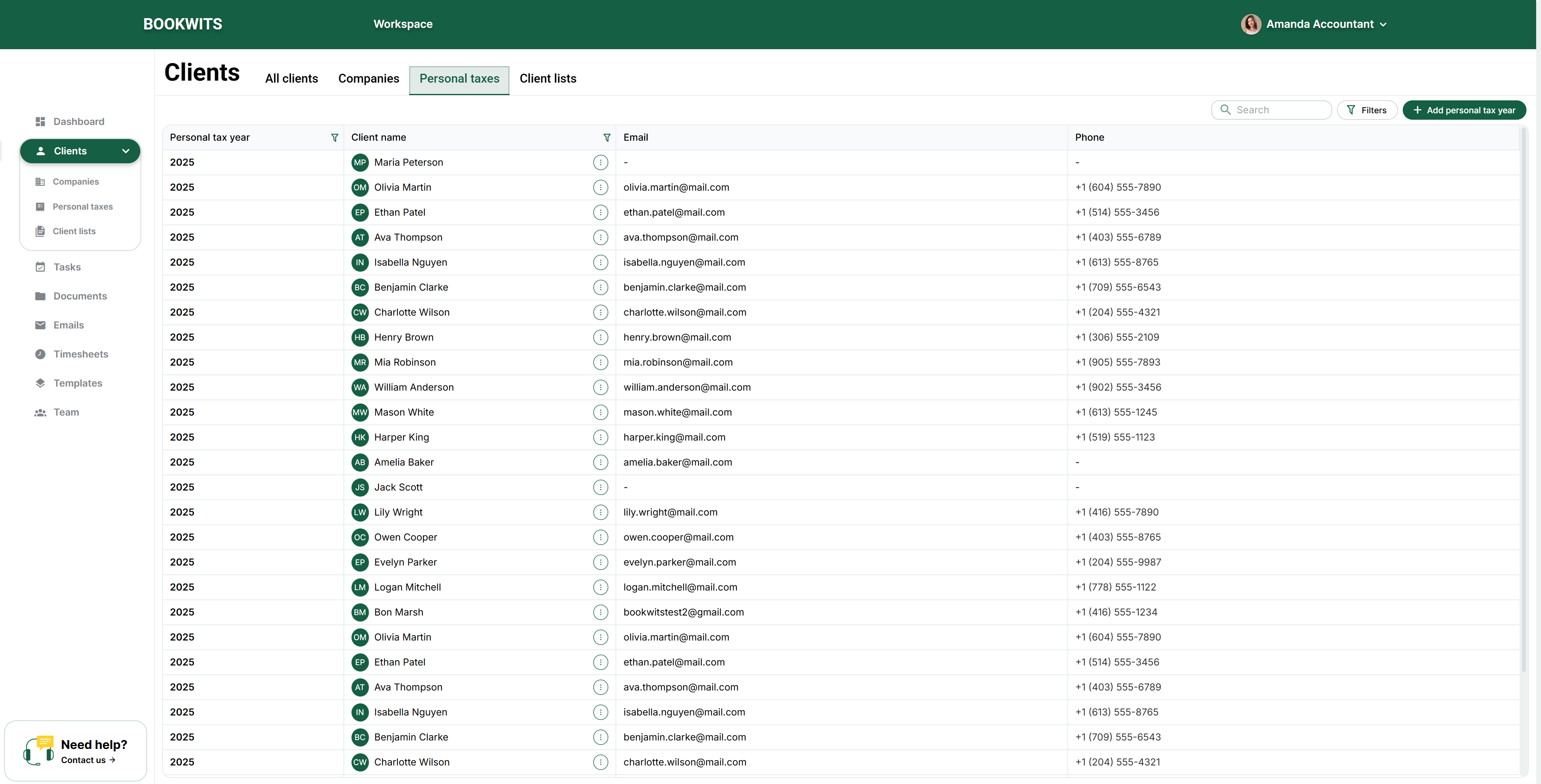
Personal taxes answers “Which person and annual file needs attention?” Sarah’s 2024 and 2025 files are different annual records. Use this view for work across people and years; use the selected year inside her profile for its documents, tasks and checklists.
Suppose Sarah calls about a new phone number: start with All clients. If you need corporations with December year-ends, start with Companies and the relevant criteria. If you are checking missing 2025 tax intake, start with Personal taxes. Moving between these views does not copy, merge or complete records. Always check the selected person, company and year before acting.
8) Customize Tables (Hide Columns / Pick Fields)
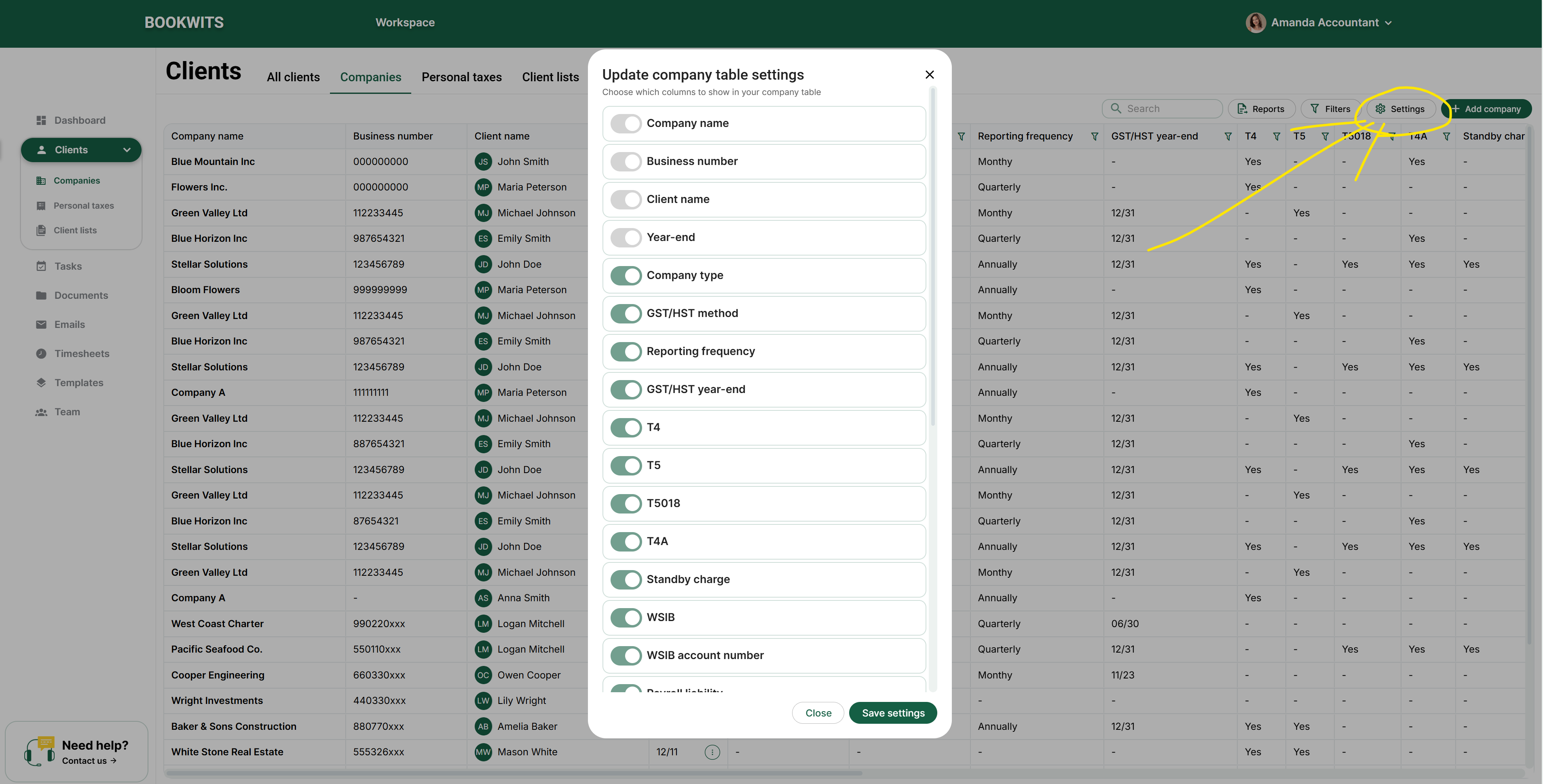
Table settings change your working view, not the saved information. Choose columns that help answer the question in front of you, and distinguish a hidden column from an empty field. Search and filters can also exclude rows even when all columns are visible.
For example, a year-end reviewer may need company name, year-end, manager and status. A colleague checking invitations may need client email and team access instead. Hiding phone numbers does not remove them from profiles or stop a request from using a saved address. After changing the view, open a representative record if you need to inspect information that is no longer displayed.
- Open the table you actually want to change. For the people directory, use Clients → All clients → Actions → Table settings. A company or personal-tax table has its own settings; do not assume one table’s layout changes every other table.
- In the settings form, review the column names. Show the information useful for your work and hide unnecessary columns. Where ordering or frozen-column controls are available, arrange them so the identifying client/company information remains easy to follow.
- Apply/save the layout with the control shown in that settings form. Return to the table and check the headers and horizontal scrolling. A hidden column does not delete the data stored in the record.
- If a record is missing, inspect Search and Filters instead of adding more columns. Layout settings control how rows are displayed; filters control which rows are included. These are separate adjustments.
9) Client Lists (Your deadline & workflow control center)
A Client List turns a defined group of records into an operational tracker. Its selection criteria determine the rows; its name explains the purpose to colleagues. A list named “December year-ends” will not select December companies unless its actual criterion and parameters match.
For example, create a list for December corporate year-ends, inspect its companies, then track a row as Waiting on client while statements are missing. Add a short note naming the missing period and create a task for the colleague responsible for follow-up. The list’s row status and that task’s status remain separate signals that you should reconcile during review.
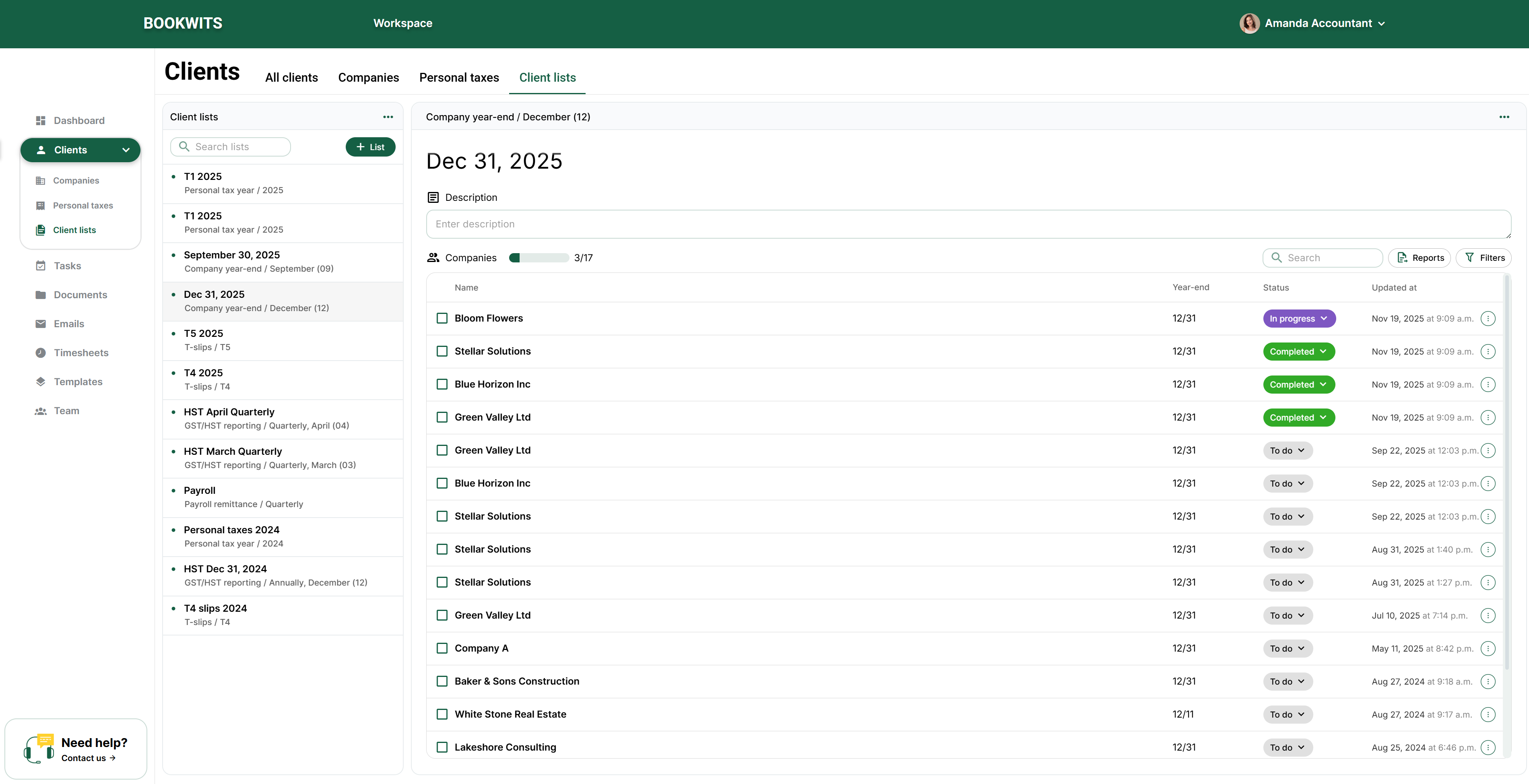
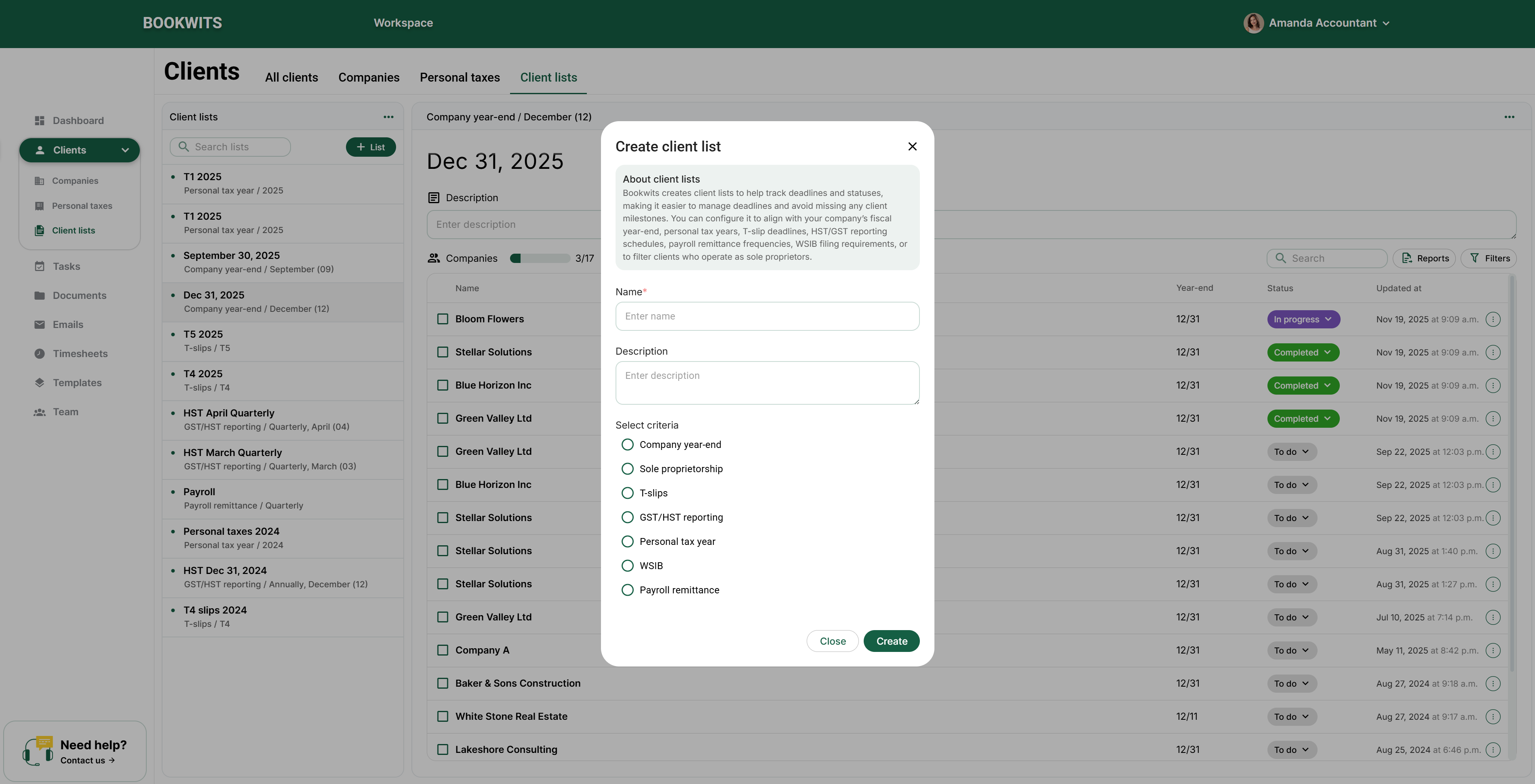
- Choose Clients in the left sidebar, then Client lists in the top tab row. Open the list-creation control above the existing lists. This is a work tracker, not the All clients address directory.
- Give the list a specific name and, if useful, a description. “December 2026 year-ends” is more informative than “Important”. The title explains the list to colleagues but does not itself choose the records.
- Under Select criteria, choose the type of work and complete its parameters, such as the applicable year-end period or personal tax year. Use the actual offered criteria; a phrase typed in the name is not a filtering rule.
- Create the list and inspect its rows. Check several client/company names and the count against the selected criteria. If a company is absent, check the year-end or obligation recorded on that company rather than creating a duplicate client.
- Use the list’s statuses and notes to track progress. When someone needs an assigned action and a deadline, create or open a Task as well. A status in a client list is not automatically proof that a return was filed or a client request was completed.
10) Practical workflow examples
The same client structure supports different services, but the sequence should match the engagement. Start with the correct person, choose the appropriate company or annual record, then connect work and supporting material. Do not use one generic status as evidence that every service is finished.
For a new bookkeeping engagement, create the client and company, confirm staff access, collect setup information and assign onboarding work. For a returning personal-tax client, keep the existing person, open the correct year and collect annual information. For a client with several businesses, check the entity on every task and document. The examples below show the overall order; the dedicated chapters explain each operation.
- New business client: create the person through Add a New Client, then open their profile’s Companies tab and add the business. Review its year-end and obligations. Use Client lists for the relevant work population and Tasks for named owners, deadlines and execution steps.
- Personal-tax client: open the person’s Personal taxes tab, select/create the correct year and open that year’s Checklists section to prepare intake. Keep preparation/review assignments in Tasks. Link a partner only when two separate client profiles genuinely need that relationship; do not merge their annual files.
- One person with several businesses: keep one appropriate person profile and add separate company tabs for the distinct entities. Before opening tasks, documents or checklists, select the company name and then its section. Use the global Companies directory when comparing entities across several people.
Upload Clients in Bulk (CSV Import + Column Mapping)
- Each company can have its own row; repeated client names are grouped as explained below
- Clear column headings (top row)
- Save/export as .CSV
- Clean duplicates first (to avoid double-importing)
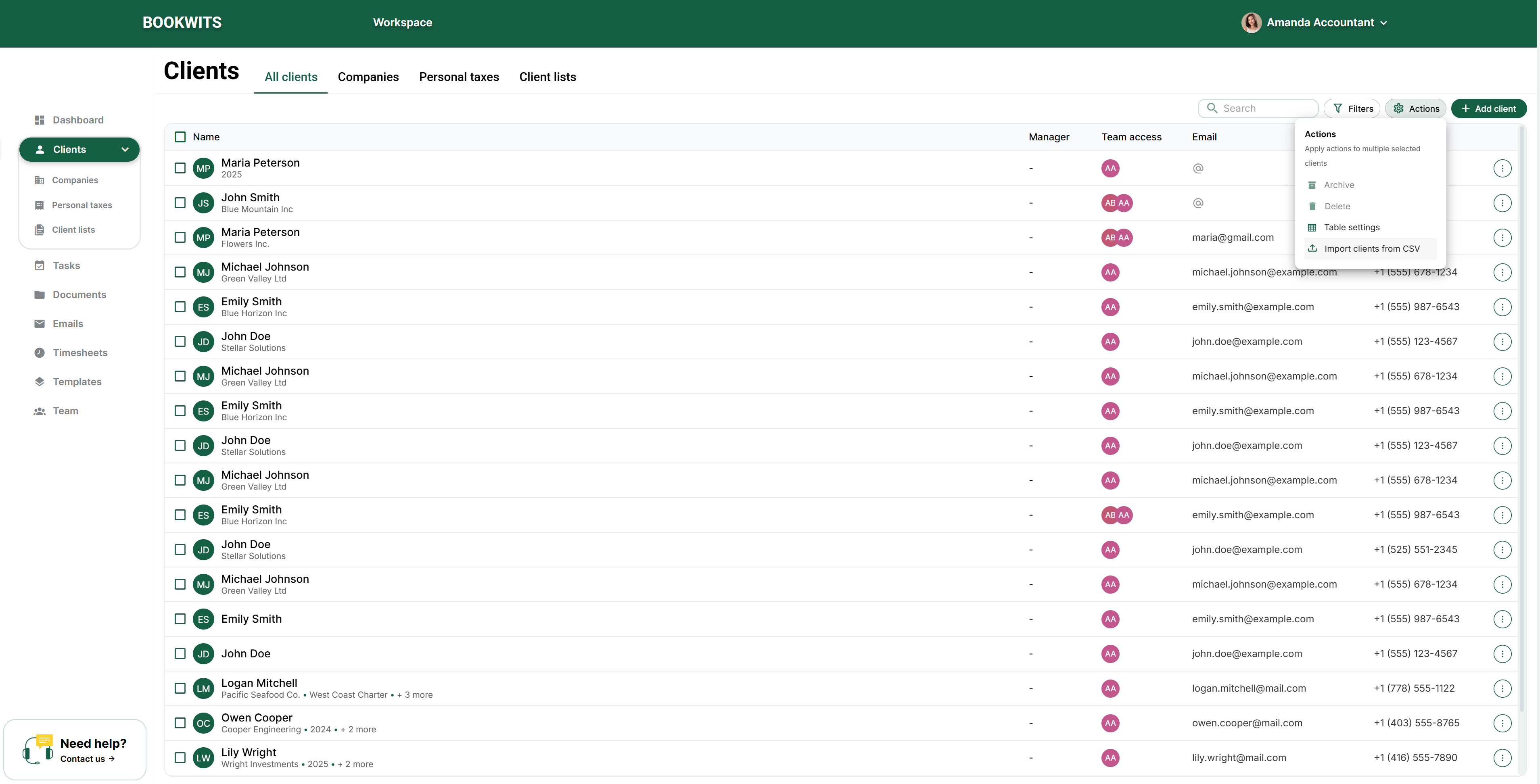
- Open the client directory. In the left sidebar, select Clients, then the All clients tab at the top. Above the table, open Actions → Import clients from CSV. This is different from Add client, which creates one person at a time.
- Prepare the spreadsheet. Use the import page’s example/template to understand the available columns. Give first name and last name separate columns. Save as CSV; do not simply rename an Excel file. Keep the header row, accents and leading zeroes in identifiers.
- Select a small, manageable batch. The documented limit is 100 data rows, not 100 different people. A person with several companies can occupy several rows. For example, two rows for Emma Laurent and her two businesses still consume two rows of the batch.
- Match the columns on the mapping screen. For each source heading, choose the Bookwits field that means the same thing. Map personal email to the client email, not company email. Leave an optional destination unmapped when you do not have that information; do not select a similar-looking but unrelated field.
- Read the preview before importing. Check names, company ownership, dates, country/province choices and custom fields. Correct any highlighted errors. A row containing some useful information needs review; it is not the same as a completely blank row.
- Confirm once, then inspect the saved records. Wait for the import result. Return to All clients, search for several imported people, open their profiles and check their companies. If an error occurs, inspect what was created before uploading the same batch again, so you do not create duplicates.
- Missing headers: mapping won’t work properly if your CSV doesn’t have column names
- Combined full name: you may need to split into first/last (first and last name are separate required fields)
- Mixed formats: keep phone numbers/dates consistent
- Duplicates: importing the same CSV twice often creates duplicates
Troubleshooting (Common Beginner Issues)
- Make sure you’re in All Clients
- Use search (if available)
- Confirm name spelling
- If it’s the person/account you communicate with → Client
- If it’s a business entity with its own year-end/compliance → Company
- Go to table Settings
- Hide columns until the list is scannable in 10 seconds
Glossary
The client creation wizard, screen by screen
Choose Clients → All clients → Add client. The wizard contains Personal info, Address, Companies, Additional details and Team. Next moves through the setup; Finish and save client lets you finish without filling every optional section. Use it only when you intend to create the record.
| Section | What to enter and why |
|---|---|
| Personal info | First and last names are required. Email and phone are optional for creating the record; an email becomes necessary for workflows that contact the client. Select the phone country/dial code rather than putting an extension into the name. |
| Address | Street address, unit, city, province, country and postal code describe the client. A company can have a different address; do not assume that updating one silently updates the other. |
| Companies | Add the client’s business entities. A business has its own company name, business number, year-end and applicable obligations. A person with no business still belongs in All clients. |
| Additional details | Use the relevant personal and custom fields. Only collect information your firm needs, and check the field’s meaning before entering sensitive identifiers. |
| Team | Set the manager and share the client with the appropriate team members. Responsibility and access are distinct: check both rather than treating an assignee as proof of access. |
Manual client entry accepts up to 100 characters for each first/last name and 200 for email. CSV import has stricter limits: 30 characters for each name and 50 for the client email. A value accepted by manual entry is therefore not necessarily accepted by import. Do not abbreviate a legal name without checking your firm’s recordkeeping requirements.
Use the profile for ongoing maintenance
- Search All clients and open the correct person.
- Use the information card’s Edit action to update contact details, address or language. Review the exact section rather than creating a new client to change an email.
- Use the client menu for invitation actions, linking a partner, archive/unarchive and permanent deletion when available.
- Review contacts and linked partner records separately. A partner relationship is not permission to send one person’s private link to the other.
- Open the company or tax-year workspace for business/year-specific tasks, documents, checklists and guidelines.
An invitation can be pending even though the client record already exists. Resend or cancel the pending invitation as appropriate; adding the same person again does not fix acceptance. Archive hides an inactive record from ordinary active work; permanent deletion is a separate, destructive decision. Review related records and your retention obligations before confirming it.
CSV import: prepare, map, review, then commit
- Open the client directory. In the left sidebar, select Clients, then the All clients tab at the top. Above the table, open Actions → Import clients from CSV. This is different from Add client, which creates one person at a time.
- Prepare the spreadsheet. Use the import page’s example/template to understand the available columns. Give first name and last name separate columns. Save as CSV; do not simply rename an Excel file. Keep the header row, accents and leading zeroes in identifiers.
- Select a small, manageable batch. The documented limit is 100 data rows, not 100 different people. A person with several companies can occupy several rows. For example, two rows for Emma Laurent and her two businesses still consume two rows of the batch.
- Match the columns on the mapping screen. For each source heading, choose the Bookwits field that means the same thing. Map personal email to the client email, not company email. Leave an optional destination unmapped when you do not have that information; do not select a similar-looking but unrelated field.
- Read the preview before importing. Check names, company ownership, dates, country/province choices and custom fields. Correct any highlighted errors. A row containing some useful information needs review; it is not the same as a completely blank row.
- Confirm once, then inspect the saved records. Wait for the import result. Return to All clients, search for several imported people, open their profiles and check their companies. If an error occurs, inspect what was created before uploading the same batch again, so you do not create duplicates.
Important grouping rule for repeated client names
Within a CSV batch, rows with the same first and last name are grouped into one client, and their company rows are attached to that client. The first row in the group supplies client-level email, phone, address, birthday, identifier and client custom-field values. Later rows do not act as successive updates to those client fields. Keep shared client details consistent across the group and use separate company columns for entity-specific details.
Two different people with identical first and last names can therefore be grouped incorrectly in one file. Import them separately or create them individually and verify their identities. This grouping is not an assurance that a new upload will update existing clients; do not reimport a file merely to correct one saved value. If company email/phone are omitted, import can use the client contact values for the company; review whether that is appropriate.
Search, filters and table controls
Use the correct tab first: All clients finds people; Companies finds entities; Personal taxes finds annual records. Clear an old search, check archive and other filters, and inspect the Manager and Team access columns before concluding a record is missing. Column options, resizing and table settings change how you read the table, not the underlying client identity. A hidden email column does not remove the saved email.
Worked example: one client, two businesses and two tax years
Sarah Thompson is your contact. She owns Thompson Consulting Inc. and Thompson Properties Inc.; the firm also prepares her 2024 and 2025 personal returns. The intended structure is one client, two companies and two annual personal-tax records. These are five related records serving different purposes, not five interchangeable client profiles.
Store Sarah’s personal phone on her client profile. Enter each company’s business contact information under that company. Attach the consulting company’s monthly-close task and bank statements to the consulting company. Put Sarah’s 2025 slips in the 2025 personal-tax context. Before sending a checklist, inspect which company or year will receive the answers, not only the recipient address.
Worked example: import two company rows without mixing two people
A CSV can contain two rows for Sarah, one for each business. Repeat the same verified client-level details and put each entity in its company columns. The name grouping within the batch uses the first and last name; the first row supplies the grouped client’s personal details. A later row with a different personal email is not an instruction to update that client.
If your file also contains a different person named Sarah Thompson, do not rely on email to keep them apart in the same batch. Import them separately or create them individually. Count company rows toward the 100-row upload limit, and review the resulting client and both companies after import. A correct client count does not prove the company mappings or shared access are correct.
Screen example: Sarah’s client information before saving
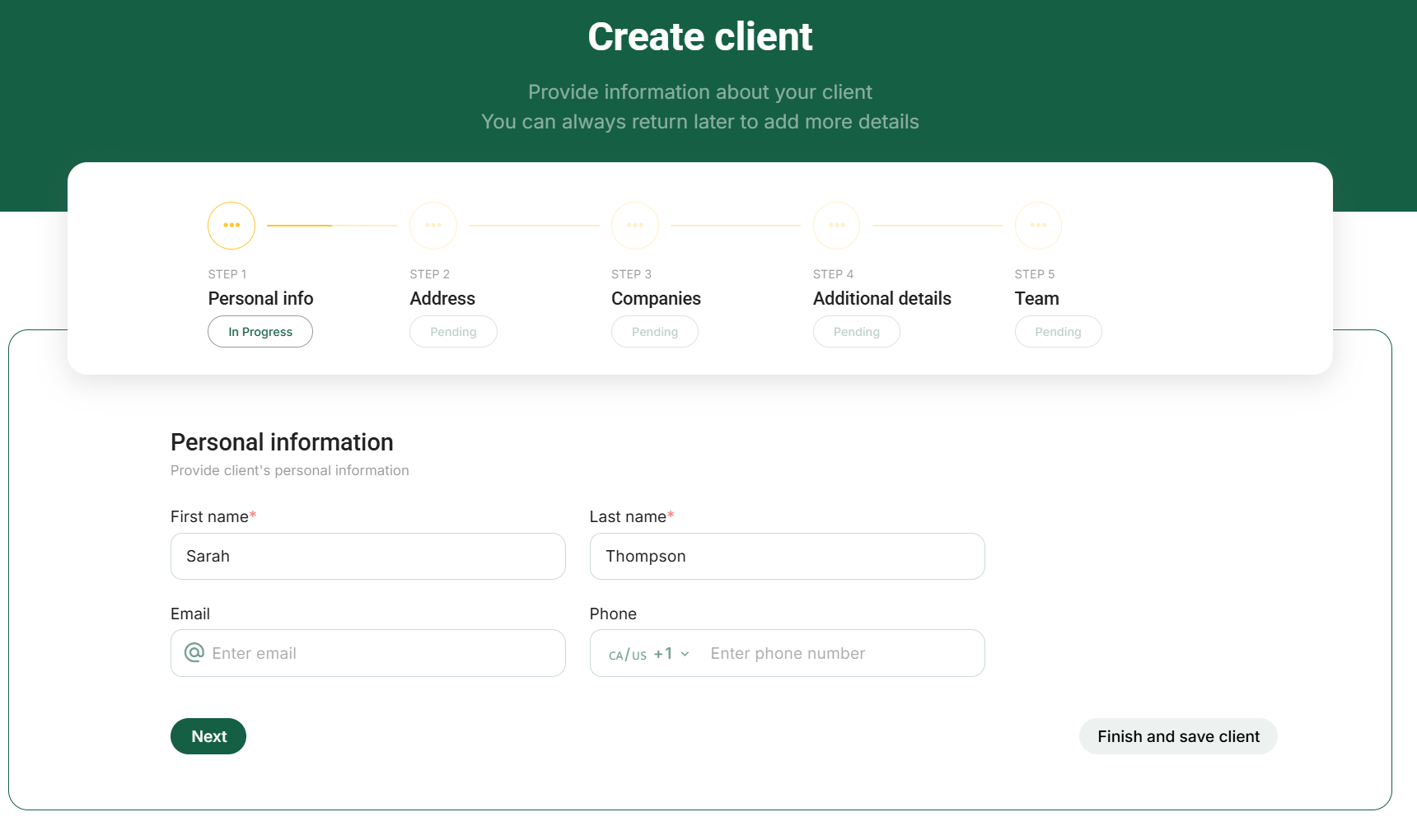
The live example below shows the first wizard screen with Sarah’s name entered. First and last name have required markers; email and phone are separate contact fields. The progress bar distinguishes Personal info, Address, Companies, Additional details and Team. Next advances the setup; Finish and save client is the explicit save action. A filled form is not yet proof that a client was saved. After saving, reopen the profile to verify the record and any company or access choices.
Link two clients as partners without mixing their records
Link partner records a relationship between two separate client profiles. For example, Sarah Williams and Michael Williams may both be clients of the same firm. Linking them helps staff move between their records; it does not merge their names, companies, personal tax years, documents or portal accounts. It is not a declaration of marital status or authorization to act for the other person.
Link someone who is already in your client directory
- Open Clients → All clients and search for the first person. Open their name, then the Overview tab.
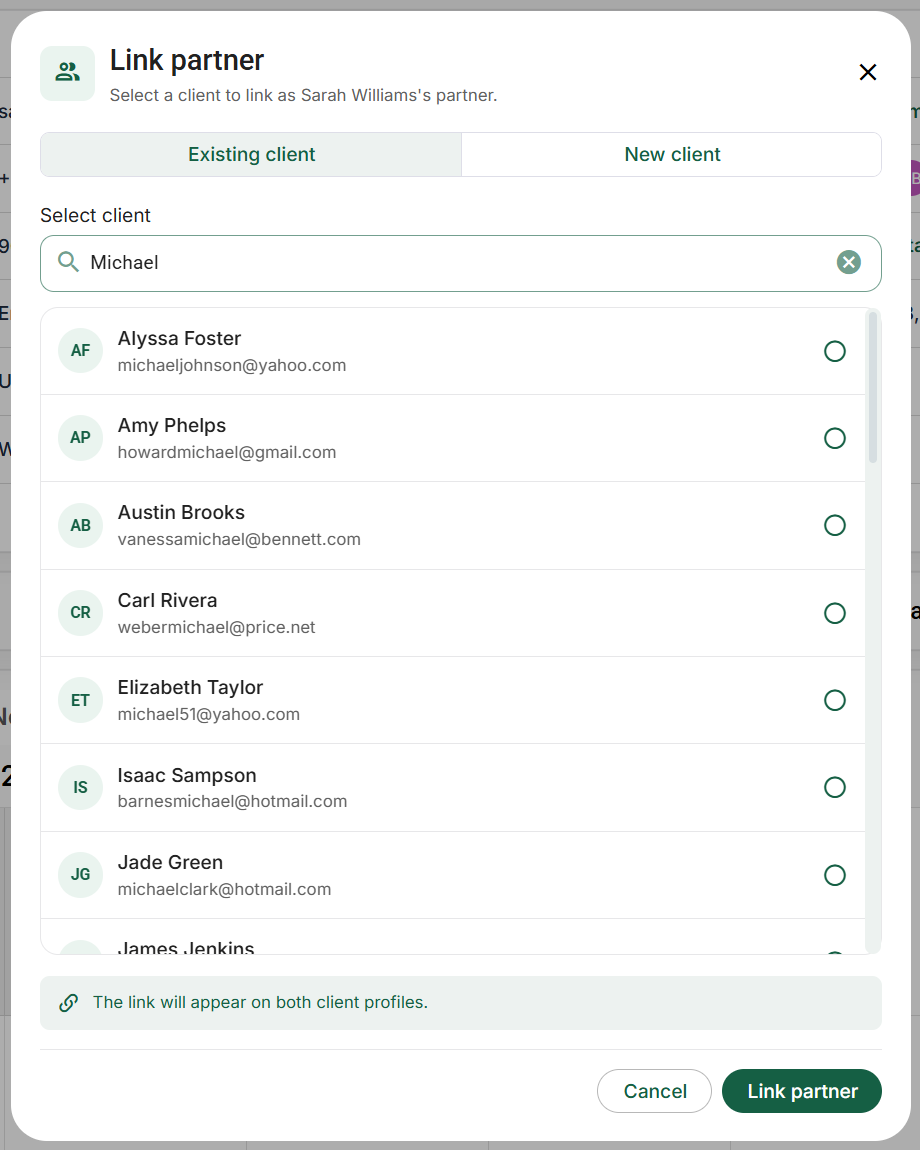
- In Client details, open the three-dot menu beside Edit → Link partner. Choose Existing client.
- Search by name, email or phone. A result can match an email address even when the displayed first name differs from your search. Compare the secondary contact information, especially when two people have the same name.
- Select the intended person's radio button. There is one partner selection, not a checklist of household members. Scroll within the results for additional eligible people.
- Choose Link partner to save the relationship. After success, inspect the partner row on the profile. The relationship appears on both profiles.
- To abandon the selection, choose Cancel before saving. Merely searching or selecting a result does not create the link.
Example: Sarah's directory contains two Michael Williams records. One has the expected email and phone; the other belongs to a different engagement. Select by the person's actual identity, not by the first matching display name. Linking the wrong Michael does not move his existing files into Sarah's file, but it creates a misleading relationship that should be corrected.
Create a missing partner and link the new profile
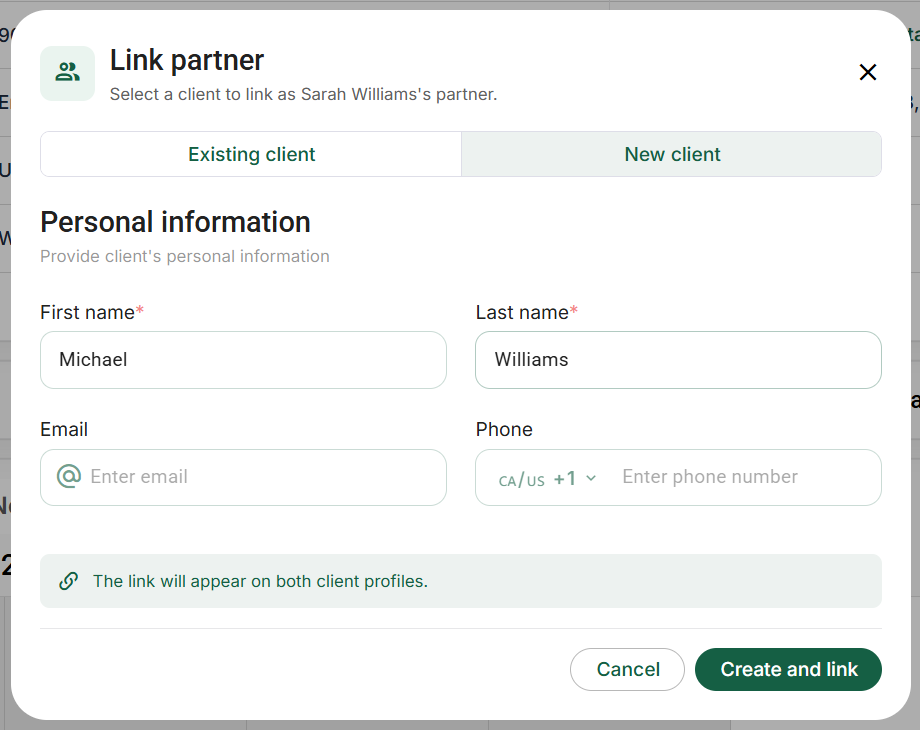
In the same dialog, choose New client. Enter the person's own First name and Last name, both required. Email and phone describe that person; do not copy Sarah's contact details solely to fill blanks. Review the phone country/dial code when providing a number. Choose Create and link only after checking that the person is not already in the directory.
This creates a separate client in the same team and links the two records together. The new profile starts with the source client's language; open its details afterward if the person prefers another language. Creating the profile is not an invitation to the portal. If Michael needs online access, invite him separately using his own profile and the correct recipient email.
Understand eligibility, missing results and unlinking
- Only one partner per client is supported. A person who is already linked is not a spare selectable partner for another profile.
- The two clients must belong to the same team. You cannot link a client to themselves. Archived/deleted or inaccessible candidates are not ordinary eligible results.
- Regular team members may only see clients available to them. If a known person is missing, check spelling, archive state, existing partner relationships and staff access before creating a duplicate.
- A loading failure is different from an empty result. Use Retry when offered; do not treat a failed search as proof that the client does not exist.
- When permitted, click the linked partner's name to open their profile. A restricted-access message means the relationship exists but you cannot inspect that person's details.
- Use Unlink partner on the partner row and confirm the named person to remove the relationship from both profiles. Neither client is deleted. Their own work remains in its original profile.
Example: if Sarah and Michael should no longer be shown as partners, unlink them. Do not permanently delete Michael just to remove the relationship. If each still needs a 2025 return, retain two separate 2025 files and review each person's portal access independently.
Invite a client to the Bookwits platform, then track the connection
A directory record is not automatically a portal account. Use Invite to Bookwits when the person should create or connect a client account for ongoing collaboration. This is different from sending one checklist, one client task or one document-sharing link.
- Open client profile → Overview → Client details. Check the person's name and email first. The invitation goes to the client profile's email, not whichever contact or staff member you last selected elsewhere.
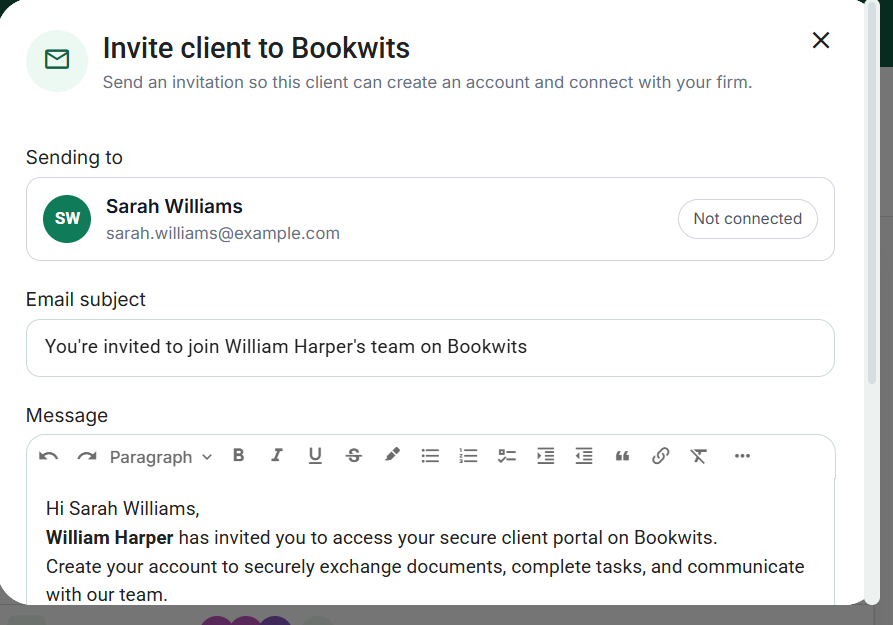
- Open the three-dot menu beside Edit → Invite to Bookwits. The dialog is titled Invite client to Bookwits.
- Review the Sending to card. If the email is wrong or missing, cancel and correct the profile before sending. This dialog is not an address book for choosing an unrelated recipient.
- Review Email subject and Message. The default message introduces the sender and the secure client portal. Replace it with clear instructions suited to the engagement, without including passwords or private information about other clients.
- The secure account-setup link is added automatically. Do not paste another person's invitation or invent a link. Choose Send invite only when the recipient, subject and message are correct.
- After sending, return to the profile and check the connection/invitation status. Ask the person to confirm receipt if necessary; an outgoing invitation is not evidence that an account was created or accepted.
Example message: “Hello Sarah, please use the invitation button to create or sign in to your client account with the email shown above. Verify your email and accept our invitation. You will then be able to see the tasks and shared documents made available to you. Please contact our team if the invitation was not expected.”
Pending, expired and connected are different states
- Pending: the invitation still needs acceptance. The same menu provides Resend invite and Cancel invite instead of another initial invitation action.
- Resend: issues a fresh invitation. Tell the client to use the newest email; older pending links are revoked when a new invitation is issued.
- Cancel: confirm that you intend to revoke the pending invitation. Cancelling a pending link is not a way to disconnect an account that already accepted.
- Expired: invitations last 30 days. Send a fresh invitation using the available invitation action rather than asking the person to keep retrying an expired email.
- Connected: the client account has been linked. The initial invitation action is no longer shown for an already-connected profile. Review actual sharing and permissions instead of repeatedly sending invitations.
If the client's email changes while an invitation is outstanding, cancel the old pending invitation and issue one to the corrected address. Acceptance requires a verified client account using the intended email. See the client instructions for registration, verification, acceptance and recovery.
Directory controls: selection, table layout and archive state
The search field, filter panel and column filters are separate controls. A client can be present but hidden by a tag, client-type condition or archive view. Clear the relevant condition before concluding that the record has disappeared. A company-name match or personal-tax association is not permission to change a different person with the same display name.
Column options are opened beside a table heading. Depending on the column, they offer sorting, filtering, freezing, auto-fit, hiding or moving left/right. Drag the resize handle to change width. These are display settings, not edits to the client's stored email, partner or custom-field values. Hidden columns can still contain saved data.
For bulk work, inspect the selected rows before opening Actions. Selecting currently loaded rows is not evidence that every record matching a large search has been loaded or selected. Clear old selections before moving to a different batch. Use the row's own action menu for a single-client operation, and check the name in any destructive confirmation.
Current application screen examples
Customize the All clients table without changing client information
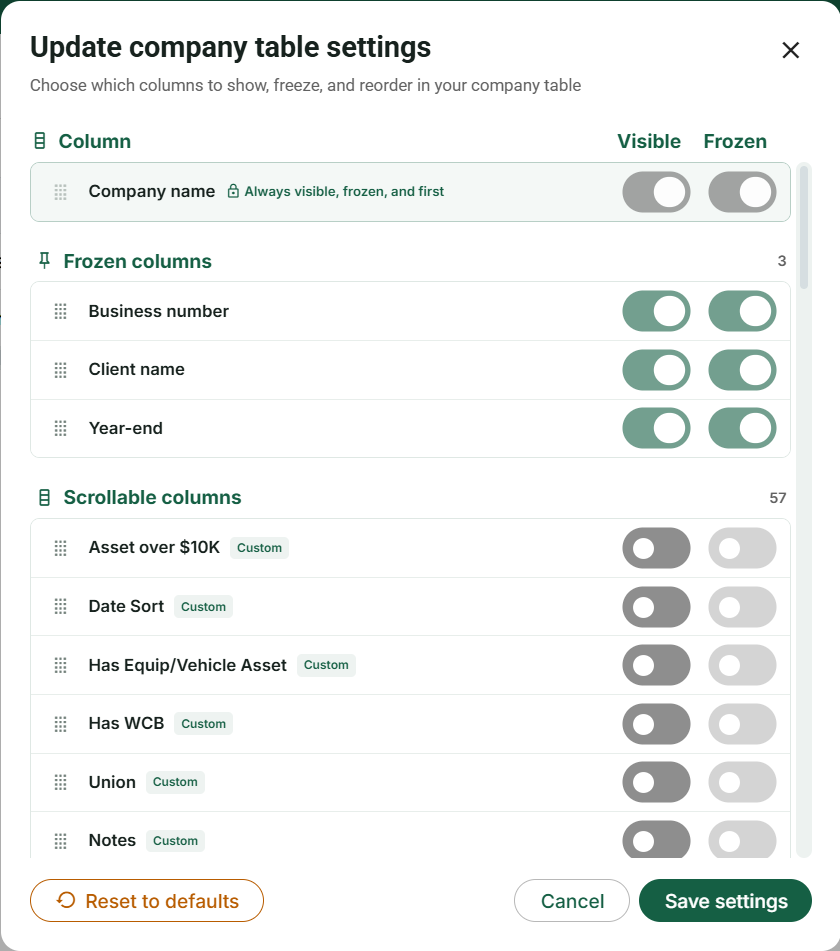
Open Clients → All clients. In the toolbar above the directory, open Actions → Table settings. This configures the client directory, not the Companies or Timesheets table and not the fields in the Add client wizard.
- Find the column in the settings dialog. Turn Visible on to display it, or off to remove it from this table. Hiding a column does not erase its saved values or change who may access the record.
- For a visible column you need to keep on screen while scrolling sideways, enable Frozen. Hidden columns cannot be frozen. The required identification column stays visible and frozen; its disabled switches are intentional.
- Use the dotted drag handle to rearrange columns within the frozen or scrollable group. To move a column between those groups, change Frozen first, then arrange it in its new group.
- Choose Save settings to keep the layout, or Cancel to leave the dialog without applying its draft. Reopen the table and check that the columns you wanted are present.
- In the table itself, drag a column’s right-hand header edge to resize it. Use the available double-click/Auto-fit action to size it to the loaded content; a much longer value on a later page may still need more room.
- Open a column header’s menu for the actions available to that column, such as sorting, filtering, freezing, hiding, moving or auto-fitting. These change presentation or the matching rows, not the underlying client or time record.
Example: keep the identification column and a useful contact/work column frozen, show the few fields needed for the current review, and place less-used details farther right. Scroll horizontally to confirm that frozen columns remain useful without taking up the entire screen. This is your table layout, not a request to give every colleague the same layout.
Restore defaults (labelled Reset to defaults in Companies) resets the table presentation, including the configured order, visibility, frozen state and widths; it does not delete custom-field definitions or record values. Review the resulting draft before saving. If a column is missing, inspect visibility, available definitions and access before concluding that its data was deleted. Restoring a layout is not a recovery tool for deleted business data.
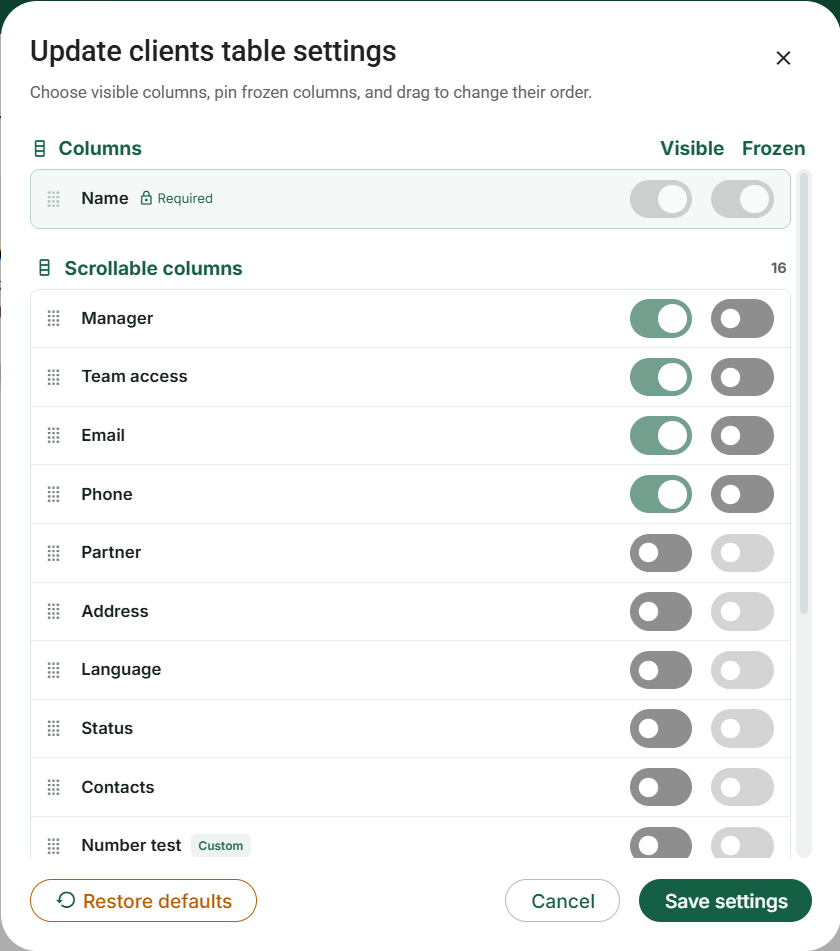
For example, show the client contact fields needed for a call and hide less-used columns. A hidden Email column does not disconnect that client from the portal or change your own sign-in email. For additional client information, create the appropriate client custom field through Fields configuration, enter its value in the client’s Additional details, and then make its available table column visible.
Owner, Admin and Member: permissions for this workflow
Member: works with assigned/shared clients, may create clients, and automatically receives access to a client they create. Owner/Admin see the team’s full client set. Partner candidates, contacts, credentials and linked company/year work must still be accessible; linking partners does not share a complete second client profile by itself.
The client form’s manager selector is for Owner/Admin, and a Member’s ordinary Team access choices are limited to their own entry. Do not confuse that form with the Clients selected-row toolbar: its Manager and Team access actions are also exposed for accessible selected clients. A Member’s sharing update retains their own access, and recipients must be active colleagues in that client’s team. These actions neither change team roles nor open the Team administration module. Review the entire selected set before applying.
Owner/Admin have permanent client deletion; Member does not see that single-row or selected-row delete action. Archiving, table layout and the available client reports are distinct controls. A client’s portal invitation is not a staff invitation or an Admin promotion.
Compare all staff roles, feature restrictions and exceptions