Back to Resources
HOW TO USE BOOKWITS TASKS BEGINNER

Tasks Module Guide

The Tasks module is where your team plans, assigns, and tracks work—so nothing gets lost in email, spreadsheets, or someone’s memory. Tasks support subtasks, attachments, comments/@mentions, activity tracking, and recurring schedules.
How to Use Bookwits
10 min read
Video Walkthrough (Tasks Module)
This walkthrough covers creating tasks, using subtasks, organizing with views and grouping, and setting recurring schedules.

What a Task is (plain English)

A task is one piece of work with an owner and a deadline.
Task = the outcome
Example: “Prepare 2025 T1 – Sarah Thompson”

Subtasks = the steps
Example: “Request slips”, “Reconcile income”, “Review”, “File”
This structure makes work predictable and easy to hand off across a team.

Where you can access Tasks

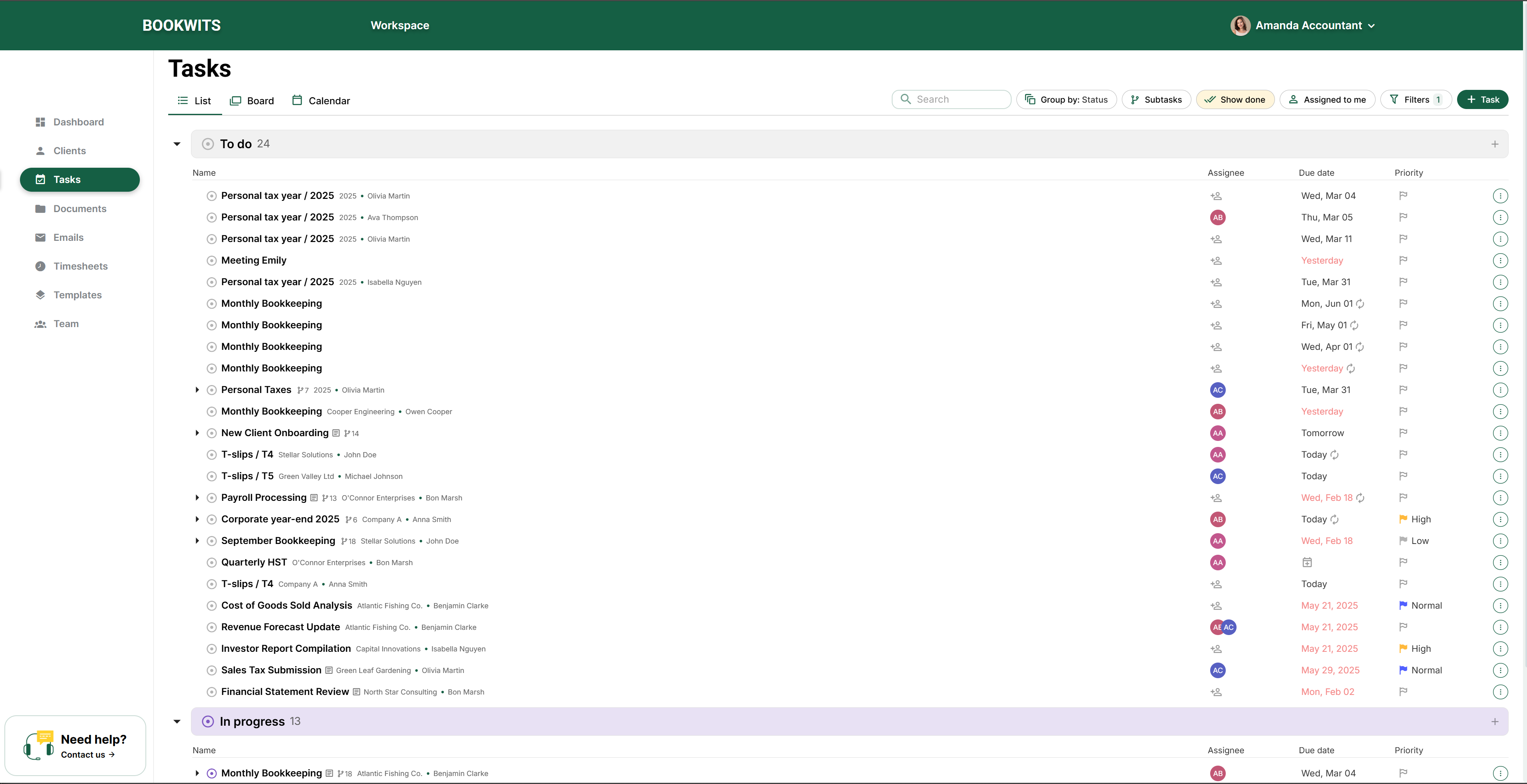
From the main Tasks page Best for planning, workload balancing, and daily operations across your whole firm.

From a Client context Tasks can also be viewed from the Client section inside a Company (entity-related tasks) or a Personal Tax Year (tax-year-specific tasks). Best when you’re working client-by-client and want everything related in one place.

Step-by-step

Create tasks as soon as work exists—so deadlines and ownership don’t live in email threads or spreadsheets.

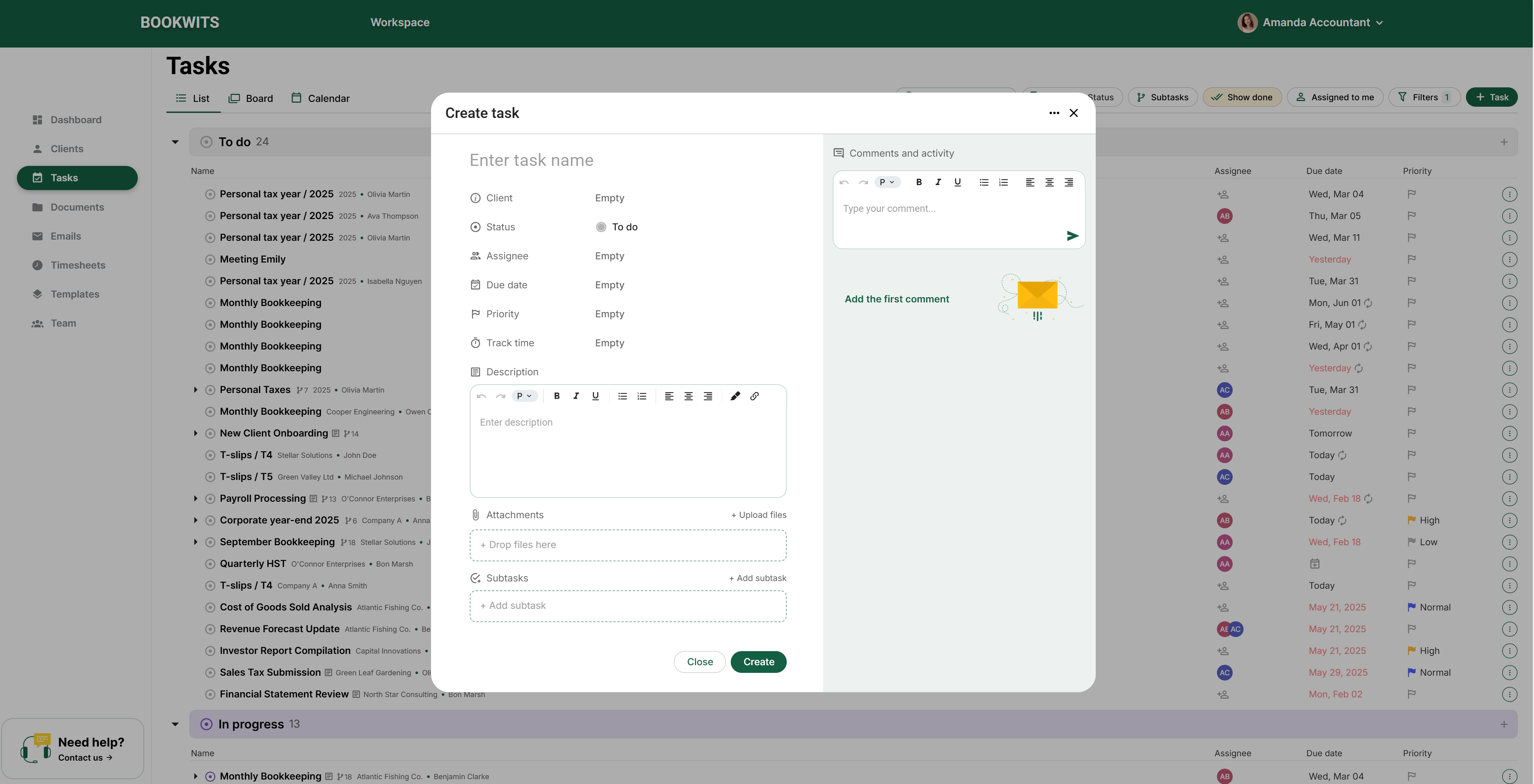
  1. Go to Tasks.
  2. Click + Task (top-right).
  3. Add the basics: Title, Assignee, Due date.
  4. Optional: add Subtasks, Attachments, and Notes/description.
  5. Click Create/Save.
Tasks table New task

The task appears in your task list/board/calendar depending on your selected view. You can edit it anytime, add subtasks, or convert it into a template later.

If you’re missing details, still create the task with Title + Assignee + Due date. Refine later.

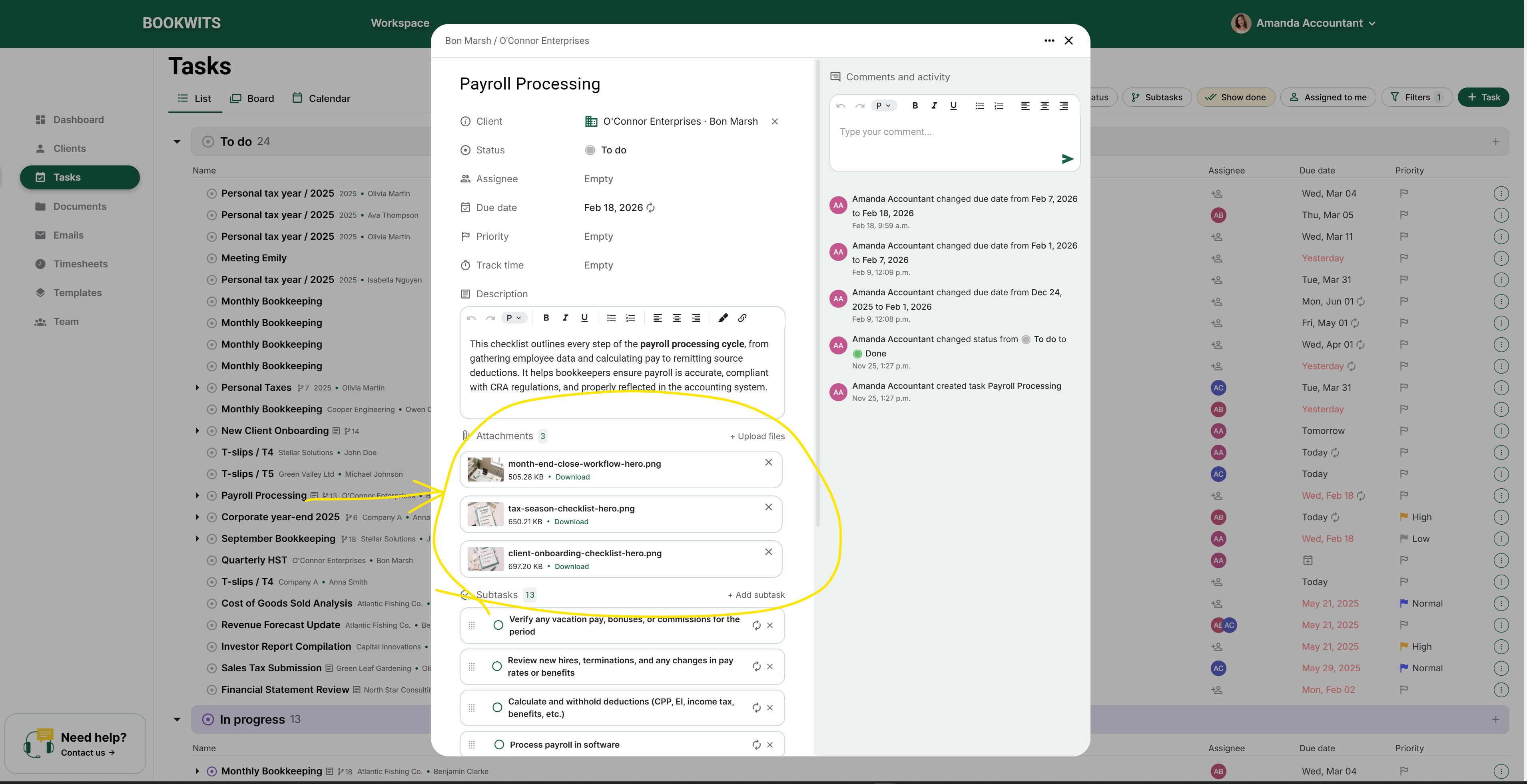
Use attachments anytime someone needs a PDF, working paper, spreadsheet, or screenshot to complete the work.

  1. Open the task (create or edit).
  2. Find Attachments.
  3. Upload/select the file(s).
  4. Save the task.
Task attachments
Attach the file to the task instead of leaving it in an email thread—so the assignee can complete the work without hunting.

Use Activity when something is overdue or unclear—especially around ownership, dates, or recurring rules.

  1. Open the task.
  2. Open the Activity timeline.
  3. Review events like: created, status changes, due date changes, reassignment, recurring updates, attachments added.
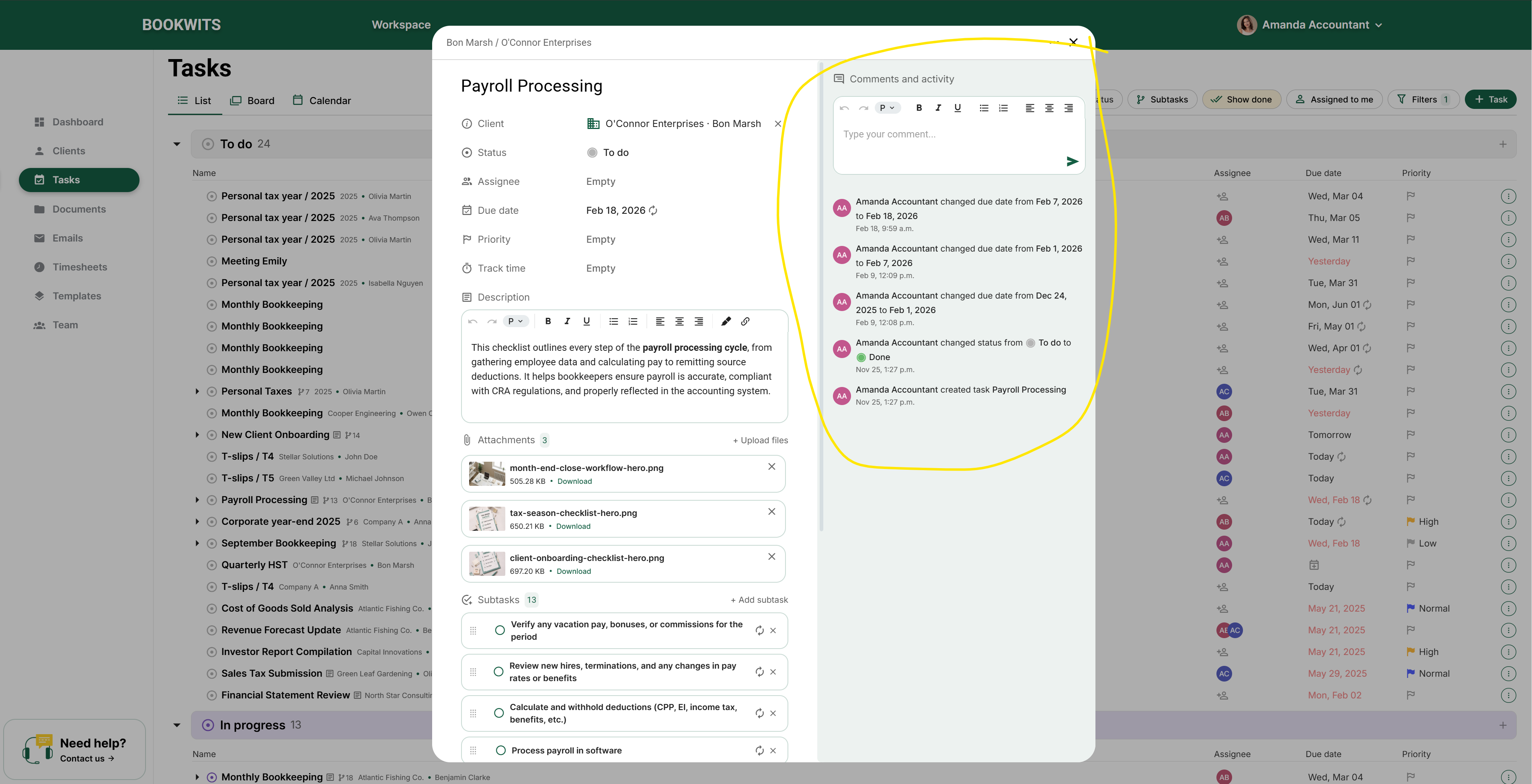
Task activity

Activity acts as your audit trail. It helps you diagnose “what happened” without relying on memory.

If a task “mysteriously changed,” Activity will usually show exactly when and by whom.

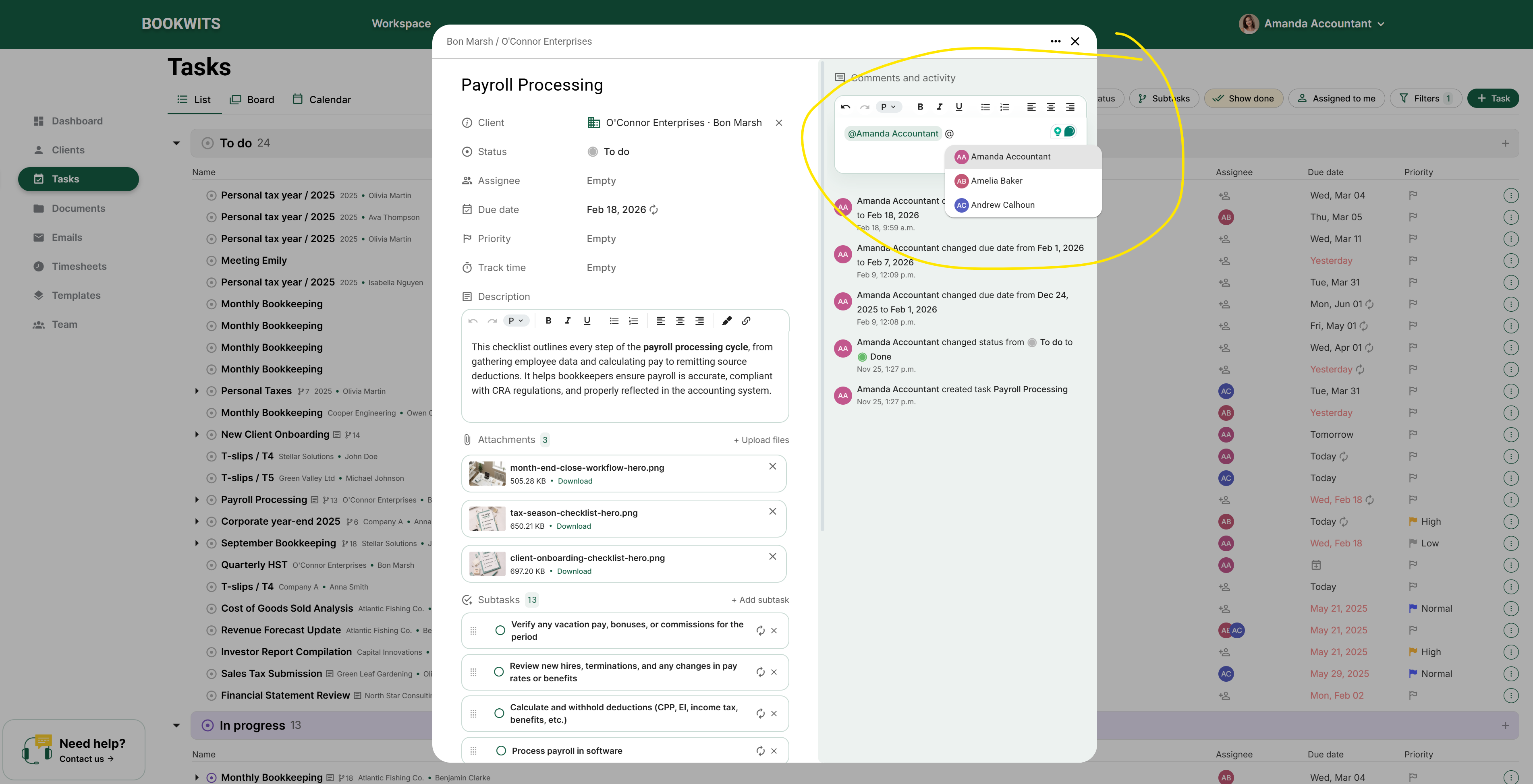
Use comments for discussions that should stay attached to the work (not scattered across Slack/email).

  1. Open the task.
  2. Add a comment with context.
  3. @Mention a teammate when you need a specific action.
  4. Post the comment.
Task mentions
Use @mentions for explicit actions: “@Alex confirm slips are complete” or “@Maria please review before filing.”

Use subtasks when a task has predictable steps or when you need to split work between people.

  1. Open the task.
  2. Add subtasks for each step.
  3. Click a subtask to set its own due date and assignee (optional).
  4. Choose a Subtasks Mode: Closed (minimal), Opened (checklist execution), Separate (independent tracking).
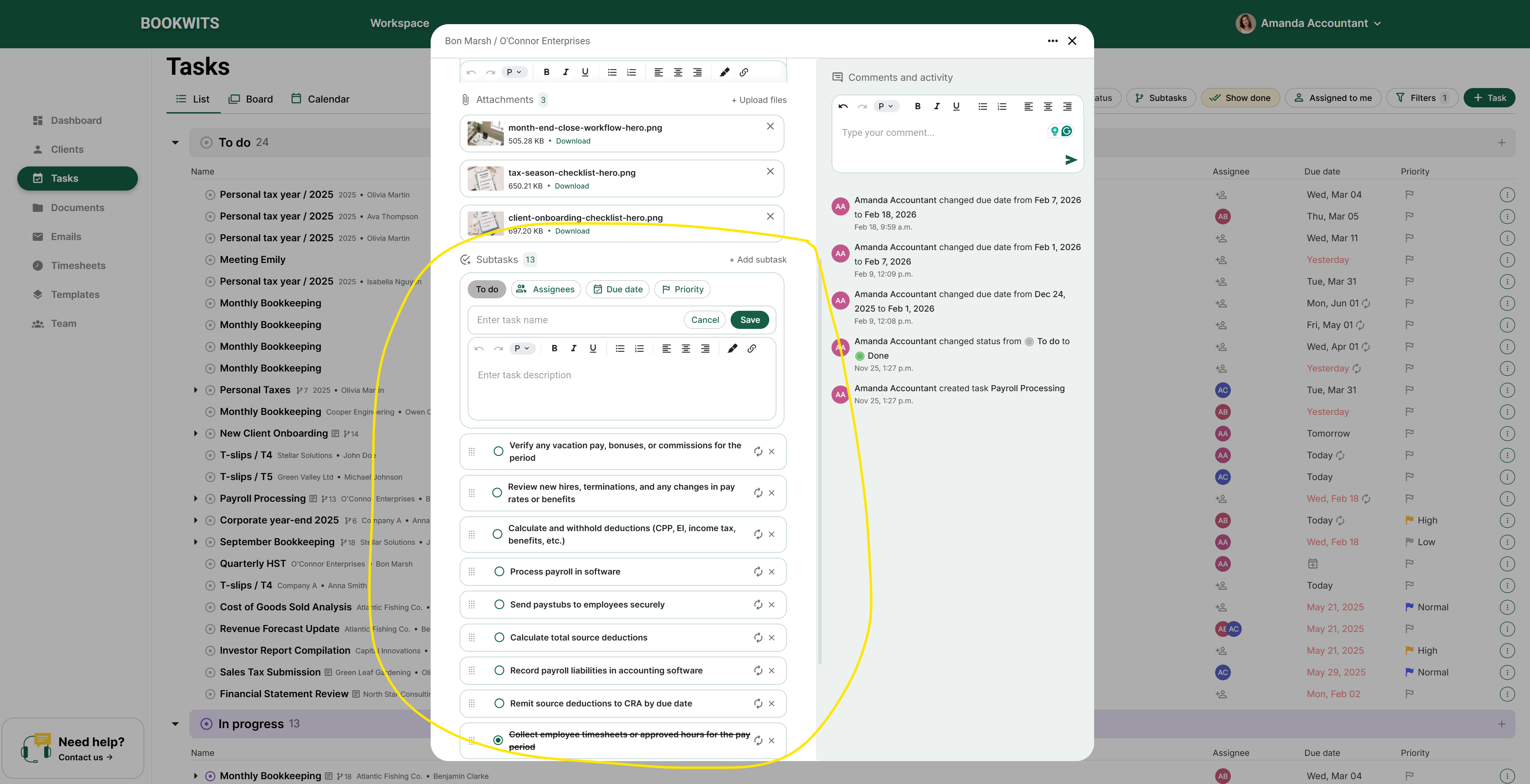
Task subtasks
Use Opened when executing step-by-step. Use Separate when subtasks are basically “real tasks.”

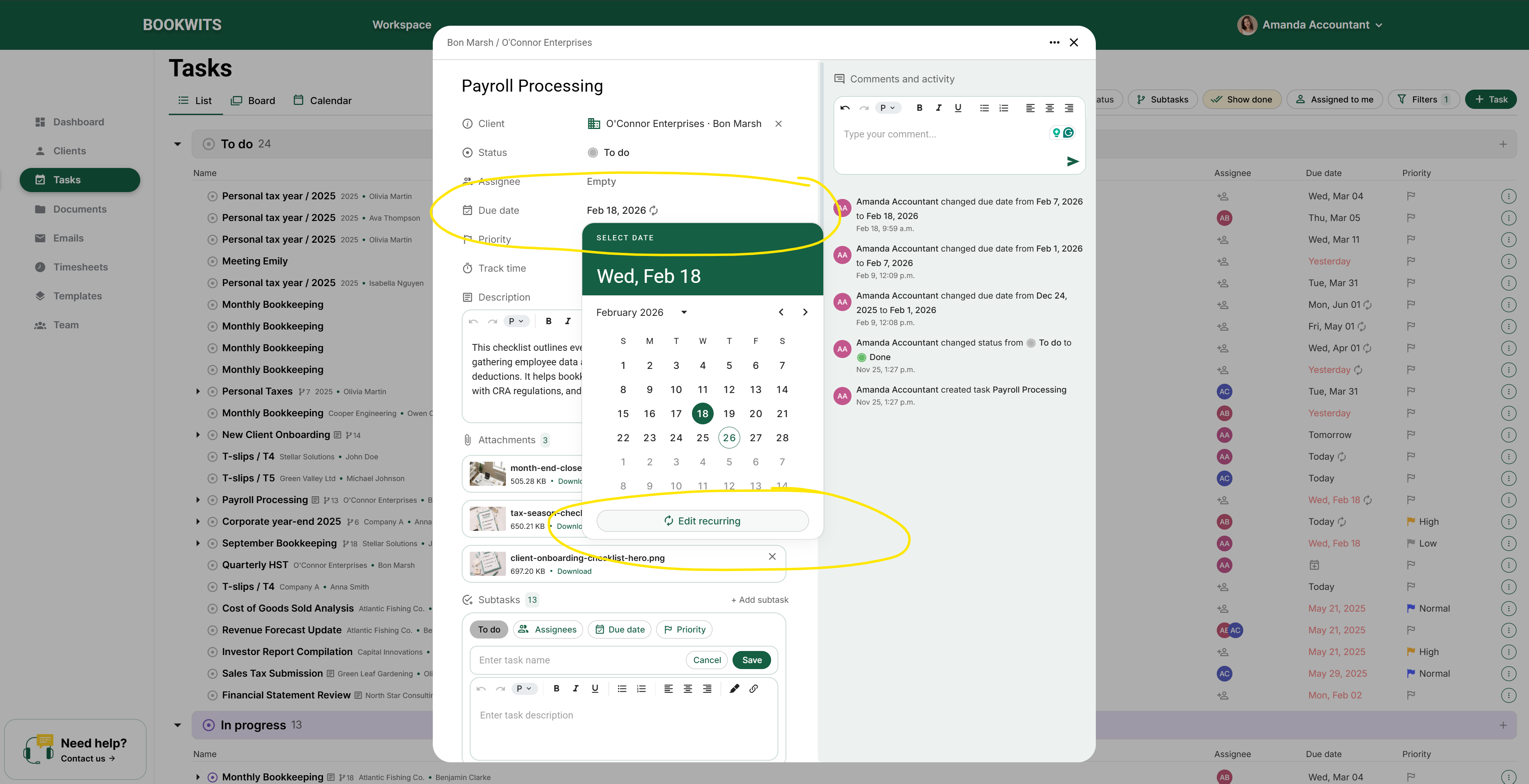
Use recurring tasks for repeating compliance work, monthly bookkeeping routines, and internal processes.

  1. Open the task.
  2. Click Due Date.
  3. Select Set recurring.
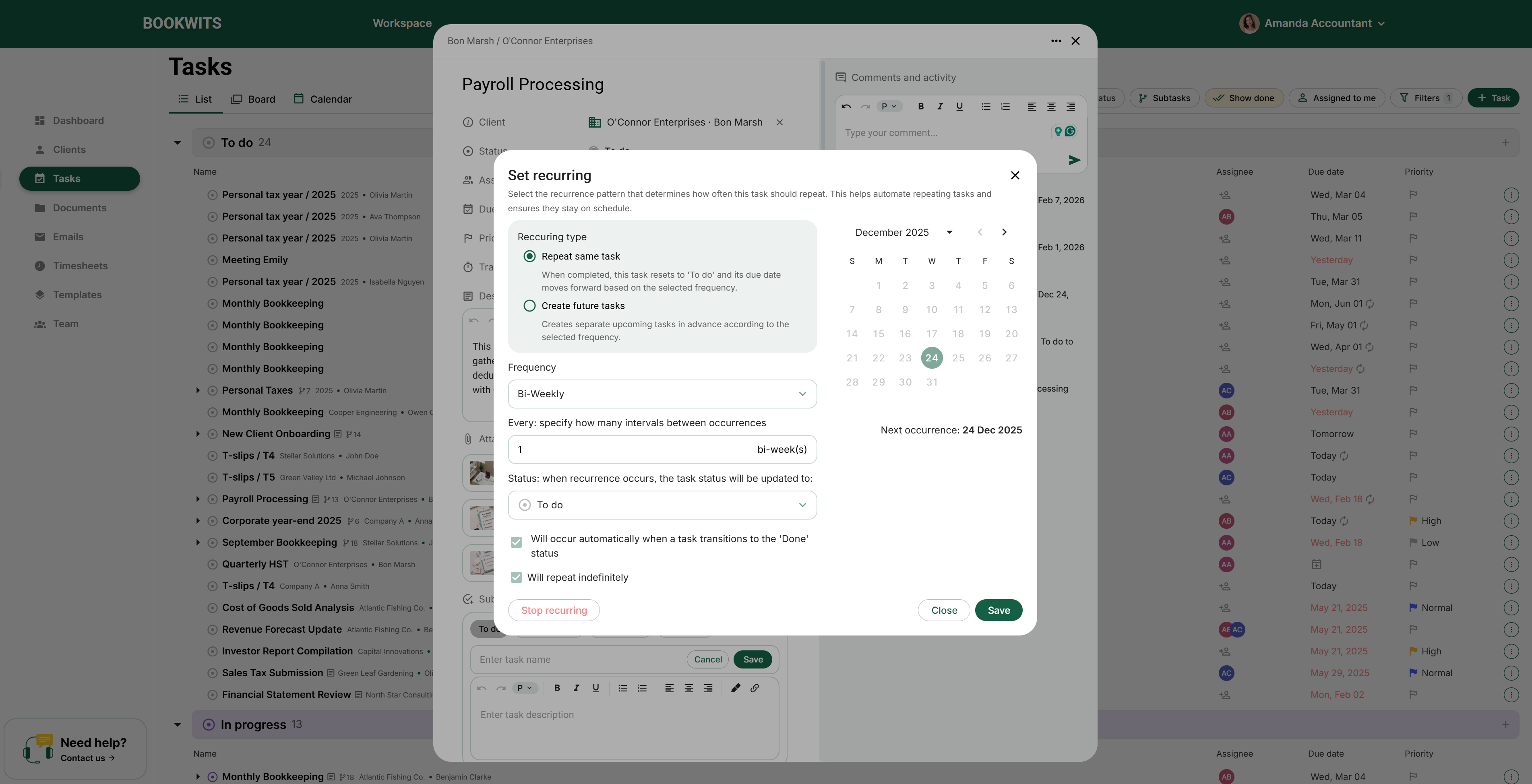
  4. Choose a recurrence pattern and a recurring type (Reset on completion vs Create upcoming tasks).
  5. Confirm and save.
Recurring due date Recurring settings

Recurring usually triggers when the task transitions to Done. You’ll typically see a “Next occurrence” date once configured.

If it’s not repeating, confirm you moved the task to Done and that recurrence settings are saved.

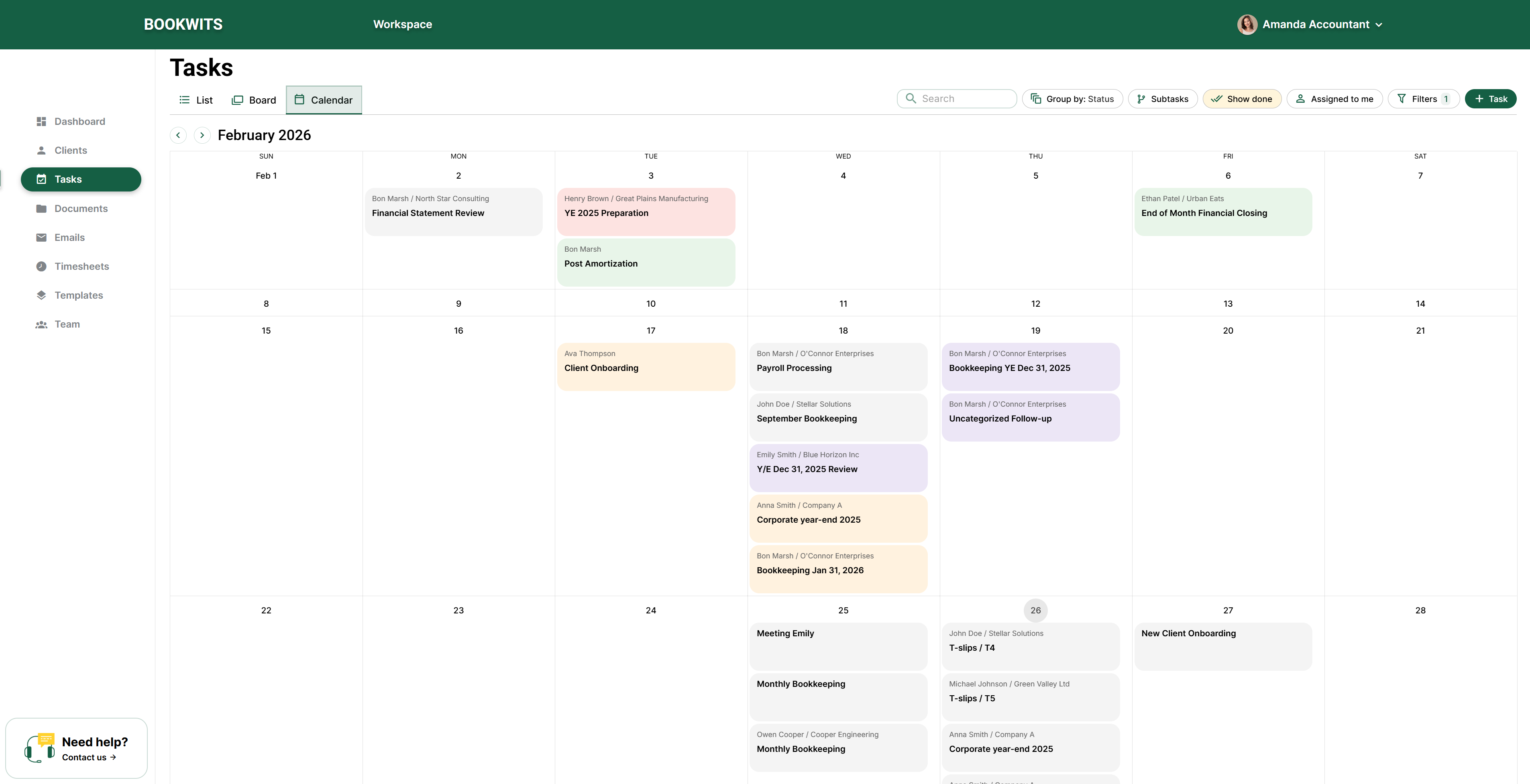
Switch views depending on how you’re planning or executing work.

  1. List: best for scanning, filtering, grouping.
  2. Board: best for workflow stages (To do → In progress → Done).
  3. Calendar: best for deadline planning and load balancing.
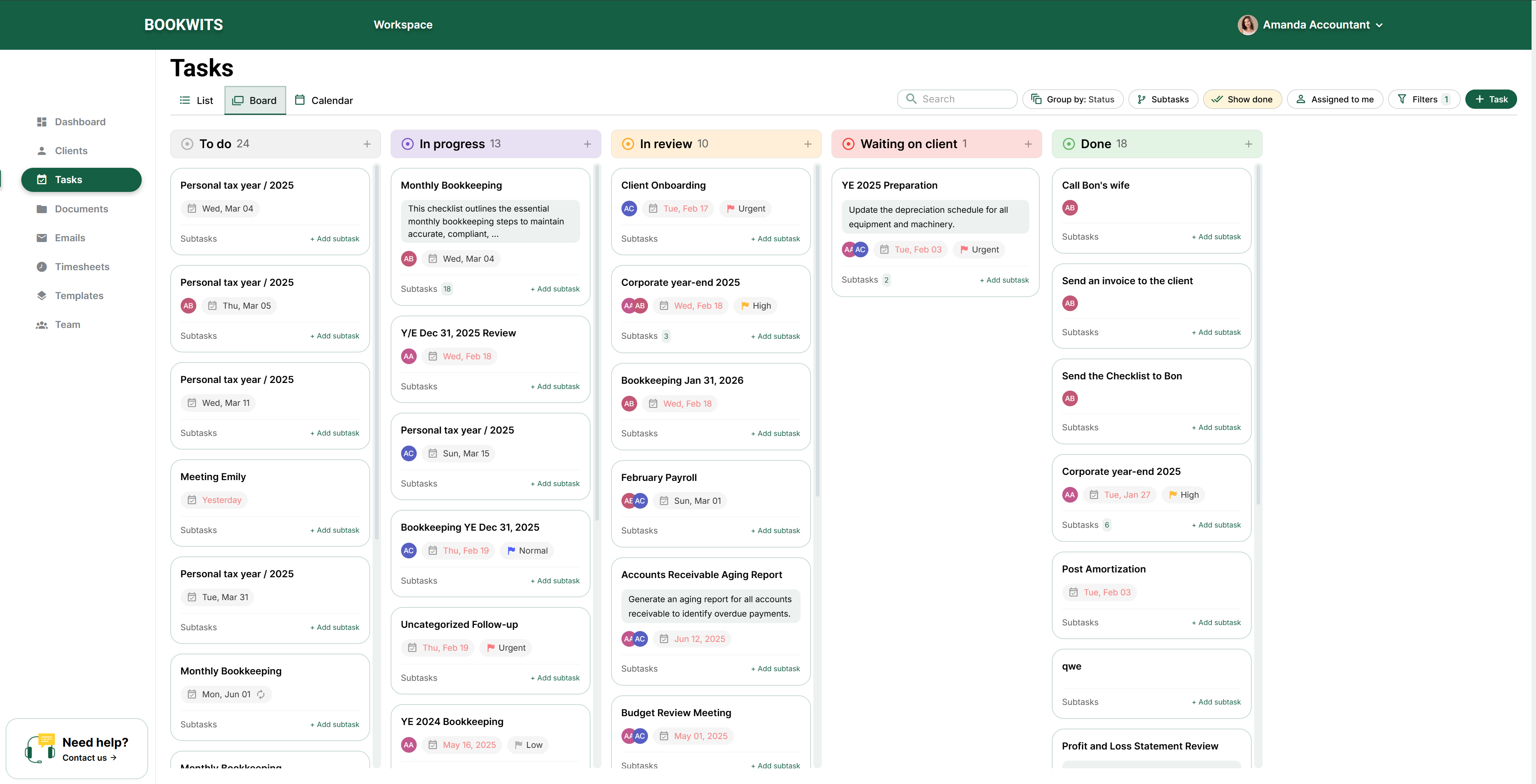
Tasks board Tasks calendar
If you’re managing a team, start in List with Group by Assignee and Due date.

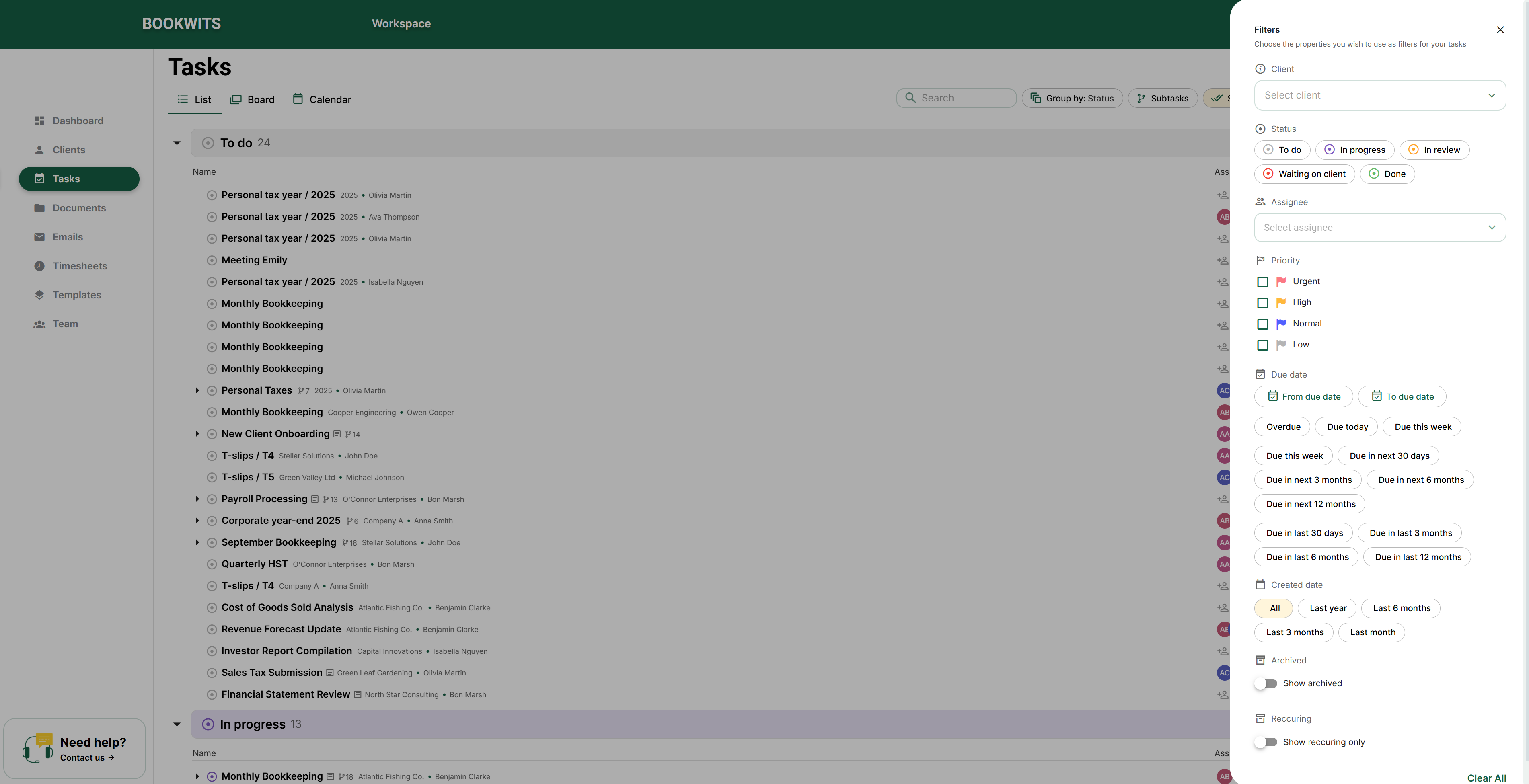
Use Group By to reorganize tasks instantly; use Filters to narrow to a specific slice of work.

  1. Group by: None, Status, Assignee, Priority, Due date, Company, Personal tax, Client.
  2. Filters: Client, Status, Assignee, Priority, Due date, Created date, Archived, Recurring.
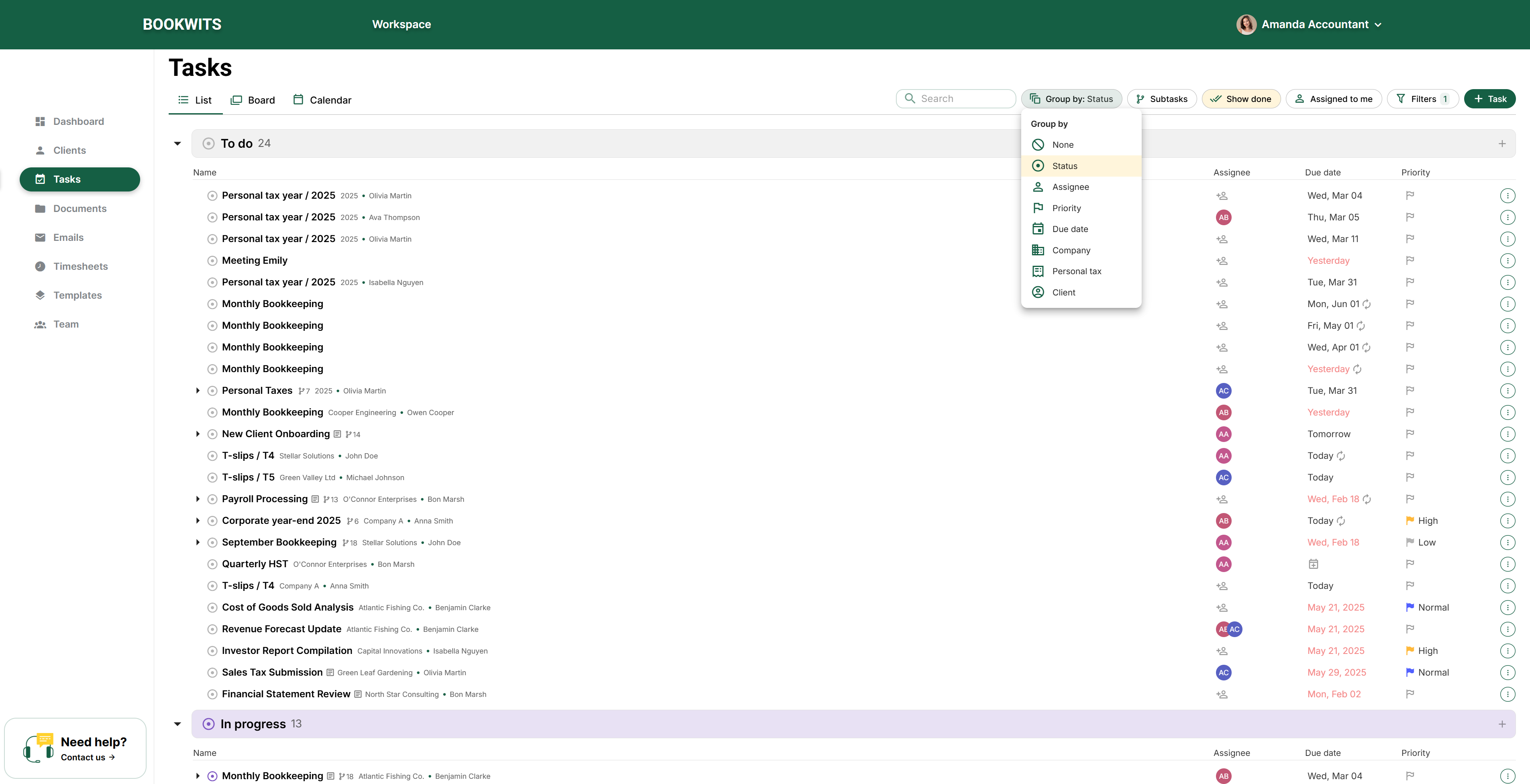
Tasks group by Tasks filters
If you “lost” a task, check whether a filter is still turned on (especially Client/Assignee/Archived).

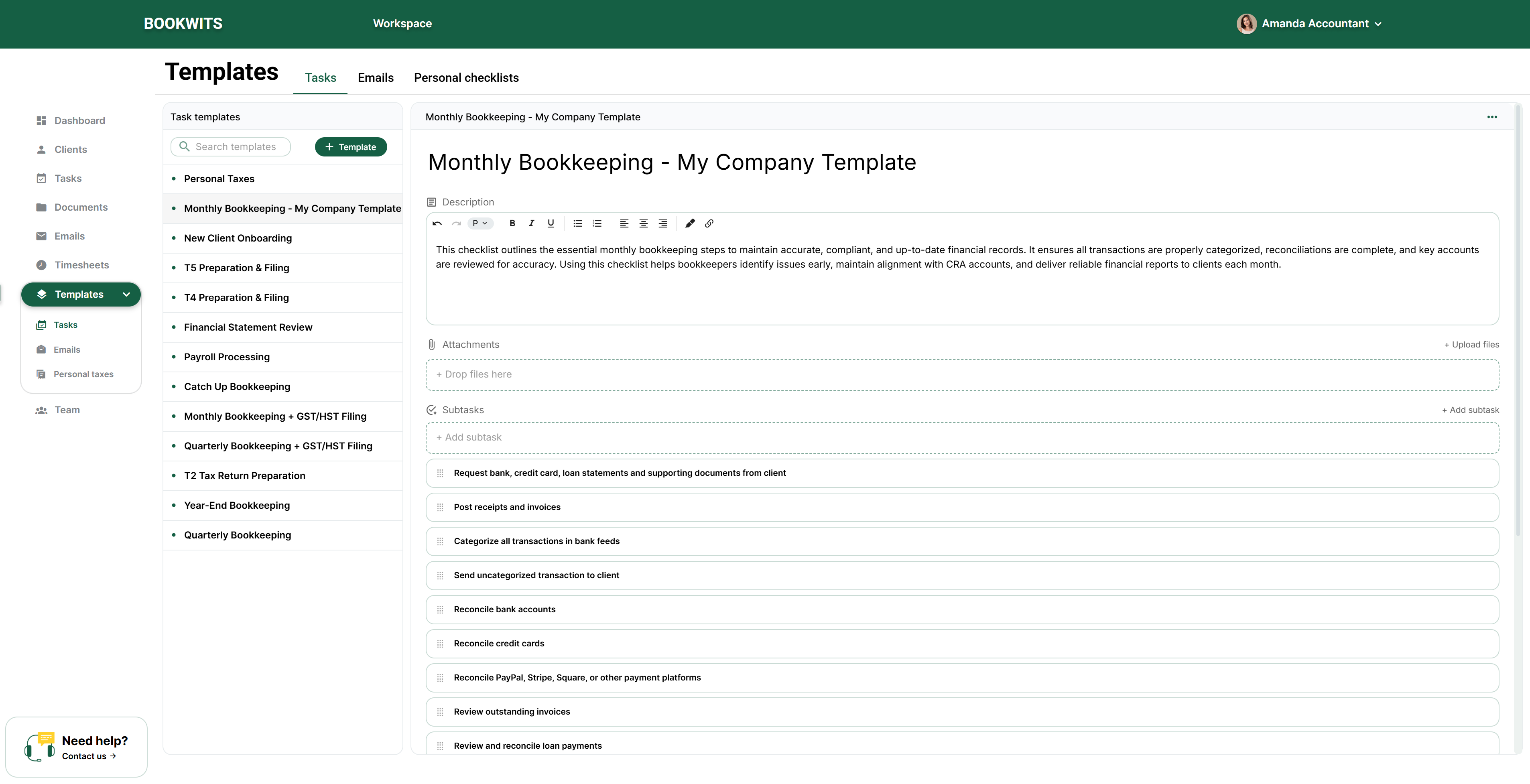
Use templates for repeatable workflows so quality is consistent and steps aren’t missed.

  1. Create from template: New Task → three dots → Create from Template → choose a template.
  2. Create a team template: Templates → Tasks → + Template → build workflow → Save.
  3. Save a task as template: Open task → three dots → Save Current as Template.
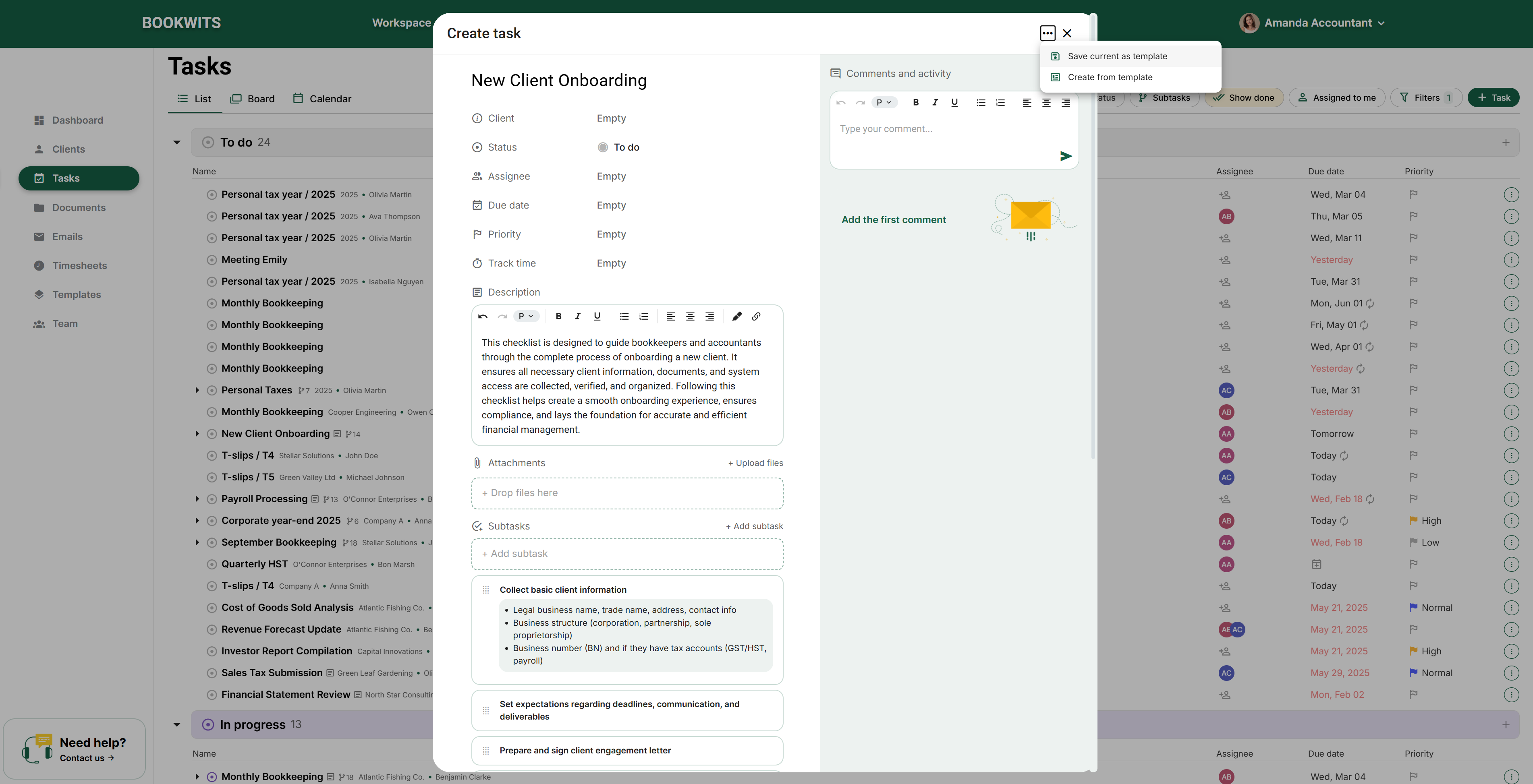
Task template Task templates
Remove client-specific names/links before saving a task as a template so it’s reusable.

Recurring Tasks (in the Due Date menu)

Recurring tasks automate repeating work and keep it on schedule without manually recreating tasks.
Where to set recurring
  1. Open the task
  2. Click Due Date
  3. Select Set recurring
Recurring type (two modes)
1) Reset on completion
When completed, the same task resets to “To do” and the due date moves forward.
Best for: a single repeating task that cycles forward (simple recurring routines).
2) Create upcoming tasks
Creates separate upcoming tasks in advance according to the selected frequency.
Best for: seeing future workload in List/Calendar and planning capacity.
Recurrence typically triggers when a task transitions to Done. If a recurring task “isn’t repeating,” confirm you moved it to Done.

Views: List, Board, Calendar

List View Best for scanning many tasks quickly, filtering, and grouping.

Board View Best for visual workflow (To do → In progress → Done), standups, and moving work through stages.

Calendar View Best for deadline planning, seeing workload by day/week/month, and catching overload early.
Group By (instant organization): None, Status, Assignee, Priority, Due date, Company, Personal tax, Client.
Most useful day-to-day: Assignee (workload) and Due date (deadlines).

Templates (standardize repeat workflows)

Templates are for workflows you repeat. They standardize quality and reduce missed steps.
Create a task from a template
  1. Create a new task
  2. Click the three dots (top-right)
  3. Select Create from Template
  4. Choose a template from the library

Create your own Task Template (team templates)
  1. Go to Templates → Tasks (nav bar)
  2. Click + Template
  3. Build the workflow (subtasks, notes, defaults)
  4. Save
Customize a Bookwits template once, then save it as a team template so everyone follows the same process.
Save an existing task as a template
  1. Open the task
  2. Click the three dots
  3. Select Save Current as Template
Beginner tip: remove client-specific names/links before saving so it’s reusable.

Troubleshooting (Common beginner issues)

“I can’t find a task I created”
  • Check whether a filter is still enabled (Client / Assignee / Archived).
  • Switch Group by to None to confirm it isn’t collapsed in a group.
  • Search by a unique keyword in the title (if your UI supports it).
“My recurring task isn’t repeating”
  • Confirm you moved it to Done (common trigger).
  • Open the task and confirm the recurrence settings are saved.
  • Check the Next occurrence date.
“Subtasks are messy / too many lines”
  • Use Subtasks Mode: Closed for minimal, Opened for step-by-step execution.
  • Use Separate when subtasks are basically “real tasks” with owners/due dates.

Glossary (Plain English)

Task: One piece of work with an owner and a deadline.
Subtask: A step inside a task that can have its own assignee/due date.
Activity: The audit trail of what changed and when.
@Mention: Notifies a teammate (typically by email) from a comment.
Recurring: Automation that repeats a task on a schedule.
Want help setting up your Tasks workflow? Book a demo and we’ll help you set up views, grouping, templates, and recurring routines so your team stays on track during tax season and beyond.