Back to Resources
Video Walkthrough (Emails Module)
If you have an email walkthrough video, drop it here. This is ideal for showing
setup, templates, smart fields, and reminders.
 Coming soon...
One mailbox, two interfaces
Bookwits connects to your email provider so you can work from Bookwits without
losing the “source of truth” in Gmail/Outlook.
Coming soon...
One mailbox, two interfaces
Bookwits connects to your email provider so you can work from Bookwits without
losing the “source of truth” in Gmail/Outlook.
HOW TO USE BOOKWITS
EMAILS
BEGINNER
Emails Module Guide
The Emails module lets you manage client email communication inside Bookwits while staying connected to your real mailbox. Use templates, signatures, and smart fields to send consistent, personalized messages faster.
How to Use Bookwits
10 min read
What the Email feature does
In practice
- If you send, archive, or delete an email in Bookwits, the same action is applied in your connected Gmail/Outlook mailbox.
- If you make changes in Gmail/Outlook, those changes are reflected when viewing emails in Bookwits.
Beginner explanation: Bookwits isn’t a separate inbox that copies emails
into its own world—your email provider remains the mailbox, and Bookwits is
the workspace view.
Supported providers
Gmail
Outlook (Microsoft)
Currently, Bookwits supports
one connected email per user.
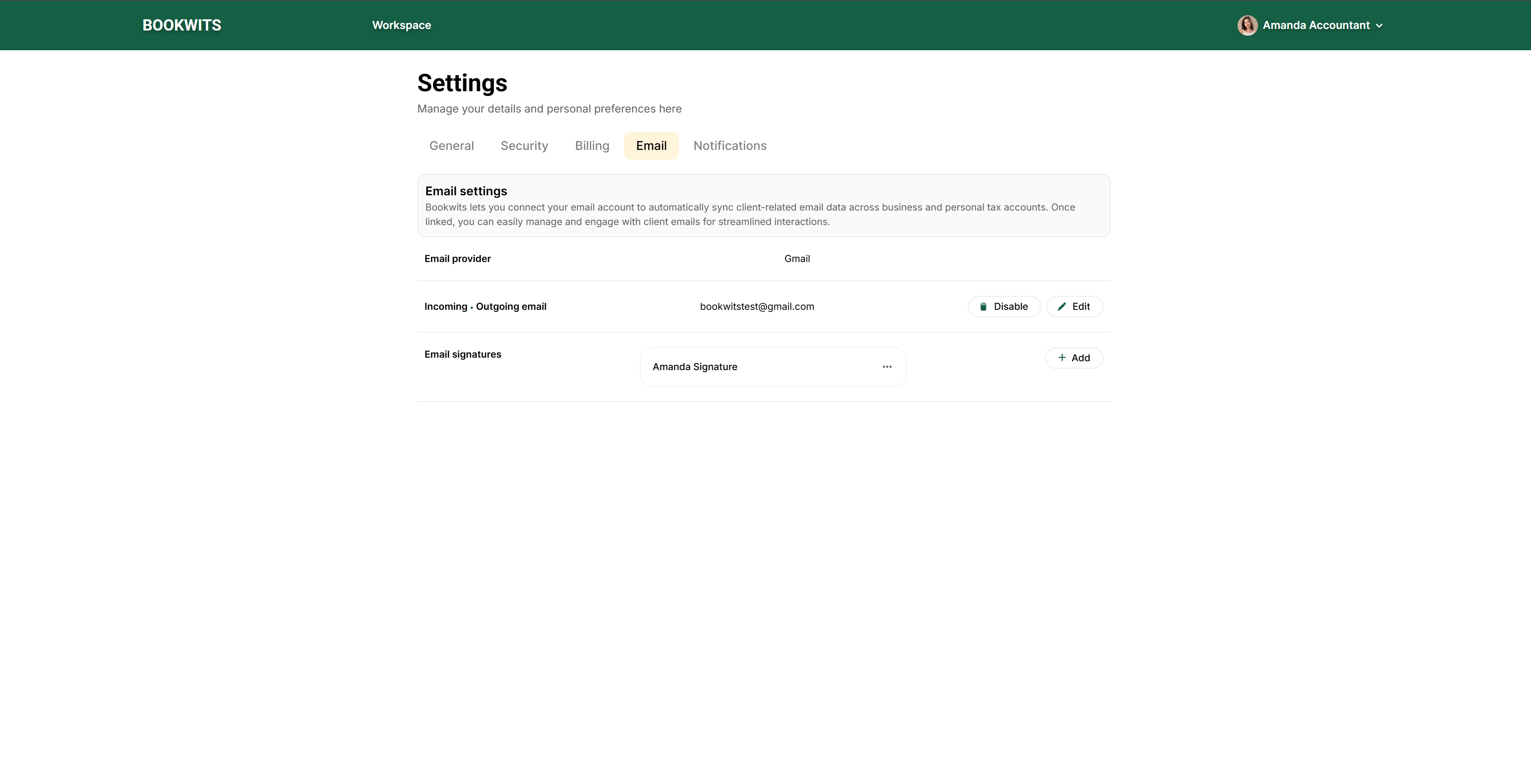
Connect your email to Bookwits
Connecting is done through your provider’s secure login/authorization flow.
Steps
- Go to the Emails tab.
- Click Configure email settings.
- Choose Gmail or Outlook.
- Sign in and approve access (redirected through the provider).
- Return to Bookwits—your mailbox appears inside the Emails module.
Manage or change your connected email
If you need to switch accounts or disconnect:
- Go to Settings → Emails
- Change which email is connected or disable the connection
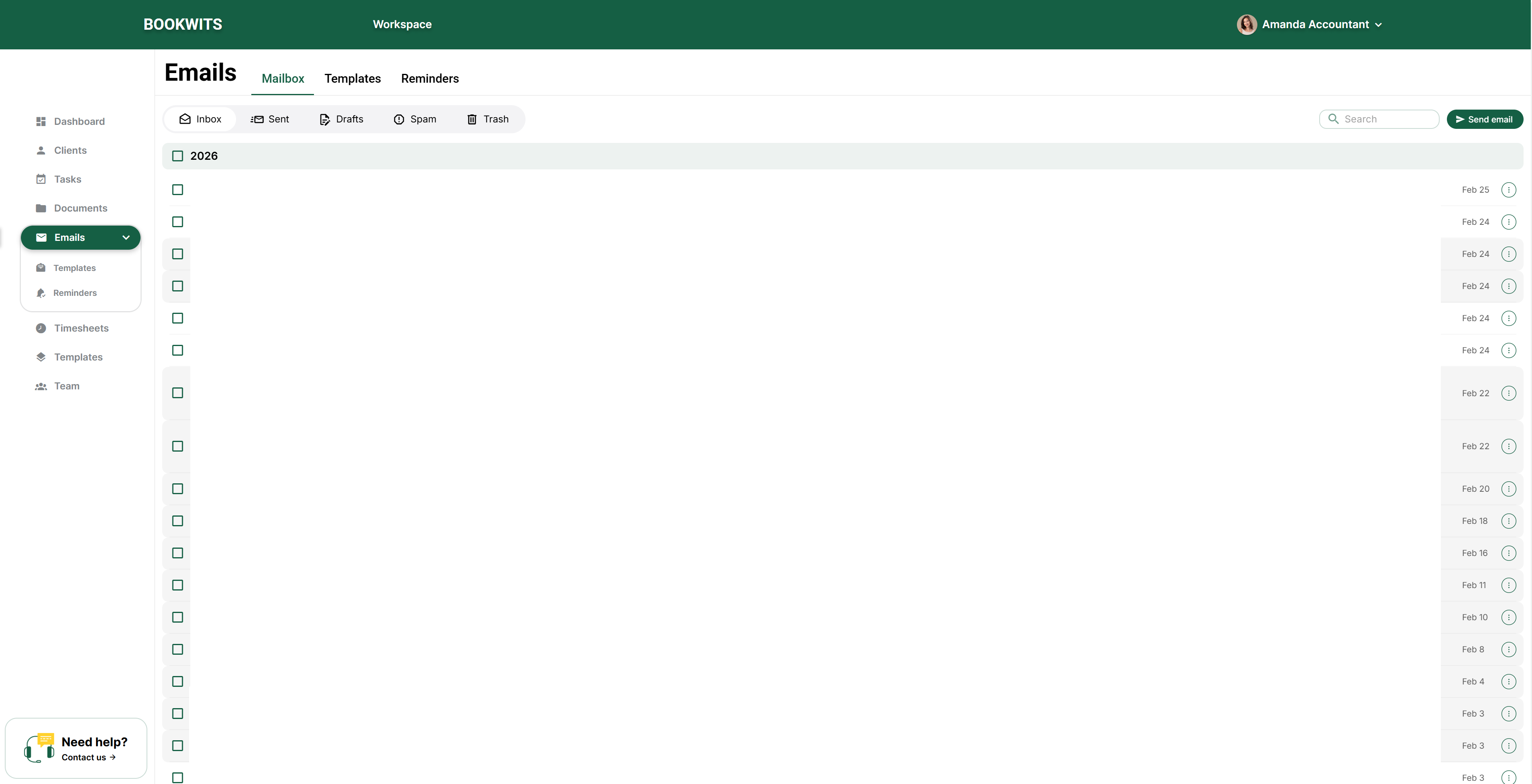
Inbox actions (sync behavior)
When you perform mailbox actions in Bookwits—like archive or delete—those
actions update the same email in Gmail/Outlook because Bookwits is acting on
your mailbox directly.
Archive
Delete
Other mailbox actions
If you “clean your inbox” in Bookwits, it stays clean in your provider too.
Compose features (what you can do)
Bookwits Emails supports core day-to-day workflows:
Convert an email into a task
- Reply
- Reply all
- Forward
- Write and send new emails
- Work with threads/conversations (provider-dependent)
Turn any email into a task so follow-ups don’t get lost.
- Open the email.
- Click the three dots menu.
- Choose Convert to Task.
- Assign it, add a due date, and save.
This is the fastest way to stop client requests from living forever in your
inbox.
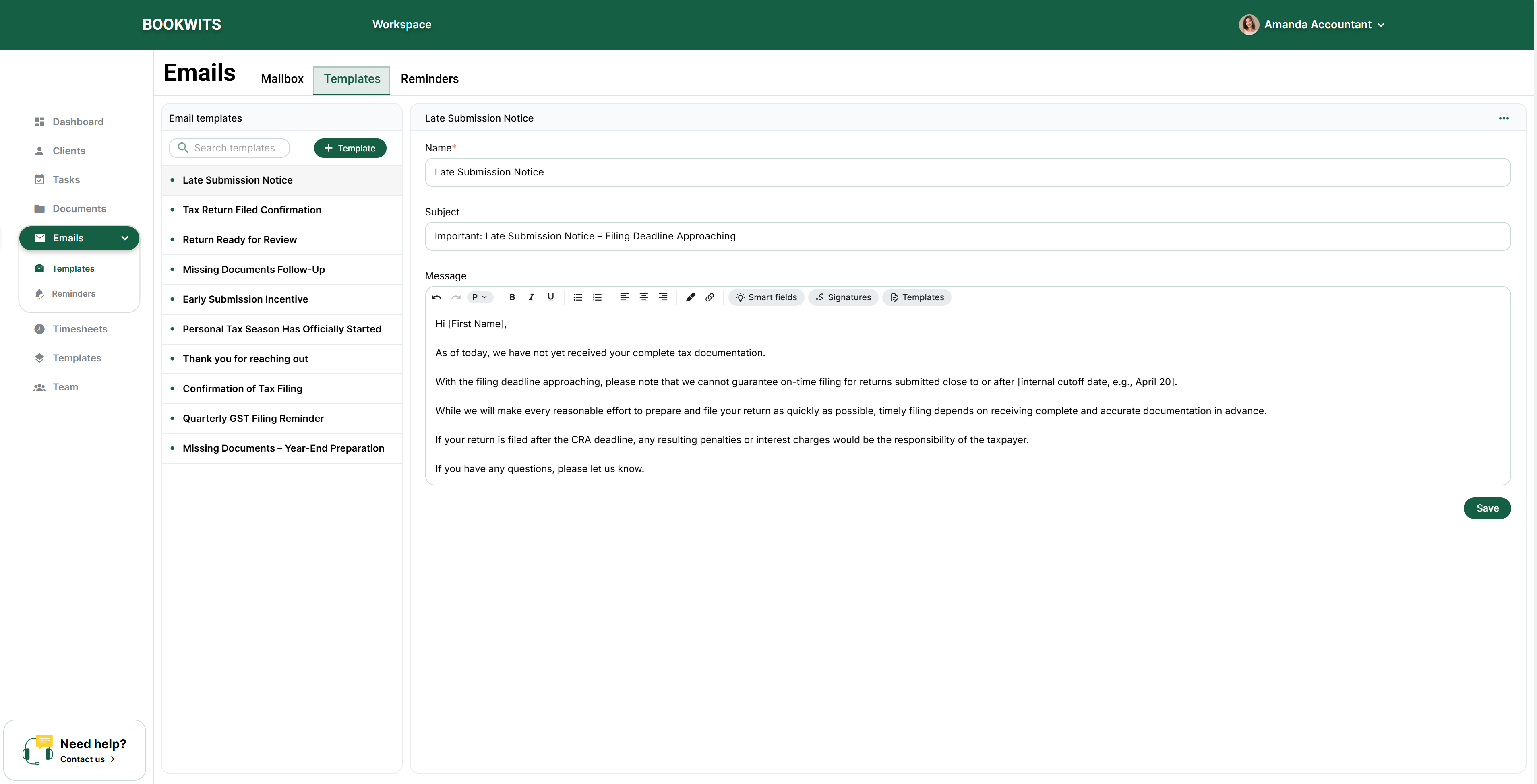
Email Templates (write faster, stay consistent)
Templates let you reuse common messages: document requests, onboarding emails,
reminder nudges, year-end outreach, and more.
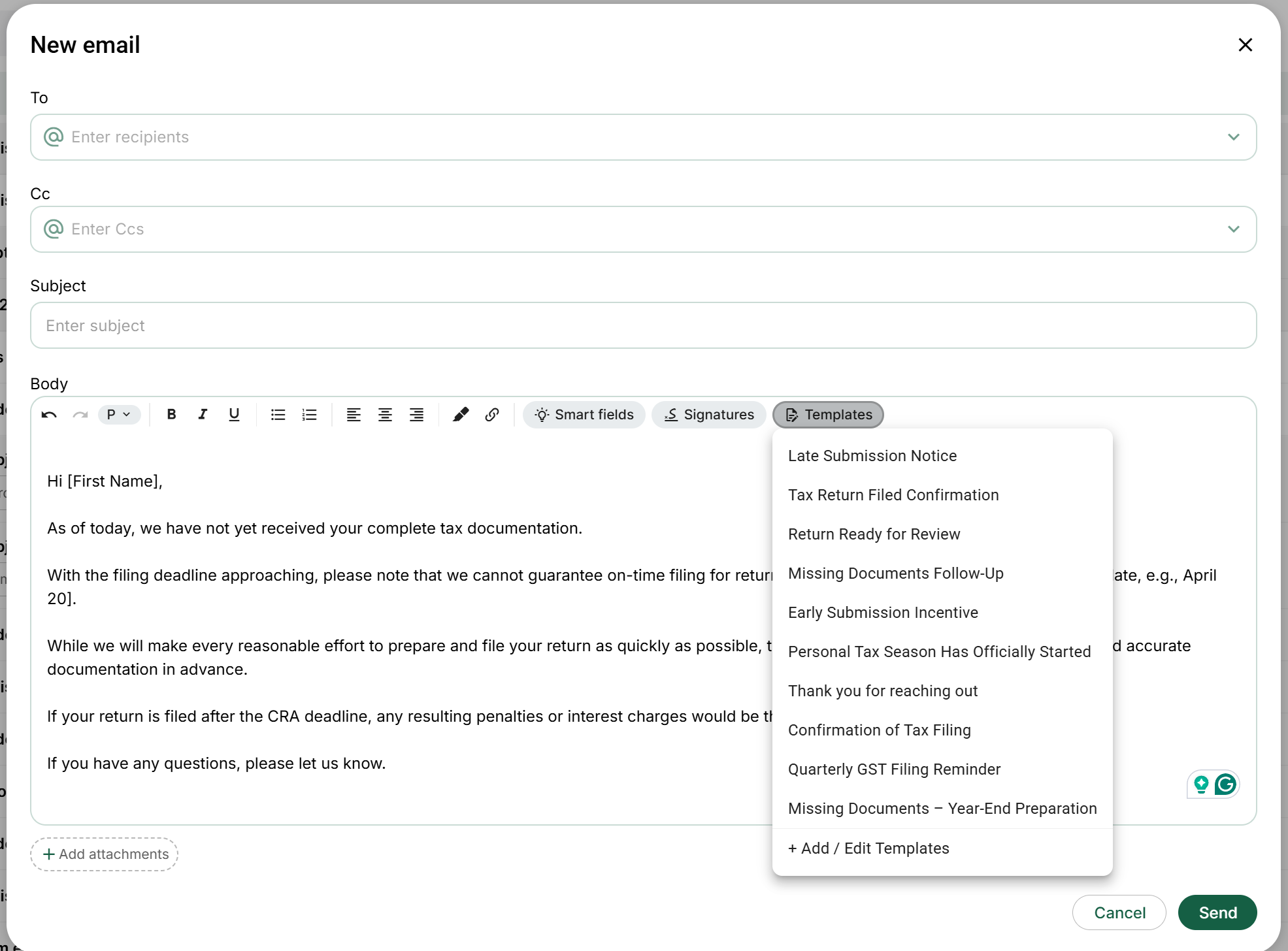
Apply a template
- Start composing (new email or reply).
- Click Template.
- Select the template you want.
- Edit if needed, then send.
Create / manage templates
Build a library so everyone in your firm sends consistent messaging.
Starter template list (5–10)
- Missing documents
- Upload to portal
- Year-end kickoff
- Personal tax season checklist
- Follow-up after 7 days
Smart Fields (dynamic placeholders)
Smart Fields let you write one email that automatically personalizes itself
using Bookwits data.
Common Smart Fields (examples)
Client first name
Client last name
Client full name
Company name
Your full name
Example template snippet
Hi {{Client first name}},
Just a reminder to upload your documents for {{Company name}}…
Why it matters: you can send bulk, personalized emails without manually
editing every message.
Signatures (apply automatically)
Create and manage signatures, then apply them automatically (or select one
when composing, depending on your UI).
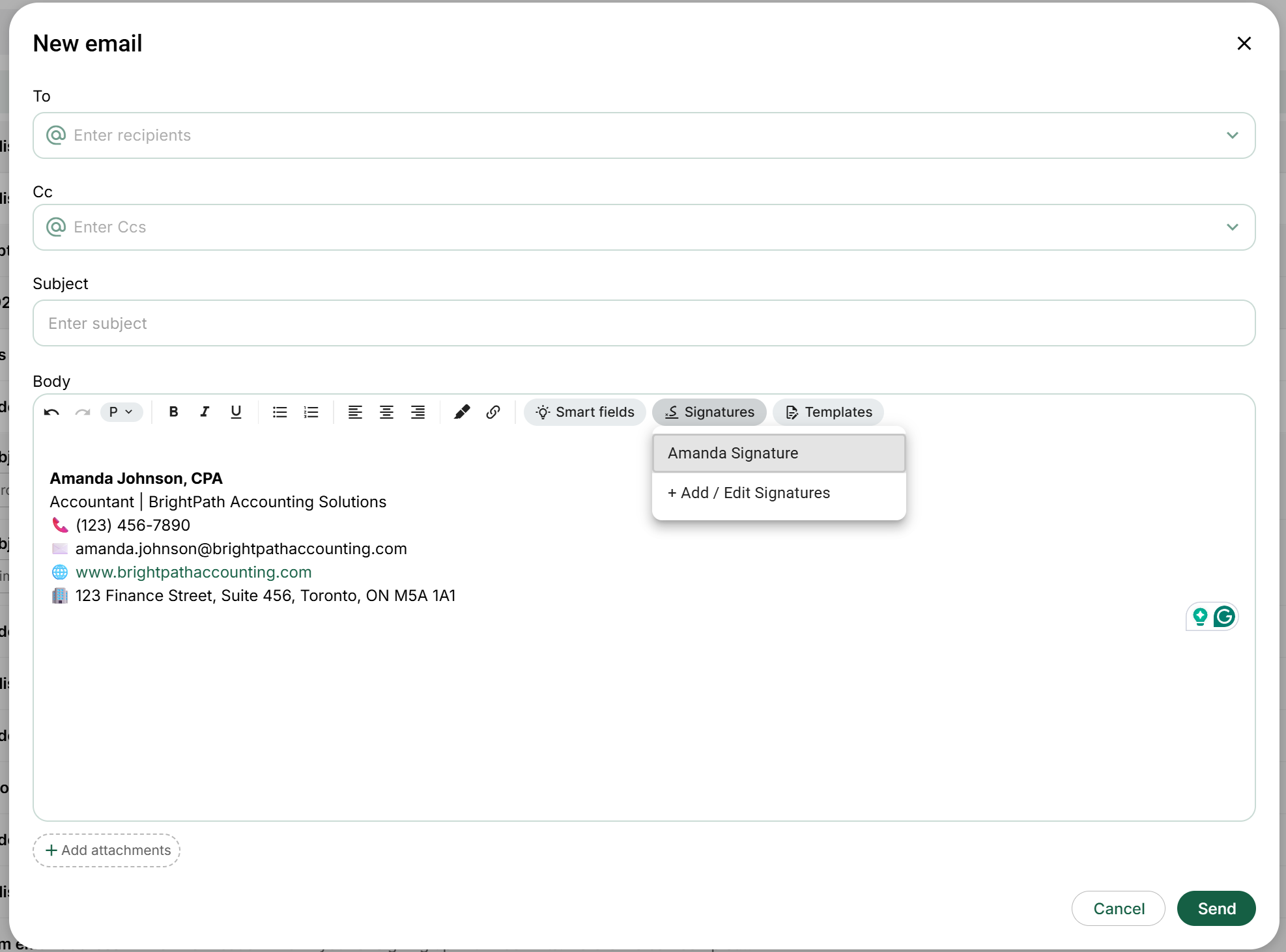
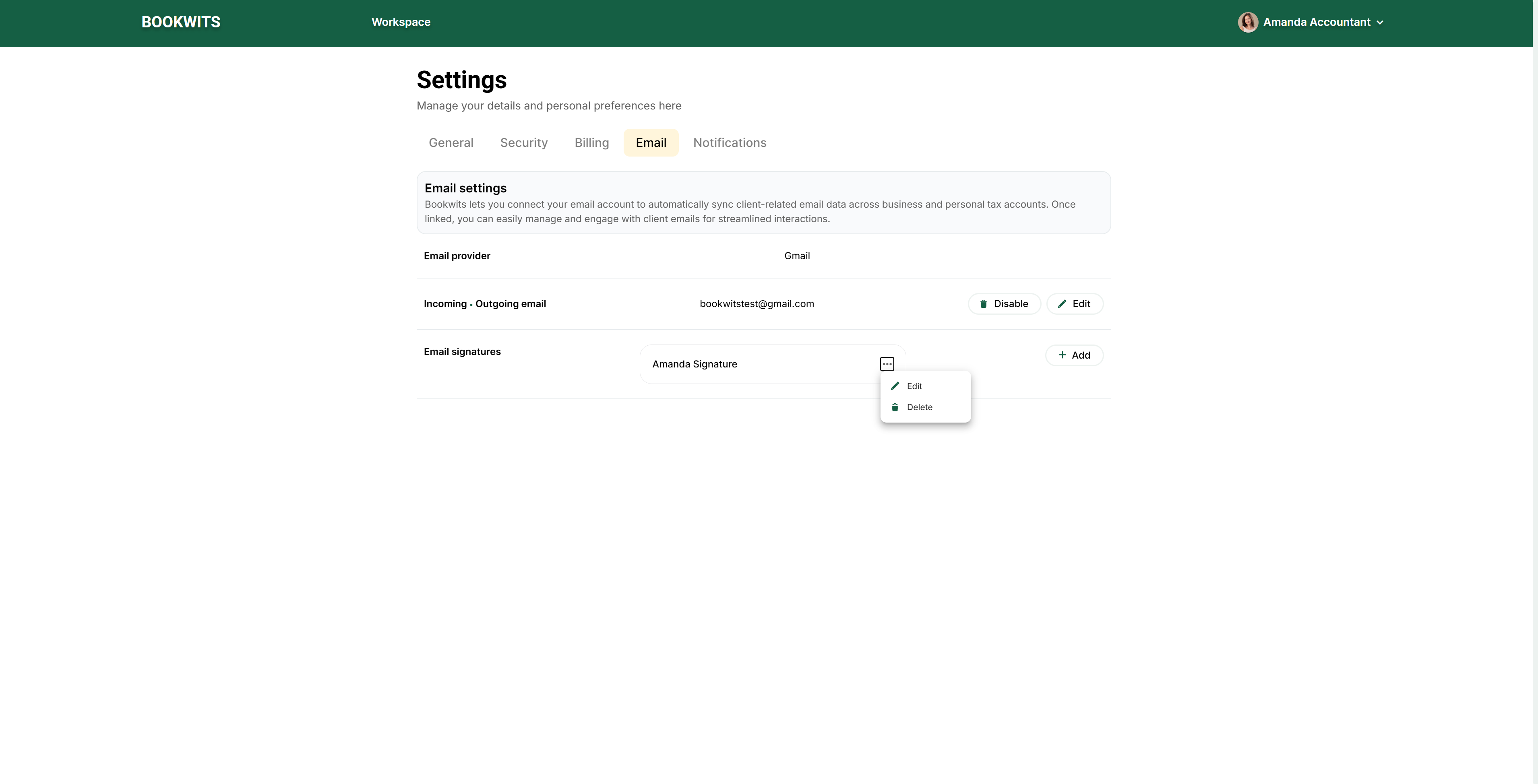
Where to set it up
- Go to Settings → Emails
- Create/configure your signature(s)
- Compose an email to confirm the signature behavior
Email Reminders (scheduled emails)
Schedule emails to go out later—one-time or recurring—so clients get
consistent follow-ups without you manually sending them.
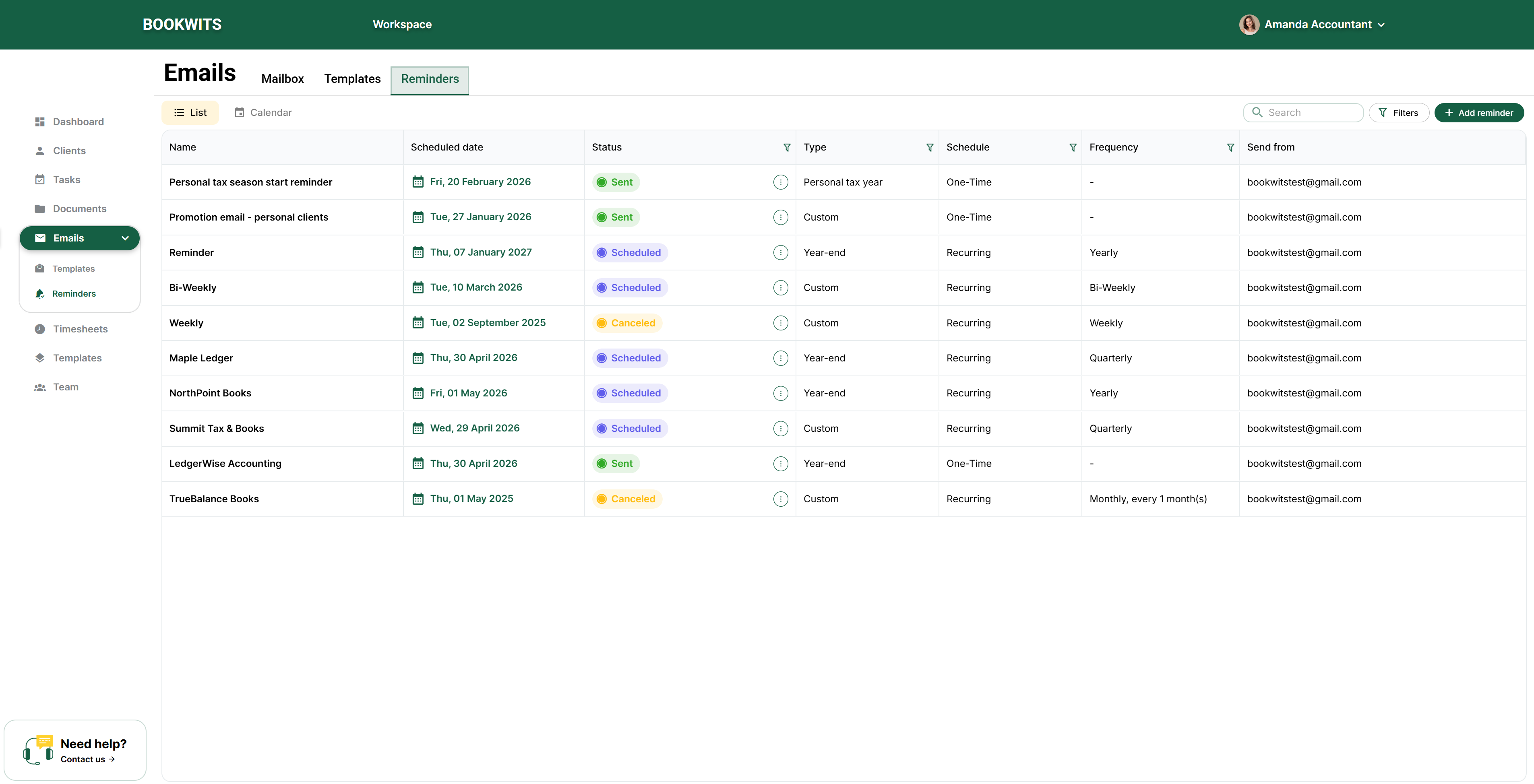
What a reminder includes
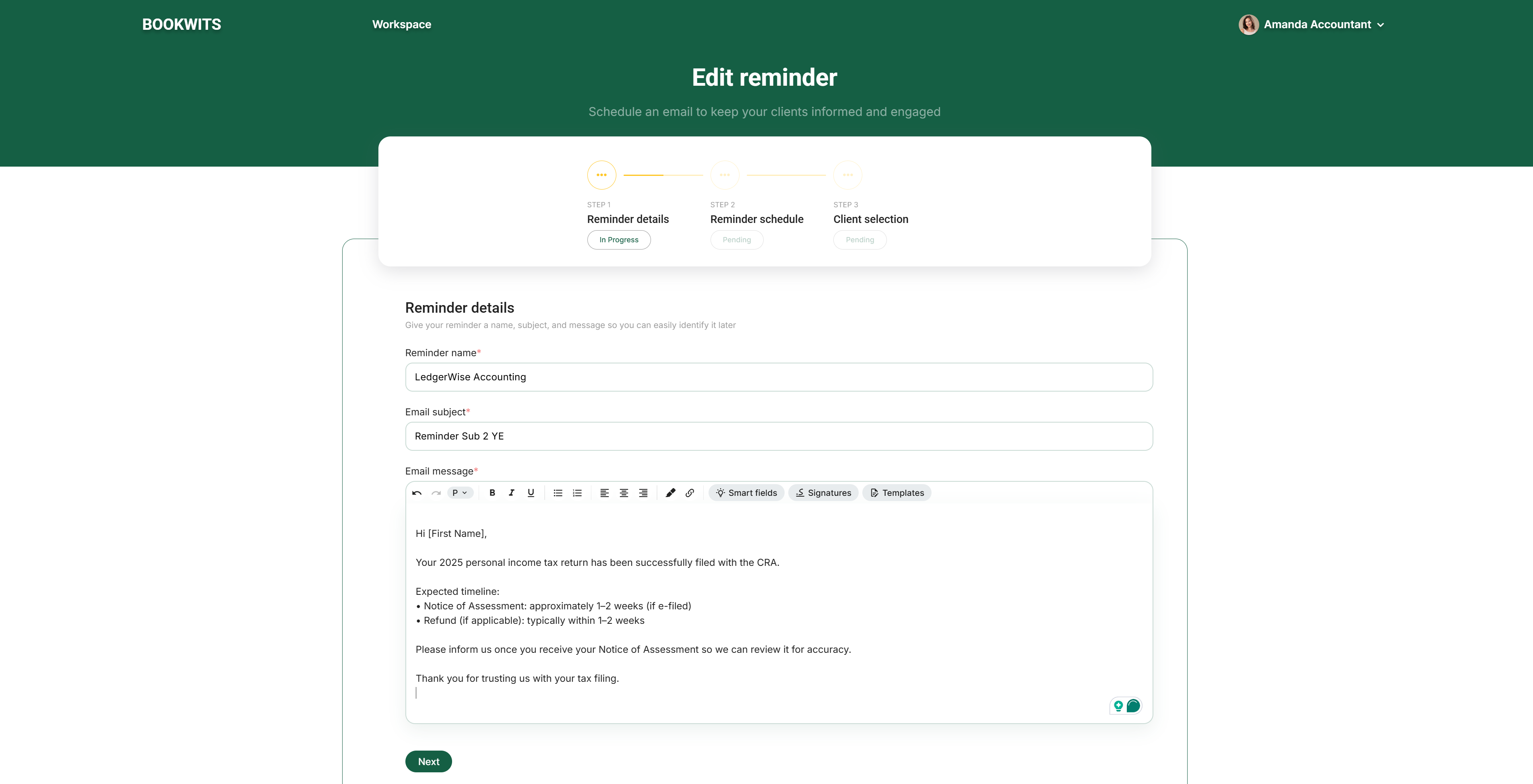
- Reminder name
- Email subject
- Email message/body (supports templates + smart fields)
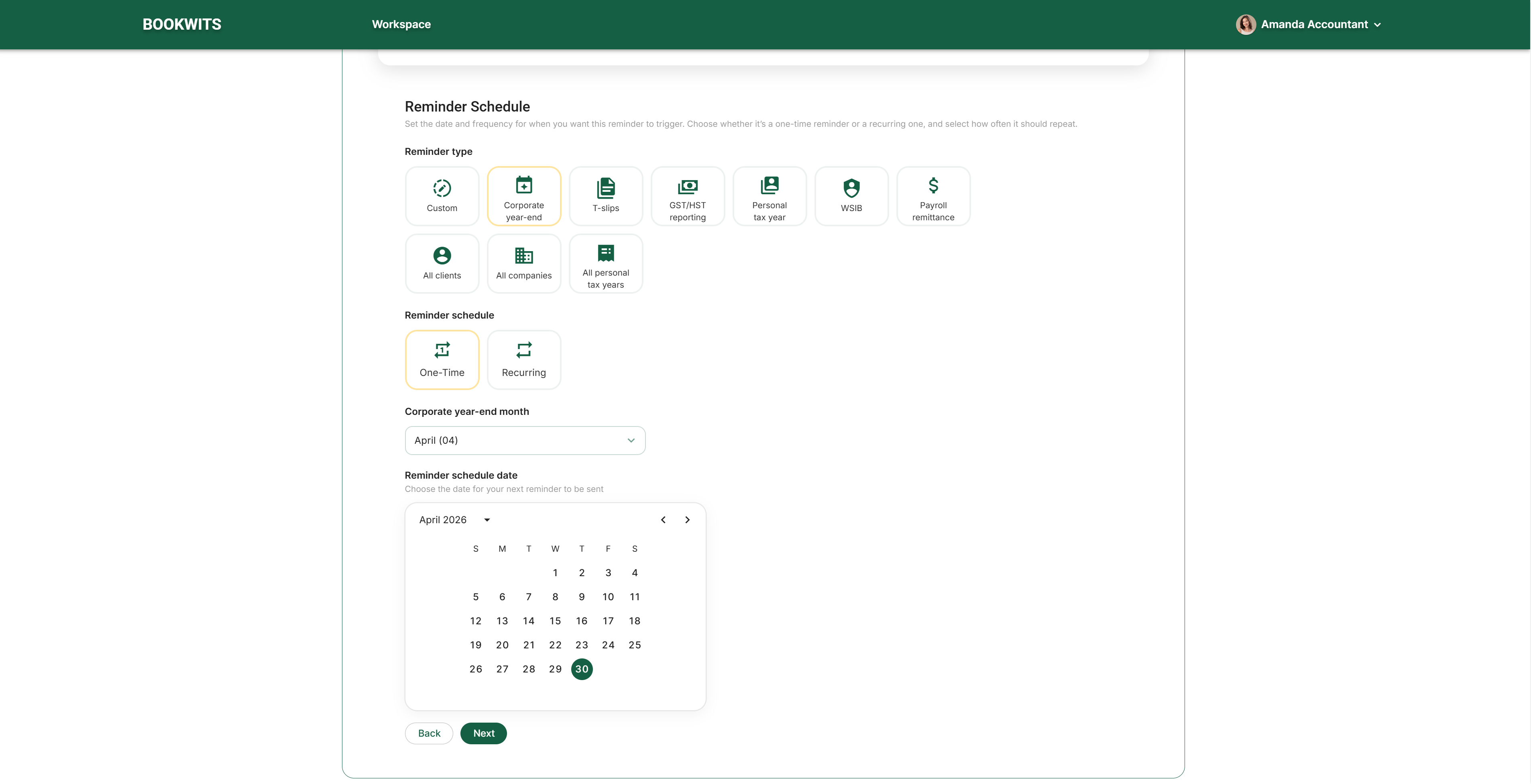
- Scheduled date
- Type (Custom / Corporate year-end / Personal tax year / etc.)
- Schedule (One-Time or Recurring)
- Frequency (if recurring)
- Send from (your connected email)
How the reminder builder works (3 steps)
1
Reminder details
Name, subject, message body (templates + smart fields)
2
Reminder schedule
One-Time or Recurring, pick date, choose frequency
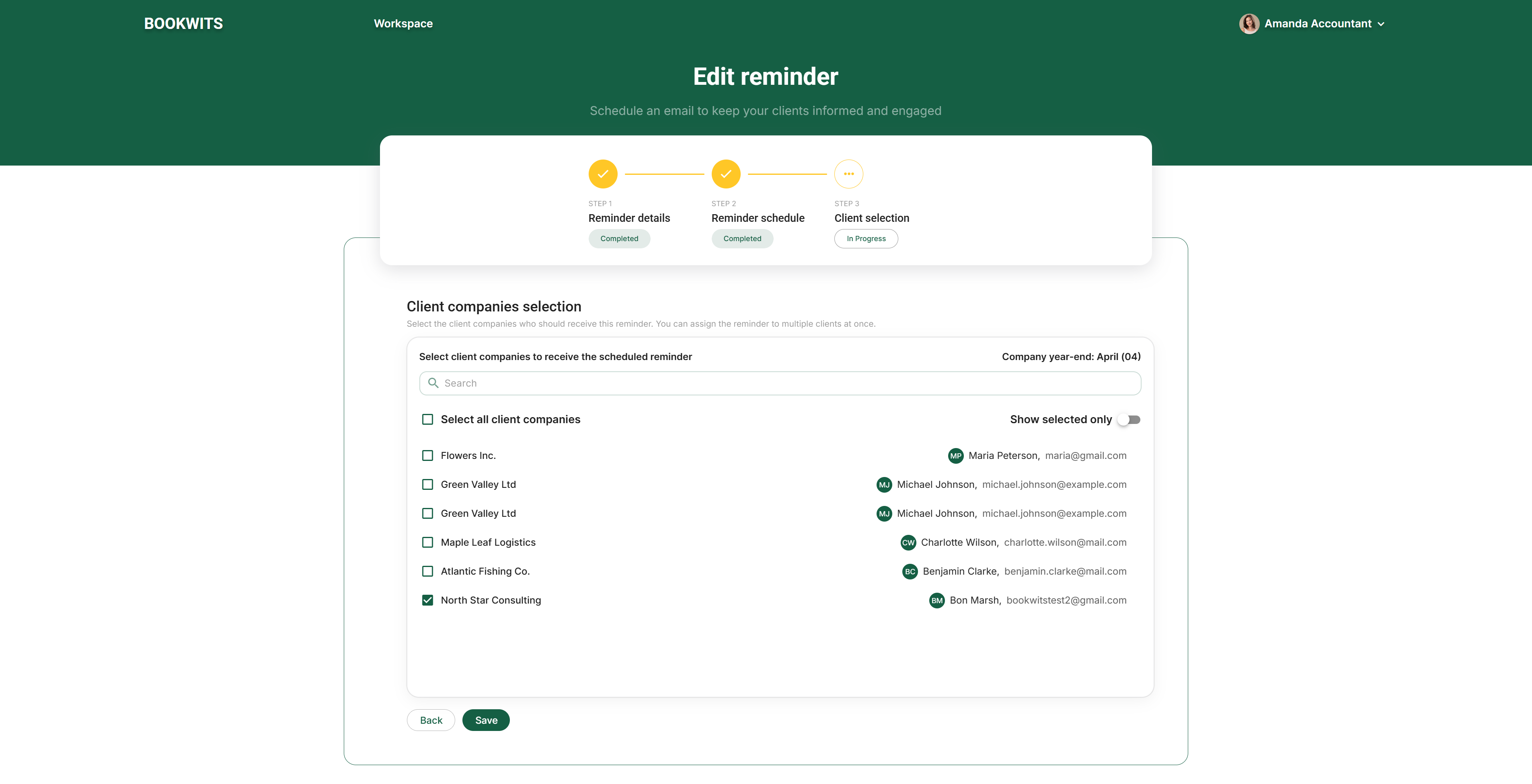
3
Client selection
Select recipients (supports search, select all, show selected only)
Start with one reminder that saves immediate time: “Personal tax season
start reminder” (One-Time). Then add recurring ones like “Quarterly GST/HST
reminder.”
Emails inside the Client Portal (client-specific view)
From the Client Portal context, you can view emails tied to the selected
client and their contacts.
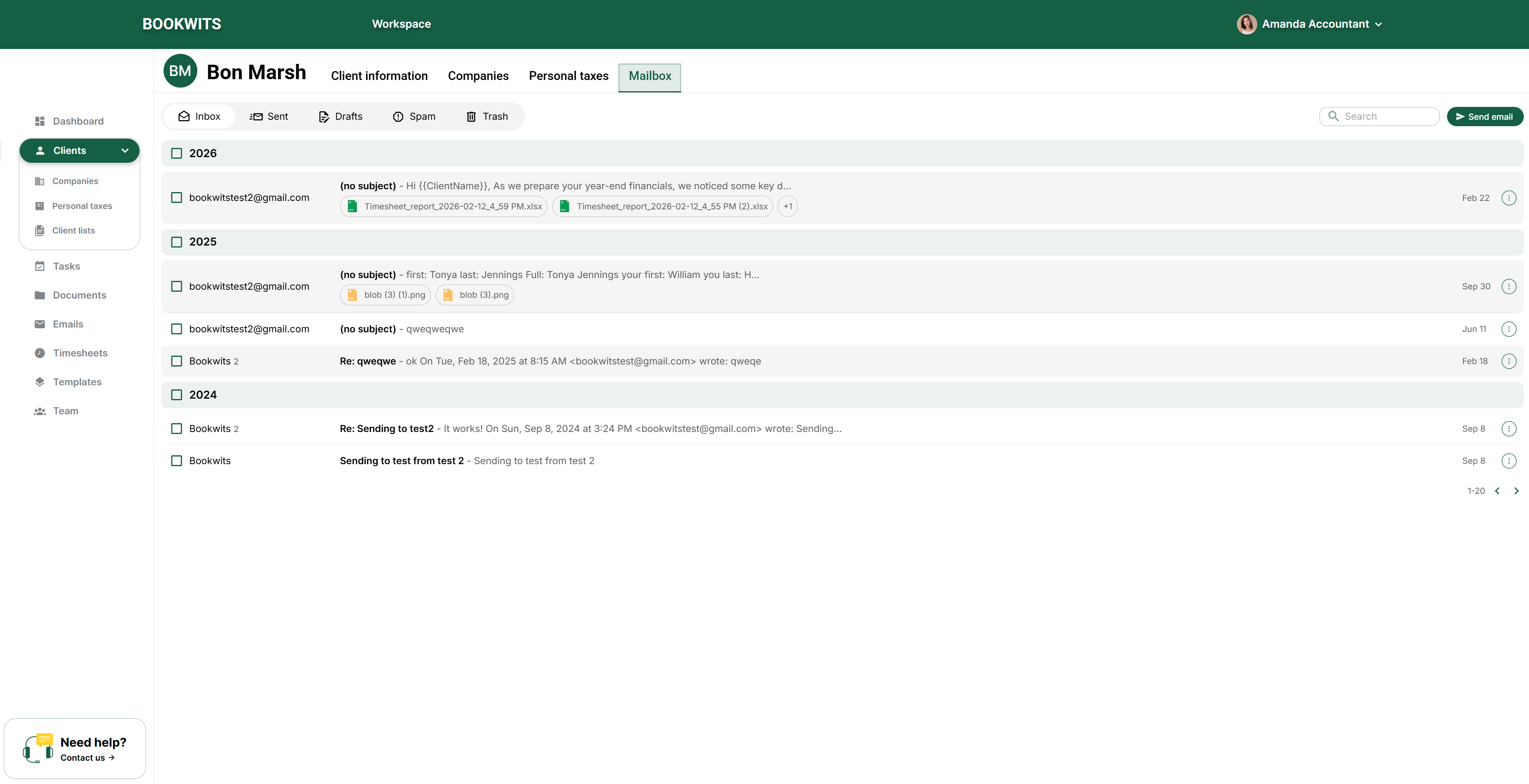
When you’re in a client profile, you don’t need to search your entire
inbox—Bookwits can show the emails related to that client/contact context.
Security (high-level)
- Connection is via secure sign-in with Gmail/Outlook (provider authorization).
- Emails are acted on directly in your mailbox (actions reflect in Gmail/Outlook).
- Platform messaging emphasizes secure handling of client data and communications.
Note (storage wording)
If you have a specific statement like “we don’t save any email in our
database…”, paste it and you can include it here verbatim.
Quick “Beginner Best Practices”
- Convert actionable emails into tasks immediately.
- Use templates for anything you’ve typed more than twice.
- Use smart fields for bulk personalized outreach.
- Set reminders for recurring client communications (GST/HST, year-end, tax season).
The goal is simple: keep client communication attached to your workflow, not
buried in an inbox.
Want help setting up your email workflows?
Book a demo and we’ll help you connect your mailbox, create templates +
signatures, and set up reminders so follow-ups run automatically.