Back to Resources
Video Walkthrough (Document Templates)
The most useful walkthrough is: how to create company and personal tax document
templates, build folder trees, and manage active vs inactive templates.
 Coming soon...
HOW TO USE BOOKWITS
DOCUMENT TEMPLATES
BEGINNER
Document Templates
Document Templates live inside Templates → Documents. They let you define a default folder structure that is automatically created when you add a new Company or a new Personal Tax Year, so documents stay organized from the start.
How to Use Bookwits
6 min read
Set the folder structure once, reuse it every time
When an active document template exists, Bookwits automatically applies its
folders and subfolders when a new company or personal tax year is created.
Where to find Document Templates
Document Templates live in:
Templates → Documents.
What you’ll see in this module
You can manage reusable folder structures for two record types:
Company document templates
Personal tax document templates
Folders
Subfolders
Template status
Use this area to create the exact document structure your team wants to use
by default.
What Document Templates are for (plain English)
Document Templates help you:
- Standardize folder structures across all client records
- Avoid manually building the same folders again and again
- Keep accounting, payroll, tax, and support files organized
- Reduce the risk of missing important document categories
A document template is linked to
- A specific template type
- Either Company or Personal tax
- A reusable folder tree your team controls
The 2 types of Document Templates
1. Company document template
Defines the default folder structure for company records. When a new company
is created, this template automatically generates organized folders and
subfolders for items like accounting files, payroll records, and tax-related
documents.
Accounting files
Payroll records
Tax-related documents
2. Personal tax document template
Defines the default folder structure for personal tax years. When a new
personal tax record is created, this template automatically sets up folders
and subfolders for items like T-slips, receipts, and supporting documents.
T-slips
Receipts
Supporting documents
How the automation works
1
Create or edit the template
Build the folder tree you want Bookwits to use by default.
2
Keep the template active
Only active templates are used during company or personal tax year
creation.
3
Create a new Company or Personal Tax Year
Bookwits creates the main folder for that new record and then applies the
matching template structure inside it.
4
Folders are ready immediately
Your team can start uploading documents into a clean, consistent structure
right away.
Building the folder structure
Templates support nested folders, so you can build a structure with folders
and subfolders that matches how your firm works.
Example company structure
Accounting files
Organize bookkeeping and accounting records.
Banking & Transactions
Accounts Receivable
Accounts Payable
Payroll records
Store employee and payroll processing files.
Employee Information
Payroll Processing
Remittances
Tax-related documents
Keep returns, notices, and filings together.
Corporate Taxes
T2 Returns
Notices of Assessment
Keep folder names practical and specific. Clear names make it easier for
your team and clients to know where documents belong.
Step 1: Create a new template
Steps
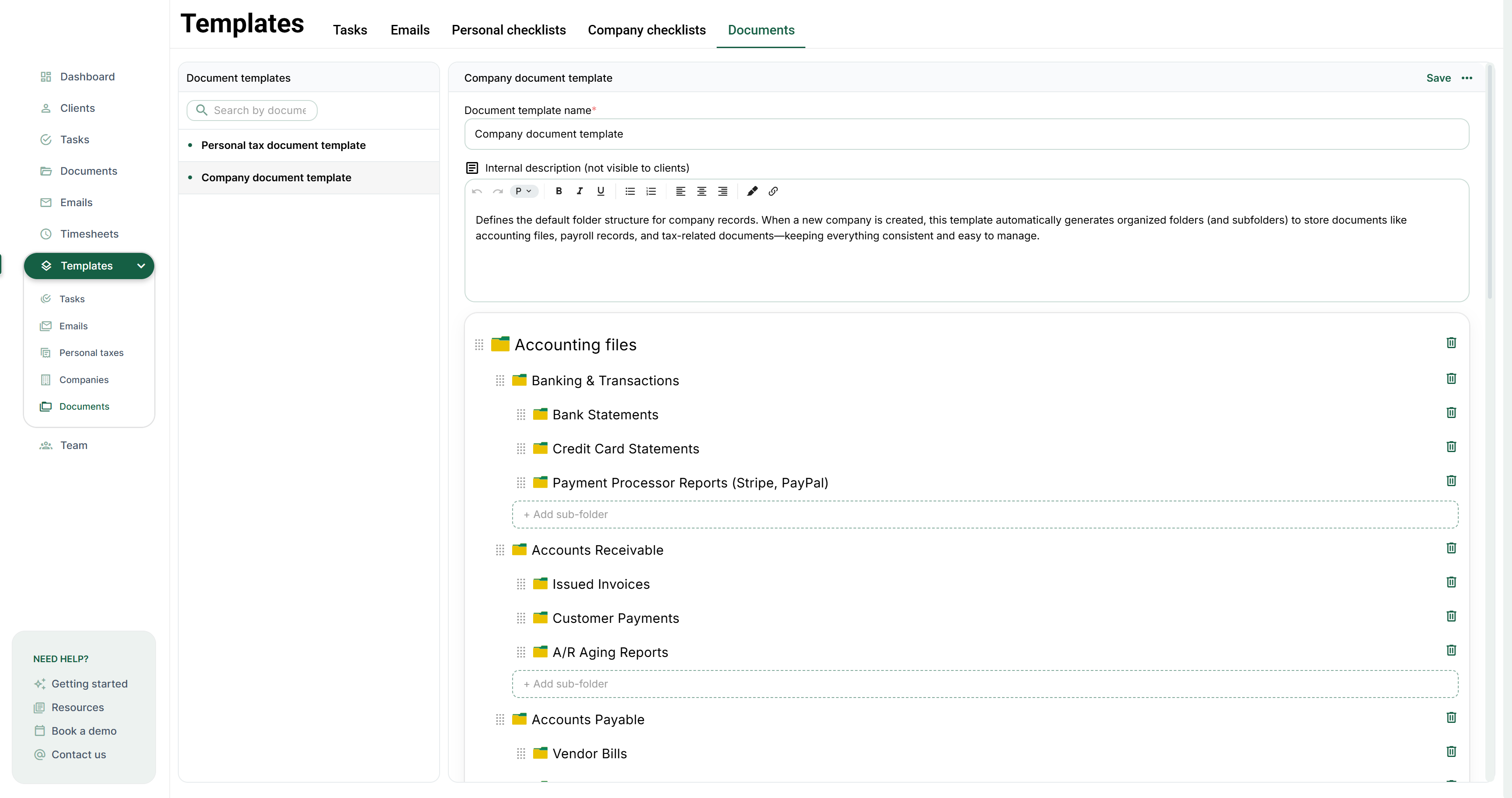
- Go to Templates → Documents
- Choose the template type: Company or Personal tax
- Enter a template name
- Add an internal description if needed
What this does
It creates the reusable template record that will hold your folder
structure.
Step 2: Add folders and subfolders
Build your structure by adding top-level folders and then adding subfolders
underneath them.
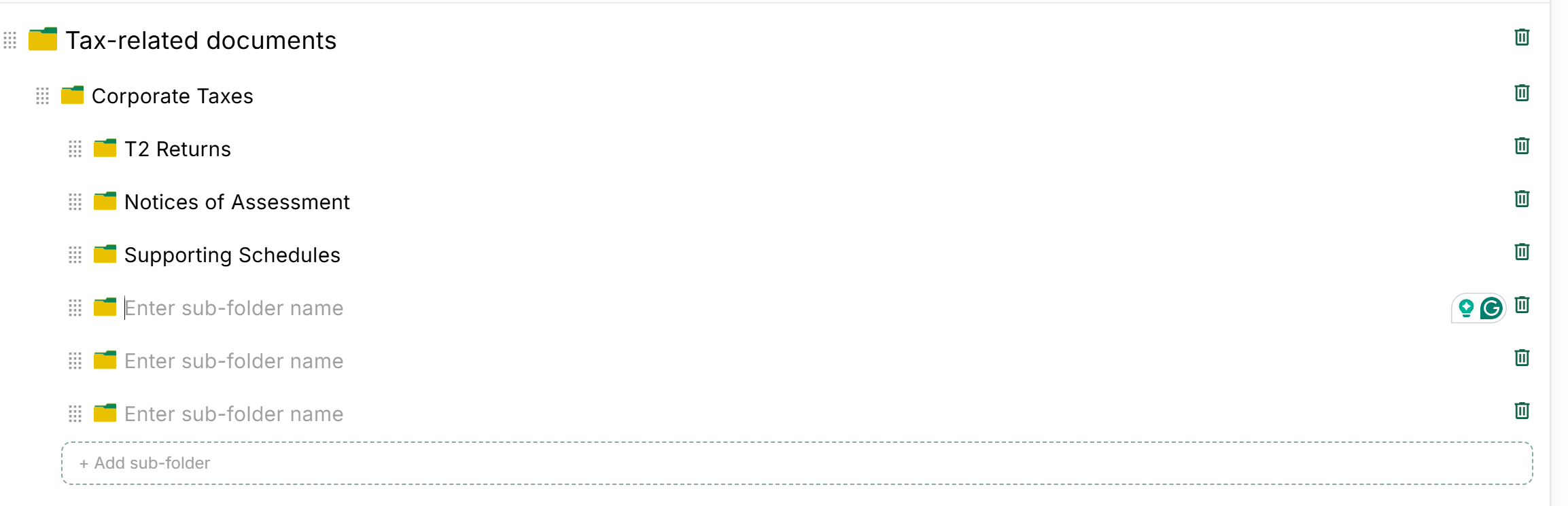
What you can do
- Add root folders
- Add subfolders inside each folder
- Reorder items to match your preferred layout
- Delete folders you no longer want
Recommended approach
- Start with broad categories
- Then create more specific subfolders inside them
- Avoid making the structure deeper than needed
Active vs Inactive templates
Active
The template will be used automatically when creating a new company or a new
personal tax year of the matching type.
Inactive
The template stays saved in Bookwits, but it will not be used during
creation.
Deactivating a template does not change existing records. It only affects
future companies or personal tax years created after that point.
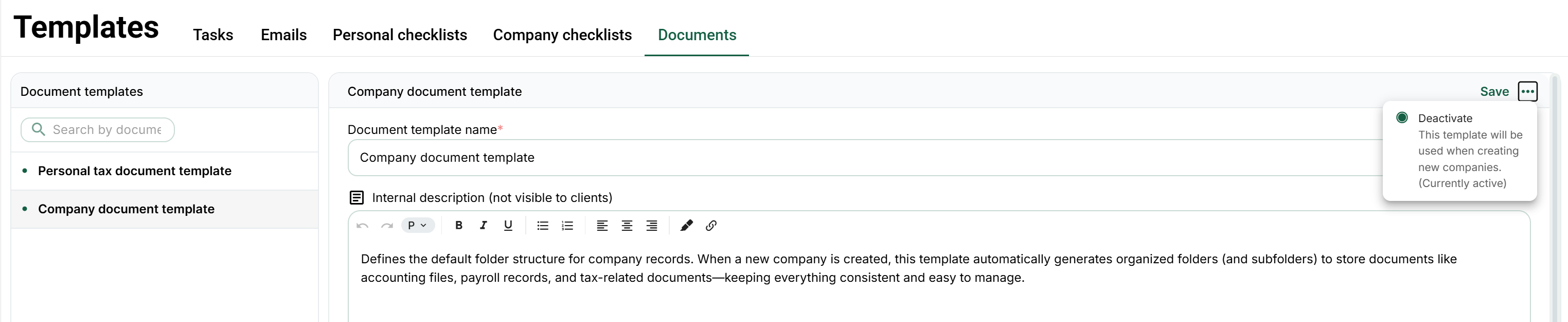
How to deactivate a template
To stop using a template without deleting it, open the template and click the
3 dots in the top-right corner.
Why deactivate instead of delete
- Keep the structure for future reference
- Pause older workflows without losing setup work
- Switch to a newer template when your process changes
Where to manage Document Templates
Go to: Templates → Documents
From there you can
- Create new templates
- Edit template names and descriptions
- Build or update folder structures
- Activate or deactivate templates
Think of this area as your reusable document organization library.
Best practices (what to do first)
If you’re setting this up for the first time
- Start with one clean default template per type
- Use simple top-level categories first
- Name folders based on real document use
- Avoid creating too many nested levels
- Review the structure before making it active
A strong default structure is usually better than many complicated template
variations. Keep it simple unless workflows truly differ.
Want help organizing your document structure?
Book a demo and we’ll help you build document templates that keep company and
personal tax files organized from the moment a new record is created.