Back to Resources
Video Walkthrough (Budget Module)
If you have a budget walkthrough video, drop it here. This is ideal for showing
setup, where to find things, and how to use key features in a quick 5–10 minute
format.
 Coming soon...
HOW TO USE BOOKWITS
BUDGET
PERFORMANCE
Budget Module Guide
Track time, revenue, and profitability across your clients.
How to Use Bookwits
7 min read
Why this module matters
The Budget module connects planned effort with real execution, so your team can
control profitability and avoid over-servicing clients.
How Budget fits your workflow
The Budget module in Bookwits helps you understand how much time your team spends
on work and whether that time aligns with what you planned and billed.
It connects directly to
- Tasks
- Timesheets
- Clients, Companies, and Personal Tax Years
Your budget is not just a number. It is based on actual work performed by your
team.
What is the Budget module?
The Budget module allows you to:
- Track time spent vs budgeted time
- Monitor client profitability
- Compare planned vs actual performance
- Identify over-budget clients early
- Analyze team efficiency and workload
All calculations are based on timesheets created for
Clients
Companies
Personal Tax Years
How Budget works (simple explanation)
Think of a budget as: "How much time and or money we expect to spend for this
client and how much we actually spent."
Key logic
- You create a budget record.
- You assign a Client, Company, or Personal Tax.
- You choose a rate type (fixed or hourly).
- You set a time allowance.
- Bookwits automatically pulls timesheets, links tasks, and calculates usage.
Automatically calculated
Time spent
Revenue
Usage percent
Over or under budget
Important: how data is connected
1) Everything is driven by timesheets
- No timesheet means no real data.
- All key metrics (time, revenue, averages) come from timesheets.
2) Client-level budgets include everything
When you create a budget for a client, it automatically includes all Companies
under that client and all Personal Tax Years.
This gives you a full picture of the entire client relationship.
Where to find the Budget module
You can access Budget in two places
This supports both a global overview and client-specific analysis.
- Main navigation: Left sidebar then Budget.
- Client profile: Open a client then Budget tab.
Permissions
Only the following roles can access Budget:
Owner
Admin
This ensures financial and performance data stays controlled.
Getting started (first-time setup)
To see any data, you must first create a budget.
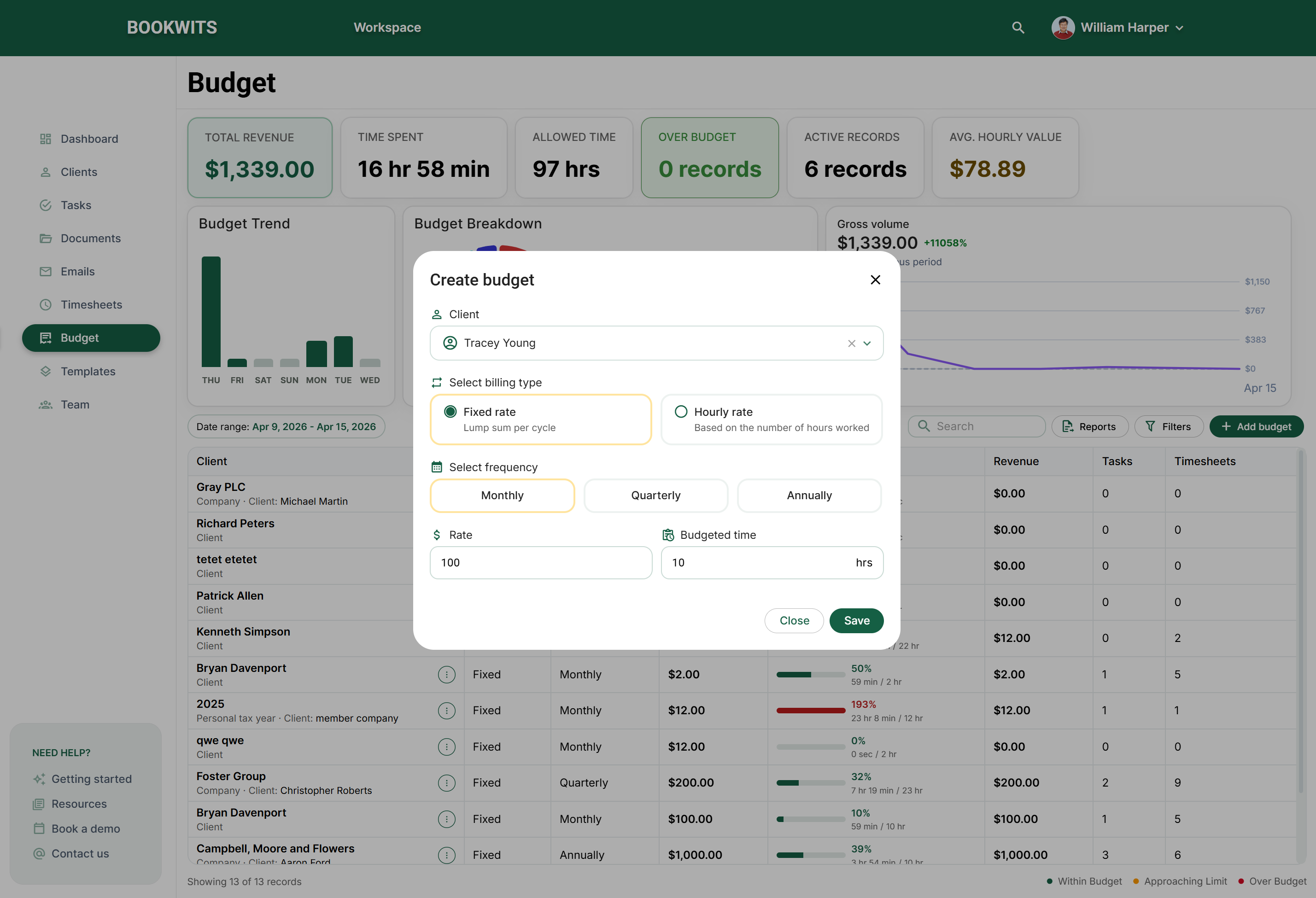 Once saved, Bookwits starts tracking automatically.
Step-by-step
- Go to Budget.
- Click + Add budget.
- Select Client, Company, or Personal Tax.
- Choose billing type: Fixed rate (flat fee) or Hourly rate.
- Select frequency: Monthly, Quarterly, or Annually.
- Enter rate and budgeted time.
Budget overview page
This is your main dashboard.
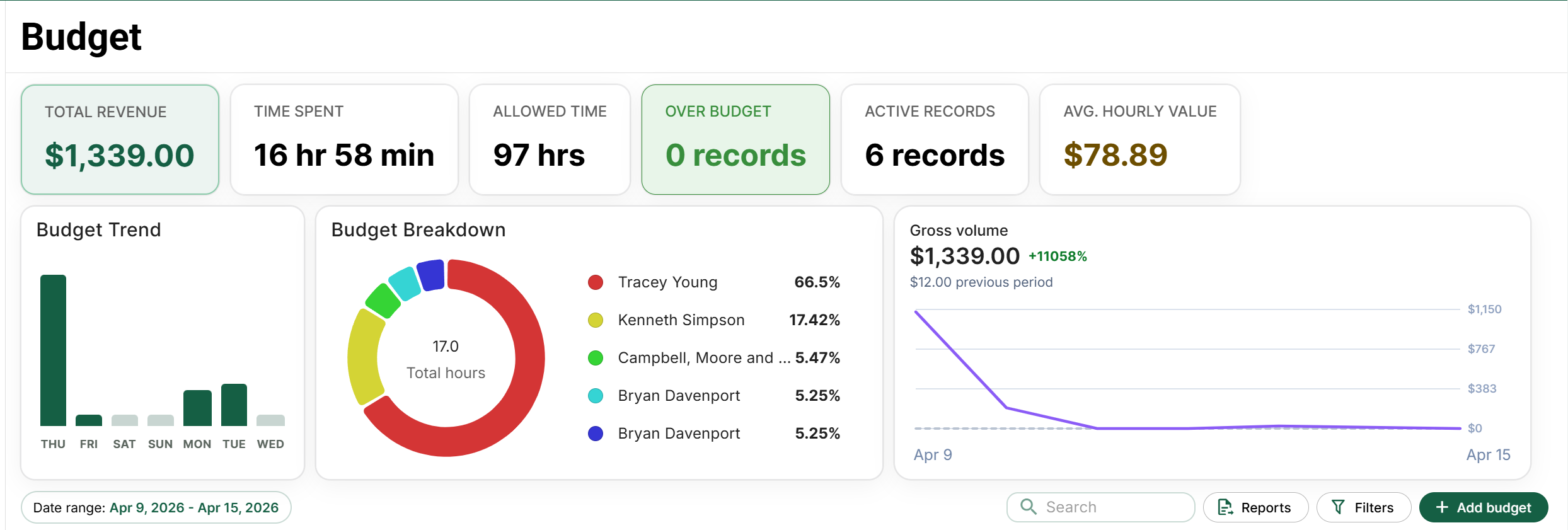
Top metrics
- Total Revenue from timesheets
- Time Spent (actual logged time)
- budgeted time (budget limit)
- Over Budget (number of exceeded budgets)
- Active Records (active budgets)
- Avg. Hourly Value (revenue per hour)
Visual insights
- Budget trend for daily activity
- Breakdown chart for where time is spent
- Revenue graph for performance over time
Budget table (main list)
Each row represents a budget record.
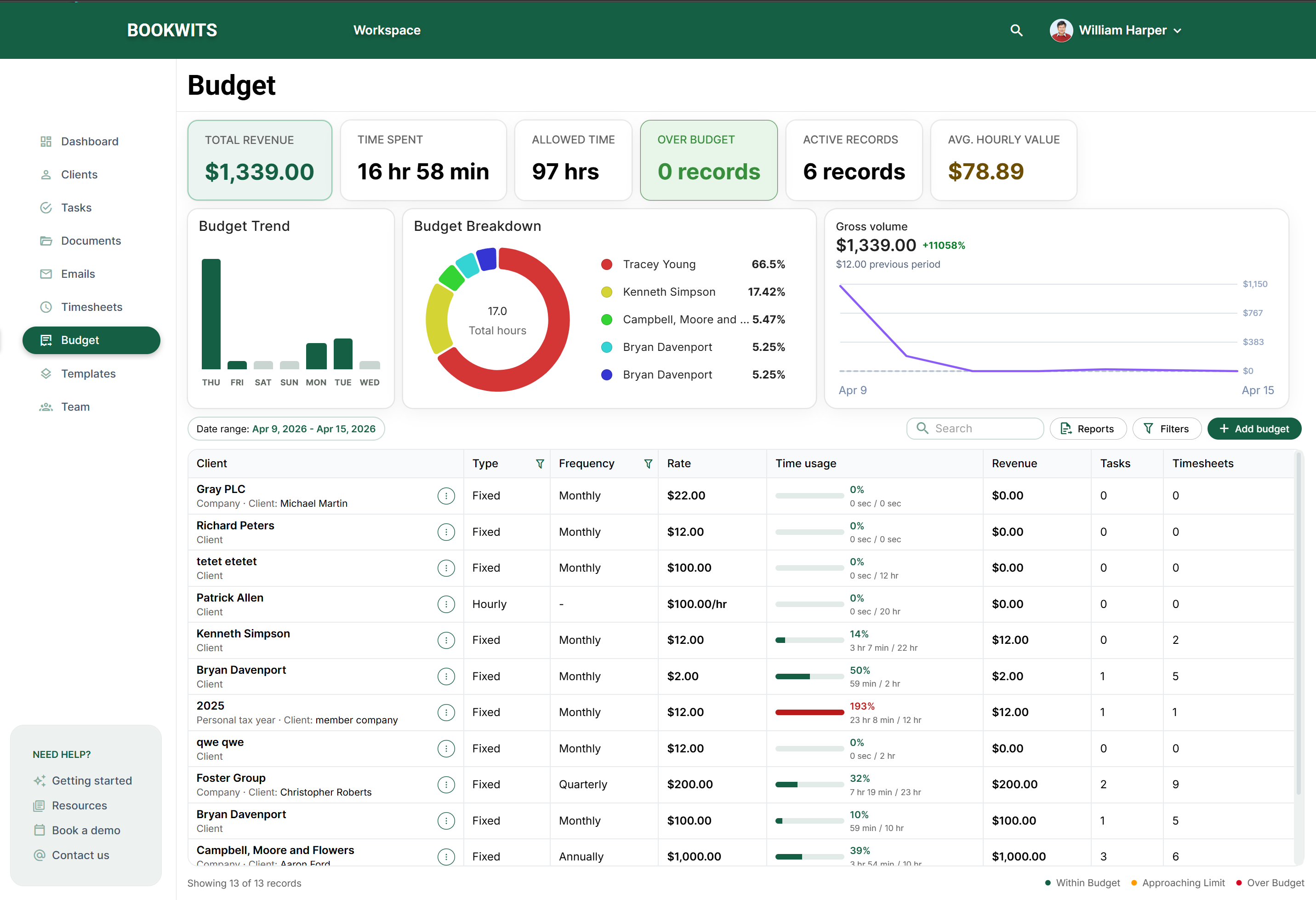 This gives instant visibility without digging into details.
Key columns
- Client or entity
- Type (fixed or hourly)
- Frequency
- Rate
- Time usage (progress bar)
- Revenue
- Tasks count
- Timesheets count
Status colors
Within budget
Approaching limit
Over budget
Budget details page
Click any budget record to open detailed view.
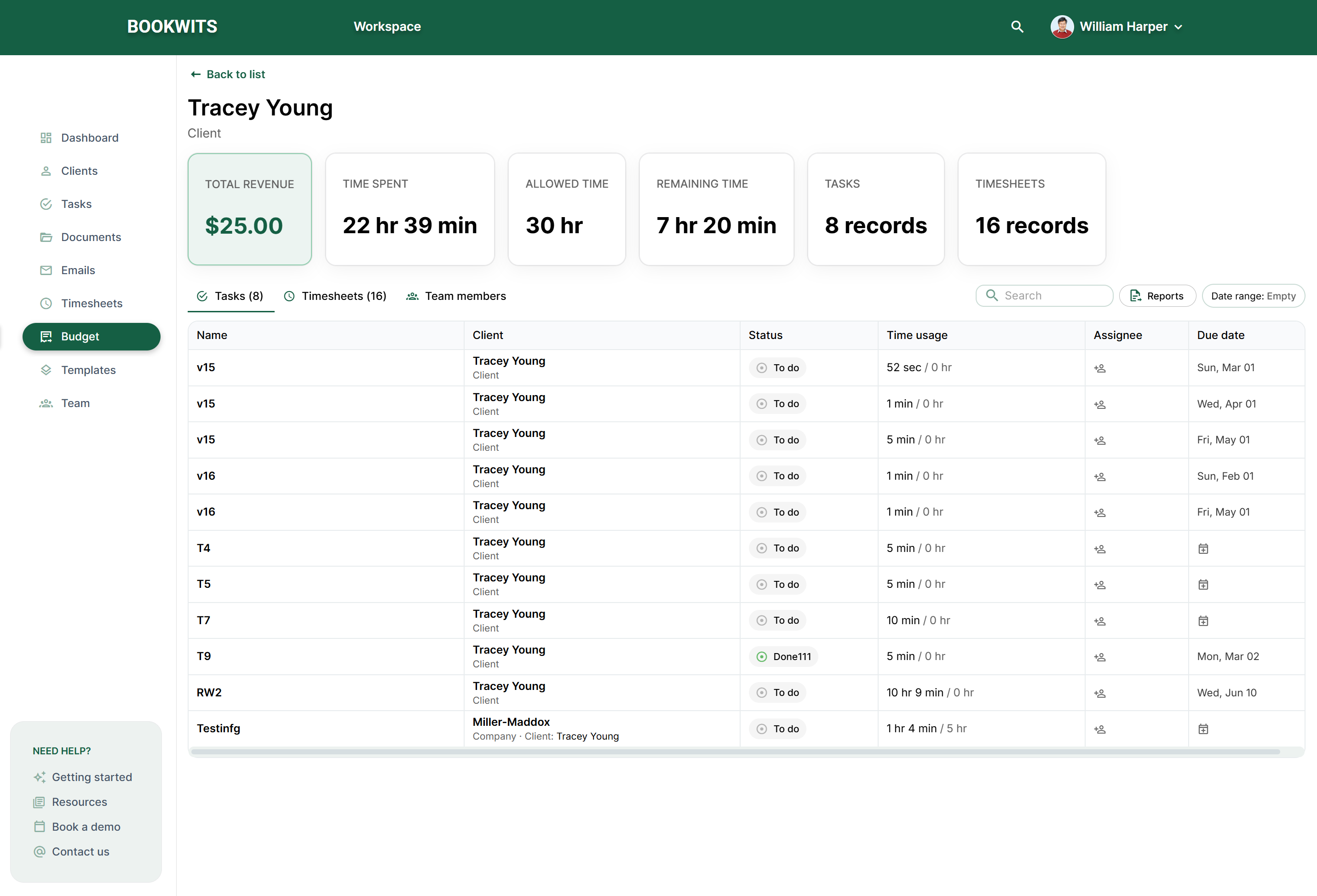
What you will see
- Total revenue
- Time spent
- budgeted time
- Remaining time
- Tasks count
- Timesheets count
Detailed breakdown includes
- All tasks linked to the budget
- All related timesheets
- Who worked on what
- Where time was spent
Use this page to answer: Why are we over budget, who spent the most time, and
which tasks are inefficient?
Filters, date range, and reports
Date filtering options
Today
Last 7 days
Last 4 weeks
Month to date
Quarter to date
Year to date
Custom range
Report exports
Excel
CSV
- Internal reporting
- Client billing reviews
- Performance analysis
Best practices
1) Always use timesheets
Without timesheets, your data is incomplete.
2) Start simple
Create budgets for your top 10 to 20 clients first, then expand.
3) Use client-level budgets for full visibility
Best for understanding total profitability.
4) Review weekly
Catch over-budget issues early.
5) Combine tasks with timesheets
Tasks show what. Timesheets show how long. Together they show the full
picture.
Common questions
Why is my revenue low?
No timesheets were created or the rate is wrong.
Why is budgeted time wrong?
The budget record was not set correctly.
Why do I see more data than expected?
A client-level budget includes Companies and Personal Tax records under that
client.
Summary
The Budget module helps you:
- Turn time tracking into real insights
- Understand profitability per client
- Control team efficiency
- Prevent over-servicing clients