TAX SEASON
WORKFLOW
How to Survive Tax Season
Without the Chaos
A centralized workflow with Bookwits that solves the five critical problems
every practice faces during tax season.
February 23, 2026
8 min read
We didn't build Bookwits because we loved software. We built it because we were
drowning in tax season chaos ourselves.
Emails everywhere. Checklists in PDFs. Deadlines in our heads. Sticky notes.
Spreadsheets. Missed follow-ups. Last-minute April panic.
There had to be a better way.
So we created a centralized tax workflow designed specifically for bookkeepers and
accountants - one that solves five critical problems every practice faces during
tax season.
THE FIVE PILLARS
Client Communication
Clear Checklists
Workflow Templates
Deadlines
File Status Tracking
HERE'S WHAT IT LOOKS LIKE IN ACTION
Open the 2025 Tax Cycle
The best tax seasons start in January - not March.
Inside Bookwits, you simply:
- Open any personal tax client profile
- Go to the Personal Taxes tab
- Click New Tax Year
- Add 2025
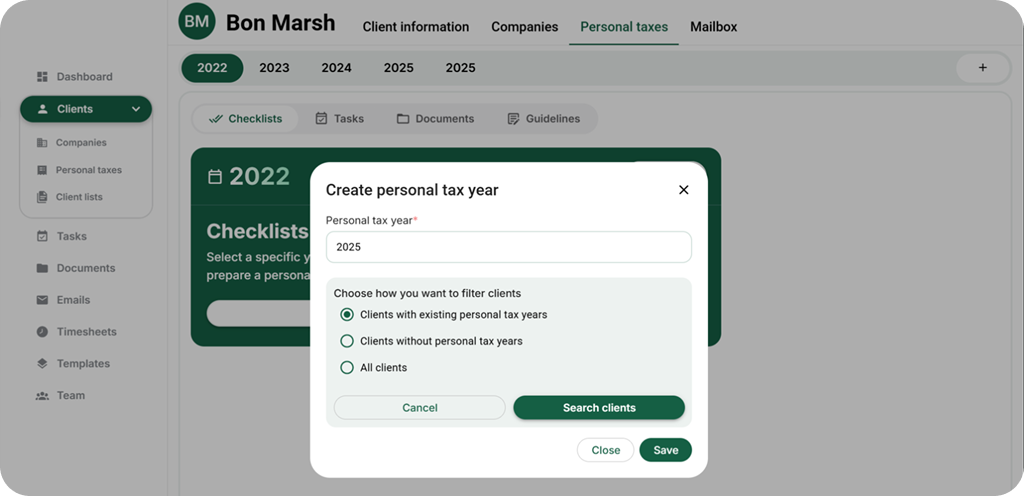 Within minutes, your entire 2025 personal tax season is officially open.
No spreadsheets. No manual tracking. No guessing who still needs to file.
Within minutes, your entire 2025 personal tax season is officially open.
No spreadsheets. No manual tracking. No guessing who still needs to file.
Automate Client Communication
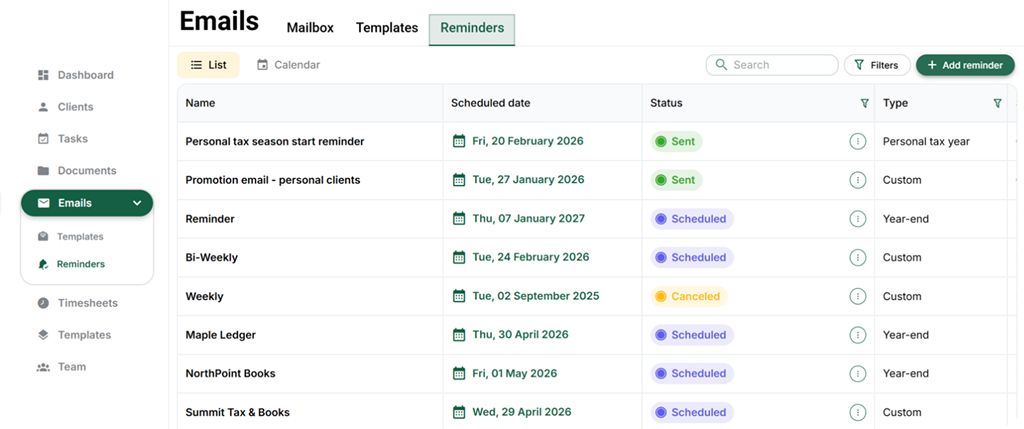
Now that the tax year is open, the next priority is communication.
Instead of manually emailing every client, you set up an automatic
reminder:
 Example setup:
First step:
Reminder Name:
Personal Tax Season Start Reminder
Subject:
Personal Tax Season 2025 Is Here!
Message:
Example setup:
First step:
Reminder Name:
Personal Tax Season Start Reminder
Subject:
Personal Tax Season 2025 Is Here!
Message:
 And that’s it.
Your communication is standardized, professional, and automated - without
rewriting the same email 150 times.
That’s client communication solved.
And that’s it.
Your communication is standardized, professional, and automated - without
rewriting the same email 150 times.
That’s client communication solved.
- Go to Emails
- Click Reminders
- Create a new reminder
Example setup:
First step:
Reminder Name:
Personal Tax Season Start Reminder
Subject:
Personal Tax Season 2025 Is Here!
Message:
EXAMPLE MESSAGE REMINDER INCLUDES
Second step:
T4s & T5 / investment slips
RRSP receipts
Tuition (T2202)
Medical expenses
Property tax statements
Childcare expenses
Other income or deductions
CRA My Account authorization
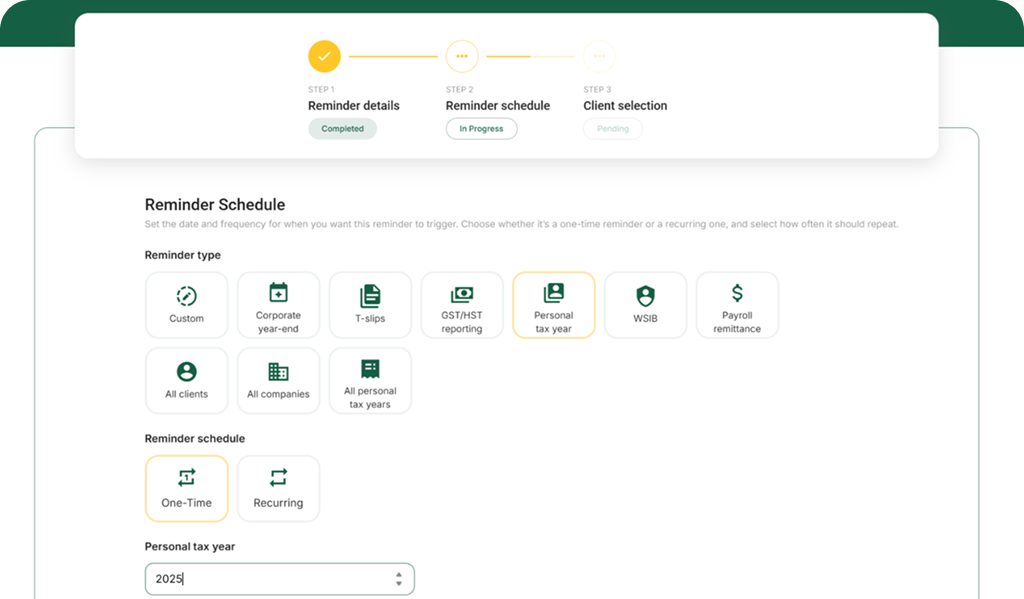
- Reminder type: Personal Tax Year
- Tax year: 2025
- Delivery: One-time reminder (or recurring if preferred)
And that’s it.
Your communication is standardized, professional, and automated - without
rewriting the same email 150 times.
That’s client communication solved.
Send Clear Digital Checklists
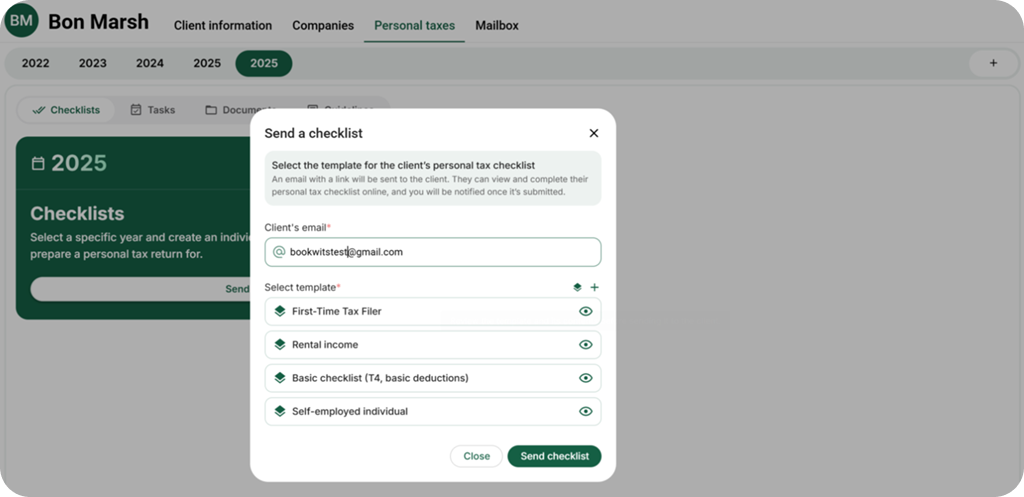
Once clients start responding, it’s time to send tax checklists.
Inside the client profile:
 From the client’s side, they receive a clean, structured checklist they can
complete online.
As soon as it’s submitted, you receive a notification.
No more:
From the client’s side, they receive a clean, structured checklist they can
complete online.
As soon as it’s submitted, you receive a notification.
No more:
You see exactly what’s been provided - and what hasn’t.
That’s clear checklists solved.
- Click Send Checklist
- Select an existing checklist template (or create a new one)
From the client’s side, they receive a clean, structured checklist they can
complete online.
As soon as it’s submitted, you receive a notification.
No more:
- “Did you get my documents?”
- Half-sent email attachments
- Missing slips discovered on April 28
Turn Clients into Organized Workflows
Now the real work begins: preparing returns.
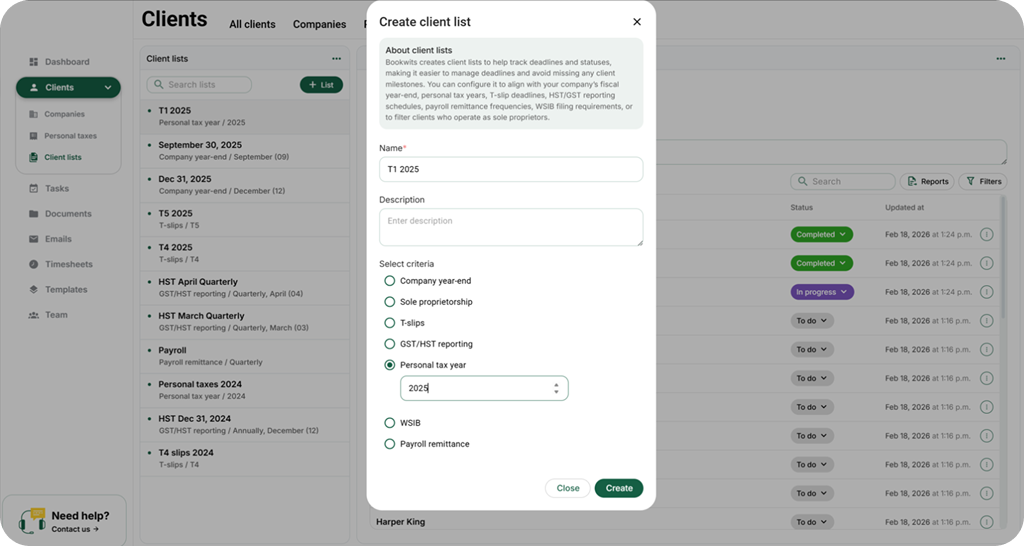
First, create a master list of all 2025 personal tax clients:
 Now you have a clean, filtered list of every return that needs to be prepared
this season.
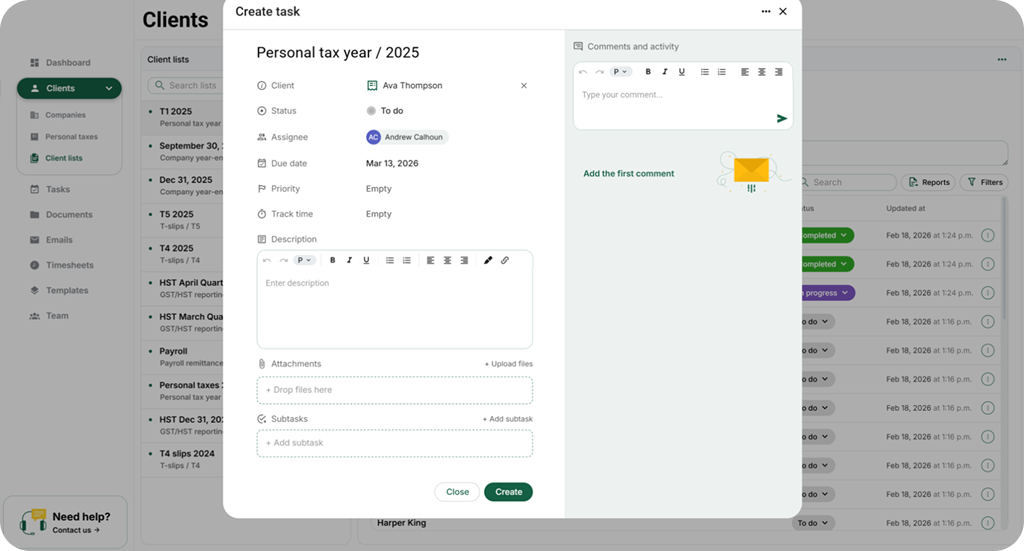
From that list, you can:
Now you have a clean, filtered list of every return that needs to be prepared
this season.
From that list, you can:
 Templates make this fast.
Assignments make it clear.
Due dates make it real. That’s workflow templates and deadlines solved.
- Go to Clients
- Select Client Lists
- Create a new list
- Name it: T1 2025
- Set criteria: Personal Tax Year 2025
Now you have a clean, filtered list of every return that needs to be prepared
this season.
From that list, you can:
- Click Add as Task
- Apply a workflow template
- Assign to a team member
- Set a due date
- Click Create
Templates make this fast.Assignments make it clear.
Due dates make it real. That’s workflow templates and deadlines solved.
Track Every File Until It Turns Green
The biggest stress in tax season isn’t work.
It’s uncertainty.
“Are we missing anyone?”
“Did we forget that client?”
“Is this one filed?” Your T1 2025 list becomes your control center. You can: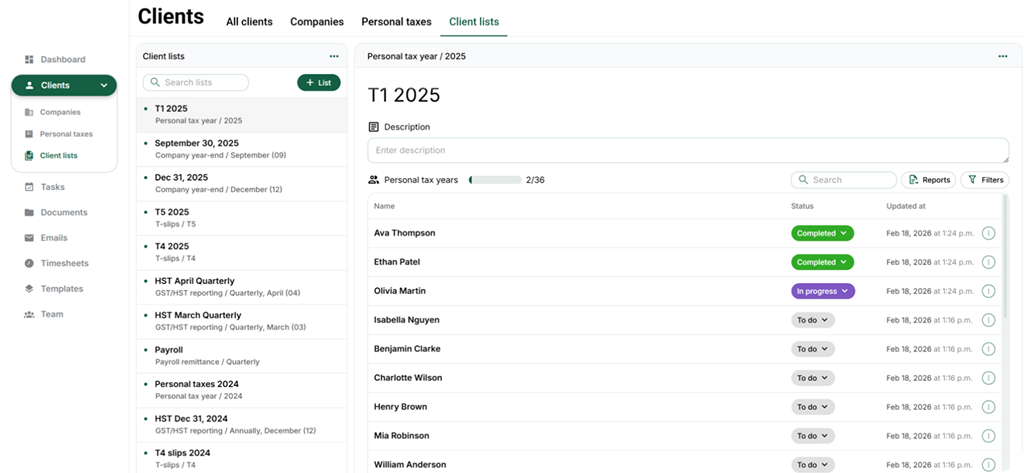
The goal?
By the end of April, every file is green.
No mystery.“Did we forget that client?”
“Is this one filed?” Your T1 2025 list becomes your control center. You can:
- View file statuses
- Update progress
- See what’s pending
- Identify what’s complete
No last-minute scrambling.
No missed returns. Just clean completion - and then it’s time to celebrate.
The Tasks Section: Your Workflow Command Center
Finally, everything lives inside the
Personal Tax Year 2025
section
This is where you:
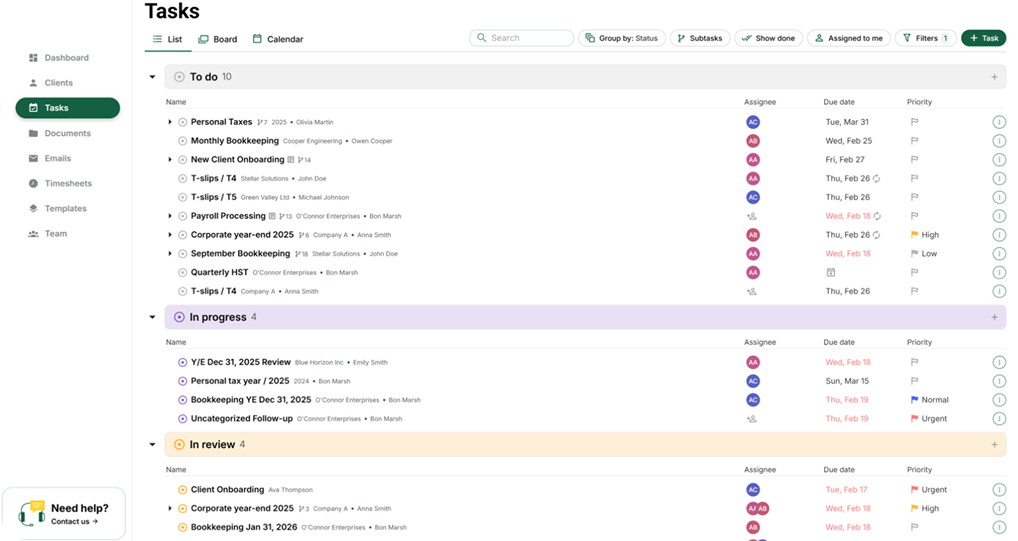
This is where your workflow stays under control.
- View assigned tasks
- Sort by due date
- Filter by team member
- Track overdue files
- Customize views per team member
The 5 Problems - Solved
Client Communication
Clear Checklists
Workflow Templates
Deadlines
File Status Tracking